Azure Blob: Manage File Transfers
Disclaimer
Your use of this download is governed by Stonebranch's Terms of Use.
Version Information
Template Name | Version |
|---|---|
CS Azure Blob Storage | 1.5.0 |
Refer to Changelog for version history information.
Introduction
Storing data in the cloud becomes an integral part of most modern IT landscapes. With Universal Automation Center you can securely automate your AWS, Azure, Google and MinIO File Transfers and integrate them into your existing scheduling flows.
As security is one of the key concerns, when moving to the cloud, the provided solution supports multi-level of security:
- Credentials for Azure Keys are stored in an encrypted form in the database
- Support for Azure Token based Shared Access Signatures ( SAS )
- Communication to Azure is done via the HTTPS protocol
- A Proxy Server connection to Azure with basic authentication is supported
This Universal Task focuses on file transfer to, from and between an Azure Blob Storage.
A similar solution as for Azure Blob Storage is also available for AWS S3 and Google Cloud Storage.
Overview
The Universal Task for Azure Blob: Managed File Transfers allows to securely transfers files from, to and between Azure Blob Storage container and folders.
The Universal Task for Azure Blob: Managed File Transfers supports the following main features:
- The following file transfer commands are supported:
- Upload a file(s) to an Azure Blob Storage container
- Download of file(s) from an Azure Blob Storage container
- Transfer files between Azure Blob Storage containers
- List objects in an Azure Blob Storage container
- Delete object(s) in an Azure Blob Storage container
- List Azure Blob Storage container names
- Create an Azure Blob Storage container
- Monitor a Blob in a Storage container
- File Transfer can be triggered by a third-party application using the Universal Automation Center RESTful Webservice API: REST API
- Universal Task for Azure Blob Storage can be integrated into any existing scheduling workflow in the same way as any standard Linux or Windows Task type.
- Security is ensured by using the HTTPS protocol with support for an optional Proxy Server.
- Support for Azure Token based Shared Access Signatures ( SAS ), Azure Account Keys and Service Principal Authentication
- No Universal Agent needs to be installed on the Azure Cloud - the communication goes via HTTPS
Software Requirements
Software Requirements for Universal Agent
- Universal Agent for Linux or Windows Version 7.2.0.0 or later are required
- The Universal Agent needs to be installed with python option (--python yes)
Software Requirements for Universal Controller
- Universal Controller 7.2.0.0. or later is required
Software Requirements for the Application to be Scheduled
The Universal Task has been tested for the python Azure Storage SDK: azure-storage-blob version: 12.7.1
Key Features
The solution supports the following file transfer scenarios:
Feature | Description |
|---|---|
Upload a file(s) to a container (Copy or Move) |
|
Download of file(s) from a container (Copy or Move) |
|
Copy object to a container |
Note: wild cards are not supported for this method. |
List objects in a container |
|
Delete object(s) in a container |
|
List buckets | List all container in an Azure account |
Create a container | Create a new container |
Monitor Blob | Monitor a Blob in a Storage container |
Proxy Server Connection | A proxy server connection with or without basic authentication can be configured |
Integration into 3rd Party Applications | An Azure Blob Storage file transfer can be triggered via the Universal Automation Center RESTful Web Service API within an application. |
Self-Service through Web-Client | The Azure Blob Storage Task can be fully configured, monitored and updated via the Universal Controller Web-GUI |
Authentication Methods | Shared Access Signatures ( SAS ), Azure Account Keys and Service Principal Authentication |
Import Universal Template
To use the Universal Template, you first must perform the following steps.
- This Universal Task requires the Resolvable Credentials feature. Check that the Resolvable Credentials Permitted system property has been set to true.
- To import the Universal Template into your Controller, follow these instructions.
- When the files have been imported successfully, refresh the Universal Templates list; the Universal Template will appear on the list.
Modifications of this integration, applied by users or customers, before or after import, might affect the supportability of this integration. For more information refer to Integration Modifications.
Configure Azure Blob Storage Universal Tasks
For the new Universal Task type, create a new task and enter the task-specific Details that were created in the Universal Template.
Field Descriptions for Azure Blob Storage Universal Task - Action
The Azure Blob Storage Task provides multiple different file transfer actions. For each action the specific fields are described.
Azure Blob Storage Container is abbreviated to Container in the following.
Create Container - Action
The Action Creates a new Container.
Field | Description |
|---|---|
Action | Create-container action |
Useproxy ( default is NO ) | [NO | YES] If set to YES, the fields to set-up the proxy server connections are displayed:
|
Loglevel ( default is INFO ) | Universal Task logging settings [DEBUG | INFO| WARNING | ERROR | CRITICAL] |
Connection Type | [Azure Account Key | SAS Token | Service Principal Authentication] If set to "Azure Account Key", the credential field Azure Account will appear for configuration. If set to "SAS Token", the credential field SAS Token will appear for configuration. If set to "Service Principal Authentication" the following fields will appear:
For Service Principal setup details, see Service Principal Authentication |
Container | Name of the Container to create |
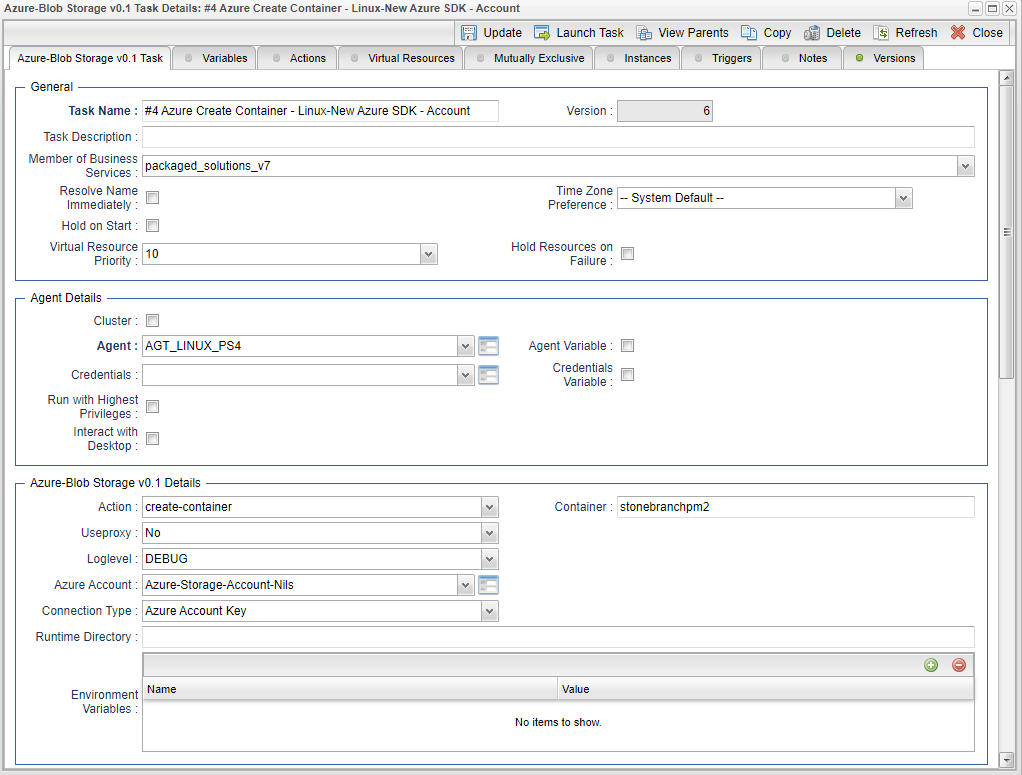
Example for Azure Blob Storage Universal Tasks - Create Container
The following Task creates the Container: stonebranchpm2
List Container - Action
The Action list all container of an Azure Account.
Field | Description |
|---|---|
Action | List-container action |
Connection Type | [Azure Account Key | SAS Token | Service Principal Authentication] If set to "Azure Account Key", the credential field Azure Account will appear for configuration. If set to "SAS Token", the credential field SAS Token will appear for configuration. If set to "Service Principal Authentication" the following fields will appear:
For Service Principal setup details, see Service Principal Authentication |
Useproxy ( default is NO ) | [NO | YES] If set to YES, the fields to set-up the proxy server connections are displayed:
|
Loglevel ( default is INFO ) | Universal Task logging settings [DEBUG | INFO| WARNING | ERROR | CRITICAL] |
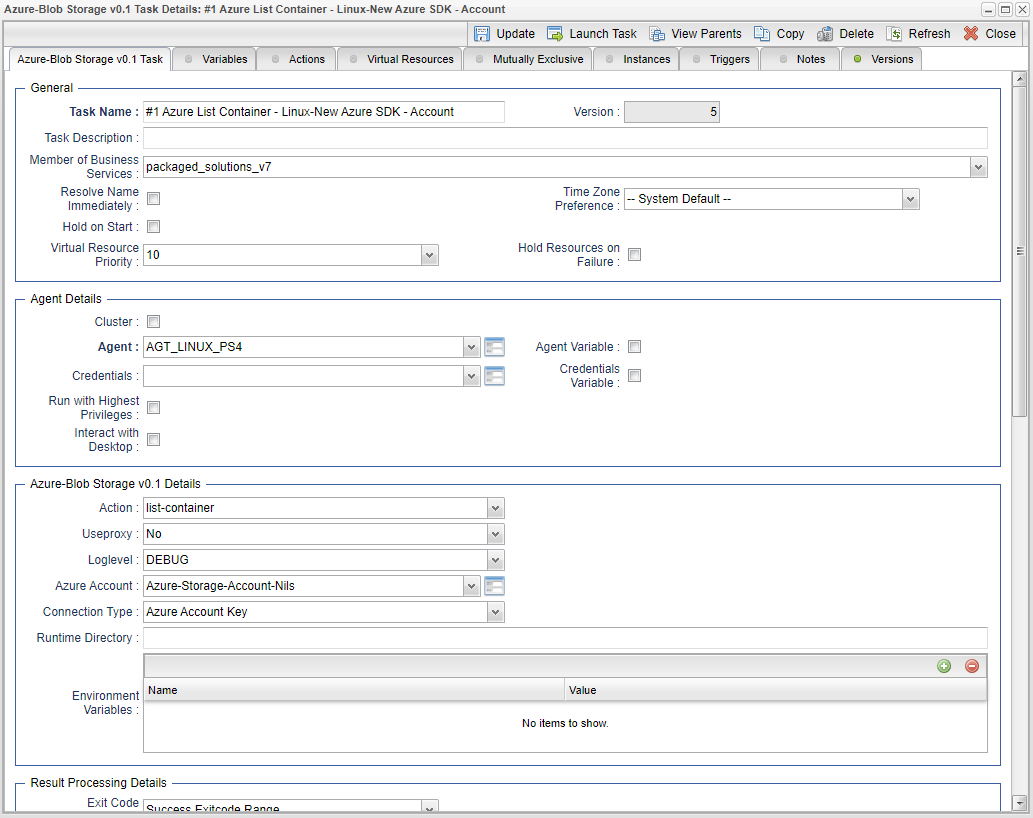
Example for Azure Blob Storage Universal Tasks - List Containers
The following Task list all container of the selected Azure Account.
Upload File - Action
The Action is used to upload a single or multiple files from a Windows or Linux server to an container or a folder in a container.
Field | Description |
|---|---|
Action | Upload-file action |
Connection Type | [Azure Account Key | SAS Token | Service Principal Authentication] If set to "Azure Account Key", the credential field Azure Account will appear for configuration. If set to "SAS Token", the credential field SAS Token will appear for configuration. If set to "Service Principal Authentication" the following fields will appear:
For Service Principal setup details, see Service Principal Authentication |
Useproxy ( default is NO ) | [NO | YES] If set to YES, the fields to set-up the proxy server connections are displayed:
|
Loglevel ( default is INFO ) | Universal Task logging settings [DEBUG | INFO| WARNING | ERROR | CRITICAL] |
Sourcefile | Source file(s) to be uploaded to a bucket or specific folder in a container. Unix filename pattern are supported to upload a selection of files. Supported wildcards are:
|
Operation | [copy | move] In case of a "move" the source file(s) is/are deleted after the upload to the container. |
Prefix | A folder in a container is called prefix. In the Prefix field, only the name of the folder needs to be provided (no "/" after the folder name). |
Upload Write Options | Upload Write Options [Do not overwrite existing Object | Timestamp]
|
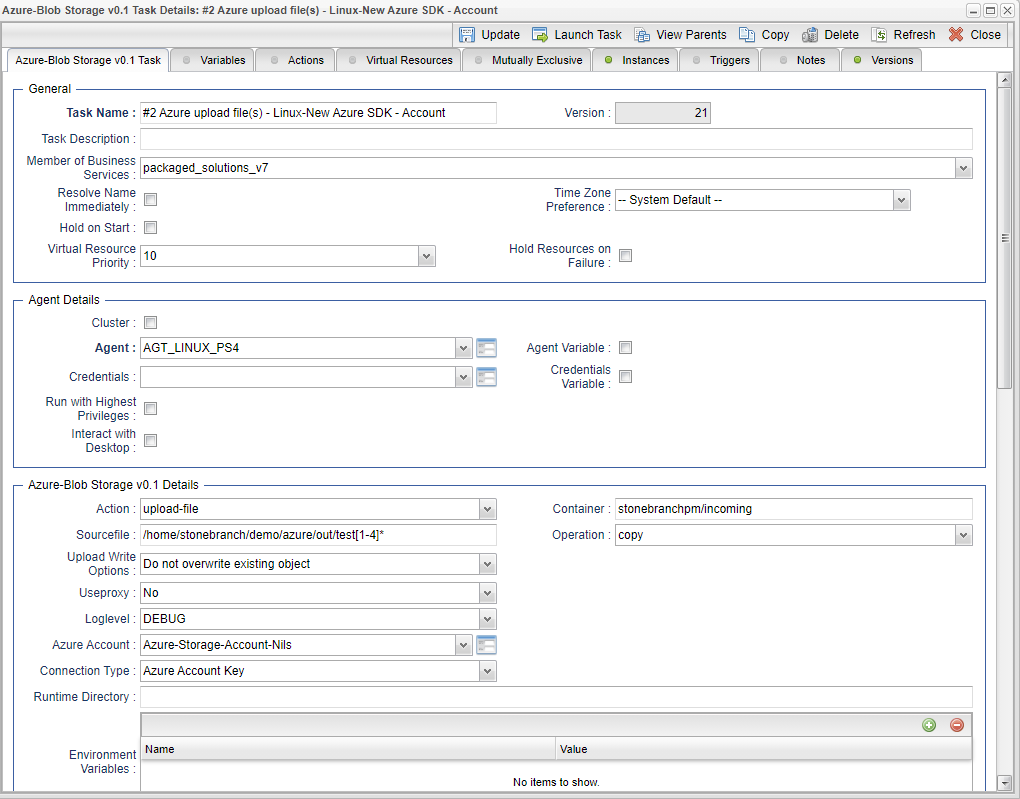
Example for Azure Blob Storage Universal Tasks - Upload File
The following Task uploads from the Linux directory the files: /home/stonebranch/demo/azure/out/test[1-4]* to the the container stonebranchpm, folder incoming.
List Objects - Action
The Action is used to display objects in a Azure Container or a specific folder in an Azure Container (prefix).
Field | Description |
|---|---|
Action | List-objects action |
Connection Type | [Azure Account Key | SAS Token | Service Principal Authentication] If set to "Azure Account Key", the credential field Azure Account will appear for configuration. If set to "SAS Token", the credential field SAS Token will appear for configuration. If set to "Service Principal Authentication" the following fields will appear:
For Service Principal setup details, see Service Principal Authentication |
Useproxy ( default is NO ) | [NO | YES] If set to YES, the fields to set-up the proxy server connections are displayed:
|
Loglevel ( default is INFO ) | Universal Task logging settings [DEBUG | INFO| WARNING | ERROR | CRITICAL] |
Container | Container in which the objects should be listed |
Prefix | A folder in a container is called prefix. In the Prefix field, only the name of the folder needs to be provided (no "/" after the folder name). If a prefix is provided, only objects in the folder with the prefix name are listed in the output. |
Blob | Objects matching the given Blob are listed. Unix filename pattern are supported to list only a selection of files:
Example: Blob = test* : matches everything starting with test Blob = test[1-2].txt : matches test1.txt, test2.txt Blob = test[!1].txt: does not match test1.txt Blob = test?.txt: matches test1.txt, test2.txt etc. |
Show Details | Show details like creation timestamp in the output. |
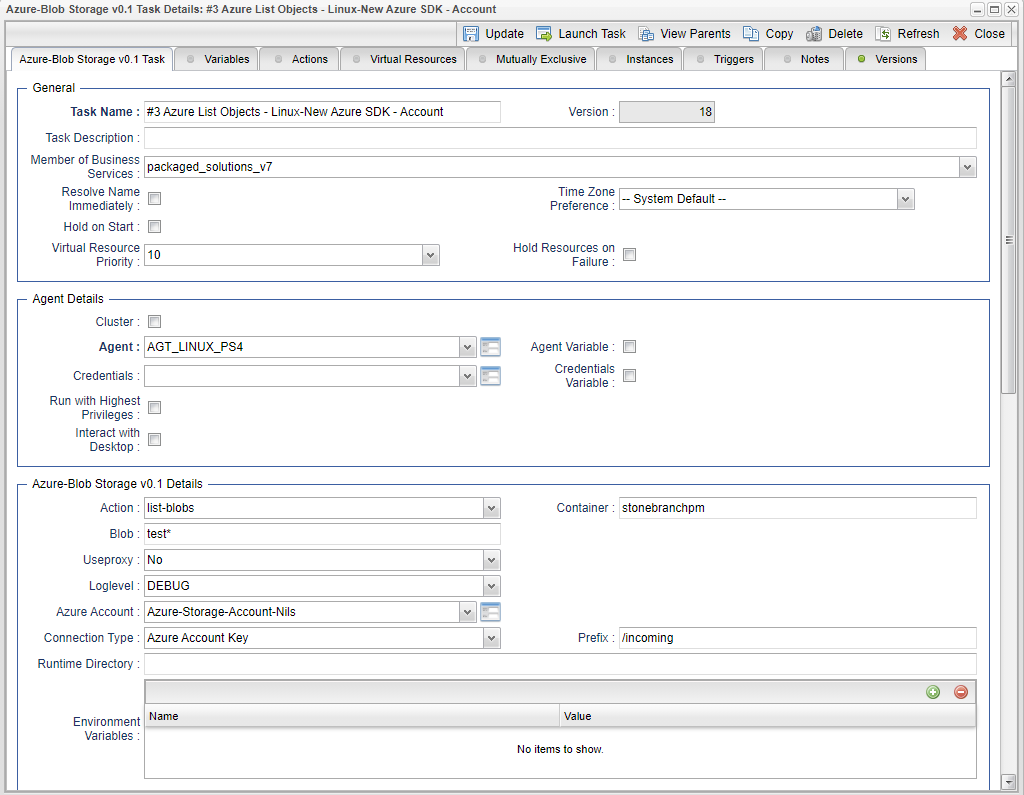
Example for Azure Blob Storage Universal Tasks - List Objects
The following Task list all objects matching the criteria test* in the container stonebranchpm in the folder incoming.
Download File - Action
This Action downloads one or multiple files from an Azure Container to a Linux or Windows folder.
Field | Description |
|---|---|
Action | Download-file action |
Connection Type | [Azure Account Key | SAS Token | Service Principal Authentication] If set to "Azure Account Key", the credential field Azure Account will appear for configuration. If set to "SAS Token", the credential field SAS Token will appear for configuration. If set to "Service Principal Authentication" the following fields will appear:
For Service Principal setup details, see Service Principal Authentication |
Useproxy ( default is NO ) | [NO | YES] If set to YES, the fields to set-up the proxy server connections are displayed:
|
Loglevel ( default is INFO ) | Universal Task logging settings [DEBUG | INFO| WARNING | ERROR | CRITICAL] |
Target Directory | Linux or Windows Target Directory For example, Unix filename pattern are supported to download a selection of files. Supported wildcards are:
|
Operation | [copy | move] In case of a "move" the objects are deleted after they have been download from the container. |
Download Write Options | Download Write Options: [Replace existing File | Do not overwrite existing File | Timestamp | Default Windows behaviour]
|
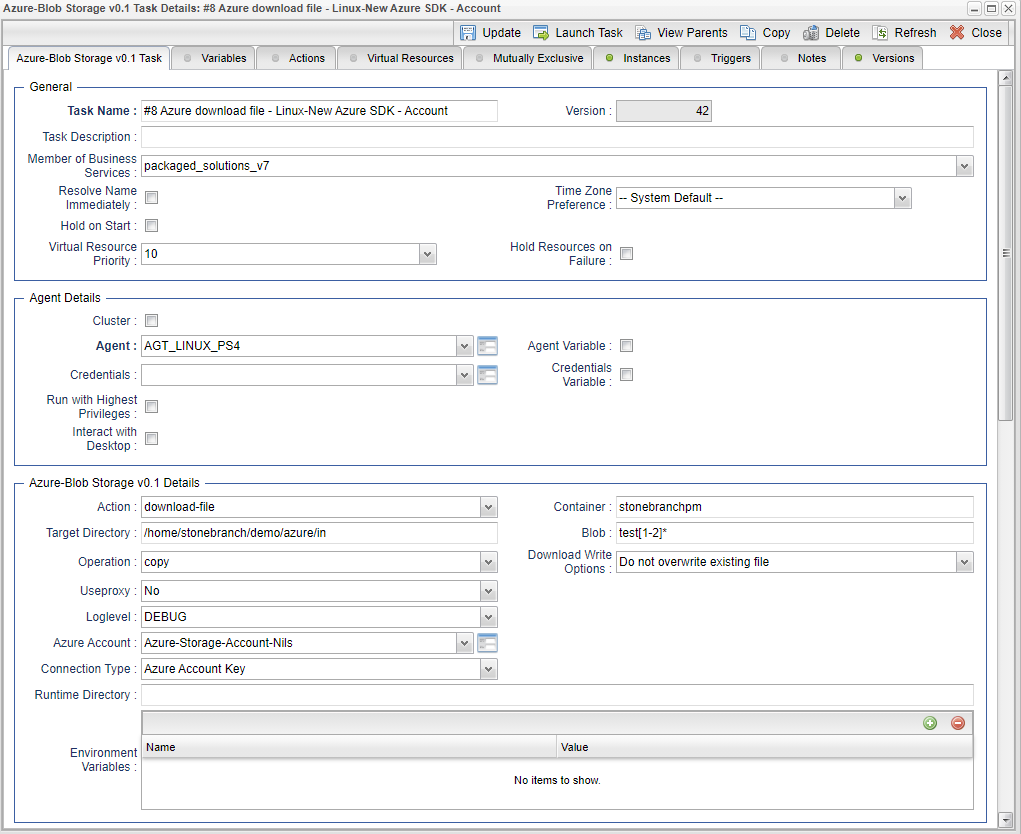
Example for Azure Blob Storage Universal Tasks - Download File
The following Task downloads from the container stonebranchpm all blobs matching the criteria test[1-2]* to the Linux directory: /home/stonebranch/demo/azure/in
Delete Objects - Action
The Actions is used to delete an object in an Azure Container or folder
Field | Description |
|---|---|
Action | Delete-objects action |
Connection Type | [Azure Account Key | SAS Token | Service Principal Authentication] If set to "Azure Account Key", the credential field Azure Account will appear for configuration. If set to "SAS Token", the credential field SAS Token will appear for configuration. If set to "Service Principal Authentication" the following fields will appear:
For Service Principal setup details, see Service Principal Authentication |
Useproxy ( default is NO ) | [NO | YES] If set to YES, the fields to set-up the proxy server connections are displayed:
|
Loglevel ( default is INFO ) | Universal Task logging settings [DEBUG | INFO| WARNING | ERROR | CRITICAL] |
Container | Container in which the Blobs should be deleted. |
Blob | Blobs to be deleted in the given container Note: Due to security reasons wild card is only supported if at least one character is provided. For example, t* would delete all files starting with at "t". |
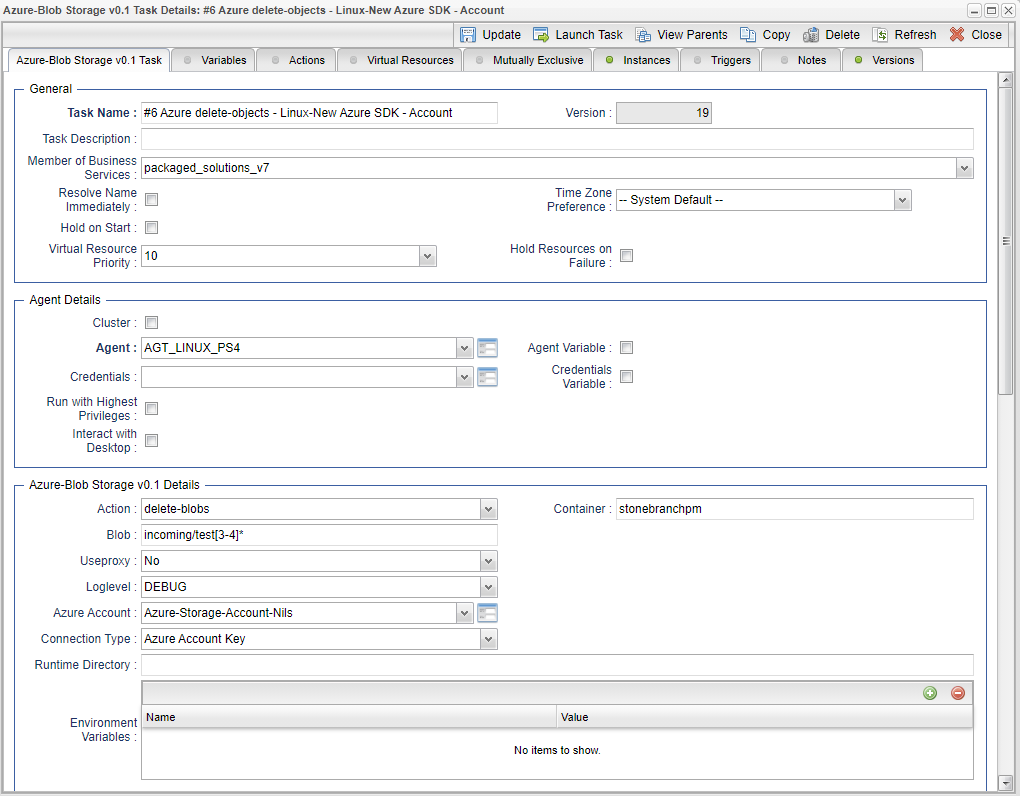
Example for Azure Blob Storage Universal Task - Delete Objects
The following Task deletes in the container stonbranchpm, folder incoming all Blobs matching the criteria test[3-4]*.
Copy Object to Container - Action
This Action is used copy an objects from one Azure Container to another Azure Container.
Field | Description |
|---|---|
Action | Copy-object-to-bucket action |
Connection Type | [Azure Account Key | SAS Token | Service Principal Authentication] If set to "Azure Account Key", the credential field Azure Account will appear for configuration. If set to "SAS Token", the credential field SAS Token will appear for configuration. If set to "Service Principal Authentication" the following fields will appear:
For Service Principal setup details, see Service Principal Authentication |
Useproxy ( default is NO ) | [NO | YES] If set to YES, the fields to set-up the proxy server connections are displayed:
|
Loglevel ( default is INFO ) | Universal Task logging settings [DEBUG | INFO| WARNING | ERROR | CRITICAL] |
Container | Source container |
Target Container | Target container, where the object(s) will be copied to |
Blob | File ( Blob ) to be copied from the source container to target container. |
Upload Write Options | Upload Write Options [Do not overwrite existing Object | Timestamp]
|
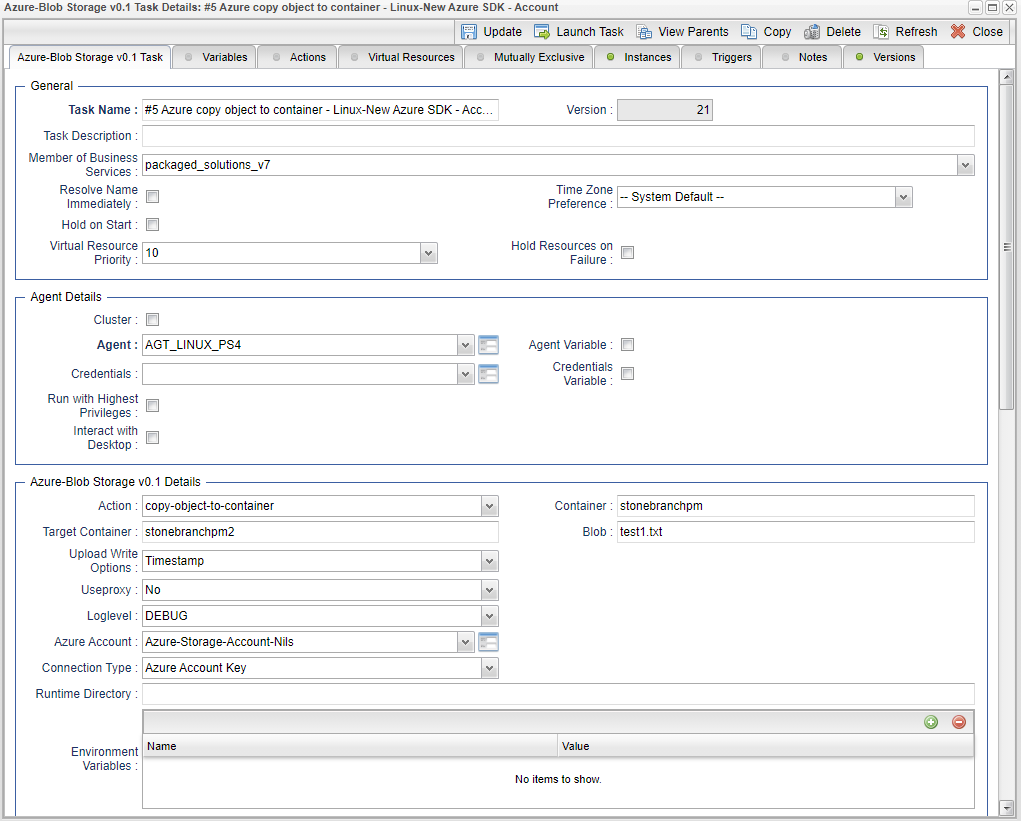
Example for Azure Blob Storage Universal Tasks - Copy Object to Container
The following Task copies the Blob: test1.txt from the source container: stonebranchpm to the target container: stonebranchpm2
Delete Container - Action
This action is used to delete an Azure Container
Field | Description |
|---|---|
Action | Delete-container action |
Connection Type | [Azure Account Key | SAS Token | Service Principal Authentication] If set to "Azure Account Key", the credential field Azure Account will appear for configuration. If set to "SAS Token", the credential field SAS Token will appear for configuration. If set to "Service Principal Authentication" the following fields will appear:
For Service Principal setup details, see Service Principal Authentication |
Useproxy ( default is NO ) | [NO | YES] If set to YES, the fields to set-up the proxy server connections are displayed:
|
Loglevel ( default is INFO ) | Universal Task logging settings [DEBUG | INFO| WARNING | ERROR | CRITICAL] |
Container | Name of the Container to be deleted Note: The container is delete including all objects. |
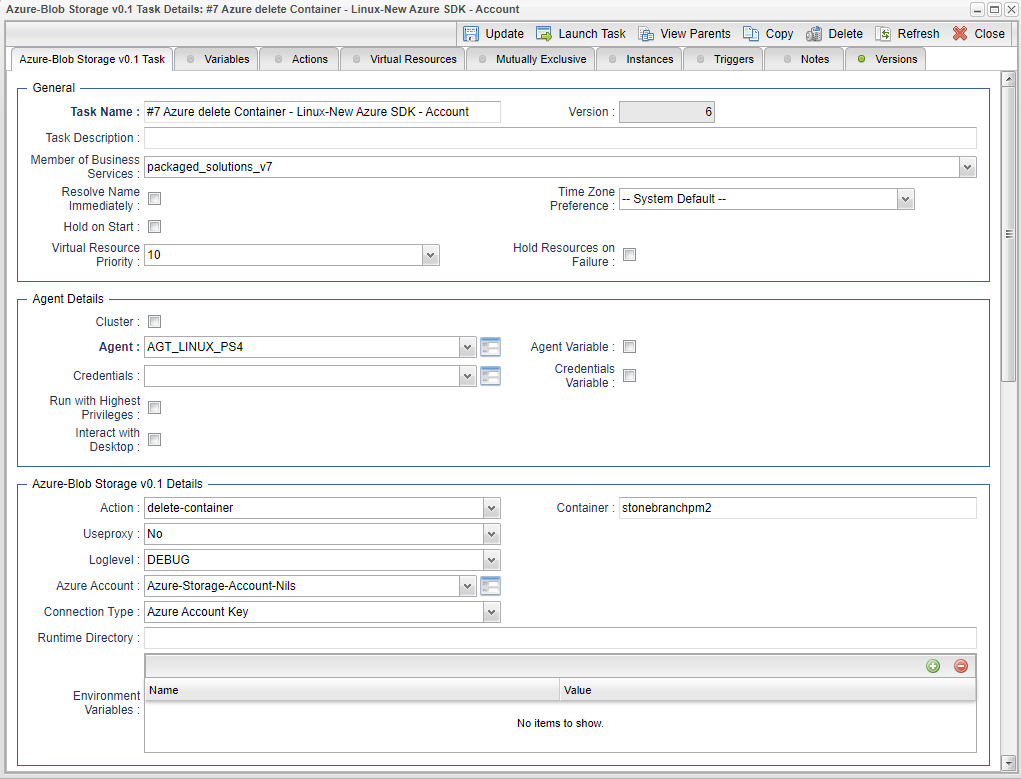
Example for Azure Blob Storage Universal Tasks - Delete Container
The following Task delete the container stonebranchpm2
Upload File - Action
The Action is used to upload a single or multiple files from a Windows or Linux server to an container or a folder in a container.
Field | Description |
|---|---|
Action | Upload-file action |
Connection Type | [Azure Account Key | SAS Token | Service Principal Authentication] If set to "Azure Account Key", the credential field Azure Account will appear for configuration. If set to "SAS Token", the credential field SAS Token will appear for configuration. If set to "Service Principal Authentication" the following fields will appear:
For Service Principal setup details, see Service Principal Authentication |
Useproxy ( default is NO ) | [NO | YES] If set to YES, the fields to set-up the proxy server connections are displayed:
|
Loglevel ( default is INFO ) | Universal Task logging settings [DEBUG | INFO| WARNING | ERROR | CRITICAL] |
Sourcefile | Source file(s) to be uploaded to a bucket or specific folder in a container. Unix filename pattern are supported to upload a selection of files. Supported wildcards are:
|
Operation | [copy | move] In case of a "move" the source file(s) is/are deleted after the upload to the container. |
Prefix | A folder in a container is called prefix. In the Prefix field, only the name of the folder needs to be provided (no "/" after the folder name). |
Upload Write Options | Upload Write Options [Do not overwrite existing Object | Timestamp]
|
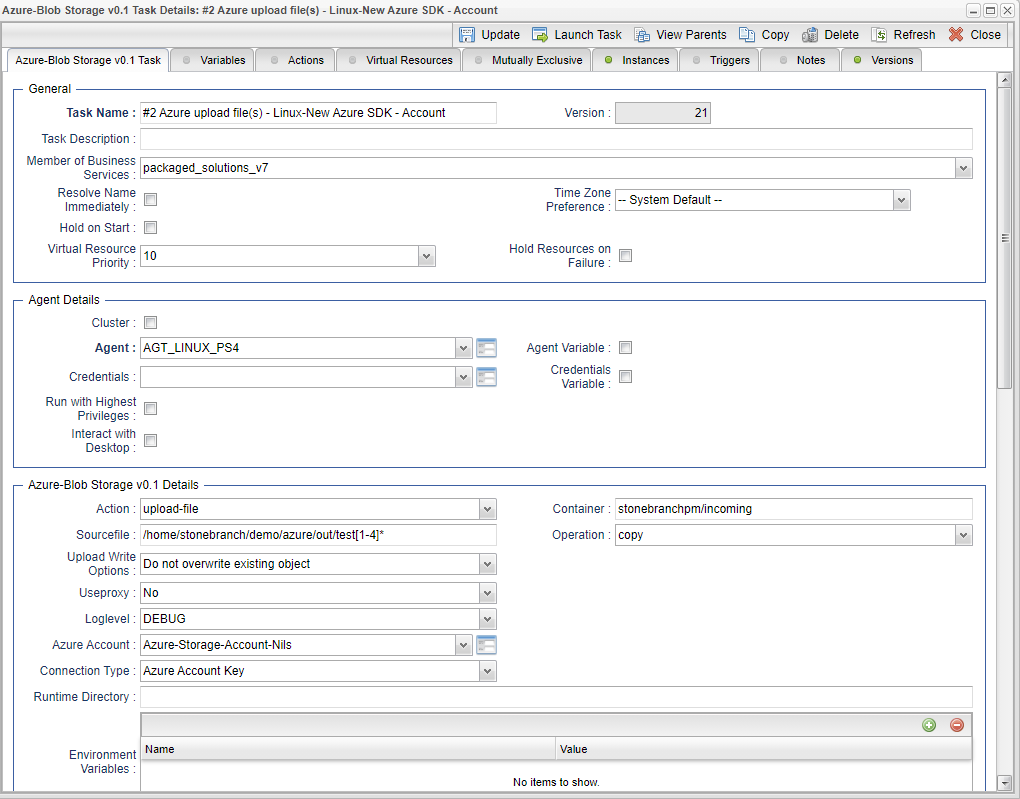
Example for Azure Blob Storage Universal Tasks - Upload File
The following Task uploads from the Linux directory the files: /home/stonebranch/demo/azure/out/test[1-4]* to the the container stonebranchpm, folder incoming.
Monitor Blob - Action
The Action is used to monitor a Blob in an Azure Container.
Field | Description |
|---|---|
Action | Monitor-Blob action |
Connection Type | [Azure Account Key | SAS Token | Service Principal Authentication] If set to "Azure Account Key", the credential field Azure Account will appear for configuration. If set to "SAS Token", the credential field SAS Token will appear for configuration. If set to "Service Principal Authentication" the following fields will appear:
For Service Principal setup details, see Service Principal Authentication |
Useproxy ( default is NO ) | [NO | YES] If set to YES, the fields to set-up the proxy server connections are displayed:
|
Loglevel ( default is INFO ) | Universal Task logging settings [DEBUG | INFO| WARNING | ERROR | CRITICAL] |
Container | Container in which the objects should be monitored |
Prefix | A folder in a container is called prefix. In the Prefix field, only the name of the folder needs to be provided (no "/" after the folder name). If a prefix is provided, only objects in the folder with the prefix name are listed in the output. |
Blob | Blob to monitor. The task goes to status success if the Blob is found. Unix filename patterns are supported to list only a selection of files:
Example: Blob = test* : matches everything starting with test Blob = test[1-2].txt : matches test1.txt, test2.txt Blob = test[!1].txt: does not match test1.txt Blob = test?.txt: matches test1.txt, test2.txt etc. |
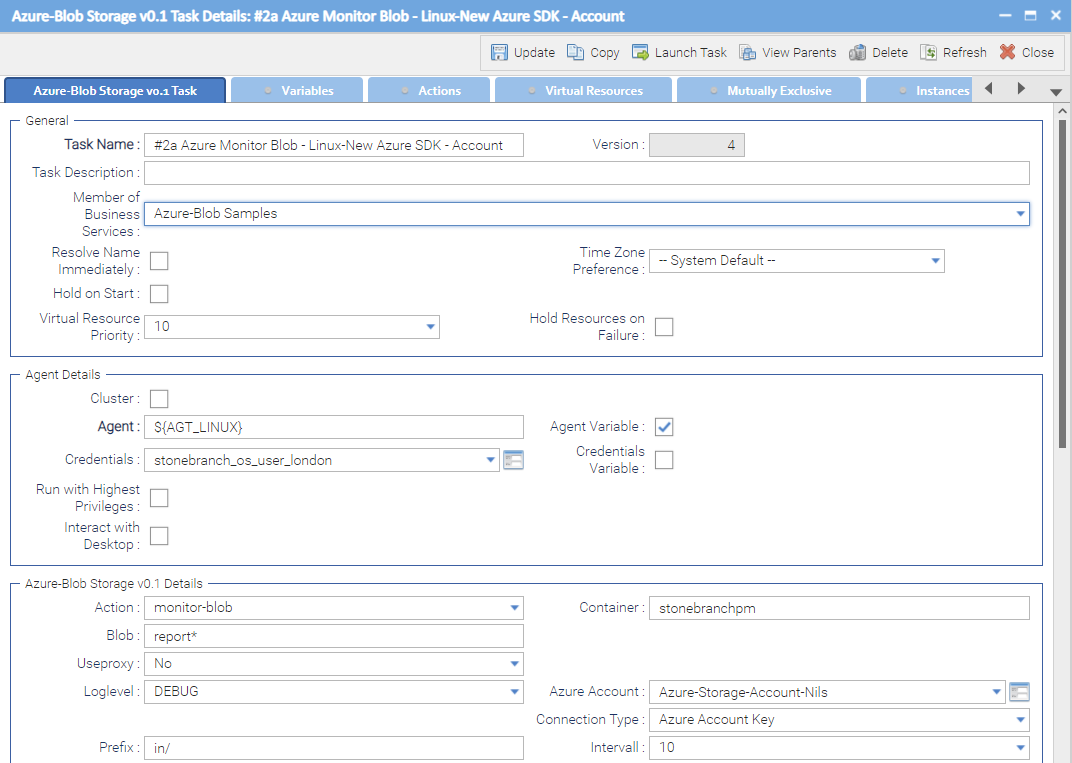
Example for Azure Blob Storage Universal Tasks - Monitor Blob
The following Task monitors in the Container: stonebranchpm all Blob's starting with the name report. If a Blob starting with the name report is found the task goes to task status success.
Service Principal Authentication
Introduction:
Service Principal authentication allows the Universal Task to securely access Azure resources using its own identity instead of a user account.
Main Steps (Azure Portal)
- Create an Azure AD App (Service Principal) in your Microsoft Entra ID.
- Assign it the Storage Blob Data Contributor role on your Storage Account.
- Provide the Client ID & Secret, Tenant ID, and Storage Account Name in the UAC fields.
- Your Python app ("Universal Task") can now authenticate and upload files to Azure Blob Storage securely.
Fields
Name | Type | Description | Required |
|---|---|---|---|
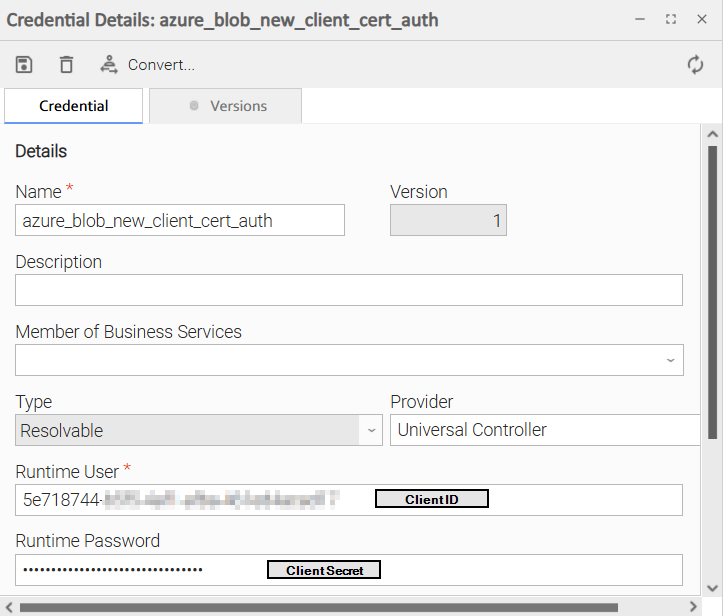
Azure Client ID & Secret | Credential | The Client ID (Credential: Runtime User) and Secret (Credential: Runtime Password) from your Azure AD App (Service Principal). | True |
Azure Tenant ID | Text | The Tenant ID of your Azure AD directory. | True |
Storage Account Name | Text | Name of the target Azure Blob Storage account. | True |
Changelog
ut-cs-azure-blob-storage-1.5.0 (2025-10-27)
Enhancements
Addedsupport for Service principal authentication (in addition to Shared Access Signatures (SAS) and Azure Account Keys)
ut-cs-azure-blob-storage-1.4.19 (2023-07-20)
Fixes
Fixed: Exit when upload fails
ut-cs-azure-blob-storage-1.0.0 (2017-11-16)
Initial Version