BatchMan Integration
Disclaimer
Your use of this download is governed by Stonebranch's Terms of Use.
Version Information
Template Name | Extension Name | Version | Status |
|---|---|---|---|
CS Batchman | ue-batchman | 1.0.0 | initial Version |
Refer to Changelog for version history information.
Overview
The Universal Task for BatchMan provides an integration between Universal Automation Center (UAC) and Honico BatchMan, enabling unified scheduling, automated job and net execution, and centralized monitoring of Honico BatchMan jobs within Universal Automation Center.
The Universal Task integrates with SAP BatchMan by invoking RFC-enabled BatchMan function modules exposed as SOAP web services. These function modules are published as Enterprise Services using SAP's Web Service Framework (SOAMANAGER). The Universal Task securely calls these function modules to control and manage BatchMan-configured SAP jobs and nets.
Note:
This approach requires only the activation and configuration of the relevant Enterprise Services in SOAMANAGER on the customer's SAP system; no transport is required.
Key Capabilities
The integration exposes the following key capabilities:
- Select a BatchMan Job or Net - Dynamically select a BatchMan job or net at runtime.
- Start a Job or Net - Trigger BatchMan jobs and nets directly from UAC.
- Check Job Status - Monitor real-time execution status of jobs and nets.
- Retrieve Job Logs - Access execution logs for auditing and troubleshooting.
- Retrieve SAP Spool Files - Display the SAP spool output of each job step in the task STDOUT.
- Finish a running order - Finish a running order via a Universal Extension Command
- Stop and Start an order - Stop and Start an order via two Universal Extension Commands.
This solution provides a secure and scalable interface for hybrid workflow automation, allowing customers to continue leveraging BatchMan for SAP job scheduling while orchestrating end-to-end workflows that include both SAP and non-SAP tasks within UAC. The use of SAP Enterprise Services ensures a standardized, maintainable, and vendor-supported integration with SAP systems.
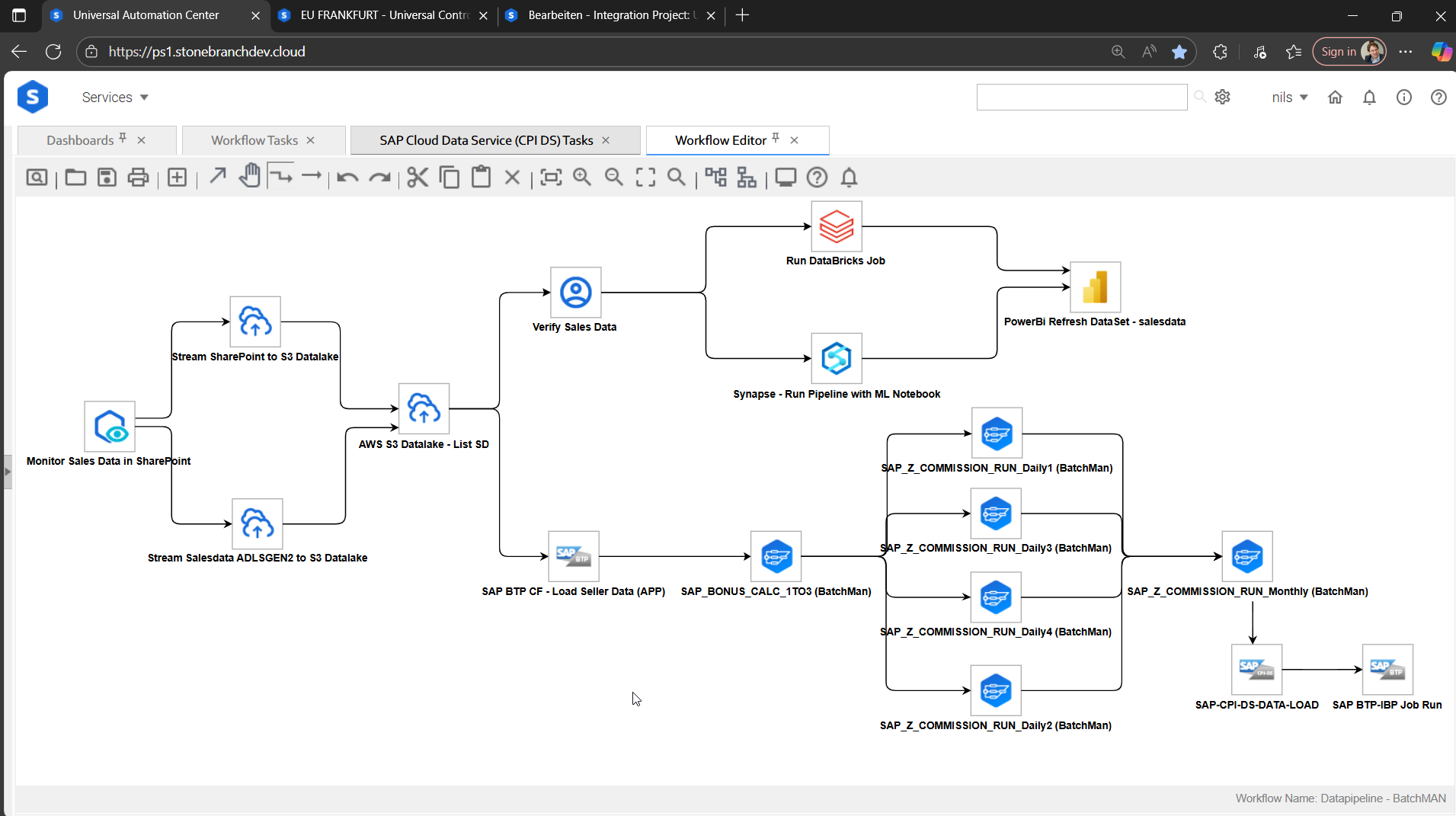
The implementation requires deploying and activating the SOAP web services on the customer's SAP system and supports secure authentication methods such as basic authentication, SAML, or X.509 certificates over encrypted HTTPS/TLS communication. This ensures compliance with enterprise security standards while enabling centralized scheduling, job automation, and monitoring through UAC.
Key Features
Feature | Description |
|---|---|
Select a BatchMan Job or Job Net |
|
Trigger an individual BatchMan order |
|
Monitor BatchMan Job status |
|
Retrieve the Order Log |
|
Retrieve the SAP spool log |
|
Display the Job Order Number |
|
Finish a running order |
|
Stop and Start an order |
|
Display the "Order Stop" status |
|
Requirements
This integration requires a Universal Agent and a Python runtime to execute the Universal Task.
Area | Details |
|---|---|
Python Version | Requires Python 3.11, Tested with Agent bundled python distribution. |
Universal Agent Compatibility |
|
Universal Controller Compatibility | Universal Controller Version >= 7.8.0.0. |
SAP Connectivity Requirements
To enable communication between Universal Automation Center (UAC) and SAP BatchMan, network connectivity to the SAP SOAP web service endpoint is required.
- Protocol: HTTPS
- Target: SAP system hosting BatchMan Enterprise Services
- Host: SAP SOAP host (SAP application server or load balancer)
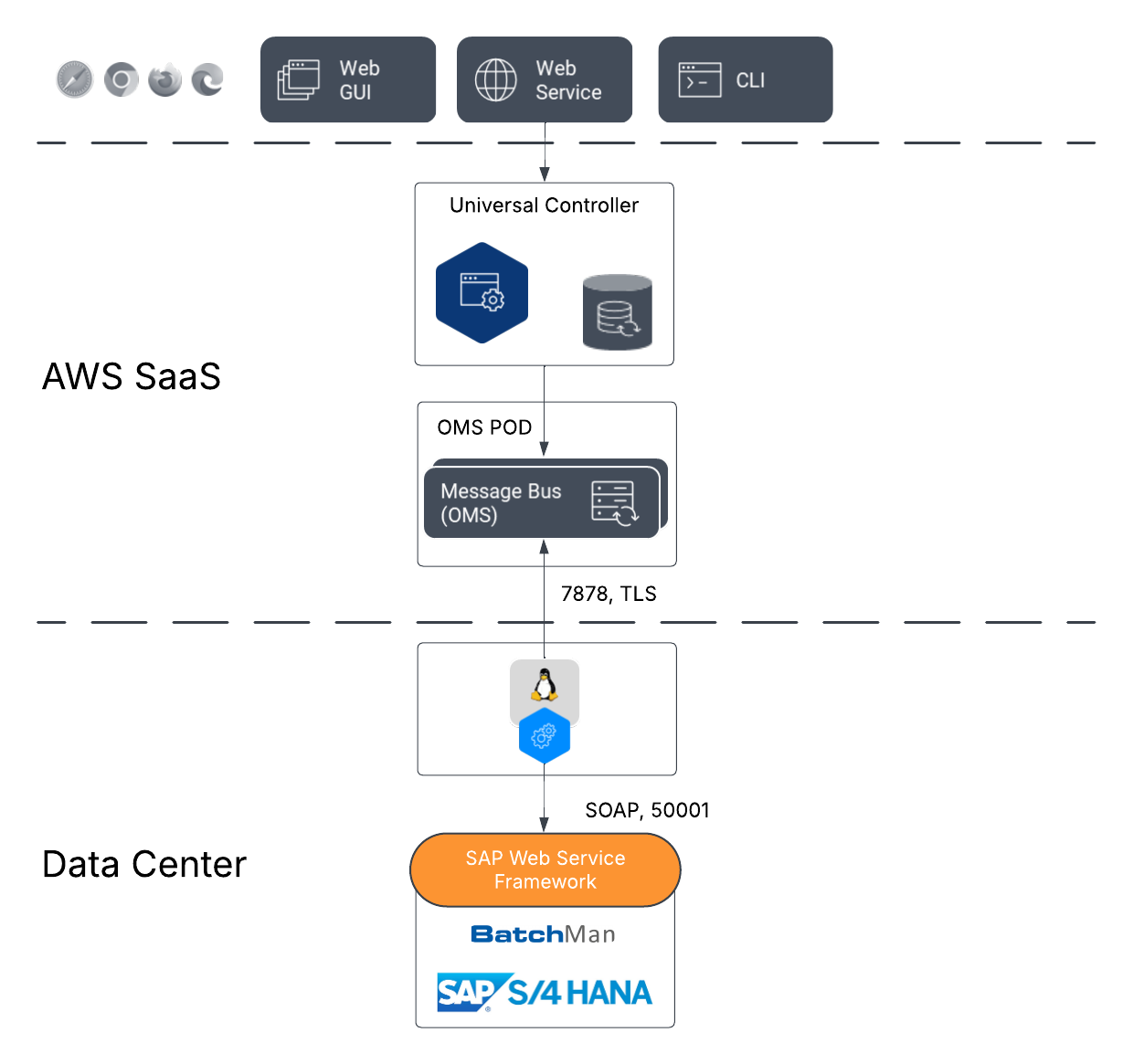
- Port: SOAP HTTP(S) port (for example, 50000 or 50001, depending on the SAP profile)
The Universal Task connects to the SOAP endpoints generated and configured in SOAMANAGER. The exact host and port depend on the customer's SAP landscape and ICM configuration.
Ensure that:
- The required SOAP ports are open between UAC and the SAP system.
- SSL/TLS is properly configured if HTTPS is used.
- A technical SAP user with appropriate authorizations is available for service execution.
The following outlines the High Level Architecture:
Supported Actions
Action: Create New Order
The "Create New Order" action provides the following capabilities.
- Dynamically Select a Job or Net in BatchMan
- Create and start an Individual Order in BatchMan
- Monitor in a configurable Interval the status
- Continuously updates the Order Log also called AUFTRAGSLOG in the STDOUT of the Task.
- Return the SAP Job log and optionally the SAP Spool file
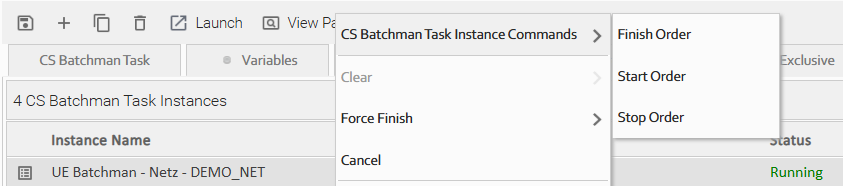
- While the Task is running the following Instance Commands can be executed:
- Finish a running order
- Stop an order
- Start an order
Action Output
STDOUT
In the STDOUT the Order Log (AUFTRAGSLOG) is continuously updated and if enabled the SAP SPOOL is printed
###### AUFTRAGSLOG ######
#   ENTERDATE    ENTERTIME  ARBGB      MSGNR  MSGTYPE MSGTEXT
--------------------------------------------------------------------------------
1   2025-12-12   15:57:11   00         516    S       Job wurde gestartet
2   2025-12-12   15:57:11   00         550    S       Step 001 gestartet (Programm Z_COM_RUN_DAILY_01 , Variante , Benutzername BM_BATCH )
3   2025-12-12   15:57:21   00         550    S       Step 002 gestartet (Programm /BTCMAN/C_STP , Variante GRC_100 , Benutzername BM_BATCH )
4   2025-12-12   15:57:21   /BTCMAN/93 068    S       Rückmeldung RC 0
5   2025-12-12   15:57:21   00         517    S       Job wurde beendet
###### ORDERLOG ######
#   NETZNAME                         JOBNAME                          JOBCOUNT   ENTERDATE  ENTERTIME  LFDNR MSGNO  MSGTYPE MSGTEXT
--------------------------------------------------------------------------------
1   $                                SAP_Z_COMMISSION_RUN_DAILY1      15571100   2025-12-12 15:57:11   0001  516    S       Job wurde gestartet
2   $                                SAP_Z_COMMISSION_RUN_DAILY1      15571100   2025-12-12 15:57:11   0002  550    S       Step 001 gestartet (Programm Z_COM_RUN_DAILY_01 , Variante , Benutzername BM_BATCH )
3   $                                SAP_Z_COMMISSION_RUN_DAILY1      15571100   2025-12-12 15:57:21   0003  550    S       Step 002 gestartet (Programm /BTCMAN/C_STP , Variante GRC_100 , Benutzername BM_BATCH )
4   $                                SAP_Z_COMMISSION_RUN_DAILY1      15571100   2025-12-12 15:57:21   0004  068    S       Rückmeldung RC 0
5   $                                SAP_Z_COMMISSION_RUN_DAILY1      15571100   2025-12-12 15:57:21   0005  517    S       Job wurde beendet
###### SPOOL ######
#   JOBNAME                          JOBCOUNT   STEPNO     SPOOLID    PROGRAM              TYP   LINE
--------------------------------------------------------------------------------
1   SAP_Z_COMMISSION_RUN_DAILY1      15571100   1          5098       Z_COM_RUN_DAILY_01   A     ## Daily Commission Calculation 1 data Version 1.0.
2   SAP_Z_COMMISSION_RUN_DAILY1      15571100   1          5098       Z_COM_RUN_DAILY_01   A     ## Daily Commission 1 started at: 12.12.2025 15:57:11
3   SAP_Z_COMMISSION_RUN_DAILY1      15571100   1          5098       Z_COM_RUN_DAILY_01   A     ## Daily Commission 1 ended at: 12.12.2025 15:57:21
Configuration Examples
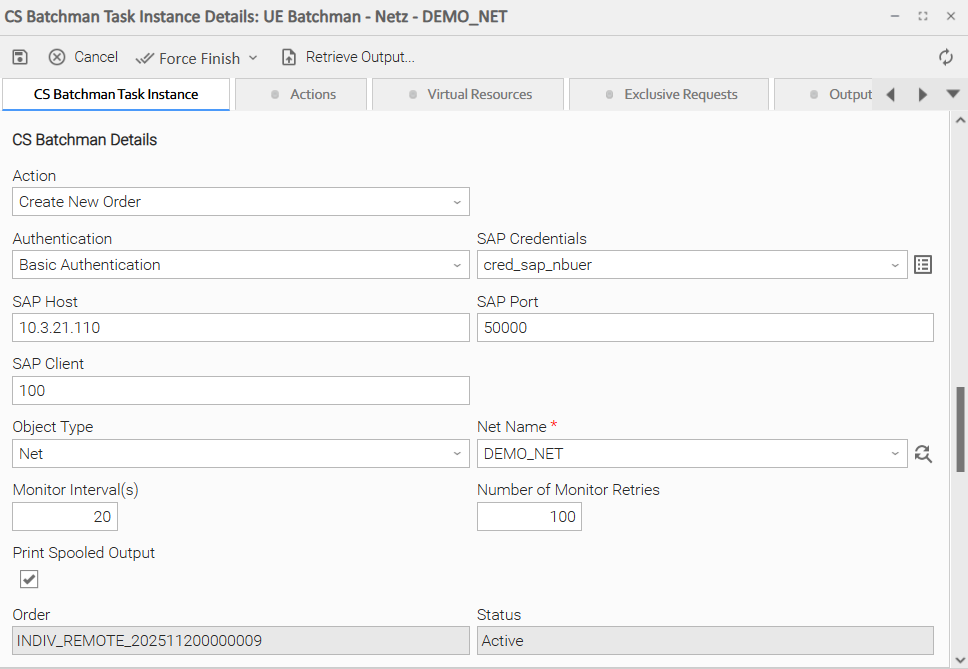
Example: Create a New INDIV Order for a Net in BatchMan
The following provides a screenshot of the implemented Universal Task:
Task Instance Commands:
Input Fields
Name | Type | Description | Version Information |
|---|---|---|---|
Action | Choice | Create New Order - This Action creates a new order of Type "INDIV" in BatchMan | Introduced in 1.0.0 |
Authentication | Choice | Basic Authentication - Authentication Method used to connect to the SAP system hosting the BatchMan "SOAP" Enterprise Services | Introduced in 1.0.0 |
SAP Credentials | Credentials | Credentials used to connect to the SAP system hosting the BatchMan "SOAP" Enterprise Services. Credential Fields:
| Introduced in 1.0.0 |
SAP Host | Text | SAP hostname or IP (SAP application server or load balancer) | Introduced in 1.0.0 |
SAP Port | Text | SOAP HTTP(S) port (for example, 50000 or 50001, depending on the SAP profile) | Introduced in 1.0.0 |
SAP Client | Text | SAP Client | Introduced in 1.0.0 |
Object Type | Multiple Choice | Job | Net Select "Job", if you want to create an order for a BatchMan Job Select "Net", if you want to create an order for a BatchMan Net (similar to a UAC Workflow) | Introduced in 1.0.0 |
Net Name | Dynamic Choice | Query BatchMan to select the "Net" for your order | Introduced in 1.0.0 |
Job Name | Dynamic Choice | Query BatchMan to select the "Job" for your order | Introduced in 1.0.0 |
Monitor Interval (sec) | Integer | Default Value is 60s Interval to check for the order status | |
Number of Monitor Retries | Integer | Default Value is 100 retries Number of retries to check for the order status. If the number is reached the task goes to failure. This value is used in combination with Monitor Interval | Introduced in 1.0.0 |
Print Spooled Output | Check Box | true | false If enable (true) the SAP Spool will be printed to the STDOUT of the Task | Introduced in 1.0.0 |
Output Fields
Name | Type | Description | Version Information |
|---|---|---|---|
Order | Text - Output Only | Show the Order Number (Auftragsnummer); e.g. INDIV_REMOTE_202512150000001 | Introduced in 1.0.0. |
Status | Text - Output Only | active | finished | faulty | aborted | cancelled Shows the BatchMan Order Status | Introduced in 1.0.0. |
Instance Commands
Name | Supported Status (UAC) | Description | Version Information |
|---|---|---|---|
Finish Order | Started, Running | Finish the current order Results:
| Introduced in 1.0.0. |
Start Order | Running | Re-start the current order - Result:
| Introduced in 1.0.0. |
Stop Order | Running | Stop the current order Result:
| Introduced in 1.0.0. |
Exit Codes
Exit Code | Status | Status Description | Meaning |
|---|---|---|---|
0 | Success | Successful execution of the Task. Status | Successful Execution. |
1 | Failed | Task Failure | Failed Execution. |
10 | Failed | The order has been set to status "FINISHED" in BatchMan. | Order in BatchMan was finished in the BatchMan UI or via the Instance Command "Finish Order" |
STDOUT and STDERR
STDOUT is used for displaying Order Status information and SAP Spool, if the checkbox Print Spooled Output is enabled.
STDERR provides additional information to the user, the verbosity of which is controlled by Log Level Task Definition field.
Backwards compatibility is not guaranteed for the content of STDOUT/STDERR and can be changed in future versions without notice
How To
Import Universal Template
To use the Universal Template, you first must perform the following steps.
- This Universal Task requires the Resolvable Credentials feature. Check that the Resolvable Credentials Permitted system property has been set to true.
- Import the Universal Template into your Controller:
- Extract the zip file, you downloaded from the Integration Hub.
- In the Controller UI, select Services > Import Integration Template option.
- Browse to the "export" folder under the extracted files for the ZIP file (Name of the file will be unv_tmplt_*.zip) and click Import.
- When the file is imported successfully, refresh the Universal Templates list; the Universal Template will appear on the list.
Modifications of this integration, applied by users or customers, before or after import, might affect the supportability of this integration. For more information refer to Integration Modifications.
Configure Universal Task
For a new Universal Task, create a new task, and enter the required input fields.
Integration Modifications
Modifications applied by users or customers, before or after import, might affect the supportability of this integration. The following modifications are discouraged to retain the support level as applied for this integration.
- Python code modifications should not be done.
- Template Modifications
- General Section
- "Name", "Extension", "Variable Prefix", and "Icon" should not be changed.
- Universal Template Details Section
- "Template Type", "Agent Type", "Send Extension Variables", and "Always Cancel on Force Finish" should not be changed.
- Result Processing Defaults Section
- Success and Failure Exit codes should not be changed.
- Success and Failure Output processing should not be changed.
- Fields Restriction Section
The setup of the template does not impose any restrictions. However, concerning the "Exit Code Processing Fields" section.- Success/Failure exit codes need to be respected.
- In principle, as STDERR and STDOUT outputs can change in follow-up releases of this integration, they should not be considered as a reliable source for determining the success or failure of a task.
- General Section
Users and customers are encouraged to report defects, or feature requests at Stonebranch Support Desk.
Document References
This document references the following documents:
Document Link | Description |
|---|---|
User documentation for creating, working with and understanding Universal Templates and Integrations. | |
User documentation for creating Universal Tasks in the Universal Controller user interface. |
Changelog
ue-batchman-1.0.0 (2025-12-19)
Initial Version