CSV Tool
Disclaimer
Your use of this download is governed by Stonebranch's Terms of Use.
For general information on how integrations work, importing templates, and UAC documentation refer to Overview.
Version Information
Template Name | Extension Name | Version | Status |
|---|---|---|---|
CSV Tool | ue-csv-tool | 1.1.0 | Fixes and new Features are introduced. |
Refer to Changelog for version history information.
Overview
This Universal Extension is a tool to process input data in Comma-Separated Value (CSV), Delimited Separated Value (DSV), or Tab Separated Value (TSV) formats. It is typically used when input data need to be read, filtered, and possibly saved into new files or transformed into JSON format.
Key Features
Feature | Description |
|---|---|
Read, Filter, Save and Transform CSV data | Read Input CSV/DSV/TSV input files with the capability to perform row filtering and
|
Support for multiple data formats | Universal Task enables users to select well-known input data formats (known also as dialects) to parse and process Input data. The dialect list is the following:
A "Custom" option also exists to provide full flexibility. |
Requirements
This integration requires a Universal Agent and a Python runtime to execute the Universal Task.
Area | Details |
|---|---|
Python Version | Requires Python 3.11 or higher, tested with the Agent bundled Python distributions (3.11 and 3.14). |
Universal Agent Compatibility |
|
Universal Controller Compatibility | Universal Controller Version >= 7.8.0.0. |
Supported Actions
There is one Top-Level action controlled by the Action Field:
Action: Process CSV/DSV/TSV File
Read Input CSV/DSV/TSV input files with the capability to perform row filtering and:
- Save data on a new file of the same format
- Transform Data into JSON (as EXTENSION Output)
Row Filtering is performed against the values of a specific column. For more information refer to Input Fields.
Action Output
- EXTENSION
- STDOUT
The extension output provides the following information:
exit_code,status_description: General info regarding the task execution. For more information refer to the Exit Codes table.changed: Alwaysfalse; the input file is never modified.invocation.fields: The task configuration used for this task execution.result.csv_to_json: JSON representation of the CSV, DSV or TSV data. Each element of the list represents a row of data.result.errors: List of errors that occurred during the execution.
Examples:Successful execution
Failed execution
The CSV, DSV, or TSV data are printed in human-friendly tabular format for visibility purposes (e.g. when filtering is applied and the task is tested before it is used in production). The STDOUT content can change in future versions of this extension without notice; backward compatibility is not guaranteed.
Example:
| name       | company
-------------+----------
| John Smith | John INC.
| John Doe   | John INC.
| Joe Pesci  | Hollywood
Configuration Examples
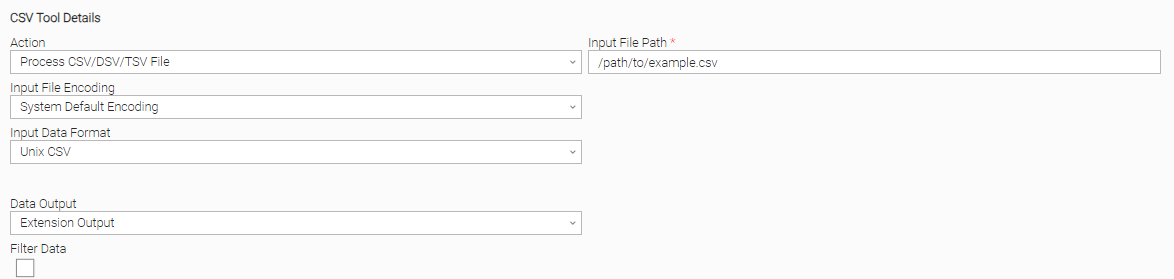
Example: Unix CSV format, system default encoding
Process a CSV file by selecting the "Unix CSV" Input Data Format, and using the system's default encoding.
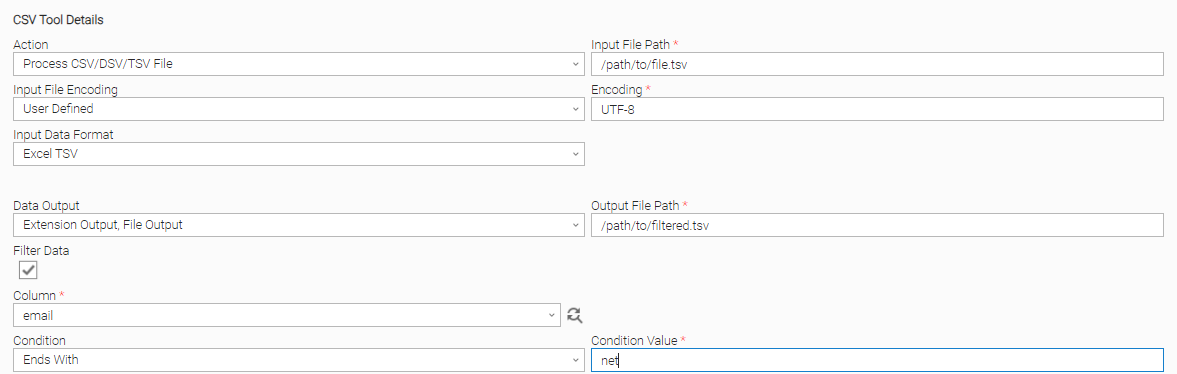
Example: Excel TSV format, row filtering, file and Extension Output
Process a TSV file (Excel TSV file format), filter rows based on column data, save the data on a new file, and send the data to the Extension Output (JSON format).
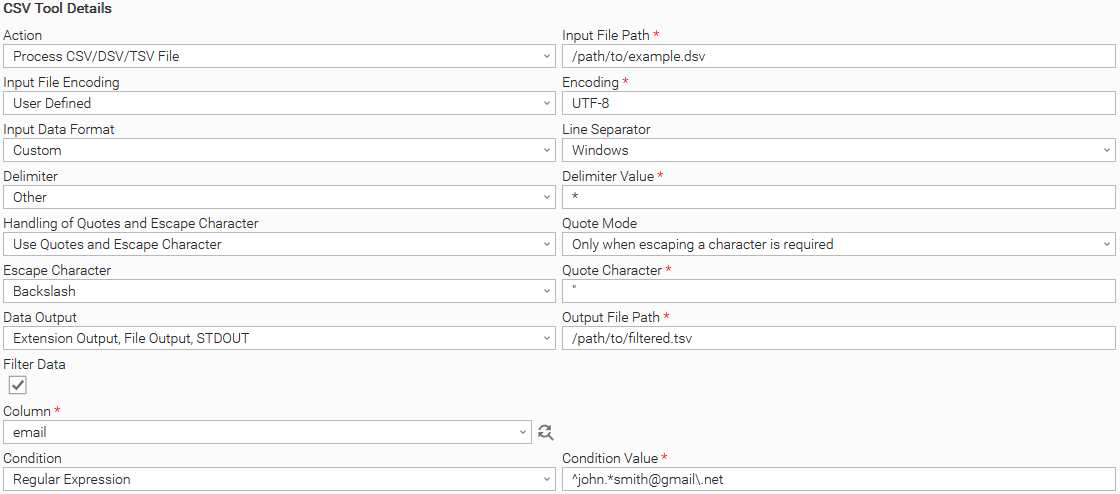
Example: Custom format, regular expression filtering, file and Extension Output
Process a DSV file by providing additional parsing details through the "Custom" Input Data Format option, filter rows based on column data with a regular expression, save the data on a new DSV file, and send the data to the Extension Output (JSON format).
Input Fields
Name | Type | Description | Version Information |
|---|---|---|---|
Action | Choice | The action performed upon the task execution. Available options:
| Introduced in 1.0.0 |
Input File Path | Text | The path to the input file that is to be processed. | Introduced in 1.0.0 |
Input File Encoding | Choice | The mode for selection of the input file encoding. Available options:
| Introduced in 1.0.0 |
Encoding | Text | The encoding used by the input file. Supported encodings can be found in the official Python documentation. This field is visible and required when Input File Encoding is "User Defined". | Introduced in 1.0.0 |
Input Data Format | Choice | The input data format. There are ready-to-use formats (also known as dialects) as well as a "Custom" option which provides full flexibility. Available options:
| Introduced in 1.0.0 |
Line Separator | Choice | The character to be used as record separator. Available options:
This field is visible when Input Data Format is "Custom". | Introduced in 1.0.0 |
Delimiter | Choice | The character to be used as delimiter when processing input data. Available options:
This field is visible when Input Data Format is "Custom". | Introduced in 1.0.0 |
Delimiter Value | Text | The specified value of the delimiter. This field is visible and required when Delimiter is "Other". | Introduced in 1.0.0 |
Handling of Quotes and Escape Character | Choice | The strategy used by the input file to escape special characters present in value fields such as a delimiter, CR, LF, etc. Available options:
This field is visible when Input Data Format is "Custom". | Introduced in 1.0.0 |
Quote Mode | Choice | The quote mode used by the input file. Available options:
This field is visible when Handling of Quotes and Escape Character is "Use only Quotes" or "Use Quotes and Escape Character". | Introduced in 1.0.0 |
Escape Character | Choice | The character to be used as escape character. Available options:
This field is visible when Handling of Quotes and Escape Character is "Use only Escape Character" or "Use Quotes and Escape Character". | Introduced in 1.0.0 |
Quote Character | Text | The character to be used as quote character when processing the input data. Defaults to This field is visible and required when Handling of Quotes and Escape Character is "Use only Quotes" or "Use Quotes and Escape Character". | Introduced in 1.0.0 |
Data Output | Multiple Choice | The data output method. Available options:
| Introduced in 1.0.0 |
Output File Path | Text | The path to the output file where filtered data is stored. The output file format is the same as the input file format. If the file already exists, it is overwritten. This field is visible and required when Data Output includes "File Output". | Introduced in 1.0.0 |
Filter Data | Checkbox | Check to enable data filtering and show the filter options. | Introduced in 1.0.0 |
Column | Dynamic Choice | The name of the column based on which the filtering is applied. The first row of input data is always presumed to be the header row (the row that represents the column names). This field is visible when Filter Data is checked. | Introduced in 1.0.0 |
Condition | Choice | The row filtering condition. Available options:
This field is visible when Filter Data is checked. | Introduced in 1.0.0 |
Condition Value | Text | The value of the condition. This field is visible and required when Filter Data is checked. | Introduced in 1.0.0 |
Environment Variables
Environment Variables can be set from the Environment Variables task definition table.
Environment Variable Name | Description | Version Information |
|---|---|---|
UE_INPUT_FILE_BUFFER_LINES | The number of lines read at a time from the input file and written to the output file (if one is provided). Higher values increase performance but can significantly increase memory usage; lower values reduce memory usage but can reduce performance. Defaults to | Introduced in 1.0.0 |
UE_EXTENSION_OUTPUT_MAX_LINES | The maximum number of rows from the input file that are printed as JSON in the Extension Output. If the input file has more rows, the output is truncated to this number and the message "Extension output, maximum number of lines reached." is appended to the Status Description of the task. The truncation only affects the Extension Output, not STDOUT or File Output. Defaults to | Introduced in 1.0.0 |
Cancellation and Rerun
In case of cancellation, any temporary file is cleaned up and everything returns to the state that it was before the task was run.
Exit Codes
Exit Code | Status | Description |
|---|---|---|
0 | Success | Successful Execution. |
1 | Failure | Generic Error. Raised when not falling into the other Error Codes. |
20 | Failure | Input fields validation error. |
21 | Failure | The path specified in the Input File Path field is not valid. |
22 | Failure | The path specified in the Output File Path field is not valid. |
23 | Failure | The format of the input file is not the same as the one specified in the input fields. |
24 | Failure | The input file does not contain a header row. |
25 | Failure | The column specified in the Column field does not exist. |
50 | Failure | Failed to access or write to file. |
Use Cases
Using the extension with a Recurring Task
The extension can be used with a recurring task to execute tasks based on CSV input where each file row represents the input for a task.
Suppose we have a list of contacts stored in a CSV and we want to email every contact related to the Ferrell LLC company.
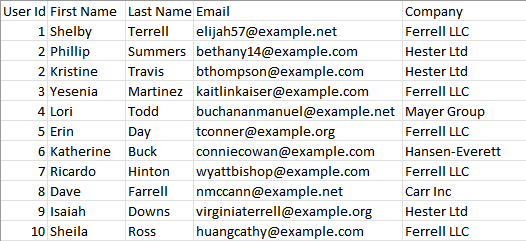
This can be done with a recurring task. In each iteration, the recurring task takes a file row as input and sends the corresponding email. In the first iteration, the recurrent task takes the first row of the file as input, in the second iteration it takes the second row as input, etc.
Firstly, we create a workflow and add two tasks to it.

Email contacts workflow
The first is a CSV Tool task that takes the contacts file as input, filters it based on the company, and converts it to JSON.
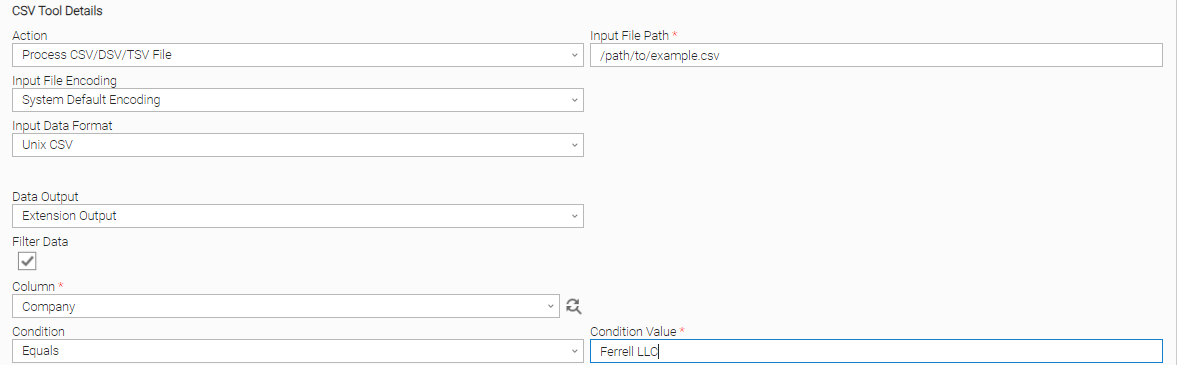
"Contacts to JSON" task definition
The second one is a recurrent task that sends an email to each contact in the file.
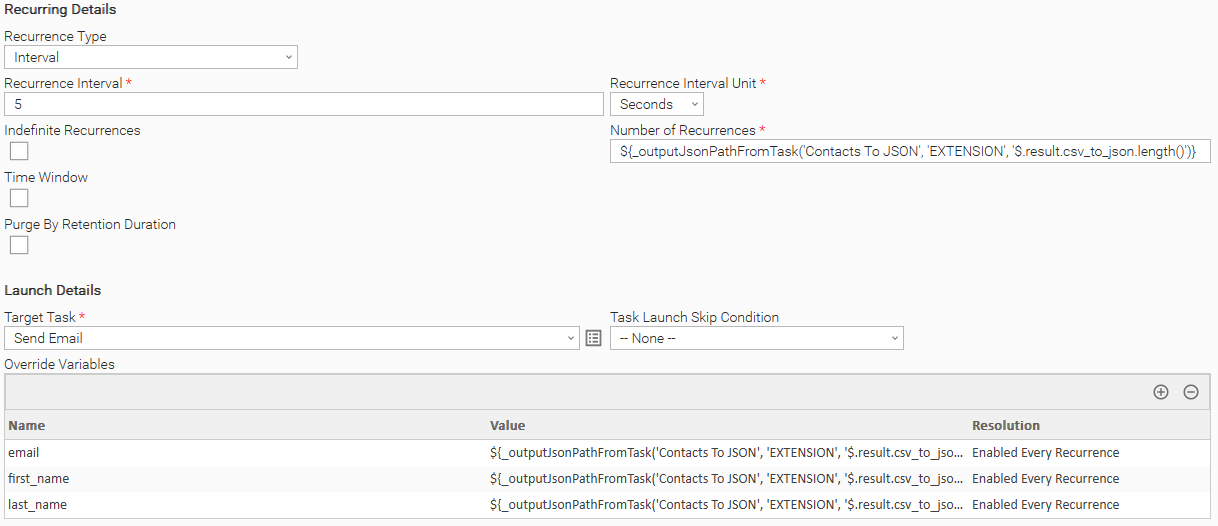
"Send Email to each Contact" Task Definition
Using the following command, we set the number of recurrences to be equal to the number of file rows.
${_outputJsonPathFromTask('Contacts To JSON', 'EXTENSION', '$.result.csv_to_json.length()')}
From 7.4 onward we can use ${__varCsvRecordCount('mapping_csv')}to get the length of a CSV file, where mapping_csv is a variable that holds the CSV data.
Using the following command, we extract the field value from each row where "field" stands for the field's header name.
${_outputJsonPathFromTask('Contacts To JSON', 'EXTENSION', '$.result.csv_to_json.[${__subtract('${ops_recurrence_count}','1')}].field')}
From 7.4 onward ${ops_recurrence_count_minus_1}can be used instead of ${__subtract('${ops_recurrence_count}','1').
${_varCsvRecordValue('mapping_csv', ${ops_recurrence_count_minus_1}, 0)}can be used to get a field value from a CSV file.
Usage Principles
When filtered data is large then the optimal way is to use a file as output, without pushing the data as Extension Output.
When filtered data needs to be easily visible in a workflow and it is small in size, then you can consider having it as Extension Output (JSON format). However, task authors should be aware that having the data as Extension Output means it is stored in the UC database. As a general principle, storing unnecessary data in the UC database should be avoided to improve performance and storage capacity.
Document References
Document Link | Description |
|---|---|
User documentation for creating, working with and understanding Universal Templates and Integrations. | |
User documentation for creating Universal Tasks in the Universal Controller user interface. | |
Describes the CSV dialects, delimiters, quoting and escaping options that the input data formats are based on. | |
Lists the encodings accepted by the Encoding field. | |
Describes the syntax used by the "Regular Expression" filtering condition. |
Changelog
ue-csv-tool-1.1.0 (2026-10-20)
Enhancements
Added: Increased compatibility with newer Python versions.Changed: A failed task instance now reports its error in the EXTENSION output, in the standard Universal Extension output format.
Fixes
Fixed: Handling of Quotes and Escape Character "Use only Escape Character" failed when the Quote Character field was hidden.Fixed: The Column dynamic choice did not load for formats that use an escape character.
ue-csv-tool-1.0.0 (2023-08-04)
Initial Version