Google AI Agent Pipelines
Disclaimer
Your use of this download is governed by Stonebranch's Terms of Use.
Version Information
Template Name | Extension Name | Version | Status |
|---|---|---|---|
Google AI Agent Pipelines | ue-google-ai-agent-pipelines | 1.0.0 | Initial Version. |
Refer to Changelog for version history information.
Overview
Google Cloud's Gemini Enterprise Agent Platform provides a managed service for orchestrating multi-step AI agent and machine learning pipelines defined as directed acyclic graphs of components, executing each step on managed infrastructure and tracking artifacts, parameters, and run state throughout execution.
This Universal Task allows customers to submit, monitor, and cancel AI Agent Pipeline runs on the Gemini Enterprise Agent Platform straight from the Universal Controller.
Key Features
Feature | Description |
|---|---|
Pipeline Run Submission | Submit a compiled pipeline template as a new AI Agent Pipeline run, with optional caching and runtime parameters. |
Run Monitoring | Poll a pipeline run until it reaches a terminal state, reporting per-step progress. |
Run Cancellation | Cancel an active pipeline run and optionally wait for the cancellation to be confirmed. |
Requirements
This integration requires a Universal Agent and a Python runtime to execute the Universal Task.
Area | Details |
|---|---|
Python Version | Requires Python 3.11, tested with Agent bundled python distribution. |
Universal Agent Compatibility |
|
Universal Controller Compatibility | Universal Controller Version >= 7.7.0.0. |
Network and Connectivity | Network connectivity to Google Cloud (Gemini Enterprise Agent Platform) is required. |
Supported Actions
There are 2 Top-Level actions controlled by the Action Field:
- Run AI Agent Pipeline: Submits a new pipeline run from a compiled template and optionally polls it to a terminal state.
- Stop AI Agent Pipeline: Cancels an existing pipeline run and optionally waits for the cancellation to be confirmed.
Action: Run AI Agent Pipeline
Submits a compiled pipeline template as a new AI Agent Pipeline run, resolving runtime parameters and the Cloud Storage output location. When Wait for Completion is checked, polls the run until it reaches a terminal state, reporting step-level progress; otherwise returns immediately after submission. If a pipeline run is already in progress from a prior execution, submission is skipped and the existing run is monitored instead.
Action: Stop AI Agent Pipeline
Cancels the pipeline run identified by Pipeline Run Job ID. When Wait for Completion is checked, polls until the cancellation is confirmed; otherwise returns immediately after the cancellation signal is accepted.
Action Output
- EXTENSION
- STDOUT
The extension output provides the following information:
exit_code, status_description: General info regarding the task execution.invocation.fields: The task configuration used for this execution. For more information refer to exit codes table.result.job_id: Identifier extracted from the pipeline run resource name.result.pipeline_job_name: Full resource name of the pipeline run.result.display_name: Display name of the pipeline run.result.state: Final observed state of the pipeline run.result.create_time, result.start_time, result.end_time: Timestamps reported by the platform for the pipeline run.result.console_url: Direct link to the pipeline run in the Google Cloud Console.result.errors: List of errors that might have occurred during execution.
Examples:Successful execution
Failed execution
The extension prints a confirmation block on submission, a run summary and per-step task details on terminal states, and a progress table each time step states change while polling.
Example:
Pipeline Job Submitted
╭───────────────┬───────────────────────────────────────────────────────────────────────────────────────────────────────────────╮
│ Field         │ Value                                                                                                         │
├───────────────┼───────────────────────────────────────────────────────────────────────────────────────────────────────────────┤
│ Display Name  │ customer-churn-agent-pipeline                                                                                 │
│ Resource Name │ projects/my-agent-project/locations/us-central1/pipelineJobs/4567890123456789012                              │
│ Console URL   │ https://console.cloud.google.com/my-agent-project/pipelines/runs/4567890123456789012?project=my-agent-project │
╰───────────────┴───────────────────────────────────────────────────────────────────────────────────────────────────────────────╯
[2026-07-03 10:16:05 UTC] Pipeline status change detected:
╭─────────────────┬─────────╮
│ Step            │ State   │
├─────────────────┼─────────┤
│ preprocess-data │ RUNNING │
│ train-model     │ PENDING │
╰─────────────────┴─────────╯
Pipeline Run Summary
╭──────────────┬───────────────────────────────╮
│ Field        │ Value                         │
├──────────────┼───────────────────────────────┤
│ Display Name │ customer-churn-agent-pipeline │
│ State        │ PIPELINE_STATE_SUCCEEDED      │
│ Create Time  │ 2026-07-03T10:15:00Z          │
│ End Time     │ 2026-07-03T10:42:18Z          │
╰──────────────┴───────────────────────────────╯
Configuration Examples
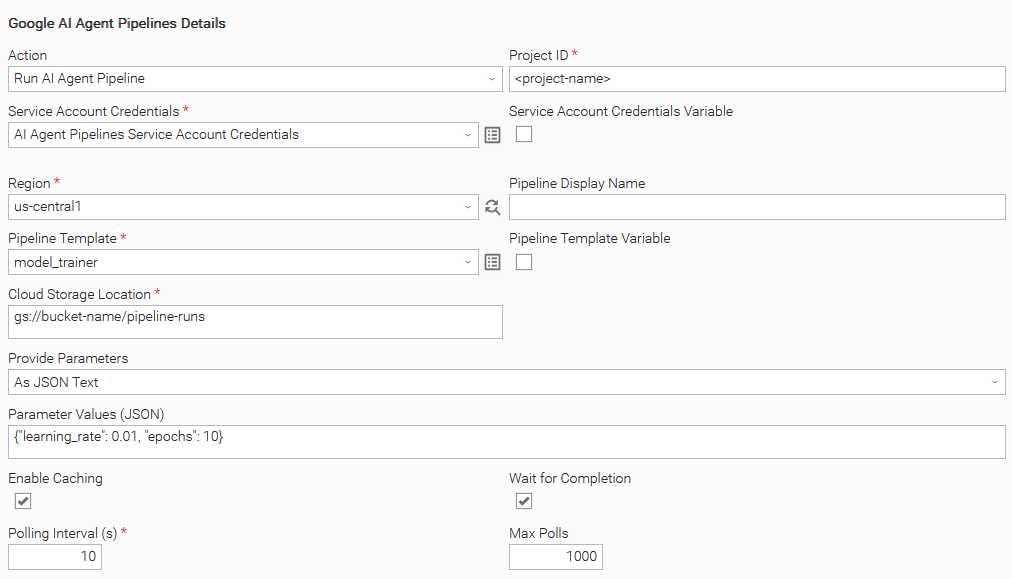
Example: Run action, wait for completion, inline JSON parameters
Configures the Service Account Credentials, Project ID, and Region to target a Google Cloud project. Sets Action to "Run AI Agent Pipeline" with a Pipeline Template Script and a Cloud Storage Location. Sets Provide Parameters to "As JSON Text" with parameter values entered directly in Parameter Values (JSON). Checks Wait for Completion so the task polls Google Cloud until the pipeline reaches a terminal state, updating output fields with the final state and console URL.
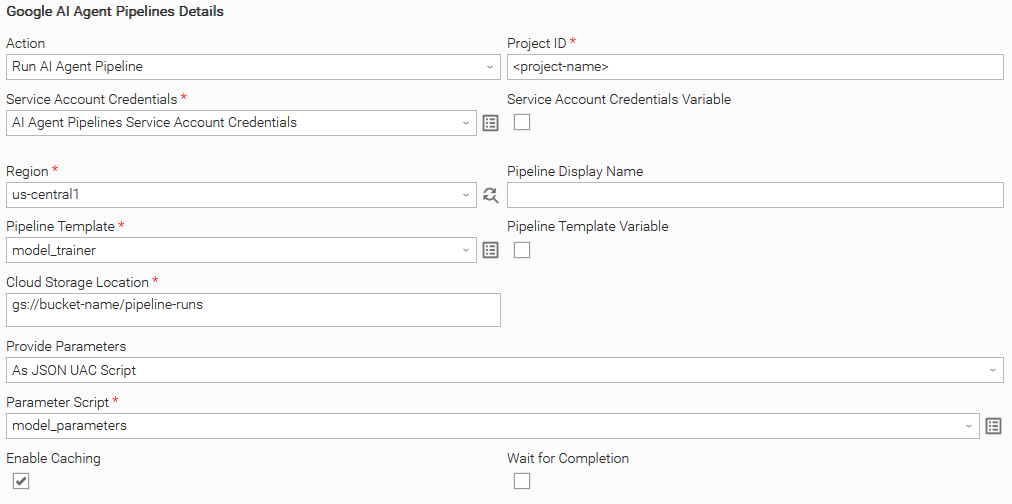
Example: Run action, fire-and-forget, parameters from a UAC Script
Uses the same authentication as the previous example but sets Provide Parameters to "As JSON UAC Script", referencing a Parameter Script Script entity for the pipeline parameters. Leaves Wait for Completion unchecked, so the task submits the pipeline run and returns immediately with the resource name and console URL, without polling for the final state.
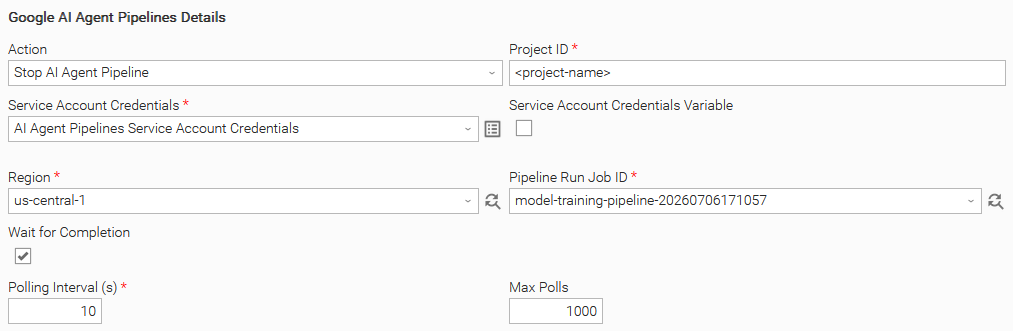
Example: Stop action, wait for cancellation confirmation
Sets Action to "Stop AI Agent Pipeline" and selects the run to cancel via Pipeline Run Job ID. Checks Wait for Completion so the task polls Google Cloud until the CANCELLED state is confirmed before completing.
Input Fields
Name | Type | Description | Version Information |
|---|---|---|---|
Action | Choice | The operation performed by the task. Available options:
| Introduced in 1.0.0 |
Project ID | Text | The Google Cloud project ID where AI Agent Pipeline runs are created and managed, for example | Introduced in 1.0.0 |
Service Account Credentials | Credential | The Universal Controller Credential whose Token attribute holds the Google Cloud service account JSON key. The associated account requires the | Introduced in 1.0.0 |
Region | Dynamic Choice | The Google Cloud region for the AI Agent Pipeline, for example | Introduced in 1.0.0 |
Pipeline Display Name | Text | The human-readable name for the pipeline run shown in the Google Cloud Console. When left empty, the name is derived from the pipeline template's This field is visible when Action is "Run AI Agent Pipeline". | Introduced in 1.0.0 |
Pipeline Template | Script | The Universal Controller Script whose content is the compiled pipeline definition, in JSON or YAML format, passed to the Gemini Enterprise Agent Platform SDK as a local temporary file. This field is visible and required when Action is "Run AI Agent Pipeline". | Introduced in 1.0.0 |
Cloud Storage Location | Text | The Cloud Storage bucket used as the root output directory for the pipeline run, for example This field is visible and required when Action is "Run AI Agent Pipeline". | Introduced in 1.0.0 |
Provide Parameters | Choice | The source of the runtime parameters passed to the pipeline. Available options:
This field is visible when Action is "Run AI Agent Pipeline". | Introduced in 1.0.0 |
Parameter Values (JSON) | Text | A JSON object of runtime parameters whose keys match the pipeline's parameter names. Left empty when the pipeline requires no parameters. This field is visible when Provide Parameters is "As JSON Text". | Introduced in 1.0.0 |
Parameter Script | Script | The Universal Controller Script entity whose content is the pipeline parameter JSON object, for example This field is visible and required when Provide Parameters is "As JSON UAC Script". | Introduced in 1.0.0 |
Enable Caching | Checkbox | Check to allow the platform to reuse results from identical previous pipeline component executions. Uncheck to force a fresh run of all components. This field is visible when Action is "Run AI Agent Pipeline". | Introduced in 1.0.0 |
Pipeline Run Job ID | Dynamic Choice | The AI Agent Pipeline run to cancel. Populated from the runs in the selected project and region when the Dynamic Choice button is used. This field is visible when Action is "Stop AI Agent Pipeline". | Introduced in 1.0.0 |
Wait for Completion | Checkbox | Check to poll Google Cloud until a terminal state is reached: the pipeline run reaching a terminal state when Action is "Run AI Agent Pipeline", or the cancellation being confirmed ( | Introduced in 1.0.0 |
Polling Interval (s) | Integer | The interval, in seconds, at which the task polls Google Cloud for the pipeline run state (when Action is "Run AI Agent Pipeline") or the pipeline cancellation state (when Action is "Stop AI Agent Pipeline"). Minimum value: This field is visible and required when Wait for Completion is checked. | Introduced in 1.0.0 |
Max Polls | Integer | The maximum number of polls performed before the task stops and returns the current state. Leave empty or set to This field is visible when Wait for Completion is checked. | Introduced in 1.0.0 |
Output Fields
The following output-only fields provide better visibility during the execution of Universal Task Instances.
Name | Type | Description | Version Information |
|---|---|---|---|
Pipeline Run Name | Text | The resource name of the created pipeline run. This field is visible when Action is "Run AI Agent Pipeline". | Introduced in 1.0.0 |
Pipeline Run State | Text | The final observed state of the pipeline run at task completion, for example | Introduced in 1.0.0 |
Pipeline Run URL | Text | A direct link to the pipeline run in the Google Cloud Console. | Introduced in 1.0.0 |
Cancellation and Rerun
- In case of cancellation, if a pipeline run has already been submitted by the "Run AI Agent Pipeline" action (Pipeline Run Name is populated), a cancellation signal is automatically sent to Google Cloud for that run. If cancellation occurs before a run is submitted, no remote resource is affected. Cancelling a Universal Task Instance running the Stop AI Agent Pipeline action has no additional effect on Google Cloud.
- In case of rerun, if a pipeline run from the prior execution is already in progress, submission is skipped and the existing pipeline run is monitored instead of creating a new run.
Importable Configuration Examples
This integration provides importable configuration examples along with their dependencies, grouped as Use Cases to better describe end to end capabilities.
These examples aid in allowing task authors to get more familiar with the configuration of tasks and related Use Cases. Such tasks should be imported in a Test system and should not be used directly in production.
Initial Preparation Steps
- STEP 1: Go to Stonebranch Integration Hub and download the integration along with any additional integrations required by the Use Cases. Extract the downloaded archives in a local directory.
- STEP 2: Locate and import the above integration(s) to the target Universal Controller. For more information refer to the How To section in this document.
- STEP 3: Inside the directory named "configuration_examples" you will find a list of definition zip files. Upload them one by one respecting the order presented below, by using the "Upload" functionality of Universal Controller:
- *_variables.zip
- *_credentials.zip
- *_scripts.zip
- *_tasks.zip
- *_workflows.zip
The*represents a number prefix that varies per integration. Upload only the files present, in the order listed above.
- STEP 4: Update the uploaded UAC Credential entity(ies) with the required credentials. Review each credential's description for guidance on what to provide.
- STEP 5: Update the UAC global variables introduced with the
*_variables.zipfile. Their name is prefixed with the extension name using underscores instead of hyphens. Review the descriptions of the variables as they include information on how they should be populated. - STEP 6: If applicable, create an OMS record on the Universal Controller. Ensure the address matches the one assigned to the relevant global variable from the previous step. For more information refer to Creating OMS Server Records.
- STEP 7: If applicable, create an Agent Cluster on the Universal Controller. Ensure the name matches the one assigned to the relevant global variable from the previous step. For more information refer to Creating an Agent Cluster.
- The order indicated above ensures that the dependencies of the imported entities need to be uploaded first.
- All imported entities are prefixed with the Use Case number (e.g. UC1, UC2, UC3) they belong to.
How to "Upload" Definition Files to a Universal Controller
The "Upload" functionality of Universal Controller allows Users to import definitions exported with the "Download" functionality.
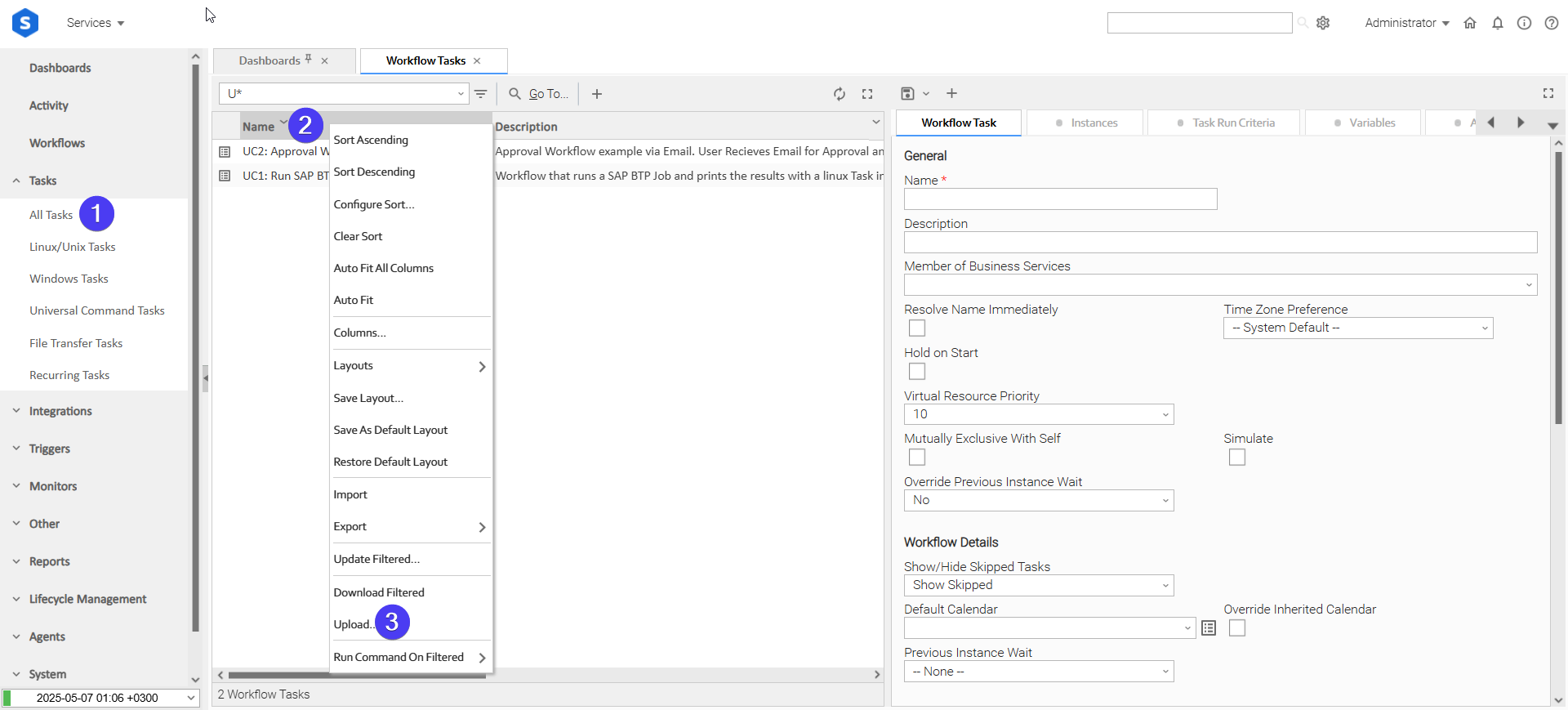
Login to Universal Controller and:
- STEP 1: Click "Tasks" → "All Tasks"
- STEP 2: Right click on the top of the column named "Name"
- STEP 3: Click "Upload..."
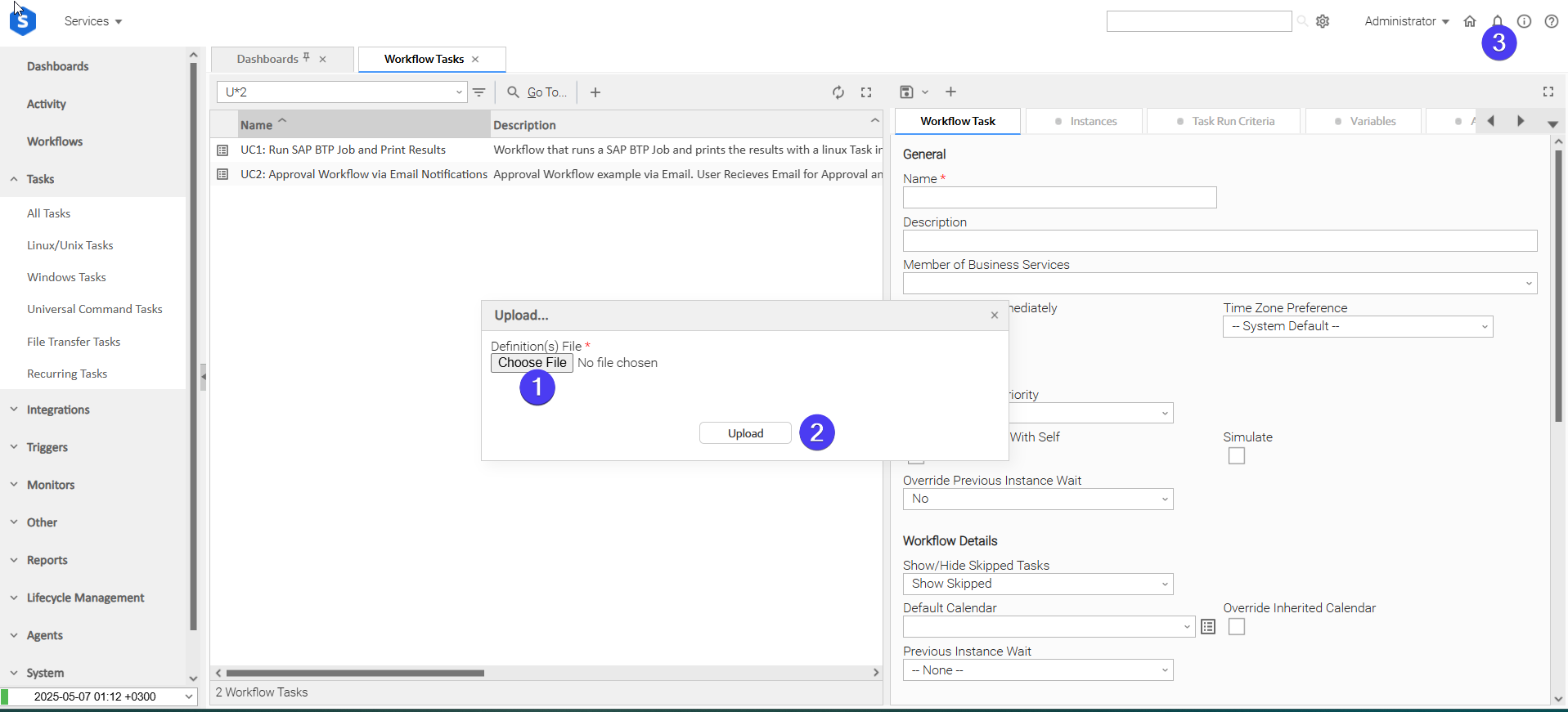
In the pop-up "Upload..." dialogue:
- STEP 1: Click "Choose File".
- STEP 2: Select the appropriate zip definition file and click "Upload".
- STEP 3: Observe the Console for possible errors.
Use Case 1: Trigger AI Agent Pipeline, Wait for Completion, and Notify Stakeholders
Description
Demonstrates submitting an AI Agent Pipeline run, waiting for it to complete, and notifying stakeholders of the outcome through a dedicated Email Task on each exit path.
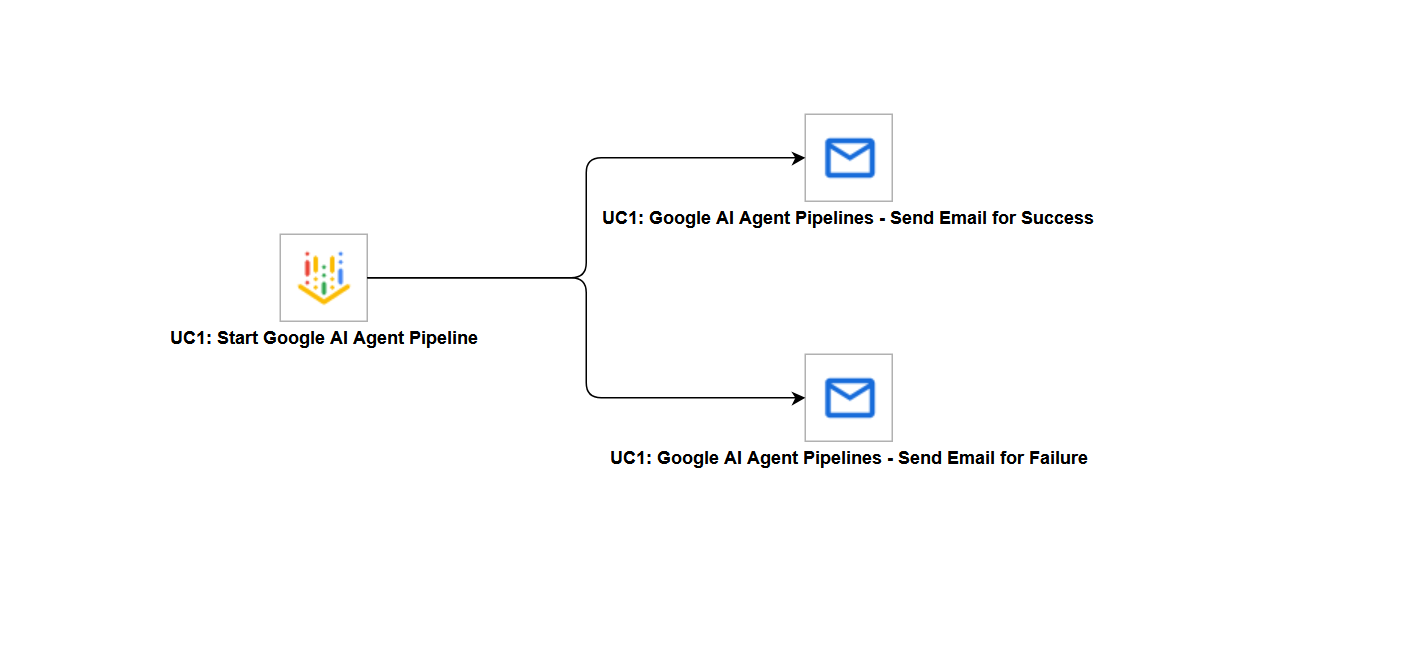
The workflow is composed of the following components:
- UC1: Start Google AI Agent Pipeline — Submits the compiled pipeline template to the Gemini Enterprise Agent Platform and waits for the run to reach a terminal state.
- UC1: Google AI Agent Pipelines - Send Email for Success — Runs on the Success exit path and sends an email to stakeholders reporting the final pipeline run state and console link.
- UC1: Google AI Agent Pipelines - Send Email for Failure — Runs on the Failure exit path and sends an email to stakeholders reporting the failure.
How to Run
Execution Steps
- Ensure all Initial Preparation Steps have been completed successfully.
- Update the UC1 Pipeline Template script with a valid compiled pipeline definition and the UC1 Cloud Storage Location variable with a Cloud Storage bucket accessible to the configured service account.
- Launch the workflow task and monitor the execution in Universal Controller.
Expected Results
- The AI Agent Pipeline run is submitted to the configured Google Cloud project and region.
- The task polls the run until it reaches a terminal state, updating output fields with the final state and console URL.
- On the Success exit path, an email notification reporting the successful outcome is sent to stakeholders.
- On the Failure exit path, an email notification reporting the failure is sent to stakeholders instead.
- The Universal Controller task instance completes in Success or Failure state depending on the observed pipeline state.
Exit Codes
Exit Code | Status | Description |
|---|---|---|
0 | Success | Task executed successfully. |
1 | Failed | Execution Failed: "<Error Description>" |
2 | Failed | Authentication Error: "<Error Description>" - The provided service account JSON key is malformed, missing required fields, or otherwise invalid. |
3 | Failed | Authorization Error: "<Error Description>" - The service account does not have sufficient permissions on the target Google Cloud project. |
4 | Failed | Pipeline Not Found: "<Error Description>" - The specified AI Agent Pipeline run does not exist in the target project and region. |
5 | Failed | Connectivity Error: "<Error Description>" - The Gemini Enterprise Agent Platform API could not be reached due to a network or connectivity issue. |
6 | Failed | Pipeline Execution Error: "<Error Description>" - The AI Agent Pipeline reached |
10 | Failed | Timeout Error: "<Error Description>" - A Google Cloud API call exceeded its deadline. |
20 | Failed | Data Validation Error: "<Error Description>" - Input fields validation error. |
40 | Failed | Polling Timeout: "<Error Description>" - The task exceeded the maximum wait time for a response. |
How To
Import Universal Template
To use the Universal Template, you first must perform the following steps
For large Universal Templates like this one, some parameters need to be adjusted, particularly for MySQL, Universal Controller and Universal Agent: (tomcat/conf/uc.properties)
MySQL (my.cnf)
max_allowed_packet: Defines the maximum size of a single network packet that can be read or written by the server and clients.
- Recommended setting: Ensure it is configured to a value at least 25% greater than the size of your largest imported integration
innodb_log_file_size: Determines the size of InnoDB redo log files. While this parameter has been simplified in recent MySQL versions, it's still relevant for MySQL versions prior to 8.0.30
- Purpose: Prevents "BLOB/TEXT data inserted in one transaction is greater than 10% of redo log size" errors that might appear on Universal Controller logs
- Recommended setting: Ensure 10% of the log file size exceeds your largest imported integration
Universal Agent Configuration (config/omss.conf):
max_msg_size: Specifies the maximum allowable size for messages. Messages exceeding the limit will not be accepted by the server.
- Recommended setting: Ensure the configured value is 10% greater than your largest imported integration
Universal Controller Configuration
Universal Controller configuration can restrict import of an integration if the extension maximum bytes is not properly set. This can be configured in the following ways:
- Universal Controller configuration file (tomcat/conf/uc.properties):
uc.universal_template.extension.maximum_bytes - Universal Controller UI Admin Panel: Administration → Properties → Universal Template Extension Maximum Bytes
- Recommended setting: Ensure the configured value is greater than the size of your largest imported integration
The deployment of an integration from Universal Controller to Universal Agents, can also be restricted by the JVM heap size of the Tomcat serving the Universal Controller. Ensure to configure the JVM heap size adequately.Things to consider.
- # of agents configured to accept the extension(s).
- # of agents configured to deploy on-registration and how many would be registering simultaneously.
- # of parallel, on-demand deployments, where deployment happens the first time the extension needs to execute on a specific agent.
- This Universal Task requires the Resolvable Credentials feature. Check that the Resolvable Credentials Permitted system property has been set to true.
- Import the Universal Template into your Controller:
- Extract the zip file, you downloaded from the Integration Hub.
- In the Controller UI, select Services > Import Integration Template option.
- Browse to the "export" folder under the extracted files for the ZIP file (Name of the file will be unv_tmplt_*.zip) and click Import.
- When the file is imported successfully, refresh the Universal Templates list; the Universal Template will appear on the list.
Modifications of this integration, applied by users or customers, before or after import, might affect the supportability of this integration. For more information refer to Integration Modifications.
Configure Universal Task
For a new Universal Task, create a new task, and enter the required input fields.
Integration Modifications
Modifications applied by users or customers, before or after import, might affect the supportability of this integration. The following modifications are discouraged to retain the support level as applied for this integration.
- Python code modifications should not be done.
- Template Modifications
- General Section
- "Name", "Extension", "Variable Prefix", and "Icon" should not be changed.
- Universal Template Details Section
- "Template Type", "Agent Type", "Send Extension Variables", and "Always Cancel on Force Finish" should not be changed.
- Result Processing Defaults Section
- Success and Failure Exit codes should not be changed.
- Success and Failure Output processing should not be changed.
- Fields Restriction Section
The setup of the template does not impose any restrictions. However, concerning the "Exit Code Processing Fields" section.
- Success/Failure exit codes need to be respected.
- In principle, as STDERR and STDOUT outputs can change in follow-up releases of this integration, they should not be considered as a reliable source for determining the success or failure of a task.
- General Section
Users and customers are encouraged to report defects, or feature requests at Stonebranch Support Desk.
Document References
Document Link | Description |
|---|---|
Overview of the pipeline orchestration service that executes AI Agent Pipeline runs submitted by this task. | |
REST API reference for the pipeline job resources this task submits, polls, and cancels. | |
IAM roles and permissions required by the service account used to submit and manage pipeline runs. | |
Reference for the Python SDK used by this task to submit, poll, and cancel pipeline runs. | |
Steps for generating the service account JSON key stored in the Service Account Credentials Universal Controller Credential. |
Changelog
ue-google-ai-agent-pipelines-1.0.0 (2026-07-21)
Initial Version