Google Vertex AI
Disclaimer
Your use of this download is governed by Stonebranch's Terms of Use.
Version Information
Template Name | Extension Name | Version | Status |
|---|---|---|---|
Google Vertex AI | ue-gcp-vertexai | 1 (Current 1.0.0) | Fixes and new Features are introduced |
Refer to Changelog for version history information.
Overview
The Google Vertex AI Integration brings the power of enterprise-grade large language models into your UAC workflows, enabling intelligent automation that can understand, generate, and transform content. By connecting your automation workflows to Google-hosted AI models, you can build solutions that combine the reliability and orchestration capabilities of UAC with the reasoning and language capabilities of modern LLMs.
This integration opens up a wide range of automation possibilities: from analyzing logs and generating human-readable summaries of complex system states, to intelligently routing and classifying data, transforming unstructured information into structured formats, or even making context-aware decisions within your workflows.
Key Features
Feature | Description |
|---|---|
Ask AI |
|
Response Output | Stores the LLM response as a local file. |
Prompt Enrichment | Enriches prompts with data from files and UAC Variables |
Requirements
This integration requires a Universal Agent and a Python runtime to execute the Universal Task.
Area | Details |
|---|---|
Python Version | Requires Python 3.11, Tested with Agent bundled python distribution. |
Universal Agent Compatibility | Compatible with Universal Agent for Windows x64 and version >= 7.9.0.0. Compatible with Universal Agent for Linux and version >= 7.9.0.0. |
Universal Controller Compatibility | Universal Controller Version >= 7.9.0.0. |
Network and Connectivity | Network connectivity to Google Vertex AI is required. |
Supported Actions
Ask AI (OpenAI SDK)
Sends a System and a User prompt to models using the Chat Completions API. It is used in a stateless mode, meaning that each request is handled independently, with no memory of previous requests. As of current implementation, the API is used in a stateless mode.
Action Output
- EXTENSION
- STDOUT
- STDERR
The extension output provides the following information:
exit_code, status_description:General info regarding the Task Instance execution. For more information, refer to the exit code table.invocation.fields:The Task Instance configuration.result.response:The AI-generated response.result.complete_conversation:Type : List of JSON Objects with "role" and "content" attributes. The full conversation between the user and the AI model split into the "system", "user", and "asisstant" roles.result.metadata:Type : JSON Object. Information related to the prompt execution, generated tokens, finish_reason, etc.result.errors:List of errors that might have occurred during execution.
Examples:Successful Execution
Failed Execution
When configured, shows the "Latest Response Only" or the "Entire Conversation" with the LLM in a human readable way.
Shows the logs from the Task Instance execution. The verbosity is controlled by the Task configuration Log Level.
Configuration examples
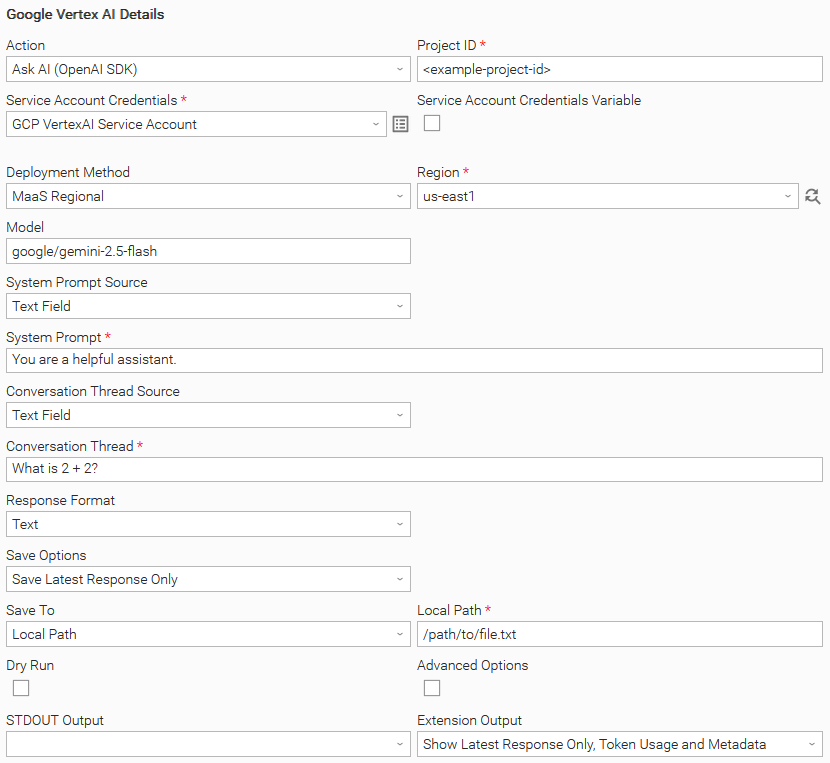
Example: Ask AI (OpenAI SDK) with MaaS Regional Deployment Method and save the response to a Local Path
In this example, the user configures a Universal Task to invoke the Chat Completions API using a Google Vertex AI Service Account and the google/gemini-2.5-flash model. The task is configured to capture the AI-generated response in the EXTENSION output rather than printing it to STDOUT. Finally, the user enables the display of token usage metadata, providing visibility into the resources consumed during response generation.
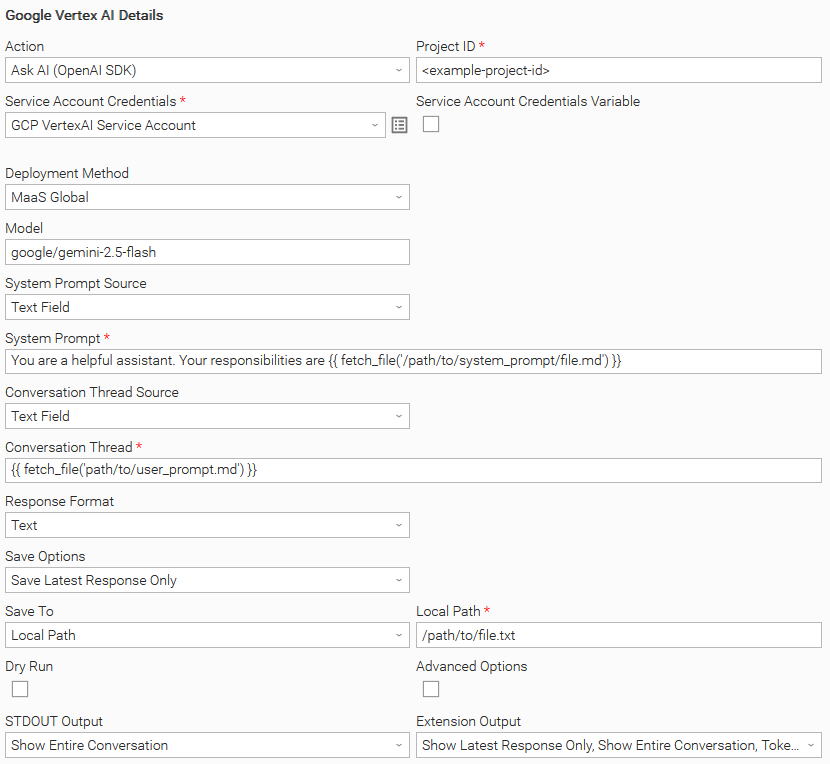
Example: Ask AI (OpenAI SDK) with MaaS Global Deployment Method and fetch prompts from files
In this example, instead of defining the prompt inline, the task retrieves one or more prompts from files stored on disk. The user has also configured the task to display the entire conversation in both STDOUT and the EXTENSION output**.**
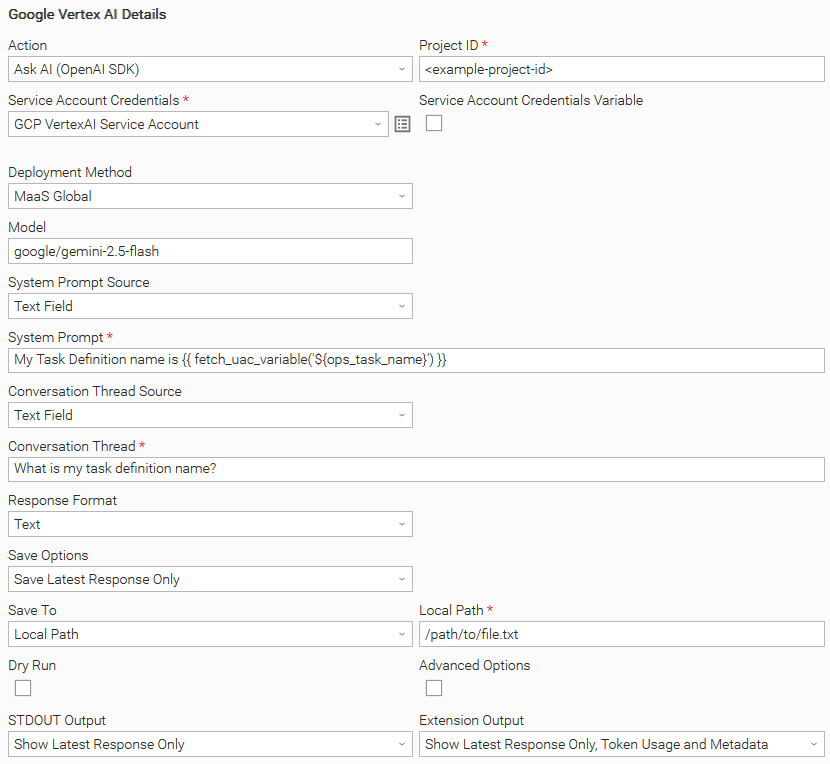
Example: Ask AI (OpenAI SDK) and fetch system prompt from a UAC Variable
In this example, the system prompt is dynamically retrieved from the ops_task_name UAC Variable. The task is configured to print the AI-generated response to STDOUT and EXTENSION output
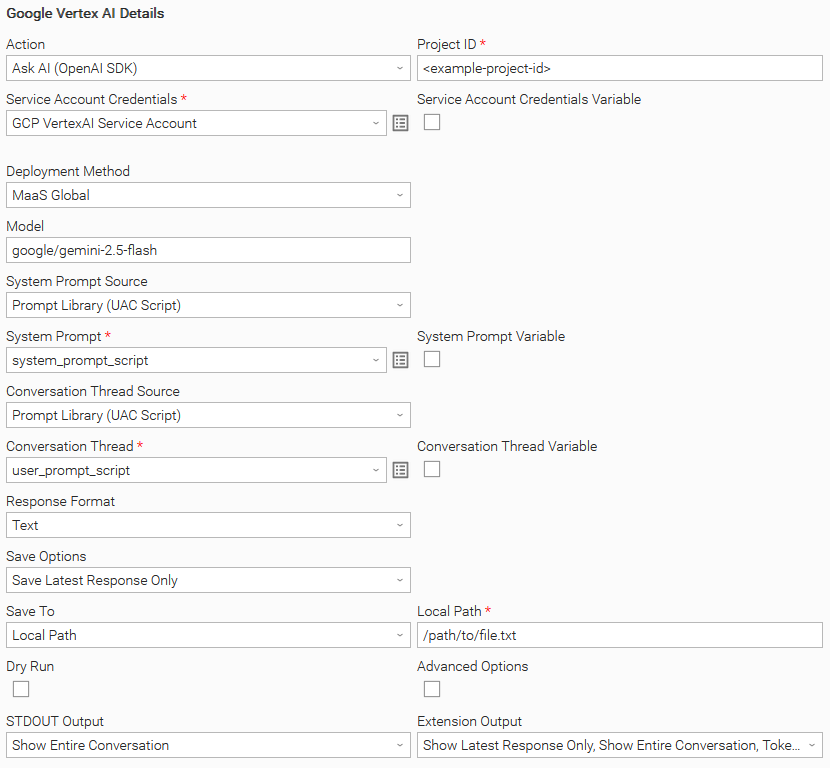
Example: Ask AI (OpenAI SDK) and fetch the prompts from UAC Scripts
In this example, both the system prompt and the user prompt (conversation thread) are sourced from UAC Scripts. The task is also configured to display the entire conversation in STDOUT as well as in the Extension Output.
Input Fields
Name | Type | Description | Version Information |
|---|---|---|---|
Action | Choice | The action performed upon the task execution.
| Introduced in 1.0.0 |
Project ID | Text | The project ID provided by the Google Vertex AI platform. | Introduced in 1.0.0 |
Service Account Credentials | Credentials | The Service Account Credentials to access the Google Vertex AI platform. The Service Account JSON needs to be placed in the Token field. | Introduced in 1.0.0 |
Deployment Method | Choice | Select the endpoint where the AI model is deployed. The following options are provided:
| Introduced in 1.0.0 |
Region | Dynamic Choice | Specify the region where the model is deployed. This field is visible when "MaaS Regional" Deployment Method is selected. | Introduced in 1.0.0 |
Model | Text | The AI Model (deployment) to be used. It needs to be populated in the format | Introduced in 1.0.0 |
System Prompt Source | Choice | System Prompt sources available:
| Introduced in 1.0.0 |
System Prompt | Large Text / Script | The system prompt to be sent to the AI model. This field supports Dynamic Placeholders. Users can type the following template functions and place them anywhere within the System Prompt or the Conversation Thread fields, constructing the prompt in a dynamic way:
It is a Script input field when "Prompt Library (UAC Script)" System Prompt Source is selected; otherwise it is Text. Dynamic Placeholders work with both Text and Script field types. | Introduced in 1.0.0 |
Conversation Thread Source | Choice | Conversation Thread sources available:
| Introduced in 1.0.0 |
Conversation Thread | Large Text / Script | The Conversation Thread (user prompt) to be sent to the AI model. This field supports Dynamic Placeholders. Users can type the following template functions and place them anywhere within the System Prompt or the Conversation Thread fields, constructing the prompt in a dynamic way:
It is a Script input field when "Prompt Library (UAC Script)" Conversation Thread Source is selected, else it is Text Dynamic Placeholders work with both Text and Script field types. | Introduced in 1.0.0 |
Response Format | Choice | Provide the capability to select the output format of the AI response. Response Formats available:
For more information please read Structured Outputs | Introduced in 1.0.0 |
JSON Schema Response | Script | Provide the JSON Schema to format the AI model's output. This field is visible when "JSON Schema (API Enforced)" Response Format is selected. For more information please read Structured Outputs | Introduced in 1.0.0 |
Save Options | Choice | Specify the content to be saved from the response. The following Save Options are available:
| Introduced in 1.0.0 |
Save To | Choice | Specify the save location of the response. The following options are available:
This field is visible when either "Save Entire Conversation" or "Save Latest Response Only" Save Options is selected. | Introduced in 1.0.0 |
Local Path | Text | Provide the file path to save the response. If the file does not exist, the extension will attempt to create it. If the file already exists it will be overwritten. This field is visible when either "Save Entire Conversation" or "Save Latest Response Only" Save Options is selected. | Introduced in 1.0.0 |
Dry Run | Checkbox | Validate inputs without making an API call. Useful for troubleshooting and testing purposes. | Introduced in 1.0.0 |
Advanced Options | Checkbox | Enable advanced options. | Introduced in 1.0.0 |
Temperature | Float | Control the Sampling Temperature of the response. This field is visible when Advanced Options is selected. | Introduced in 1.0.0 |
Top P | Float | Control the Nucleus Sampling of the response. Not all models support this value and may produce an error when set. In addition, between models, the accepted range is different. This field is visible when Advanced Options is selected. | Introduced in 1.0.0 |
Frequency Penalty | Float | Control the repetition of the response. Not all models support providing this value and may produce an error when set. In addition, between models, the accepted range is different. This field is visible when Advanced Options is selected. | Introduced in 1.0.0 |
Presence Penalty | Float | Encourage new Topics in the response. Not all models support providing this value and may produce an error when set. In addition, between models, the accepted range is different. This field is visible when Advanced Options is selected. | Introduced in 1.0.0 |
Seed | Integer | Explicitly set a value to improve the determinism of the model response. | |
Max Tokens | Integer | Specify the maximum number of tokens to be generated by the LLM. This field controls the length of the response. If the response attempts to exceed the limit, it is abruptly stopped. This field is visible when Advanced Options is selected. | Introduced in 1.0.0 |
Stop Sequences | Text | Define comma separated tokens or sequences that tells the model to halt text generation when encountered. | Introduced in 1.0.0 |
STDOUT Output | Choice | Specify the information to be displayed in STDOUT. The following options are available:
| Introduced in 1.0.0 |
EXTENSION Output | Multiple Choice | Specify the information to be displayed in the EXTENSION output. The following options are available:
| Introduced in 1.0.0 |
Structured Outputs
The Google Vertex AI Integration offers three ways to control how the AI model formats its responses. This guide explains each option and helps you choose the right one for your needs.
Text
Plain text responses with no formatting constraints. The model responds naturally in plain text. You describe what you want in your prompt, and the model does its best to follow your instructions. Best used for natural language responses without structure.
However, an "N shot inference strategy" in your prompt can produce good results for a structured response. This mode is helpful when working with old cheaper models when JSON structure is not API provided.
System Prompt Example
You are an assistant that replies in specific format as mentioned in the examples below
Conversation Thread Example
[User]
Tokyo is experiencing a beautiful spring day with clear blue skies and gentle breezes flowing through the streets. The temperature has reached a comfortable 22 degrees, making it perfect for
outdoor activities.

[Assistant]
{ "city": "Tokyo", "temperature": 22}


[User]
New York is facing a harsh winter storm today with heavy snowfall blanketing the entire metropolitan area. Public transportation is experiencing major delays and cancellations. The temperature has plummeted to
a frigid 5 degrees below zero, making it one of the coldest days this season.

[Assistant]
{ "city": "New York", "temperature": -5}

[User]
London is having a typical autumn day with overcast skies and light drizzle throughout the morning hours. The temperature is holding steady at 15 degrees, which is quite typical for this time of year.

[Assistant]
{ "city": "London", "temperature": 15}

[User]
Sydney is experiencing an intense summer heatwave with scorching temperatures breaking records across the region.  Authorities have issued heat warnings advising people to stay hydrated and avoid prolonged sun exposure. The temperature
has soared to an extreme 35 degrees, making it one of the hottest days of the summer.
Extension Output Example
{
 ...
 "result": {
   "response": {
      "city": "Sydney",
      "temperature": 35
   },
   "metadata": {
   "prompt_tokens": 276,
   "completion_tokens": 14,
   "total_tokens": 290,
   "finish_reason": "stop"
}
JSON (Prompt Described)
The model returns JSON, but you describe the structure in your prompt. The model guarantees valid JSON syntax, but you must describe what fields and structure you want in your prompt. The model will try to follow your description, however there's no strict enforcement. This strategy shows very good and consistent results for majority of the cases.
How it works:
- The API ensures the response is valid JSON (proper brackets, quotes, commas)
- You describe the desired structure in your prompt
- The model attempts to match your description, but may not strictly adhere to it.
Requirements:
- Your prompt must mention JSON - The API requires this. Without it, you'll get an error.
- You should describe the desired structure in your system prompt
System Prompt Example
You are a helpful assistant providing information strictly in JSON format.

The JSON format should be:

{ "City": "<city_name>", "temperature": <number>}
Conversational Thread Example
[User]

Input text is :
"New York is facing a harsh winter storm today with heavy snowfall blanketing the entire metropolitan area. The streets are covered in thick layers of snow, and visibility is significantly reduced due to the ongoing blizzard
conditions. Strong winds are creating dangerous wind chills, and residents are advised to stay indoors unless absolutely necessary. Public transportation is experiencing major delays and cancellations. The temperature has plummeted to
a frigid 5 degrees below zero, making it one of the coldest days this season."
Extension Output Example
{
 ...
 "result": {
   "response": {
      "city": "New York",
      "temperature": -5
   },
   "metadata": {
   "prompt_tokens": 276,
   "completion_tokens": 14,
   "total_tokens": 290,
   "finish_reason": "stop"
}
JSON Schema (API Enforced)
You provide a detailed JSON Schema, and the API guarantees the model's response will match it exactly - correct fields, correct types, no extras, no omissions.
How it works:
- You provide a formal JSON Schema definition
- The API enforces 100% compliance
- No prompt engineering needed - the schema does the work
Limitations
- May not be supported by all models.
Additional Information:
System Prompt Example
You are a helpful assistant replying with a predefined JSON structure
Conversational Thread Example
[User]

New York is facing a harsh winter storm today with heavy snowfall blanketing the entire metropolitan area. The streets are covered in thick layers of snow, and visibility is significantly reduced due to the ongoing blizzard
conditions. Strong winds are creating dangerous wind chills, and residents are advised to stay indoors unless absolutely necessary. Public transportation is experiencing major delays and cancellations. The temperature has plummeted to
a frigid 5 degrees below zero, making it one of the coldest days this season.
JSON Schema Response Script Example
{
  "type": "object",
  "properties": {
    "city": {
      "type": "string",
      "description": "City Name"
    },
    "temperature": {
      "type": "number",
      "description": "Temperature of the City, Number"
    }
  },
  "required": ["city", "temperature"],
  "additionalProperties": false
}
Extension Output Example
{
 ...
 "result": {
   "response": {
      "city": "New York",
      "temperature": -5
   },
   "metadata": {
   "prompt_tokens": 276,
   "completion_tokens": 14,
   "total_tokens": 290,
   "finish_reason": "stop"
}
Model Compatibility
Microsoft does not provide a comprehensive compatibility matrix for models, specifically to the capability of JSON Structured response.
It is suggested that you test your desired configuration covering some edge cases, observe errors if any, and make sure that output meet your needs.
Environment Variables
Environment Variables can be set from the Environment Variables task definition table. The following environment variables can affect the behavior of the extension.
Environment Variable Name | Description | Version Information |
|---|---|---|
UE_HTTP_TIMEOUT | Specifies the timeout (in seconds) for HTTP requests made by the Task Instance. A higher value allows for slower responses, while a lower value enforces stricter time constraints. If not set, a default of 60 seconds is used. When a timeout happens, the Task Instance ends in failure. | Introduced in 1.0.0 |
Exit Codes
Exit Code | Status | Status Description | Meaning |
|---|---|---|---|
0 | Success | "Task executed successfully." | Successful Execution |
1 | Failure | "Execution Failed: <<Error Description>>" | Generic Error. Raised when not falling into the other Error Codes. |
20 | Failure | "Data Validation Error: <<Error Description>>" | Input fields validation error. |
STDOUT and STDERR
STDOUT is used for displaying Job information. It is controlled by STDOUT Options field. STDERR provides additional information to the user. The level of detail is tuned by the Log Level Task Definition field.
Backward compatibility is not guaranteed for the content of STDOUT/STDERR and can be changed in future versions without notice
Data Retention and Privacy
This section explains how data retention works, and what additional configuration may be required for your organization's compliance needs. Customers can consult the following websites to get informed on how to achieve "zero data retention".
Official Google Vertex AI Documentation:
- Vertex AI and zero data retention
- Responsible AI
- Abuse monitoring
- How Gemini for Google Cloud uses your data
- Data governance for commerce
Importable Configuration Examples
This integration provides importable configuration examples along with their dependencies, grouped as Use Cases to better describe end to end capabilities.
Those examples aid in allowing task authors to get more familiar with the configuration of tasks and related Use Cases. Such tasks should be imported in a Test system and should not be used directly in production.
Initial Preparation Steps
- STEP 1: Go to Stonebranch Integration Hub and download "Google Vertex AI", "UAC Utility: Email Monitor", and "ServiceNow: Incident" integrations.
- STEP 2: Locate and import the above integrations to the target Universal Controller. For more information refer to the How To section in this document.
- STEP 3: Extract the Google Vertex AI archive; Inside the directory named "configuration_examples" you will find a list of definition zip files. Upload them one by one in the order given below, by using the "Upload" functionality of the Universal Controller:
- 1_variables.zip
- 2_credentials.zip
- 3_scripts.zip
- 4_tasks.zip
- 5_monitors.zip
- 6_workflows.zip
- 7_triggers.zip
- STEP 4: Update the uploaded UAC Credential entities for both Google Vertex AI, Email Monitor, and ServiceNow Incident.
- STEP 5: Update the UAC global variables introduced with the 1_variables.zip file. Their names are prefixed with "ue_gcp_vertexai". Review the descriptions of the variables as they include information on how should be populated.
- The order indicated above ensures that the dependencies of the imported entities need to be uploaded first.
- All imported entities are prefixed with UC1: Google Vertex AI.
How to "Upload" Definition Files to a Universal Controller
The "Upload" functionality of Universal Controller allows Users to import definitions exported with the "Download" functionality.
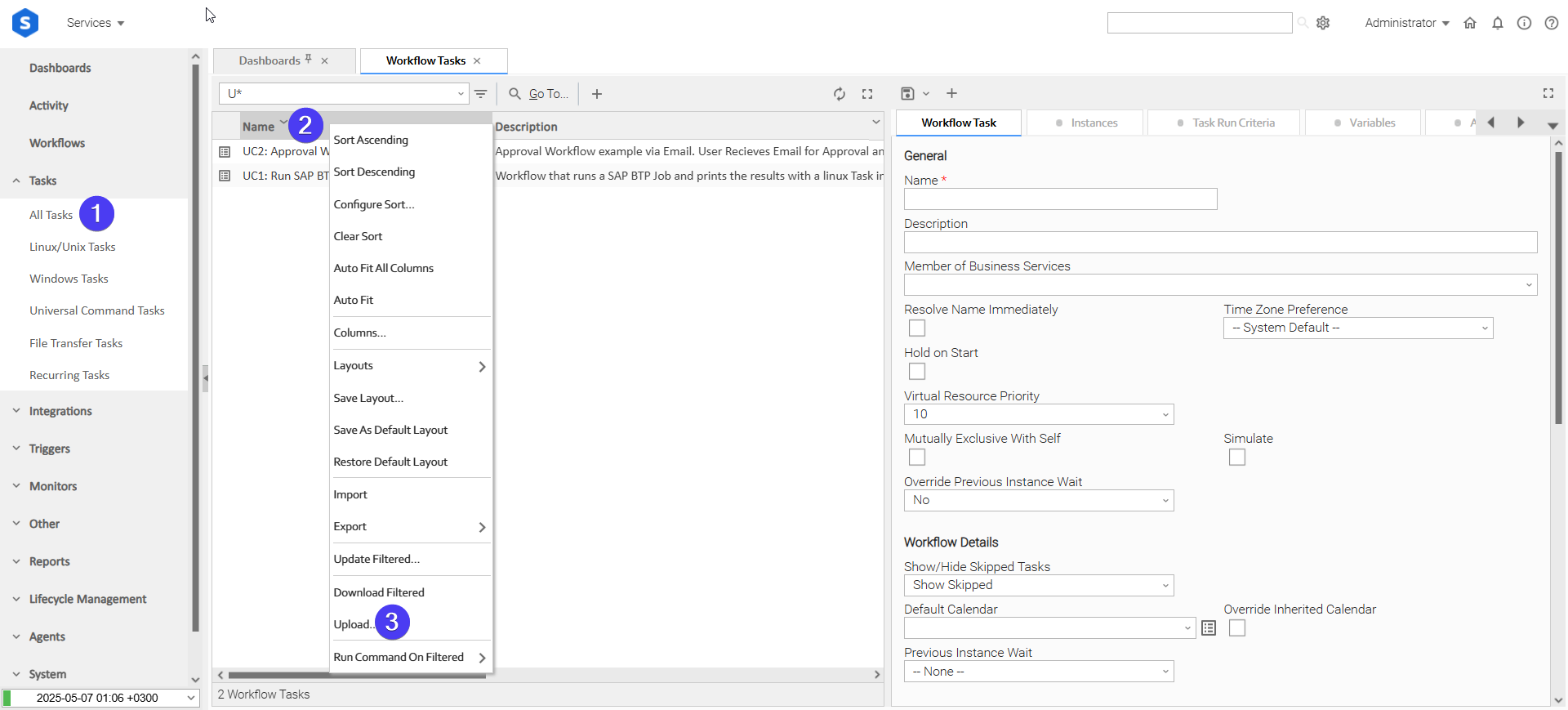
Login to Universal Controller and:
- STEP 1: Click "Tasks"→"All Tasks"
- STEP 2: Right click on the top of the column named "Name"
- STEP 3: Click "Upload..."
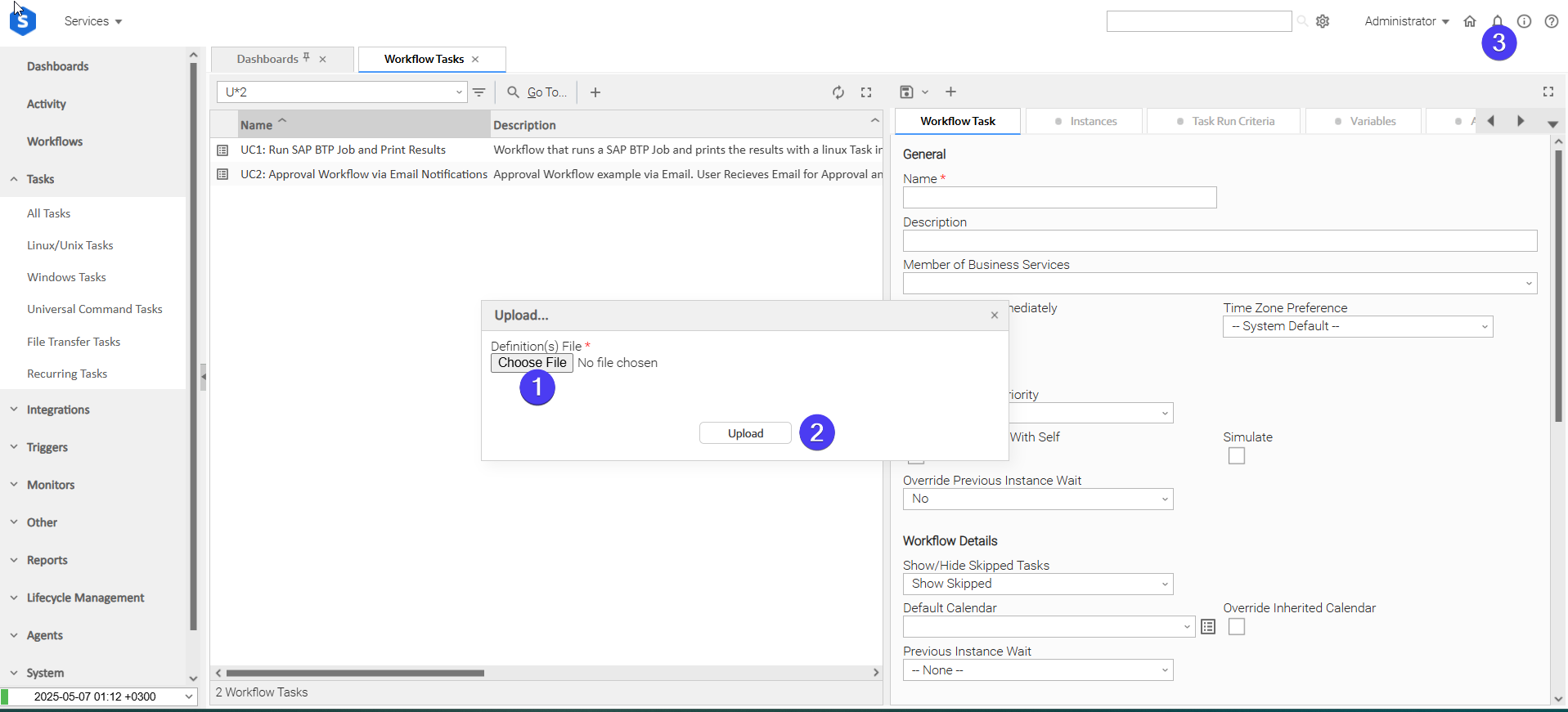
In the pop-up "Upload..." dialogue:
- STEP 1: Click "Choose File".
- STEP 2: Select the appropriate zip definition file and click "Upload".
- STEP 3: Observe the Console for possible errors.
Use Case 1: Email Classification, Output Transformation & Automated Incident Creation on ServiceNow
Description
This workflow uses Google VertexAI to analyze incoming emails and send them to the right process. The Email Monitor integration watches a mailbox and creates a Universal Event for each new message, triggering a UAC Workflow. Google Vertex AI UAC Tasks then classify the email as a purchase request, an infrastructure IT issue, or an undefined case that needs human review.
If the email is an infrastructure IT request, another Google Vertex AI Task converts the email content into structured JSON, which the ServiceNow Incident integration uses to automatically create an Incident. This demonstrates end-to-end branching and data transformation in UAC powered by Google Vertex AI.
The tasks configured demonstrate the following capabilities among others:
- Capability to trigger a task or a workflow based on received Emails.
- Propagation of useful information (like Email attributes) to downstream tasks.
- Utilize Google Vertex AI Tasks to classify information and transform it into structured formats.
- Handle business cases where the automatic creation of ServiceNow Incidents is necessary.
The components of the solution are described below:
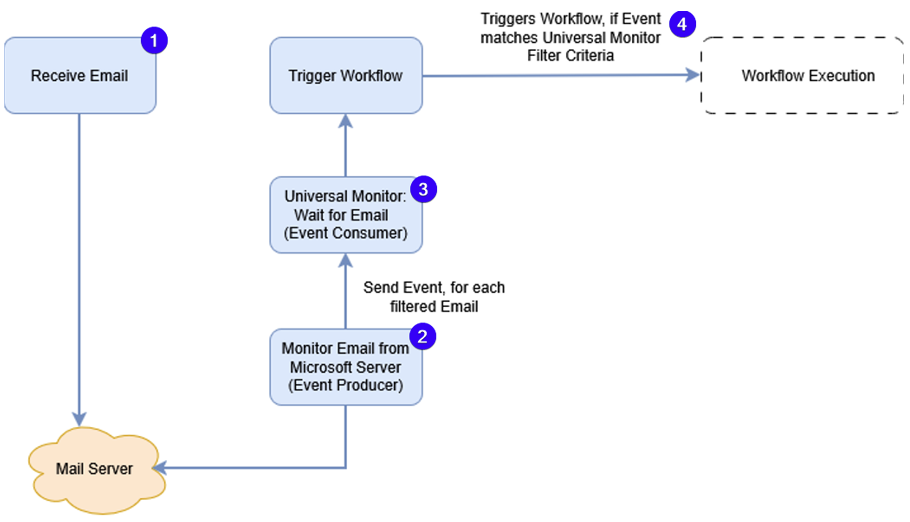
- Represents the receipt of an e-mail to a Mailbox.
- "UC1: Google Vertex AI - Monitor Email from Microsoft Server (Event Producer)" - Subscribes to Microsoft Server, monitors emails, saves attachments and emails on the Agent's filesystem and sends Universal Event for each monitored email.
- "UC1: Google Vertex AI - Universal Monitor: Wait for Email (Event Consumer)" - Monitors the Universal Events published from "UC1: Google Vertex AI - Monitor Email from Microsoft Server (Event Producer)"
- "UC1: Google Vertex AI - Trigger Workflow" - Triggers the configured workflow "UC1: Google Vertex AI - Email Classification & Transformation" when the Monitor condition on (3) is true.
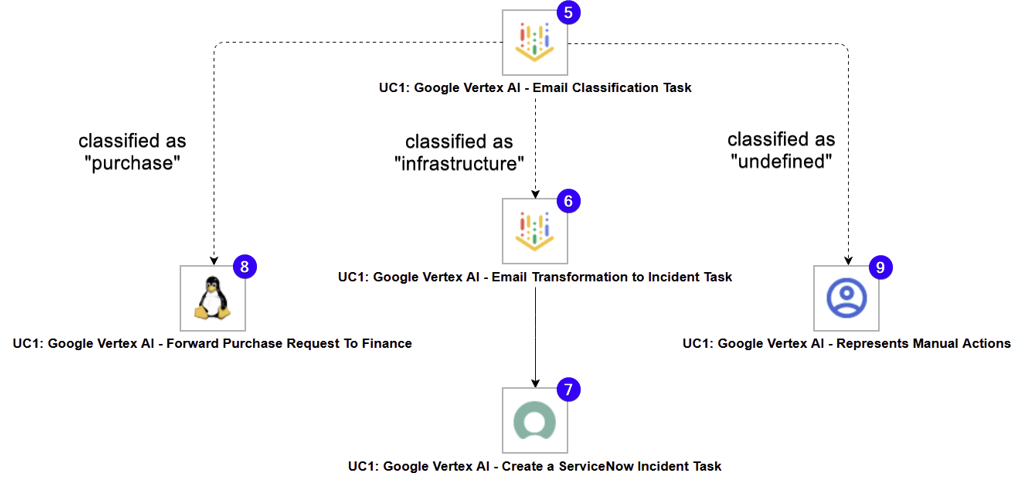
- "UC1: Google Vertex AI - Email Classification Task" - Calls "google/gemini-2.5-flash" to classify the contents of the received e-mail with one of the following values "purchase", "infrastructure", and "undefined".
- "UC1: Google Vertex AI - Email Transformation to Incident Task" - Transforms the contents of the received e-mail into a "ServiceNow Incident"-compatible JSON.
- "UC1: Google Vertex AI - Create a ServiceNow Incident Task" - Creates a ServiceNow Incident using the JSON produced in the previous step.
- "UC1: Google Vertex AI - Forward Purchase Request To Finance" - Task representing actions related to forwarding a purchase request to a Finance department.
- "UC1: Google Vertex AI - Represents Manual Actions" - Task representing actions related to introducing human intervention in cases that were unable to be classified by the "Google Vertex AI: Email Classification Task".
How to Run
Execution Steps:
- STEP 1: Enable Trigger "UC1: Google Vertex AI - Trigger Workflow". This automatically starts "UC1: Google Vertex AI - Universal Monitor: Wait for Email (Event Consumer)" and "UC1: Google Vertex AI - Monitor Email from Microsoft Server (Event Producer)"
- STEP 2: Send an e-mail to the address monitored by "UC1: Google Vertex AI - Universal Monitor: Wait for Email (Event Consumer)".
- STEP 3: Review the outputs of (7,8,9) depending on the classification produced by (5).
Expected Results:
- Mail is received, successfully monitored, and a workflow is launched.
- Task "UC1: Google Vertex AI - Email Classification Task" successfully produces a JSON-structured classification with one of the following values: "purchase", "infrastructure", "undefined".
- If the classification label is "infrastructure", Task "UC1: Google Vertex AI - Email Transformation to Incident Task" launches successfully.
Ready-to-use e-mail messages:
Infrastructure-related Incident Query
Dear Support Team,

I hope you are doing well.

I am writing to kindly ask for your assistance, as I am currently experiencing an issue accessing the VPN.
Unfortunately, I am unable to connect as expected, and this is preventing me from accessing the systems I normally use for my work.
So far, I have tried the following steps:

- Restarting my computer
- Disconnecting and reconnecting the VPN
- Checking my internet connection

However, the issue still persists.
I would greatly appreciate it if you could please advise me on what steps I should take next, or let me know if you require any additional information from my side.

Thank you very much for your time and support.

Kind regards,
John Doe
Purchase Request
Dear Support Team,

I hope you are doing well.

I am writing to kindly request your assistance regarding the purchase of a laptop for a new team member who will be joining us shortly.
Please let me know if there is any information you require from my side.

Kind regards,
John Doe
Uncategorized Query Requiring Human Intervention
Hello there,

Big news from CompanyName Cloud Services 👋

If you're building products that rely on fast, reliable customer communication, we've got something you don't want to miss.

Meet ConnectFlow™

Our all-in-one messaging and automation platform helps teams send SMS, email, and notifications at scale - without worrying about infrastructure, retries, or delivery issues.

Why teams are switching to ConnectFlow™:

⚡ Send messages globally in seconds

🔐 Enterprise-grade security and compliance

🔁 Built-in retries, monitoring, and analytics

🧩 Easy-to-use APIs and no-code options

📈 Designed to grow with you, from MVP to millions of users

Thousands of companies already trust ConnectFlow™ to power password resets, alerts, onboarding messages, and critical notifications - and now it's your turn.

👉 Get started in minutes
👉 Free trial included
👉 No credit card required

Have questions? Our solutions team is ready to help you design the perfect setup for your use case.

Thanks for building with us,
The CompanyName Team

You're receiving this email because you signed up for updates from CompanyName.
Prefer fewer emails? You can update your preferences or unsubscribe at any time.

© 2026 CompanyName, Inc. All rights reserved.
How To
Import Universal Template
To use the Universal Template, you first must perform the following steps
For large Universal Templates like this one, some parameters need to be adjusted, particularly for MySQL, Universal Controller and Universal Agent: (tomcat/conf/uc.properties)
MySQL (my.cnf)
max_allowed_packet: Defines the maximum size of a single network packet that can be read or written by the server and clients.
- Recommended setting: Ensure it is configured to a value at least 25% greater than the size of your largest imported integration
innodb_log_file_size: Determines the size of InnoDB redo log files. While this parameter has been simplified in recent MySQL versions, it's still relevant for MySQL versions prior to 8.0.30
- Purpose: Prevents "BLOB/TEXT data inserted in one transaction is greater than 10% of redo log size" errors that might appear on Universal Controller logs
- Recommended setting: Ensure 10% of the log file size exceeds your largest imported integration
Universal Agent Configuration (config/omss.conf):
max_msg_size: Specifies the maximum allowable size for messages. Messages exceeding the limit will not be accepted by the server.
- Recommended setting: Ensure the configured value is 10% greater than your largest imported integration
Universal Controller Configuration
Universal Controller configuration can restrict import of an integration if the extension maximum bytes is not properly set. This can be configured in the following ways:
- Universal Controller configuration file (tomcat/conf/uc.properties):
uc.universal_template.extension.maximum_bytes - Universal Controller UI Admin Panel: Administration → Properties → Universal Template Extension Maximum Bytes
- Recommended setting: Ensure the configured value is greater than the size of your largest imported integration
The deployment of an integration from Universal Controller to Universal Agents, can also be restricted by the JVM heap size of the Tomcat serving the Universal Controller. Ensure to configure the JVM heap size adequately.Things to consider.
- # of agents configured to accept the extension(s).
- # of agents configured to deploy on-registration and how many would be registering simultaneously.
- # of parallel, on-demand deployments, where deployment happens the first time the extension needs to execute on a specific agent.
- This Universal Task requires the Resolvable Credentials feature. Check that the Resolvable Credentials Permitted system property has been set to true.
- Import the Universal Template into your Controller:
- Extract the zip file, you downloaded from the Integration Hub.
- In the Controller UI, select Services > Import Integration Template option.
- Browse to the "export" folder under the extracted files for the ZIP file (Name of the file will be unv_tmplt_*.zip) and click Import.
- When the file is imported successfully, refresh the Universal Templates list; the Universal Template will appear on the list.
Modifications of this integration, applied by users or customers, before or after import, might affect the supportability of this integration. For more information refer to Integration Modifications.
Configure Universal Task
For a new Universal Task, create a new task, and enter the required input fields.
Integration Modifications
Modifications applied by users or customers, before or after import, might affect the supportability of this integration. The following modifications are discouraged to retain the support level as applied for this integration.
- Python code modifications should not be done.
- Template Modifications
- General Section
- "Name", "Extension", "Variable Prefix", and "Icon" should not be changed.
- Universal Template Details Section
- "Template Type", "Agent Type", "Send Extension Variables", and "Always Cancel on Force Finish" should not be changed.
- Result Processing Defaults Section
- Success and Failure Exit codes should not be changed.
- Success and Failure Output processing should not be changed.
- Fields Restriction Section
The setup of the template does not impose any restrictions. However, concerning the "Exit Code Processing Fields" section.- Success/Failure exit codes need to be respected.
- In principle, as STDERR and STDOUT outputs can change in follow-up releases of this integration, they should not be considered as a reliable source for determining the success or failure of a task.
- General Section
Users and customers are encouraged to report defects, or feature requests at Stonebranch Support Desk.
Document References
This document references the following documents:
Document Link | Description |
|---|---|
User documentation for creating, working with and understanding Universal Templates and Integrations. | |
User documentation for creating Universal Tasks in the Universal Controller user interface. | |
Official documentation for using OpenAI SDK with Vertex AI. Lists supported Models and capabilities. | |
Official Vertex AI Documentation. |
Changelog
ue-gcp-vertexai-1.0.0 (2026-02-12)
Initial Version