Inter-Cloud Data Monitor
Disclaimer
Your use of this download is governed by Stonebranch's Terms of Use.
Version Information
Template Name | Extension Name | Version | Status |
|---|---|---|---|
Cloud Data Monitor | ue-cloud-dm | 2 (Current 2.6.0) | Fixes and new features are introduced. |
Cloud Data Monitor | ue-cloud-dm | 1 | Hot Fixes Only (Until UAC 7.5 is End of Support) |
Refer to Changelog for version history information.
Version 2.0.0 is a major release and introduces breaking changes that might affect some users depending on their setup. Administrators are strongly advised to refer to Changelog for more information on the changes introduced in this release. Refer also to the Migration Guide to apply changes in existing task definitions.
Overview
One of the key use cases for Service Orchestration and Automation Platforms is the ability to detect changes in files or directories and respond to these events by executing specific actions.
This integration enables monitoring of files and directories across various local and cloud storage systems. When a change is detected, Local Universal Events are triggered and can be processed within Universal Controller, such as initiating a task or workflow.
Key Features
This Universal Extension supports the following key features:
Feature | Description |
|---|---|
Monitoring |
|
Options |
|
Universal Events |
|
Rclone |
|
Requirements
This integration requires a Universal Agent, and a Python runtime to execute the Universal Task. The following are the requirements for Version 2
Area | Details |
|---|---|
Python Version | Requires Python 3.11. Tested with Python 3.11.6. |
Universal Agent Compatibility |
|
Universal Controller Compatibility | Universal Controller Version >= 7.6.0.0. |
Network and Connectivity | Universal Agent should be able to establish a connection with:
|
Supported Actions
This integration supports the following actions.
Action: Monitor On Create
This action enables monitoring for the creation of one or multiple objects. The object can either be a file or a directory. Selecting this action enables the Trigger On Existence option, which treats the initial files of the directory as a file creation event. If this option is enabled, the user has to set a filter based on rclone filtering rules.
Configuration examples
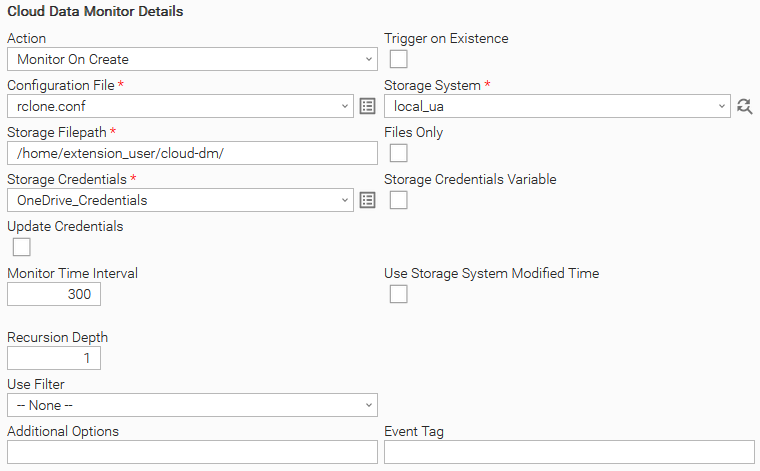
User Scenario: Monitor On Create minimum configuration.
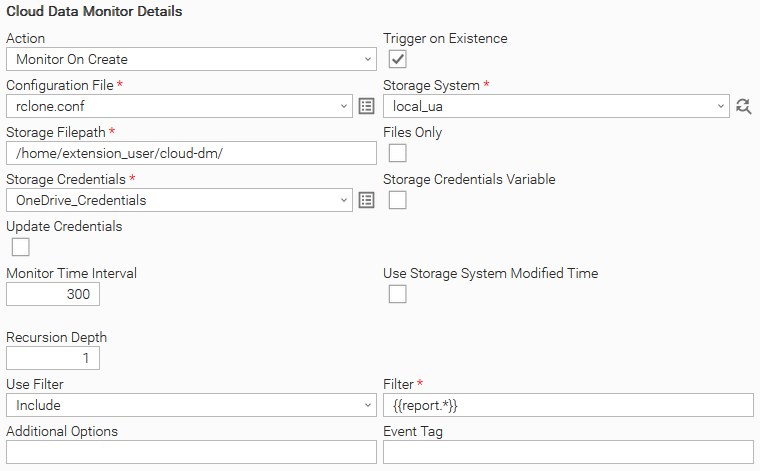
User Scenario: Monitor On Create with the Trigger On Existence option enabled. The Filter option is used to select specific files.
Action Output
This extension provides EXTENSION output on Cancel or on Failure.
EXTENSION
The EXTENSION OUTPUT provides the following information:
- exit_code status_description: General info regarding the task execution. For more information, refer to the Exit Codes section.
- invocation.fields: The task configuration used for this task execution.
- result.cmd: The executed command line.
- result.rc: The return code from the executed command line.
- result.errors: List of errors that might have occurred during Universal Task Execution.
Examples:
Successful execution
{
  "exit_code": 0,
  "status_description": "Task executed successfully",
  "invocation": {
    "extension": "ue-cloud-dm",
    "version": "2.1.0",
    "fields": {
      "action": "Monitor On Create",
      "trigger_on_existence": false,
      "configuration_file": "/home/user/data/tmp/6e9d8fd1-167c-4e74-b210-898d1eaaebef.con",
      "storage_system": "local_ua",
      "storage_filepath": "/home/ue-dev/USERS/user/cloud-dm/",
      "files_only": false,
      "storage_credentials": {
        "user": "599910b6-1234-1234-abcdef-1234cc63bd0",
        "password": "****",
        "token": "****",
        "key_location": null,
        "passphrase": "****"
      },
      "update_credentials": false,
      "controller_url": null,
      "controller_credentials": null,
      "refresh_storage_credentials": null,
      "monitor_time_interval": 10,
      "use_storage_modtime": false,
      "recursion_depth": 1,
      "use_filter": "Include",
      "filter": "{{report.*}}",
      "additional_options": null,
      "tag": null,
      "correlation_id": null,
      "log_level": "DEBUG",
      "configuration_file_name": "rclone.conf",
      "storage_credentials_user": null,
      "storage_credentials_password": null,
      "storage_credentials_token": null,
      "storage_credentials_name": "local_credentials",
      "controller_credentials_user": null,
      "controller_credentials_password": null,
      "controller_credentials_name": null
      }
    },
  "result": {
    "cmd": "/home/user/data/uag/extensions/.ue-cloud-dm/vendor/rclone lsjson
              local_ua:/home/ue-dev/USERS/user/cloud-dm/
              --config=/home/user/data/tmp/2a100d7f-08b5-43c2-b20d-344a2c2d85a9.con
              --max-depth=1 --log-level=DEBUG" --include {{report.*}}",
    "rc": 0
  }
}
Failed execution
{
  "exit_code": 1,
  "status_description": "Execution Failed: See STDERR for more information.",
  "invocation": {
    "extension": "ue-cloud-dm",
    "version": "2.1.0",
    "fields": {
      "update_credentials": false,
      "configuration_file": "/home/user/data/tmp/2a100d7f-08b5-43c2-b20d-344a2c2d85a9.con",
      "refresh_storage_credentials": null,
      "recursion_depth": 1,
      "tag": "extensions_test",
      "monitor_time_interval": 300,
      "use_filter": "-- None --",
      "additional_options": null,
      "files_only": false,
      "controller_url": null,
      "storage_system": "one_drive",
      "use_storage_modtime": false,
      "trigger_on_existence": true,
      "action": "Monitor On Create",
      "filter": null,
      "storage_filepath": "/user-storage/",
      "log_level": "DEBUG",
      "storage_credentials": {
        "user": "599910b6-1234-1234-abcdef-1234cc63bd0",
        "password": "****",
        "key_location": null,
        "passphrase": "****",
        "token": "****"
      }
    }
  },
  "result": {
    "cmd": "/home/user/data/uag/extensions/.ue-cloud-dm/vendor/rclone lsjson
              one_drive:/user-storage/
              --config=/home/user/data/tmp/2a100d7f-08b5-43c2-20d-344a2c2d85a9.con
              --max-depth=1 --log-level=DEBUG",
    "rc": 1
    "errors": [
      "Failed to create file system for \"one_drive:/user-storage/\":
      failed to get root: Get \"https://graph.microsoft.com/v1.0/drives/HASH/root\":
      couldn't fetch token: invalid_client: if you're using your own client id/secret,
      make sure they're properly set up following the docs"
    ]
  }
}
Action: Monitor On Change and Monitor On Delete
The Monitor On Change action monitors if the object's modification time has been updated, while the Monitor On Delete action monitors whether an object has been deleted. These two actions share the same configuration.
Configuration examples
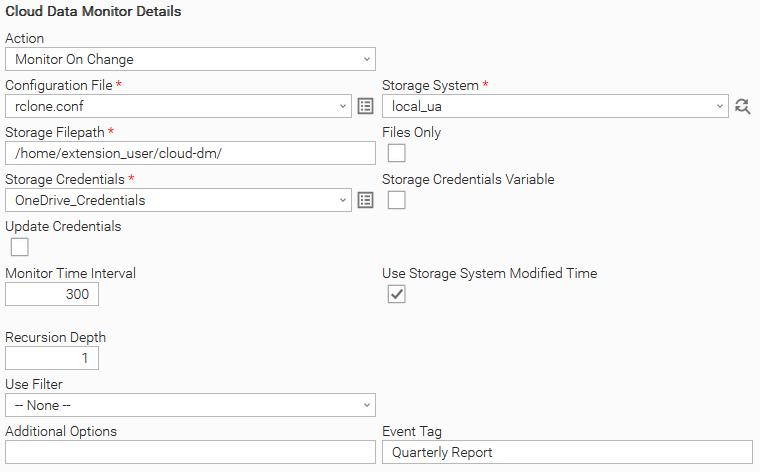
User Scenario: Monitor On Change with a custom Event Tag and the Use System Storage Modified Time field selected.
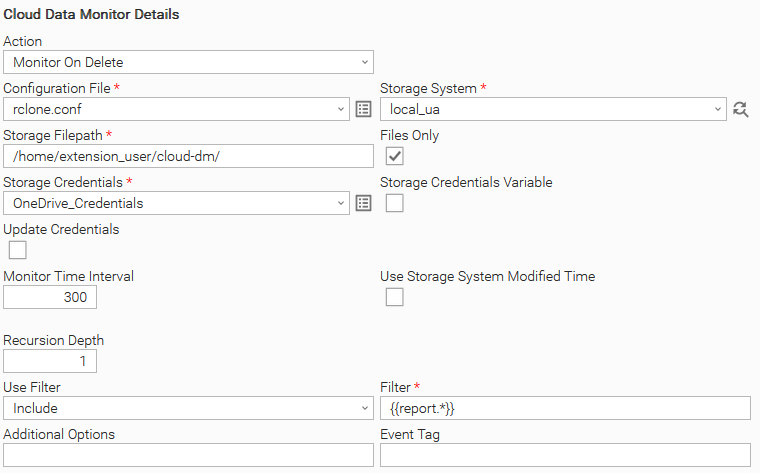
User Scenario: Monitor On Delete using a Filter and the Files Only field. The Filter option is used to select specific files.
Action Output
This extension provides EXTENSION output on Cancel, or on Failure.
EXTENSION
The extension output provides the following information:
- exit_code, status_description: General info regarding the task execution. For more information, refer to the Exit Codes section.
- invocation.fields: The task configuration used for this task execution.
- result.cmd: The executed command line.
- result.rc: The return code from the executed command line.
- result.errors: List of errors that might have occurred during Universal Task Execution.
Successful execution
{
  "exit_code": 0,
  "status_description": "Task executed successfully",
  "invocation": {
    "extension": "ue-cloud-dm",
    "version": "2.1.0",
    "fields": {
      "action": "Monitor On Change",
      "trigger_on_existence": false,
      "configuration_file": "/home/user/data/tmp/6e9d8fd1-167c-4e74-b210-898d1eaaebef.con",
      "storage_system": "local_ua",
      "storage_filepath": "/home/ue-dev/USERS/user/cloud-dm/",
      "files_only": false,
      "storage_credentials": {
        "user": "599910b6-1234-1234-abcdef-1234cc63bd0",
        "password": "****",
        "token": "****",
        "key_location": null,
        "passphrase": "****"
      },
      "update_credentials": false,
      "controller_url": null,
      "controller_credentials": null,
      "refresh_storage_credentials": null,
      "monitor_time_interval": 10,
      "use_storage_modtime": false,
      "recursion_depth": 1,
      "use_filter": "Include",
      "filter": "{{report.*}}",
      "additional_options": null,
      "tag": null,
      "correlation_id": null,
      "log_level": "DEBUG",
      "configuration_file_name": "rclone.conf",
      "storage_credentials_user": null,
      "storage_credentials_password": null,
      "storage_credentials_token": null,
      "storage_credentials_name": "local_credentials",
      "controller_credentials_user": null,
      "controller_credentials_password": null,
      "controller_credentials_name": null
      }
    },
  "result": {
    "cmd": "/home/user/data/uag/extensions/.ue-cloud-dm/vendor/rclone lsjson
        one_drive:/user-storage/
        --config=/home/user/data/tmp/2a100d7f-08b5-43c2-20d-344a2c2d85a9.con
        --max-depth=1 --log-level=DEBUG",
    "rc": 0
  }
}
Failed execution
{
  "exit_code": 1,
  "status_description": ""Execution Failed: See STDERR for more information.",
  "invocation": {
    "extension": "ue-cloud-dm",
    "version": "2.1.0",
    "fields": {
    "update_credentials": true,
    "configuration_file": "/home/user/data/tmp/fa02639e-e7c4-4f26-90db-78a7b09acce8.con",
    "refresh_storage_credentials": null,
    "recursion_depth": 1,
    "tag": "extensions_test",
    "monitor_time_interval": 300,
    "use_filter": "-- None --",
    "additional_options": null,
    "files_only": false,
    "controller_url": "http://controller.stonebranch.org:8080/uc/",
    "storage_system": "one_drive",
    "use_storage_modtime": false,
    "trigger_on_existence": false,
    "action": "Monitor On Delete",
    "filter": null,
    "storage_filepath": "/invalid_directory/",
    "log_level": "DEBUG",
    "controller_credentials": {
      "user": "ops.****",
      "password": "****",
      "key_location": null,
      "passphrase": "****",
      "token": "****"
    },
    "storage_credentials": {
      "user": "12342de-1234-1234-abcdef-1234cc6fff",
      "password": "****",
      "key_location": null,
      "passphrase": "****",
      "token": "****"
      }
    }
  },
  "result": {
    "cmd": "/home/user/data/uag/extensions/.ue-cloud-dm/vendor/rclone lsjson
              one_drive:/invalid_directory/
              --config=/home/user/data/tmp/fa02639e-e7c4-4f26-90db-78a7b09acce8.con
              --max-depth=1 --log-level=DEBUG",
    "rc": 3
    "errors": [
      "error listing: directory not found",
      "Failed to lsjson with 2 errors: last error was:
            error in ListJSON: directory not found"
    ]
  }
}
Input Fields
The input fields for this Universal Extension are described below.
Field | Input type | Default value | Type | Description | Version Information |
|---|---|---|---|---|---|
Action | Required | Monitor On Create | Choice | Action to be performed. Available actions:
This field is included as an Event Attribute. | Introduced in 1.0.0 |
Trigger On Existence | Optional | False | Boolean | When this flag is enabled and objects already exist on the given storage, an event will be published. Otherwise, the Universal Task will keep monitoring for new object creation. Optional when Action "Monitor on Create" is selected. | Introduced in 1.0.0 |
Configuration File | Required | - | Script | This integration depends on Rclone. This field models the Rclone Configuration file, which contains all the required parameters to connect to the Storage System. The filename should have the ".conf" suffix. Example: rclone.conf | Introduced in 1.0.0 |
Storage System | Required | - | Dynamic Choice Field | The remote or Local storage to execute the selected Action. The magnifier button next to the field can be used to retrieve all available Storage Systems from the Configuration File. This field is included as an Event Attribute. | Introduced in 1.0.0 |
Storage Credentials | Optional | - | Credential | Credentials needed to connect to the selected Storage System. For Storage System of type "local", the standard Agent's Credentials field should be provided. From Universal Controller 7.6 onwards, a variable that holds the Credential Name can be used when the related checkbox is selected. In this case, the content of this field should be | Introduced in 1.0.0 |
Storage Filepath | Optional | - | Text | The path to monitor objects for the selected Action. This field is included as an Event Attribute. | Introduced in 1.0.0 |
Update Credentials | Optional | False | Boolean | If the remote storage uses OAuth for its authorization, Rclone can be adjusted to refresh the respective token in its Configuration File during execution time. Enabling this field will ensure that the runtime-updated token from Rclone will be provisioned to the respective Credential Field on the Universal Controller. This field is used in conjunction with fields Controller URL, Controller Credentials, and optionally Refresh Storage Credentials. See the respective examples in the Refresh Storage Credentials chapter. The default setting is unchecked. | Introduced in 1.0.0 |
SSL Certificate Verification | Optional | True | Boolean | When this flag is disabled, SSL Verification is skipped when connecting to Universal Controllers using HTTPS, and a CA Bundle is not required. To provide a CA Bundle, consult the SSL Verification section. Optional when Update Credentials is checked. | Introduced in 2.0.0 |
Controller URL | Optional | - | Text | Controller URL where Storage Credentials are stored. Required when Update Credentials is checked. | Introduced in 1.0.0 |
Controller Credentials | Optional | - | Credentials | Controller user's credentials, used for logging and updating Storage Credentials. The Credentials definition should be as follows:
Note: The user should have sufficient Credential permissions. Required when Update Credentials is checked. | Introduced in 1.0.0 |
Refresh Storage Credentials | Optional | - | Array | Note: This Array is not required to be configured if the configuration (storage) is of type "box" or "onedrive". For more information, refer to the Automatic Refresh of Access Tokens of the Environment Variables section. This Array field is available when Update Credentials is checked. It is used as a mapping table between the Configuration File locator that Rclone has updated during execution, and its corresponding Universal Controller Credential field. Populate this array with the following format:
This option copies the Configuration file's field value to the provided Storage Credential field. Each line of this Array is evaluated, and related mapping is performed. See Refresh Storage Credentials for other remotes. Note: Refresh of Storage Credentials is performed via the Controller's REST API. See Network and Connectivity Requirements | Introduced in 1.0.0 |
Monitor Time Interval | Optional | 300 | Integer | The interval period in seconds used to monitor the given Storage Filepath. | Introduced in 1.0.0 |
Use Filter | Optional | -- None -- | Choice | The filter type that is applied to the Action. Available options:
| Introduced in 1.0.0 |
Filter | Optional | - | Text / Script | Filter based on Rclone filtering rules that is applied to the Action. It is converted to a Script field when the "File" Use Filter option is selected. For more information on using Filter files, see Rclone Filtering. Required when Use Filter is checked. | Introduced in 1.0.0 |
Files Only | Optional | False | Boolean | When enabled, directories will be ignored and only files will be monitored. | Introduced in 1.0.0 |
Use Storage System Modified Time | Optional | True | Boolean | When enabled, the modified time of the | Introduced in 1.0.0 |
Recursion Depth | Optional | 1 | Integer | Recursion depth that is applied. Default value 1 means that no recursion will be applied. | Introduced in 1.0.0 |
Additional Options | Optional | - | Text | Space-separated Rclone options that applied to the selected Action. | Introduced in 1.0.0 |
Event Tag | Optional | - | Text | This field allows task authors to define a 'tag' attribute for the generated universal events, enabling more filtering capabilities at the Universal Monitor level. This field is included as an Event Attribute. | Introduced in 1.0.0. Renamed to Event Tag in 2.0.0 |
Cloud Data Monitor Events
This monitor publishes Universal Events when objects are monitored successfully, based on the selected Action. The suggested implementation to accomplish this behavior is to associate a Cloud Data Monitor Task (event publisher) with a Universal Monitor Task (event consumer).
The Universal Event for this Universal Extension is described below.
Event Template: Event Monitor
Attribute | Description | Type |
|---|---|---|
Storage System | The Storage System where the monitored object is stored. This is the input field Storage System. | Text |
Storage Filepath | The Storage System where the monitored object is stored. This is the input field Storage Filepath. | Text |
Filename | The name of the monitored object. | Text |
Filesize | The size of the monitored object. | Integer |
File Modified Time | The modification time of the monitored object. | Text |
Event Tag | Allows task authors to define a 'tag' attribute for the generated Universal Events, enabling more filtering capabilities at the Universal Monitor level. This is the Event Tag field. | Text |
Event Type | The name of the Action that initiated the Universal Event. This is the Action field. | Text |
Directory | A flag that is true when the monitored object is a directory. | Boolean |
Agent Name | The name of the agent the task instance is running on. | Text |
Task Examples
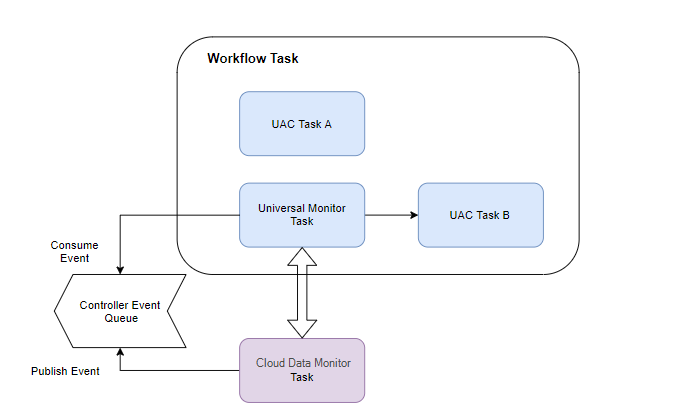
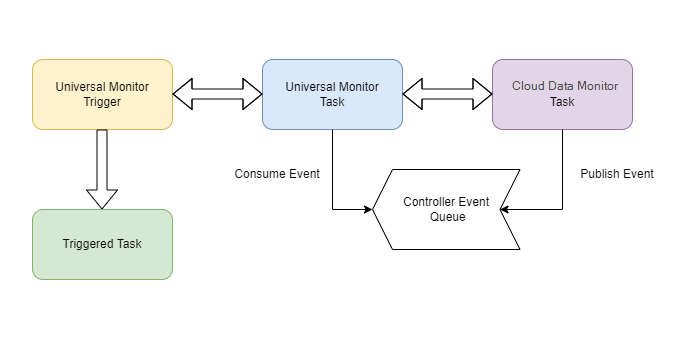
Two scenarios of the association between a Cloud Data Monitor Task (event publisher) with a Universal Monitor Task (event consumer) are described below. For both scenarios, a Cloud Data Monitor Task (Publisher) and a Universal Monitor Task (Consumer) should be configured properly.
Workflow Scenario
Trigger Scenario
Universal Monitor Task Example
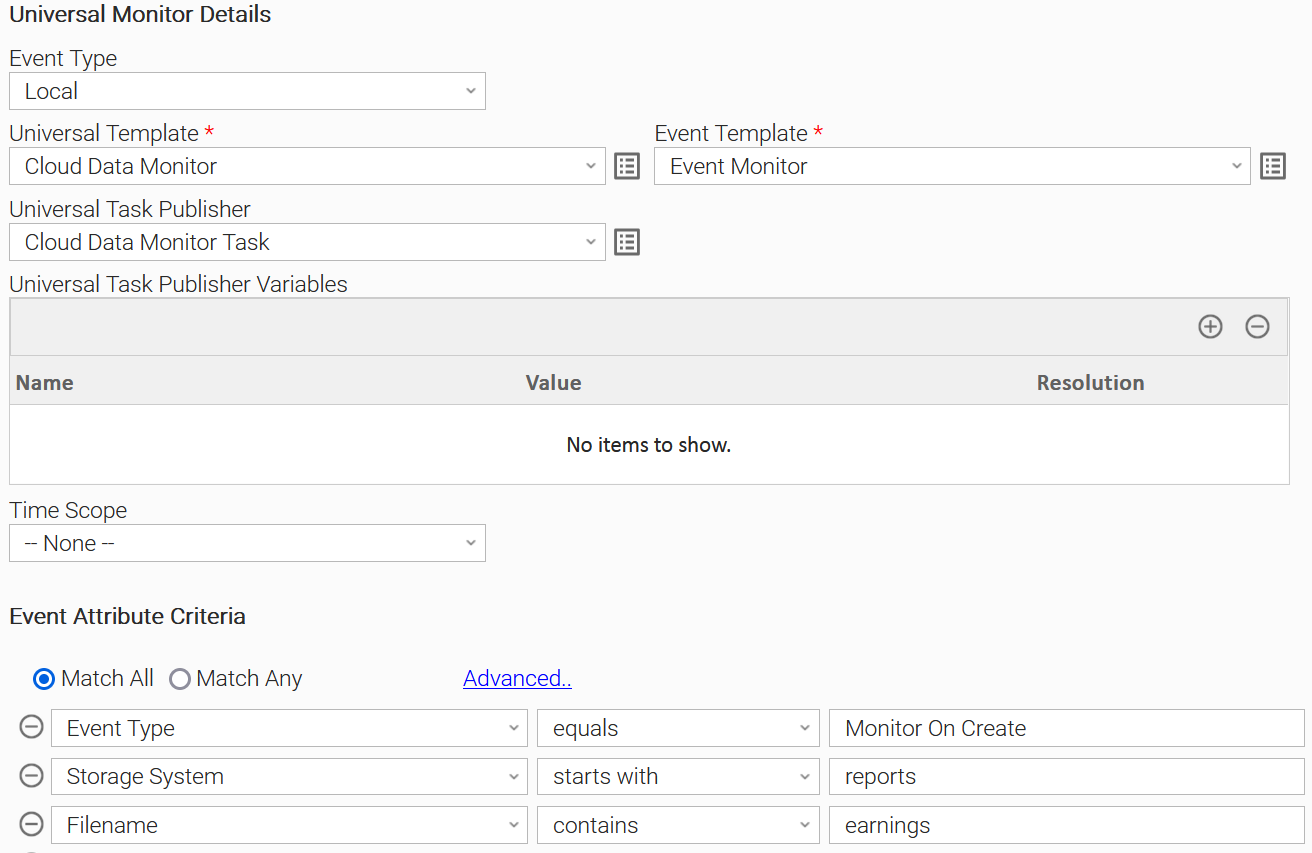
Universal Monitor can be configured in different ways:
Monitor configuration | Description |
|---|---|
Universal Monitor is attached to a specific Publisher task | The Cloud Data Monitor Task is automatically started when the related Universal Monitor is started (either standalone or through a trigger). That creates a tight relationship between the Universal Monitor (Consumer) and Cloud Data Monitor Task (publisher) where the events that get published are always processed. This configuration option is the most common one, especially when a monitor is attached to a trigger. |
Universal Monitor is not attached to a specific Publisher task | In this case, the Universal Monitor (Consumer) and the Cloud Data Monitor Task(s) (Publisher) are started separately. The Universal Monitor will be consuming events from any Task Instance of type Cloud Data Monitor. If the monitor is not running while the Cloud Data Monitor Task (Publisher) is emitting events, those events will not be processed. Operationally the Universal Monitor must be running before the related Cloud Data Monitor Task(s) are started. |
In a Universal Monitor Task, the Event Type should always be "Local". The Universal Monitor Criteria of a Universal Monitor Task are the Attributes of the Event Template.
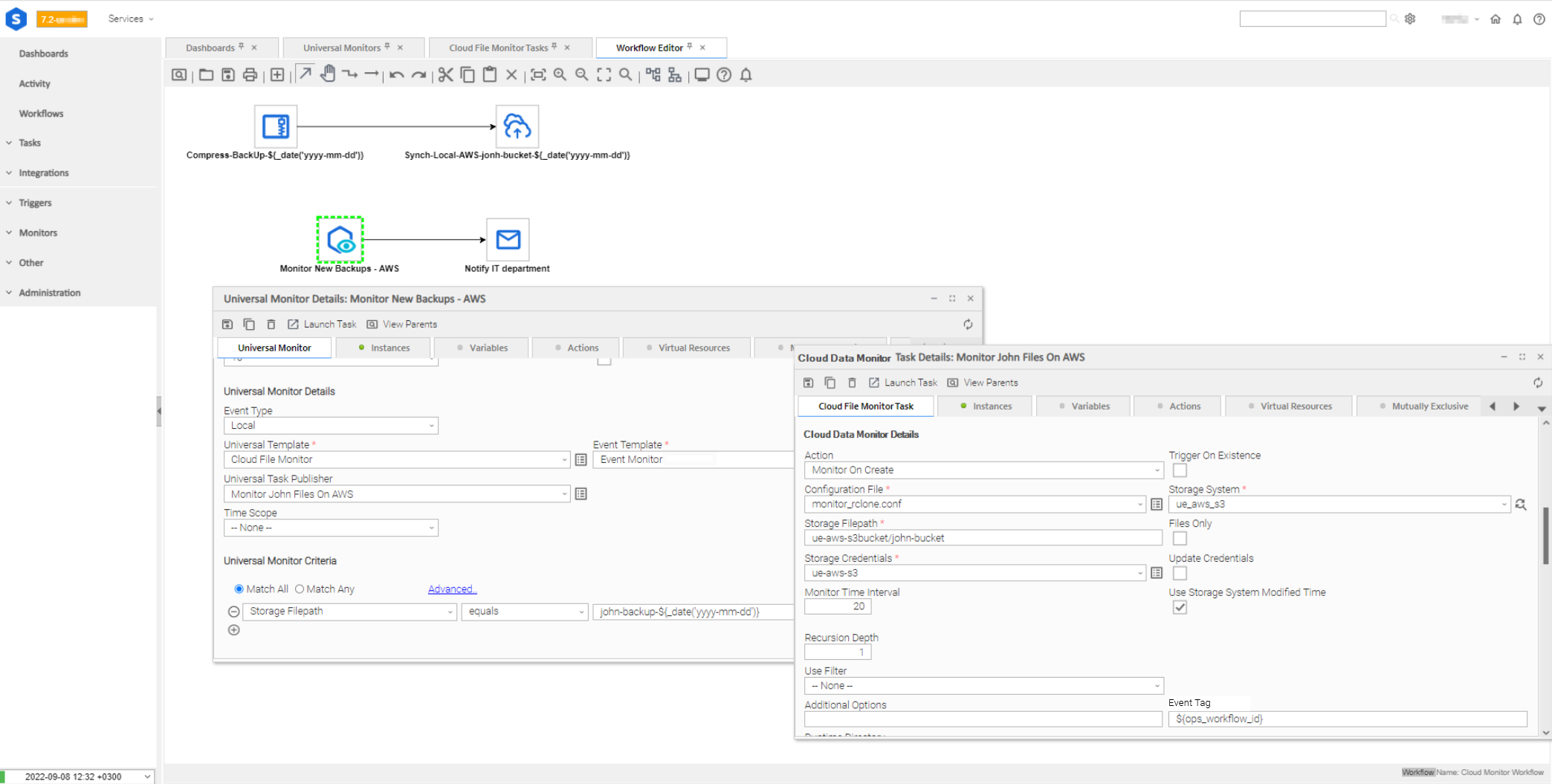
Workflow Example
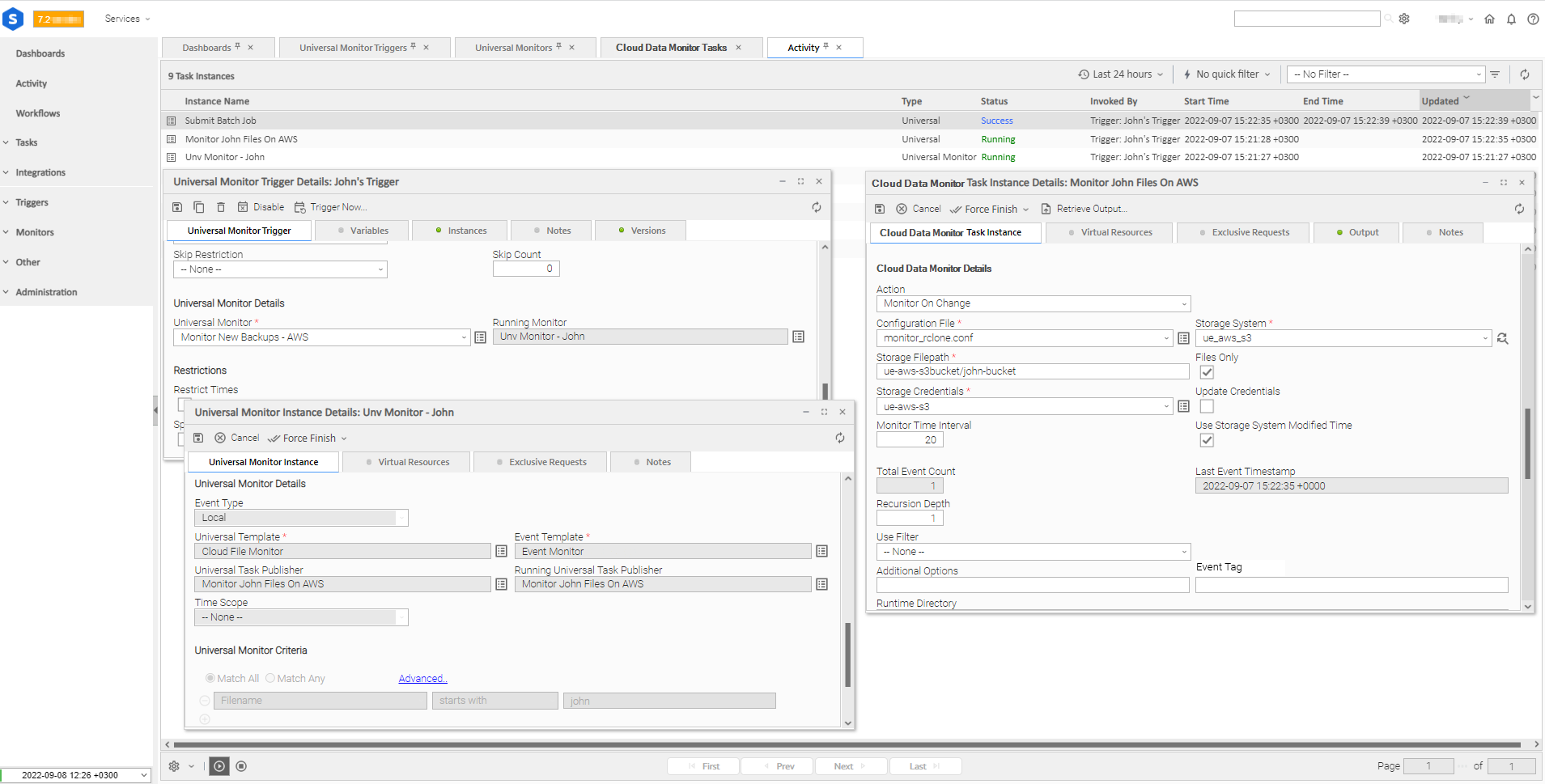
Within a Workflow, only the Universal Monitor Task is configured and is a direct workflow child. The Cloud Data Monitor Task is directly associated with the Universal Monitor Task but is not in the scope of a Workflow.
Upon a successful monitor, the Monitor will go into Success status and the underlying Cloud Data Monitor will go into Finished status.
|
Trigger Example
This Use Case is when we want to monitor changes continuously and for each event to trigger a task or a workflow.
|
Output Fields
Name | Type | Description | Version Information |
|---|---|---|---|
Total Event Count | Integer | The number of events the task instance has published. | Introduced in 1.0.0 |
Last Event Timestamp | Text | The timestamp (in UTC) of the most recent published event. | Introduced in 1.0.0 |
Environment Variables
Environment Variables can be set in the Environment Variables task definition table.
Automatic Refresh of Access Tokens
For configurations where the access token must be refreshed to remain valid, a comma-separated list of remotes can be provided using the UE_TOKEN_REFRESH_REMOTES environment variable. Cloud Data Monitor will attempt to refresh it on each monitoring cycle.

SSL Verification
When attempting to Refresh Storage Credentials using HTTPS, it might be necessary to provide a CA Bundle. To do so, set the REQUESTS_CA_BUNDLE environment variable to the path of the desired CA Bundle.

Temporary Files
By default, Cloud Data Monitor stores an encrypted configuration file at the default OS temp directory that retains necessary information during the task execution. It is possible to change its location by using the TMP (or TEMP) environment variable on Linux and TMPDIR (or TEMP) on Windows operating systems.


Exit Codes
The exit codes for this Universal Extension are described below.
Exit Code | Status | Status Description |
|---|---|---|
0 | Success | Task executed successfully. |
1 | Failed | Execution Failed: "<Error Description>" |
20 | Failed | Data Validation Error: "<Error Description>" |
22 | Failed | Execution Failed: Task executed successfully, but updating Credentials failed. |
STDOUT and STDERR
STDOUT and STDERR provide additional information to the User. The populated content can be changed in future versions of this extension without notice. Backward compatibility is not guaranteed.
Observability
Metrics are generated and exported by this integration, related to the generated Cloud Data Monitor Events.
Metric: ue.cdm.events
Name | Instrument Type | Unit (UCUM) | Attributes | Instrumented By | Description |
|---|---|---|---|---|---|
| Counter | {event} | As defined on Metric Attributes. | Universal Controller (Through Universal Event Templates) | Counts published events. |
Metric Attributes
The following attributes are applicable for ue.cdm.events.
Attribute Name | Enabled | Description |
|---|---|---|
type | By Default | The selected action name of the Universal Task. |
storage | By Default | The storage system that the Universal Task monitors. |
filepath | By Default | The monitored file path. |
Other Observability Configuration Options
Administrators can update the Universal Event Template to control additional attributes sent out for Universal Event-based Metrics. However, this configuration should be approached with caution. When the possible distinct values of those attributes are high, that might lead to high cardinality issues.
Administrators can activate them with caution as follows:
- Go to Administration → Universal Templates.
- Select the Universal Template.
- Click the "Event Templates" Tab.
- Select the Name of the Event Template you want to update, which represents the metric you are interested in.
- Update the "Optional Metric Labels" list of required Metric Labels.
Grafana Dashboard
A ready-to-use Grafana dashboard can be imported that enables enhanced visibility and understanding of the behavior for Task Instances. It uses the above published metrics.
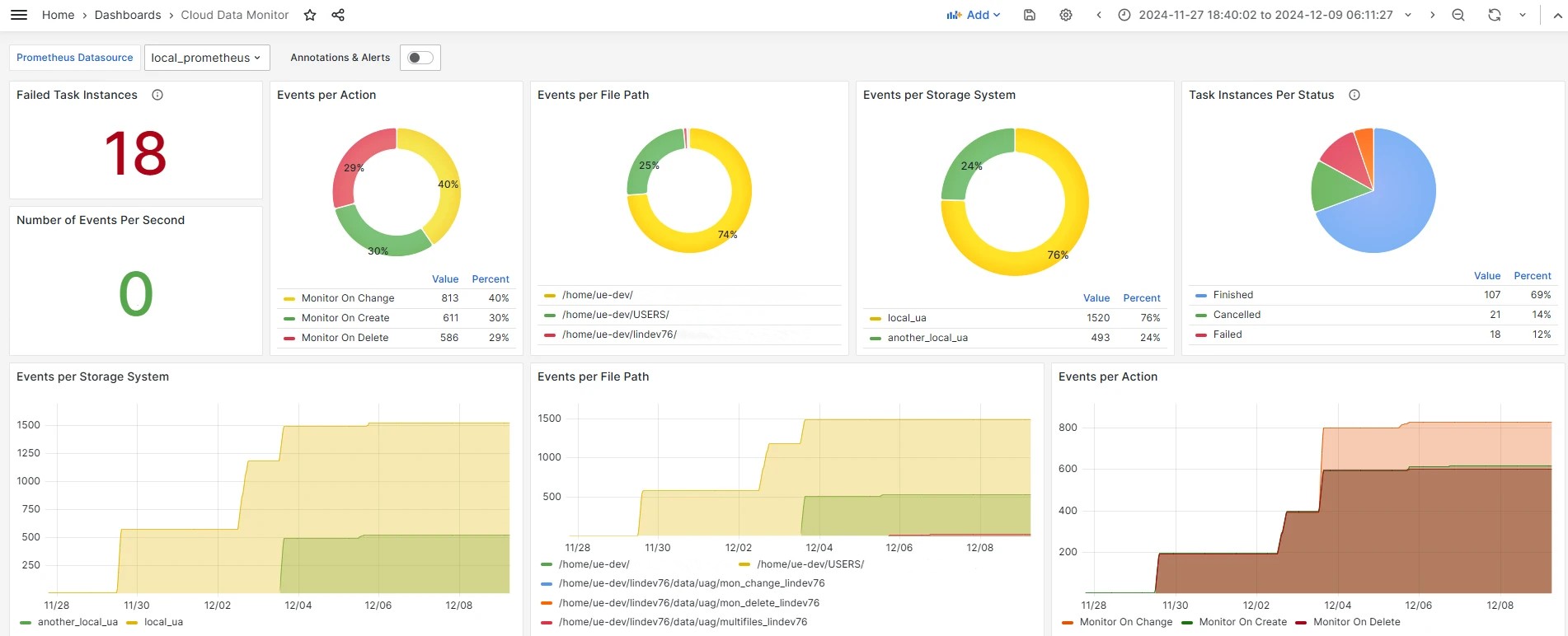
See the related How To section on how to install it.
How To
Import Universal Template
To use the Universal Template, you first should perform the following steps.
For large Universal Templates, some parameters need to be adjusted, particularly for MySQL, Universal Controller and Universal Agent:
MySQL (my.cnf):
max_allowed_packet: Defines the maximum size of a single network packet that can be read or written by the server and clients.
- Recommended setting: Ensure it is configured to a value at least 25% greater than the size of your largest imported integration
innodb_log_file_size: Determines the size of InnoDB redo log files. While this parameter has been simplified in recent MySQL versions, it is still relevant for MySQL versions prior to 8.0.30
- Purpose: Prevents "BLOB/TEXT data inserted in one transaction is greater than 10% of redo log size" errors that might appear on Universal Controller logs
- Recommended setting: Ensure 10% of the log file size exceeds your largest imported integration
Universal Agent Configuration (config/omss.conf):
max_msg_size: Specifies the maximum allowable size for messages. Messages exceeding the limit will not be accepted by the server.
- Recommended setting: Ensure the configured value is 10% greater than your largest imported integration
Universal Controller Configuration
Universal Controller configuration can restrict the import of an integration if the Universal Template Extension Maximum Bytes property is not properly set. This can be configured in the following ways:
- Universal Controller configuration file (
tomcat/conf/uc.properties):uc.universal_template.extension.maximum_bytes - Universal Controller UI Admin Panel: Administration → Properties → Universal Template Extension Maximum Bytes
- Recommended setting: Ensure the configured value is greater than the size of your largest imported integration
The deployment of an integration from Universal Controller to Universal Agents can also be restricted by the JVM heap size of the Tomcat serving the Universal Controller. Make sure to configure the JVM heap size adequately.
Things to consider.
- # of agents configured to accept the extension(s).
- # of agents configured to deploy on-registration, and how many would be registering simultaneously.
- # of parallel, on-demand deployments, where deployment happens the first time the extension needs to execute on a specific agent.
- This Universal Task requires the Resolvable Credentials feature. Check that the Resolvable Credentials Permitted system property has been set to true.
- Import the Universal Template into your Controller:
- Extract the zip file, you downloaded from the Integration Hub.
- In the Controller UI, select Services > Import Integration Template option.
- Browse to the "export" folder under the extracted files for the ZIP file (Name of the file will be unv_tmplt_*.zip) and click Import.
- When the file is imported successfully, refresh the Universal Templates list; the Universal Template will appear on the list.
Modifications of this integration, applied by users or customers, before or after import, might affect the supportability of this integration. For more information refer to Integration Modifications.
Configure Universal Task
To configure a new Universal Task, there are three steps required:
- Create required Resolvable Credentials. Required as Input Fields on the Universal Task Configuration.
- Create a new Script of type Data, for the Configuration File and populate it according to the following section of Setup Rclone Configuration File as UAC Script.
- Create a new task, and enter the task-specific details that were created in the Universal Template.
Setup Rclone Configuration File as UAC Script
This integration depends on the Rclone binary which needs a configuration file to locate the required information for the involved storage system(s). This file is passed from the Universal Controller to the Universal Agent as UAC Script through the Configuration File Input Field. The Universal Controller Script should be of type Data, and option Resolve UAC Variables should be enabled.
Integrated Storage Systems & Sample Configurations
Rclone is integrated with multiple storage systems. This Universal Extension has been tested against the following Storage Systems.
- Amazon S3
- Google Cloud Storage
- Microsoft OneDrive Business
- Local file system (Linux, Windows)
This integration should work properly against other Storage Systems, as long as the integration interface (see the Configure Universal Task chapter) and functionalities listed in this document fulfill the needs of the Storage System.
For functionalities required for specific Storage Systems, users and customers are encouraged to open a Feature Request in our Customer Support Portal.
The indicative Rclone configuration examples below contain the basic connection parameters. Starting from Cloud Data Monitor v2.1.0, Credential Variables that can be provided have been simplified for improved user experience.
System | Rclone Configuration Documentation Link | Example |
|---|---|---|
AWS S3 | Example - AWS S3 | |
Google Cloud Storage (Google Drive) | Example - Google Drive Storage | |
Microsoft OneDrive/Sharepoint (Using Microsoft Graph Delegated Permissions model) | Microsoft OneDrive/Sharepoint Configuration Guide For OneDrive/Sharepoint Monitoring, refer also to the Refresh Storage Credentials section. | Example - OneDriveinfo For SharePoint sites, the |
Microsoft OneDrive/Sharepoint (OAuth Client Credential flow, using Microsoft Graph Application Permissions model) | OAuth Client Credential Flow Configuration Guide For OneDrive/Sharepoint Monitoring, refer also to the Refresh Storage Credentials section. | Example - OneDrive - Using OAuth Client Flowinfo For SharePoint sites, the |
Local Filesystem | Example - Local | |
SFTP | SFTP Configuration Guide. The configuration with the password might require an obscured password. | Example - SFTP |
Microsoft OneLake Lakehouse | info This remote is exclusive to Cloud Data Monitor Premium. Contact Stonebranch for more information. | Example - OneLake |
Using Credentials
Storage system configuration embodies the related credentials for authentication and authorization. It is advised that account credentials, tokens, or any other essential information inside Rclone Configuration File are passed as Universal Controller Credentials.
Task authors should be aware of Credential Attributes length limitations. For example, the 'Runtime Password' attribute of a Universal Controller Credential supports strings with up to 512 characters, so it should not be used to store information larger than this value.
There are several ways that Credential Functions can be used:
It is recommended to follow the Configuration through Credential Field Variables approach, as it ensures compatibility with all the Universal Controller versions supported by this integration, and it is also easier to use.
For local filesystem storage, no credentials are required in the Configuration File. In this case, the credentials that are provided in the Agent Details of the Universal Task are used. If not, the selected action is executed with the permissions of the user that runs the ubroker daemon.
Configuration through Credential Field Variables
The table below lists the variables that can be used for the respective input Credential Field and an example of a function that can be used in the Configuration File definition.
Field Name | Field Variable | Credential Function Example | Cloud Data Monitor Variables (introduced in v2.1.0) |
|---|---|---|---|
Storage Credentials | ops_ue_cloud_storage_credentials |
| {{ storage_credetials.[user | password | passphrase | key_location | token] }} |
Example of a Configuration File for AWS S3 Storage
[aws_s3]
type = s3
provider = AWS
access_key_id = {{ storage_credentials.user }}
secret_access_key = {{ storage_credentials.password }}
region = us-east-2
Configuration through Credential as Variable
Starting from Universal Controller 7.6, Credentials can be provided as UAC Variables:
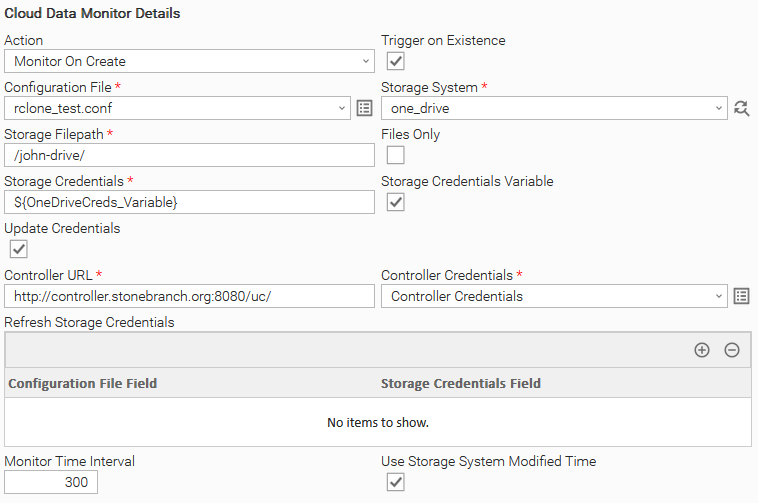
The above approach requires no custom changes in the Configuration File contents.
[aws_s3]
type = s3
provider = AWS
access_key_id = ${_credentialUser('${ops_ue_cloud_dt_storage_credentials}')}
secret_access_key = ${_credentialPwd('${ops_ue_cloud_dt_storage_credentials}')}
region = us-east-2
Refresh Storage Credentials
Refresh token for Microsoft OneDrive
Remote storages of type Microsoft OneDrive & Sharepoint use an OAuth2 token ({"access_token": ..., "token_type": ... , "refresh_token": ... , "expiry": .... }) to authorize users or applications. In this case, and only when the access token has expired, Rclone exchanges the existing refresh token for a new access token and then establishes a connection with the remote storage. This integration provides the capability to save the new value of the token on the selected Universal Controller Credential, so it can be used and configured as a Credential Function.
This integration provides an automatic update of the token when the identified Storage System is of type "onedrive" and it is enabled, and when the task input fields Update Credentials, Controller URL, and Controller Credentials are selected.
An example of such a configuration can be found below:
For more information, refer to OneDrive token refresh.
Refresh authorization fields for other remotes
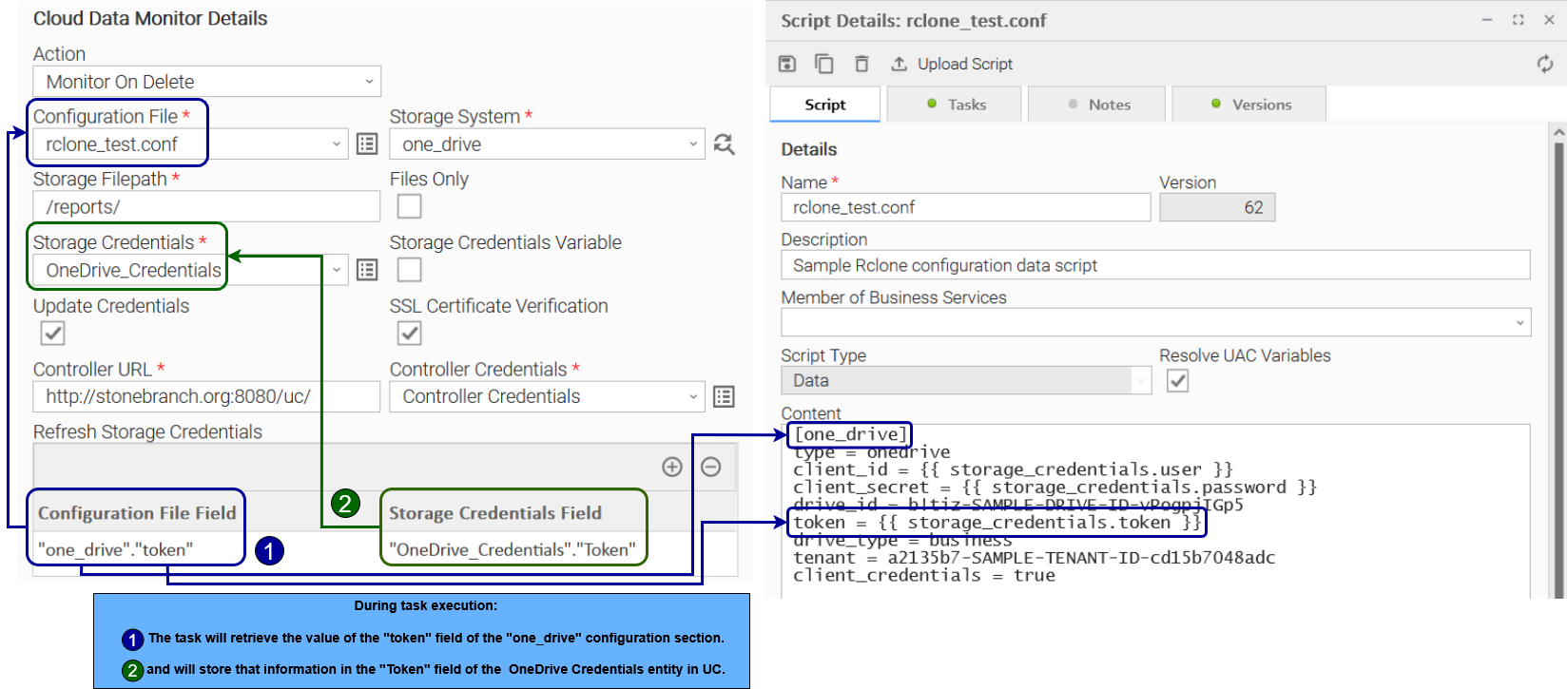
Some remote storages might have the functionality of refreshing an authorization field. This integration provides the capability to save the new value of the authorization field on a selected Universal Controller Credential, so it can be used and configured as a Credential Function.
The task input fields related to this configuration are Update Credentials, Controller URL, Controller Credentials, andRefresh Storage Credentials.
An example of such a configuration can be found below:
Import Grafana Dashboard
Users can benefit from a ready-to-use sample dashboard that this downloadable integration offers when observability features are used. It is located under the /observability/grafana/ directory inside the downloadable zip file from the Stonebranch Integration Hub. Administrators should refer to the official Grafana User Guide on how to import a Grafana Dashboard.
Dashboard's Prometheus data source is configured as a variable and thus needs to be mapped to an existing Data Source configured on the target Grafana instance.
Integration Modifications
Modifications applied by users or customers, before or after import, might affect the supportability of this integration. The following modifications are discouraged to retain the support level as applied for this integration.
- Python code modifications should not be done.
- Template Modifications
- General Section
- "Name", "Extension", "Variable Prefix", and "Icon" should not be changed.
- Universal Template Details Section
- "Template Type", "Agent Type", "Send Extension Variables", and "Always Cancel on Force Finish" should not be changed.
- Result Processing Defaults Section
- Success and Failure Exit codes should not be changed.
- Success and Failure Output processing should not be changed.
- Fields Restriction Section
The setup of the template does not impose any restrictions, however, concerning the "Exit Code Processing Fields" section.- Success/Failure exit codes need to be respected.
- In principle, as STDERR and STDOUT outputs can change in follow-up releases of this integration, they should not be considered reliable sources for determining the success or failure of a task.
- In Event Templates fields "Name", "Time To Live", "Unmapped Attribute Policy", "Attribute Name", and "Attribute Type", should not be changed.
infoThe suggested configuration for this Universal Extension does not require any updates on Time To Live. However, this field can be tuned for troubleshooting purposes, affecting immediately the time (in minutes) that events are stored in the Controller's Event Queue. Configure a low Time To Live value (for example 1 minute) if it is required to review the published Events.
Use the Server Operation Inspect Universal Events to view all Universal Events in the Controller's event queue.
- General Section
Users and customers are encouraged to report defects, or feature requests at Stonebranch Support Desk.
Known Limitations
- To properly monitor object renaming, the users have to use Action "Monitor On Create" instead of "Monitor on Change".
- In version 1, only the agent user (the user running the Universal Agent) can run this integration on Linux OS. In version 2.0.0, a workaround is available for Agents running without defect D-13034 resolved (updated prior to December 2024). To allow users other than the agent user to run a Cloud Data Monitor Task, follow these steps:
- Identify the Linux Agents on which the Cloud Data Monitor Task needs to run.
- Import the latest version of ue-cloud-dm (currently 2.0.0) on the desired Universal Controller.
- Initiate a test Cloud Data Monitor task on the agents identified in step (1), using the agent user (by leaving the Agent Details → Credentials field empty). This task ensures the integration installs correctly on each agent, enabling future tasks to run smoothly under various user accounts.
On version 2.0.0 and onwards, using Universal Agent versions that have D-13034 resolved, it is possible to execute tasks with any user without issues.
Migration Guide
Upgrading from version 1.0 to 2.0
When upgrading major versions, the following actions should be performed to migrate task definitions properly, due to the breaking changes:
- Rclone does not need to be installed on the agent system. It is bundled with the extension.
- The Correlation ID field has been renamed to Event Tag, no change is required.
- Tasks that refer to Cloud Data Monitor Task Instance Variables (for example sibling tasks within a Workflow), should be updated to
${ops_ue_cloud_<field_name>}.(the "_dm" part existing on version 1 has been removed) - Configuration File should be updated when Credential Fields variables are referenced, as the variable names do not include "_dm" on version 2.
- Keep in mind that there is a new, easier way to pass Credential Variables than the one described here as of version 2.1.0. Please refer to Configuration through Credential Field Variables and Configuration Examples for more information.
Cloud Data Monitor 1.0.0 | Cloud Data Monitor 2.0.0 |
|---|---|
Example with variable prefix ue_cloud_dm | Example with variable prefix ue_cloud |
- Event Template Changes - The Event Templates of Cloud Data Monitor version 1 have been merged into a single template to improve user experience. To migrate to version 2, only the Event Monitor event template is required:
Cloud Data Monitor 1.0.0 | Cloud Data Monitor 2.0.0 |
|---|---|
Event Monitor On Create | Event Monitor |
Event Monitor On Create Exists | |
Event Monitor On Change | |
Event Monitor On Delete |
With this change, Universal Events should be filtered by Action name using the new "event_type" attribute. To see what this looks like, refer to the Universal Monitor Task Example.
Document References
This document references the following documents.
Document Link | Description |
|---|---|
User documentation for creating Universal Templates in the Universal Controller user interface. | |
User documentation for creating Universal Tasks in the Universal Controller user interface. | |
User documentation for Universal Event Template fields definition. | |
User documentation for creating Universal Monitor Tasks in the Universal Controller user interface. | |
Rclone official documentation. | |
Configuration file details. | |
Rclone exit codes list. |
Changelog
ue-cloud-dm-2.6.0 (2026-06-30)
Enhancements
- Bundled with Rclone release v1.74.3 (#58341)
Fixes
- Fixed an issue where Environment Variables were not being detected by Rclone. (#58292)
ue-cloud-dm-2.5.0 (2026-03-24)
Enhancements
- Bundles the latest Rclone release v1.73.2. (#54856)
- Added the UE_TOKEN_REFRESH_REMOTES environment variable, providing the capability to extend the Update Credentials token refresh logic to more remotes. (e.g. box) (#54114)
- Added the capability to provide a Filters file as a Script. (#54854)
- Added support for future Python versions. (#54855)
Fixes
- The Storage Credentials field is no longer required, no longer requiring dummy Credentials to be provided for local executions. (#54115)
Premium Enhancements (Contact Stonebranch)
- Added support for OneLake remotes. (#54110)
ue-cloud-dm-2.4.0 (2025-08-28)
Enhancements
- Bundled with latest Rclone release v1.71.0. (#48494)
ue-cloud-dm-2.3.0 (2025-08-06)
Enhancements
- Bundled with the stable Rclone release v1.70.3-stable-sb. (#48300)
ue-cloud-dm-2.2.0 (2025-07-02)
Enhancements
- Bundled with latest Rclone release v1.70.1. (#47751)
ue-cloud-dm-2.1.0 (2025-05-08)
Enhancements
- New Cloud Data Monitor integration specific variables are introduced for the configuration file, resulting in improved user experience. (#45140)
- Various improvements related to the handling of the configuration file. (#45140)
ue-cloud-dm-2.0.1 (2025-03-13)
Fixes
- Fixed an issue where an event produced by this integration caused a crash on certain extensions. (#44421)
ue-cloud-dm-2.0.0 (2025-02-06)
Deprecations and Breaking Changes
- Breaking Change: Replaced multiple event templates (1 per action) with one template having the "event_type" attribute. (#41506)
- Breaking Change: Changed extension prefix to ue_cloud, offering the ability to use the same configuration with Cloud Data Transfer. (#36364)
Enhancements
- Rclone is now bundled with the extension. (#36181)
- Automatically attempt to refresh OneDrive Credentials when the field Update Credentials is set. (#40914)
- The directory attribute was included in the Universal Event Template to indicate whether a monitored object is a directory. (#42435)
- Introduced Observability metrics enabling enhanced visibility and understanding of behavior for Task Instances. (#42806)
- The option to skip SSL Certificate Verification when selecting the Update Credentials field. (#43388)
- Update Credentials on UC will be performed only when there is new information to Update. (#43708)
- Changed the label of the "Correlation ID" field to "Event Tag". (#41738)
Fixes
- Monitor On Change Index Error on file creation. (#41944)
- Issue with setting Recursion Depth value greater than 1 when files in different directories have the same name. (#42434)
- Extension Failure when the Use Storage Modtime field is not checked. (#42670)
- Permission issue on Linux OS which occurs when a task is executed with a user different than the agent user. (#42955)
- Key Location field is not retained when updating Universal Controller Credentials. (#43411)
- Task failure when using Windows paths with whitespace. (#43610)
ue-cloud-dm-1.0.1 (2024-08-14)
Fixes
-
Events were not published with the Action "Monitor On Create" when Trigger on Existence was enabled. (#41688)
-
Warnings appeared at the beginning of the extension execution on later versions of the Universal Controller. (#36812)
-
Issue when Updating Credentials. (#36117)
ue-cloud-dm-1.0.0 (2022-10-26)
Enhancements
- Initial version (#29658)