Microsoft Dynamics 365 Business Central
Disclaimer
Your use of this download is governed by Stonebranch's Terms of Use.
Version Information
Template Name | Extension Name | Extension Version | Status |
|---|---|---|---|
Microsoft Dynamics 365 Business Central | ue-ms-dynamics | 1.0.0 | Fixes and new Features are introduced |
Refer to Changelog for version history information.
Overview
Microsoft Dynamics 365 Business Central is a comprehensive cloud ERP solution, covering finance, supply chain, manufacturing, sales, and service management. Business Central exposes its functionality through OData V4 APIs and standard v2.0 REST endpoints, enabling programmatic control of business processes including job queue orchestration, custom AL actions, and workflow automation.
This Universal Extension provides the capability to interact with Business Central job queue entries and OData endpoints directly from the Universal Controller. Users can trigger arbitrary OData actions, restart job queue entries and poll for their completion, and inspect the parameter schema of OData actions to build integration workflows dynamically.
Key Features
Feature | Description |
|---|---|
Job Queue Orchestration | POST to arbitrary OData V4 endpoints to trigger Business Central actions and codeunit processes, with optional JSON body constructed from a parameters file. |
Job Queue Restart and Monitoring | Restart Business Central job queue entries and optionally poll job queue log entries until the job reaches a terminal state, with live status updates pushed to the task instance. |
Endpoint Parameter Inspection | Discover parameter names and types for any OData action by fetching and parsing the Business Central |
Dynamic Company and Job Selection | Populate the company and job queue entry dropdowns dynamically at task configuration time using the configured service principal credentials, reducing manual input errors. |
Configurable Extension Output | Optionally include the OData endpoint response or the latest job queue log entry in the structured extension output, making results available for downstream workflow steps. |
Job Queue Entry Discovery | List all job queue entries in the selected company with their GUIDs, captions, descriptions, statuses, and parameter strings, enabling users to identify and disambiguate entries before targeting them in automation workflows. |
Requirements
This integration requires a Universal Agent and a Python runtime to execute the Universal Task.
Area | Details |
|---|---|
Python Version | Requires Python 3.11, tested with Agent bundled Python distribution. |
Universal Agent Compatibility |
|
Universal Controller Compatibility | Universal Controller Version >= 7.7.0.0. |
Network and Connectivity | Agent outbound network connectivity towards the Business Central REST API ( |
Microsoft Dynamics 365 Business Central | Compatible with Microsoft Dynamics 365 Business Central OData V4 (standard API v2.0). Requires an Azure AD App Registration with a client secret and appropriate API permissions on the target Business Central environment. |
Supported Actions
The following top-level actions are controlled by the Action field:
- Orchestrate
- Restart Job
- Get Job Parameters
- List All Job Queue Entries
Action: Orchestrate
Performs a POST request to the specified OData endpoint under the Business Central environment base URL. The request body is loaded from a local JSON file provided via the Parameters File field. If no file is given, the POST is sent with an empty body. When "Include Log Entry" is selected under Extension Output Options, the endpoint's JSON response is captured and returned as result.response.
Action: Restart Job
Restarts the selected Business Central job queue entry by issuing a Microsoft.NAV.restart request. When Wait for Completion is enabled, the extension polls job queue log entries until a new log entry appears (distinct from any pre-existing entry at the time of restart) and reaches a terminal state of Success or Error. Live status and the log entry GUID are pushed to the task instance output fields as they become available. When "Include Log Entry" is selected under Extension Output Options, the final log entry record is returned as result.log_entry.
Action: Get Job Parameters
Fetches the Business Central $metadata document and locates the named OData action specified in the Endpoint URL field. Returns the action's parameter list as result.parameters, a JSON array of {"name": ..., "type": ...} objects. Returns an empty list if the action is not found in the metadata document.
Action: List All Job Queue Entries
Returns all job queue entries in the selected company as a structured list. Each entry includes the following fields:
id— the unique GUID identifying this job queue entry (use this in Job Queue Entry to target the entry unambiguously)objectCaptionToRun— the name of the AL object (codeunit or report) configured to run; multiple entries can share this valuedescription— user-editable free-text label for the entrystatus— current state (Ready,In Process,Error,On Hold,Finished)parameterString— the parameter string passed to the codeunit at runtime; the primary functional differentiator when multiple entries run the same codeunitobjectIdToRun— the AL object ID numberjobQueueCategoryCode— optional grouping code
Use this action to discover the GUID and distinguishing details of a specific entry before configuring a Restart Job task. This is especially important when multiple entries run the same codeunit, since objectCaptionToRun is identical for all of them and cannot be used to tell them apart.
Action Output
- EXTENSION
- STDOUT
The extension output provides the following information:
exit_code, status_description: General info regarding the task execution. For more information refer to the exit code table.invocation.fields: The task configuration used for this task execution.result.response: The JSON response body returned by the OData endpoint. Only present for the Orchestrate action when "Include Log Entry" is selected under Extension Output Options.result.log_entry: The latest job queue log entry record at the time of task completion. Only present for the Restart Job action when "Include Log Entry" is selected under Extension Output Options.result.parameters: List of parameter definitions for the inspected OData action. Only present for the Get Job Parameters action.result.entries: List of job queue entry records. Only present for the List All Job Queue Entries action.
Examples:Successful execution — Orchestrate, with endpoint response included
Successful execution — Restart Job, with log entry included
Successful execution — Get Job Parameters
Successful execution — List All Job Queue Entries
Failed execution — Job transitioned to Error state
STDOUT of this integration is empty.
Configuration Examples
Example: Orchestrate — POST to a custom OData action with parameters
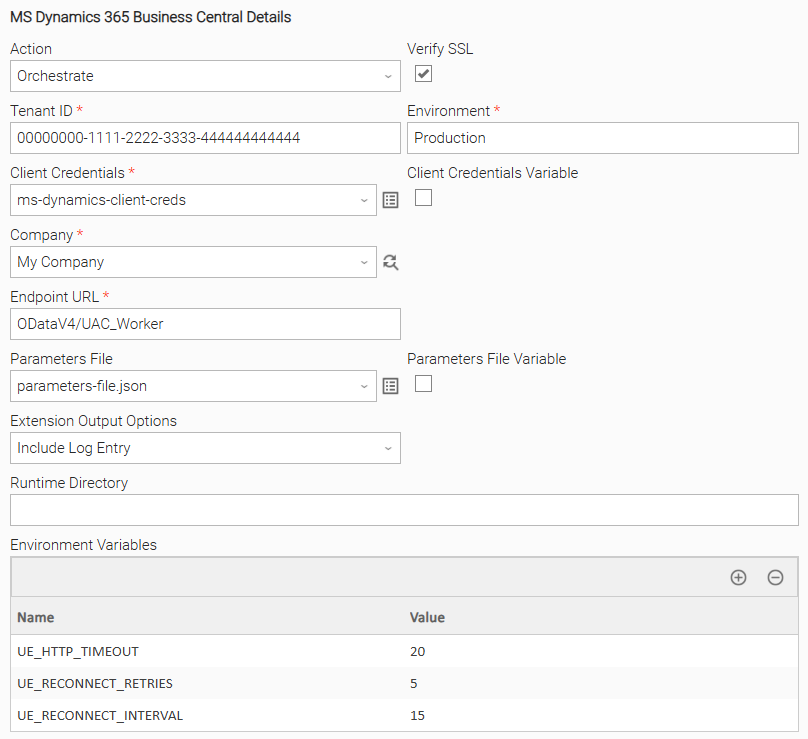
The task uses the Orchestrate action to POST to a custom OData action endpoint. The parameters-file.json script is selected as the Parameters File, providing the POST body. The endpoint response is captured by enabling "Include Log Entry" under Extension Output Options. Environment variables are used to override the default HTTP timeout and retry settings.
Example: Restart Job — wait for completion
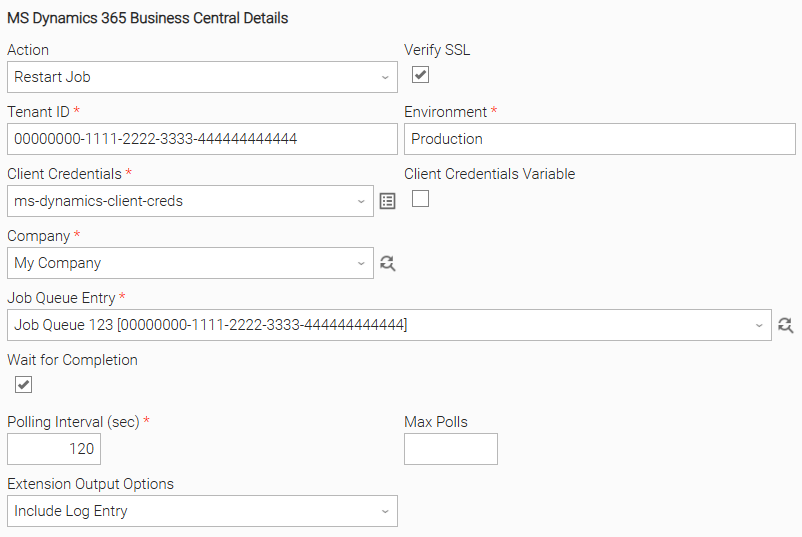
The task uses the Restart Job action to restart a Business Central job queue entry. Wait for Completion is enabled with a polling interval of 120 seconds and no maximum poll limit, so the extension waits indefinitely for the job to reach a terminal state. The Job Run ID and Status output fields are updated live during execution.
Example: Get Job Parameters — inspect an OData action schema
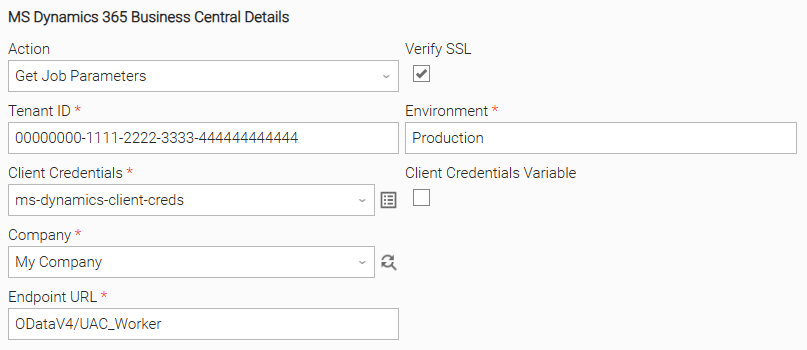
The task uses the Get Job Parameters action to inspect the parameter schema of a custom OData action. The Endpoint URL field is set to ODataV4/UAC_Worker, and the discovered parameters are returned in the extension output.
Example: List All Job Queue Entries
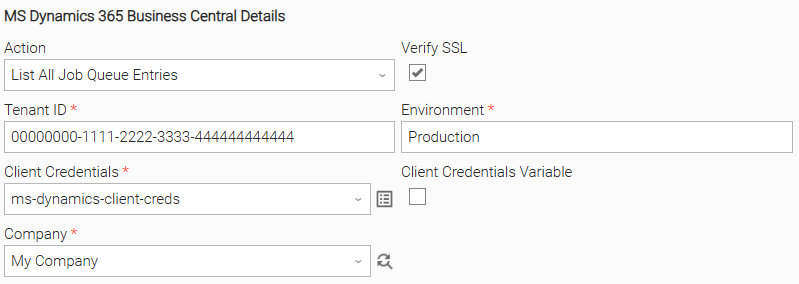
The task uses the List All Job Queue Entries action to retrieve all job queue entries in the selected company. No additional configuration is required beyond the authentication and company fields. The returned entries include GUIDs, captions, statuses, and parameter strings, enabling disambiguation when multiple entries run the same codeunit.
Importable Configuration Examples
This integration provides importable configuration examples along with their dependencies, grouped as Use Cases to better describe end to end capabilities.
These examples aid in allowing task authors to get more familiar with the configuration of tasks and related Use Cases. Such tasks should be imported in a Test system and should not be used directly in production.
Initial Preparation Steps
-
STEP 1: Go to Stonebranch Integration Hub and download the integration with name "Microsoft Dynamics 365 Business Central" and extract the archive in a local directory.
-
STEP 2: Locate and import the integration to the target Universal Controller. For more information refer to the How To section in this document.
-
STEP 3: Inside the directory named
configuration_examplesyou will find a list of definition zip files. Upload them one by one respecting the order presented below, by using the "Upload" functionality of Universal Controller:*_variables.zip*_credentials.zip*_tasks.zip*_workflows.zip
The
*represents a number prefix that varies per use case. Upload only the files present, in the order listed above. -
STEP 4: Update the UAC global variables introduced with the
*_variables.zipfile. Their names are prefixed withue_ms_dynamics. Review the descriptions of the variables as they include information on how they should be populated. -
STEP 5: Update the uploaded UAC Credential entity with the Client ID and Client Secret of the Azure AD App Registration used to authenticate with Business Central. Review the credential's description for guidance.
All imported entities are prefixed with the Use Case number (e.g. UC1, UC2) they belong to.
How to "Upload" Definition Files to a Universal Controller
The "Upload" functionality of Universal Controller allows Users to import definitions exported with the "Download" functionality.
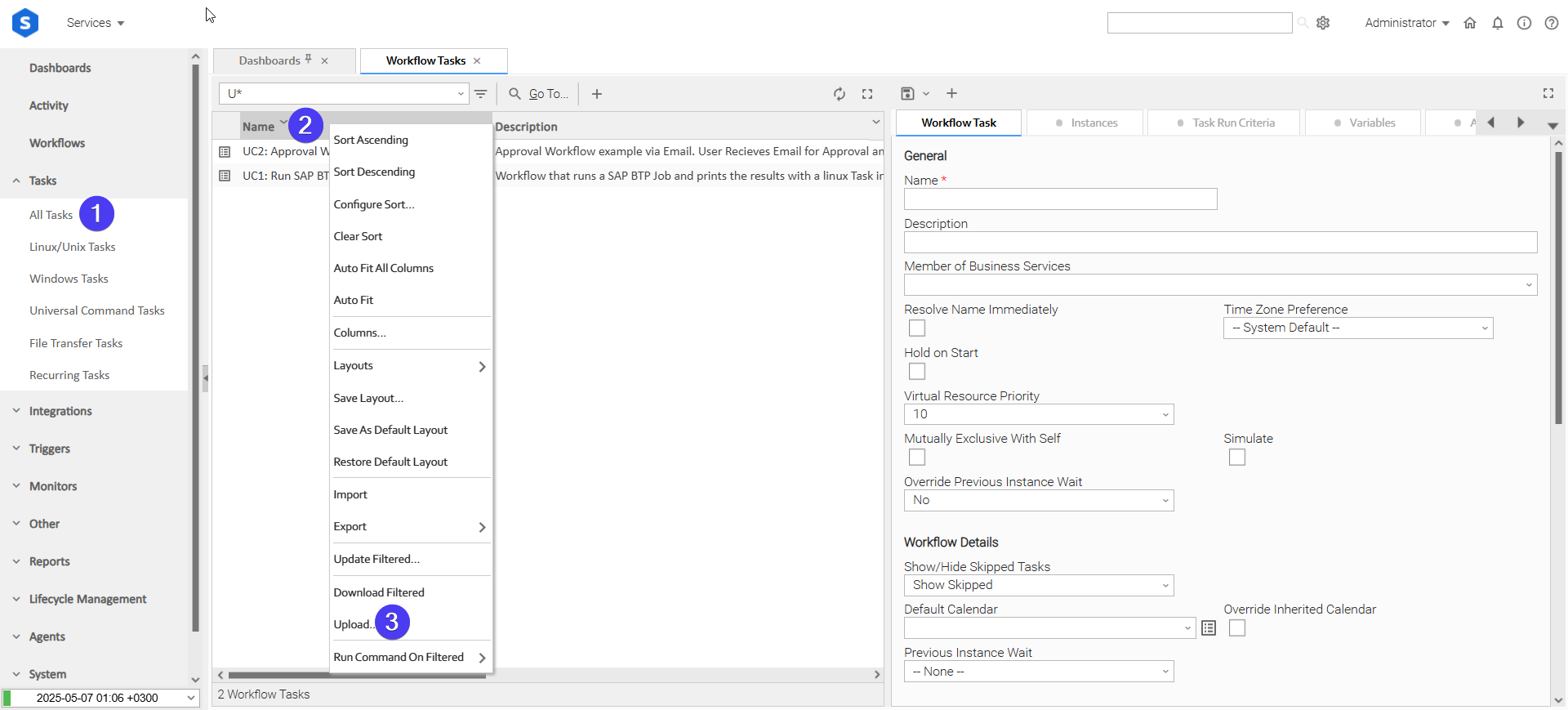
Login to Universal Controller and:
- STEP 1: Click "Tasks" → "All Tasks"
- STEP 2: Right click on the top of the column named "Name"
- STEP 3: Click "Upload..."
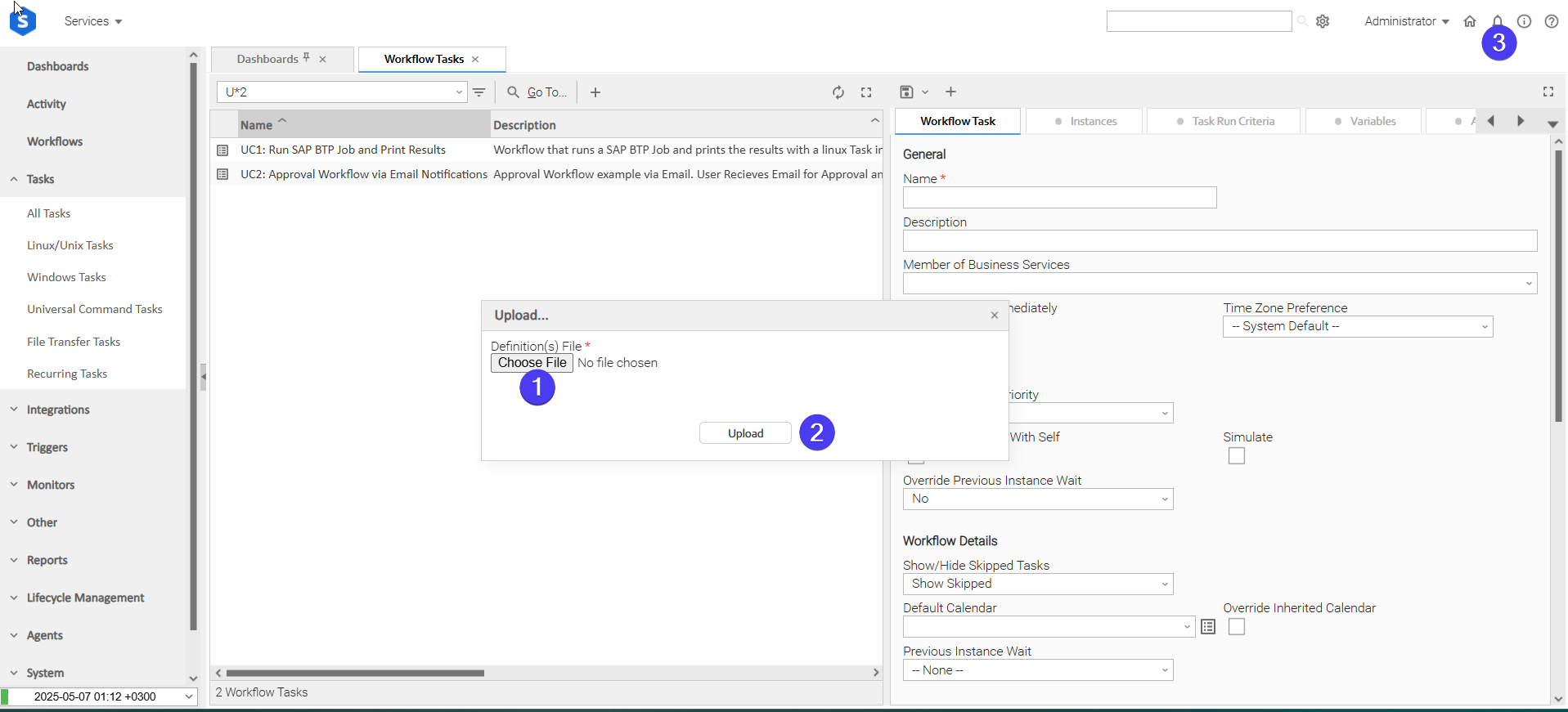
In the pop-up "Upload..." dialogue:
- STEP 1: Click "Choose File".
- STEP 2: Select the appropriate zip definition file and click "Upload".
- STEP 3: Observe the Console for possible errors.
Use Case 1: Business Central Job Queue Entry Restart with Status Notification
Description
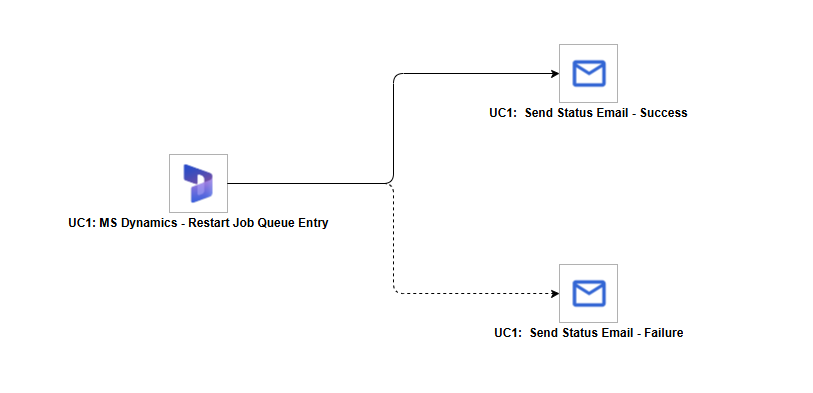
This workflow demonstrates automated restart of a Microsoft Dynamics 365 Business Central job queue entry with outcome-based email notification. Using the ue-ms-dynamics extension, a target job queue entry is restarted and polled until it reaches a terminal state. Once complete, the workflow branches based on the outcome: a confirmation email is dispatched on success and an alert email is dispatched on failure.
The components of the solution are described below:
- "UC1: MS Dynamics - Restart Job Queue Entry" — Restarts the configured Business Central job queue entry using the Restart Job action with Wait for Completion enabled, and polls the job queue log until the entry reaches a terminal state.
- "UC1: Send Status Email - Success" — Sends a notification email confirming the job queue entry completed successfully. Triggered on task success.
- "UC1: Send Status Email - Failure" — Sends an alert email notifying the team that the job queue entry transitioned to an Error state. Triggered on task failure.
How to Run
STEP 1: Manually start the workflow. This triggers the first task, "UC1: MS Dynamics - Restart Job Queue Entry", which restarts the configured Business Central job queue entry and polls it until it reaches a terminal state.
STEP 2: Once the restart task reaches a terminal state, the workflow branches based on the outcome:
- If the job queue entry completed with a
Successstatus, "UC1: Send Status Email - Success" is triggered, dispatching a confirmation email to the configured recipient. - If the job queue entry transitioned to an
Errorstate, "UC1: Send Status Email - Failure" is triggered, dispatching an alert email to the configured recipient.
Expected Results
- The Business Central job queue entry is successfully restarted and monitored to a terminal state.
- A status email is dispatched reflecting the job outcome — a confirmation email on success, or an alert email on failure.
Input Fields
Name | Type | Description | Version Information |
|---|---|---|---|
Action | Choice | The action performed upon task execution.
| Introduced in 1.0.0 |
Tenant ID | Text | Microsoft Entra (Azure AD) Directory (Tenant) ID in GUID format, used to authenticate with Business Central. | Introduced in 1.0.0 |
Environment | Text | Business Central environment name exactly as shown in the BC Admin Center (e.g. | Introduced in 1.0.0 |
Client Credentials | Credential | UAC credential where user = Client ID and token = Client Secret for the Azure App Registration used to authenticate with Business Central. | Introduced in 1.0.0 |
Company | Dynamic Choice | Display name of the Business Central company to operate against. Populated dynamically using the configured credentials. A company name can be entered manually if the dynamic dropdown is unavailable. | Introduced in 1.0.0 |
Verify SSL | Checkbox | When enabled, verifies the SSL certificate of the Business Central API endpoint. The | Introduced in 1.0.0 |
Job Queue Entry | Dynamic Choice | The Business Central job queue entry to restart. Populated dynamically from the configured environment. Accepted formats: Use the List All Job Queue Entries action to discover the GUID of a specific entry when multiple entries share the same caption. This field is visible when Action is "Restart Job". | Introduced in 1.0.0 |
Endpoint URL | Text | For Orchestrate: OData URL suffix for the POST request, appended to the environment base URL. Supports the For Get Job Parameters: the OData action name or URL suffix to inspect (e.g. This field is visible when Action is "Orchestrate" or "Get Job Parameters". This field is required when visible. | Introduced in 1.0.0 |
Parameters File | Script | A UAC Script entity whose content is used as the JSON request body for the POST request. The JSON keys must match the OData action's parameter names (use Get Job Parameters to discover them). Leave empty to send a POST with no body. This field is visible when Action is "Orchestrate". | Introduced in 1.0.0 |
Wait for Completion | Checkbox | When enabled, polls job queue log entries until the restarted job produces a new log entry that reaches a terminal state ("Success" or "Error"). When disabled, verifies the restart took effect via a single status check and returns immediately. This field is visible when Action is "Restart Job". | Introduced in 1.0.0 |
Polling Interval (sec) | Integer | Number of seconds to wait between status polls. Only applicable if Wait for Completion is enabled. | Introduced in 1.0.0 |
Max Polls | Integer | Maximum number of polls before timing out. Leave empty or set to 0 to poll indefinitely until the job reaches a terminal state. Only applicable if Wait for Completion is enabled. | Introduced in 1.0.0 |
Extension Output Options | Multiple Choice | Controls what additional data is included in the extension JSON result.
This field is visible when Action is "Orchestrate" or "Restart Job". | Introduced in 1.0.0 |
Output Fields
The following output-only fields provide better visibility during the execution of Universal Task Instances.
Name | Type | Description | Version Information |
|---|---|---|---|
Status | Text | The latest log-entry status for the running execution ( | Introduced in 1.0.0 |
Job Run ID | Text | The GUID of the job queue log entry representing this specific execution. This identifier is distinct from the Job Queue Entry ID (the recurring schedule). Populated once the restarted job produces a new log entry. Only applicable for the Restart Job action when Wait for Completion is enabled. | Introduced in 1.0.0 |
Environment Variables
Environment Variables can be set from the Environment Variables task definition table. The following environment variables can affect the behavior of the extension. All environment variables are optional. Each has a hardcoded default that is used when the variable is absent or set to an invalid value.
Name | Type | Description | Default Value | Version Information |
|---|---|---|---|---|
| Integer | Timeout in seconds for each individual HTTP request made to the Business Central API or the Azure AD token endpoint. | 60 | Introduced in 1.0.0 |
| Integer | Number of retry attempts for transient HTTP errors (429, 5xx, connection errors, and timeouts). On 429 responses the | 3 | Introduced in 1.0.0 |
| Integer | Number of seconds to wait between retry attempts for 5xx errors. | 5 | Introduced in 1.0.0 |
| String | Path to a custom CA bundle file on the agent host. When set, overrides the Verify SSL field and uses the specified certificate file for SSL verification of all outbound requests. | (unset) | Introduced in 1.0.0 |
Cancellation and Rerun
For the Restart Job action with Wait for Completion enabled, cancelling the task instance causes the extension to exit gracefully without affecting the job currently executing in Business Central.
For the Orchestrate and Get Job Parameters actions, there is no polling loop, so cancellation takes effect when the current HTTP request completes or times out.
Each rerun starts a fresh execution from scratch. For Restart Job, a new restart request is issued to Business Central regardless of the previous run's outcome. For Orchestrate, a new POST is sent to the configured endpoint. For Get Job Parameters, a fresh $metadata lookup is performed.
Exit Codes
Exit Code | Status | Status Description | Meaning |
|---|---|---|---|
0 | Success | "Task executed successfully." | Task completed and the action finished without error. |
1 | Failure | "Execution Failed: <<Error Description>>" | Generic error. Raised when the failure does not fall into one of the specific error codes below. |
2 | Failure | "Authentication Error" | Token acquisition failed due to invalid or missing client credentials, or an error from the Azure AD token endpoint. |
3 | Failure | "Authorization Error" | The service principal received a 403 from the Business Central API — insufficient permissions on the environment or company. |
4 | Failure | "Job Not Found" | The job queue entry lookup returned zero results. The specified job name or GUID does not exist in the target company. |
5 | Failure | "Job Failed" | The restarted job queue entry transitioned to an |
6 | Failure | "BC API Error" | The Business Central API returned an unexpected error response that is not covered by a more specific exit code. |
10 | Failure | "Timeout Error" | An HTTP request timed out after all retry attempts were exhausted, or the Max Polls limit was reached before the job reached a terminal state. |
STDOUT and STDERR
STDOUT of this integration is empty.
STDERR provides additional information to the user, the verbosity of which is tuned by the Log Level Task Definition field.
Backward compatibility is not guaranteed for the content of STDOUT/STDERR and can be changed in future versions without notice.
How To
Import Universal Template
Import the Universal Template into your Controller:
- Extract the zip file you downloaded from the Integration Hub.
- In the Controller UI, select Services > Import Integration Template.
- Browse to the
exportfolder under the extracted files for the ZIP file (the file name will beunv_tmplt_*.zip) and click Import. - When the file is imported successfully, refresh the Universal Templates list; the Universal Template will appear on the list.
Modifications of this integration, applied by users or customers, before or after import, might affect the supportability of this integration. For more information refer to Integration Modifications.
Configure Universal Task
For a new Universal Task, create a new task and enter the required input fields. Before creating the task, ensure that the Azure AD App Registration client credentials are available and have been granted the appropriate Business Central API permissions. Create the required Resolvable Credentials to be used as the Client Credentials input field.
Integration Modifications
Modifications applied by users or customers, before or after import, might affect the supportability of this integration. The following modifications are discouraged to retain the support level as applied for this integration.
- Python code modifications should not be done.
- Template Modifications
- General Section
- "Name", "Extension", "Variable Prefix", and "Icon" should not be changed.
- Universal Template Details Section
- "Template Type", "Agent Type", "Send Extension Variables", and "Always Cancel on Force Finish" should not be changed.
- Result Processing Defaults Section
- Success and Failure Exit codes should not be changed.
- Success and Failure Output processing should not be changed.
- Fields Restriction Section
The setup of the template does not impose any restrictions. However, concerning the "Exit Code Processing Fields" section.
- Success/Failure exit codes need to be respected.
- In principle, as STDERR and STDOUT outputs can change in follow-up releases of this integration, they should not be considered as a reliable source for determining the success or failure of a task.
- General Section
Users and customers are encouraged to report defects or feature requests at Stonebranch Support Desk.
Document References
This document references the following links:
Document Link | Description |
|---|---|
User documentation for creating, working with and understanding Universal Templates and Integrations. | |
User documentation for creating Universal Tasks in the Universal Controller user interface. |
Changelog
ue-ms-dynamics-1.0.0 (2026-06-02)
Initial Version