Microsoft Fabric
Disclaimer
Your use of this download is governed by Stonebranch's Terms of Use.
Version Information
Template Name | Extension Name | Extension Version | Status |
|---|---|---|---|
Microsoft Fabric | ue-ms-fabric | 1.0.0 | Fixes and new Features are introduced |
Refer to Changelog for version history information.
Overview
Microsoft Fabric is an end-to-end analytics and data platform designed for enterprises, unifying data engineering, data integration, data science, and business intelligence into a single SaaS solution. Data Pipelines in Microsoft Fabric enable the orchestration and transformation of data at scale, connecting data sources, applying transformations, and loading results across the platform.
This Universal Extension provides the capability to trigger and monitor Microsoft Fabric Data Pipelines directly from the Universal Controller, enabling users to incorporate Fabric workloads into their broader automation and scheduling workflows. Pipeline parameters can be passed, execution can be tracked in real time on activity level, and results are returned directly in the task's output.
Key Features
Feature | Description |
|---|---|
Data Pipeline Execution | Trigger Microsoft Fabric Data Pipelines from UAC, with support for passing runtime parameters via local YAML or JSON files. |
Real-Time Pipeline Monitoring | Poll pipeline execution status at a configurable interval, streaming live progress on the activity level throughout the pipeline lifecycle |
Flexible Authentication | Authenticate with Microsoft Fabric using Service Principal (client secret), Managed Identity, or Workload Identity, with support for environment-variable-based credential fallback. |
Pipeline Cancellation | Cancel a running pipeline on demand via a Dynamic Command issued from the Universal Controller, or automatically upon task cancellation. |
Structured Extension Output | Optionally expose pipeline run metadata and full activity details as structured JSON output, suitable for use in downstream UAC task dependencies and variable extraction. |
Requirements
This integration requires a Universal Agent and a Python runtime to execute the Universal Task.
Area | Details |
|---|---|
Python Version | Requires Python 3.11, tested with Agent bundled python distribution |
Universal Agent Compatibility |
|
Universal Controller Compatibility | Universal Controller Version >= 7.6.0.0. |
Network and Connectivity | Agent outbound network connectivity towards Microsoft Fabric REST API is required. |
Microsoft Fabric | This integration is compatible with Microsoft Fabric Runtime 1.3.0 |
Supported Actions
There is one Top-Level action controlled by the Action Field:
- Trigger Data Pipeline
Action Output
- EXTENSION
- STDOUT
- STDERR
The extension output provides the following information:
exit_code, status_description: General info regarding the task execution. For more information users can refer to the exit code table.invocation.fields: The task configuration used for this task execution.result.attr_x:[description]result.metadata:[description]result.errors:List of errors that might have occurred during execution.
Examples:Example of successful task execution, with all Extension Output options enabled.
Example of failed task execution, with all Extension Output options enabled.
Depending on the configuration of field STDOUT Options, activity details can be exposed at runtime.
Example:Example of Activity & Pipeline Status Transitions during pipeline execution
Shows the logs from the Task Instance execution. The verbosity is controlled by the Task configuration Log Level.
Example:Example of Info-level logs during execution of "Cancel Pipeline" dynamic command
Configuration Examples
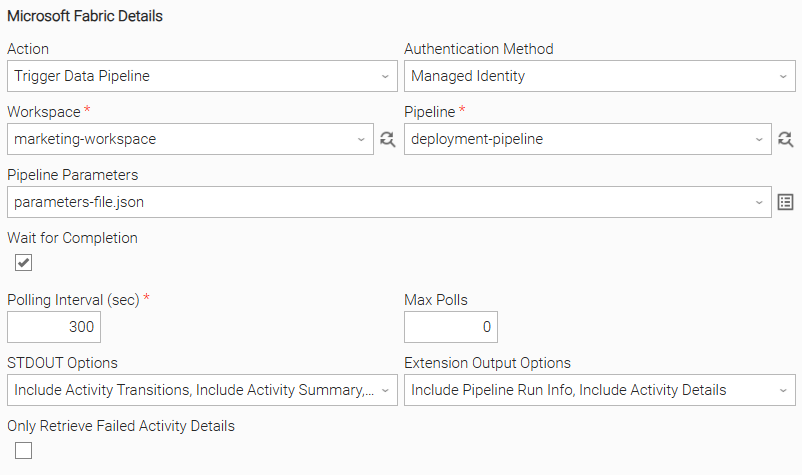
Example: Managed Identity authentication, pipeline with parameters, full output
The MS Fabric task uses Managed Identity authentication to trigger a Data Pipeline in the specified workspace, passing runtime parameters. The task waits for pipeline completion, polling every 300 seconds with no maximum poll limit. All output options are enabled - activity transitions, summaries, and statistics are streamed to the task log, and both pipeline run metadata and full activity details are captured as structured extension output.
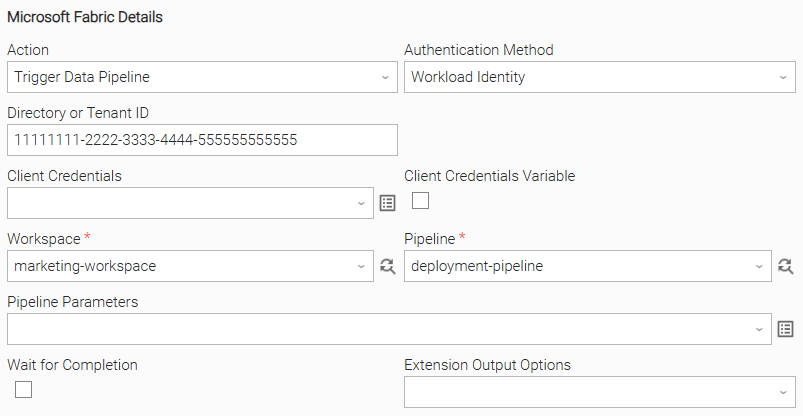
Example: Workload Identity authentication, fire and forget
The MS Fabric task uses Workload Identity authentication, with client credentials sourced from environment variables on the agent host. The pipeline is triggered without any runtime parameters and the task does not wait for completion, returning immediately after the pipeline is successfully submitted.
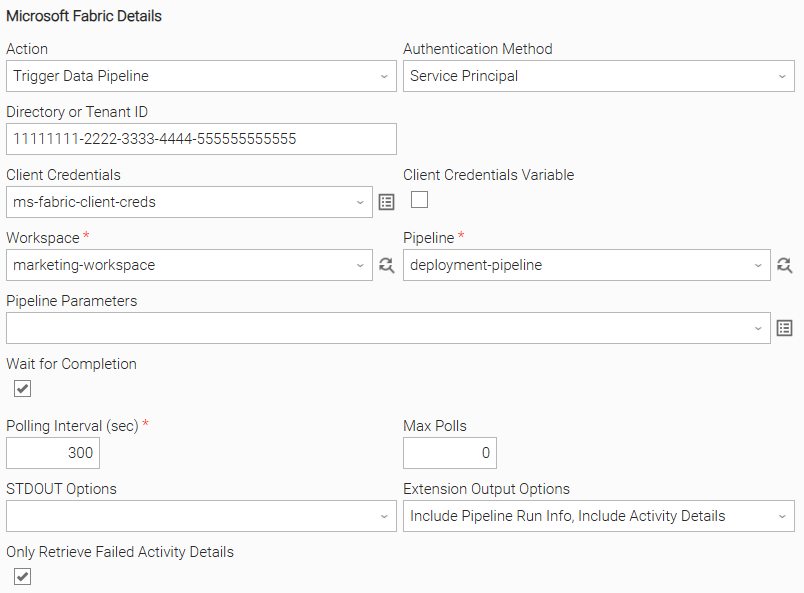
Example: Service Principal authentication, wait for completion, failed activity details only
The MS Fabric task uses Service Principal authentication, with tenant ID, client ID, and client secret all explicitly provided in the task fields. The pipeline is triggered without any runtime parameters and the task waits for completion. Only failed activity details are captured in the extension output, providing a focused error report without returning details for successful activities.
Importable Configuration Examples
This integration provides importable configuration examples along with their dependencies, grouped as Use Cases to better describe end to end capabilities.
Those examples aid in allowing task authors to get more familiar with the configuration of tasks and related Use Cases. Such tasks should be imported in a Test system and should not be used directly in production.
Initial Preparation Steps
- STEP 1: Go to Stonebranch Integration Hub and download the "Microsoft Fabric" integration, along with the "Azure Kubernetes Job" integration. Extract the downloaded archive on a directory in a local drive.
- STEP 2: Locate and import the above integration to the target Universal Controller. For more information refer to the "How To" section in this document
- STEP 3: For "Microsoft Fabric", inside directory named "configuration_examples" you will find a list of definition zip files. Upload them one by one respecting the order presented below, by using the "Upload" functionality of Universal Controller:
- variables.zip
- credentials.zip
- scripts.zip
- tasks.zip
- workflows.zip
- STEP 4: Update the uploaded UAC Credential entity introduced with proper Username / Password
- STEP 5: Update the UAC global variables introduced with variables.zip file. Their name is prefixed with "ue_ms_fabric". Review the descriptions of the variables as they include information on how they should be populated.
- STEP 6: Create an OMS record on the Universal Controller. Ensure the address matches the one assigned to the relevant global variable from the previous step. For more information refer to the Creating OMS Server Records in this document.
- STEP 7: Create an Agent Cluster on the Universal Controller. Ensure the name matches the one assigned to the relevant global variable from the previous step. For more information refer to the Creating an Agent Cluster in this document.
The order indicated above ensures that the dependencies of the imported entities need to be uploaded first.
How to "Upload" Definition Files to a Universal Controller
The "Upload" functionality of Universal Controller allows Users to import definitions exported with the "Download" functionality.
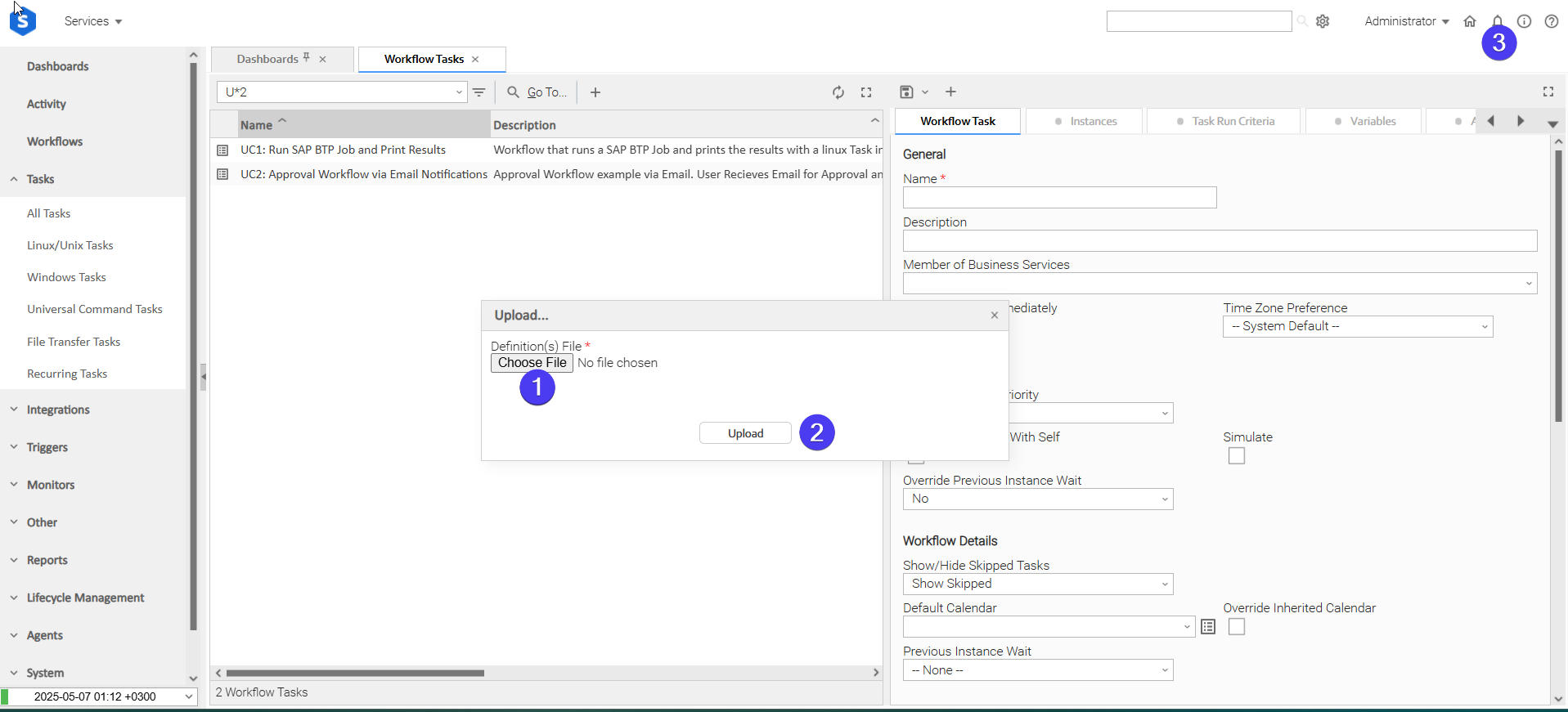
Login to Universal Controller and:
- STEP 1: Click on "Tasks" → "All Tasks"
- STEP 2: Right click on the top of the column named "Name"
- STEP 3: Click "Upload..."
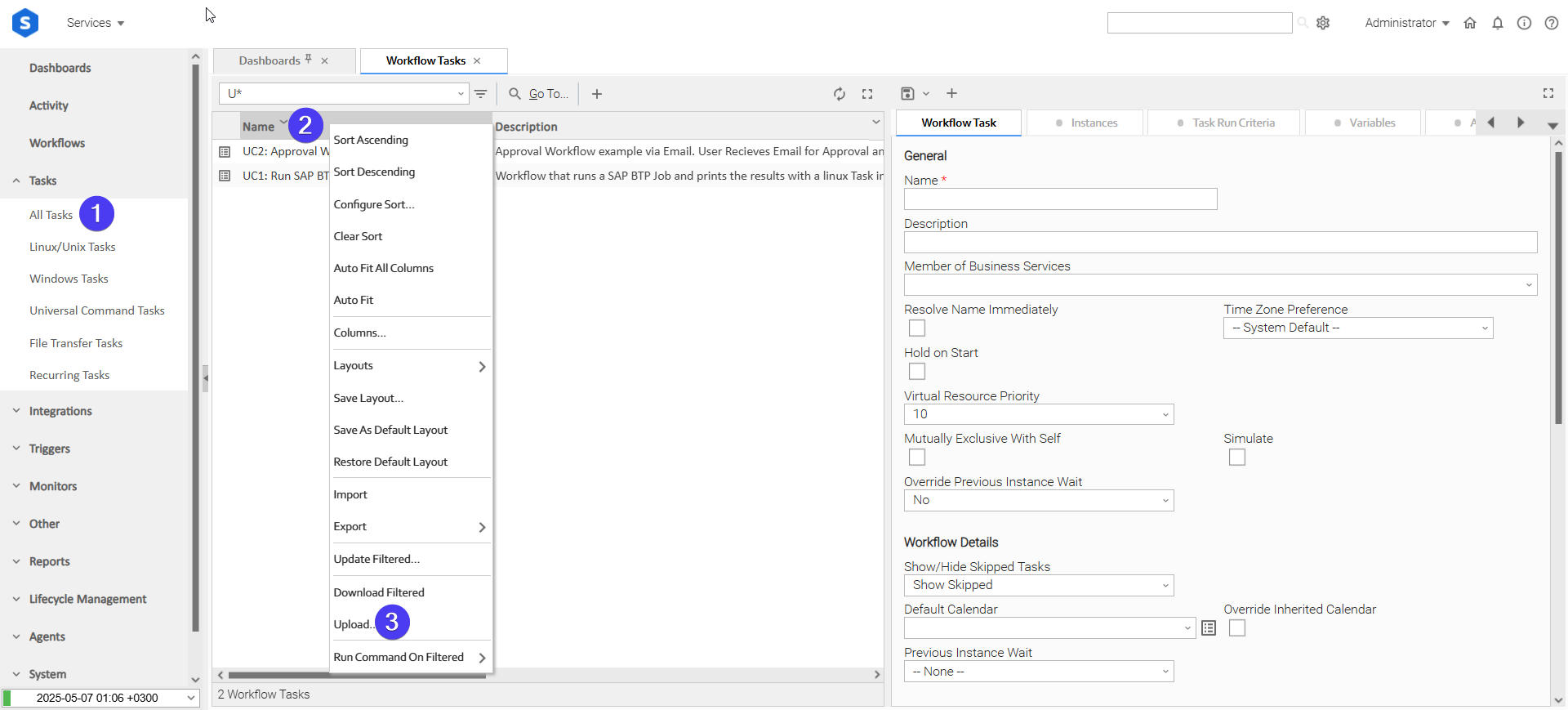
In the pop-up "Upload..." dialogue:
- STEP 1: Click "Choose File".
- STEP 2: Select the appropriate zip definition file and click "Upload".
- STEP 3: Observe the Console for possible errors.
Use Case 1: Microsoft Fabric Pipeline Execution on AKS with Managed Identity
Description
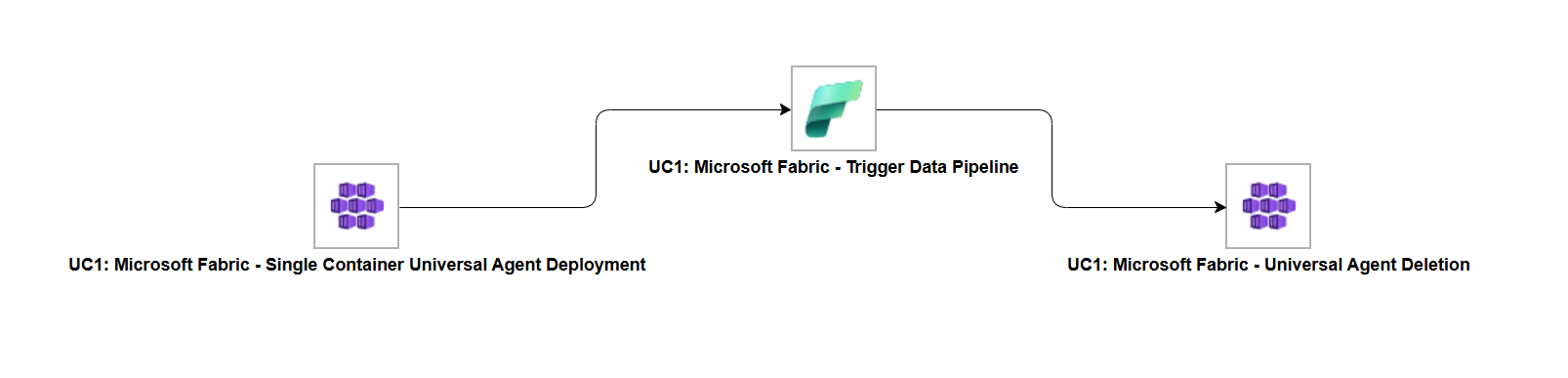
This workflow demonstrates secure Microsoft Fabric Data Pipeline execution through ephemeral Universal Agent deployment on Azure Kubernetes Service (AKS). Using the ue-aks-jobs extension, it first deploys a transient Universal Agent inside the AKS cluster. The agent then leverages the ue-ms-fabric extension with Managed Identity authentication to trigger a Microsoft Fabric Data Pipeline, followed by automatic agent cleanup to maintain cluster hygiene.
The tasks configured demonstrate the following capabilities among others:
- Ephemeral Universal Agent deployment on AKS via the ue-aks-jobs extension.
- Managed Identity authentication for Microsoft Fabric pipeline execution, enabled by the AKS pod identity context - no stored credentials required.
- Complete lifecycle automation including agent deployment, pipeline execution, and automated agent deletion.
The components of the solution are described below:
- "UC1: Microsoft Fabric - Single Container Universal Agent Deployment" - Deploys a transient Universal Agent inside the configured AKS cluster.
- "UC1: Microsoft Fabric - Trigger Data Pipeline" - Triggers a Microsoft Fabric Data Pipeline using the deployed AKS agent and Managed Identity authentication, waiting for the pipeline to reach a terminal state.
- "UC1: Microsoft Fabric - Universal Agent Deletion" - Deletes the previously deployed Universal Agent, cleaning up all AKS resources.
How to Run
STEP 1: Manually start the workflow. This triggers the first task, "UC1: Microsoft Fabric - Single Container Universal Agent Deployment", which deploys a transient Universal Agent inside the target AKS cluster.
STEP 2: Once the agent is deployed, the second task, "UC1: Microsoft Fabric - Trigger Data Pipeline", triggers the configured Microsoft Fabric Data Pipeline through the AKS agent using Managed Identity authentication and monitors it to completion.
STEP 3: After the pipeline completes, the final task, "UC1: Microsoft Fabric - Universal Agent Deletion", deletes the deployed agent, ensuring no leftover resources remain in the cluster.
Expected Results
- The Universal Agent is successfully deployed inside the AKS cluster.
- The Microsoft Fabric Data Pipeline is triggered and monitored to a successful terminal state using Managed Identity authentication.
- The Universal Agent is deleted after pipeline execution, leaving no residual resources in the cluster.
Input Fields
Name | Type | Description | Version Information |
|---|---|---|---|
Action | Choice | The action performed upon the task execution.
| Introduced in 1.0.0 |
Authentication Method | Choice | Select how to authenticate with Azure.
| Introduced in 1.0.0 |
Directory or Tenant ID | Text | Azure Directory (Tenant) ID (GUID). Can be omitted if the AZURE_TENANT_ID environment variable is set on the agent host. | Introduced in 1.0.0 |
Client Credentials | Credential | UAC credential where user=Client ID and token=Client Secret. Can be omitted if the AZURE_CLIENT_ID / AZURE_CLIENT_SECRET environment variables are set on the agent host. | Introduced in 1.0.0 |
Workspace | Dynamic Choice | The Microsoft Fabric workspace containing the pipeline. Populated dynamically using the configured authentication credentials. | Introduced in 1.0.0 |
Pipeline | Dynamic Choice | Data pipeline to trigger within the selected workspace. Populated dynamically. A pipeline name can be entered manually if the dynamic dropdown is unavailable. | Introduced in 1.0.0 |
Pipeline Parameters | Script | YAML or JSON formatted file containing pipeline parameters as a key-value mapping. Leave empty to trigger the pipeline with no parameters. | Introduced in 1.0.0 |
Wait for Completion | Checkbox | When enabled, polls the pipeline until it reaches a terminal state (Succeeded, Failed, or Cancelled). When disabled, triggers and returns immediately after the initial status check. | Introduced in 1.0.0 |
Polling Interval (sec) | Integer | Number of seconds to wait between status polls. Only applies when Wait for Completion is enabled. Only applicable if Wait for Completion is selected. | Introduced in 1.0.0 |
Max Polls | Integer | Maximum number of polls before timing out. Leave empty or set to 0 to poll indefinitely until the pipeline reaches a terminal state. Only applicable if Wait for Completion is selected. | Introduced in 1.0.0 |
STDOUT Options | Choice | Controls activity information written to task STDOUT.
Only applicable if Wait for Completion is selected. | Introduced in 1.0.0 |
Extension Output Options | Choice | Controls what data is included in the extension JSON result.
| Introduced in 1.0.0 |
Only Retrieve Failed Activity Details | Checkbox | When checked, only details for failed activities are retrieved. Applies only when Include Activity Details is selected in Extension Output Options. | Introduced in 1.0.0 |
Output Fields
Name | Type | Description | Version Information |
|---|---|---|---|
Item Job Instance ID | Text | The unique identifier of the Fabric pipeline job instance. | Introduced in 1.0.0 |
Root Activity ID | Text | The root activity ID of the pipeline run as returned by Microsoft Fabric. Informational only. | Introduced in 1.0.0 |
Status | Text | The current execution status of the pipeline run (e.g., InProgress, Succeeded, Failed, Cancelled). Updated on every poll cycle. | Introduced in 1.0.0 |
Environment Variables
Environment Variables can be set from Environment Variables task definition table. The following environment variables can affect the behavior of the extension. All environment variables are optional. Each has a hardcoded default that is used when the variable is absent or set to an invalid value.
Name | Type | Description | Default Value | Version Information |
|---|---|---|---|---|
| Integer | Timeout in seconds for each individual HTTP request made to the Fabric API. | 60 | Introduced in 1.0.0 |
| Integer | Number of retry attempts for transient HTTP errors (429, 5xx, connection errors, timeouts). | 3 | Introduced in 1.0.0 |
| Integer | Number of seconds to wait between retry attempts in case of 5xx errors. | 5 | Introduced in 1.0.0 |
| Integer | Number of attempts used to discover the job instance ID after triggering a pipeline. The Fabric API returns 202 with no body on trigger, so the extension polls the run list with exponential backoff ( | 5 | Introduced in 1.0.0 |
Cancelation and Rerun
No changes are made to the current execution in case it's being monitored, the extension exits early, returning the current pipeline status without waiting for a terminal state.
Cancellation does not automatically stop the pipeline in Fabric. To cancel the pipeline run itself, use the Cancel Pipeline dynamic command (see below).
Each rerun triggers a fresh pipeline execution from scratch.
Dynamic Commands
Command Name | Allowed Task Instance Status | Description |
|---|---|---|
Cancel Pipeline Run | Running, Cancelled | Sends a cancellation request to the Fabric API for the current pipeline job instance. Can be issued while the task is running. Sets an internal flag so the polling loop treats the resulting |
Exit Codes
Exit Code | Status | Status Description | Meaning |
|---|---|---|---|
0 | Success | "Task executed successfully." | Task completed and the pipeline reached a successful terminal state. |
1 | Failure | "Execution Failed: <<Error Description>>" | Generic Error. Raised when not falling into the other Error Codes. |
1 | Failure | "Pipeline Failed" | The Fabric pipeline reached a |
2 | Failure | "Authentication Error" | Token acquisition failed due to invalid, missing, or unsupported credentials. |
3 | Failure | "Authorization Error" | The authenticated principal received a 403 from the Fabric API - insufficient permissions on the workspace or pipeline. |
10 | Failure | "Timeout Error" | An HTTP request to the Fabric API timed out after all retries were exhausted. |
20 | Failure | "Data Validation Error: <<Error Description>>" | Input field validation failed. |
40 | Failure | "Polling Timeout: maximum poling timeout reached." | The pipeline did not reach a terminal state within the configured Maximum Polls limit. |
STDOUT and STDERR
STDOUT is used for displaying Job information and is controlled by STDOUT Options field.
STDERR provides additional information to the user, the detail of which is tuned by Log Level Task Definition field.
Backwards compatibility is not guaranteed for the content of STDOUT/STDERR and can be changed in future versions without notice
How To
Import Universal Template
Import the Universal Template into your Controller:
- Extract the zip file, you downloaded from the Integration Hub.
- In the Controller UI, select Services > Import Integration Template option.
- Browse to the "export" folder under the extracted files for the ZIP file (Name of the file will be unv_tmplt_*.zip) and click Import.
- When the file is imported successfully, refresh the Universal Templates list; the Universal Template will appear on the list.
Modifications of this integration, applied by users or customers, before or after import, might affect the supportability of this integration. For more information refer to Integration Modifications.
Configure Universal Task
For a new Universal Task, create a new task, and enter the required input fields.
Integration Modifications
Modifications applied by users or customers, before or after import, might affect the supportability of this integration. The following modifications are discouraged to retain the support level as applied for this integration.
- Python code modifications should not be done.
- Template Modifications
- General Section
- "Name", "Extension", "Variable Prefix", and "Icon" should not be changed.
- Universal Template Details Section
- "Template Type", "Agent Type", "Send Extension Variables", and "Always Cancel on Force Finish" should not be changed.
- Result Processing Defaults Section
- Success and Failure Exit codes should not be changed.
- Success and Failure Output processing should not be changed.
- Fields Restriction Section
The setup of the template does not impose any restrictions. However, concerning the "Exit Code Processing Fields" section.- Success/Failure exit codes need to be respected.
- In principle, as STDERR and STDOUT outputs can change in follow-up releases of this integration, they should not be considered as a reliable source for determining the success or failure of a task.
- General Section
Event Template configuration related to "Metric Label Attributes" & "Optional Metric Labels" is allowed. However, administrators should be cautious of high cardinality scenarios that might occur.
Users and customers are encouraged to report defects, or feature requests at Stonebranch Support Desk.
Document References
This document references the following links:
Document Link | Description |
|---|---|
User documentation for creating, working with and understanding Universal Templates and Integrations. | |
User documentation for creating Universal Tasks in the Universal Controller user interface. |
Changelog
ue-ms-fabric-1.0.0 (2026-03-12)
Initial Version