Microsoft Teams: Send Message with Attachment
Disclaimer
Your use of this download is governed by Stonebranch's Terms of Use.
Version Information
Template Name | Extension Name | Version | Status |
|---|---|---|---|
Microsoft Teams: Send message with attachment | ue-msteams-message | 2 (Current 2.0.0) | Fixes and new Features are introduced. |
Refer to Changelog for version history information.
This is a major release and introduces breaking changes that might affect some customers depending on their setup. Administrators are strongly advised to refer to Changelog for more information on the changes introduced in this release.
Overview
Microsoft Teams is a collaboration app that helps teams stay organized and have conversations.
This Universal Extension provides the capability to post messages with attachments on a Microsoft Teams channel.
Key Features
This Universal Extension provides the following main features:
Feature | Description |
|---|---|
Post Message with Attachment | Support to post a message with an attachment on a Microsoft Teams channel. |
Authentication | Support for authentication to Microsoft Teams with Oauth2 ROPC (Resource Owner Password Credentials) grant type. |
Renewal of tokens | Support for automatic renewal of access token when expired. |
Attachment Options | Support for different attachment handling options in case an attachment already exists in Microsoft SharePoint (fail, replace, rename). |
This extension makes sure that the attachment is first uploaded on Microsoft SharePoint and then used as attachment in the message sent to Microsoft Teams.
Requirements
This integration requires a Universal Agent and a Python runtime to execute the Universal Task.
Area | Details |
|---|---|
Python Version | Requires Python 3.11, tested with Agent bundled python distribution |
Universal Agent Compatibility |
|
Universal Controller Compatibility | Universal Controller Version >= 7.6.0.0. |
Network and Connectivity |
|
Azure Active Directory Requirements
An application must be registered in the Azure Active Directory. See official instructions on Quickstart: Register an application with the Microsoft identity platform
- Use as "Supported account Types" option "Accounts in this organizational directory only".
- When registration finishes an Application (client) ID is generated (required as part of Extension Task configuration).
- Configure API permissions.
-
Assign the following Microsoft Graph API permissions.
API / Permissions name
Type
Description
ChannelMessage.Send
Delegated
Send channel messages
Channel.ReadBasic.All
Delegated
Read the names and descriptions of channels.
Files.ReadWrite.All
Delegated
Have full access to all files user can access.
Team.ReadBasic.All
Delegated
Read the names and descriptions of teams.
User.Read
Delegated
Sign in and read user profile.
-
Grant admin consent.
- Create a client secret -> Add client secret (client secret is required as part of Extension Task configuration).
Supported Actions
The supported action controlled by the Action Field:
- Post attachment
Action: Post attachment
Action Output
- STDOUT
- STDERR
Shows general messages about the status of the Task and the configured fields.
Shows the logs from the Task Instance execution. The verbosity is controlled by the Task configuration Log Level.
Configuration Examples
Post Attachment
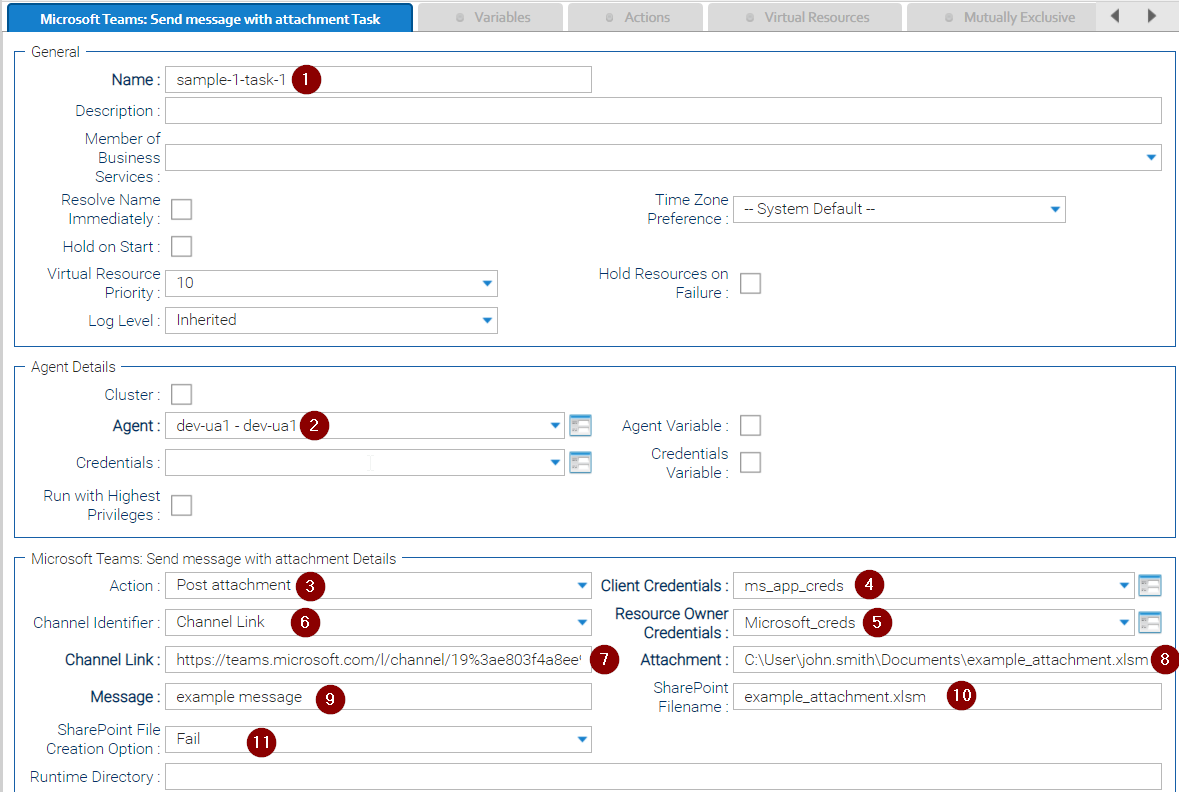
Follow the steps below to create a Task.
- Give the task a name (for example, sample-1-task-1).
- Select an active agent of version 7.6.0.0 or higher for the task to run on.
- Select the Action.
- Set your Client Credentials.
- Set your Resource Owner Credentials.
- Select the Channel Identifier.
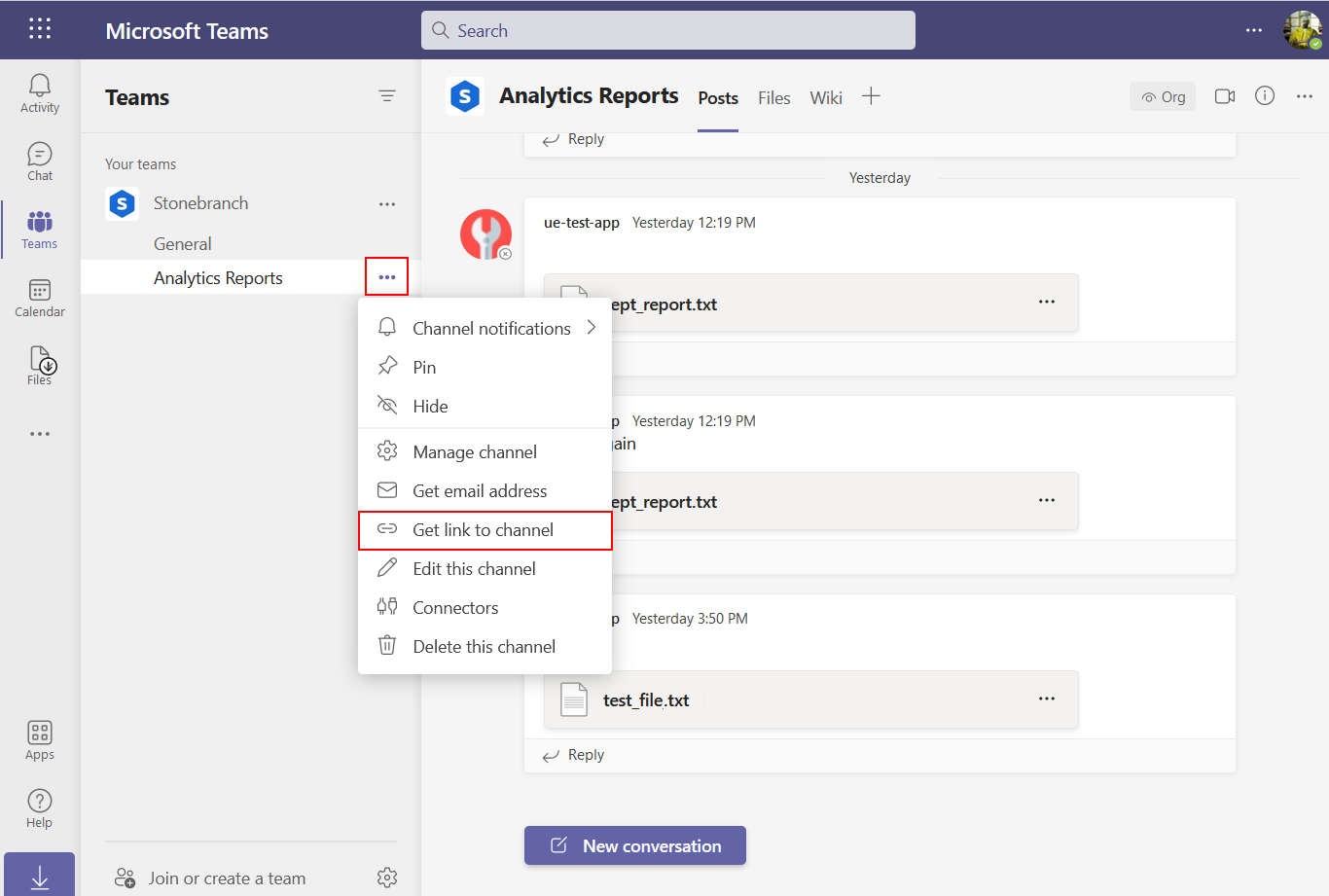
- Enter the required Channel Link. An easy way to retrieve this is from the Microsoft Teams UI:
- In the Attachment field enter the local path where the file is located.
- Type a Message.
- Enter the SharePoint Filename.
- Select the SharePoint File Creation Option.
Additional Notes
In case the extension is used to send a message to a brand new channel that does not have any message, it is likely that it fails because the SharePoint folder is not yet created.
This is a common issue of MS Teams. The solution is either to post a message in the channel or to open the "Files" tab on Teams to bootstrap manually the creation of the folder on SharePoint.
Input Fields
The input fields for this Universal Extension are described below.
Name | Type | Description | Version Information |
|---|---|---|---|
Action | Choice | The action performed upon the task execution.
| Introduced in 1.0.0 |
Client Credentials | Credentials | The credentials for the application registered in the Azure Active Directory. They are comprised of:
| Introduced in 1.0.0 |
Resource Owner Credentials | Credentials | The user's credentials for Microsoft 365. They are comprised of:
| Introduced in 1.0.0 |
Channel Identifier | Choice | The Type of identifier for the channel. For example: Channel Link (default) to provide the URL. | Introduced in 1.0.0 |
Channel Link | Text | The URL link of the required channel. Required if Channel Identifier is "Channel Link". | Introduced in 1.0.0 |
Attachment | Text | The full local path of the required file. | Introduced in 1.0.0 |
Message | Text | The message that will be posted in Microsoft Teams along with the attachment. | Introduced in 1.0.0 |
SharePoint Filename | Text | The name that the file will have on SharePoint. If none is provided, the file will be saved with the same name as in the local path. | Introduced in 1.0.0 |
SharePoint File Creation Option | Choice | Specifies how to proceed in case a file with the same name (SharePoint Filename) already exists on SharePoint. Available options are:
| Introduced in 1.0.0 |
STDOUT and STDERR
STDOUT is used for displaying general messages about the status of the Task and the configured fields.
STDERR provides additional information to the user, the detail of it is tuned by Log Level Task Definition field.
Backwards compatibility is not guaranteed for the content of STDOUT/STDERR and can be changed in future versions without notice
How To
Import Universal Template
To use the Universal Template, you first must perform the following steps
- This Universal Task requires the Resolvable Credentials feature. Check that the Resolvable Credentials Permitted system property has been set to true.
- Import the Universal Template into your Controller:
- Extract the zip file, you downloaded from the Integration Hub.
- In the Controller UI, select Services > Import Integration Template option.
- Browse to the "export" folder under the extracted files for the ZIP file (Name of the file will be unv_tmplt_*.zip) and click Import.
- When the file is imported successfully, refresh the Universal Templates list; the Universal Template will appear on the list.
Modifications of this integration, applied by users or customers, before or after import, might affect the supportability of this integration. For more information refer to Integration Modifications.
Configure Universal Task
For a new Universal Task, create a new task, and enter the required input fields.
Integration Modifications
Modifications applied by users or customers, before or after import, might affect the supportability of this integration. The following modifications are discouraged to retain the support level as applied for this integration.
- Python code modifications should not be done.
- Template Modifications
- General Section
- "Name", "Extension", "Variable Prefix", and "Icon" should not be changed.
- Universal Template Details Section
- "Template Type", "Agent Type", "Send Extension Variables", and "Always Cancel on Force Finish" should not be changed.
- Result Processing Defaults Section
- Success and Failure Exit codes should not be changed.
- Success and Failure Output processing should not be changed.
- Fields Restriction Section
The setup of the template does not impose any restrictions. However, concerning the "Exit Code Processing Fields" section.- Success/Failure exit codes need to be respected.
- In principle, as STDERR and STDOUT outputs can change in follow-up releases of this integration, they should not be considered as a reliable source for determining the success or failure of a task.
- General Section
Users and customers are encouraged to report defects, or feature requests at Stonebranch Support Desk.
Document References
This document references the following documents:
Document Link | Description |
|---|---|
User documentation for creating, working with and understanding Universal Templates and Integrations. | |
User documentation for creating Universal Tasks in the Universal Controller user interface. |
Changelog
ue-msteams-message-2.0.0 (2026-02-24)
Deprecations and Breaking Changes
Breaking Change: Dropping support for Agents with version <= 7.5 and for Python 3.7.
Enhancements
Added: Improving Python compatibility with future Agent versions.
Fixes
Fixed: Remove Redundant API Call when uploading attachment. (#53912)
ue-msteams-message-1.1.4 (2022-03-30)
Fixes
Fixed: Update template icon.
ue-msteams-message-1.1.3 (2021-12-13)
Enhancements
Added: Enabled the Always Cancel on Force Finish on the template.
Fixes
Fixed: Fixed the incorrect versions of Python libraries. (#26570)
ue-msteams-message-1.1.2 (2021-11-30)
Fixes
Fixed: Fix ModuleNotFoundError: No module named 'yaml'. (#26383)Fixed: Update documentation adding "Additional Notes" indicating the scenario on which SharePoint Folder is not created and needs to be bootstrapped manually. (#26100)
ue-msteams-message-1.1.1 (2021-10-12)
Fixes
Fixed: Change of Template Name. (#26025)
ue-msteams-message-1.1.0 (2021-10-06)
Enhancements
Added: Support to post a message with an attachment on a Microsoft Teams channel.Added: Support for authentication to Microsoft Teams with Oauth2 ROPC (Resource Owner Password Credentials) grant type.Added: Support for different attachment handling options in case an attachment already exists in Microsoft SharePoint (fail, replace, rename).
ue-msteams-message-1.0.0 (2021-09-28)
Initial Version