Salesforce Data Mover
Disclaimer
Your use of this download is governed by Stonebranch's Terms of Use.
Version Information
Template Name | Extension Name | Version | Status |
|---|---|---|---|
Salesforce Data Mover | ue-sf-data-mover | 1.0.0 | Initial Version. |
Refer to Changelog for version history information.
Overview
The Salesforce Data Mover Integration brings your Salesforce record data into your UAC workflows, turning bulk exports and data loads into scheduled, monitored steps rather than manual work or one-off scripts. By connecting Universal Controller to your Salesforce org, you can build solutions that combine the scheduling, dependency handling and alerting of UAC with Salesforce as your system of record, at volumes well beyond what anyone would move by hand.
This integration opens up a wide range of automation possibilities: from feeding a nightly extract of accounts or opportunities into a reporting platform or data warehouse, to loading records that were enriched or corrected elsewhere back into Salesforce, keeping a downstream system in step by refreshing only the records that changed, or reconciling Salesforce against another application on a schedule you control.
Key Features
Feature | Description |
|---|---|
Record Export | Query records from a Salesforce object, narrowed by a SOQL filter, and write the result set to a CSV file on the Agent. |
Record Insert | Load the rows of a CSV file on the Agent into a Salesforce object as new records. |
Record Upsert | Load the rows of a CSV file, updating the records that match on a chosen external ID field and creating the rest. |
Per Record Results | Report how many records Salesforce accepted, rejected and did not process, and write the rejected rows with the reason for each to a file. |
Requirements
This integration requires a Universal Agent and a Python runtime to execute the Universal Task.
Area | Details |
|---|---|
Python Version | Requires Python >=3.11. Tested with Python 3.11 and 3.14. |
Universal Agent Compatibility |
|
Universal Controller Compatibility | Universal Controller Version >= 7.7.0.0. |
Salesforce Org |
|
Network and Connectivity | Universal Agent should be able to establish an HTTPS connection with:
|
Supported Actions
Three top-level actions are controlled by the Action field.
Action: Export
Queries the object named in Object Name and writes the result set to File Path as a CSV file.
The exported columns come from Fields, either typed in or produced by a Universal Controller Script. Left blank, every field of the object is exported, or only the writable fields plus Id when Export Writable Fields Only is enabled. SOQL Filter adds an optional condition that narrows the rows.
Results are streamed to a temporary file, and the number of rows written is compared with the number of records Salesforce reports for the job. File Path is only written once the two agree, so an interrupted or short download never replaces a previous export. What happens when File Path already exists is decided by Overwrite Options.
Action: Insert
Loads every row of the CSV file at File Path into the object named in Object Name, as new records.
The file is checked before anything is sent: it must have no UTF-8 byte order mark, it must have a header row, and its delimiter and quoting must match Delimiter and Quote Mode. Its column names are then compared against the object's fields, and the columns Salesforce does not accept on a write are left out of the upload.
The file is split into chunks of at most Chunk Size (MB), and each chunk is submitted as its own job, one at a time and in the order they appear in the file. As each job finishes, the rows Salesforce returns for it are appended to the result files.
Action: Upsert
Behaves as Insert, with the records matched on External ID Field rather than always created: a row whose key value already exists updates that record, and a row whose key value does not exist creates one.
The chosen field is verified to be an external ID on the object before any data is sent, and it is kept in the uploaded columns even though it is not itself writable.
Action Output
- EXTENSION
- STDOUT
The extension output provides the following information:
exit_code, status_description: General info regarding the task execution. For more information refer to the Exit Codes table.invocation.fields: The task configuration used for this task execution.result.job_id: The Bulk API job. Export reports one job, Insert and Upsert report one per chunk, comma separated in the order they were submitted.result.last_job_state: The state Salesforce reported for the last job polled, verbatim, such asJobComplete,FailedorAborted.result.records_exported: Rows written to the output file. Export only.result.records_succeeded, result.records_failed, result.records_unprocessed: Record counts across every chunk of the run. Insert and Upsert only.result.successful_results_path, result.failed_results_path, result.unprocessed_records_path: Where each result file was written. A path isnullwhen that file received no rows and was therefore not created.result.dry_run_detected: Present instead of the counts and paths when Dry Run is enabled, because no job was submitted.result.errors: List of errors that might have occurred during execution.
Examples:Successful execution, Export
Successful execution, Insert
Failed execution, Insert with rejected records
A summary of the run is printed once it completes. Export reports the query that was sent, the job, the output file and the number of records written. Insert and Upsert report the outcome of the pre-flight checks, a row per chunk with its record counts, and the result files that were written.
Examples:Export
Insert across three chunks, with 13 rejected records
Upsert with Dry Run enabled
Configuration Examples
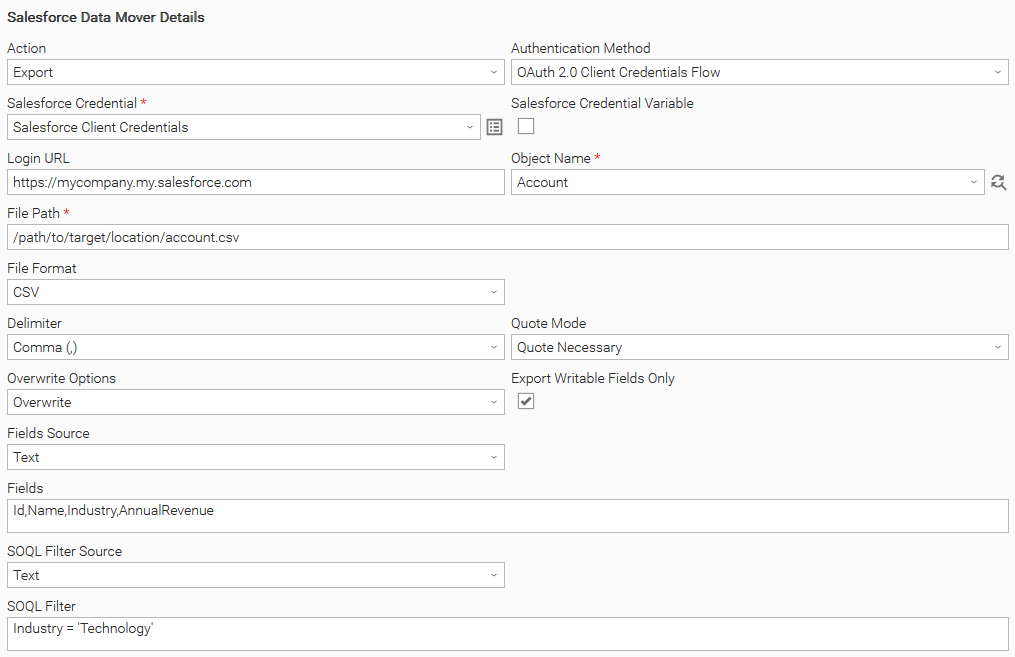
Example: Export selected fields of filtered records
Action is "Export" against Object Name Account. Fields Source is "Text" with Fields listing Id,Name,Industry,AnnualRevenue, and SOQL Filter Source is "Text" with SOQL Filter set to Industry = 'Technology'. File Path is the CSV to write on the Agent, Delimiter is "Comma" and Quote Mode is "Quote Necessary". Overwrite Options is "Overwrite", Export Writable Fields Only is checked, and Login URL is set to the org's My Domain host.
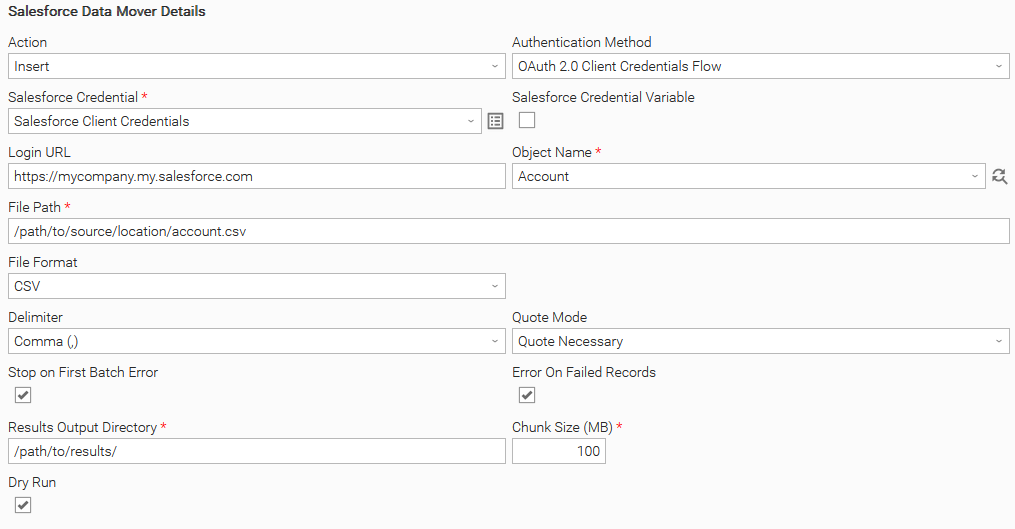
Example: Insert with Dry Run
Action is "Insert" against Object Name Account, with File Path pointing at the CSV to load and Dry Run enabled. The task reports the row and column count of the file, confirms every column name against the object, and estimates how many jobs the load would need at the configured Chunk Size (MB), without sending any records. The same task is then run with Dry Run unchecked to perform the load.
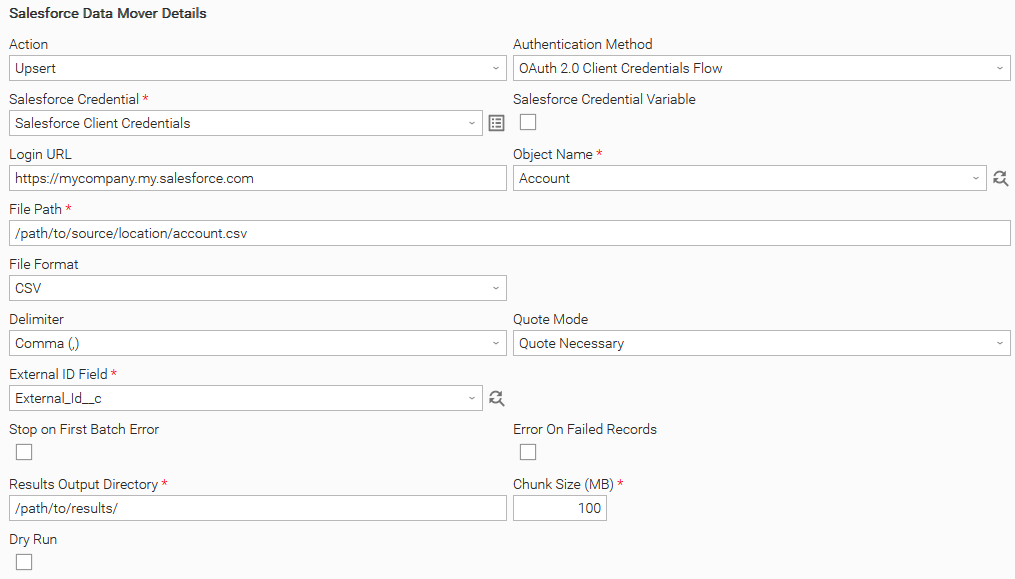
Example: Upsert on an external ID, tolerating rejected rows
Action is "Upsert" against Object Name Account, with External ID Field set to External_Id__c, chosen from the input file's own header. Stop on First Batch Error and Error On Failed Records are both unchecked, so every chunk is attempted and rejected rows are reported in the result files without failing the task instance. Results Output Directory points at a directory on the Agent, and Chunk Size (MB) is left at its default of 100.
Input Fields
Name | Type | Description | Version Information |
|---|---|---|---|
Action | Choice | The operation to perform. Available options:
This field is required. | Introduced in 1.0.0 |
Authentication Method | Choice | How the integration authenticates against Salesforce. Available options:
This field is required. | Introduced in 1.0.0 |
Salesforce Credential | Credential | The Universal Controller credential holding the Connected App or External Client App's Consumer Key as the user and its Consumer Secret as the password. The credential's Token, Passphrase and Key Location are not used. This field is required. | Introduced in 1.0.0 |
Login URL | Text | The login host to authenticate against, for orgs that do not use the standard production login host. Sandboxes use This field is optional. | Introduced in 1.0.0 |
Object Name | Dynamic Choice | The API name of the Salesforce object to read from or write to, for example This field is required. | Introduced in 1.0.0 |
File Path | Text | The absolute path of the CSV file on the Agent. For Export it is the file to write, and for Insert and Upsert it is the file to read. A directory is rejected. This field is required. | Introduced in 1.0.0 |
File Format | Choice | The format of the file. Available options:
This field is required. | Introduced in 1.0.0 |
Delimiter | Choice | The character separating the columns. Available options:
For Export this sets the delimiter of the written file. For Insert and Upsert it must match the delimiter already used in the input file, otherwise the run stops before any data is sent. This field is required. | Introduced in 1.0.0 |
Quote Mode | Choice | How values are quoted. Available options:
This field is visible when File Format is "CSV". | Introduced in 1.0.0 |
Overwrite Options | Choice | What to do when File Path already exists. Available options:
This field is visible when Action is "Export". | Introduced in 1.0.0 |
Export Writable Fields Only | Checkbox | When checked, the export covers only the fields Salesforce accepts on a write, plus This field is visible when Action is "Export". | Introduced in 1.0.0 |
External ID Field | Dynamic Choice | The column used to match existing records. It must be a field marked as an external ID on the object, or This field is visible and required when Action is "Upsert". | Introduced in 1.0.0 |
Fields Source | Choice | Where the Fields list comes from. Available options:
This field is visible when Action is "Export". | Introduced in 1.0.0 |
Fields | Large Text | A comma separated list of API field names to export, for example This field is visible when Fields Source is "Text", and is optional. | Introduced in 1.0.0 |
Fields | Script | A Universal Controller Script whose content is the comma separated list of API field names to export. The script holds the list itself, not a program that prints it, so no This field is visible when Fields Source is "Script". | Introduced in 1.0.0 |
SOQL Filter Source | Choice | Where the SOQL Filter expression comes from. Available options:
This field is visible when Action is "Export". | Introduced in 1.0.0 |
SOQL Filter | Large Text | A SOQL condition that narrows the exported rows, for example This field is visible when SOQL Filter Source is "Text", and is optional. | Introduced in 1.0.0 |
SOQL Filter | Script | A Universal Controller Script whose content is the SOQL condition. As with the text form, the This field is visible when SOQL Filter Source is "Script". | Introduced in 1.0.0 |
Stop on First Batch Error | Checkbox | When checked, the first chunk that comes back with any rejected record stops the run, and the remaining chunks are reported as skipped rather than submitted. When unchecked, every chunk is submitted and rejected records are collected in the result files. Defaults to unchecked. This field is visible when Action is "Insert" or "Upsert". | Introduced in 1.0.0 |
Error On Failed Records | Checkbox | When checked, the task instance ends in failure if Salesforce rejected or did not process any record, even though the remaining records were loaded. When unchecked, the run ends successfully and the counts and result files are the only indication. Defaults to checked. This field is visible when Action is "Insert" or "Upsert". | Introduced in 1.0.0 |
Results Output Directory | Text | The directory on the Agent where the three result files are written. The files contain the record data Salesforce returned, including the rejected rows, so the directory should be one only the intended users can read. If the value resolves to empty, the directory of File Path is used. This field is visible and required when Action is "Insert" or "Upsert". | Introduced in 1.0.0 |
Chunk Size (MB) | Integer | The largest amount of CSV data uploaded per job, in megabytes. The input file is split at row boundaries into chunks of at most this size, and each chunk becomes its own job. Accepts This field is visible and required when Action is "Insert" or "Upsert". | Introduced in 1.0.0 |
Dry Run | Checkbox | When checked, the input file is validated and the number of jobs the load would need is reported, but no job is submitted and no record is written. The file's encoding, header and column names are all checked against the object, and for Upsert the external ID field is verified as well. Defaults to unchecked. This field is visible when Action is "Insert" or "Upsert". | Introduced in 1.0.0 |
Output Fields
The following output-only fields provide better visibility during the execution of Universal Task Instances.
Name | Type | Description | Version Information |
|---|---|---|---|
Last Job State | Text | The state Salesforce reported for the last job polled, verbatim, such as | Introduced in 1.0.0 |
Job ID | Text | The Bulk API job the run used. Export reports one job. Insert and Upsert report one per chunk, comma separated in the order they were submitted, which is also the order the chunks appear in the input file. | Introduced in 1.0.0 |
Records Exported | Integer | The number of rows written to the output file. This field is visible when Action is "Export". | Introduced in 1.0.0 |
Records Succeeded | Integer | The number of records Salesforce accepted, across every chunk of the run. This field is visible when Action is "Insert" or "Upsert". | Introduced in 1.0.0 |
Records Failed | Integer | The number of records Salesforce rejected, across every chunk of the run. The rows themselves, with the reason for each rejection, are in the failed results file. This field is visible when Action is "Insert" or "Upsert". | Introduced in 1.0.0 |
Records Unprocessed | Integer | The number of records Salesforce did not process, across every chunk of the run, which happens when a job stops before reaching the end of its data. This field is visible when Action is "Insert" or "Upsert". | Introduced in 1.0.0 |
Environment Variables
Environment Variables can be set from the Environment Variables task definition table.
Environment Variable Name | Description | Version Information |
|---|---|---|
UE_SALESFORCE_API_VERSION | The Salesforce API version used for every call, in the form Salesforce itself uses. Defaults to | Introduced in 1.0.0 |
UE_POLLING_INTERVAL | The number of seconds to wait between two checks on a job's state. Defaults to | Introduced in 1.0.0 |
UE_POLLING_MAX_POLLS | The number of times a job's state is checked before the task gives up and fails with exit code 40. Defaults to | Introduced in 1.0.0 |
Cancellation and Rerun
- In case of cancellation of an Export, the task stops at its next check on the job or its next page of results and ends in failure. The results were being streamed to a temporary file, which is discarded, so File Path keeps whatever it held before the run. The query job itself is left as it is in Salesforce and is not aborted.
- In case of cancellation of an Insert or Upsert, the run does not stop on request. Jobs already submitted continue in Salesforce after the task instance is force finished, and their outcome is not written to the result files. Setup, then Bulk Data Load Jobs, shows those jobs and allows them to be aborted.
- In case of rerun, nothing is resumed. An Export runs its query again, and Overwrite Options decides what happens to the file the previous run produced. An Insert or Upsert starts from the first chunk of the input file again. Each run stamps its own set of result files with the time it started, so the files of an earlier run are never overwritten.
Rerunning an Insert after a partially completed run loads the records that already succeeded a second time, because Insert always creates records. Where a rerun has to be safe to repeat, use Upsert against an external ID field, or reduce the input file to the rows that still need loading.
Importable Configuration Examples
This integration provides importable configuration examples along with their dependencies, grouped as Use Cases to better describe end to end capabilities.
These examples aid in allowing task authors to get more familiar with the configuration of tasks and related Use Cases. Such tasks should be imported in a Test system and should not be used directly in production.
Initial Preparation Steps
-
STEP 1: Go to Stonebranch Integration Hub and download the integration along with any additional integrations required by the Use Cases. Extract the downloaded archives in a local directory.
-
STEP 2: Locate and import the above integration(s) to the target Universal Controller. For more information refer to the How To section in this document.
-
STEP 3: Inside the directory named "configuration_examples" you will find a list of definition zip files. Upload them one by one respecting the order presented below, by using the "Upload" functionality of Universal Controller:
- 1_variables.zip
- 2_credentials.zip
- 3_tasks.zip
- 4_workflows.zip
The number prefix indicates the order in which the files must be uploaded so that each entity's dependencies are imported first.
-
STEP 4: Update the uploaded UAC Credential entity(ies) with the Consumer Key and Consumer Secret of your own External Client App. Review each credential's description for guidance on what to provide.
-
STEP 5: Update the UAC global variables introduced with the
1_variables.zipfile. Their name is prefixed with the extension name using underscores instead of hyphens. Review the descriptions of the variables as they include information on how they should be populated.
- The order indicated above ensures that the dependencies of the imported entities need to be uploaded first.
- All imported entities are prefixed with the Use Case number (e.g. UC1, UC2, UC3) they belong to.
How to "Upload" Definition Files to a Universal Controller
The "Upload" functionality of Universal Controller allows Users to import definitions exported with the "Download" functionality.
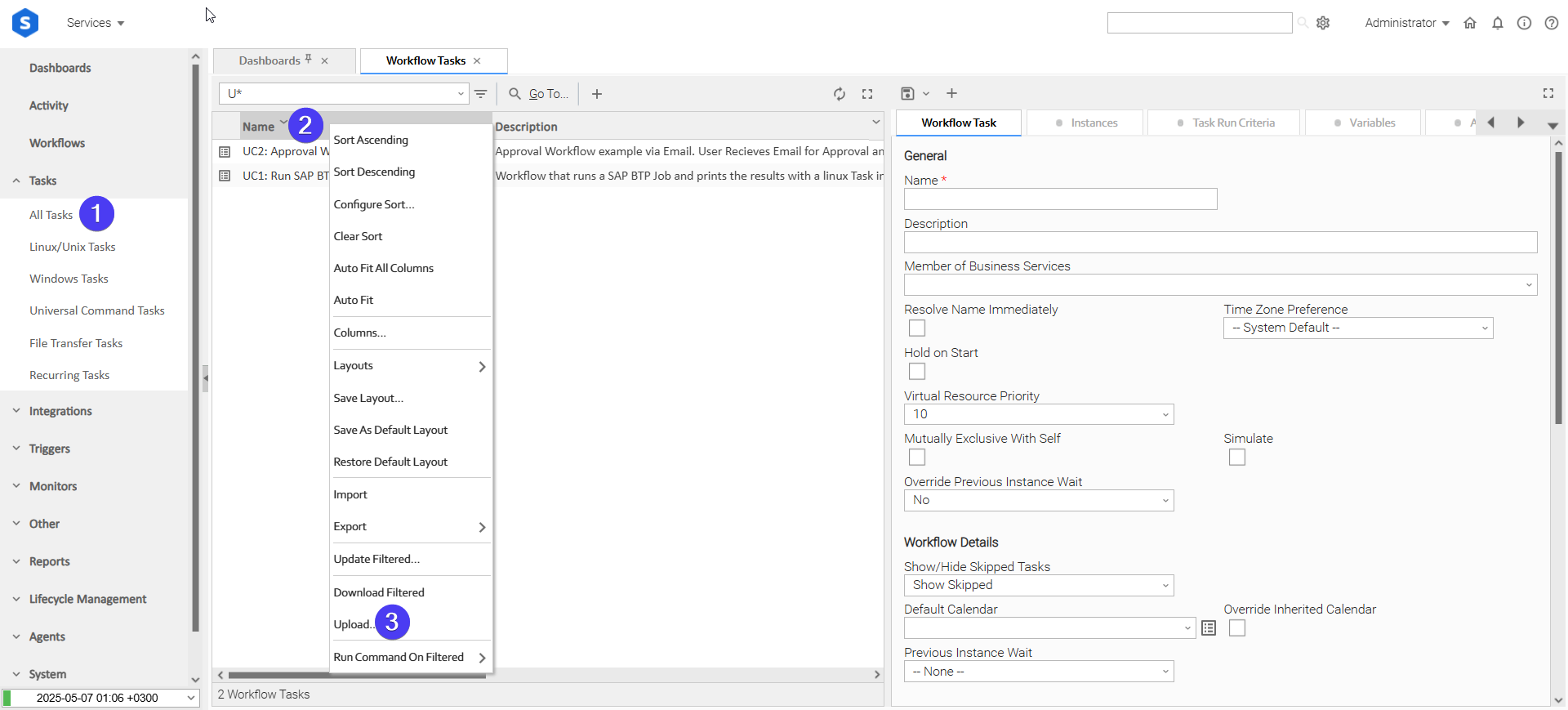
Login to Universal Controller and:
- STEP 1: Click "Tasks" → "All Tasks"
- STEP 2: Right click on the top of the column named "Name"
- STEP 3: Click "Upload..."
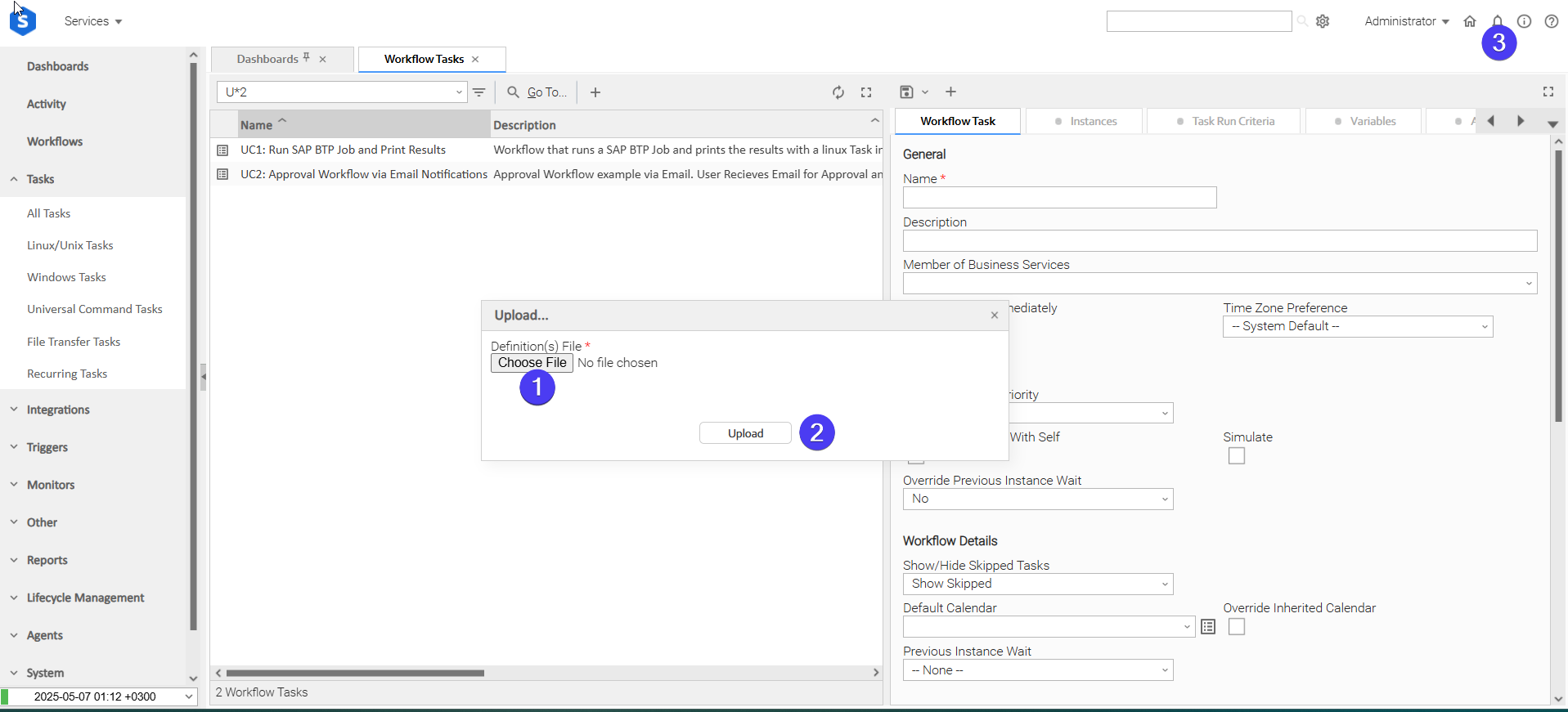
In the pop-up "Upload..." dialogue:
- STEP 1: Click "Choose File".
- STEP 2: Select the appropriate zip definition file and click "Upload".
- STEP 3: Observe the Console for possible errors.
Use Case 1: Export Salesforce Records to a File and Notify Stakeholders
Description
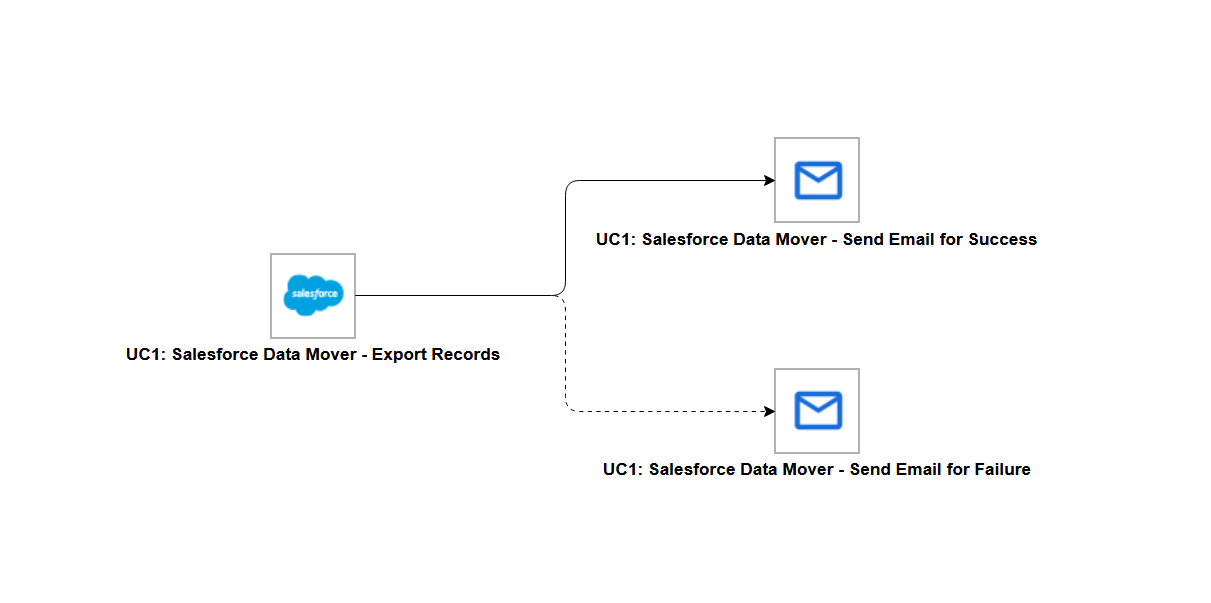
This use case exports records from a Salesforce object to a CSV file on the Agent and then notifies the operations team by email on either outcome. The workflow branches on the result of the export: a confirmation email carrying the record count and the file path on success, and an alert email on failure. It is composed of the following components:
- UC1: Salesforce Data Mover - Export Records - exports the records of the configured object to a CSV file on the Agent. Fields and SOQL Filter are left empty, so every field of every record is exported until you narrow them.
- UC1: Salesforce Data Mover - Send Email for Success - an Email Task that reports the file that was written and the number of records in it, triggered on the success branch of the Export task.
- UC1: Salesforce Data Mover - Send Email for Failure - an Email Task that sends an alert notification, triggered on the failure branch of the Export task.
How to Run
Execution Steps
- Ensure all Initial Preparation Steps have been completed successfully.
- Update the Object Name and File Path fields (or their backing global variables) on the UC1 Export Records task, so the object exists in the target org and the path is writable by the Agent's user.
- Confirm the Run As user of your Connected App or External Client App has read access to that object.
- Set the recipient addresses on the two Email Tasks so the notifications reach the intended stakeholders.
- Launch the workflow task and monitor the execution in Universal Controller.
Expected Results
- The export job is submitted, polled until it completes, and its results are written to the file named in File Path.
- On success, the Send Email for Success task runs, and the Records Exported output field shows how many rows the file holds. The same value is available to later tasks as
ops_ue_sf_data_mover_records_exported. - On failure, the Send Email for Failure task runs and sends an alert notification. The file named in File Path is left as it was, because a failed export is never published.
- The workflow task instance reflects the final outcome of the export.
Exit Codes
Exit Code | Status | Description |
|---|---|---|
0 | Success | Successful Execution. |
1 | Failure | Generic Error. Raised when not falling into the other Error Codes. Covers a job reaching |
2 | Failure | Authentication error. Salesforce rejected the Consumer Key and Consumer Secret, or the login host could not issue an access token. |
20 | Failure | Input fields validation error. Raised when File Path names a directory, when the input file has a UTF-8 byte order mark, has no header row, or uses a delimiter or quoting style that does not match Delimiter and Quote Mode, and when External ID Field does not exist on the object or is not marked as an external ID on it. |
40 | Failure | Polling timeout. A job did not reach a terminal state within the number of checks allowed by |
How To
Import Universal Template
To use the Universal Template, you first must perform the following steps
For large Universal Templates like this one, some parameters need to be adjusted, particularly for MySQL, Universal Controller and Universal Agent: (tomcat/conf/uc.properties)
MySQL (my.cnf)
max_allowed_packet: Defines the maximum size of a single network packet that can be read or written by the server and clients.
- Recommended setting: Ensure it is configured to a value at least 25% greater than the size of your largest imported integration
innodb_log_file_size: Determines the size of InnoDB redo log files. While this parameter has been simplified in recent MySQL versions, it's still relevant for MySQL versions prior to 8.0.30
- Purpose: Prevents "BLOB/TEXT data inserted in one transaction is greater than 10% of redo log size" errors that might appear on Universal Controller logs
- Recommended setting: Ensure 10% of the log file size exceeds your largest imported integration
Universal Agent Configuration (config/omss.conf):
max_msg_size: Specifies the maximum allowable size for messages. Messages exceeding the limit will not be accepted by the server.
- Recommended setting: Ensure the configured value is 10% greater than your largest imported integration
Universal Controller Configuration
Universal Controller configuration can restrict import of an integration if the extension maximum bytes is not properly set. This can be configured in the following ways:
- Universal Controller configuration file (tomcat/conf/uc.properties):
uc.universal_template.extension.maximum_bytes - Universal Controller UI Admin Panel: Administration → Properties → Universal Template Extension Maximum Bytes
- Recommended setting: Ensure the configured value is greater than the size of your largest imported integration
The deployment of an integration from Universal Controller to Universal Agents, can also be restricted by the JVM heap size of the Tomcat serving the Universal Controller. Ensure to configure the JVM heap size adequately.Things to consider.
- # of agents configured to accept the extension(s).
- # of agents configured to deploy on-registration and how many would be registering simultaneously.
- # of parallel, on-demand deployments, where deployment happens the first time the extension needs to execute on a specific agent.
- This Universal Task requires the Resolvable Credentials feature. Check that the Resolvable Credentials Permitted system property has been set to true.
- Import the Universal Template into your Controller:
- Extract the zip file, you downloaded from the Integration Hub.
- In the Controller UI, select Services > Import Integration Template option.
- Browse to the "export" folder under the extracted files for the ZIP file (Name of the file will be unv_tmplt_*.zip) and click Import.
- When the file is imported successfully, refresh the Universal Templates list; the Universal Template will appear on the list.
Modifications of this integration, applied by users or customers, before or after import, might affect the supportability of this integration. For more information refer to Integration Modifications.
Configure Universal Task
For a new Universal Task, create a new task, and enter the required input fields.
Integration Modifications
Modifications applied by users or customers, before or after import, might affect the supportability of this integration. The following modifications are discouraged to retain the support level as applied for this integration.
- Python code modifications should not be done.
- Template Modifications
- General Section
- "Name", "Extension", "Variable Prefix", and "Icon" should not be changed.
- Universal Template Details Section
- "Template Type", "Agent Type", "Send Extension Variables", and "Always Cancel on Force Finish" should not be changed.
- Result Processing Defaults Section
- Success and Failure Exit codes should not be changed.
- Success and Failure Output processing should not be changed.
- Fields Restriction Section
The setup of the template does not impose any restrictions. However, concerning the "Exit Code Processing Fields" section.
- Success/Failure exit codes need to be respected.
- In principle, as STDERR and STDOUT outputs can change in follow-up releases of this integration, they should not be considered as a reliable source for determining the success or failure of a task.
- General Section
Users and customers are encouraged to report defects, or feature requests at Stonebranch Support Desk.
Document References
Document Link | Description |
|---|---|
Configure an External Client App for OAuth 2.0 Client Credentials Flow | How to create an External Client App, enable the flow, set the Run As user, and retrieve the Consumer Key and Consumer Secret that go into Salesforce Credential. |
Configure a Connected App for the OAuth 2.0 Client Credentials Flow | The same setup for orgs using a Connected App instead of an External Client App. |
OAuth 2.0 Client Credentials Flow for Server-to-Server Integration | What the flow does and the security considerations of enabling it, including rotating the Consumer Secret. |
The editions Bulk API 2.0 is available in, and the "API Enabled" permission the Run As user needs. | |
Which login host an org uses, to decide what belongs in Login URL. | |
How to add the field used as External ID Field, including the External ID and Unique settings on it. | |
Differences between the External ID and Unique field settings | What each setting enforces, which matters when choosing the field an Upsert matches on. |
The syntax available in SOQL Filter, including operators, date literals and value formats. | |
The org limits a load is subject to, useful when choosing Chunk Size (MB) and when planning how much data to move in a day. |
Changelog
ue-sf-data-mover-1.0.0 (2026-08-25)
Enhancements
- Added: Initial version of the integration, supporting Export, Insert and Upsert of Salesforce records through Bulk API 2.0.