SAP: Calendar Import
Disclaimer
Your use of this download is governed by Stonebranch's Terms of Use.
Version Information
Template Name | Version |
|---|---|
CS SAP Import Calendars | 1.3.1 |
Refer to Changelog for version history information.
Overview
This Universal Task allows you to import the SAP Factory Calendar and the related Holiday Calendar into the Universal Controller.
You can either import a user-defined list of SAP calendars using a csv file or all valid SAP calendars. The Calendar Import can be scheduled to be always in sync with SAP; for example, import all Calendars every day. It is also possible to import Calendars from a different SAP System.
Software Requirements
Software Requirements Universal Agents and Controller
- Universal Agent for Linux or Windows Version 7.7.0.0 or later are required
Software Requirements Universal Controller
- Universal Controller 7.7.0.0. or later is required
- A Universal Controller license key with support for SAP connector is required
Software Requirements for the Application to be scheduled
In order to connect to the SAP System, the SAP NetWeaver RFC SDK 7.50 libraries are required from SAP.
Those can be downloaded from the SAP Software Download: SAP NetWeaver RFC SDK 7.50
Universal Task for SAP Calendar Import Key Features
Some details about the Universal Tasks for SAP Calendar Import:
- The Universal Task imports either a user defined csv-list or all SAP Factory- and related Holiday Calendars, which match the configured selection criteria into the Universal Controller.
- The Calendar Import can be scheduled to be always in sync with SAP e.g. import all Calendars every day
- The csv list is saved incl. Versioning into the Universal Controller script library
- The Universal Task runs on Linux as well as Windows Universal Agents
- The calendar export is done using the SAP certified XBP-RFC interface
- SAP is always considered as the Master; Calendars are always exported from SAP, never imported to SAP.
- You can configure if manually created Custom Days will remain when re-importing the calendar from SAP
- All Calendar functionalities are supported incl. Factory, Holiday and "Special Rules"
- Calendar can be imported from different SAP Systems - the SID and Client of the SAP, where the import was done, is automatically added as a Postfix to the imported Calendar
- You can set different log-levels for the Universal task, providing you more information in case of issues
- Support for Application Server Connection and Destination Connection (nwrfc.ini) e.g. Load Balancer connections, SAP SNC, etc.
Import SAP Calendar Import Downloadable Universal Template
To use this downloadable Universal Template, you first must perform the following steps:
- This Universal Task requires the Resolvable Credentials feature. Check that the Resolvable Credentials Permitted system property has been set to true.
- Copy or Transfer the Universal Template file to a directory that can be accessed by the Universal Controller Tomcat user.
- In the Universal Controller UI, select Configuration > Universal Templates to display the current list of Universal Templates.
- Right-click any column header on the list to display an Action menu.
- Select Import from the menu, enter the directory containing the Universal Template file(s) that you want to import, and click OK.
When the files have been imported successfully, the Universal Template will appear on the list.
Configure SAP Calendar Definitions Task
For the new Universal Task type, create a new task and enter the task-specific Details that were created in the Universal Template.
Field Descriptions for the SAP Calendar Import Definitions Task
Field | Description |
|---|---|
Universal Controller URL | Universal Controller URL; for example, Local Universal Controller: Stonebranch SaaS Cloud Universal Controller: |
Universal Controller Credentials | Credentials of the Universal Controller Web Service API. |
Import All Calendar | Yes | No If "Yes" is selected, all SAP Calendars based on the selection criteria entered in the fields Start Year and Years are imported. If "No" is selected, the Calendar provided in the Calendar Input File will be imported to Universal Controller. |
Start Year | From this year onwards the Calendar will be imported from SAP. Example: Start Year = 2020, Years = 2 will import all calendars starting from 2020 until 2022. |
Years | Number of years to import starting from the year provide in the field Start Year. |
First Day of Week | [ Monday, Tuesday, Wednesday, Thursday, Friday, Saturday, Sunday ] Set the first day of the week for the calendar. |
Calendar Input File | This field is only used when the choice field Import All Calendar is set to No. The Calendar Input File file has the following structure: <Factory Calendar ID>,<Holiday Calendar ID> Example: calendar_import.csv info If a factory calendar has no holiday calendar, then leave the field empty; for example, 02 means extract factory calendar 02 without a holiday calendar. |
Language | SAP Language, e.g. "EN" for English |
Use SAP Connection | Checkbox to select if a pre-configured Universal Controller SAP Connection should be used. |
SAP Connection | Universal Controller SAP Connection to use. This field is only visible if Use SAP Connection is enabled. |
SAP Connection Type | [ Application Server Connection, SAPNWRFC.INI Connection ] The Universal Task supports SAP Application Server and SAPNWRFC.INI Destination connections. Application Server Connection:
SAPNWRFC.INI Connection:
This field is only visible if Use SAP Connection is not enabled. info The file If no user credentials are provided, this is:
|
SAP Credentials | Credentials of the SAP System. |
SAP ASHOST | SAP Application to connect to. This field is only visible if Use SAP Connection is not enabled and SAP Connection Type = "Application Server Connection" |
SID | SAP System Identifier ( 3 digits ); for example, NPL. The Imported calendar will have the SID as prefix. Imported Calendar Name: <SID>_<SAP CLIENT>_<SAP CALENDAR ID> |
SAP CLIENT | SAP Client ( 3 digits ); for examaple, 100. The Imported calendar will have the SID as prefix. Imported Calendar Name: <SID>_<SAP CLIENT>_<SAP CALENDAR ID> |
SAP SysNr | SAP System Number ( 2 digits ) e.g. 00 |
SAP Destination | SAP Destination in the nwrfc.ini. This field is only visible if Use SAP Connection is not enabled and SAP Connection Type = "NRFW.ini Connection" |
Loglevel | Universal Task logging settings [ DEBUG, INFO, WARNING, ERROR ] |
USAP loglevel | Loglevel of the Universal Connector for SAP trace | audit | info | warn | error |
Calendar Name | [ SID_CLIENT_CALID, SID_CALID, CALID ] Controls how the imported calendar is named in Universal Controller.
Keep the SID and client in the name when you import from more than one SAP system, so calendars from different systems do not overwrite each other. |
Merge Custom Days | If Merge Custom Days is enabled, manually created Custom Days will remain after re-importing the calendar from SAP. |
Example: SAP Import SAP Calendar - Application Server Connection
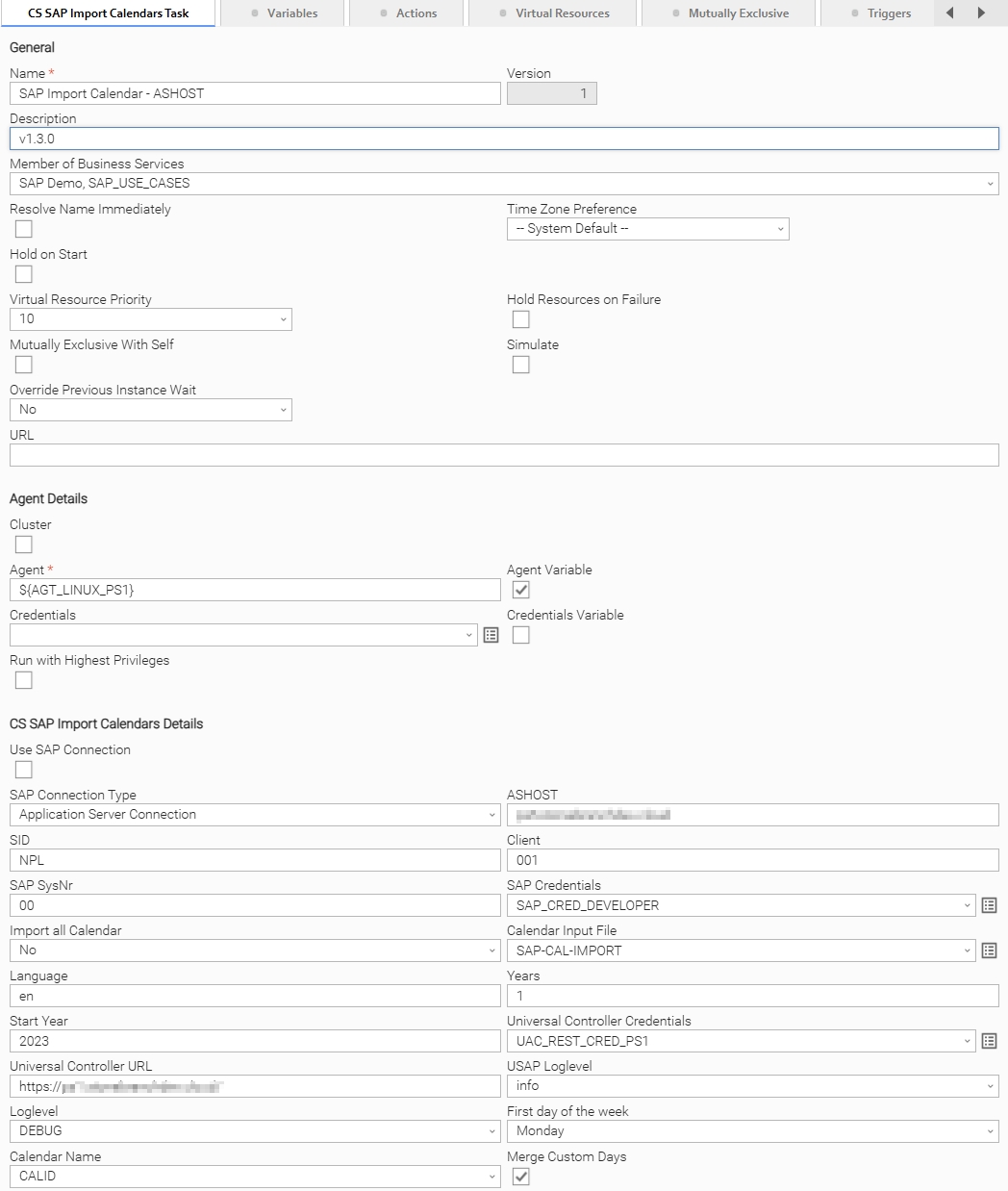
SAP Calendar Import Name
The name of the imported calendar in Universal Controller follows the Calendar Name field. With the default SID_CLIENT_CALID it is:
<SID>_<SAP CLIENT>_<SAP CALENDAR ID>
Example
NPL_100_01
SID = NPL, CLIENT = 100, SAP Factory Calendar ID = 01
Changelog
ut-sap-import-calendars-1.3.1 (2026-10-06)
Fixes
Fixed: SNC settings from a Universal Controller SAP Connection are now passed to the SAP Connector in the numeric form it expectsFixed: SNC library paths and names containing spaces are now quoted correctlyFixed: Calendar descriptions containing a double quote no longer make the import failFixed: Factory calendars are now exported when the SAP Connection uses load balancingFixed: The import no longer stops when the SAP calendar list contains a row with an empty validity year
ut-sap-import-calendars-1.3.0 (2025-01-28)
Enhancements
Added: Support Variables for all Credentials and SAP ConnectionAdded: Support for Universal Controller SAP connectionAdded: Keep manually created Custom Days when re-importing the calendar from SAP
ut-sap-import-calendars-1.0.0 (2021-05-26)
Initial Version