SAP HANA Cloud - data lake
Disclaimer
Your use of this download is governed by Stonebranch's Terms of Use.
For general information on how integrations work, importing templates, and UAC documentation refer to Overview.
Version Information
Template Name | Extension Name | Version | Status |
|---|---|---|---|
SAP HANA Cloud - data lake | ue-sap-datalake | 1.0.0 | Initial Version. |
Refer to Changelog for version history information.
Overview
SAP HANA Cloud, data lake is a managed cloud service for storing and analyzing large volumes of structured and unstructured data. Its Files component stores data as files in file containers, and its Relational Engine provides SQL access to the data in the data lake.
This Universal Task allows customers to transfer, list and delete files in SAP HANA Cloud, data lake Files, and to execute SQL scripts against the data lake Relational Engine, straight from the Universal Controller.
Key Features
Feature | Description |
|---|---|
File Transfer | Upload local files to, and download files from, a data lake file container, with control over existing files and source retention. |
File Management | List and delete data lake files selected by a glob pattern and a recursion depth. |
SQL Script Execution | Run multi-statement SQL scripts against the data lake Relational Engine. |
Requirements
This integration requires a Universal Agent and a Python runtime to execute the Universal Task.
Area | Details |
|---|---|
Python Version | Requires Python 3.11 or 3.14, tested with Agent bundled python distribution. |
Universal Agent Compatibility |
|
Universal Controller Compatibility | Universal Controller Version >= 7.8.0.0. |
Network and Connectivity | Network connectivity to the SAP HANA Cloud, data lake Files REST endpoint and, for Execute SQL, to the Relational Engine endpoint is required. The allowed connections of the data lake instance must include the agent's IP address. |
Client Certificate | A PEM client certificate and matching private key, readable by the agent user, are required for the file actions. Authentication to data lake Files uses mutual TLS: the certificate must be signed by a CA uploaded to the instance as a trust, and an authorization entry matching the certificate's subject must grant it a role. |
SAP HANA Cloud, Data Lake Client | The SAP HANA Cloud, data lake client must be installed on the agent for Execute SQL. On Windows, the client does not include a TLS library, so the OpenSSL 3 libraries |
Supported Actions
There are 5 Top-Level actions controlled by the Action Field:
- Upload File: Uploads local files to a data lake directory.
- Download File: Downloads data lake files to a local directory.
- List Files: Lists data lake files under a remote directory.
- Delete Files: Deletes data lake files under a remote directory.
- Execute SQL: Runs an SQL script against the Relational Engine.
Action: Upload File
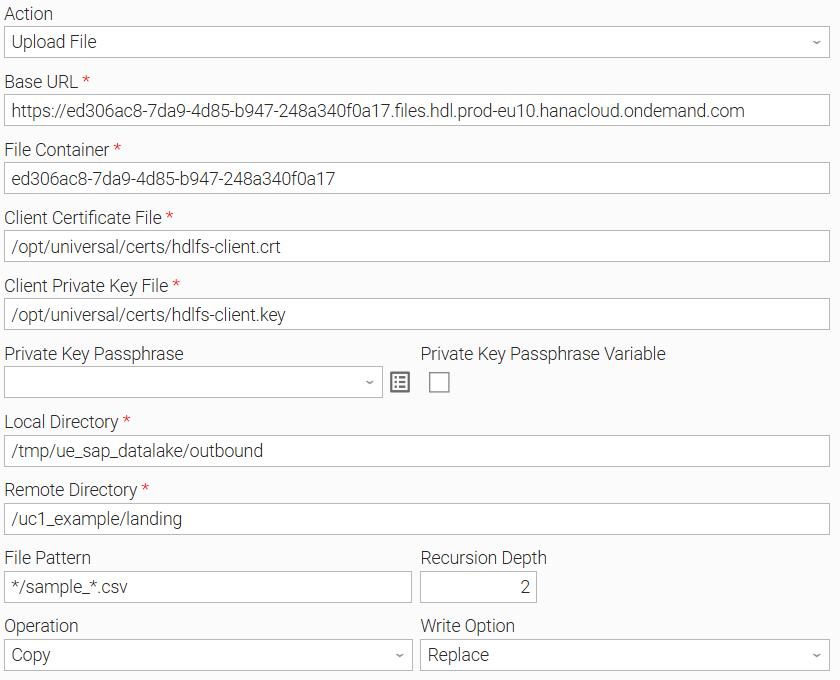
Uploads every local file matching the File Pattern from the Local Directory into the Remote Directory. Operation determines whether the local source files are kept or removed, and Write Option determines how a file that already exists at the destination is handled.
Action: Download File
Downloads every data lake file matching the File Pattern from the Remote Directory into the Local Directory. Operation determines whether the data lake source files are kept or removed, and Write Option determines how a file that already exists at the destination is handled.
Action: List Files
Lists every data lake file matching the File Pattern under the Remote Directory. No file is changed.
Action: Delete Files
Deletes every data lake file matching the File Pattern under the Remote Directory. The deletion continues past a failed file, and the task fails with a transfer error when any file could not be deleted.
Action: Execute SQL
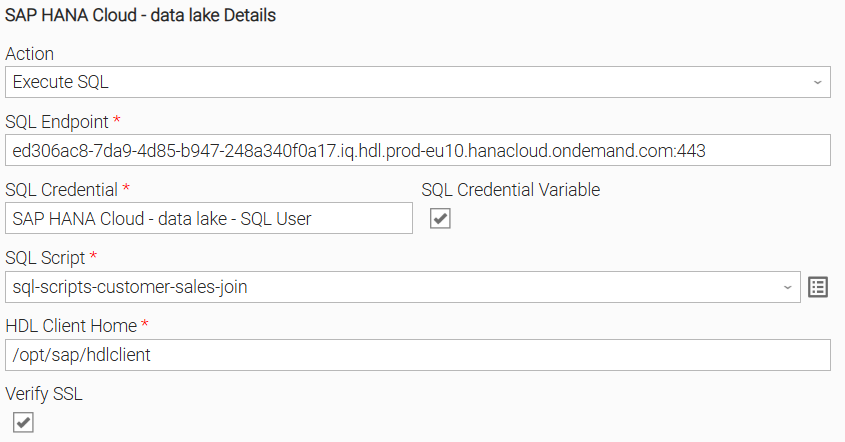
Runs the SQL Script against the Relational Engine one statement at a time, using the user and password of the SQL Credential. The script stops at the first failed statement. The statements run in one transaction that is committed after the last statement, and DDL statements are committed implicitly by the Relational Engine.
Action Output
- EXTENSION
- STDOUT
The extension output provides the following information:
exit_code, status_description: General info regarding the task execution. For more information refer to exit codes table.invocation.fields: The task configuration used for this task execution.result.transferred,result.skipped: The data lake or local paths transferred or skipped by Upload File and Download File, along withresult.transferred_countandresult.skipped_count.result.files: The fully qualified paths of the files found by List Files, along withresult.file_count.result.deleted: The paths of the files removed by Delete Files, along withresult.deleted_count.result.statement_count,result.committed: The number of statements in the script run by Execute SQL, and whether the final commit succeeded.result.statements: One entry per statement run by Execute SQL, withindex,status,rows_affected,columns,rows,truncatedandduration_ms. A statement returns at most 100 rows, a limit that can be changed withUE_EXTENSION_OUTPUT_MAX_SQL_ROWS, andtruncatedistruewhen more rows were available. A string value longer than 4096 characters is cut and marked. The statement text is not part of the output.result.sqlcode,result.failed_statement,result.ddl_may_have_committed: Present when Execute SQL fails. They identify the failed statement and state whether earlier work may have been saved, because DDL statements are committed implicitly.result.errors: List of errors that might have occurred during execution.
Examples:Successful execution
Failed execution
Successful execution (Execute SQL)
The file actions print the number of files processed, followed by a tree of those files under the directory used. Files moved by Upload File or Download File are marked (moved) on the count line. Execute SQL prints one line per statement with its index, status, and either the affected row count and duration or the error. The statement text is never printed.
The output reaches the Universal Controller only when Automatic Output Retrieval is enabled on the task.
Examples:
Uploaded 2 file(s).
/landing/sales
|-- orders_20261006.csv
`-- 2026
    `-- orders_20261007.csv
[1] ok: 15230 row(s) in 2310 ms
[2] ok: 1 row(s) in 87 ms
Configuration Examples
Example: Upload File, copy, replace existing files, recursive
Uploads every file matching */sample_*.csv up to two directory levels below /tmp/ue_sap_datalake/outbound on the agent into /uc1_example/landing of the file container, keeping the subdirectories. The data lake endpoint and client certificate are provided in Base URL, File Container, Client Certificate File and Client Private Key File. Operation is "Copy", so the local files remain, and Write Option is "Replace", so existing data lake files with the same name are overwritten. The task ends successfully once every matching file is uploaded, and the Extension Output lists the uploaded files in result.transferred.
Example: Execute SQL, multi-statement script, SSL verification
Runs a multi-statement SQL script against the Relational Engine at the SQL Endpoint, logging in with the user and password of the SQL Credential. HDL Client Home points to the data lake client installation on the agent, and Verify SSL is checked so the server certificate is validated. The task ends successfully after the last statement completes, and the per-statement results are returned in result.statements.
Input Fields
Name | Type | Description | Version Information |
|---|---|---|---|
Action | Choice | The operation to perform against SAP HANA Cloud, data lake. Available options:
| Introduced in 1.0.0 |
Base URL | Text | The REST endpoint of the data lake Files instance, for example Available and required if Action is "Upload File", "Download File", "List Files" or "Delete Files". | Introduced in 1.0.0 |
File Container | Text | The data lake instance ID, which identifies the file container. Sent as the Available and required if Action is "Upload File", "Download File", "List Files" or "Delete Files". | Introduced in 1.0.0 |
Client Certificate File | Text | The path on the agent to the PEM client certificate used for mutual TLS. The file must be readable by the agent user. Available and required if Action is "Upload File", "Download File", "List Files" or "Delete Files". | Introduced in 1.0.0 |
Client Private Key File | Text | The path on the agent to the PEM private key matching the client certificate. The file must be readable by the agent user. Available and required if Action is "Upload File", "Download File", "List Files" or "Delete Files". | Introduced in 1.0.0 |
Private Key Passphrase | Credential | The Credential whose Runtime Password holds the private key's passphrase. Left empty when the key is not encrypted. Available if Action is "Upload File", "Download File", "List Files" or "Delete Files". | Introduced in 1.0.0 |
Local Directory | Text | The directory on the agent that is the upload source or the download destination. The directory must already exist. Available and required if Action is "Upload File" or "Download File". | Introduced in 1.0.0 |
Remote Directory | Text | The directory inside the file container that is the upload destination, the download source, or the location searched for files to list or delete. Available and required if Action is "Upload File", "Download File", "List Files" or "Delete Files". | Introduced in 1.0.0 |
File Pattern | Text | The Unix glob matched against each file's path relative to the directory, not just its name, on both the local and the data lake side. For example, Available if Action is "Upload File", "Download File", "List Files" or "Delete Files". | Introduced in 1.0.0 |
Recursion Depth | Integer | The number of directory levels to include. Available if Action is "Upload File", "Download File", "List Files" or "Delete Files". | Introduced in 1.0.0 |
Operation | Choice | Whether the source file is kept or removed after a successful transfer. Available options:
Available if Action is "Upload File" or "Download File". | Introduced in 1.0.0 |
Write Option | Choice | How a file that already exists at the destination is handled. Available options:
Available if Action is "Upload File" or "Download File". | Introduced in 1.0.0 |
SQL Endpoint | Text | The Relational Engine endpoint as Available and required if Action is "Execute SQL". | Introduced in 1.0.0 |
SQL Credential | Credential | The UAC Credential whose Runtime User and Runtime Password log in to the Relational Engine. Available and required if Action is "Execute SQL". | Introduced in 1.0.0 |
SQL Script | Script | The SQL statements to run, separated by semicolons, in order. The first failed statement stops the script. Compound statements ( Available and required if Action is "Execute SQL". | Introduced in 1.0.0 |
HDL Client Home | Text | The directory where the SAP HANA Cloud, data lake client is installed on the agent. Available and required if Action is "Execute SQL". | Introduced in 1.0.0 |
Verify SSL | Checkbox | Check to validate the Relational Engine's server certificate against the CA bundle named by Available if Action is "Execute SQL". | Introduced in 1.0.0 |
Environment Variables
Environment Variables can be set from the Environment Variables task definition table.
Environment Variable Name | Description | Version Information |
|---|---|---|
UE_HTTP_TIMEOUT | The timeout in seconds of each request to data lake Files. Defaults to | Introduced in 1.0.0 |
UE_HTTP_RETRIES | The number of retries when a connection to data lake Files cannot be established. Defaults to | Introduced in 1.0.0 |
UE_HTTP_INTERVAL | The number of seconds between connection attempts to data lake Files. Defaults to | Introduced in 1.0.0 |
UE_SSL_CERT_FILE | The path to a CA bundle used to validate the server certificate of data lake Files and, when Verify SSL is checked, of the Relational Engine. Defaults to the system trust store. The task fails when the path is set but is not a valid CA bundle file. | Introduced in 1.0.0 |
HTTPS_PROXY | The proxy used for connections to data lake Files over HTTPS. The lowercase | Introduced in 1.0.0 |
HTTP_PROXY | The proxy used for connections to data lake Files over HTTP. The lowercase | Introduced in 1.0.0 |
ALL_PROXY | The proxy used for connections to data lake Files when no protocol-specific proxy variable applies. The lowercase | Introduced in 1.0.0 |
NO_PROXY | The comma-separated list of hosts that bypass the proxy when connecting to data lake Files. The lowercase | Introduced in 1.0.0 |
UE_EXTENSION_OUTPUT_MAX_SQL_ROWS | The maximum number of rows returned in the Extension Output for each Execute SQL statement. Defaults to | Introduced in 1.0.0 |
Cancellation and Rerun
- In case of cancellation, Upload File and Download File stop at the next chunk of the file in progress, and Delete Files stops before the next file. The task ends with exit code 40. Files already uploaded, downloaded or deleted remain so, and with "Move" the sources of files already transferred stay removed. The paths processed are returned in
result.transferred,result.skippedandresult.errors, or inresult.deletedandresult.errorsfor Delete Files. - In case of cancellation, Execute SQL asks the Relational Engine to stop the running statement, rolls back the open transaction and ends with exit code 40. The final commit does not run. Statements that ran before the cancellation are listed in
result.statements, andresult.ddl_may_have_committedstates whether earlier work may have been saved, because DDL statements are committed implicitly by the Relational Engine. - In case of rerun, the task starts a new execution from the beginning. File actions are evaluated again against the current contents of both sides, with Write Option determining how files that already exist at the destination are handled, and Execute SQL runs the whole script again from the first statement.
Importable Configuration Examples
This integration provides importable configuration examples along with their dependencies, grouped as Use Cases to better describe end to end capabilities.
These examples aid in allowing task authors to get more familiar with the configuration of tasks and related Use Cases. Such tasks should be imported in a Test system and should not be used directly in production.
Initial Preparation Steps
- STEP 1: Go to Stonebranch Integration Hub and download the "SAP HANA Cloud - data lake" and "UAC Utility: Email" integrations. Extract the downloaded archives in a local directory.
- STEP 2: Locate and import the above integrations to the target Universal Controller. For more information refer to the How To section in this document.
- STEP 3: Inside the directory named "configuration_examples" of the SAP HANA Cloud - data lake archive you will find a list of definition zip files. Upload them one by one respecting the order presented below, by using the "Upload" functionality of Universal Controller:
- 1_variables.zip
- 2_credentials.zip
- 3_tasks.zip
- 4_workflows.zip
- STEP 4: Update the uploaded UAC Credential entity(ies) with the required credentials. Review each credential's description for guidance on what to provide.
- STEP 5: Update the UAC global variables introduced with the
*_variables.zipfile. Their name is prefixed with the extension name using underscores instead of hyphens. Review the descriptions of the variables as they include information on how they should be populated. - STEP 6: If applicable, create an OMS record on the Universal Controller. Ensure the address matches the one assigned to the relevant global variable from the previous step. For more information refer to Creating OMS Server Records.
- STEP 7: If applicable, create an Agent Cluster on the Universal Controller. Ensure the name matches the one assigned to the relevant global variable from the previous step. For more information refer to Creating an Agent Cluster.
- The order indicated above ensures that the dependencies of the imported entities need to be uploaded first.
- All imported entities are prefixed with the Use Case number (e.g. UC1, UC2, UC3) they belong to.
How to "Upload" Definition Files to a Universal Controller
The "Upload" functionality of Universal Controller allows Users to import definitions exported with the "Download" functionality.
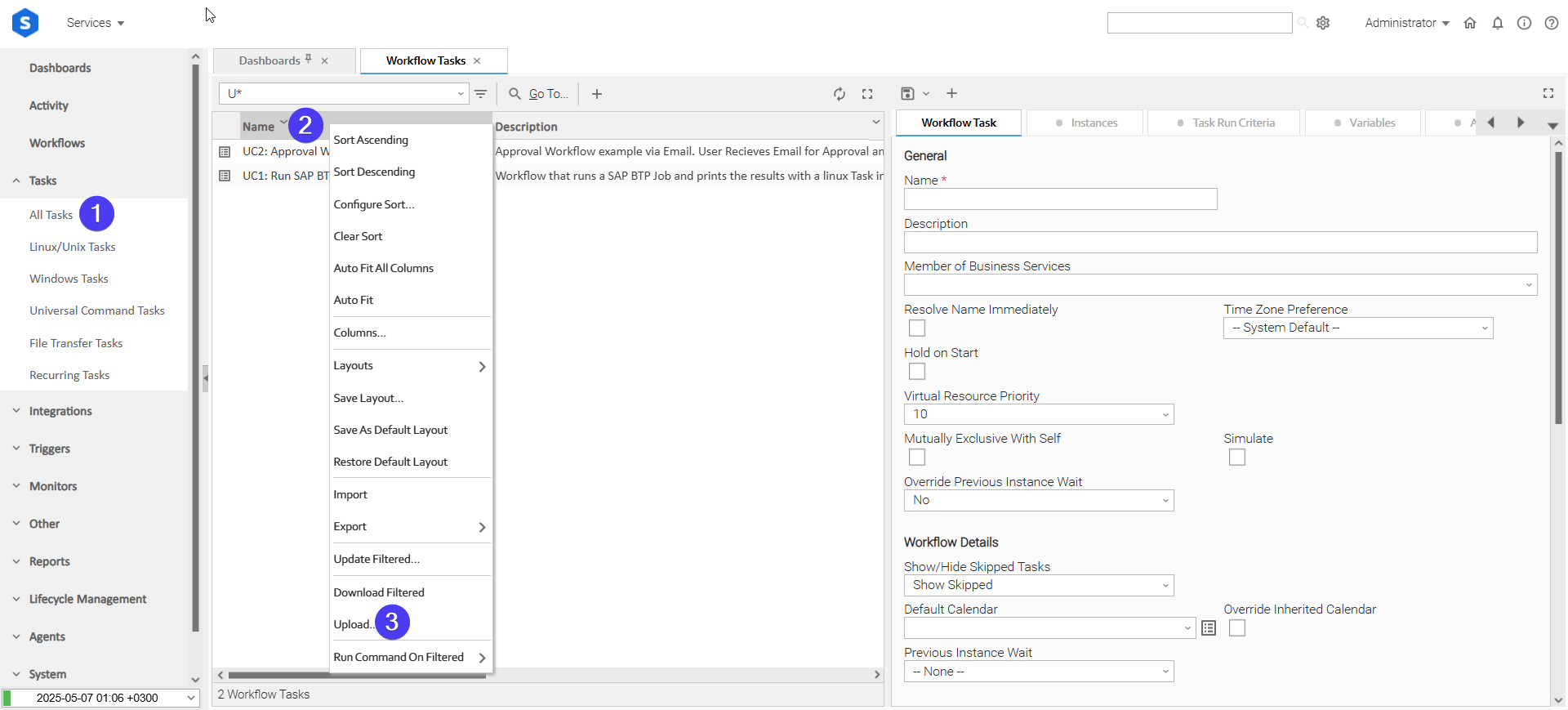
Login to Universal Controller and:
- STEP 1: Click "Tasks" → "All Tasks"
- STEP 2: Right click on the top of the column named "Name"
- STEP 3: Click "Upload..."
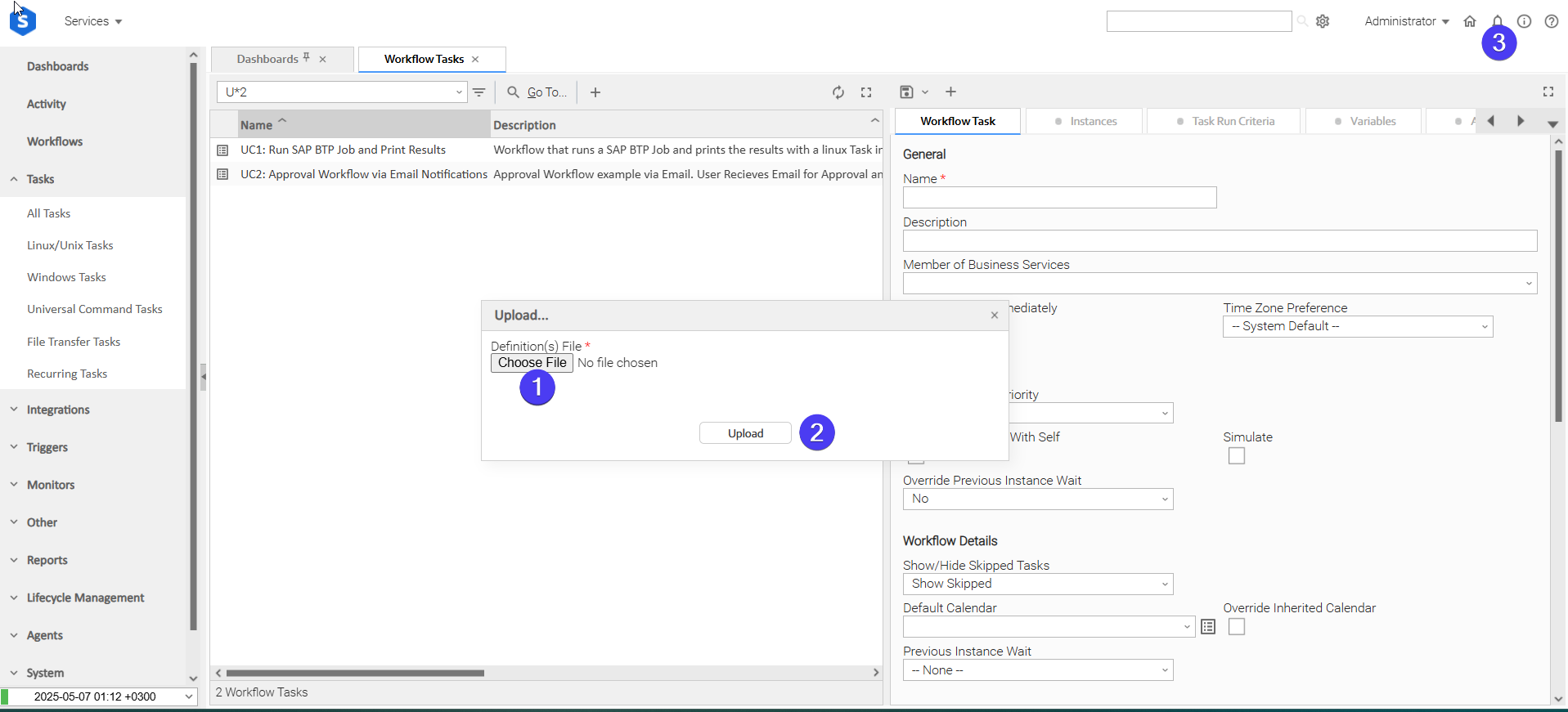
In the pop-up "Upload..." dialogue:
- STEP 1: Click "Choose File".
- STEP 2: Select the appropriate zip definition file and click "Upload".
- STEP 3: Observe the Console for possible errors.
Use Case 1: Deliver Agent Extracts to an SAP HANA Cloud, data lake Landing Zone
Description
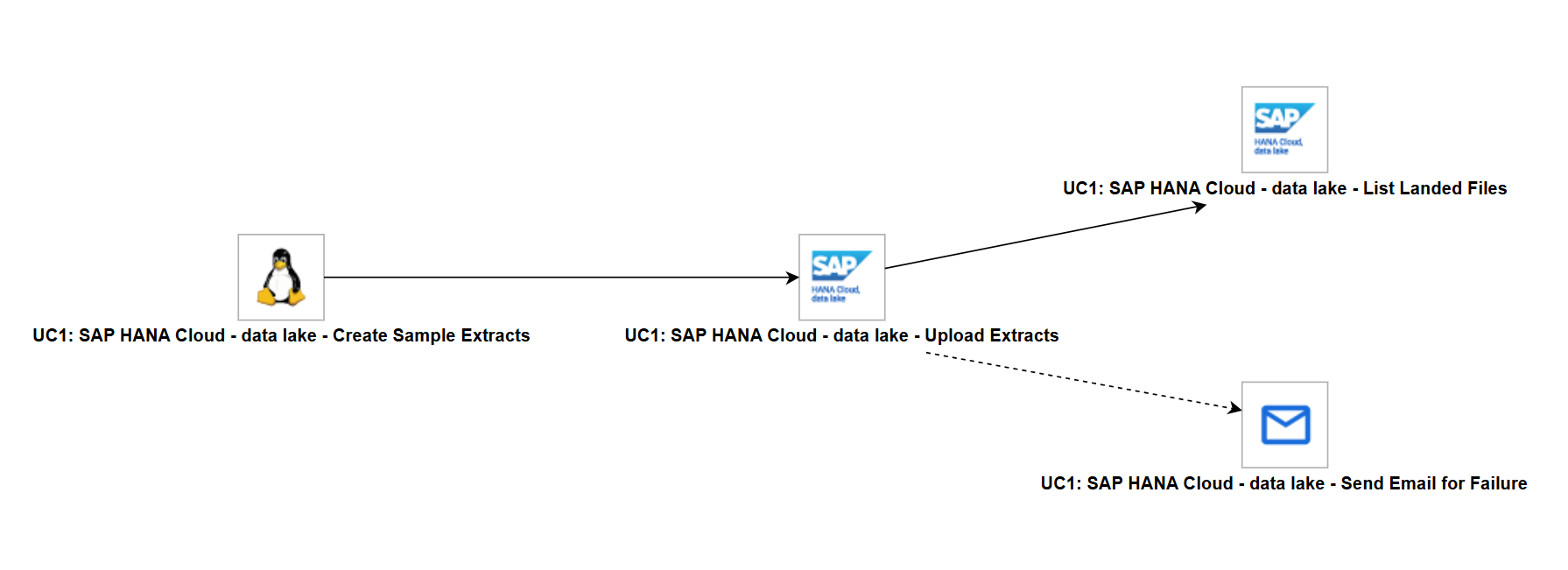
This Use Case creates sample CSV extracts on an agent, copies them into a landing directory of a data lake file container, and lists the landing directory to confirm what was delivered. When the upload fails, an email notifies the recipients.
The workflow "UC1: SAP HANA Cloud - data lake - Deliver Agent Extracts to the Data Lake" is composed of the following components:
- UC1: SAP HANA Cloud - data lake - Create Sample Extracts: A Linux/Unix Task that writes
emea/sample_sales.csvandamer/sample_sales.csvunder the agent directory set byue_sap_datalake_local_path. It stands in for the job that produces real extracts. - UC1: SAP HANA Cloud - data lake - Upload Extracts: Uploads every file matching
*/sample_*.csv, with a Recursion Depth of 2, into the landing directory set byue_sap_datalake_remote_path, keeping the subdirectories. Operation is "Copy", so the agent files are kept, and Write Option is "Replace", so a rerun overwrites the files already delivered. - UC1: SAP HANA Cloud - data lake - List Landed Files: Runs when the upload succeeds and lists the landing directory with the same pattern and depth.
- UC1: SAP HANA Cloud - data lake - Send Email for Failure: Runs when the upload fails and emails the recipients set by
ue_sap_datalake_email_to, using the Email integration with Microsoft App Only authentication.
How to Run
Execution Steps
- Ensure all Initial Preparation Steps have been completed successfully.
- Ensure the agent set by
ue_sap_datalake_agentis a Linux/Unix agent, and that the client certificate and private key set byue_sap_datalake_client_certandue_sap_datalake_client_keyare trusted and authorized by the data lake Files instance. - Launch the workflow task and monitor the execution in Universal Controller.
Expected Results
emea/sample_sales.csvandamer/sample_sales.csvare uploaded into the landing directory, keeping their subdirectories.- The listing task returns the delivered files in
result.filesof its Extension Output. - The workflow completes in Success state when the upload and the listing succeed.
- To see the failure path, change the File Pattern of the upload task to
*.json. No file matches, the upload ends with exit code 1, and the email is sent.
Exit Codes
Exit Code | Status | Description |
|---|---|---|
0 | Success | Successful Execution. |
1 | Failure | Generic Error. Raised when not falling into the other Error Codes, for example when no file matches the File Pattern or an SQL statement fails. |
2 | Failure | Authentication error. The data lake rejected the client certificate, or the Relational Engine rejected the SQL Credential. |
3 | Failure | Authorization error. The client certificate or the SQL user lacks the required privilege. |
10 | Failure | Connection error. The data lake Files or Relational Engine endpoint could not be reached, or the service is unavailable. |
20 | Failure | Input fields validation error. |
21 | Failure | Not found. The remote directory or file does not exist. |
30 | Failure | Transfer failed. One or more files could not be uploaded, downloaded or deleted, while others may have succeeded or the files failed for different reasons. When nothing was transferred and every file failed for the same reason, the exit code of that reason is returned instead. |
40 | Failure | Cancelled. The task instance was cancelled during execution. |
Document References
Document Link | Description |
|---|---|
Describes the REST API of data lake Files used by the file actions. | |
Describes how to provision a data lake Files instance and create file containers. | |
Describes how to configure the client certificates used for mutual TLS authentication. | |
Describes how to install the data lake client required by Execute SQL. | |
SAP HANA Cloud, Data Lake Relational Engine SQL Statements Reference | Describes the syntax of the SQL statements that can be used in the SQL Script of Execute SQL. |
Changelog
ue-sap-datalake-1.0.0 (2026-10-20)
Initial Version