SAP iFlow
Disclaimer
Your use of this download is governed by Stonebranch's Terms of Use.
Version Information
Template Name | Extension Name | Version | Status |
|---|---|---|---|
SAP iFlow | ue-sap-iflows | 1 (Current 1.0.0) | Initial version. |
Refer to Changelog for version history information.
Overview
SAP Integration Suite (formerly SAP Cloud Platform Integration) enables organizations to design, deploy, and monitor integration flows (iFlows) that connect cloud and on-premise systems. iFlows define the end-to-end integration logic, including message routing, transformation, enrichment, and connectivity between applications, APIs, and business partners. SAP iFlows can be deployed and executed within specific runtime environments, providing centralized monitoring, message tracking, error handling, and operational visibility to ensure reliable data exchange across enterprise landscapes.
This integration can trigger and monitor SAP iFlows by making authenticated API requests to the SAP Integration Suite management and runtime endpoints. This enables automated deployment, execution, status tracking, and error handling of integration flows based on your orchestration requirements. By incorporating SAP iFlows into your automation workflows, UAC ensures seamless coordination of enterprise integrations alongside other business processes, delivering end-to-end visibility, control, and reliability across your hybrid IT environment.
Key Features
Feature | Description |
|---|---|
iFlow Triggering | Trigger an SAP iFlow with the capability to monitor the execution until the iFlow finishes. |
Requirements
This integration requires a Universal Agent and a Python runtime to execute the Universal Task.
Area | Details |
|---|---|
Python Version | Requires Python 3.11, Tested with Agent bundled python distribution. |
Universal Agent Compatibility |
|
Universal Controller Compatibility | Universal Controller Version >= 7.6.0.0. |
Network and Connectivity | Connectivity to SAP OData and Runtime APIs is required. |
Supported Actions
Action: Trigger iFlow (GET|POST|PUT|PATCH|DELETE)
The Trigger iFlow action allows you to start an SAP iFlow and optionally monitor its execution until it reaches a final state. You can pass input parameters at runtime to control and customize the iFlow execution.
This functionality is implemented as five separate actions, each corresponding to a different HTTP method. The iFlow can be triggered using the following methods:
Action | HTTP Method | Description |
|---|---|---|
Trigger iFlow (GET) | GET | Trigger the iFlow using an HTTP GET request. |
Trigger iFlow (POST) | POST | Trigger the iFlow using an HTTP POST request. |
Trigger iFlow (PUT) | PUT | Trigger the iFlow using an HTTP PUT request. |
Trigger iFlow (PATCH) | PATCH | Trigger the iFlow using an HTTP PATCH request. |
Trigger iFlow (DELETE) | DELETE | Trigger the iFlow using an HTTP DELETE request. |
Action Output
- EXTENSION
- STDOUT
- STDERR
The extension output provides the following information:
exit_code, status_description: General info regarding the task execution. For more information users can refer to the exit code table.invocation.fields: The task configuration used for this task execution.result.basic_info: Shows basic information about the iFlow.result.basic_info.statusresult.basic_info.message_guidresult.basic_info.correlation_idresult.basic_info.log_start- Refers to the
log_startof the last retrieved iFlow monitor message, not the iFlow start.
- Refers to the
result.basic_info.log_end- Refers to the
log_endof the last retrieved iFlow monitor message, not the iFlow end.
- Refers to the
result.response_body: Shows the body of the response to the original trigger request.- This field, is included only if the Wait For Success Or Failure field is checked, otherwise it is omitted.
- If the original trigger request times out, this field will have value
None.
result.errors:List of errors that might have occurred during execution. That does not include iFlow run internal errors.
Examples:Success: iFlow Trigger (GET) without Monitoring
Fail: Invalid Task Configuration
The STDOUT output produced during the execution of the task instance.
Example:
[empty]
Shows the logs from the Task Instance execution. The verbosity is controlled by the Task configuration Log Level.
Example:Info Logs
Configuration Examples
Example: Trigger an iFlow
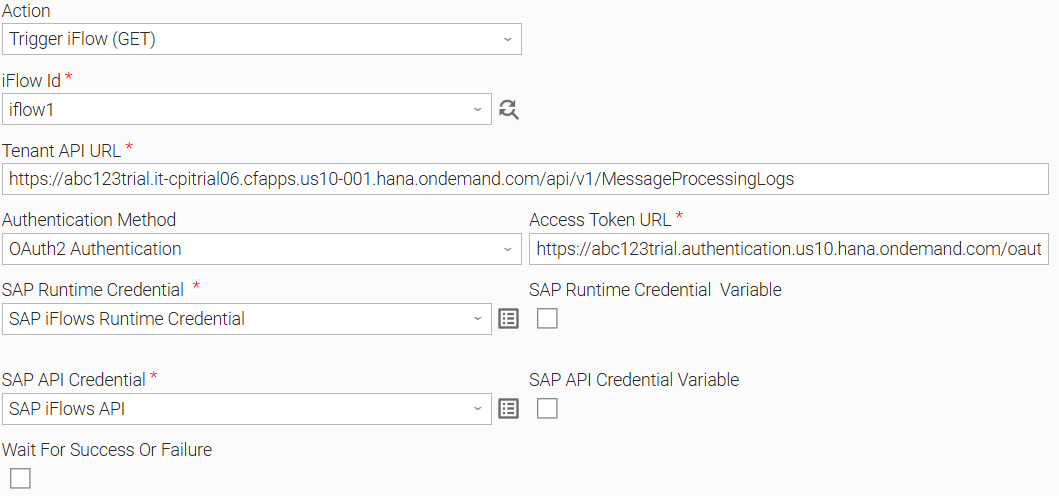
The SAP Trigger & Monitor Integration Suite iFlow Jobs task triggers an SAP iFlow with the ID "iflow1" with no monitoring. The task will end when it triggers the iFlow, and the task will not wait for it to finish. If the iFlow is triggered successfully, the task instance completes with success, else with failure.
Example: Trigger and Monitor an iFlow
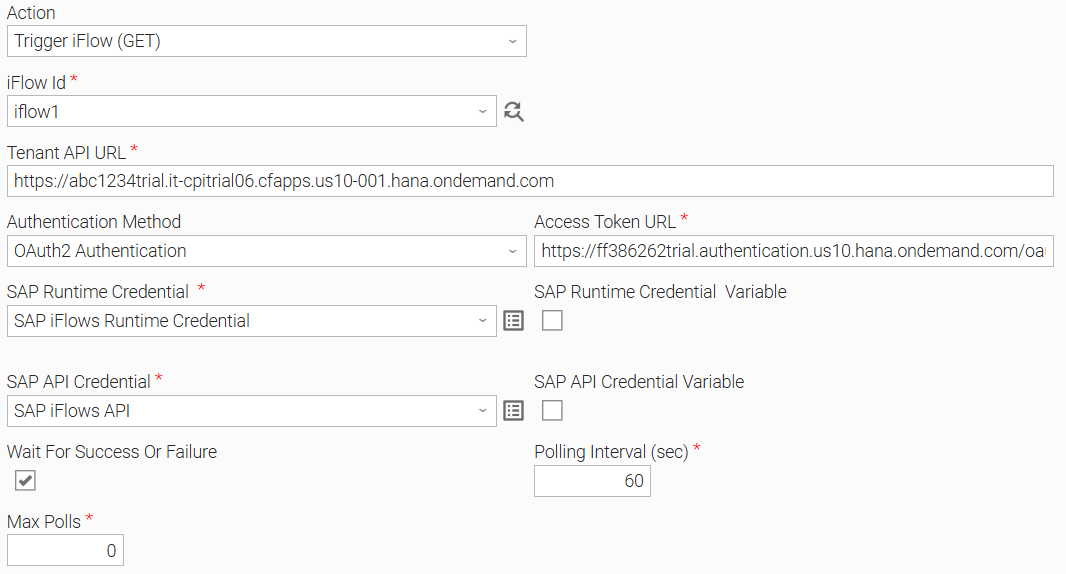
The SAP Trigger & Monitor Integration Suite iFlow task will trigger an iFlow with the ID "iflow1" with monitoring. The task will remain running until the iFlow run reaches a terminal state.
The task will check if the iFlow run has reached a terminal state on each poll interval. Once the task reaches a terminal state, the task will end with success or failure, depending on the terminal state of the iFlow run.
Input Fields
Name | Type | Description | Version Information |
|---|---|---|---|
Action | Choice | The action performed upon the task execution. Options:
| Introduced in 1.0.0 |
iFlow Id | Dynamic Choice | Dynamic Choice field for retrieval and selection of the iFlow to be executed. | Introduced in 1.0.0 |
Tenant API URL | Text | The Tenant API URL exposed by SAP Integration Suite (e.g., | Introduced in 1.0.0 |
Authentication Method | Choice | The authentication method to use to authenticate with SAP. The following options are available.
| Introduced in 1.0.0 |
Access Token URL | Text | The endpoint of the Authentication Server for the retrieval of an access token. It is used to exchange the SAP API Credential and SAP Runtime Credential for an access token. Required when Authorization Type is "OAuth2 Authentication". | Introduced in 1.0.0 |
SAP API Credential | Credentials | Credentials used for monitoring the iFlow. The Credential definition should be as follows:
Required when Authorization Type is "OAuth2 Authentication". | Introduced in 1.0.0 |
SAP Runtime Credential | Credentials | Credentials used for triggering the iFlow. The Credential definition should be as follows:
Required when Authorization Type is "OAuth2 Authentication". | Introduced in 1.0.0 |
Use CSRF Protection | Checkbox | When checked, a CSRF Token will be fetched before executing an iFlow trigger with a modifying request. Enable this option if the iFlow is configured to use Cross-Site Request Forgery (CSRF) protection. This field is shown only for the following Actions.
| Introduced in 1.0.0 |
MIME Type | Choice | The MIME type to be used in the request's header. The following options are available.
This field is shown only for the following Actions.
| Introduced in 1.0.0 |
Other Value For MIME Type | Text | The MIME type to be included in trigger request's header in case "Other" is selected as MIME Type value. Required when MIME Type is "Other". | Introduced in 1.0.0 |
Payload | Large Text | The payload to be sent in the request body. This field is shown only for the following Actions.
| Introduced in 1.0.0 |
Wait For Success Or Failure | Checkbox | When checked, the Task Instance waits until the triggered iFlow reaches a final State. Otherwise, the Task Instance completes when the iFlow is simply triggered, without waiting for it to finish. Monitoring starts only if the initial trigger request does not receive a response within the configured UE_HTTP_TIMEOUT. See Environment Variables. If checked, the | Introduced in 1.0.0 |
Polling Interval (sec) | Integer | This field is required when Wait For Success Or Failure is checked and represents the time interval between retries for getting the status of the iFlow run. As a best practice, if the Task Execution expected completion duration is long, set the polling Interval to a larger value. A short value will trigger frequent checks towards the iFlow, which is inefficient in terms of resources in the case of long-duration Tasks. The default value is 60. | Introduced in 1.0.0 |
Max Polls | Integer | This field is required when Wait For Success Or Failure is checked and represents the maximum number of times to check for the status of the job. Zero (0) means no limit, and the integration will keep checking the status of the job (until it reaches some terminal state) indefinitely. | Introduced in 1.0.0 |
Environment Variables
Environment Variables can be set from the Environment Variables task definition table. The following environment variables can affect the behavior of the extension.
If Wait for Success or Failure is checked, the iFlow monitoring starts only if the initial trigger request does not receive a response within the UE_HTTP_TIMEOUT.
Environment Variable | Description | Version Information |
|---|---|---|
UE_HTTP_TIMEOUT | Specifies the timeout (in seconds) for HTTP requests made by the Task Instance. A higher value allows for slower responses, while a lower value enforces stricter time constraints. If not set, a default of 60 seconds is used. | Introduced in 1.0.0. |
Cancelation and Rerun
- In case of cancellation of a Task Instance, the iFlow remains intact on SAP Integration Suite.
- Re-run of a failed iFlow is currently not supported.
Exit Codes
Exit Code | Status | Status Description | Meaning |
|---|---|---|---|
0 | Success | If Wait For Success Or Failure input field is checked,
If Wait For Success Or Failure input field is not checked,
| Successful Execution. If Wait For Success Or Failure input field is checked,
If Wait for Success or Failure input field is not checked,
|
1 | Failure | "Execution Failed: <<Error Description>>" | Failed Execution.
|
2 | Failure | "Authentication Error: <<Error Description>>" | Bad Credentials. |
3 | Failure | "Authorization Error: <<Error Description>>" | Bad Credentials. Possibly misconfigured Use CSRF Protection field. |
20 | Failure | "Data Validation Error: <<Error Description>>" | Input fields validation error. |
21 | Failure | "iFlow Failed" |
|
40 | Failure | "Monitor Timeout Error: <<Error Description>>" | Maximum number of polls has been reached |
STDOUT and STDERR
STDOUT is used for displaying Job information and its controlled by STDOUT Options (only when Wait For Success Or Failure is checked).
STDERR provides additional information to the user, the verbosity of which is controlled by Log Level Task Definition field.
Backwards compatibility is not guaranteed for the content of STDOUT/STDERR and can be changed in future versions without notice
How To
Import the Universal Template into your Controller:
- Extract the zip file, you downloaded from the Integration Hub.
- In the Controller UI, select Services > Import Integration Template option.
- Browse to the "export" folder under the extracted files for the ZIP file (Name of the file will be unv_tmplt_*.zip) and click Import.
- When the file is imported successfully, refresh the Universal Templates list; the Universal Template will appear on the list.
Modifications of this integration, applied by users or customers, before or after import, might affect the supportability of this integration. For more information refer to Integration Modifications.
Configure Universal Task
For a new Universal Task, create a new task, and enter the required input fields.
Integration Modifications
Modifications applied by users or customers, before or after import, might affect the supportability of this integration. The following modifications are discouraged to retain the support level as applied for this integration.
- Python code modifications should not be done.
- Template Modifications
- General Section
- "Name", "Extension", "Variable Prefix", and "Icon" should not be changed.
- Universal Template Details Section
- "Template Type", "Agent Type", "Send Extension Variables", and "Always Cancel on Force Finish" should not be changed.
- Result Processing Defaults Section
- Success and Failure Exit codes should not be changed.
- Success and Failure Output processing should not be changed.
- Fields Restriction Section
The setup of the template does not impose any restrictions. However, concerning the "Exit Code Processing Fields" section.- Success/Failure exit codes need to be respected.
- In principle, as STDERR and STDOUT outputs can change in follow-up releases of this integration, they should not be considered as a reliable source for determining the success or failure of a task.
- General Section
Users and customers are encouraged to report defects, or feature requests at Stonebranch Support Desk.
Document References
This document references the following documents:
Document Link | Description |
|---|---|
User documentation for creating, working with and understanding Universal Templates and Integrations. | |
User documentation for creating Universal Tasks in the Universal Controller user interface. | |
SAP guide which explores how to setup a trial account and build an HTTPS based integration flow |
Changelog
ue-sap-iflows-1.0.0 (2026-03-05)
Initial Version