Slack Bot
Disclaimer
Your use of this download is governed by Stonebranch's Terms of Use.
For general information on how integrations work, importing templates, and UAC documentation refer to Overview.
Version Information
Template Name | Extension Name | Version | Status |
|---|---|---|---|
Slack Bot | ue-slack-bot | 1.1.0 | Fixes and new Features are introduced. |
Refer to Changelog for version history information.
Overview
Slack is a messaging app for business that connects people to the information they need. By bringing people together to work as one unified team, Slack transforms the way organizations communicate.
This Universal Extension creates a Slack Bot that provides the capability to directly interact with Universal Controller, by executing Slack Commands.
Key Features
Feature | Description |
|---|---|
Task Instance Commands | Rerun, hold or force finish/cancel a Task Instance, show Task Instances or late Task Instances for specific filter parameters, retrieve the output or detailed information of a Task Instance, and schedule an ad-hoc run of a task by enabling a trigger. |
Agent Commands | Show the status of all available Universal Agents. |
Report Commands | Run a Report and retrieve its output in Slack. |
Help Menu | Provide quick access to all available commands. |
Graphical and CLI Interface | Trigger automation commands both through popup dialogs and a "command-line" style interface. |
Audit | Keep a detailed audit log of the Slack users' interaction with the UAC Bot and the Universal Controller. |
Security and Fine-Grained Access Control (ACL) | Limit access to the UAC Bot to the members of a private Slack channel, and manage the level of access of each Slack user per resource and action. |
Requirements
This integration requires a Universal Agent and a Python runtime to execute the Universal Task.
Area | Details |
|---|---|
Python Version | Requires Python 3.11 or 3.14, tested with Agent bundled python distribution. |
Universal Agent Compatibility |
|
Universal Controller Compatibility | Universal Controller Version >= 7.8.0.0. |
Network and Connectivity | Outbound connectivity to Slack is required, which is achieved by using WebSockets, connected in port 443. HTTPS outbound connectivity to the Universal Controller is also required for the bot to answer Slack Commands. |
How to Start
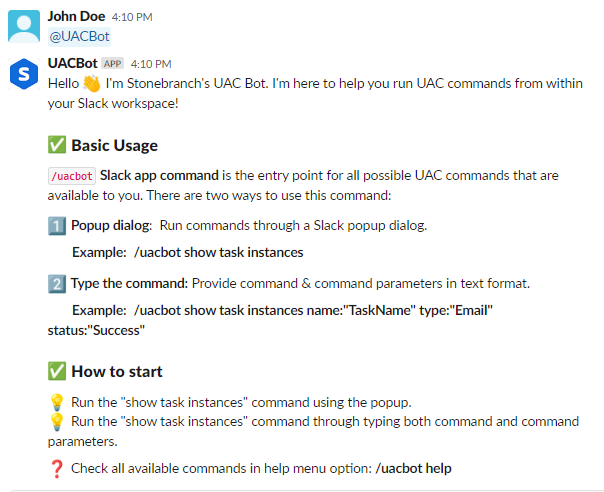
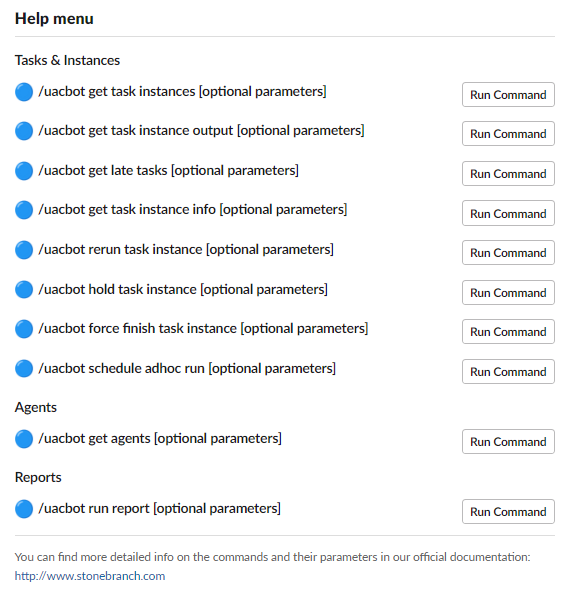
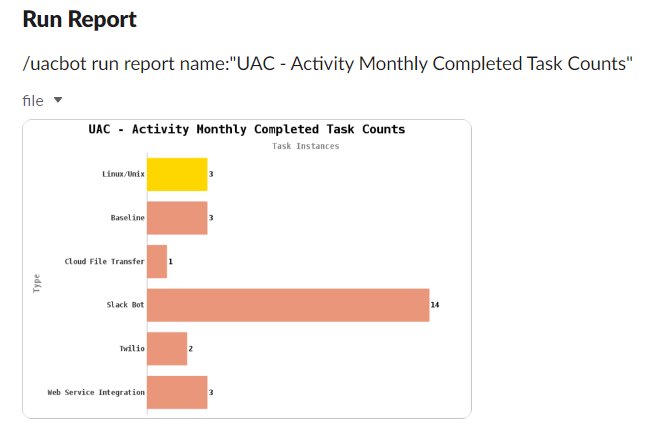
This extension is shipped with in-Slack dialogs available to your users, in order for them to be introduced to the basic Slack Bot functionality and provide on-going access to help menu. Here is a list of example screenshots that provide a step-by-step approach to a user for getting familiar to Slack Bot and successfully executing one Slack Bot command.
Step 1: Introduction of the Slack Bot to the users is done at the setup phase, where the Slack Bot greets the channel users with a small and informative message, guiding them on the next actions they could take.
Step 2: The help menu is available to the users whenever they need a list of available commands, from which they can even trigger the corresponding popup dialog (help menu is available though command /uacbot help).
Step 3: Triggering a Slack command from a popup dialog is helpful, as the dialog provides guidance on the available parameters and their values.

Step 4: Slack Bot command results are provided in-channel, with simple and informative messages.
Slack Application Installation & UC Extension Configuration
In order to use the Slack Bot extension, it is required to:
- Create a Slack Application in your workspace.
- Configure a slack channel for the UAC Slack bot to operate in.
- Configure the extension to connect to the Slack Application.
- Initialize channel participants and verify user access.
Those steps are described in detail in the following sections.
Slack Application Creation
Create Application
In order to create a new Slack Application in your workspace, the following steps using an admin account in your Slack workspace needs to be executed:
- Navigate to the page which displays the applications created in your workspace: https://api.slack.com/apps
- Select option: "Create an app".
- Chose option: "From scratch".
- Set App Name: "Stonebranch UAC Bot".
- Set the workspace that the application will be installed in.
- Press button "Create App", which should result to web browser redirection to the application settings page.
Create Application Token
The first configuration needed in this new application is to create an App-Level token, from the "Basic Information" page:
- Scroll down to "App-Level Tokens" section .
- Press "Generate Token and Scopes".
- In the popup provided:
- Add some token name (e.g. "app_token").
- Add scope: "connections:write".
- Press "Generate" button and copy the Token that was just created, it will later be used as input to the "Slack App Token" field of the Slack Bot task.
- Close the popup and verify the new token is listed in "Tokens" list.
Apply application configuration
Most of the application configuration needed will be applied through a Manifest file, but on top of this, it is needed to do some additional configuration by hand.
Apply application Manifest file
Navigate to "App Manifest" section (navigation bar on the left) and follow the steps:
- Select "YAML" preview.
- Override the App Manifest with the following configuration:
display_information:
  name: Stonebranch UAC Bot
  description: Integrate Slack Workspace with UAC platform
  background_color: "#000000"
settings:
  org_deploy_enabled: false
  token_rotation_enabled: false
  socket_mode_enabled: true
  interactivity:
    is_enabled: true
  event_subscriptions:
    bot_events:
      - app_mention
features:
  app_home:
    home_tab_enabled: false
    messages_tab_enabled: false
    messages_tab_read_only_enabled: false
  bot_user:
    display_name: UACBot
    always_online: true
  slash_commands:
    - command: /uacbot
      description: Send commands to UAC Bot
      usage_hint: " [command] [parameters]"
      should_escape: false
oauth_config:
  scopes:
    bot:
    - app_mentions:read
    - channels:read
    - chat:write
    - commands
    - files:write
    - links:write
    - users:read
    - groups:read
-
Press "Save Changes".
-
After this step make sure the following settings are set correctly:
- Basic Information > Add Features and functionality > Slash Commands: Only one command was created with name '/uacbot'.
- Basic Information > Add Features and functionality > Event Subscriptions: Should be enabled, and socket mode identified as enabled.
- "Subscribe to bot events" list includes only event "app_mention".
- "Subscribe to events on behalf of users" list should be empty.
- "App unfurl domain" list should be empty.
- Basic Information > Add Features and functionality > Bots:
- Verify that Display Name (Bot Name) equals "UACBot".
- Verify that Default Name equals "uacbot".
- Verify that "Always Show My Bot as Online" is checked.
- Verify that Show Tabs > Home Tab is disabled.
- Verify that Show Tabs > Messages Tab is disabled.
- Basic Information > Add Features and functionality > Permissions:
- Verify that in Scopes > Bot Token Scopes list only these scopes are included:
- app_mentions:read
- channels:read
- chat:write
- commands
- files:write
- links:write
- users:read
- Verify that Scopes > User Token Scopes list is empty.
- Verify that in Scopes > Bot Token Scopes list only these scopes are included:
Application installation in workspace
- Navigate to "OAuth & Permissions" (navigation bar on the left).
- In section "OAuth Tokens for Your Workspace", select "Install to Workspace", review the requested permissions (they should match the Bot Token Scopes mentioned in previous section), and approve installation.
- After successful installation, the web browser will be redirected back to "OAuth & Permissions" page, and a "Bot User OAuth Token" should now be available. Copy the Bot Token that was just created, it will later be used as input to the "Slack Bot Token" field of the Slack Bot task.
Application Icon
The final step in application configuration is setting the application icon that will be visible in all responses the Slack Bot will be posting. To set this up the following steps are required:
- Navigate to "Basic Information" (navigation bar on the left).
- Scroll down to the "Display Information" section.
- Upload the icon provided here:

Configure a slack channel
After creating the new Slack Application, using again a Slack admin account, follow the steps:
- Create a new private Slack channel in your workspace (naming is not important).
- Copy the channel ID from the channel info (right click on channel -> get channel details), it will later be used as input to the "Slack Channel ID" field of the Slack Bot task.
- Do not invite any Slack users to this channel yet.
Configure the Slack Bot Task
For a new Universal Task, create a new task and enter the required input fields, as described in Input Fields. Set up the ACL with the desired user permissions, then launch the task.
Initialize Channel Participants
At this point a new Slack Application should have been configured, an empty private Slack channel, and a Slack Bot task up and running (if this is not the case, please look for the root cause in the extension logs, after enabling Debug log level for the task). In Slack Bot task, an ACL list with the desired user permissions should have been set up also.
What is left for the UAC Slack Bot to be accessible to the users is to:
- Invite the corresponding Slack users to the private channel.
- Invite the UAC Slack Bot to the channel by just mentioning it (just type @uacbot and press enter).
UAC Slack Bot after being successfully invited to the channel will provide a greeting message for all the users to see. From this point on, users will have access to UAC Slack Bot based on the ACL configuration completed in previous step.
Action Output
- EXTENSION
- STDOUT
Since this Universal Task is designed to operate endlessly, the Extension Output is provided only in case of an error in the initialization phase or during task instance cancel.
The extension output provides the following information:
exit_code, status_description: General info regarding the task execution. For more information refer to exit codes table.invocation.fields: The task configuration used for this execution. Passwords and tokens of credential fields are masked.result.errors: List of errors that might have occurred during execution.
Examples:Failed execution
If Auditing is checked, STDOUT contains one audit log entry for each Slack command a user runs. The populated content can be changed in future versions of this extension without notice. Backward compatibility is not guaranteed.
Example:
Audit log entry for the user "john.doe@company.com" running the Get Agents Status command:
<datetime> AUDIT - user:john.doe, channel:C049CHU74P9, command:Get Agents Status, parameters:['groupby:"operating system"'], result: SUCCESS
Configuration Examples
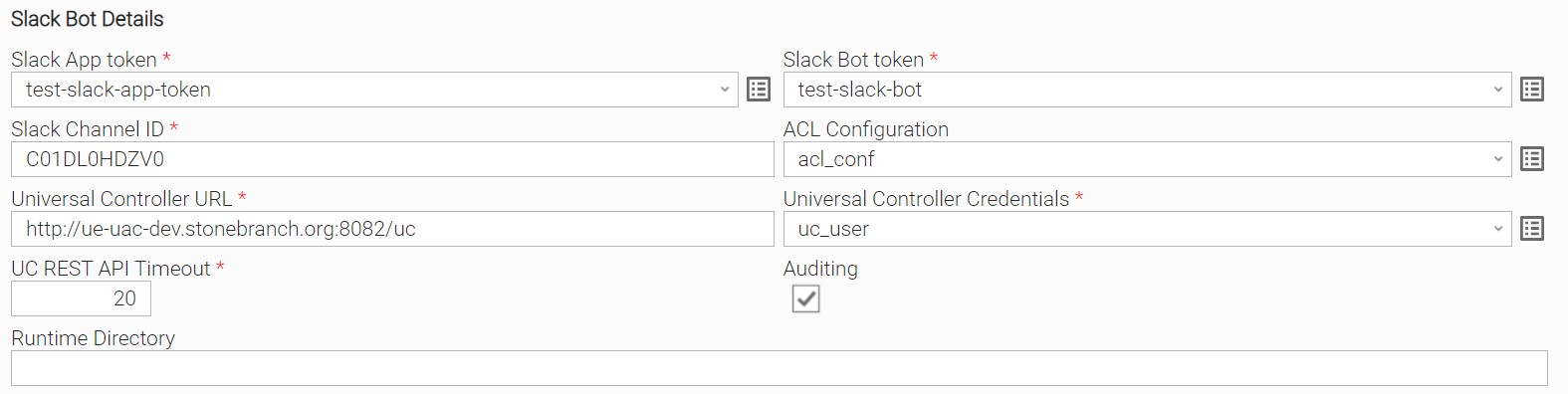
Example: Start the Slack Bot with ACL configuration and auditing
Example of a Slack Bot Universal Task for starting the execution of the Slack Bot. The task connects to the Slack Application with the Slack App token and Slack Bot token credentials, operates in the channel set in Slack Channel ID, applies the rules of the ACL Configuration script, reaches the Universal Controller with a 20-second UC REST API Timeout, and writes audit logs to STDOUT.
Input Fields
Name | Type | Description | Version Information |
|---|---|---|---|
Slack App token | Credential | The Slack App-Level token obtained from the Slack Application, used to connect the Slack Bot with the corresponding Slack App. Token format: The Credentials definition should be as follows:
| Introduced in 1.0.0 |
Slack Bot token | Credential | The Slack Bot token obtained from the Slack Application, used to connect the Slack Application with a Workspace. Token format: The Credentials definition should be as follows:
| Introduced in 1.0.0 |
Slack Channel ID | Text | The ID of the Slack channel the bot operates in. | Introduced in 1.0.0 |
ACL Configuration | Script | The JSON script that contains the ACL rules for the Slack users. Although the field is optional in the Universal Template, the Slack Bot does not start without it: the task fails with exit code 20 and "ACL Configuration script not found". | Introduced in 1.0.0 |
Universal Controller URL | Text | The URL of the target Universal Controller, for example | Introduced in 1.0.0 |
Universal Controller Credentials | Credential | The username and password of the Universal Controller user, used by this extension as a client of the RESTful Web Services API. This user should have Web Service Access enabled (directly or through System Default). It is strongly advised not to reuse admin or any existing user but create a new one used only for this specific integration. The Universal Controller Credentials definition should be as follows:
| Introduced in 1.0.0 |
UC REST API Timeout | Integer | The timeout, in seconds, that the Slack Bot waits for the Universal Controller to respond. If the Universal Controller does not respond within this limit, Slack displays a corresponding error to the user. Defaults to | Introduced in 1.0.0 |
Auditing | Checkbox | Check to produce auditing logs in STDOUT. Checked by default. | Introduced in 1.0.0 |
ACL
ACL (Access Control List) is responsible for granting or denying permissions to your Slack users, on accessing specific functionality & resources on UC, through Slack commands. The access rights granted can be fine-grained, using rules that describe the explicit access right for a specific user, providing his e-mail local part(what everything is included before @ symbol) on a specific resource type and the corresponding action on that resource.
Permissions
The default permission (that is used even if it is not explicitly provided in configuration) is DENY for all users on all resources, meaning that by default no Slack user can run any Slack command. Users will be able to use the available Slack commands when rules that permit such actions are added to the ACL. More than one rules can be created for each user, so it is possible for your users to have different access rights per resource. Also this integration supports rules that can be used to specify access rights for multiple users and/or multiple resources, using the wildcard character '*'. This makes it easier to provide access rights to multiple users with a single access rule, but it should be used with caution.
Permissions Evaluation
The ACL rules are evaluated sequentially from the first to the last one, and access to a resource is provided either when an explicit rule is found that grants permission or if no rule denying permission is found in the list.
Permissions Configuration
The ACL configuration is based on UC Scripts (of type Data Script), and more specifically expressed with JSON format. It is expected to be consisted of rules for each user, where each rule has the following fields:
Key | Description |
|---|---|
resource | Whether a command is related to instances, agents or reports. Can be equal to "*" to refer to all available resources. |
action | Available actions that can be performed in a resource. Can be equal to "*" to refer to all available resources. |
permission | Whether the permission of the combination of specified action and resource is allowed or forbidden. |
ACL Rules to Slack Command Mapping
Command | Resource | Action |
|---|---|---|
rerun task instance | instance | instance.rerun |
hold task instance | instance | instance.hold |
force finish task instance | instance | instance.finish |
schedule ad hoc run | instance | instance.schedule |
get task instances | instance | instance.query |
get late tasks | instance | instance.query |
get task instance output | instance | instance.query |
get task instance info | instance | instance.query |
get agents | agent | agent.query |
run report | report | report.run |
Usage Examples
The order in which the rules are provided is essential. The first rule has the most priority whereas the last rule is the lowest priority.
- Granting access to user with email "john.doe@company.com" to execute rerun task instance command.
{
  "john.doe": [
    {
        "resource": "instance",
        "action": "instance.rerun",
        "permission": "ALLOW"
    }
  ]
}
- Granting access to user with email "alice.smith@company.com" to execute rerun task instance and show agents status commands.
{
  "alice.smith": [
    {
        "resource": "instance",
        "action": "instance.rerun",
        "permission": "ALLOW"
    },
    {
        "resource": "agent",
        "action": "agent.query",
        "permission": "ALLOW"
    }
  ]
}
- Granting access to user with email "john.doe@company.com" to execute all commands related to instances and allow user with email "alice.smith@example" to only run reports and hold task instances.
{
  "john.doe": [
    {
        "resource": "instance",
        "action": "*",
        "permission": "ALLOW"
    }
  ],
  "alice.smith": [
    {
        "resource": "report",
        "action": "report.run",
        "permission": "ALLOW"
    },
    {
        "resource": "instance",
        "action": "instance.hold",
        "permission": "ALLOW"
    }
  ]
}
- Granting access to all users to execute all the commands.
{
  "*": [
    {
        "resource": "*",
        "action": "*",
        "permission": "ALLOW"
    }
  ]
}
- Granting access to all users to execute all the commands but forbid a user with user with email "john.doe" to run reports.
{
  "john.doe": [
    {
        "resource": "report",
        "action": "report.run",
        "permission": "DENY"
    }
  ],
  "*": [
    {
        "resource": "*",
        "action": "*",
        "permission": "ALLOW"
    }
  ]
}
Output Fields
The following output-only fields provide better visibility during the execution of Universal Task Instances.
Name | Type | Description | Version Information |
|---|---|---|---|
Total Requests Handled | Integer | The total number of requests the Slack Bot has handled since starting. | Introduced in 1.0.0 |
Total Requests Succeeded | Integer | The total number of requests for which the Slack Bot has returned a successful response. | Introduced in 1.0.0 |
Total Requests Failed | Integer | The total number of requests for which the Slack Bot has returned a failed response. | Introduced in 1.0.0 |
Total Validation Errors | Integer | The total number of validation errors the Slack Bot has raised. | Introduced in 1.0.0 |
Total Permission Errors | Text | The total number of permission errors the Slack Bot has raised. | Introduced in 1.0.0 |
Available Commands
All the available commands can be executed in two different ways, through Slack's popup interface or directly as a command with parameters. Moreover, all commands require the /uacbot prefix followed by the command name to be recognized as commands by Slack.
In case a user wants to run a command directly the accepted input format is the following:
/uacbot <command_name> parameter_1:'value' parameter_2:'value'
If a command is to be executed through popup interface, then the accepted format is the following
/uacbot <command_name>
Rerun Task Instance
Rerun Task Instance command lets a user to re-run a task instance in Universal Controller. This is possible only if the task instance is not deleted. In case it belongs to a workflow, the workflow should not be deleted, too.
To qualify for re-run, a task instance status must be in one of the following: Success, Start Failure, Failed, Cancelled, Finished.
Command Usage
Command Name: rerun task instance
Parameters | Description | Values and Constraints | Required | Default |
|---|---|---|---|---|
id | sys_id used within the Universal Controller to identify this task instance | Same with Universal Controller | True | - |
Command Examples
/uacbot rerun task instance id:'<some_valid_id>'
Hold Task Instance
Hold Task Instance command lets a user to hold a task instance in the Universal Controller. If a Workflow is put on Hold and has not yet started, the Workflow and all the task instances in it are put on Hold state.
If the command is triggered for a Workflow when it is in Running status, all the task instances within the Workflow that have not yet started are put on Hold; however, the Workflow itself does not go to Hold status because it already has started.
Command Usage
Command Name: hold task instance
Parameters | Description | Values and Constraints | Required | Default |
|---|---|---|---|---|
id | sys_id used within the Universal Controller to identify this task instance | Same with Universal Controller | True | - |
Command Examples
/uacbot hold task instance id:'<some_valid_id>'
Force Finish/Cancel Task Instance
The Force Finish/Cancel command cancels a task instance and puts it into Finished status, regardless of what the task instance is doing. The command can Force Finish/Cancel a task instance while it is in any of the following statuses: Queued, Action Required, Started, Running. If the task instance is part of a Workflow, it also can Force Finish/Cancel the task instance if the task instance is re-run after the Workflow completes.
Command Usage
Command Name: force finish task instance
Parameters | Description | Values and Constraints | Required | Default |
|---|---|---|---|---|
id | The identifier of the task instance to be force finished or canceled. | Same with Universal Controller | True | - |
halt | If set to True it prevents successor task instances of the specified task instance id in a Workflow from being run. | True / False | False | False |
cancel | If set to True cancels the task instances. | True / False | False | False |
Command Examples
/uacbot force finish task instance id:'<some_valid_id>' halt: 'true'
Get Task Instances
The Get Task Instance command lets a user to list all task instances that match certain parameters and retrieve information about their state, including their status, or when they were last updated.
Command Usage
Command Name: get task instances
Parameters | Description | Values and Constraints | Required | Default |
|---|---|---|---|---|
name | The name of the task instances. This field also accepts wildcards "?" or "*". | Max 255 length string (case insensitive). | False | - |
type | Filter the tasks being queried, by task type attribute. | Valid Universal Controller task types (case insensitive). | False | - |
status | Filter the tasks being queried, by task status attribute. | Valid Universal Controller statuses (case insensitive). | False | - |
lastupdated | Filter instances that have been updated in the last X hours/minutes. | Timestamps in hours or minutes format, e.g 1h, 20m. | False | - |
show | Filter to fetch all instances or only the last updated instances that match the rest of the input fields. | Latest / All | False | All |
Command Examples
- Fetch the latest task instances that contain "slack" in their name of type Linux with statuses Finish and Success that have been last updated in the past two days.
/uacbot get task instances name:'slack*' type:'linux/unix' status:'Success, Finished' lastupdate:'2d' show:'latest'
Get Late Tasks
Get Late Tasks command enables the user to list task instances that have been configured with the "late" parameter in the Universal Controller.
- Early Finish filters all the task instances that have been finished earlier than expected.
- Late Finish filters all the task instances that have been finished later than expected.
- Late Start filters all the task instances that have been started later than expected.
This command comes in handy for monitoring tasks that are to be run with a trigger if they are part of a Workflow.
Command Usage
Command Name: get late tasks
Parameters | Description | Values and Constraints | Required | Default |
|---|---|---|---|---|
name | The name of the task instances. This field also accepts wildcards "?" or "*". | Max 255 length string (case insensitive). | True | - |
lastupdated | Filter instances that have been updated in the last X hours/minutes. | Timestamps in day, month or minutes format, e.g. 1h, 20m. | False | 24h |
type | Filter tasks based on available late time options. | Late start / Late finish / Early finish / All | False | Late Start |
Command Examples
- Fetch task instances that contain "slack" in their name that have been last updated in the past two days and have late type of either late start, late finish or early finish.
/uacbot get late tasks name:'slack*' ' lastupdate:'2d' type:'all'
Get Task Instance Output
Get Task Instance Output command is used to retrieve the output of a specific task instance.
Command Usage
Command Name: get task instance output
Parameters | Description | Values and Constraints | Required | Default |
|---|---|---|---|---|
instance | The id of the task instance to be retrieved. | Max 255 length string (case insensitive) or valid Universal Controller sys_id format. | True | - |
outputtype | Retrieve instance output by type. | Long list of values, including: STDOUT, STDERR, EXTENSION. Full list of values is available in popup drop-down list. | False | STDOUT |
length | Number of lines to fetch from the outputtype. | Positive integer | False | 20 |
fetchfrom | Fetch the output logs from the start or from the end. | Start / End | False | Start |
Command Examples
- Fetch last twenty lines of the newest active instance that matches the name slack-bot.
/uacbot get task instance output instance:'<slack-bot>' criteria:'Newest Active Instance' length:'20' fetchfrom:"end"
Get Task Instance Info
Get Task Instance Info command is used to retrieve general information about a task instance including its id, name, agents acquired, triggered by, start time, end time, status, status description and exit code.
Command Usage
Command Name: get task instance info
Parameters | Description | Values and Constraints | Required | Default |
|---|---|---|---|---|
instance | The name or the id of the task instance to be retrieved. | Max 255 length string (case insensitive) or valid Universal Controller sys_id format. | True | - |
criteria | The last updated criteria of the task instance. Mandatory when the query is made with task name. | Newest Instance, Oldest Instance, Newest Active Instance, Oldest Active Instance. | False | Newest Instance |
Command Examples
/uacbot get task instance info instance:'<slack-bot>' criteria:'Oldest Instance'
Schedule Ad hoc Run
Schedule Ad hoc run command lets user to schedule the execution of a task instance or a Workflow, by creating a trigger and binding it to a specific task name.
Command Usage
Command Name: schedule ad hoc run
Parameters | Description | Values and Constraints | Required | Default |
|---|---|---|---|---|
triggername | The name of the triggered to be created. | Max 255 length string (case insensitive) | True | - |
taskname | The task name to be binded with the created trigger triggername. | Max 255 length string (case insensitive) | True | - |
date | The date which the taskname will be run. | YYYY-mm-dd format | True | Current date |
time | The date which the taskname will be run. In combination with date filed it must be after current time. | HH:MM format | True | Current time + 1 minutes |
timezone | the timezone of the specified time. | UTC-12 to UTC+14 | True | UTC |
Command Examples
/uacbot schedule ad hoc run triggername:'<valid_trigger_name>' taskname:'<valid_task_name>' date:'YYY-mm-dd' time:'HH:MM' timezone: 'UTC'
Get Agents
Get Agents commands can be used to list all the available agents of the Universal Controller and gain visual information about their state.
Command Usage
Command Name: get agents
Parameters | Description | Values and Constraints | Required | Default |
|---|---|---|---|---|
name | The name of the agent to be retrieved. This field also accepts wildcards | Max 255 length string (case insensitive) | False | - |
os | Filter based on the operating system the agent is based on. | Windows, Linux, z/OS (case insensitive) | False | - |
version | Filter based on agent version. | Valid Universal Controller version format | False | - |
status | Filter based on agent status. | Active / Offline (case insensitive) | False | - |
suspended | Filter agents that are temporarily suspended. | True/False | False | - |
groupby | Filter to control the grouping of the output message. | A value of all previous available fields. | False | Operating System |
Command Examples
- List and groupby os all active, non-suspended agents which run linux operating system and 7.2 UC version with a specified name.
/uacbot get agents name:'<valid_agent_name>' os:'Linux' version:'7.2.0.0' status:'active' suspended:'false' groupby:'os'
Run Report
Run Report command provides the capability to run an already existing report in Universal Controller and retrieve the output file in your Slack workspace.
Command Usage
Command Name: run report
Parameters | Description | Values and Constraints | Required | Default |
|---|---|---|---|---|
name | The name of the report to be retrieved. | Max 255 length string (case insensitive) | True | - |
Command Examples
/uacbot run report name:'<valid_report_name>'
Exit Codes
Exit Code | Status | Description |
|---|---|---|
0 | Success | Successful Execution. |
1 | Failure | Generic Error. Raised when not falling into the other Error Codes. |
20 | Failure | Input fields validation error. Also raised when the ACL Configuration is invalid, or when Slack returns an error while the ACL looks up the channel members. |
Document References
Document Link | Description |
|---|---|
User documentation for creating, working with and understanding Universal Templates and Integrations. | |
User documentation for creating Universal Tasks in the Universal Controller user interface. | |
User guide for Slack Bot API. | |
Documentation of the Slack framework the bot uses to receive Slack Commands over Socket Mode. |
Changelog
ue-slack-bot-1.1.0 (2026-11-24)
Deprecations and Breaking Changes
Breaking Change: Universal Controller and Universal Agent 7.8 or later are required. The Universal Template can no longer be imported on earlier Universal Controller versions.
Enhancements
Added: Support for Universal Agent 8.1 and Python 3.14.
Fixes
Fixed: Schedule Ad hoc Run left the new trigger disabled and answered with a permission error when the ACL Configuration listed specific users only, without a"*"user entry.Fixed: Schedule Ad hoc Run reported success when the Universal Controller could not enable the trigger, and enabled an existing trigger with the same name when the trigger name was already in use.Fixed: Schedule Ad hoc Run scheduled the run at the wrong time for every timezone other thanUTC.Fixed: Schedule Ad hoc Run failed with a generic error for the timezonesUTC-9andUTC-10, and accepted the unsupported timezoneUTC-13.
Security
Security: Slack App and Bot tokens are masked in the Extension Output. Earlier versions printed them in plain text when the task failed.
ue-slack-bot-1.0.2 (2022-12-15)
Fixes
Fixed: Extension is available for Universal Controller 7.1 and 7.2.
ue-slack-bot-1.0.1 (2022-11-22)
Fixes
Fixed: Ignore trailing slash character in field Universal Controller URL.
ue-slack-bot-1.0.0 (2022-11-21)
Initial Version