UAC Service Now Self-Service User Guide
Disclaimer
Your use of this download is governed by Stonebranch's Terms of Use.
Version Information
Solution Name | ServiceNow - Application Name | Version | Status |
|---|---|---|---|
ServiceNow Universal Automation Center Self-Service - User Guide | Universal Automation Center Self-Service | 1 (Current 1.0.0) | Initial Version |
Refer to Changelog for version history information.
Overview
The Universal Automation Center Self-Service App enables users to configure, schedule, and manage tasks and workflows within the Stonebranch Universal Automation Center.
This User Guide provides step-by-step instructions for ServiceNow users on how to configure and use self-service actions within the app.
Key Features
Feature | Description |
|---|---|
Create Task [Unix, Windows, SQL, SAP] | Create a Unix, Windows, SQL or SAP task in Universal Automation Center from ServiceNow. |
Hold Task | Hold a Task Instance in Universal Automation Center through ServiceNow. |
Release Task | Release a Task Instance in Universal Automation Center through ServiceNow. |
Halt and Force Finish Task | Halt and Force Finish a Task Instance in Universal Automation Center through ServiceNow. |
Force Finish Task | Force Finish a Task Instance in Universal Automation Center through ServiceNow. |
Rerun Failed Task | Rerun a Task Instance in Universal Automation Center through ServiceNow. |
Launch Task/Workflow Now | Launch a Task/Workflow in Universal Automation Center through ServiceNow. |
Schedule Adhoc Job | Schedule an Adhoc Task launch in Universal Automation Center through ServiceNow. |
Requirements
This Solution requires Universal Controller 7.6.0.0 or later.
Access Catalog Item - Universal Automation Center Self-Service
Search in Portal
- Navigate to Service Portal (eg:- /sp, /esc).
- Type "Universal" in the search.
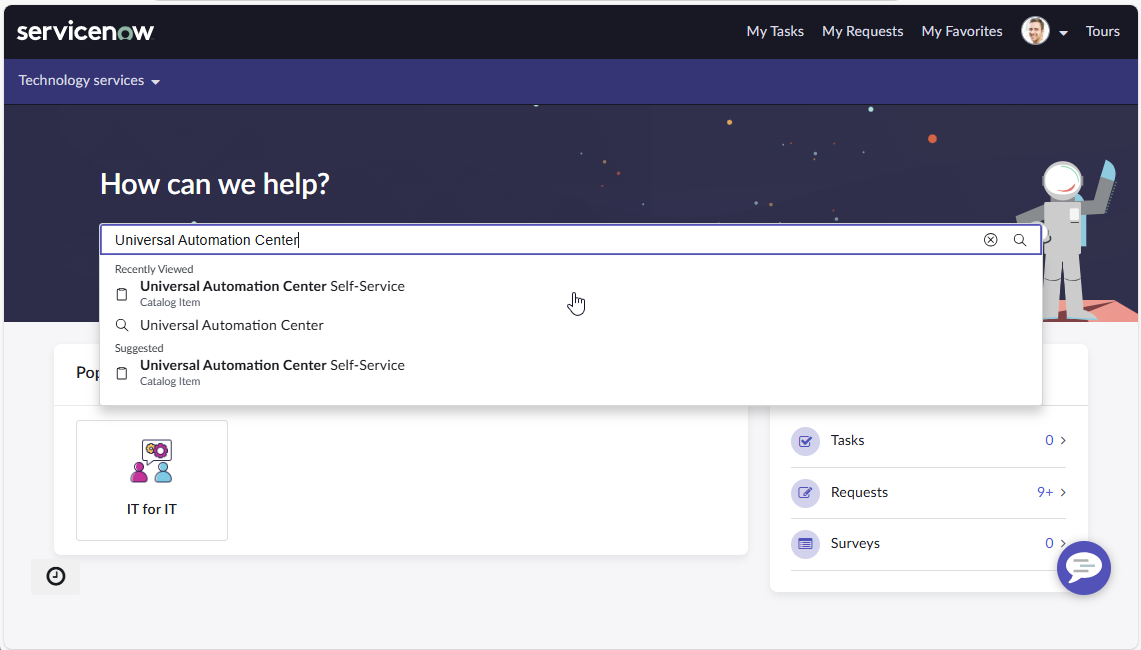
- Click the item from the suggestion.
Access via Catalog Category
- Navigate to Service Portal (eg:- /sp).
- Click "Request Something".
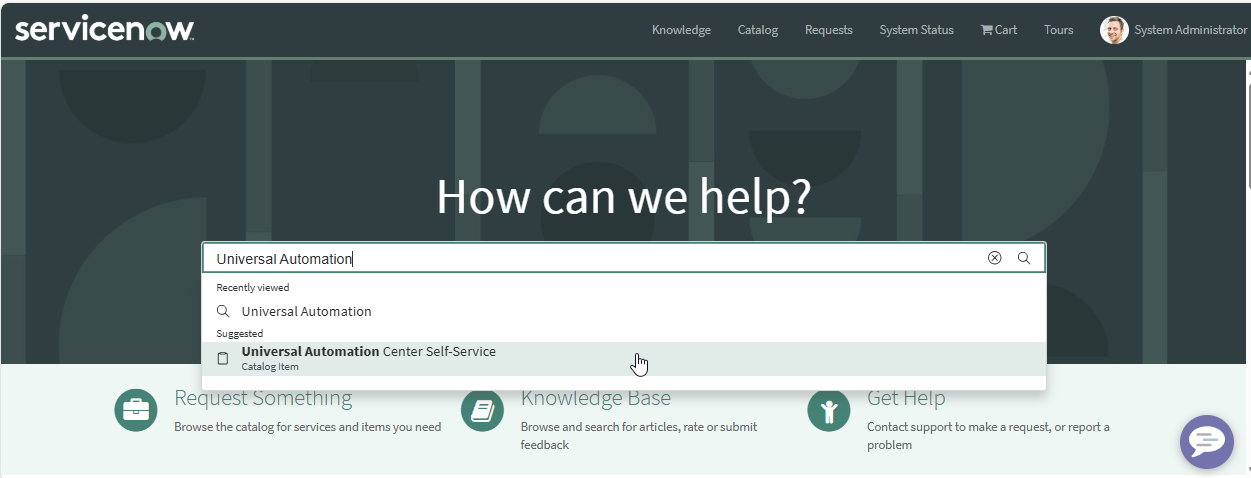
- Click the "Universal Automation Center Self-Service" item.
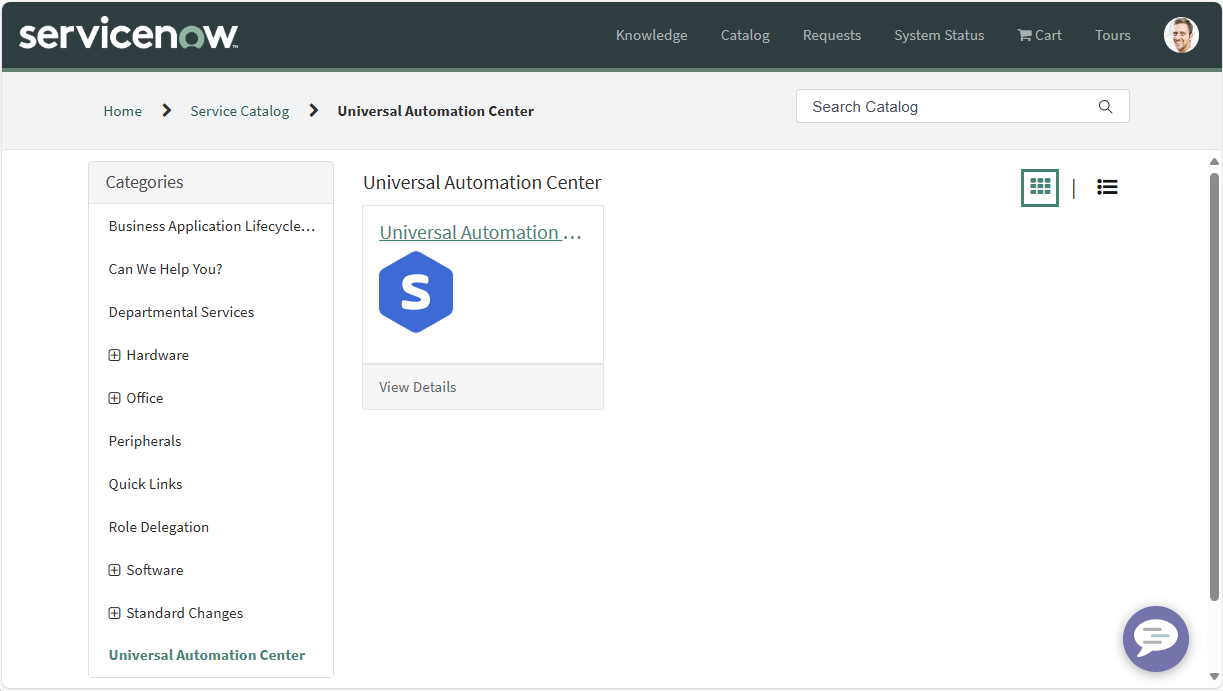
Submit Catalog Item - Universal Automation Center Self-Service
- Open the "Universal Automation Center Self-Service" catalog item form the in portal.
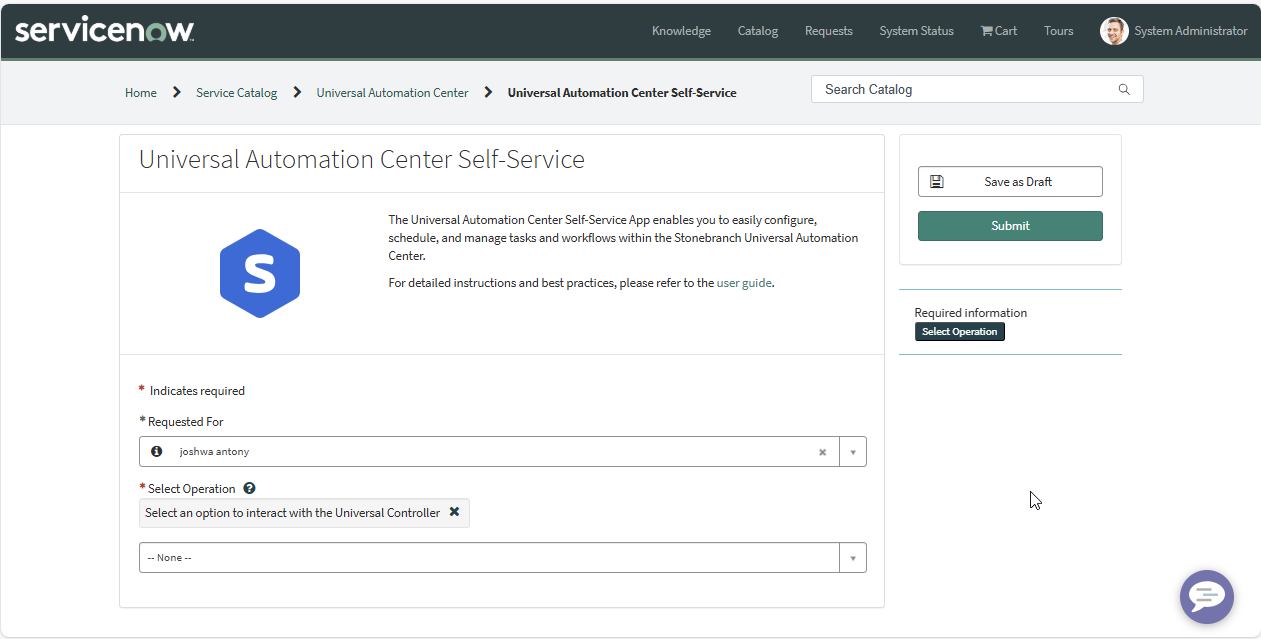
- Select Operation
# | Operation | Operation Description |
1 | Create Task [Unix, Windows, SQL, SAP] | Create a Unix, Windows, SQL or SAP task in Universal Automation Center from ServiceNow. |
2 | Hold Task | Initiate a Hold Task Instance in Universal Automation Center through ServiceNow. |
3 | Release Task | Initiate a Release Task Instance in Universal Automation Center through ServiceNow. |
4 | Halt and Force Finish Task | Initiate a Halt and Force Finish Task Instance in Universal Automation Center through ServiceNow. |
5 | Force Finish Task | Initiate a Force Finish Task Instance in Universal Automation Center through ServiceNow. |
6 | Rerun Failed Task | Rerun a Task Instance in Universal Automation Center through ServiceNow. |
7 | Launch Task/Workflow Now | Launch a Task/Workflow in Universal Automation Center through ServiceNow. |
8 | Schedule Adhoc Job | Schedule an Adhoc Task launch in Universal Automation Center through ServiceNow. |
- Configure Operation
The catalog item variables are configured to appear and become mandatory based on the selected operation. For example, when Operation = Create Task and Task Type = Windows.
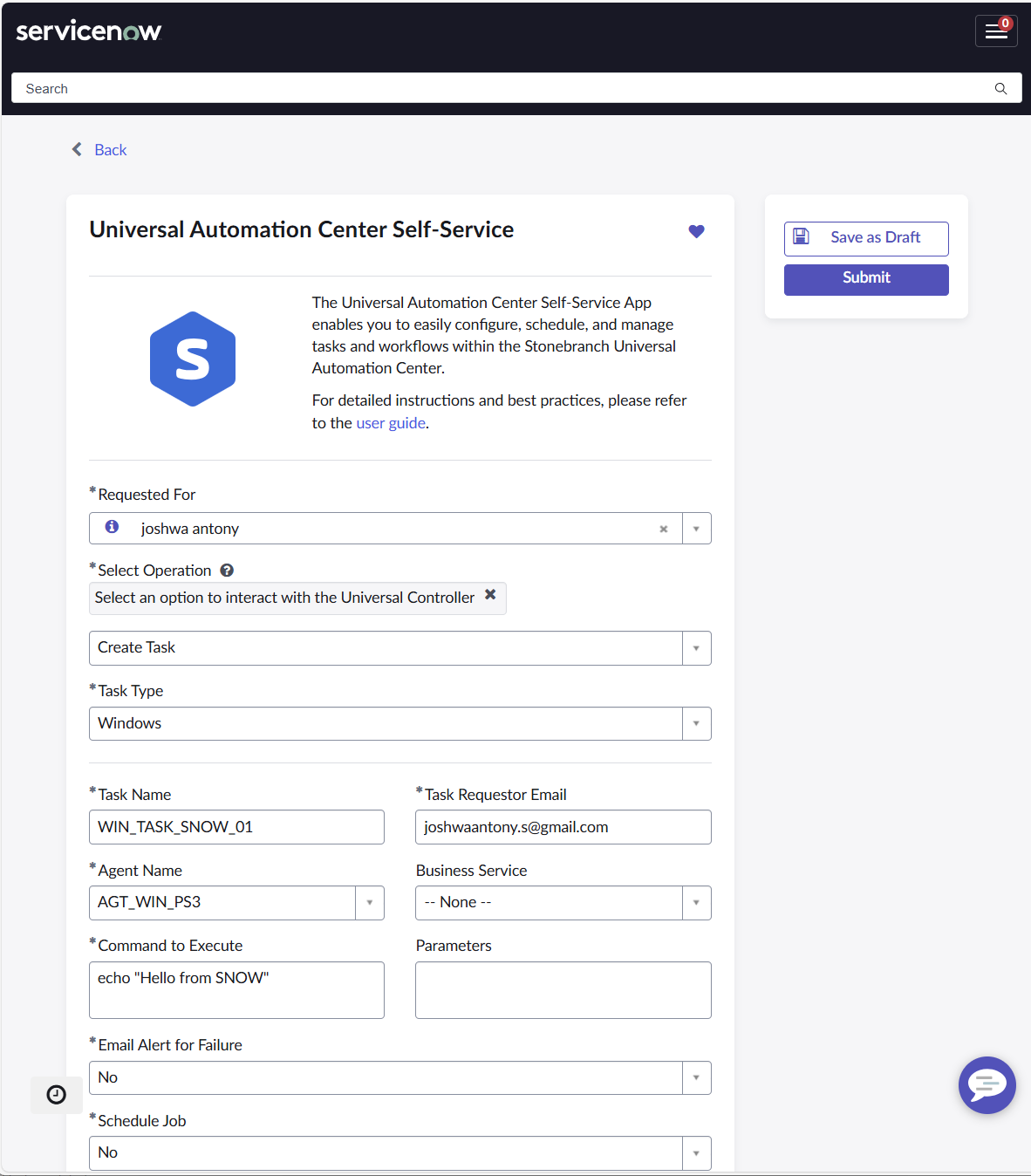
- Fill / Complete all the mandatory fields.
- Click "Submit".
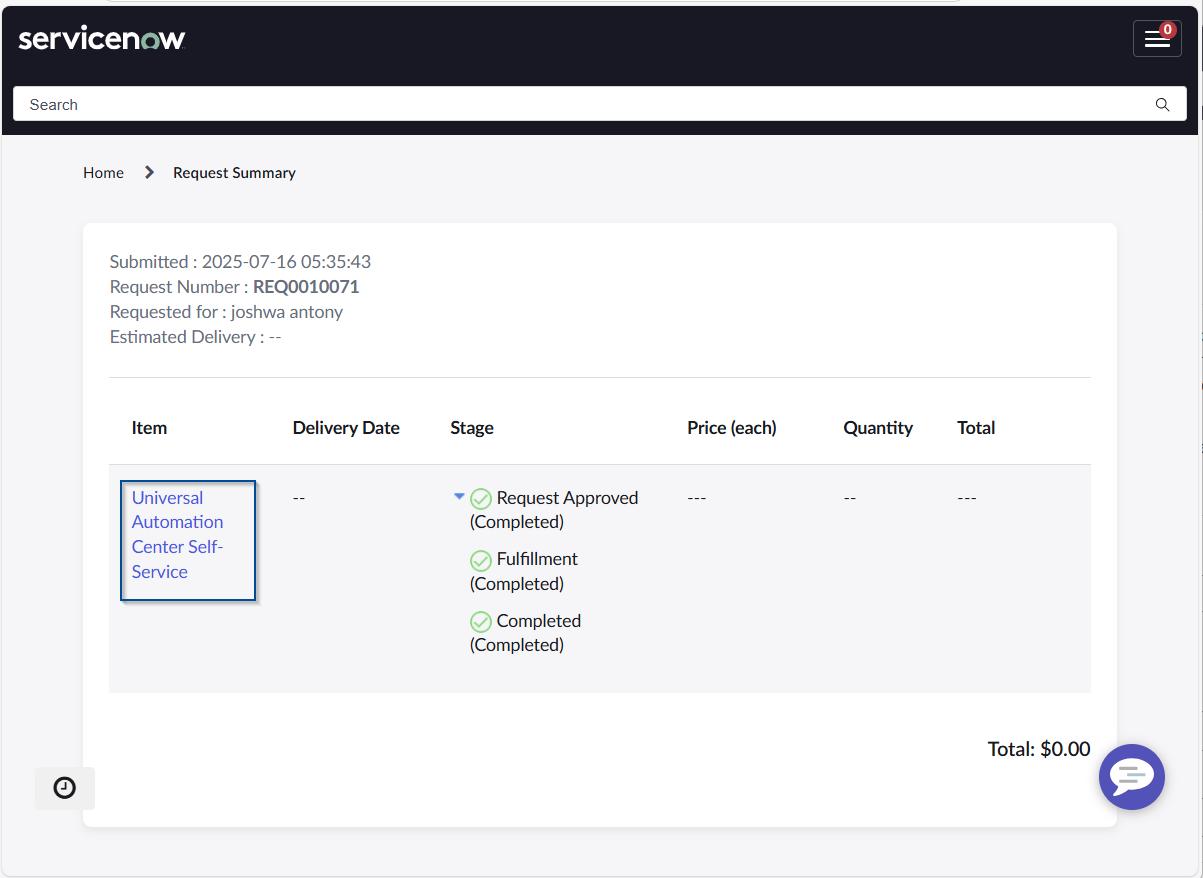
- Click "Item" to navigate to the Requested Item record.
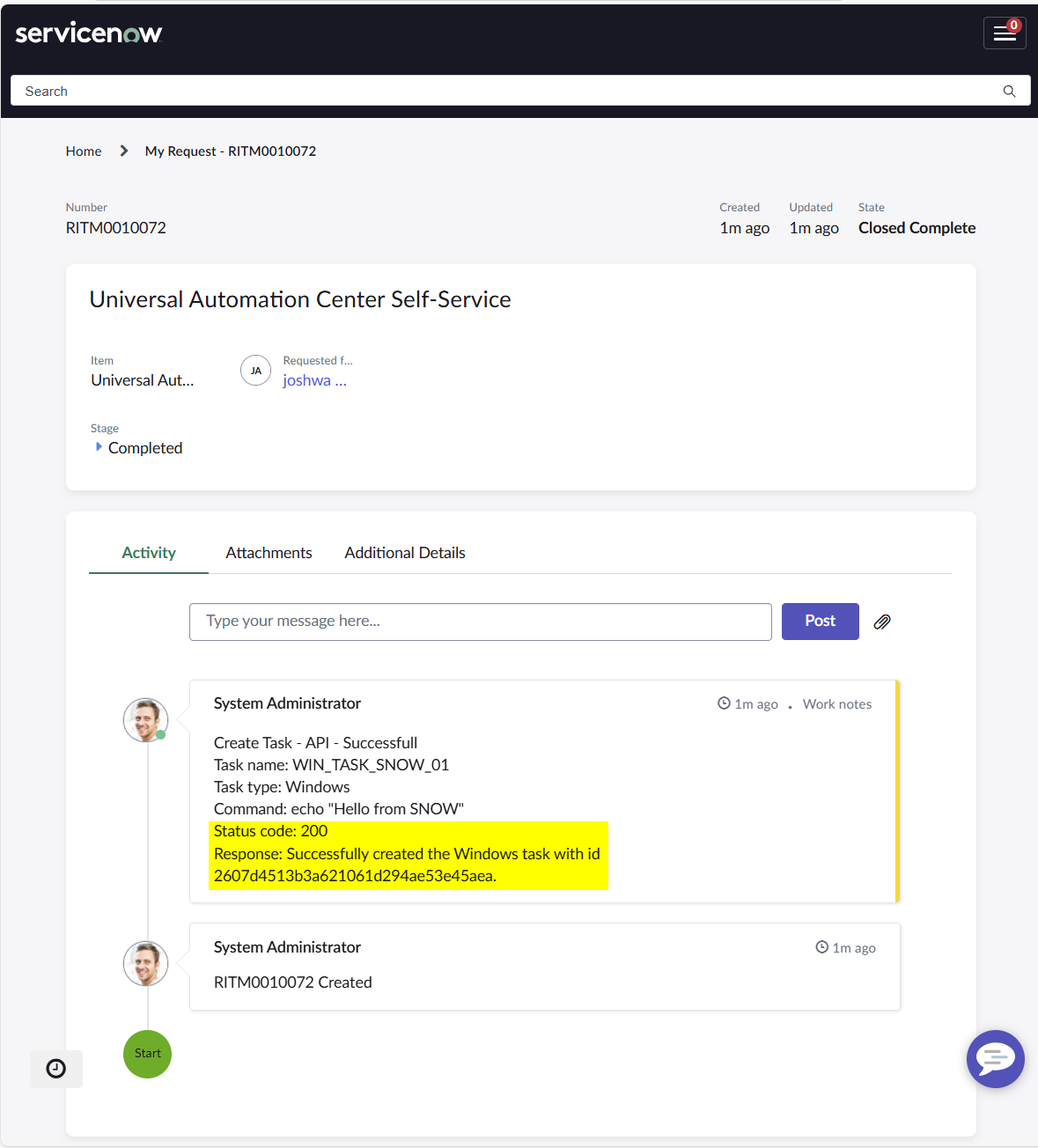
- The success or failure status of the automation is documented in the work notes of the Requested Item record.
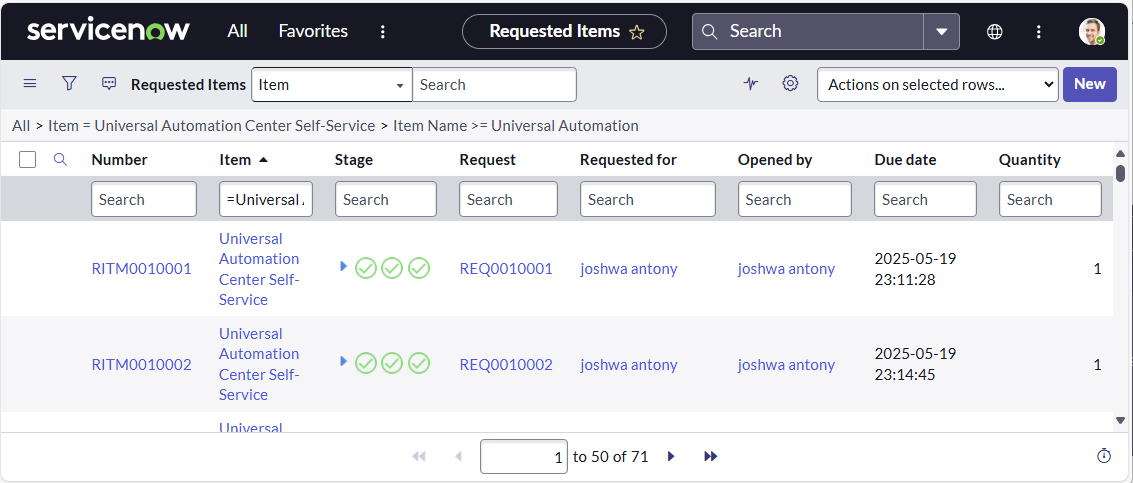
Access Submitted Requested Items
- Navigate to the application menu Universal Automation Center Self-Service > Requested Items.
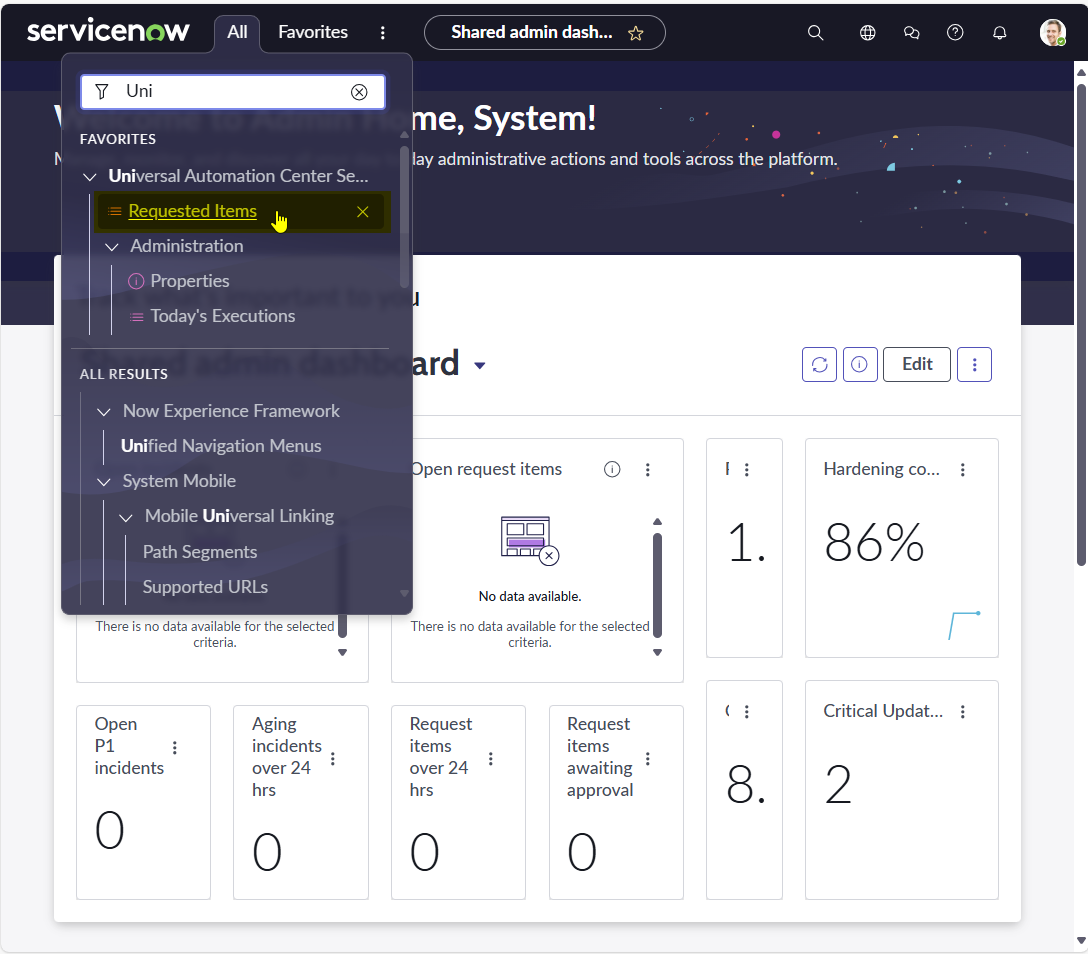
- Access the list of Requested Items submitted by your organization.
- Add a filter using "Opened By" to further narrow down the list.
Sample Operations
SAP Task with Scheduling Criteria
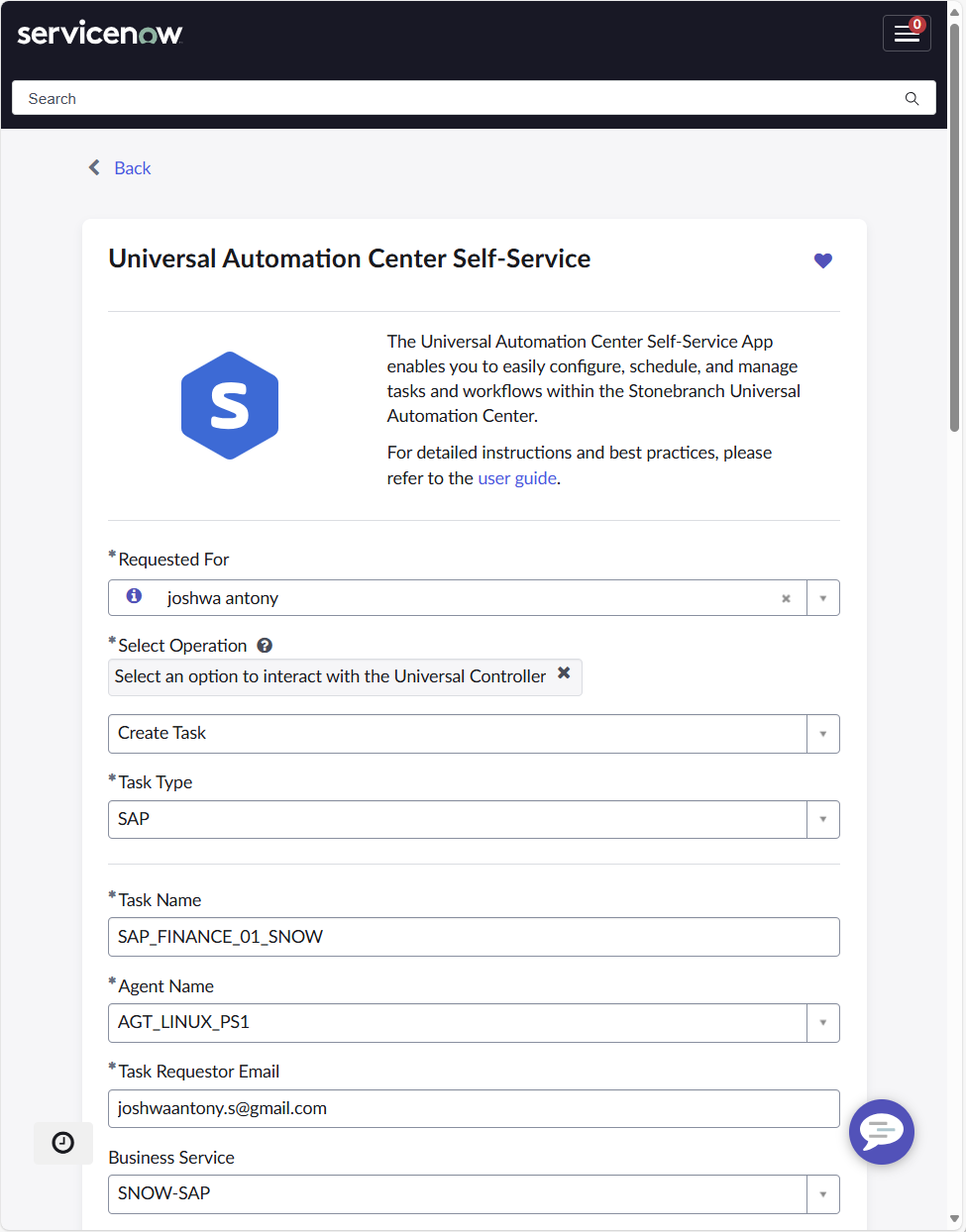
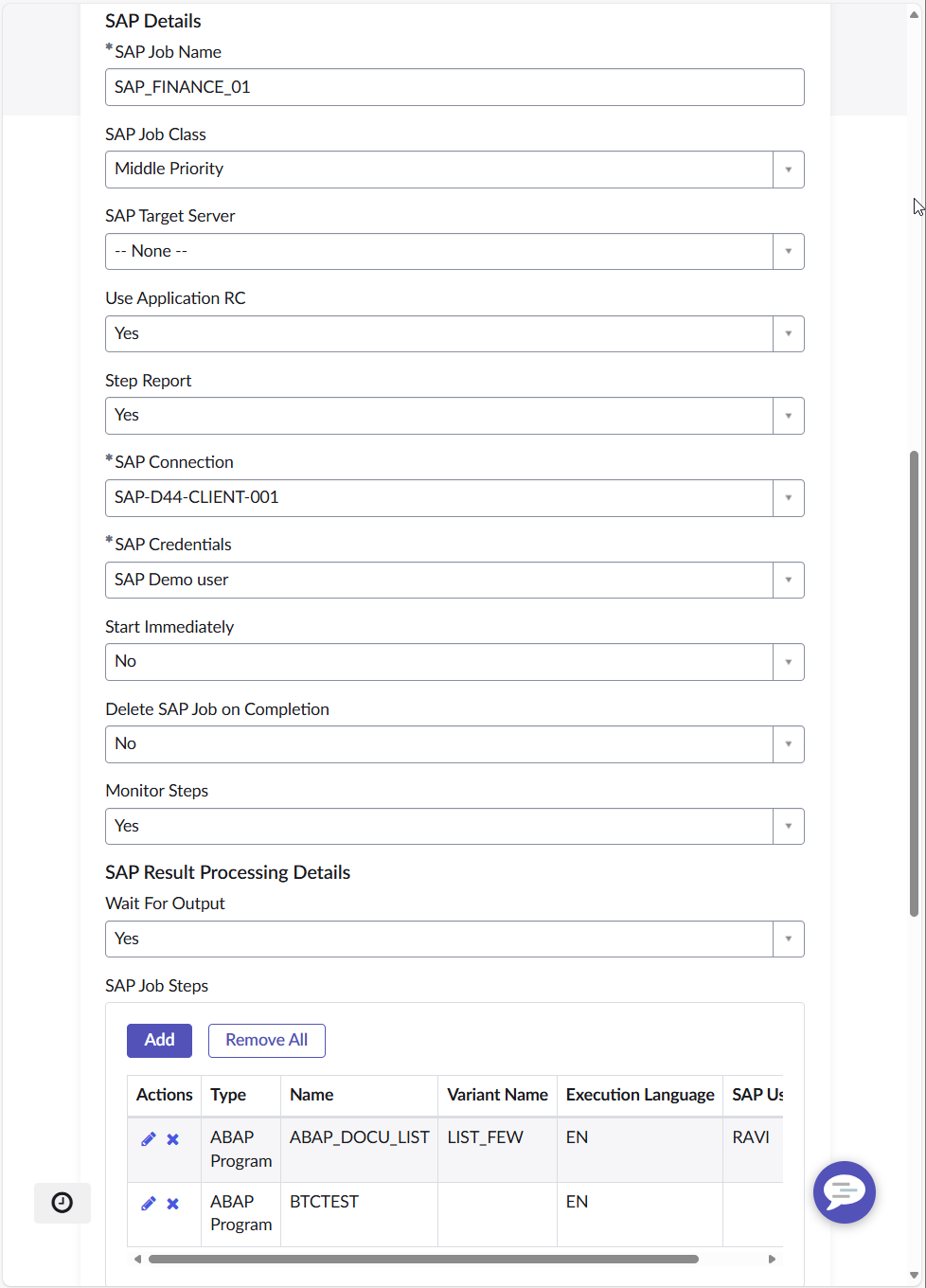
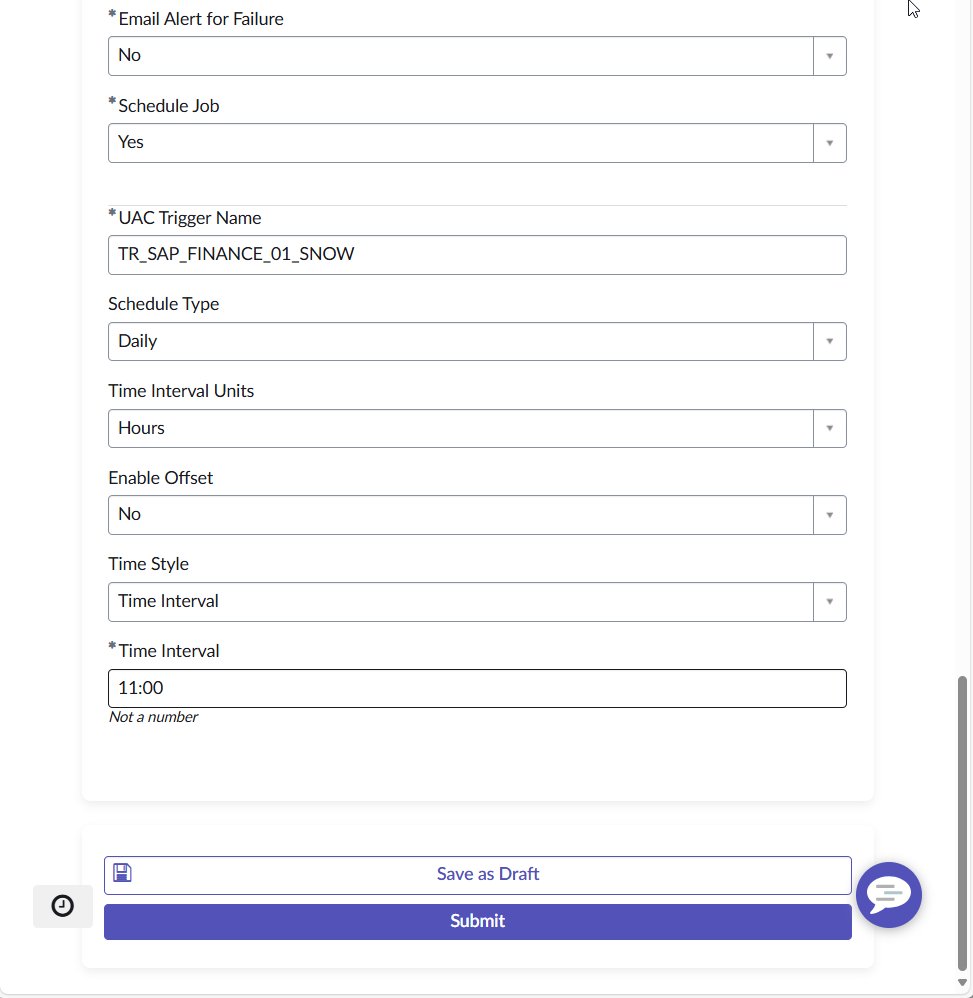
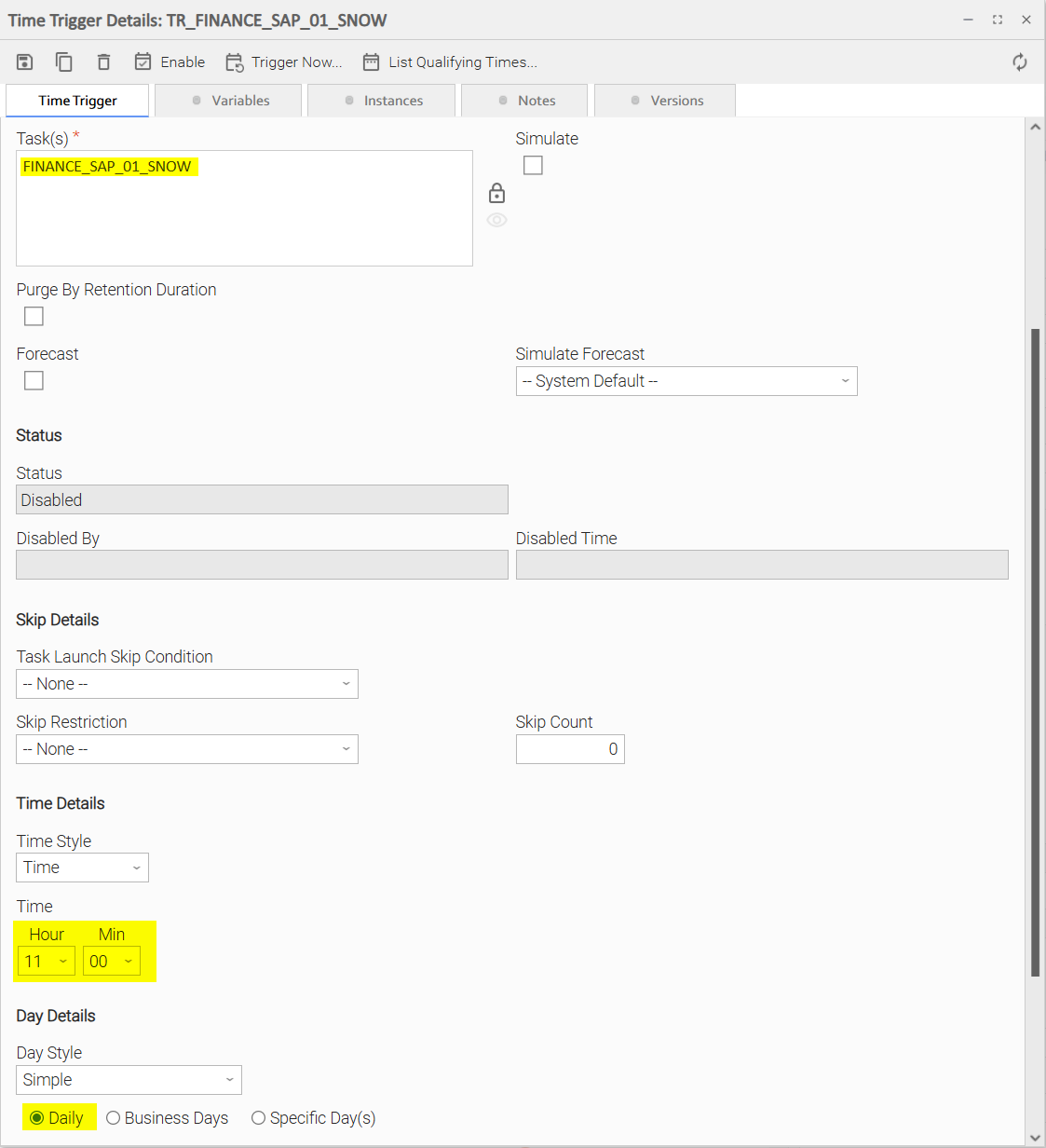
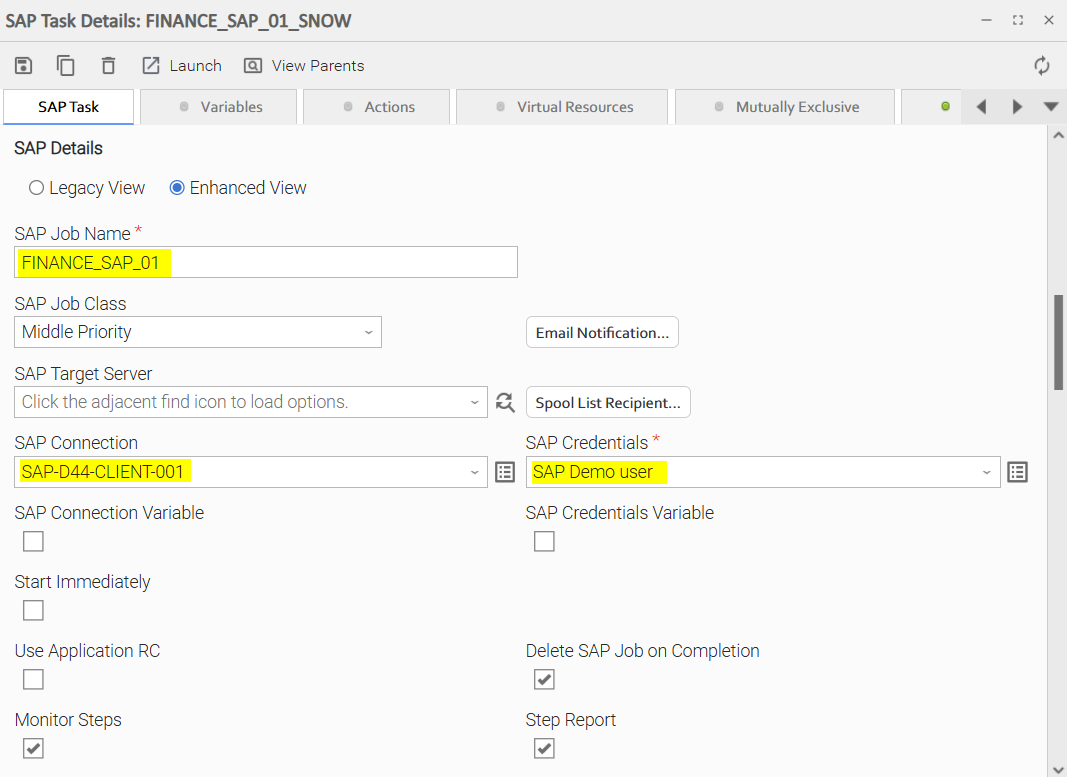
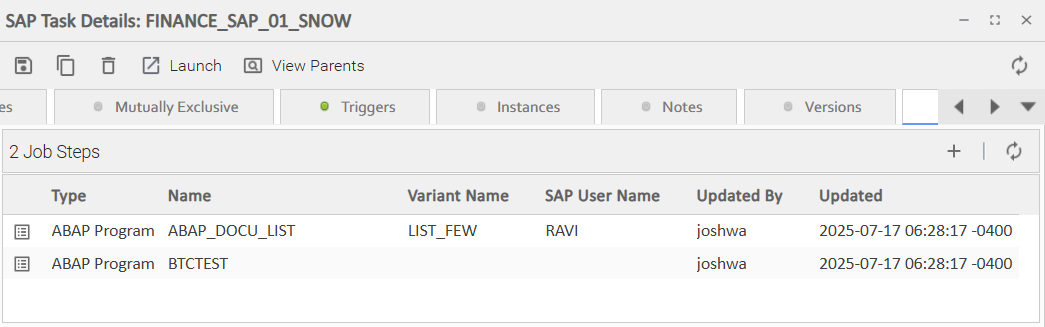
The following provides a sample Self-Service request for a new SAP Task with 2 ABAP Steps, scheduled every day at 11:00.
General Task Details
SAP Details
Scheduling Criteria
Result in Universal Controller
Once the Operation is submitted, the SAP Task including the Time Trigger is created in Universal Controller.
Note: The trigger will not be automatically enabled. This has to be done manually via the Universal Controller or Universal Portal UI.
Trigger in Universal Controller
SAP Task in Universal Controller
SAP Job Steps
Changelog
ServiceNow - Universal Automation Center Self-Service - User Guide (2025-07-18)
- Initial Version