UAC Utility: Email Monitor
Along with UAC Utility: Email, this integration replaces portions of E-Mail: SMTP and IMAP Integration.
Disclaimer
Your use of this download is governed by Stonebranch's Terms of Use.
Version Information
Template Name | Extension Name | Version | Status |
|---|---|---|---|
Email Monitor | ue-email-monitor | 1 (Current 1.0.2) | Fixes and new Features are introduced. |
Refer to Changelog for version history information.
Overview
The Email Monitor integration provides robust email monitoring using IMAP and Microsoft Graph.
Put briefly, this integration allows you to monitor a mailbox for e-mails through filtering, do certain post-actions, and trigger Universal Events to trigger follow-up workflows or tasks.
Key Features
Feature | Description |
|---|---|
Multi-Protocol Support | Support for connecting to email servers with IMAP using App Password Authentication and Microsoft Graph using App Only Authentication. |
Advanced Filtering |
|
Post Actions | Delete or Move monitored emails to selected mailbox folders. |
Publish Events | Supports publishing of rich attribute Universal Events for monitored emails, enabling follow-up triggering of Tasks and Workflows. |
Save Emails and Attachments |
|
Requirements
This integration requires a Universal Agent and a Python runtime to execute the Universal Task.
Area | Details |
|---|---|
Python Version | Requires Python 3.11, tested with Python 3.11.6. |
Universal Agent |
|
Universal Controller | Universal Controller Version >= 7.6.0.0. |
Network and Connectivity | Network connectivity towards IMAP server and Microsoft Graph API is required. |
Supported Actions
There are two Top-Level actions controlled by the Action Field:
- Retrieve emails using IMAP with App Password Authentication
- Retrieve emails using Microsoft Graph with App Only Authentication
Both actions share the same capabilities related to email processing and post actions.
Action Output
- EXTENSION
- STDERR
The extension output provides the following information:
exit_code,status_description: General info regarding the task execution.invocation.fields: The task configuration used for this task execution.result.errors: List of errors that might have occurred during execution.
Examples:Successful Scenario
Failed Scenario
Shows the logs from the Task Instance execution. The verbosity is controlled by the Task configuration Log Level.
Configuration examples
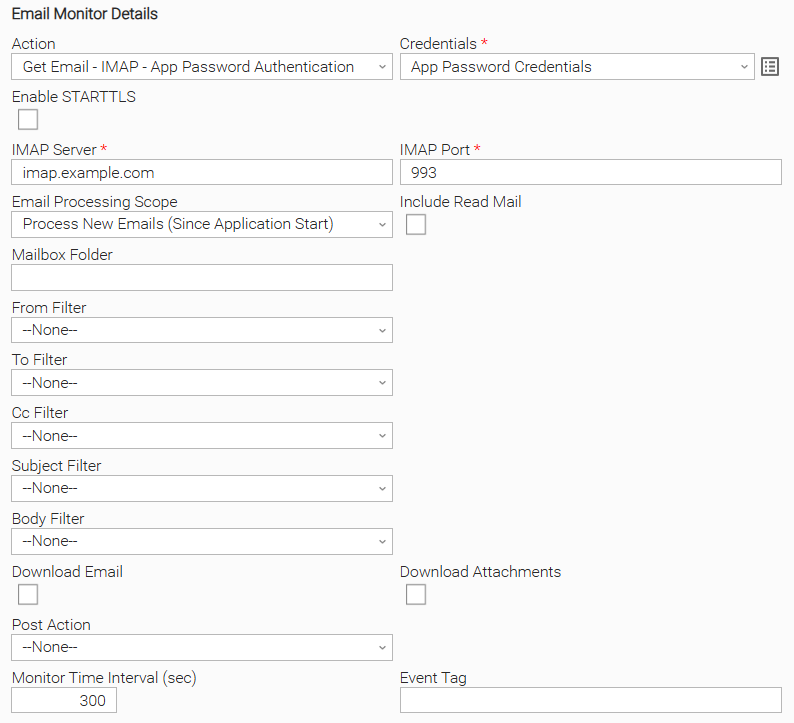
Example: Simple task configuration for IMAP
The IMAP task uses App Password Authentication and SSL/TLS encryption on port 993 to securely check for new unread emails every 300 seconds since the application started.
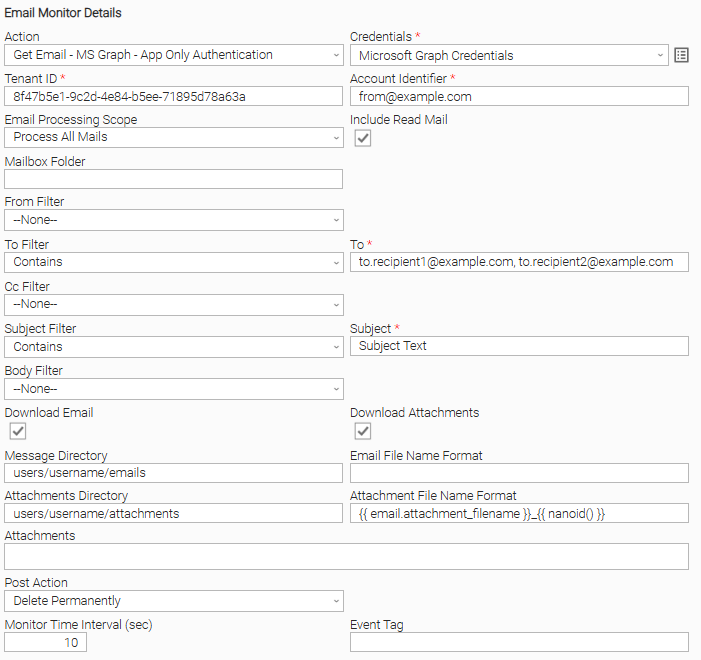
Example: GRAPH Example with post action and filters.
The MS Graph task uses App Only Authentication to connect, monitoring all existing and incoming emails (read and unread) from an Inbox, sent to specific multiple To recipients with specific Subject text, downloading emails using the default file name format and all attachments in the matching emails using custom file name format. The emails are monitored every 10 seconds. After processing, the emails are deleted.
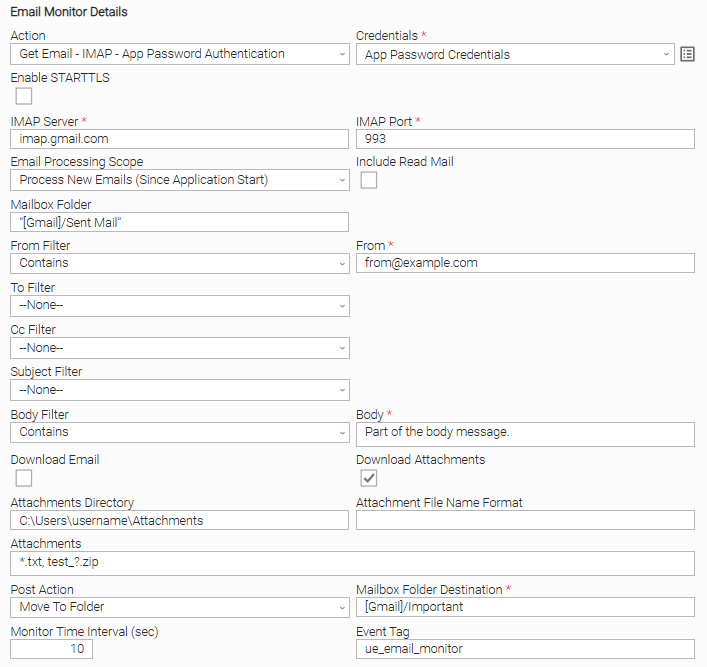
Example: IMAP Example with post action and filters.
The IMAP task uses App Password Authentication with SSL/TLS encryption on port 993 to securely connect to the Gmail server. The task monitors for new emails from a specific sender and with a specific substring of the body message. Only the attachments matching the patterns in the Attachments field are downloaded, using the default file name format. The emails are monitored every 10 seconds, and the events are published with a specific tag. After processing, the emails are moved to a folder.
Importable Configuration Examples
This integration provides importable configuration examples along with their dependencies, grouped as Use Cases to better describe end to end capabilities.
Those examples aid in allowing task authors to get more familiar with the configuration of tasks and related Use Cases. Such tasks should be imported in a Test system and should not be used directly in production.
Initial Preparation Steps
- STEP 1: Go to Stonebranch Integration Hub and download "UAC Utility: Email" and "UAC Utility: Email Monitor" integrations. Extract the downloaded archives on separate directories in a local drive.
- STEP 2: Locate and import the above integrations to the target Universal Controller. For more information refer to the How To section in this document.
- STEP 3: For "UAC Utility: Email Monitor", inside the directory named "configuration_examples" you will find a list of definition zip files. Upload them one by one respecting the order presented below, by using the "Upload" functionality of Universal Controller:
- variables.zip
- credentials.zip
- scripts.zip
- tasks.zip
- monitors.zip
- workflows.zip
- triggers.zip
- STEP 4: Update the uploaded UAC Credential entities introduced with proper Client ID / Client Secret
- STEP 5: Update the UAC global variables introduced with variables.zip file. Their name is prefixed with "ue_email_monitor". Review the descriptions of the variables as they include information on how should be populated.
- The order indicated above ensures that the dependencies of the imported entities need to be uploaded first.
- All imported entities are prefixed with UC1 or UC2 depending on the Use Case.
How to "Upload" Definition Files to a Universal Controller
The "Upload" functionality of Universal Controller allows Users to import definitions exported with the "Download" functionality.
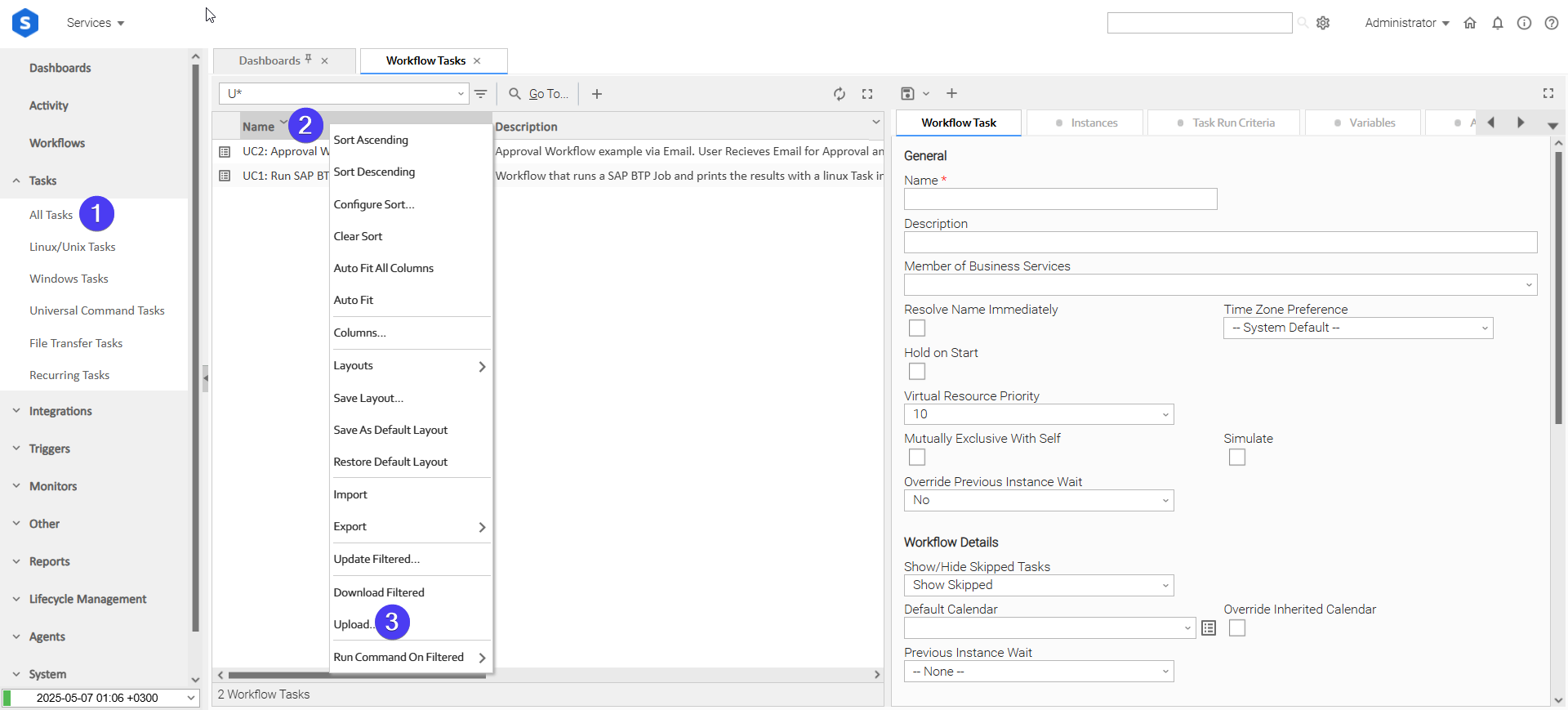
Login to Universal Controller and:
- STEP 1: Click on "Tasks" → "All Tasks"
- STEP 2: Right click on the top of the column named "Name"
- STEP 3: Click "Upload..."
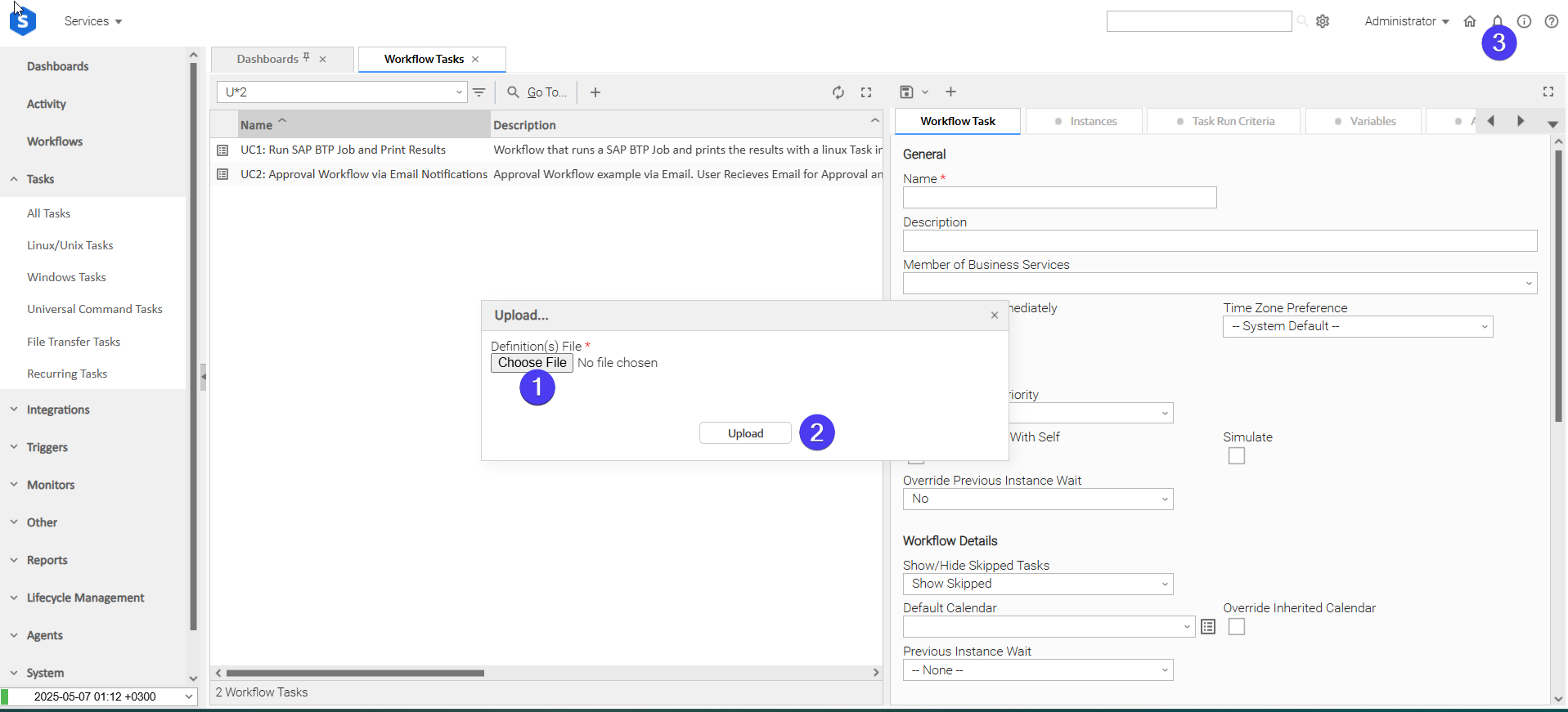
In the pop-up "Upload..." dialogue:
- STEP 1: Click "Choose File".
- STEP 2: Select the appropriate zip definition file and click "Upload".
- STEP 3: Observe the Console for possible errors.
Use Case 1: For each monitored email, trigger a Workflow
Description
In this Use Case, emails are the triggering point for executing a workflow. Emails can be filtered based on their content and attributes. Workflows are executed and they can be "aware" of the attributes and content of the mail that initiates the triggering.
The tasks configured demonstrate the following capabilities among others:
- Capability to trigger a task or a workflow based on received Emails.
- Propagation of useful information (like Email attributes) to downstream tasks.
- Availability of Email attachment on downstream tasks,
The components of the solution are described below:
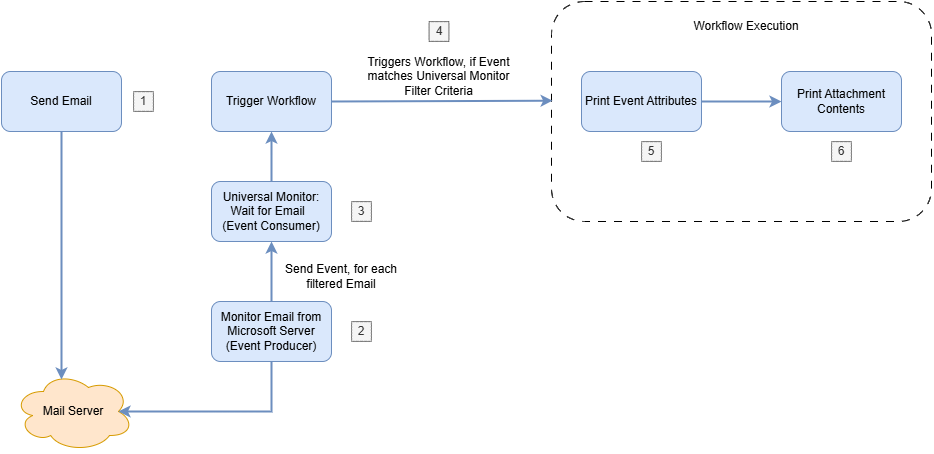
- "UC1: Send Email" - Send Email to a Mailbox using the Email Integration
- "UC1: Monitor Email from Microsoft Server (Event Producer)" - Subscribes to Microsoft Server, monitors emails, saves attachments and emails on the Agent's filesystem and sends Universal Event for each monitored email.
- "UC1: Universal Monitor: Wait for Email (Event Consumer)" - Monitors the Universal Events published from "UC1: Monitor Email from Microsoft Server (Event Producer)"
- "UC1: Trigger Workflow" - Triggers the configured workflow "UC1: Workflow Execution" when the Monitor condition on (3) is true.
- "UC1: Print Event Attributes" - A task that is executed inside "UC1: Workflow Execution". Prints the Event Attributes which contain information from the Sent Email (1)
- "UC1: Print Attachment Contents" - A task that is executed inside "UC1: Workflow Execution". Prints the Emails Attachment, if (1) is configured to have an attachment.
How to Run
Execution Steps:
- STEP 1: Enable Trigger "UC1: Trigger Workflow". This automatically starts "UC1: Universal Monitor: Wait for Email (Event Consumer)" and "UC1: Monitor Email from Microsoft Server (Event Producer)"
- STEP 2: Launch task "UC1: Send Email". By default, it does not point to an attachment but can be configured to do so. Repeat task multiple times. Workflow is triggered for each email monitored successfully.
- STEP 3: Review the outputs of "UC1: Print Event Attributes" & "UC1: Print Attachment Contents" task instances.
Expected Results:
- Mail is sent, successfully monitored and a workflow is launched.
- Tasks "UC1: Print Event Attributes" and "UC1: Print Attachment Contents" provide the required information from the originated Email.
Use Case 2: Approval Workflow via Email Notifications
Description
In this Use Case, emails are used as a mechanism for approval within an executed workflow. The user can make the approval, using only the mailbox application of choice. The tasks configured demonstrate the following capabilities among others:
- Capability to have an approval workflow via email notifications.
- Propagation of useful information (like Approval Reply Email body) to downstream tasks
- Move monitored emails to specific mailbox folder ("Archive" default email folder is used)
The components of the solution are better described through the workflow below:
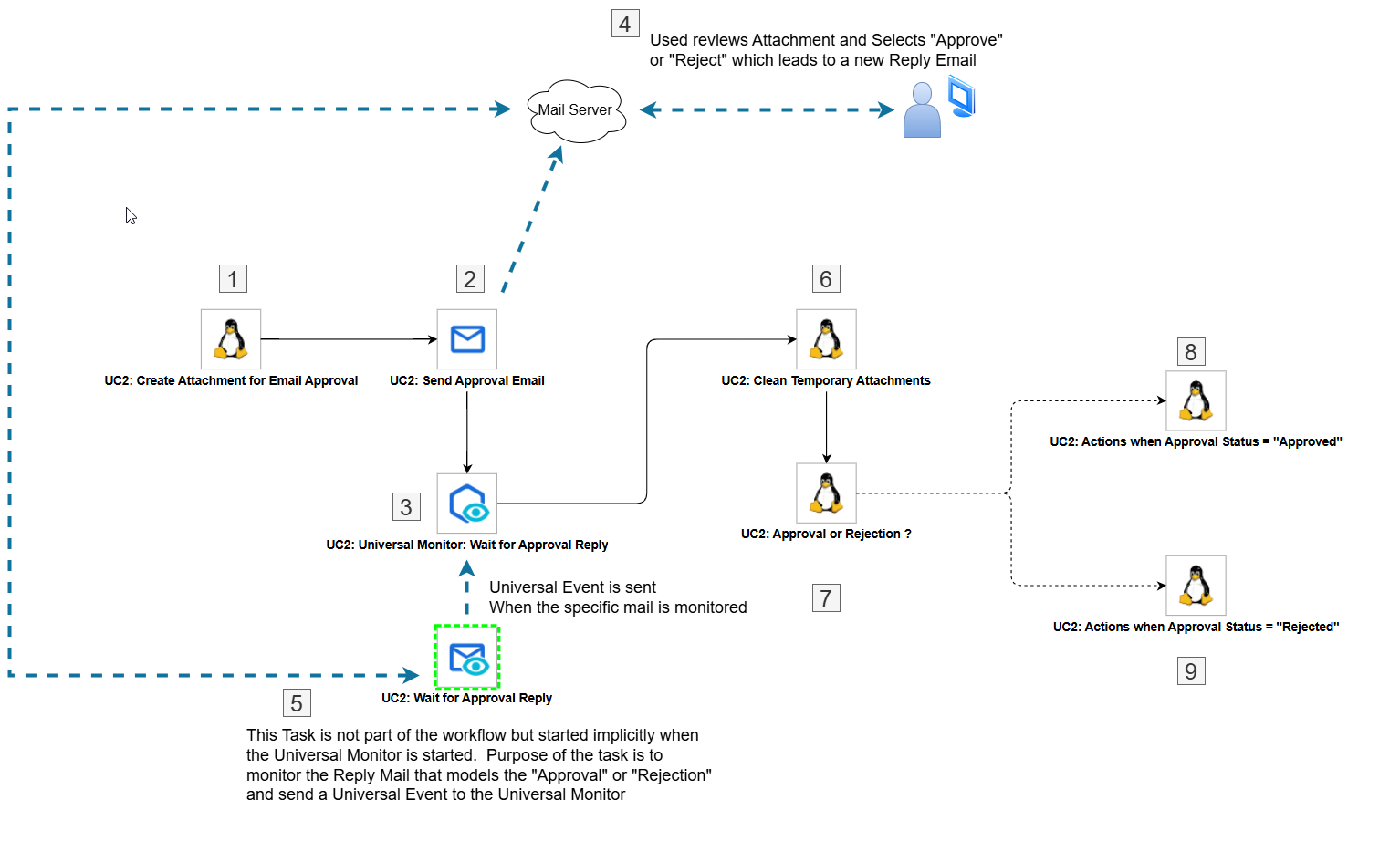
- "UC2: Create Attachment for Email Approval" - Creates a simple txt attachment on the Agent as a preparation step before the sending of the approval email.
- "UC2: Send Approval Email" - Sends an approval Email.
- "UC2: Universal Monitor: Wait for Approval Reply" - Monitors the Universal Events published from "UC2: Wait for Approval Reply". Task is running while waiting for the event to come. Note that when "UC2: Universal Monitor: Wait for Approval Reply" is started, the task "UC2: Wait for Approval Reply" is automatically started, which is responsible for Email Monitoring.
- Then, the User using the mailbox application of choice performs the following steps:
- Receives an approval Email.
- Reviews the attachment and related content.
- Clicks on "Approve" or "Reject" button links. A preformatted email appears where user can add additional text as a reply. The content of this mail can be seen on (8) and (9)
- Sends the Email.
- "UC2: Wait for Approval Reply" detects the Approval Reply and sends a Universal Event to "UC2: Universal Monitor: Wait for Approval Reply". The monitor condition of "UC2: Universal Monitor: Wait for Approval Reply" is set to true and task instance gets completed, allowing for the resume of the workflow.
- "UC2: Clean Temporary Attachments" - Cleans up the temporary attachment that is created in (1).
- "UC2: Approval or Rejection ?" - Task that exits with "0" in case of Approval, and exits with "1" in case of Rejection. Used to branch-out the workflow and have separate tasks for "Approval" or for "Rejection"
- "UC2: Actions when Approval Status = "Approved"" - A simple task that models the task that is run in case of "Approval". It prints approval status and the body of the mail related to the Approval Reply.
- "UC2: Actions when Approval Status = "Rejected"" - A simple task that models the task that is run in case of "Approval". It prints approval status and the body of the mail related to the Rejection Reply.
How to Run
Execution Steps:
- STEP 1: Start workflow "UC2: Approval Workflow via Email Notifications"
- STEP 2: Notice that on the configured email address an Email Approval has been sent. For best results, use the preview pane to click the Approve/Reject links on the following step, as some mailbox applications restrict the usage of links in separate windows.
- STEP 3: Click "Approve" or "Reject". A preformatted mail appears. You can update the content of the mail providing some information and send the mail. Mail is sent, universal monitor after a while detects the Email approval reply and workflow is resumed until completion
- STEP 4: Review the STDOUT of tasks "UC2: Actions when Approval Status = "Approved"" or "UC2: Actions when Approval Status = "Rejected""
Expected Results:
- "UC2: Actions when Approval Status = "Approved"" or "UC2: Actions when Approval Status = "Rejected"" should reflect the approval status and body of the Email approval reply.
Input Fields
Name | Type | Description | Version Information |
|---|---|---|---|
Action | Choice | The action performed upon the task execution.
| Introduced in 1.0.0 |
Credentials | Credential | Credentials used to securely connect to email services through IMAP and Microsoft Graph. The Credentials definition should be populated as follows. For Action: Get Email - IMAP - App Password Authentication
For Action: Get Email - MS Graph - App Only Authentication
| Introduced in 1.0.0 |
Enable STARTTLS | Checkbox | Enables STARTTLS encryption method for email retrieval. When disabled, SSL/TLS encryption method will be enabled. Required when Action is "Get Email - IMAP - App Password Authentication". | Introduced in 1.0.0 |
IMAP Server | Text | The IMAP server for email retrieval. Required when Action is "Get Email - IMAP - App Password Authentication". | Introduced in 1.0.0 |
IMAP Port | Text | The port number for IMAP server connection. The commonly known values are the following.
Required when Action is "Get Email - IMAP - App Password Authentication". | Introduced in 1.0.0 |
Tenant ID | Text | The unique identifier of the Azure Active Directory (Azure AD) tenant associated with the Microsoft 365 account used for retrieving emails. Required when Action is "Get Email - MS Graph - App Only Authentication". | Introduced in 1.0.0 |
Account ID | Text | The email address or User Principal Name of the Microsoft account for accessing Microsoft Graph. Required when Action is "Get Email - MS Graph - App Only Authentication". | Introduced in 1.0.0 |
Email Processing Scope | Choice | Select the email scope to be processed.
| Introduced in 1.0.0 |
Include Read Mail | Checkbox | Enable including read mails to be processed. If disabled, only unread mails are processed. | Introduced in 1.0.0 |
Mailbox Folder | Text | The source mailbox folder from which to retrieve the emails. If left empty, the default value is Inbox. tip For most Gmail folders, the folder name needs to be prefixed with "[Gmail]/" to specify the full path. For example, for the Important folder it will be [Gmail]/Important. Special case is the Sent Mail folder, where the value in the Mailbox Folder field needs to be enclosed in double quotes, "[Gmail]/Sent Mail". This also applies to the Mailbox Folder Destination. | Introduced in 1.0.0 |
From Filter | Choice | Configure the From filter. The following options are available.
| Introduced in 1.0.0 |
From | Text | Sender email address to filter messages from. Full text and substrings can be matched. Required when From Filter is "Contains". | Introduced in 1.0.0 |
To Filter | Choice | Configure the To filter. The following options are available.
| Introduced in 1.0.0 |
To | Text | Recipient email address(es) to filter messages from. Multiple To addresses are separated with comma. Full text and substrings can be matched. Required when To Filter is "Contains". | Introduced in 1.0.0 |
Cc Filter | Choice | Configure the Cc filter. The following options are available.
| Introduced in 1.0.0 |
Cc | Text | Carbon copy recipient email address(es) to filter messages from. Multiple Cc addresses are separated with comma. Full text and substrings can be matched. Required when Cc Filter is "Contains". | Introduced in 1.0.0 |
Subject Filter | Choice | Configure the Subject filter. The following options are available.
| Introduced in 1.0.0 |
Subject | Text | The subject text to filter email messages by. Full text and substrings can be matched. Required when Subject Filter is "Contains". | Introduced in 1.0.0 |
Body Filter | Choice | Configure the Body filter. The following options are available.
| Introduced in 1.0.0 |
Body | Text | The body content to filter email messages from. Full text and substrings can be matched. Required when Body Filter is "Contains". | Introduced in 1.0.0 |
Download Email | Checkbox | Enables downloading email messages locally on the Agent's filesystem. | Introduced in 1.0.0 |
Message Directory | Text | Directory path where the downloaded email messages will be stored. | Introduced in 1.0.0 |
Email File Name Format | Text | Format pattern for naming downloaded email messages files. The values that can be specified as part of the format pattern are the following.
If the field is left empty, the default pattern used is the following.
tip
For example, If the email subject is "Meeting Notes" and no custom naming pattern is specified, the resulting file will be | Introduced in 1.0.0 |
Download Attachments | Checkbox | Enable downloading email attachments locally on the Agent's filesystem. | Introduced in 1.0.0 |
Attachments Directory | Text | Directory path where the downloaded email attachments will be stored. | Introduced in 1.0.0 |
Attachment File Name Format | Text | Format pattern for naming downloaded email attachment files. The values that can be specified as part of the format pattern are the following.
If the field is left empty, the default pattern used is the following.
tip The filename extension is taken from the email's attachment. Including a filename extension in the input field value may cause duplication or errors when accessing the file. For example, If the email subject is "Meeting Notes" with an attachment named "meeting_notes.txt" and the naming pattern field is left empty, the file will be saved using the default pattern as:
where | Introduced in 1.0.0 |
Attachments | Text | The email attachments to be downloaded. Multiple attachments are separated with comma. Attachments can be specified with file names or wildcards. | Introduced in 1.0.0 |
Post Action | Choice | The post action to be performed over the filtered emails on the email service provider. The following options are available.
| Introduced in 1.0.0 |
Mailbox Folder Destination | Text | The mailbox folder where the filtered emails will be moved on the email service provider. Required when Post Action is "Move To Folder". | Introduced in 1.0.0 |
Monitor Time Interval (sec) | Integer | Interval period in seconds used to monitor for new matching emails. | Introduced in 1.0.0 |
Event Tag | Text | This field allows task authors to define a 'tag' attribute for the generated universal events, enabling more filtering capabilities at the Universal Monitor level. | Introduced in 1.0.0 |
Output Fields
Field | Type | Description | Introduced in Version |
|---|---|---|---|
Total Emails Processed | Text | The total number of email messages that are matched and processed. | Introduced in 1.0.0 |
Email Monitor Events
Event Template: Email Monitor
Attribute | Description | Type |
|---|---|---|
Mailbox Folder | The source mailbox folder from which to retrieve and process the emails. This is the input field Mailbox Folder. | Text |
From | Sender email address from the monitored email. | Text |
To | Recipient email address(es) from the current monitored email, as one string | Text |
Cc | Carbon copy recipient email address(es) from the current monitored email, as one string | Text |
Subject | The subject text from the current monitored email. | Text |
Body | The body content from the current monitored email. | Text |
Message Directory | The directory path where the downloaded email messages are stored. This is the input field Message Directory. | Text |
Attachments Directory | The directory path where the downloaded email attachments are stored. This is the input field Attachments Directory. | Text |
Agent Name | The Agent name on which the task is executed. When a follow-up task or workflow is executed through Universal Event monitoring, it allows them to be executed on the same Agent the Email Monitor task is executed by using Agent Variable = . This can be quite useful if the follow-up task or workflow needs to process the saved email or the saved attachments. | Text |
Event Tag | The event tag allows task authors to configure a Tag of their choice. | Text |
Message Path | The full file path to the saved processed email. | Text |
Attachment Paths | The full file path(s) to the downloaded attachment(s) of the processed email. | Text |
Environment Variables
Environment Variables can be set from Environment Variables task definition table. The following environment variables can affect the behavior of the extension.
Environment Variable Name | Description | Version Information |
|---|---|---|
UE_HTTP_TIMEOUT | This environment variable defines the global timeout value for sending the email across all HTTP requests. It affects both connection and read timeouts, preventing requests from hanging. Accepted values: Positive integer (in seconds). If the environment variable is not set, the timeout will default to 60 seconds. | Introduced in 1.0.0 |
Exit Codes
Exit Code | Status | Status Description | Meaning |
|---|---|---|---|
0 | Success | "Task executed successfully" | Successful Execution |
1 | Failure | "Execution Failed: <<Error Description>>" | Generic Error. Raised when not falling into the other Error Codes. |
STDOUT and STDERR
STDOUT of this integration is empty and STDERR provides additional information to the user, the detail of it is tuned by Log Level Task Definition field.
Backward compatibility is not guaranteed for the content of STDOUT/STDERR and can be changed in future versions without notice.
How To
Import Universal Template
To use the Universal Template, you first must perform the following steps.
- This Universal Task requires the Resolvable Credentials feature. Check that the Resolvable Credentials Permitted system property has been set to true.
- To import the Universal Template into your Controller, follow these instructions.
- When the files have been imported successfully, refresh the Universal Templates list; the Universal Template will appear on the list.
Modifications of this integration, applied by users or customers, before or after import, might affect the supportability of this integration. For more information refer to Integration Modifications.
Integration Modifications
Modifications applied by users or customers, before or after import, might affect the supportability of this integration. The following modifications are discouraged to retain the support level as applied for this integration.
- Python code modifications should not be done.
- Template Modifications
-
General Section
- "Name", "Extension", "Variable Prefix", and "Icon" should not be changed.
-
Universal Template Details Section
- "Template Type", "Agent Type", "Send Extension Variables", and "Always Cancel on Force Finish" should not be changed.
-
Result Processing Defaults Section
- Success and Failure Exit codes should not be changed.
- Success and Failure Output processing should not be changed.
-
Fields Restriction Section
The setup of the template does not impose any restrictions. However, concerning the "Exit Code Processing Fields" section.i. Success/Failure exit codes need to be respected.
ii. In principle, as STDERR and STDOUT outputs can change in follow-up releases of this integration, they should not be considered as a reliable source for determining the success or failure of a task.
-
Event Template configuration related to "Metric Label Attributes" & "Optional Metric Labels" is allowed. However, administrators should be cautious of high cardinality scenarios that might occur.
Users and customers are encouraged to report defects, or feature requests at Stonebranch Support Desk.
Document References
This document references the following documents:
Document Link | Description |
|---|---|
User documentation for creating, working with and understanding Universal Templates and Integrations. | |
User documentation for creating Universal Tasks in the Universal Controller user interface. | |
User documentation for Universal Event Template fields definition. | |
User documentation for creating Universal Monitor Tasks in the Universal Controller user interface. | |
User documentation for Universal Triggers in the Universal Controller user interface. |
Changelog
ue-email-monitor-1.0.2 (2026-01-15)
Enhancements
Added: Improving Python compatibility with future Agent versions.
ue-email-monitor-1.0.1 (2025-11-07)
Fixes
- Fix corrupted tasks.zip file in the configuration_examples folder. (#50464)
ue-email-monitor-1.0.0 (2025-05-29)
Initial Version