UAC Utility: Enhanced Linux
This integration has been sunset. Since the release of UAC 8.1, the functionality of this integration is included in the standard Linux task.
Disclaimer
Your use of this download is governed by Stonebranch's Terms of Use.
Version Information
Template Name | Extension Name | Version | Status |
|---|---|---|---|
Enhanced Linux | ue-enhanced-linux | 1.0.0 | Initial Version. |
Refer to Changelog for version history information.
Overview
Linux and Unix systems are commonly automated through shell commands and shell scripts executed on the target host, frequently under a dedicated service account and with a login profile that establishes the environment the workload expects.
This Universal Task allows customers to run shell commands and shell scripts on a Linux host straight from the Universal Controller, with control over the executing user, the environment profile applied before execution, and where the produced output is stored.
Key Features
Feature | Description |
|---|---|
Command and Script Execution | Run either an inline shell command or a full shell script on the target Linux host and return its exit code to the Universal Controller. |
Execution as Another User | Run the command or script as a different local user through sudo, without requiring the Universal Agent to run as that user. |
Environment Profile Sourcing | Source a profile file before the command or script runs, so the workload executes with the environment it expects. |
Output Redirection to Files | Redirect STDOUT and STDERR to files on the target host, in either overwrite or append mode, while still returning the content to the Task Instance. |
Requirements
This integration requires a Universal Agent and a Python runtime to execute the Universal Task.
Area | Details |
|---|---|
Python Version | Requires Python 3.11, tested with Agent bundled python distribution. |
Universal Agent Compatibility |
|
Universal Controller Compatibility | Universal Controller Version >= 7.6.0.0. |
Network and Connectivity | Network connectivity to the target Linux host running the Universal Agent is required. |
Target Host Prerequisites |
|
Supported Actions
There is one Top-Level action controlled by the Action Field:
The Launch Linux Task action executes a shell command or a shell script on the Universal Agent host, optionally as another user through sudo and optionally after sourcing a profile file. The Task Instance ends as soon as the command or script terminates, and the exit code of the command or script is returned as the exit code of the Universal Task.
Action Output
- EXTENSION
- STDOUT
The extension output provides the following information:
exit_code, status_description: General info regarding the task execution.invocation.fields: The task configuration used for this execution. For more information refer to exit codes table.result.rc: The exit code returned by the executed command or script.result.output: The captured STDOUT of the executed command or script, or its STDERR when STDOUT is empty.result.errors: List of errors that might have occurred during execution.
Examples:Successful execution
Failed execution
STDOUT contains the command that was executed or the path of the script that was executed, followed by the output produced by that command or script. Command output is prefixed with OUTPUT: and error output is written to STDERR prefixed with ERROR:. When STDOUT File or STDERR File is configured, the content of those files is also printed so that the redirected output remains visible on the Task Instance.
Example:
COMMAND: df -h /opt/app
OUTPUT: Filesystem      Size  Used Avail Use% Mounted on
/dev/sdb1       200G  118G   73G  62% /opt/app
Configuration Examples
Example: Inline command, current agent user, no redirection
A configuration for running an inline shell command as the user the Universal Agent runs as. Command or Script is set to "Command" and the Command field holds the shell command to run, for example df -h /opt/app. Use Sudo is left unchecked and no Profile File is configured. STDOUT File and STDERR File are left empty, so the output is returned only to the Task Instance. The Task Instance ends as soon as the command terminates and adopts its exit code.
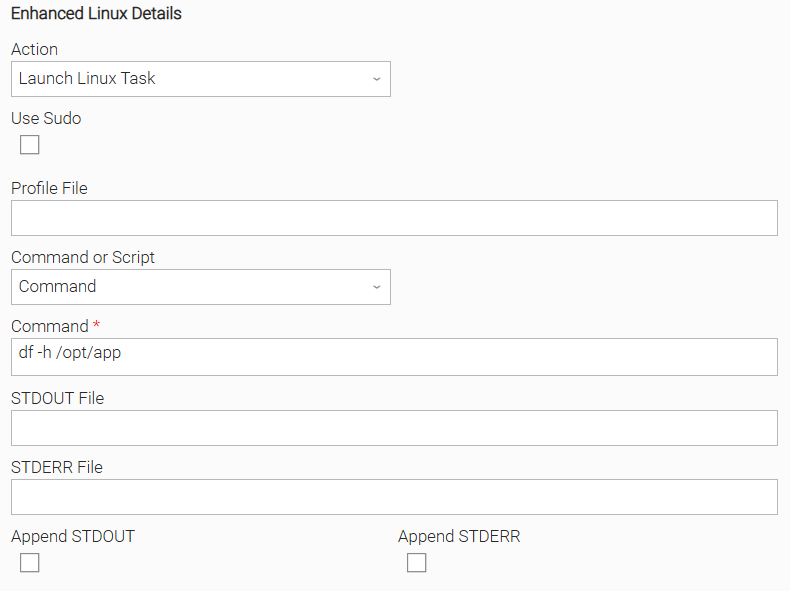
Example: Script execution as another user with a sourced profile
A configuration for running an application-owned script under a service account. Command or Script is set to "Script" and the Script field references the script to execute. Use Sudo is checked and Sudo User is set to the service account, for example another_user, so the script is executed through sudo as that user. Profile File is set to a shell script that exports the application environment, for example /opt/app/app_env.sh, which is sourced before the script runs. The profile path is independent of the sudo user and only needs to be readable by that user. Output is returned to the Task Instance only.
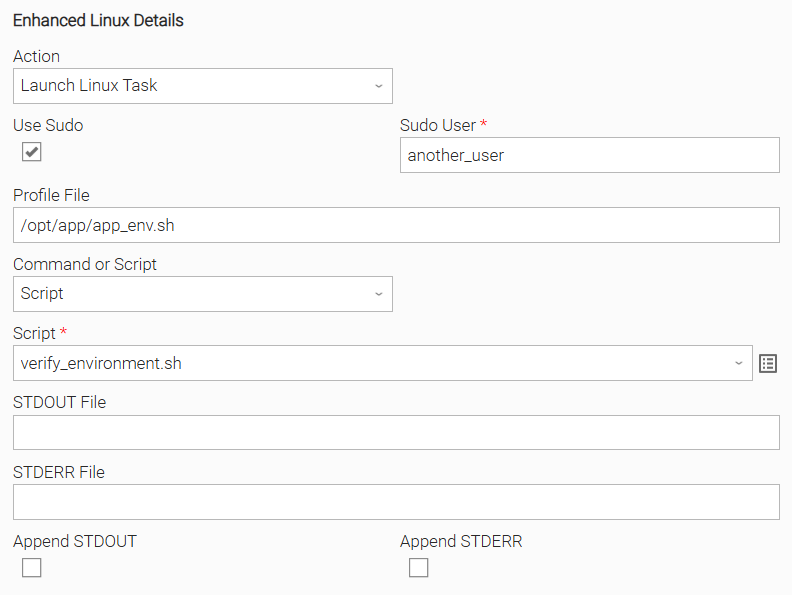
Example: Inline command with appended STDOUT and STDERR log files
A configuration for retaining a cumulative execution log on the target host. Command or Script is set to "Command" and the Command field holds the command to run. STDOUT File and STDERR File are set to paths on the Universal Agent host, and both Append STDOUT and Append STDERR are checked so that each run appends to the existing files instead of overwriting them. The content of both files is printed to the Task Instance after execution, so the redirected output remains visible in the Universal Controller.
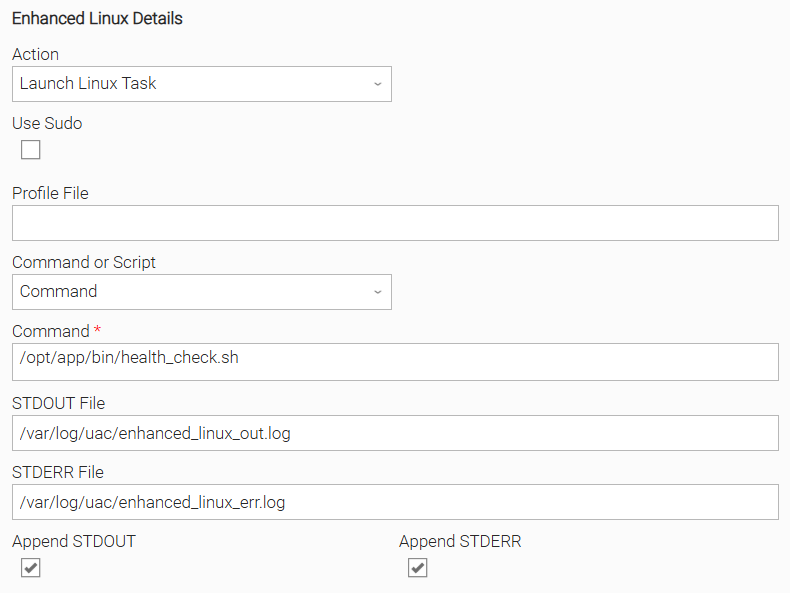
Input Fields
Name | Type | Description | Version Information |
|---|---|---|---|
Action | Choice | The Action to be executed. Available options:
| Introduced in 1.0.0 |
Use Sudo | Checkbox | Check to run the command or script as another user through sudo. The sudoers configuration on the Universal Agent host must permit the switch without a password prompt. | Introduced in 1.0.0 |
Sudo User | Text | The local user the command or script is executed as. When the value matches the user the Universal Agent runs as, sudo is not used. This field is visible and required when Use Sudo is "true". | Introduced in 1.0.0 |
Profile File | Text | The path of a shell script that is sourced before the command or script runs. Environment variables are supported in the path. | Introduced in 1.0.0 |
Command or Script | Choice | The kind of workload to execute. Available options:
| Introduced in 1.0.0 |
Command | Text | The shell command to execute. Environment variables are supported. This field is visible and required when Command or Script is "Command". | Introduced in 1.0.0 |
Script | Script | The shell script to execute. This field is visible and required when Command or Script is "Script". | Introduced in 1.0.0 |
STDOUT File | Text | The path of the file the STDOUT of the command or script is redirected to. The content of the file is also printed to the Task Instance STDOUT. | Introduced in 1.0.0 |
STDERR File | Text | The path of the file the STDERR of the command or script is redirected to. The content of the file is also printed to the Task Instance STDERR. | Introduced in 1.0.0 |
Append STDOUT | Checkbox | Check to append to the STDOUT File instead of overwriting it. | Introduced in 1.0.0 |
Append STDERR | Checkbox | Check to append to the STDERR File instead of overwriting it. | Introduced in 1.0.0 |
Importable Configuration Examples
This integration provides importable configuration examples along with their dependencies, grouped as Use Cases to better describe end to end capabilities.
These examples aid in allowing task authors to get more familiar with the configuration of tasks and related Use Cases. Such tasks should be imported in a Test system and should not be used directly in production.
Initial Preparation Steps
- STEP 1: Go to Stonebranch Integration Hub and download this integration along with the UAC Utility: Email integration, which is required by the Use Case. Extract the downloaded archives in a local directory.
- STEP 2: Locate and import the above integrations to the target Universal Controller. For more information refer to the How To section in this document.
- STEP 3: Inside the directory named "configuration_examples" you will find a list of definition zip files. Upload them one by one respecting the order presented below, by using the "Upload" functionality of Universal Controller:
- 1_variables.zip
- 2_credentials.zip
- 3_scripts.zip
- 4_tasks.zip
- 5_workflows.zip
- STEP 4: Update the uploaded UAC Credential entity with the Azure Client ID and Azure Client Secret of the Azure application registration used to send the report. Review the credential's description for guidance on what to provide.
- STEP 5: Update the UAC global variables introduced with the
1_variables.zipfile. Their name is prefixed with the extension name using underscores instead of hyphens. Review the descriptions of the variables as they include information on how they should be populated. - STEP 6: Ensure the user assigned to the
ue_enhanced_linux_sudo_userglobal variable exists on the Linux Agent host, and that the sudoers configuration permits the Universal Agent user to run commands as that user without a password prompt. - STEP 7: Create the directories assigned to the
ue_enhanced_linux_report_dirandue_enhanced_linux_archive_dirglobal variables on the Linux Agent host, and ensure the user from the previous step has write access to both.
- The order indicated above ensures that the dependencies of the imported entities need to be uploaded first.
- All imported entities are prefixed with the Use Case number (e.g. UC1, UC2, UC3) they belong to.
How to "Upload" Definition Files to a Universal Controller
The "Upload" functionality of Universal Controller allows Users to import definitions exported with the "Download" functionality.
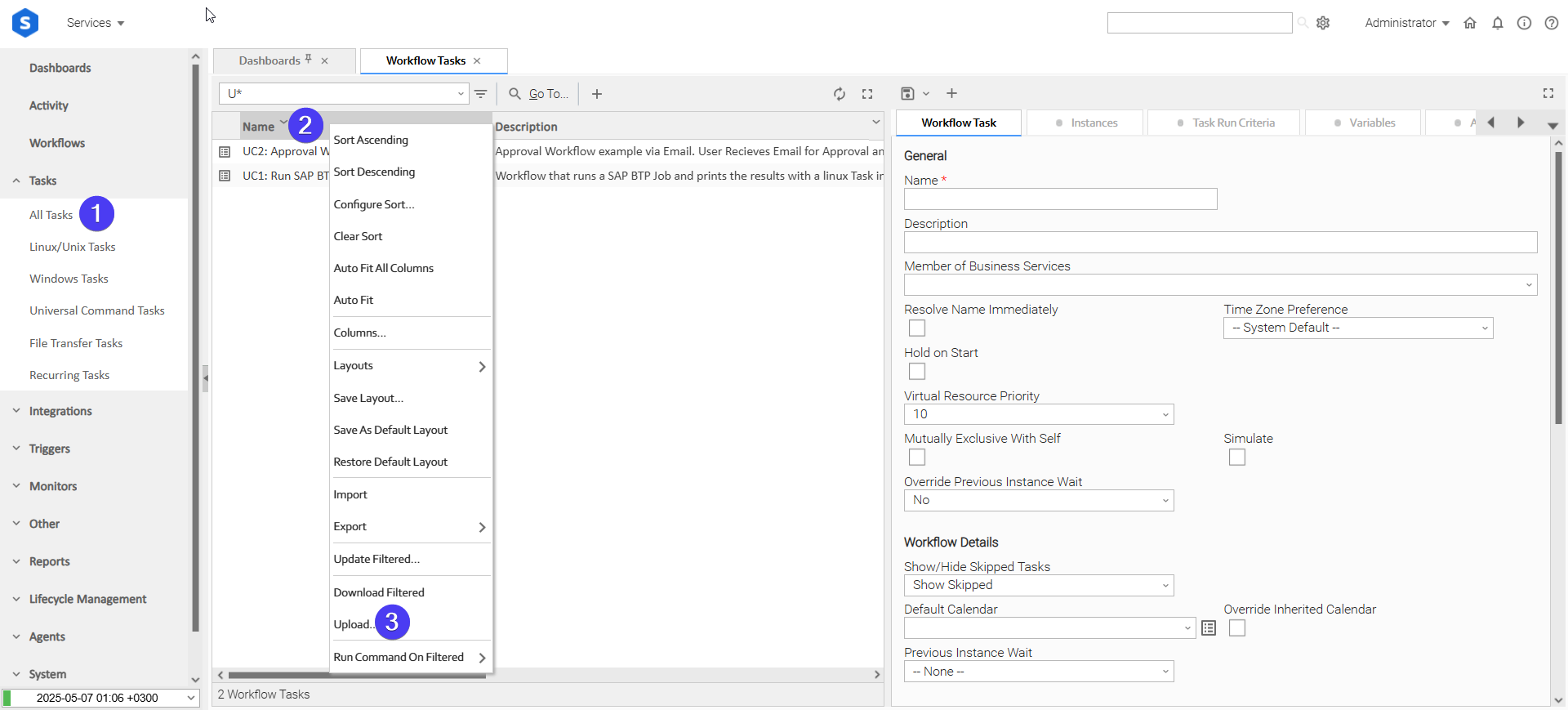
Login to Universal Controller and:
- STEP 1: Click "Tasks" → "All Tasks"
- STEP 2: Right click on the top of the column named "Name"
- STEP 3: Click "Upload..."
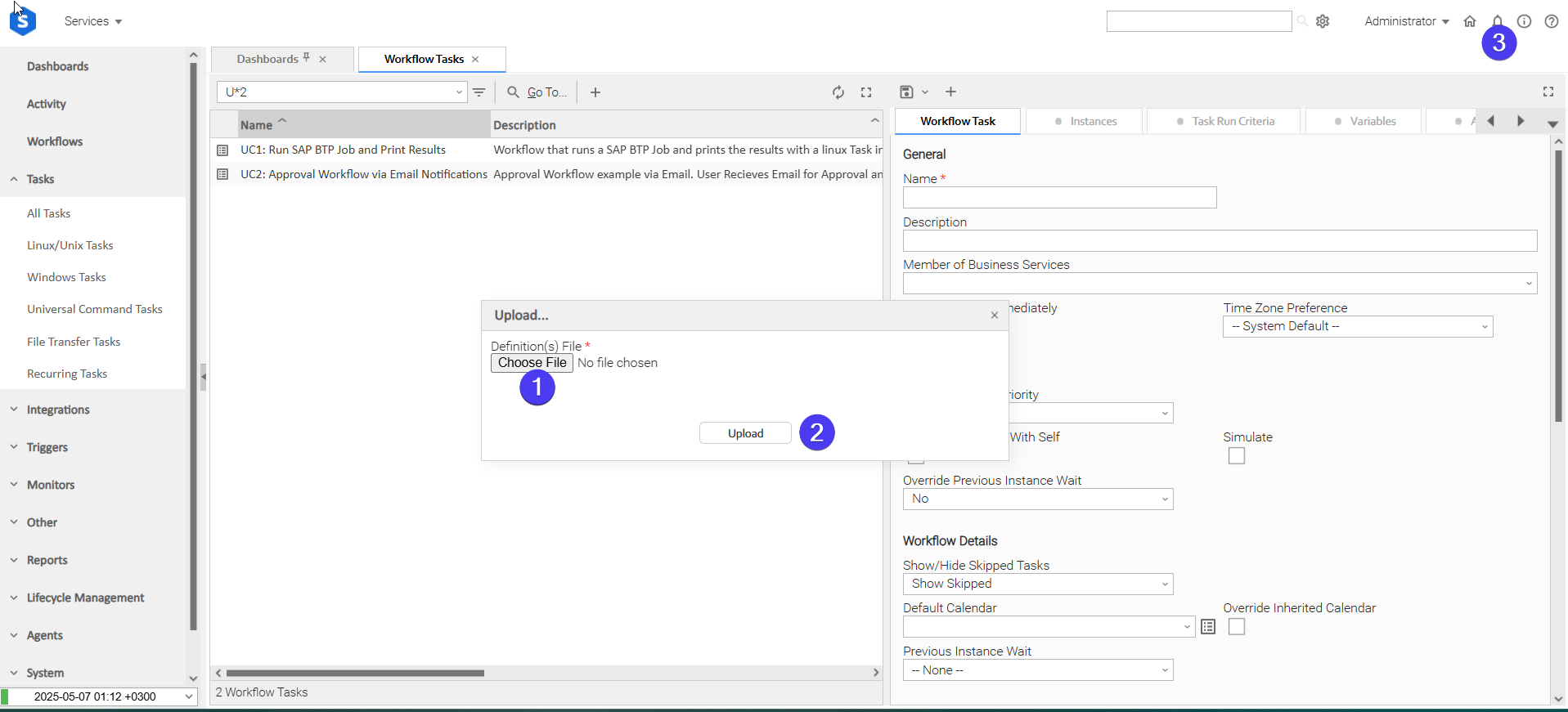
In the pop-up "Upload..." dialogue:
- STEP 1: Click "Choose File".
- STEP 2: Select the appropriate zip definition file and click "Upload".
- STEP 3: Observe the Console for possible errors.
Use Case 1: Collect a Linux Host Report and Email it to Stakeholders
Description
A configuration report is collected from a Linux host, sent to the stakeholders as an email attachment, and archived on the host. The Use Case demonstrates executing both a script and a command on a Linux Agent as a dedicated service account through sudo, capturing their output to files, and appending to a log that is retained across runs.
The workflow is composed of the following components:
- UC1: Enhanced Linux - Collect Host Report - an Enhanced Linux task that runs the
UC1: Enhanced Linux - Host Report Scriptshell script on the Linux Agent host as the sudo user. STDOUT File points to the report file, so the collected configuration is written to disk and printed to the task instance STDOUT. - UC1: Enhanced Linux - Email Host Report - a UAC Utility: Email task that sends the report to the stakeholders as an attachment, authenticating against Microsoft Graph with an Azure application registration.
- UC1: Enhanced Linux - Archive Host Report - an Enhanced Linux task that copies the report into the archive directory using a command, with the outcome of the copy appended to a history log.
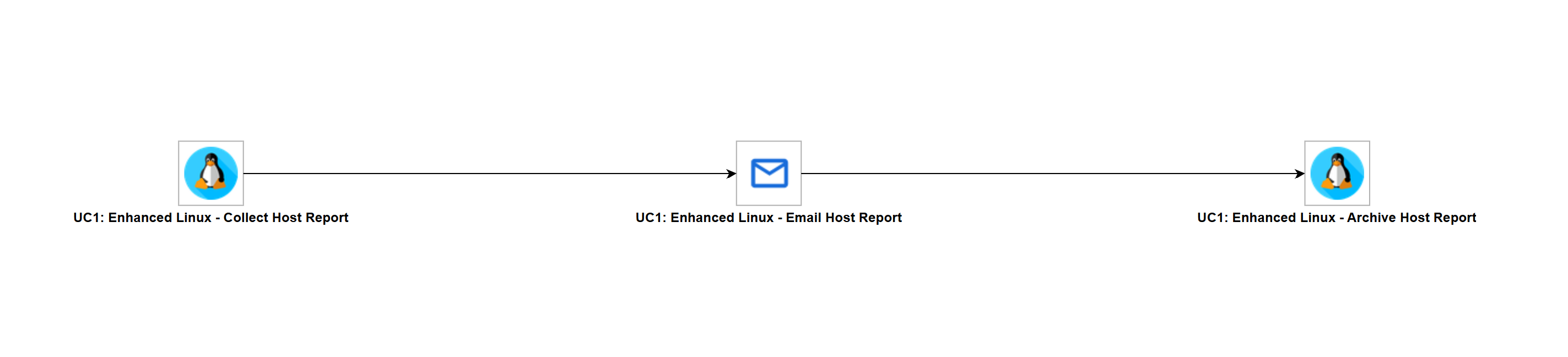
All three tasks run on the Agent named by the ue_enhanced_linux_agent global variable. The Email task reads the attachment from the filesystem of its own Agent, and the archive task copies the file written by the first task, so the tasks must not be distributed across different Agents.
Both Enhanced Linux tasks run as the user assigned to the ue_enhanced_linux_sudo_user global variable. Output redirection is performed by the shell already running as that user, so the report and archive directories must be writable by it rather than by the Universal Agent user.
How to Run
Execution Steps
- Ensure all Initial Preparation Steps have been completed successfully.
- Ensure the Azure application registration is authorised to send email on behalf of the mailbox assigned to the
ue_enhanced_linux_sender_accountglobal variable. - Launch the workflow task
UC1: Enhanced Linux - Collect a Linux Host Report and Email it to Stakeholdersand monitor the execution in Universal Controller.
Expected Results
- The report file is created in the directory assigned to
ue_enhanced_linux_report_dir, and the collected host configuration is printed to the STDOUT ofUC1: Enhanced Linux - Collect Host Report. - The email is delivered to the recipient assigned to
ue_enhanced_linux_email_towith the report attached. - The report is copied into the directory assigned to
ue_enhanced_linux_archive_dir, and the history log in that directory gains one entry per workflow run. - The workflow completes in the Success state.
Exit Codes
Exit Code | Status | Description |
|---|---|---|
0 | Success | Successful Execution. |
1 | Failure | Generic Error. Raised when not falling into the other Error Codes. |
20 | Failure | Input fields validation error. |
Document References
Document Link | Description |
|---|---|
Describes the sudoers policy syntax required to permit the Universal Agent user to run a command as the user configured in Sudo User without a password prompt. | |
Reference for the sudo command used to switch user, including the non-interactive and target user options applied by this integration. | |
Reference for the Bash shell used to execute the command or script, including the invocation options, startup file sourcing, and redirection behaviour relevant to the Profile File, STDOUT File, and STDERR File fields. |
Changelog
ue-enhanced-linux-1.0.0 (2026-09-22)
Initial Version