UAC Utility: File Utility
Disclaimer
Your use of this download is governed by Stonebranch's Terms of Use.
Version Information
Template Name | Extension Name | Version | Status |
|---|---|---|---|
File Utility | ue-file-utility | 1.0.0 | Initial Version. |
Refer to Changelog for version history information.
Overview
The File Utility Universal Extension provides filesystem inspection and discovery capabilities directly from the Universal Controller. This Universal Task allows customers to search directories for matching files and folders, and to retrieve detailed metadata for individual files, straight from the Universal Controller.
Working entirely on the Universal Agent host's filesystem, the extension supports recursive directory traversal, flexible name pattern matching using glob or regular expressions, time-based and size-based filters, sorting, and optional checksum computation for integrity verification. Results from directory searches are written to STDOUT as CSV and can optionally be saved to a local file on the agent host.
Key Features
Feature | Description |
|---|---|
Directory Search | Searches a directory recursively or non-recursively and returns matched entries as CSV. |
Advanced Filtering | Filters results by name pattern (glob or regex), entry type, time range, and file size. |
File Metadata Inspection | Retrieves full metadata for a single file or directory, including timestamps, size, and entry type. |
Checksum Computation | Computes MD5 or SHA-256 checksums for file integrity verification. |
Expectation Validation | Validates expected file extension and minimum size, failing the task if expectations are not met. |
Requirements
This integration requires a Universal Agent and a Python runtime to execute the Universal Task.
Area | Details |
|---|---|
Python Version | Requires Python 3.11 or 3.14. Tested with the Universal Agent bundled Python distribution. |
Universal Agent Compatibility |
|
Universal Controller Compatibility | Universal Controller Version >= 7.8.0.0. |
Network and Connectivity | No external network connectivity is required for local filesystem paths. Network access is required when accessing files on UNC/SMB network shares (e.g., |
Supported Actions
There are 2 Top-Level actions controlled by the Action Field:
- Find Files: Searches a directory for entries matching the configured name, time, size, and entry type filters, and writes results as CSV to STDOUT.
- Get File Info: Retrieves full metadata for a single file or directory and optionally computes a cryptographic checksum.
Action: Find Files
Searches a directory tree for files and directories matching the configured filters. Matched entries are written to STDOUT as CSV and can optionally be saved to a file on the agent host. When no entries match and Fail on Empty is enabled, the task fails with exit code 12.
Action Output
- EXTENSION
- STDOUT
The extension output provides the following information:
exit_code, status_description: General info regarding the task execution. For more information refer to the Exit Codes table.invocation.fields: The task configuration used for this execution.result.total_scanned, result.total_matched, result.total_skipped: Entry counts from the directory scan.result.search_path: The root directory that was searched.result.filters_applied: List of active filters the search was run with.result.sort: The sort column and direction applied.result.execution_time_seconds: Duration of the search in seconds.result.truncated: Whether theresult.resultsarray was capped byUE_MAX_OUTPUT_RECORDS.result.csv_headers: The CSV column names, in order.result.results: Array of matched file records, each containing all CSV columns.result.errors: List of errors that occurred during execution.
Examples:Successful execution
Failed execution
Matched entries are written to STDOUT as CSV. Each row represents one matched entry.
Example:
FilePath,FileName,FileExtension,SizeBytes,SizeHuman,ModifiedDate,CreatedDate,AccessedDate
/data/incoming/reports/report_2026_09.csv,report_2026_09.csv,.csv,245760,240.0 KB,2026-09-20T14:30:00,2026-09-01T09:00:00,2026-09-22T08:00:00
/data/incoming/reports/report_2026_08.csv,report_2026_08.csv,.csv,198144,193.5 KB,2026-08-31T16:45:00,2026-08-01T09:00:00,2026-09-22T08:00:00
/data/incoming/reports/report_2026_07.csv,report_2026_07.csv,.csv,183296,179.0 KB,2026-07-31T15:20:00,2026-07-01T09:00:00,2026-09-22T08:00:00
Action: Get File Info
Retrieves filesystem metadata for a single file or directory, including size, timestamps, and an optional MD5 or SHA-256 checksum. When an expected minimum size or extension is specified and the file does not meet the expectation, the task fails with exit code 13.
Action Output
- EXTENSION
- STDOUT
The extension output provides the following information:
exit_code, status_description: General info regarding the task execution. For more information refer to the Exit Codes table.invocation.fields: The task configuration used for this execution.result.file_path, result.file_name, result.file_extension, result.file_type: Path and type metadata of the inspected entry.result.size_bytes, result.size_human: File size as a raw integer and a human-readable string.result.modified_date, result.created_date, result.accessed_date: Timestamps in ISO 8601 format (agent local time).result.permissions: Filesystem permission string of the inspected entry.result.is_symlink, result.exists: Whether the entry is a symbolic link and whether it exists.result.checksum_algorithm, result.checksum_value: The algorithm used and the computed checksum.nullwhen Compute Checksum is "-- None --".result.errors: List of errors that occurred during execution.
Examples:Successful execution
Failed execution
File metadata is written to STDOUT as a human-readable summary.
Example:
File: /data/delivery/payload.zip
Type: Regular File
Size: 1,048,576 bytes (1.00 MB)
Modified: 2026-09-20T14:30:00
Created: 2026-09-15T10:00:00
Accessed: 2026-09-22T08:00:00
Permissions: -rw-r--r--
SHA-256: 3a7bd3e2360a3d29eea436fcfb7e44c735d117c42d1c1835420b6b9942dd4f1b
Configuration Examples
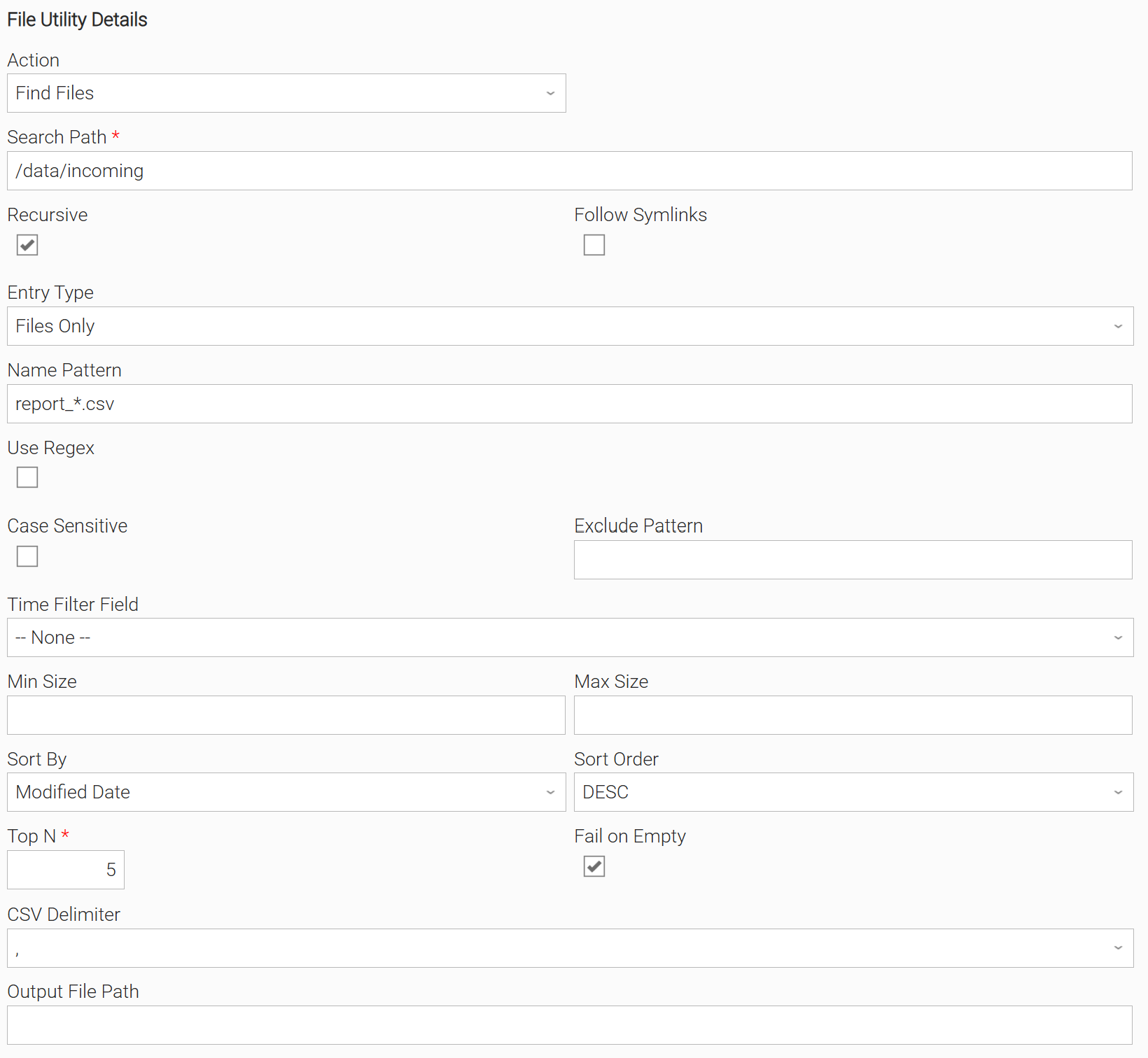
Example: Find Files, recursive search with name pattern, top 5 by most recently modified
Searches /data/incoming recursively for files matching the glob pattern report_*.csv. Results are sorted by Modified Date in descending order and limited to the 5 most recent matches. Fail on Empty is enabled so the task fails with exit code 12 if no matching files are found.
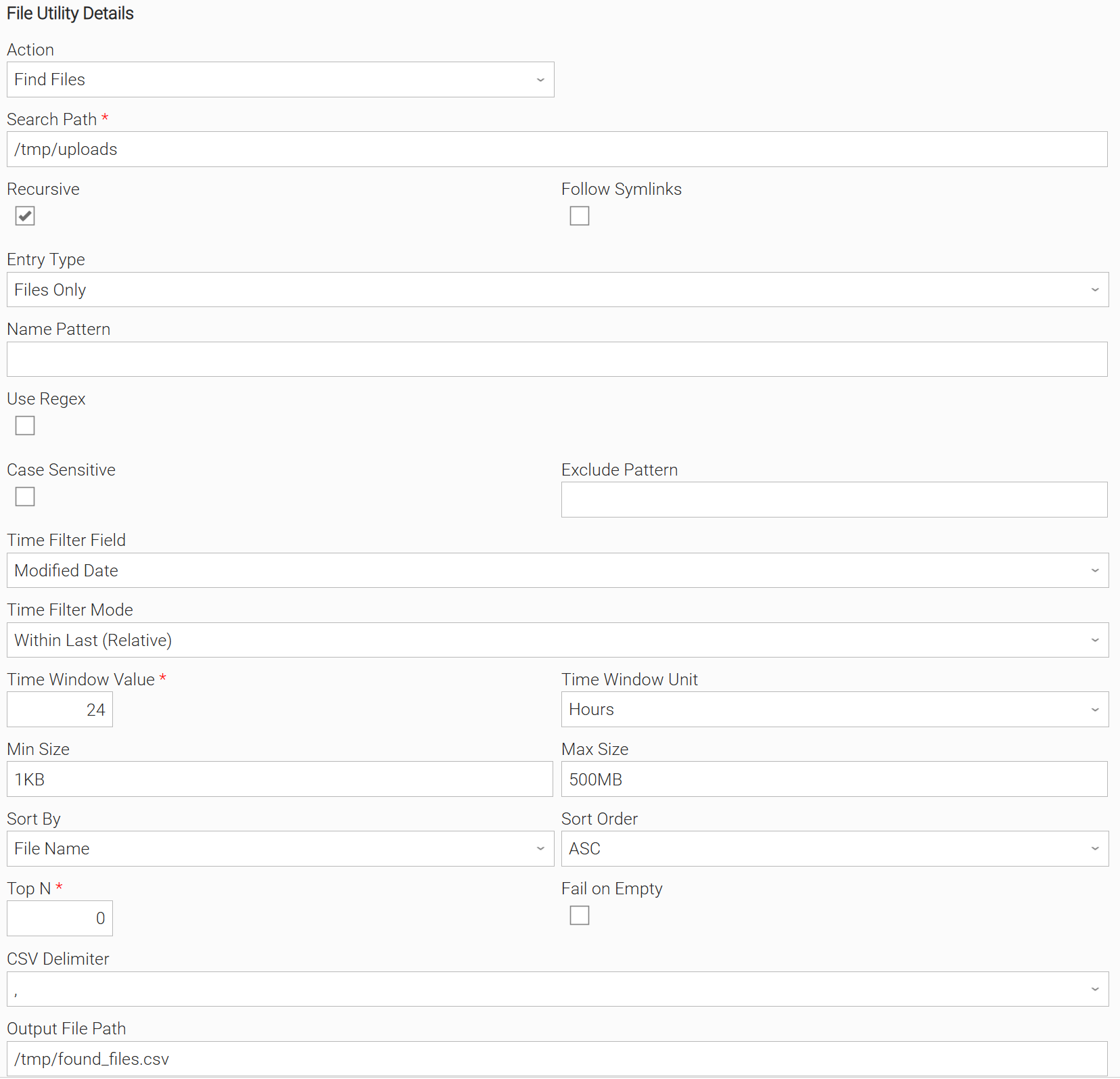
Example: Find Files, relative time filter with size bounds and CSV output to file
Searches /tmp/uploads for files modified within the last 24 hours, with a minimum size of 1KB and a maximum size of 500MB. Results are written to STDOUT and also saved to /tmp/found_files.csv for downstream processing by a subsequent task.
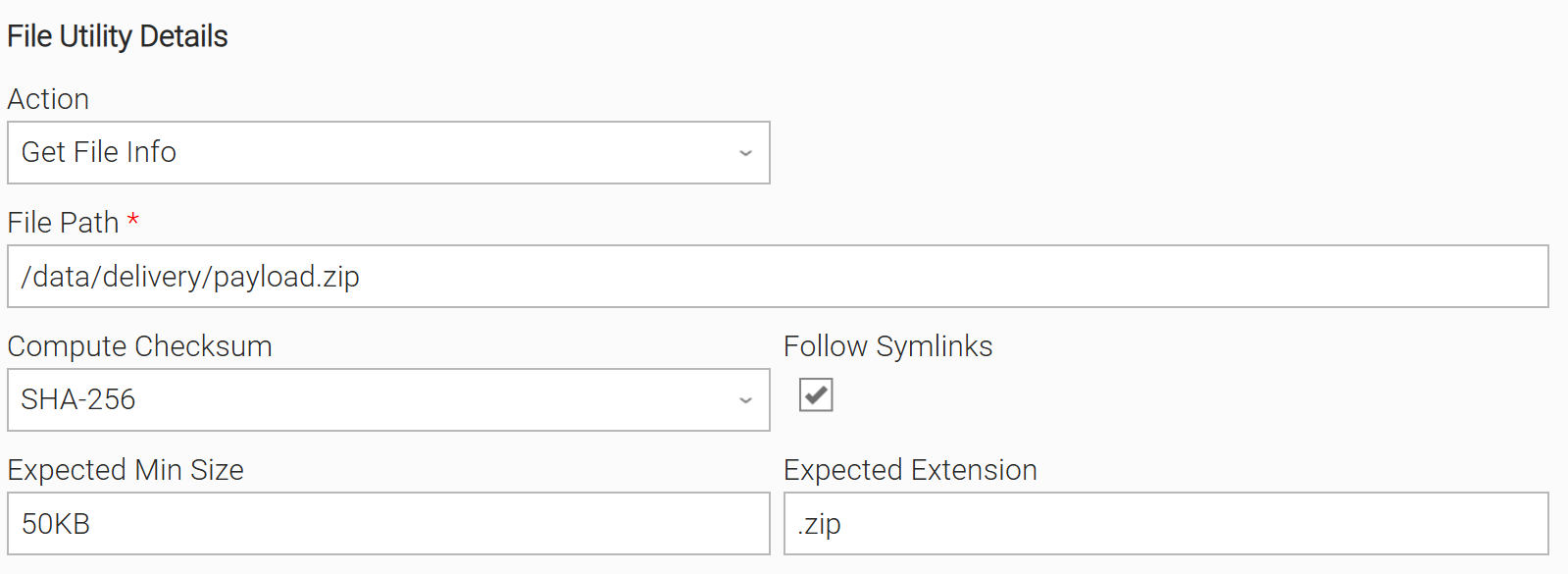
Example: Get File Info with SHA-256 checksum and expectation validation
Retrieves full metadata for /data/delivery/payload.zip and computes its SHA-256 checksum for integrity verification. Expected Min Size is set to 50KB and Expected Extension to .zip. The task fails with exit code 13 if either expectation is not met.
Importable Configuration Examples
This integration provides importable configuration examples along with their dependencies, grouped as Use Cases to better describe end to end capabilities.
These examples aid in allowing task authors to get more familiar with the configuration of tasks and related Use Cases. Such tasks should be imported in a Test system and should not be used directly in production.
Initial Preparation Steps
- STEP 1: Go to Stonebranch Integration Hub and download this integration. Extract the downloaded archive in a local directory. No additional integrations are required by the Use Case.
- STEP 2: Locate and import the above integration to the target Universal Controller. For more information refer to the How To section in this document.
- STEP 3: Inside the directory named "configuration_examples" you will find a list of definition zip files. Upload them one by one respecting the order presented below, by using the "Upload" functionality of Universal Controller:
- 1_variables.zip
- 2_tasks.zip
- 3_workflows.zip
- STEP 4: Update the UAC global variables introduced with the
1_variables.zipfile. Their name is prefixed with the extension name using underscores instead of hyphens. Review the descriptions of the variables as they include information on how they should be populated. - STEP 5: Create the directories assigned to the
ue_file_utility_inbound_dir,ue_file_utility_work_dirandue_file_utility_archive_dirglobal variables on the Linux Agent host. Ensure the Agent user can read the inbound directory and write to the other two. - STEP 6: Place at least one file matching the glob pattern assigned to the
ue_file_utility_name_patternglobal variable in the inbound directory, modified within the last 24 hours. The Use Case fails by design when no delivery is found.
- The order indicated above ensures that the dependencies of the imported entities need to be uploaded first.
- All imported entities are prefixed with the Use Case number (e.g. UC1, UC2, UC3) they belong to.
How to "Upload" Definition Files to a Universal Controller
The "Upload" functionality of Universal Controller allows Users to import definitions exported with the "Download" functionality.
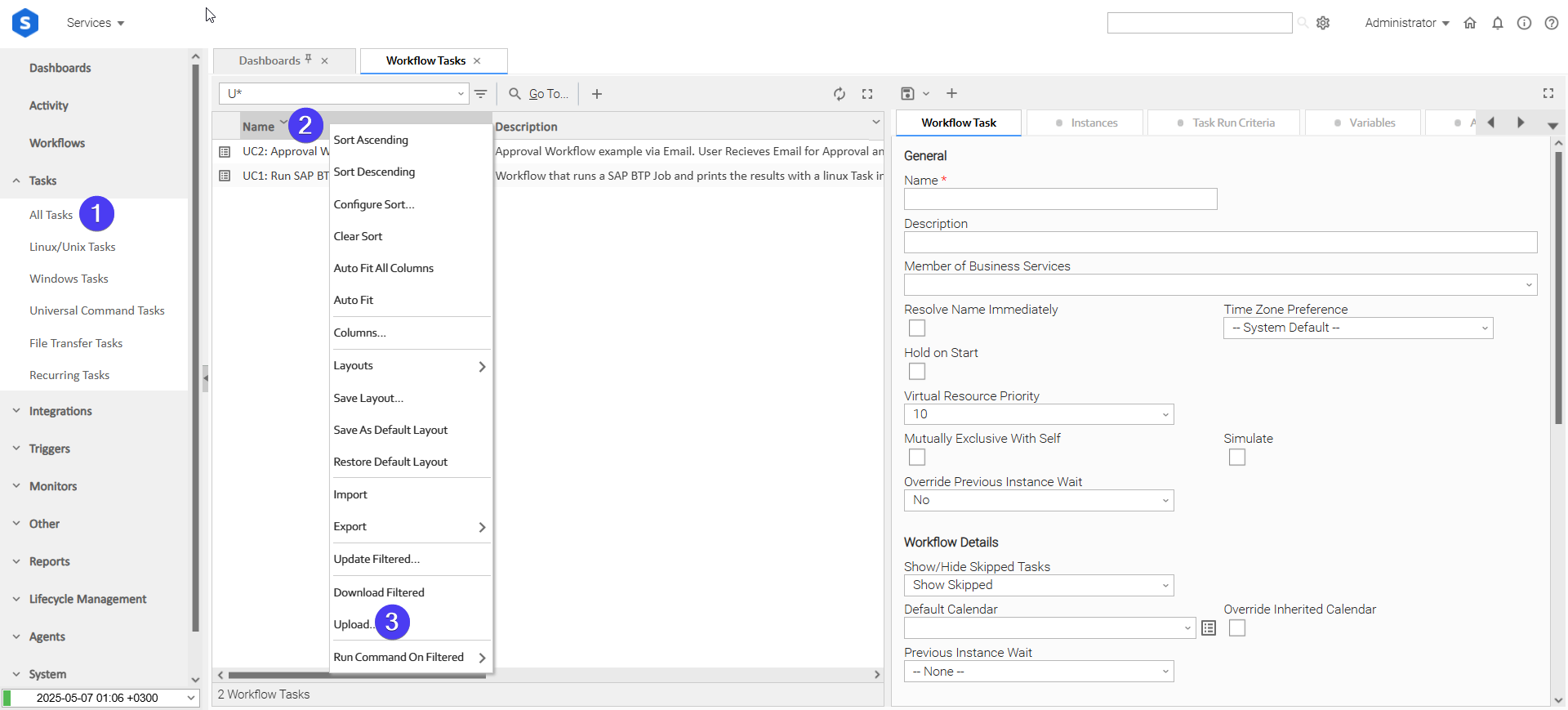
Login to Universal Controller and:
- STEP 1: Click "Tasks" → "All Tasks"
- STEP 2: Right click on the top of the column named "Name"
- STEP 3: Click "Upload..."
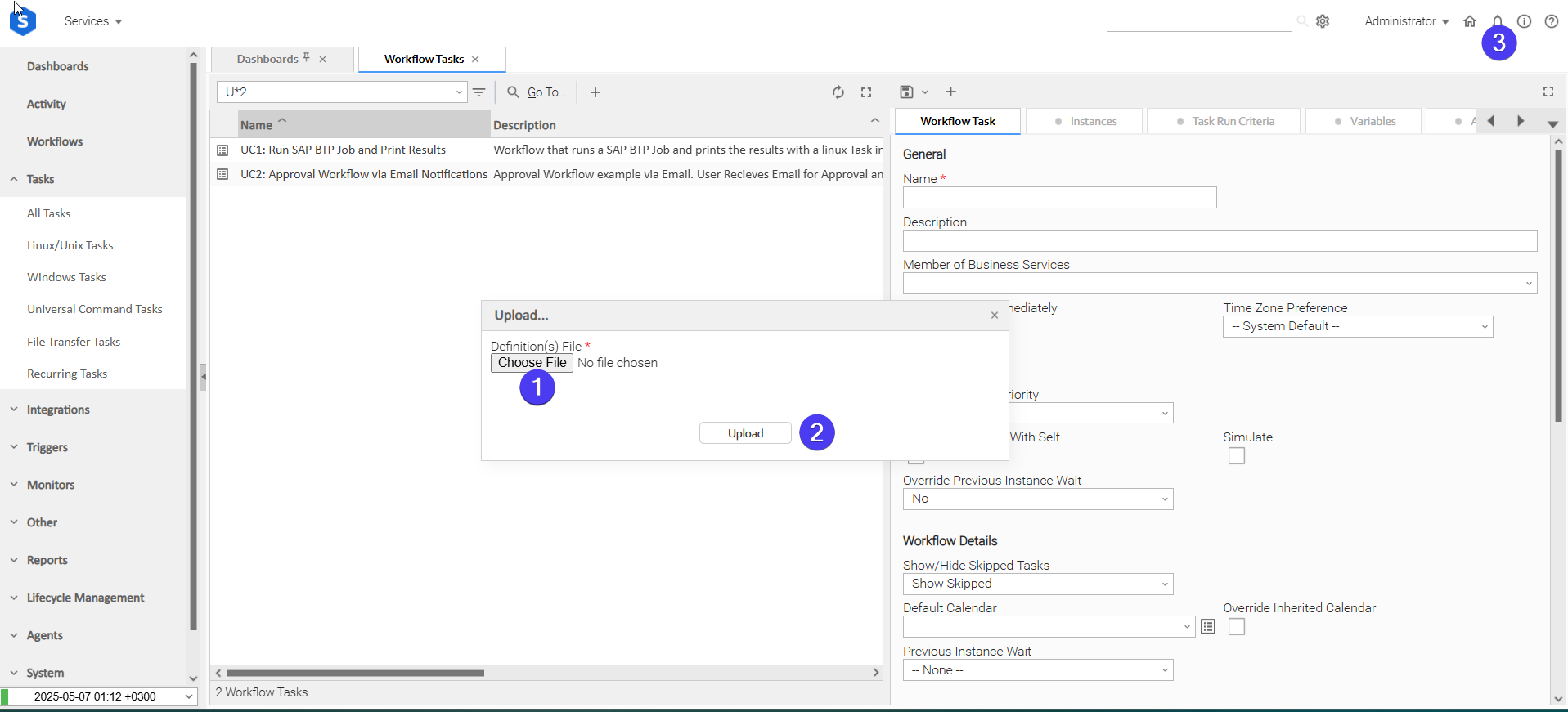
In the pop-up "Upload..." dialogue:
- STEP 1: Click "Choose File".
- STEP 2: Select the appropriate zip definition file and click "Upload".
- STEP 3: Observe the Console for possible errors.
Use Case 1: Validate an Inbound File Delivery and Archive it
Description
An external system drops files into an inbound directory on the Agent host. This Use Case discovers what arrived within the last 24 hours, validates the newest delivery against an expected size and extension while computing its checksum, and archives it with an entry in a manifest log that is retained across runs.
The Use Case demonstrates both actions of the extension working together, the use of the CSV output file, the relative time filter, Fail on Empty as a workflow gate, and the expectation validation that distinguishes a complete delivery from a truncated one.
The workflow is composed of the following components:
- UC1: File Utility - Find Delivered Files - a File Utility task that searches the inbound directory for entries matching the delivery pattern that were modified within the last 24 hours, sorted newest first. The CSV manifest is written to the work directory in addition to STDOUT. Fail on Empty is enabled, so the workflow stops with exit code 12 when no delivery arrived rather than silently succeeding. A Set Variable action captures the path of the newest match.
- UC1: File Utility - Validate Delivered File - a File Utility task that collects the full metadata of that file and computes its SHA-256 checksum. Expected Min Size and Expected Extension are validated, so a truncated or unexpected delivery fails the workflow with exit code 13. Set Variable actions capture the file name, the human-readable size, and the checksum.
- UC1: File Utility - Archive Delivered File - a Linux/Unix task that moves the validated delivery into the archive directory and appends its name, size, and checksum to a manifest log.
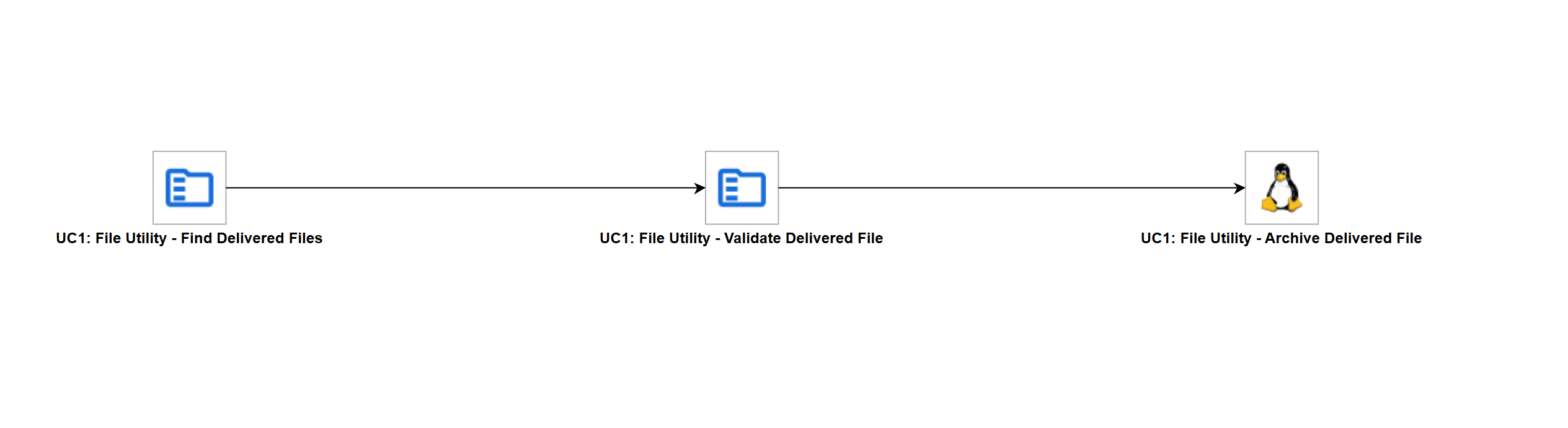
All three tasks run on the Agent named by the ue_file_utility_agent global variable. The second task inspects the file found by the first and the third moves it, so the Agent's local filesystem is the medium they share and the tasks must not be distributed across different Agents.
How to Run
Execution Steps
- Ensure all Initial Preparation Steps have been completed successfully.
- Ensure the file placed in the inbound directory satisfies the expectations assigned to the
ue_file_utility_expected_min_sizeandue_file_utility_expected_extensionglobal variables. A file that does not is the failure path of the Use Case. - Launch the workflow task
UC1: File Utility - Validate an Inbound File Delivery and Archive itand monitor the execution in Universal Controller.
Expected Results
- The CSV manifest is created in the directory assigned to
ue_file_utility_work_dir, listing every delivery found within the time window, newest first. The same CSV is printed to the STDOUT ofUC1: File Utility - Find Delivered Files. - The metadata and SHA-256 checksum of the newest delivery are printed to the STDOUT of
UC1: File Utility - Validate Delivered File, and the Total Matched and First Match Path output fields are populated on the first task instance. - The delivery is moved into the directory assigned to
ue_file_utility_archive_dir, and the manifest log in that directory gains one entry per workflow run. - The workflow completes in the Success state. When no delivery arrived within the time window, the first task fails with exit code 12 and the workflow stops before the validation runs.
Input Fields
Name | Type | Description | Version Information |
|---|---|---|---|
Action | Choice | The operation to perform. Available options:
| Introduced in 1.0.0 |
Search Path | Text | The root directory path to search. Supports local paths and UNC/network paths (e.g., This field is visible and required when Action is "Find Files". | Introduced in 1.0.0 |
Recursive | Checkbox | Check to descend into all subdirectories. When unchecked, only the immediate contents of Search Path are scanned. This field is visible when Action is "Find Files". | Introduced in 1.0.0 |
Follow Symlinks | Checkbox | Check to follow symbolic links during directory traversal. Disabled by default to avoid infinite loops caused by circular symlinks. This field is visible when Action is "Find Files". | Introduced in 1.0.0 |
Entry Type | Choice | The filesystem entry types to include in the result set. Available options:
This field is visible when Action is "Find Files". | Introduced in 1.0.0 |
Name Pattern | Text | A glob pattern applied to filenames for inclusion filtering. Leave empty to match all entries. Example: This field is visible when Action is "Find Files". | Introduced in 1.0.0 |
Use Regex | Checkbox | Check to interpret Name Pattern as a regular expression instead of a glob pattern. This field is visible when Action is "Find Files". | Introduced in 1.0.0 |
Case Sensitive | Checkbox | Check to make name pattern matching (inclusion and exclusion) case-sensitive. Default behavior respects the platform convention (case-insensitive on Windows, case-sensitive on Linux). This field is visible when Action is "Find Files". | Introduced in 1.0.0 |
Exclude Pattern | Text | An optional glob pattern applied to filenames to unconditionally exclude matching entries from results. Applied after the Name Pattern inclusion filter. Example: This field is visible when Action is "Find Files". | Introduced in 1.0.0 |
Time Filter Field | Choice | The timestamp attribute used for time-based filtering. Available options:
This field is visible when Action is "Find Files". | Introduced in 1.0.0 |
Time Filter Mode | Choice | The comparison mode for the time filter. Available options:
This field is visible when Time Filter Field is "Modified Date", "Created Date", or "Accessed Date". | Introduced in 1.0.0 |
Time Filter Date/Time | Text | The absolute date/time threshold for time filtering, expressed in agent local time. Format: This field is visible and required when Time Filter Mode is "Newer Than (Absolute)" or "Older Than (Absolute)". | Introduced in 1.0.0 |
Time Window Value | Integer | The numeric magnitude of the relative time window. Combined with Time Window Unit to compute a cutoff from the agent's current time. Minimum value: 1. This field is visible and required when Time Filter Mode is "Within Last (Relative)". | Introduced in 1.0.0 |
Time Window Unit | Choice | The time unit for the relative filter window. Combined with Time Window Value to determine the cutoff timestamp. Available options:
This field is visible when Time Filter Mode is "Within Last (Relative)". | Introduced in 1.0.0 |
Min Size | Text | The minimum file size threshold (binary base: 1 KB = 1,024 bytes). Entries smaller than this value are excluded from results. Example: This field is visible when Action is "Find Files". | Introduced in 1.0.0 |
Max Size | Text | The maximum file size threshold (binary base: 1 KB = 1,024 bytes). Entries larger than this value are excluded from results. Example: This field is visible when Action is "Find Files". | Introduced in 1.0.0 |
Sort By | Choice | The attribute used to order the result set before Top N limiting is applied. Available options:
This field is visible when Action is "Find Files". | Introduced in 1.0.0 |
Sort Order | Choice | The sort direction for the result set. Available options:
This field is visible when Action is "Find Files". | Introduced in 1.0.0 |
Top N | Integer | The maximum number of entries to include in the output after filtering and sorting. Set to This field is visible when Action is "Find Files". | Introduced in 1.0.0 |
Fail on Empty | Checkbox | Check to fail the task with exit code 12 when no entries match all applied filters. When unchecked, a zero-match result is treated as success. This field is visible when Action is "Find Files". | Introduced in 1.0.0 |
CSV Delimiter | Choice | The field separator character used in the CSV output. A comma is recommended for compatibility with UAC For-Each tasks. Available options:
This field is visible when Action is "Find Files". | Introduced in 1.0.0 |
Output File Path | Text | An optional filesystem path on the agent host where the full CSV output is written in addition to STDOUT. Existing files are overwritten. Example: This field is visible when Action is "Find Files". | Introduced in 1.0.0 |
File Path | Text | The full path to the file or directory to inspect. Supports local paths and UNC/network paths. Example: This field is visible and required when Action is "Get File Info". | Introduced in 1.0.0 |
Compute Checksum | Choice | An optional cryptographic checksum algorithm applied to the file contents for integrity verification. Not applicable to directories. Available options:
This field is visible when Action is "Get File Info". | Introduced in 1.0.0 |
Follow Symlinks | Checkbox | Check to resolve symlinks to their target before gathering metadata. When unchecked, metadata is read from the symlink itself. This field is visible when Action is "Get File Info". | Introduced in 1.0.0 |
Expected Min Size | Text | An optional minimum size validation threshold. The task fails with exit code 13 if the file size is less than this value. Format: This field is visible when Action is "Get File Info". | Introduced in 1.0.0 |
Expected Extension | Text | An optional file extension validation. The task fails with exit code 13 if the file extension does not match (comparison is case-insensitive). Must start with a dot. Example: This field is visible when Action is "Get File Info". | Introduced in 1.0.0 |
Output Fields
The following output-only fields provide better visibility during the execution of Universal Task Instances.
Name | Type | Description | Version Information |
|---|---|---|---|
Total Matched | Text | The number of entries matching all applied filters after sorting and before Top N limiting. This field is visible when Action is "Find Files". | Introduced in 1.0.0 |
First Match Path | Text | The full filesystem path of the first entry in the sorted result set. Empty when no results are found. This field is visible when Action is "Find Files". | Introduced in 1.0.0 |
File Size (Bytes) | Text | The file size in bytes as a plain integer string. This field is visible when Action is "Get File Info". | Introduced in 1.0.0 |
File Modified Date | Text | The last-modified timestamp of the inspected file or directory in ISO 8601 format (agent local time). This field is visible when Action is "Get File Info". | Introduced in 1.0.0 |
Environment Variables
Environment Variables can be set from the Environment Variables task definition table.
Environment Variable Name | Description | Version Information |
|---|---|---|
UE_MAX_OUTPUT_RECORDS | Maximum number of records written to STDOUT and the output file. When set, limits the result count after all filters and sorting are applied. Applies to the Find Files action. | Introduced in 1.0.0 |
Cancellation and Rerun
- In case of cancellation, the Find Files scan stops at the next entry check. Entries collected up to that point are sorted, limited, and written to STDOUT and the output file as a partial result set. The Get File Info action completes its metadata collection normally as it does not check for cancellation mid-execution.
- In case of rerun, the action starts from the beginning. No state is preserved from any prior attempt.
Exit Codes
Exit Code | Status | Description |
|---|---|---|
0 | Success | Successful Execution. |
1 | Failure | Generic Error. Raised when not falling into the other Error Codes. |
10 | Failure | Path Access Error. The search path or file path does not exist, is not of the expected type, or cannot be read. |
11 | Failure | Output File Error. The CSV output cannot be written to the specified Output File Path. |
12 | Failure | No Match Error. No entries matched the applied filters and Fail on Empty is enabled. |
13 | Failure | File Expectation Error. The file exists but does not meet the expected minimum size or file extension. |
Document References
Document Link | Description |
|---|---|
Reference for the glob module's pattern syntax, documenting how wildcards are interpreted in the Name Pattern and Exclude Pattern fields. | |
Reference for the hashlib module, documenting the MD5 and SHA-256 cryptographic hash functions available for checksum computation. |
Changelog
ue-file-utility-1.0.0 (2026-10-27)
Initial Version