UAC Utility: GnuPG
Disclaimer
Your use of this download is governed by Stonebranch's Terms of Use.
Version Information
Template Name | Extension Name | Version | Status |
|---|---|---|---|
GnuPG | ue-gnupg | 2.0.1 | Fixes and new features are introduced. Compatibility starts from UAC/UAG 7.6.0.0 onwards. |
Refer to Changelog for version history information.
Version 2.0.0 is a major release and introduces breaking changes that might affect some customers depending on their setup. Administrators are strongly advised to refer to Changelog for more information on the changes introduced in this release.
Overview
GnuPG (GPG) is a command line tool implementing the OpenPGP standard. GPG allows for encryption , decryption and signing of data and communications. This integration provides the capability to perform file encryption and decryption, signing, and verification based on GnuPG.
Key Features
Feature | Description |
|---|---|
Encrypt | Encrypt files based on file patterns, and optionally sign the encrypted file. |
Decrypt | Decrypt files based on file patterns, and optionally verify signature. |
Keystore Options | PGP keys can be retrieved from either a local keystore stored on the Universal Agent environment, or from a UDMG based keystore. |
Support for UDMG versions 2 and 3
As of release 2.0.0, UDMG versions 2 and 3 are supported. The versions can be used for the actions related to encryption and decryption using UDMG keystore. The key difference is that UDMG version 3 requires a domain to be specified. Additionally, for UDMG version 3 the passphrase of the private key needs to be specified using UDMG or UAC credentials, unlike UDMG version 2 where the passphrase already comes embedded in the private key, so users do not need to provide it separately.
Requirements
This integration requires a Universal Agent and a Python runtime to execute the Universal Task.
Area | Details |
|---|---|
Python Version | Requires Python 3.11, tested with Agent bundled python distribution |
Universal Agent |
Only Agents that are Under Support are supported. |
Universal Controller | Universal Controller Version >= 7.6.0.0. |
GnuPG | This integration requires GnuPG command line tool to be installed manually on the Universal Agent environment. Tested against GnuPG 2.2.19 and 2.4.4. |
Supported Actions
Action: Encrypt With Local Keystore
Encrypt a single file or multiple files given a file pattern. Optionally sign the encrypted file(s). The Public key for encryption and Private Key for signing are retrieved from the local GnuPG keystore, through the Local Key and Private Key For Signing fields, respectively.
Action Output
EXTENSION
The extension output provides the following information:
exit_code, status_description: General info regarding the task execution.result.metadata.count: Number of files that have been encrypted. Skipped files are not counted here.result.metadata.input_file_count: Number of files that matched the Input Path or Pattern field.result.metadata.success_count: Number of files successfully encrypted.result.metadata.failure_count: Number of files failed to be encrypted.result.metadata.skip_count: Number of files skipped during processing due to previous error or overwrite flag.result.files.source_file: The source file path.result.files.target_file: The target file path.result.files.status: The status of the operation on the specific file. Possible values (Encrypted | Not encrypted).result.files.message: The error message.result.errors:List of generic or unexpected errors.
Successful Encryption Example
{
  "exit_code": 0,
  "status_description": "Task executed successfully",
  "invocation": {
    "version": "2.0.1",
    "extension": "ue-gnupg",
    "fields": {
          ...
    }
  },
  "result": {
    "errors": [],
    "metadata": {
      "metadata": {
        "count": 2,
        "input_file_count": 3,
        "success_count": 1,
        "failure_count": 1,
        "skip_count": 1
      },
      "files": [
        {
          "source_file": "/source_directory/gpg_test1.txt",
          "target_file": "/target_directory/pgp_test1.txt.asc",
          "status": "Encrypted",
          "message": null
        },
        {
          "source_file": "/source_directory/gpg_test2.txt",
          "target_file": "/target_directory/pgp_test2.txt.asc",
          "status": "Encrypted",
          "message": null
        }
      ]
    }
  }
}
Failed Execution
{
  "exit_code": 100,
  "status_description": "Execution failed: At least one file processing failed.",
  "invocation": {
    "version": "2.0.1",
    "extension": "ue-gnupg",
    "fields": {
          ...
    }
  },
  "result": {
    "metadata": {
        "count": 3,
        "input_file_count": 4
        "success_count": 1,
        "failure_count": 2,
        "skip_count": 1
    },
    "files": [
        {
            "source_file": "/source_directory/pgp_test1.txt",
            "target_file": "/target_directory/pgp_test1.txt.pgp",
            "status": "Encrypted",
            "message": null
        },
        {
            "source_file": "/source_directory/pgp_test2.txt",
            "target_file": "/source_directory/pgp_test2.txt.pgp",
            "status": "Not encrypted",
            "message": "invalid recipient, not found:dummy.pub"
        },
        {
            "source_file": "/source_directory/pgp_test3.txt",
            "target_file": "/source_directory/pgp_test3.txt.pgp",
            "status": "Not encrypted",
            "message": "invalid recipient, not found:dummy.pub"
        }
    ]
  }
Generic Failed Execution
{
  "exit_code": 1,
  "status_description": "Execution Failed: ...",
  "invocation": {
    "version": "2.0.1",
    "extension": "ue-gnupg",
    "fields": {
          ...
    }
  }
  "result": {
    "errors": [
      "Execution Failed: ..."
    ]
  }
}
Action: Encrypt With UDMG Keystore
Encrypt a single file or multiple files given a file pattern. Optionally sign the encrypted file(s). The Public key for encryption and Private key for signing are retrieved from a UDMG server, through the 'UDMG Key Name' and 'UDMG Private Key For Signing' fields, respectively.
Action Output
Action Output is the same as described in Action Encrypt With Local Keystore.
Action: Decrypt With Local Keystore
Decrypt a single file or multiple files given a file pattern. Optionally verify the signature of a signed and encrypted file. Private key for decryption is retrieved from the local GPG keystore, through the 'Local Key' field.
Action Output
EXTENSION
The extension output provides the following information:
exit_code, status_description: General info regarding the task execution.result.metadata.count: Number of files that have been decrypted. Skipped files are not counted here.result.metadata.input_file_count: Number of files matched the Input Path or Pattern field.result.metadata.success_count: Number of files successfully decrypted.result.metadata.failure_count: Number of files failed to be decrypted.result.metadata.skip_count: Number of files skipped during processing due to previous error or overwrite flag.result.files.source_file: The source file path.result.files.target_file: The target file path.result.files.status:The status of the operation on the specific file. Possible values (Decrypted | Not decrypted).result.files.message: The error message.result.errors: List of generic or unexpected errors.
Successful Execution
{
  "exit_code": 0,
  "status_description": "Task executed successfully",
  "invocation": {
    "version": "2.0.1",
    "extension": "ue-gnupg",
    "fields": {
          ...
    }
  },
  "result": {
    "errors": [],
    "metadata": {
      "metadata": {
        "count": 2,
        "input_file_count": 3,
        "success_count": 1,
        "failure_count": 1,
        "skip_count": 1
      },
      "files": [
        {
          "source_file": "/source_directory/gpg_test1.txt.gpg",
          "target_file": "/target_directory/pgp_test1.txt",
          "status": "Decrypted",
          "message": " decryption ok"
        },
        {
          "source_file": "/source_directory/gpg_test2.txt.gpg",
          "target_file": "/target_directory/pgp_test2.txt",
          "status": "Not decrypted",
          "message": "not found:my_key private key"
        }
      ]
    }
  }
}
Failed Execution
{
  "exit_code": 100,
  "status_description": "Execution failed: At least one file processing failed.",
  "invocation": {
    "version": "2.0.1",
    "extension": "ue-gnupg",
    "fields": {
            ...
    }
  },
  "result": {
    "metadata": {
        "count": 3,
        "input_file_count": 4,
        "success_count": 1,
        "failure_count": 2,
        "skip_count": 1
    },
    "files": [
        {
            "source_file": "/source_directory/pgp_test1.txt.pgp",
            "target_file": "/target_directory/pgp_test1.txt",
            "status": "Decrypted",
            "message": null
        },
        {
            "source_file": "/source_directory/pgp_test2.txt.pgp",
            "target_file": "/target_directory/pgp_test2.txt",
            "status": "Not decrypted",
            "message": " not valid data"
        },
        {
            "source_file": "/source_directory/pgp_test3.txt.pgp",
            "target_file": null,
            "target_file": "/target_directory/pgp_test3.txt",
            "status": "Not decrypted",
            "message": " not valid data"
        },
    ]
  }
}
Generic Failed Execution
{
  "exit_code": 1,
  "status_description": "Execution Failed: ...",
  "invocation": {
    "version": "2.0.1",
    "extension": "ue-gnupg",
    "fields": {
          ...
    }
  }
  "result": {
    "errors": [
      "Execution Failed: ..."
    ]
  }
}
Action: Decrypt With UDMG Keystore
Decrypt a single file or multiple files given a file pattern. Optionally verify the signature of a signed and encrypted file. Private key for decryption is retrieved from a UDMG server, through the 'UDMG Key Name' field.
Action Output
Action Output is the same as described in Action Decrypt With Local Keystore.
STDOUT of this integration provides verbose logging of the executed GPG command line. STDERR provides additional information to the user, the detail of it is tuned by Log Level Task Definition field.
More information on the available levels can be found on the official GnuPG site.
STDOUT and STDERR can include more debug information if field Extra Arguments is used (parameter --debug-level <level>). More information on the available debug levels can be found in the official documentation.
Configuration Examples
Example: Encrypt and sign a single file, using keys stored in a keyring file on the local GPG
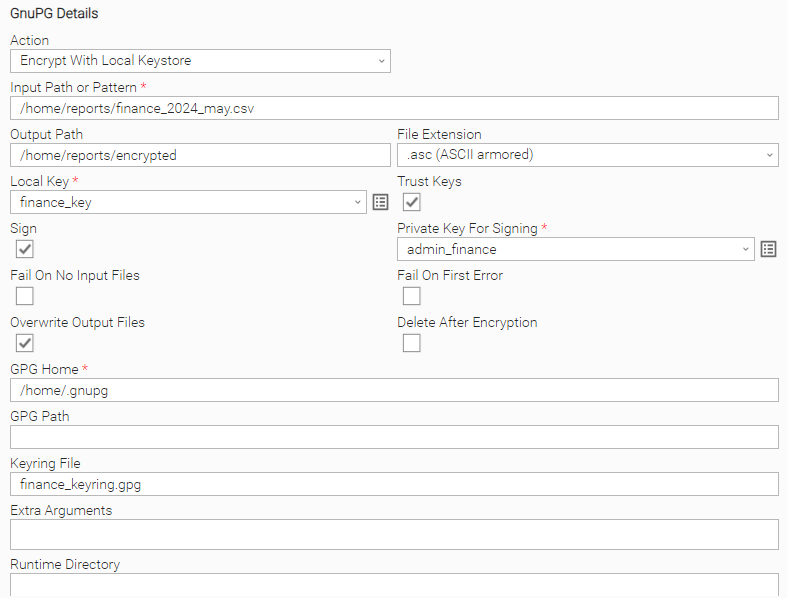
Retrieve the single file "finance_2024_may.csv" and encrypt it in ASCII format, using a PGP key stored in a local GPG keyring file in the /home/.gnupg directory. After encryption is completed, sign the encrypted file. Allow the integration to overwrite any existing encrypted file with the same name.
Example: Encrypt and sign multiple files matching a pattern, using keys stored in the default keyring of the local GPG
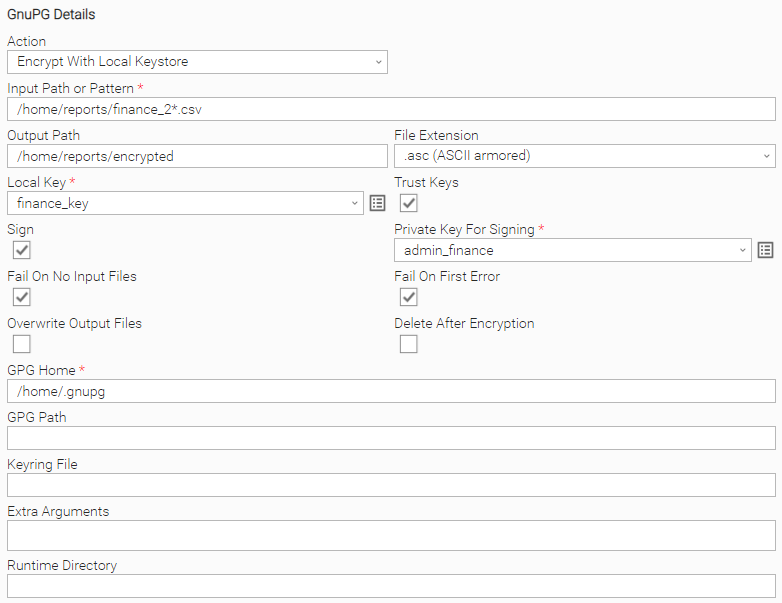
Retrieve all matching files based on the filename pattern "finance_2*.csv" and encrypt them in ASCII format, using a PGP key stored in the default keyring of the local GPG. After encryption is completed, sign the encrypted files. The task instance will fail on the first encryption error or if no matching files are found.
Example: Encrypt and sign a single file, using keys stored on a UDMG server
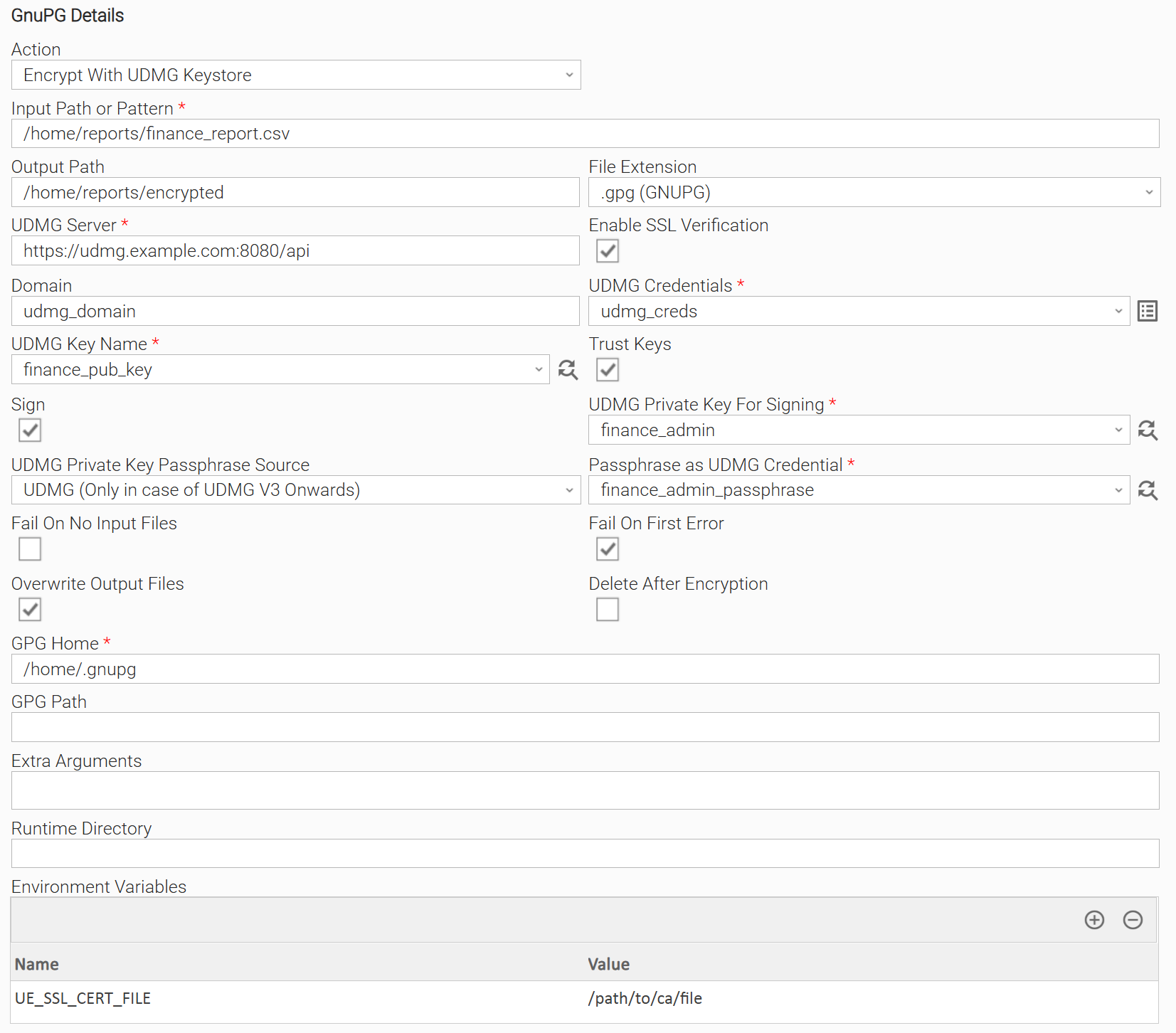
Retrieve the single file "finance_report.csv" and encrypt it, using a PGP key stored on a UDMG version 3 server. After encryption is completed, sign the encrypted file. PGP keys will be temporarily stored on the local GPG, then removed as soon the task instance completes. Allow the integration to overwrite any existing encrypted file with the same name. Use SSL verification and the environment variable UE_SSL_CERT_FILE to specify the path to the CA bundle.
Example: Encrypt multiple files, using keys stored on a UDMG server
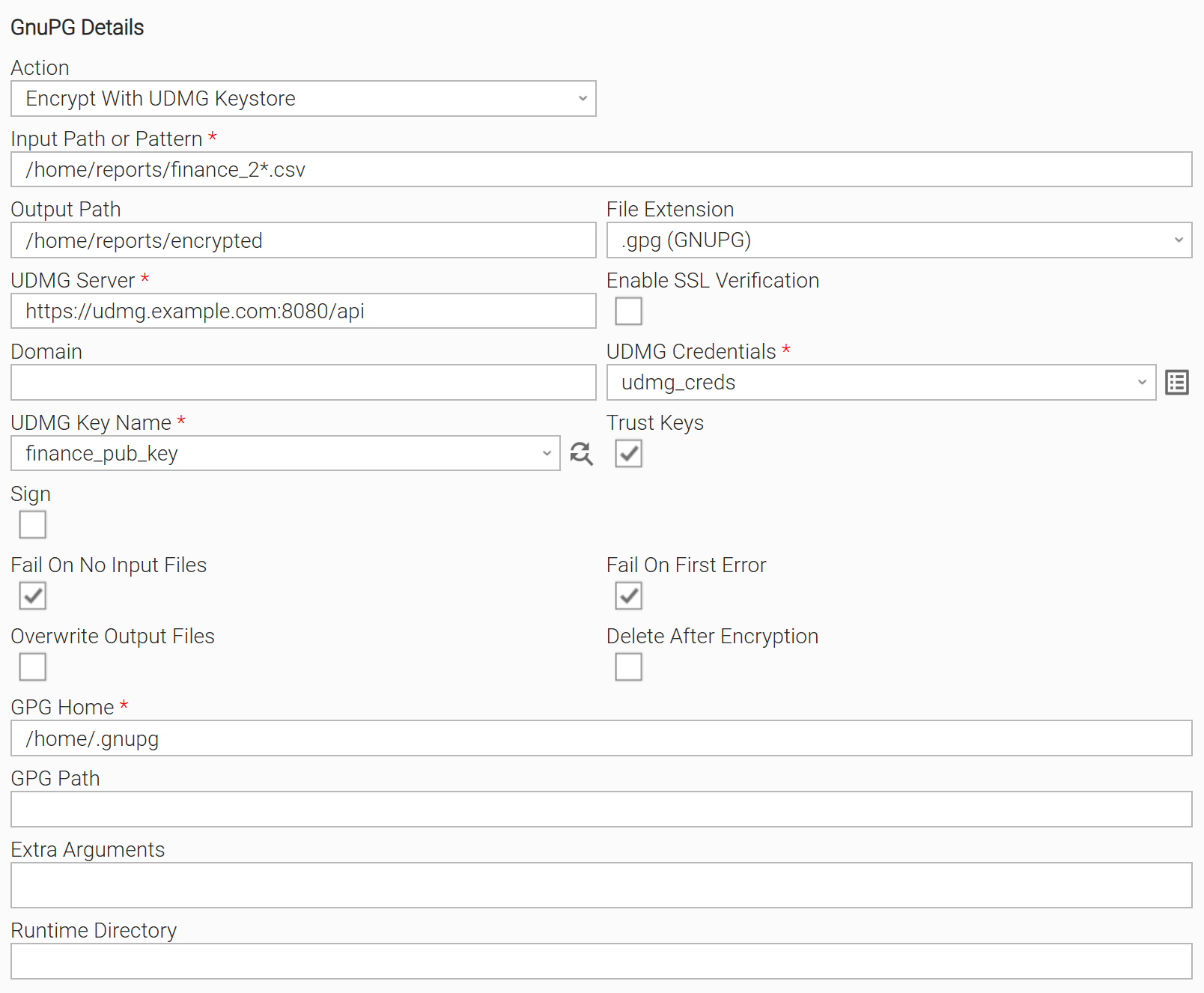
Retrieve all matching files based on filename pattern "finance_2*.csv" and encrypt them, using a PGP key that is stored on a UDMG version 2 server. The integration will skip encryption of any existing encrypted file with the same name. The task instance will fail on the first encryption error or if no matching files are found. SSL verification is disabled.
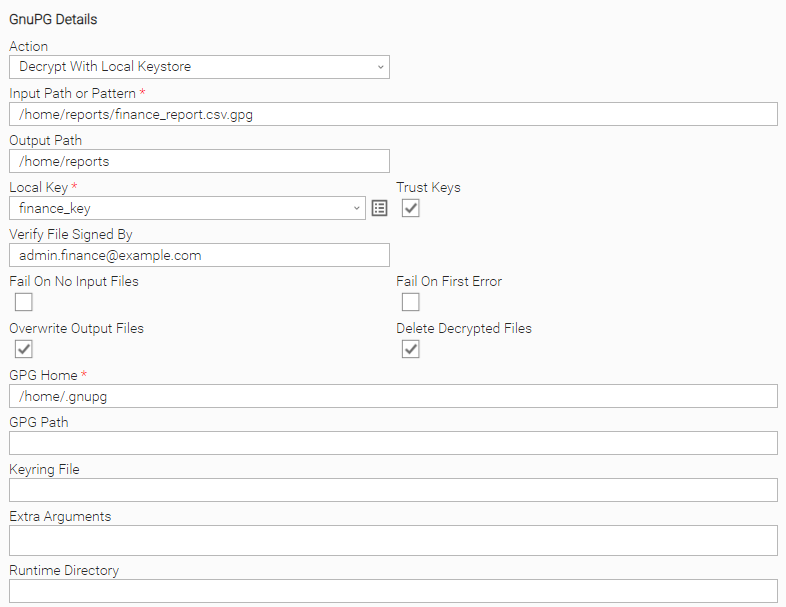
Example: Decrypt a single file using a Private Key stored in the local GPG keystore and verify the signature
Retrieve a single file and decrypt it, using a PGP key stored in the local GPG keystore. After decryption is completed, verify that the file has been signed by "admin.finance@example.com". Allow the integration to overwrite any existing decrypted file with the same name. The task instance will delete the original decrypted file 'finance_report.gpg'.
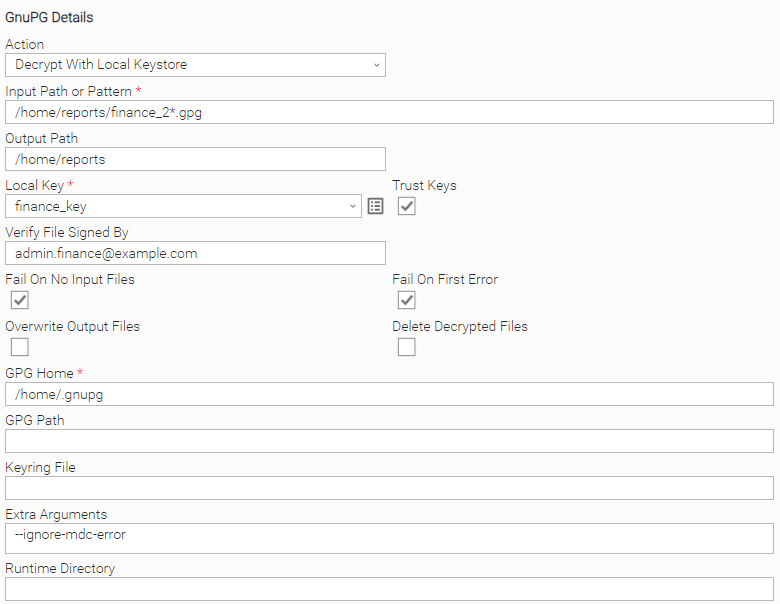
Example: Decrypt multiple files using a Private Key stored in the local GPG keystore and verify the signature
Retrieve all matching files based on filename pattern "finance_2*.gpg" and decrypt them, using a PGP key stored in the local GPG keystore. After decryption is completed, verify that each file has been signed by "admin.finance@example.com". Using a GPG option, ignore any MDC error produced during decryption. The task instance will fail on the first decryption or verification error, or if no matching files are found.
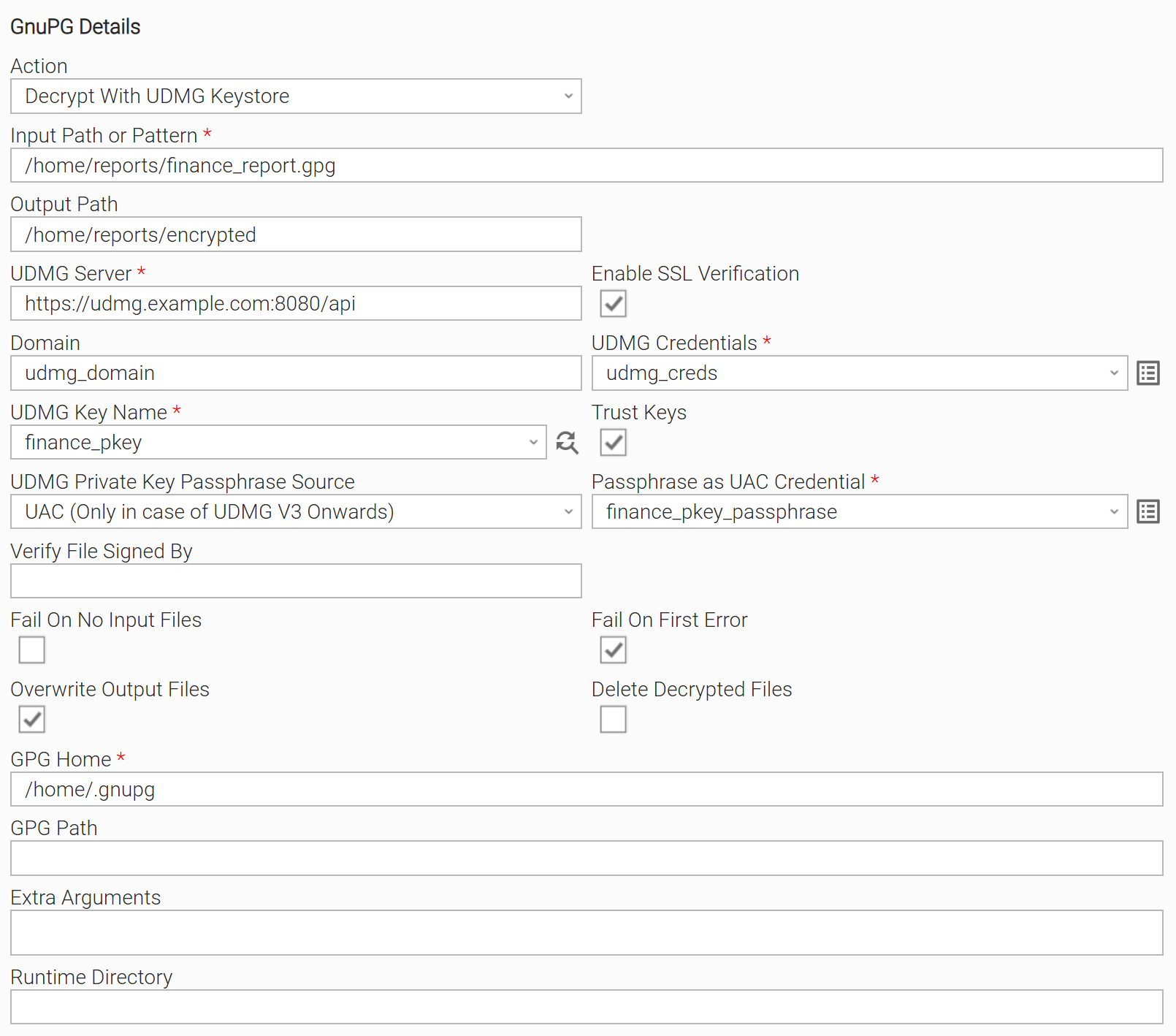
Example: Decrypt a single file using a private key stored on a UDMG server
Retrieve a single file 'finance_report.gpg' and decrypt it, using a PGP key stored on a UDMG version 3 server. Allow the integration to overwrite any existing decrypted file with the same name. The task instance will fail on the first decryption or verification error. SSL verification is enabled.
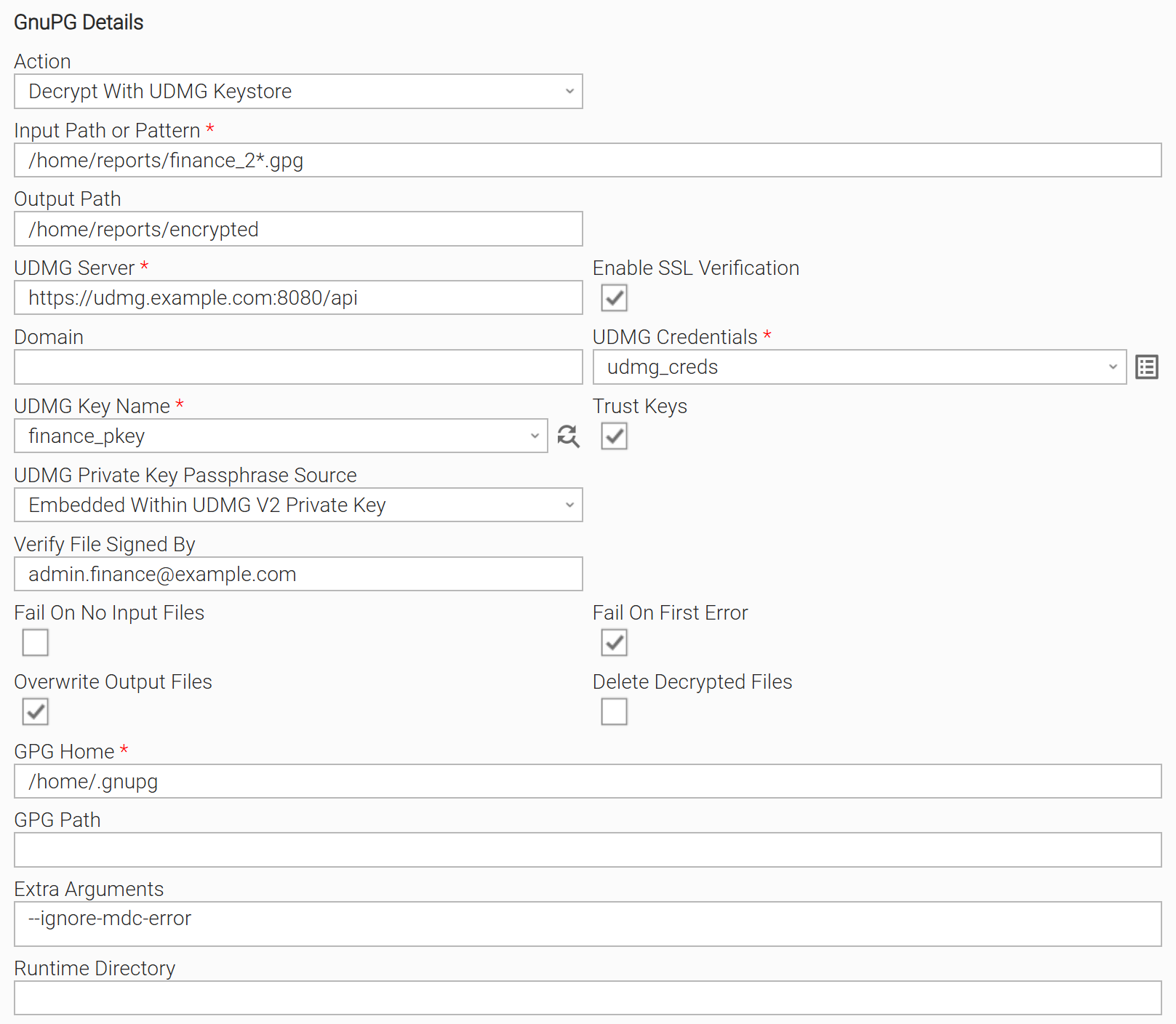
Example: Decrypt multiple files with private key stored on UDMG server and verify their signature
Retrieve all matching files based on filename pattern "finance_2*.csv", and decrypt them, using a PGP key that exists on a UDMG version 2 server. After the decryption is completed, verify that each file has been signed by "admin.finance@example.com". Using a GPG option, ignore any MDC error produced during decryption. The task instance will fail on the first decryption or verification error. SSL verification is enabled.
Input Fields
Name | Type | Description | Version Information |
|---|---|---|---|
Action | Choice | The action performed upon the task execution.
| Introduced in 1.0.0 |
Input Path or Pattern | Text | Source directory containing the file(s) to encrypt/decrypt. When file path pattern is provided, all matched files will be used. | Introduced in 1.0.0 |
Output Path | Text | Directory to store the encrypted/decrypted files. | Introduced in 1.0.0 |
File Extension | Choice | The file extension that will be appended in the encrypted files. Choose the extension that will be used for the encrypted files. Available options:
Visible when Action is "Encrypt With Local Keystore" or "Encrypt With UDMG Keystore". | Introduced in 1.0.0 |
Local Key | Credentials | The UID or Email that will be used for the selected action. Should reflect to an existing GPG key in the local GPG keystore or the keyring that is specified in the Keyring field. The Credentials should be specified as follows:
Visible and required when Action is "Encrypt With Local Keystore" or "Decrypt With Local Keystore". | Introduced in 1.0.0 |
UDMG Server | Text | UDMG Server API endpoint. Example: Example: Visible and required when Action is "Encrypt With UDMG Keystore or "Decrypt With UDMG Keystore". | Introduced in 1.0.0 |
Enable SSL Verification | Checkbox | Enable/disable SSL certificate verification of the UDMG instance. A path to a certificate bundle may be specified using the UE_SSL_CERT_FILE environment variable. Default setting is checked. Visible and required when Action is "Encrypt With Local Keystore" or "Encrypt With UDMG Keystore". | Introduced in 2.0.0 |
Domain | Text | The UDMG domain to be used mandatory for UDMG version 3. | Introduced in 2.0.0 |
UDMG Credentials | Credentials | Credentials for UDMG Server.
Visible and required when Action is "Encrypt With UDMG Keystore or "Decrypt With UDMG Keystore". | Introduced in 1.0.0 |
UDMG Key Name | Dynamic Choice | A list of all the available PGP keys retrieved from the UDMG Server, one of which should be used for the selected action. When Action is "Encrypt With UDMG Keystore", the available Public Keys are listed. When Action is "Decrypt With UDMG Keystore", the available Private Keys are listed. Visible and required when Action is "Encrypt With UDMG Keystore or "Decrypt With UDMG Keystore". | Introduced in 1.0.0 |
Sign | Checkbox | After encryption is completed, optionally sign the encrypted file with the sender's private key. Default setting is unchecked*.* | Introduced in 1.0.0 |
Private Key For Signing | Credentials | Credentials representing the Private key used to sign the encrypted file(s).
Visible and required when Sign is checked*.* | Introduced in 1.0.0 |
Verify File Signed By | Text | The email of the person/key who has signed the file that was decrypted. When a signed file is decrypted, an implicit signature verification is performed. Populating this field will force the task instance to perform an additional validation that the signature is from the expected person. info Decryption is irrelevant to the signature verification. This means that a file can be successfully decrypted, but the signature verification might fail. In this case, a corresponding message is present in the Extension Output result.file.message field for the specific file. Visible when Action is "Decrypt With Local Keystore" or "Decrypt With UDMG Keystore". | Introduced in 1.0.0 |
UDMG Private Key For Signing | Dynamic Choice | A list of all the available PGP Private keys retrieved from the UDMG Server, one of which should be used for signing the encrypted files. Visible and required when Sign is checked*.* | Introduced in 1.0.0 |
UDMG Private Key Passphrase Source | Choice | Determines the source from where to get passphrase for private key. The following options are available.
Visible when Sign is checked or Action is "Decrypt With UDMG Keystore". | Introduced in 2.0.0 |
Passphrase as UAC Credential | Credential | Get the passphrase from a UAC credentials record. The UAC credentials can be defined as follows.
Visible and required when UDMG Private Key Passphrase Source is "UAC (Only in case of UDMG V3 Onwards)". | Introduced in 2.0.0 |
Passphrase as UDMG Credential | Dynamic Choice | Get the passphrase from a UDMG credentials record. The UDMG credentials can be defined as follows.
Visible and required when UDMG Private Key Passphrase Source is "UDMG (Only in case of UDMG V3 Onwards)". | Introduced in 2.0.0 |
Overwrite Output File | Checkbox | When checked, the output file(s) will overwrite the existing ones, if any. Default setting is checked. | Introduced in 1.0.0 |
Delete After Encryption | Checkbox | When checked, delete the input file(s) after encryption. Visible when Action is "Encrypt With Local Keystore" or "Encrypt With UDMG Keystore". Default setting is unchecked. | Introduced in 1.0.0 |
Delete After Decryption | Checkbox | When checked, delete the input file(s) after decryption. Visible when Action is "Decrypt With Local Keystore" or "Decrypt With UDMG Keystore". Default setting is unchecked. | Introduced in 1.0.0 |
Fail On No Input Files | Checkbox | When selected, fails when no matching input files are found. Default setting is unchecked. | Introduced in 1.0.0 |
Fail On First Error | Checkbox | When checked, fails on the first error that might occur during encryption/decryption. Task instance fails with Exit Code 101. Default setting is unchecked. | Introduced in 1.0.0 |
Trust Keys | Checkbox | When checked, skip key validation and assume that used keys are always fully trusted. This option should be used with caution for imported keys. Default setting is unchecked. | Introduced in 1.0.0 |
GPG Home | Text | Home directory for the GnuGP tool. This is the location where default and/or custom keyrings can be stored. Refer to the official GnuPG documentation for more details on the GnuPG Home Directory option. Users are advised to use a custom GPG Home when Action is "Encrypt With UDMG Keystore or "Decrypt With UDMG Keystore". | Introduced in 1.0.0 |
GPG Path | Text | The file path to the .gpg executable. Should be populated when .gpg executable is not included in the PATH environment variable. | Introduced in 1.0.0 |
Keyring File | Text | Points to a keyring file. Use this field when a GPG Keyring other than the default stored under the GPG Home Directory is used. Populate the field according to the following cases:
Please refer to official documentation for more details on the keyring usage, depending on the Linux or Windows OS. Visible when Action is "Encrypt With Local Keystore" or "Decrypt With Local Keystore". | Introduced in 1.0.0 |
Extra Arguments | Large Text | A space-separated list of extra arguments that can be provided to the GPG command line tool. A usage example can be found under Action "Decrypt With Local Keystore". Some common scenarios for the Extra Arguments field are indicated in Extra Arguments for GnuPG. | Introduced in 1.0.0 |
Extra Arguments for GnuPG
The task definition allows users to pass additional GnuPG command line arguments through the Extra Arguments field. See the following common scenarios.
Setting GnuPG debug level
By default, when the task is run with Log Level DEBUG, --debug-level 3 is used implicitly during GnuPG execution, which corresponds to the advanced GnuPG debug level. This level offers comprehensive in-depth debug information useful for troubleshooting purposes.
However, users have the flexibility to override this default setting. If a custom GnuPG debug level is specified using the --debug-level argument in the Extra Arguments field, it will take precedence over the default level 3. This allows users to adjust the verbosity of the debug output according to their specific needs. If using the --debug-level extra argument, debug information will appear on STDERR, even if the task log level is not set to DEBUG.
Using Keys generated by older GnuPG versions.
Older GPG versions, particularly those in the 1.x series of versions, are considered less secure for multiple reasons, such as using outdated encrypting algorithms and older key types. This may cause problems during execution with GnuPG version 2.x, such as failed decryption even though a correct private key is used. This case may occur if the key was encrypted with an outdated algorithm, or it did not have Modification Detection Code (MDC).
To avoid such errors, users can configure the Extra Arguments field accordingly, consulting the official GnuPG User Guide.
--ignore-mdc-error: Instructs GPG to ignore Modification Detection Code (MDC) errors. This is useful since older GPG versions do not use MDC for the keys, while newer GPG versions require MDC by default and refuse to decrypt messages without it. However, reduced protection against message tampering is a security risk that must be considered.--trust-model always: Sets GPG's trust model to "always," bypassing key validation. Older GPG versions have simpler trust models, and this argument skips the stricter key validation processes required by newer GPG versions. This argument needs to be used with caution due to possible impersonation attacks.
Task Authors should always consult the GnuPG official User Guide to understand the nuances around GnuPG command line options
Environment Variables
Environment Variables can be set from Environment Variables task definition table. The following environment variables can affect the behavior of the extension.
Environment Variable Name | Description | Version Information |
|---|---|---|
UE_HTTP_TIMEOUT | This environment variable defines the global timeout value for sending all requests to the UDMG server. It affects both connection and read timeouts, preventing requests from hanging. Accepted values: Positive integer (in seconds). If the environment variable is not set, the timeout will default to 60 seconds. | 2.0.0 |
UE_SSL_CERT_FILE | The path to the SSL certificate file for validating the UDMG server. | 2.0.0 |
Exit Codes
Exit Code | Status | Description |
|---|---|---|
0 | Success | Successful Execution |
1 | Failed | Generic Error identifying a failed execution. |
2 | Failed | UDMG: Bad credentials. |
3 | Failed | UDMG: Insufficient permissions. |
10 | Failed | UDMG: Bad connection data or connection timed out. |
11 | Failed | Invalid UDMG API endpoint. |
20 | Failed | Input fields validation error. |
100 | Failed | At least one file has failed to be encrypted/decrypted, or signature has failed to be verified according to the given Email. |
101 | Failed | All files have failed to be encrypted/decrypted. |
GnuPG - How To
The following sections describe sample scenarios of managing GPG keys with GnuPG cli tool.
Action | GPG Command | Comments | Example Output |
|---|---|---|---|
Generate GPG Key Pair - default way (RSA Algorithm) |
| At this step, you will be prompted to input a passphrase for the private key. The public and private keys are generated and stored in binary format. | Generate KeysGenerate Keys |
Generate GPG keypair - choose encryption algorithm |
| At this step, you will be prompted to input a passphrase for the private key. Choose a different encryption algorithm, other than the default RSA. In this example, 'ElGamal' is chosen. | Generate KeysGenerate Keys |
Export GPG Public Key to file |
| Export Public KeyExport Public Key | |
Export GPG Private Key to file |
| At this point you will be prompted to enter the passphrase you set in the key generation step. | Export Private KeyExport Private Key |
List Keys |
| The above command will prompt only the public keys. To get prompted with the private keys, execute the command: gpg --list-secret-keys To list keys under a keystore stored on a different GPG home, than the default one: gpg --homedir <dir> --list-keys To list keys stored on a custom keyring file: gpg --keyring <absolute path to keyring file> --no-default-keyring --list-keys | List Pubic KeysList Pubic Keys |
Import GPG Public Keys |
| Import Public KeyImport Public Key | |
Import GPG Private Keys |
| At this point you will be prompted to enter the key passphrase. info Private keys should be carefully imported into a system. In order to use a private key properly, you might need to update its trust method. To do so, execute the interactive command: gpg --trust . Choose the appropriate options as per your needs, and then run gpg --save to save the changes. | Import Private KeyImport Private Key |
How To
Import Universal Template
To use the Universal Template, you first must perform the following steps.
- This Universal Task requires the Resolvable Credentials feature. Check that the Resolvable Credentials Permitted system property has been set to true.
- Import the Universal Template into your Controller:
- Extract the zip file, you downloaded from the Integration Hub.
- In the Controller UI, select Services > Import Integration Template option.
- Browse to the "export" folder under the extracted files for the ZIP file (Name of the file will be unv_tmplt_*.zip) and click Import.
- When the file is imported successfully, refresh the Universal Templates list; the Universal Template will appear on the list.
Modifications of this integration, applied by users or customers, before or after import, might affect the supportability of this integration. For more information refer to Integration Modifications.
Configure Universal Task
For a new Universal Task, create a new task, and enter the required input fields.
Integration Modifications
Modifications applied by users or customers, before or after import, might affect the supportability of this integration. The following modifications are discouraged to retain the support level as applied for this integration.
- Python code modifications should not be done.
- Template Modifications
- General Section
- "Name", "Extension", "Variable Prefix", and "Icon" should not be changed.
- Universal Template Details Section
- "Template Type", "Agent Type", "Send Extension Variables", and "Always Cancel on Force Finish" should not be changed.
- Result Processing Defaults Section
- Success and Failure Exit codes should not be changed.
- Success and Failure Output processing should not be changed.
- Fields Restriction Section
The setup of the template does not impose any restrictions. However, concerning the "Exit Code Processing Fields" section.- Success/Failure exit codes need to be respected.
- In principle, as STDERR and STDOUT outputs can change in follow-up releases of this integration, they should not be considered as a reliable source for determining the success or failure of a task.
- General Section
Users and customers are encouraged to report defects, or feature requests at Stonebranch Support Desk.
Document References
This document references the following documents:
Document Link | Description |
|---|---|
User documentation of GnuPG command line tool. |
Changelog
ue-gnupg-2.0.1 (2026-07-28)
Fixes
Fixed:Encrypted output files do not retain the original filename in the GnuPG literal data packet. (#147747)Fixed:Local keystore encryption picks an unusable key when multiple keys share the same UID/email. (#147747)
ue-gnupg-2.0.0 (2025-12-19)
Deprecations and Breaking Changes
Breaking Change: Dropping support for Agents with version <= 7.5 and for Python 3.7.
Enhancements
Added:Support for UDMG server version 3.Added:Environment variables UE_HTTP_TIMEOUT for setting up timeout for requests and UE_SSL_CERT_FILE for setting up the path to the CA bundle.
Fixes
Fixed:Duplicate key deletion when encryption and signing use same fingerprint. (#51149)
ue-gnupg-1.1.1 (2025-08-21)
Fixes
Fixed:GnuPG failures by using key fingerprints instead of names for key existence verification and encrypt/decrypt operations. (#138862, #48376)
ue-gnupg-1.1.0 (2024-11-07)
Enhancements
Added:When the Task is configured to run in DEBUG mode, GnuPG is run in DEBUG mode as well to provide more information on STDERR (#41681)Added:Environment variable UE_GNUPG_VERBOSE_OUTPUT is dropped, and its functionality is embedded when the Task is run on DEBUG log level for better user experience.Added:Updated documentation to include guidance on handling older GPG keys. (#41682)
ue-gnupg-1.0.1 (2024-08-08)
Fixes
Fixed:fix check that falsely detects that the target file exists (#41481)
ue-gnupg-1.0.0 (2024-06-06)
Initial version