UAC Utility: HTTP Download
Disclaimer
Your use of this download is governed by Stonebranch's Terms of Use.
Version Information
Template Name | Extension Name | Version | Status |
|---|---|---|---|
HTTP Download | ue-http-download | 2 (Current 2.0.0) | Fixes and new Features are introduced. |
Refer to Changelog for version history information.
This is a major release and introduces breaking changes that might affect some customers depending on their setup. Administrators are strongly advised to refer to Changelog for more information on the changes introduced in this release.
Overview
Downloading content from an HTTP server is a common operation in various scenarios, including File Transfer, Data Synchronization, Web Scrapping, Data Analysis and more. This integration provides the capability to download content over HTTP protocol and store it on the Universal Agent's File System for later processing.
Key Features
Feature | Description |
|---|---|
Download content from the web | Store the downloaded content in file on the Universal Agent's file system. |
Support multiple authentication types | Most common authentication mechanisms are supported, including Token, API Key and Basic. |
Progress Bar | Review the downloaded content's progress (only for HTTP responses that provide the header Content-Length.) |
Checksum verification | Optionally the checksum of the downloaded content can be verified. |
Requirements
This integration requires a Universal Agent and a Python runtime to execute the Universal Task.
Area | Details |
|---|---|
Python Version | Requires Python 3.11, tested with Agent bundled python distribution |
Universal Agent Compatibility |
|
Universal Controller Compatibility | Universal Controller Version >= 7.6.0.0. |
Supported Actions
Action: Download Content
This integration is responsible for downloading content from web and store it in a file on the Universal Agent's file system.
Action Output
- EXTENSION
- STDERR
The extension output provides the following information:
- exit_code, status_description: General info regarding the task execution. For more information users can refer to the exit code table.
- invocation.fields: The task configuration used for this task execution.
- result.metadata.response_headers: The response headers sent from the server.
- result.file.name: The absolute file path of the downloaded content.
- result.file.size: The size in bytes of the downloaded content.
- result.http_code: The response HTTP code.
- result.errors: List of errors that might have occurred during execution.
Examples:Successful Execution
Failed Execution - Requests has failed
Unexpected Failed Execution
Shows the logs from the Task Instance execution. The verbosity is controlled by the Task configuration Log Level.
Configuration examples
The following examples demonstrate a few real-life scenarios.
The task configuration combinations are not restrictive to the examples.
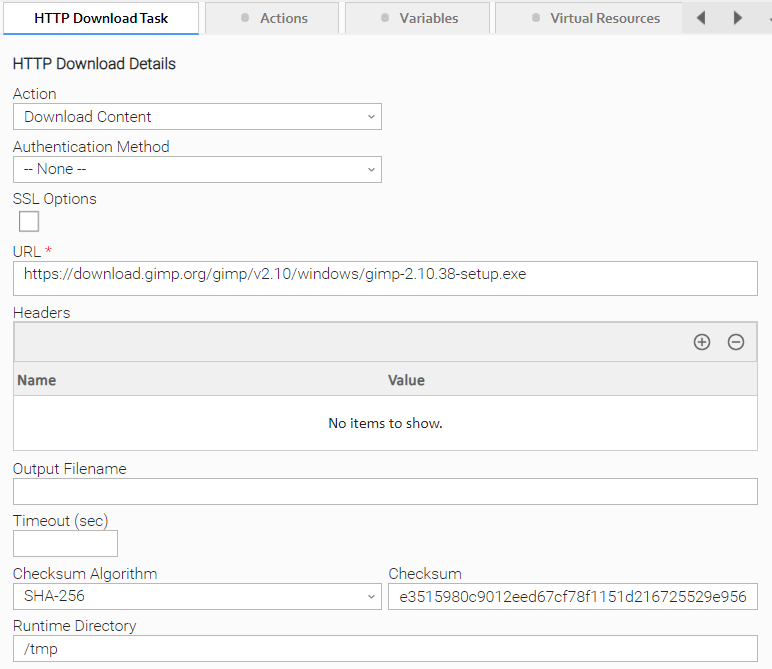
Example: No authentication - File extension automatically identified - Verify Checksum
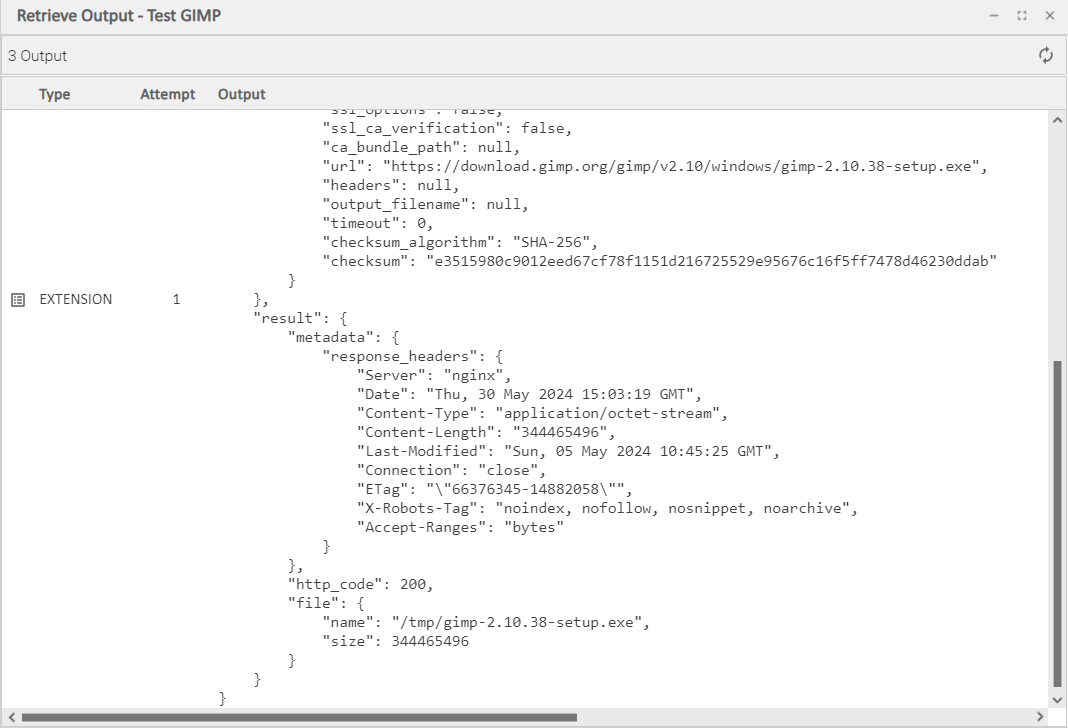
Download a binary file and verify its checksum. The name of the downloaded file is determined by a best-effort algorithm. File is stored in Runtime Directory path.
result JSON element of the Extension Output from the Task Instance execution.
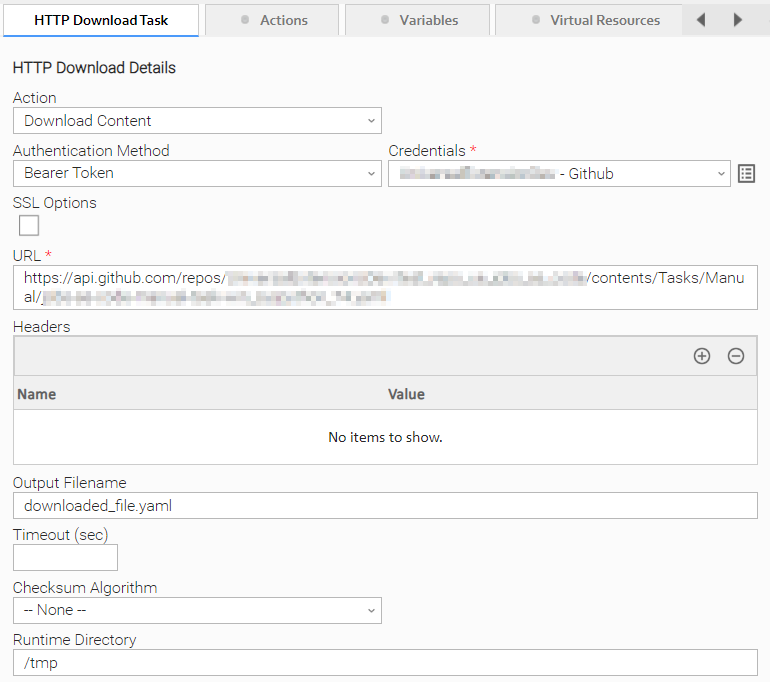
Example: Token authentication - Custom file extension
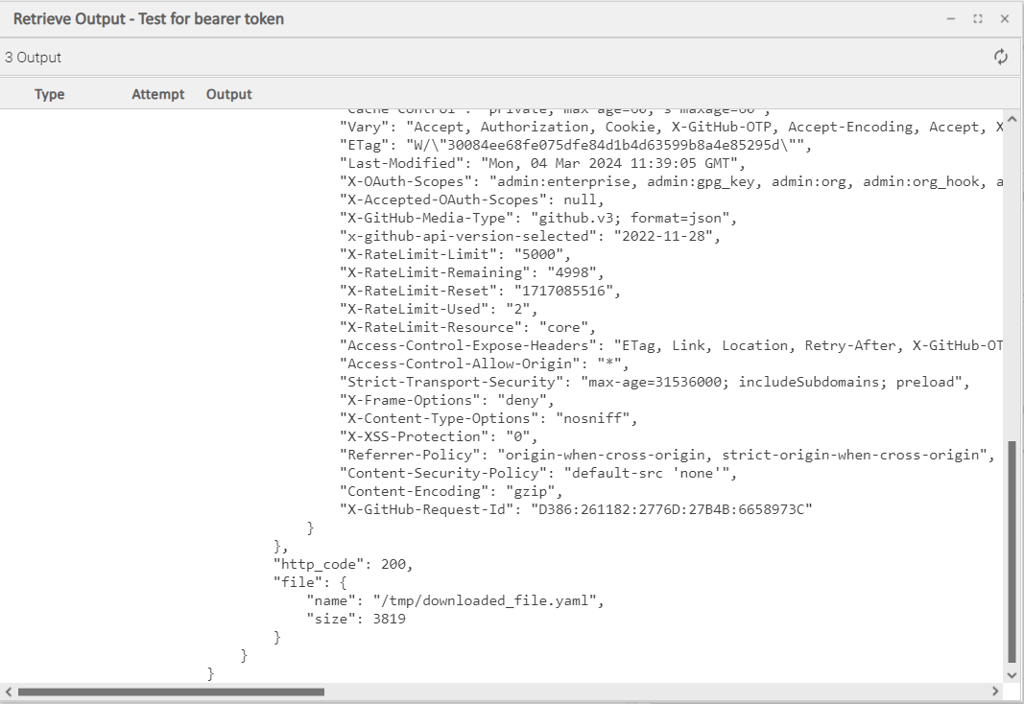
Download the contents of a resource. Custom Output Filename is provided, thus respected during download. File is stored in Runtime Directory path.
result JSON element of the Extension Output from the Task Instance execution.
Input Fields
Name | Type | Description | Version Information |
|---|---|---|---|
Action | Choice | The action performed upon the task execution.
| Introduced in 1.0.0 |
URL | Large Text | The endpoint which results to a downloadable content. | Introduced in 1.0.0 |
Authorization Type | Choice | The authorization type to be used for communicating with the foreign API. The following options are available.
No authorization details are sent with the request.
Basic authentication involves sending a username and password with the request.
The request is authorized through the use of an API key.
The request is authorized through the use of a known access token. This option is used typically if the access token is retrieved by former task execution. | Introduced in 1.0.0 |
Credentials | Credentials | Credentials for different Authorization Types. The Credentials definition should be populated as follows. For Authorization Type=Basic:
For Authorization Type=Token:
For Authorization Type=API Key:
| Introduced in 1.0.0 |
Add Authorization Data To | Choice | Specifies where to include the API Key in the request. The following options are available:
Required when Authorization Type is "API Key". | Introduced in 1.0.0 |
SSL Options | Checkbox | Enables additional SSL options. Default setting is unchecked. | Introduced in 1.0.0 |
SSL Certificate Verification | Checkbox | Enables certificate verification. Certificate verification is auto-enabled in case field "CA Bundle Path" field is populated. Default setting is checked. | Introduced in 1.0.0 |
CA Bundle Path | Text | Path and file name of the Certificate Authority bundle to use in certificate verification. The file should be in PEM format. Visible when SSL Certificate Verification is checked. | Introduced in 1.0.0 |
Headers | Array | The list of HTTP Headers key/value pairs to be sent with the request. | Introduced in 1.0.0 |
Output Filename | Text | The name of the file where the content will be stored. The full file path is also supported. If not provided, a best-effort algorithm is used to determine the name under which the downloaded content will be stored. If absolute file path is not provided, the downloaded content is stored in the Runtime Directory. | Introduced in 1.0.0 |
Timeout | Integer | The time (in seconds) that the request will wait for the server to send data before closing the connection. If Timeout is not filled, the request will wait (hang) until the connection is closed. | Introduced in 1.0.0 |
Checksum Algorithm | Choice | The algorithm that will be used in order to validate the checksum of the downloaded content. The following options are available:
| Introduced in 1.0.0 |
Checksum | Text | The checksum provided from the source host, for the downloaded content. Visible when Checksum Algorithm = [MD5 | SHA-1 | SHA-256]. | Introduced in 1.0.0 |
Exit Codes
Exit Code | Status | Status Description | Meaning |
|---|---|---|---|
0 | Success | "SUCCESS: Task executed successfully." | Successful Execution |
1 | Failure | "Execution Failed: <<Error Description>>" | Generic Error identifying a failed execution. |
2 | Failure | "Authentication Error: Account cannot be authenticated." | Bad credentials |
3 | Failure | "Authorization Error: Account is not authorized to perform the requested action." | Insufficient permissions |
20 | Failure | "Data Validation Error: <<Error Description>>" | An input fields cannot be validated. |
STDOUT and STDERR
STDOUT and STDERR provide additional information to the user.
Backward compatibility is not guaranteed for the content of STDOUT/STDERR and can be changed in future versions without notice.
How To
Import Universal Template
To use the Universal Template, you first must perform the following steps
- This Universal Task requires the Resolvable Credentials feature. Check that the Resolvable Credentials Permitted system property has been set to true.
- Import the Universal Template into your Controller:
- Extract the zip file, you downloaded from the Integration Hub.
- In the Controller UI, select Services > Import Integration Template option.
- Browse to the "export" folder under the extracted files for the ZIP file (Name of the file will be unv_tmplt_*.zip) and click Import.
- When the file is imported successfully, refresh the Universal Templates list; the Universal Template will appear on the list.
Modifications of this integration, applied by users or customers, before or after import, might affect the supportability of this integration. For more information refer to Integration Modifications.
Integration Modifications
Modifications applied by users or customers, before or after import, might affect the supportability of this integration. The following modifications are discouraged to retain the support level as applied for this integration.
- Python code modifications should not be done.
- Template Modifications
- General Section
- "Name", "Extension", "Variable Prefix", and "Icon" should not be changed.
- Universal Template Details Section
- "Template Type", "Agent Type", "Send Extension Variables", and "Always Cancel on Force Finish" should not be changed.
- Result Processing Defaults Section
- Success and Failure Exit codes should not be changed.
- Success and Failure Output processing should not be changed.
- Fields Restriction Section
The setup of the template does not impose any restrictions. However, concerning the "Exit Code Processing Fields" section.- Success/Failure exit codes need to be respected.
- In principle, as STDERR and STDOUT outputs can change in follow-up releases of this integration, they should not be considered as a reliable source for determining the success or failure of a task.
- General Section
Event Template configuration related to "Metric Label Attributes" & "Optional Metric Labels" is allowed. However, administrators should be cautious of high cardinality scenarios that might occur.
Users and customers are encouraged to report defects, or feature requests at Stonebranch Support Desk.
Configure Universal Task
For a new Universal Task, create a new task, and enter the required input fields.
Document References
This document references the following documents:
Document Link | Description |
|---|---|
User documentation for creating, working with and understanding Universal Templates and Integrations. | |
User documentation for creating Universal Tasks in the Universal Controller user interface. |
Changelog
ue-http-download-2.0.0 (2026-02-24)
Deprecations and Breaking Changes
Breaking Change: Dropping support for Agents with version <= 7.5 and for Python 3.7.
Enhancements
Added: Improving Python compatibility with future Agent versions.
ue-http-download-1.0.0 (2024-06-06)
Initial Version