WinRM
Disclaimer
Your use of this download is governed by Stonebranch's Terms of Use.
Version Information
Template Name | Extension Name | Version | Status |
|---|---|---|---|
WinRM | ue-winrm | 1.0.0 | Initial Version. |
Refer to Changelog for version history information.
Overview
Windows Remote Management (WinRM) is Microsoft's implementation of the WS-Management protocol, allowing commands and scripts to be run on remote Windows hosts over HTTP or HTTPS.
This Universal Task allows you to run commands and scripts on remote Windows hosts straight from the Universal Controller. Commands can be executed through either the Command Prompt or PowerShell, using a range of authentication mechanisms, and the remote output and exit code are returned as part of the task result.
Key Features
Feature | Description |
|---|---|
Remote Command Execution | Run a single command on a remote Windows host through Command Prompt or PowerShell. |
Script Execution | Run a multi-line CMD or PowerShell script defined directly in the task. |
Multiple Authentication Methods | Connect using Basic, Basic over SSL, certificate, Kerberos, NTLM, or CredSSP authentication. |
Remote Result Reporting | Return the remote command's standard output and propagate its exit code as the task result. |
Requirements
This integration requires a Universal Agent and a Python runtime to execute the Universal Task.
Area | Details |
|---|---|
Python Version | Requires Python 3.11, tested with Agent bundled python distribution. |
Universal Agent Compatibility |
|
Universal Controller Compatibility | Universal Controller Version >= 7.7.0.0. |
Network and Connectivity | Network connectivity from the Universal Agent to the target Windows host over WinRM is required (HTTP port 5985 or HTTPS port 5986 by default). |
Supported Actions
There is one Top-Level action controlled by the Action Field:
The Execute command action connects to a remote Windows host over WinRM and runs the configured command or script through the selected shell. The remote standard output is returned on STDOUT and the remote exit code becomes the task's exit code, so a command that fails on the host causes the task to fail.
Action Output
- EXTENSION
- STDOUT
The extension output provides the following information:
exit_code, status_description: General info regarding the task execution.invocation.fields: The task configuration used for this execution. For more information refer to exit codes table.result.errors: List of errors that might have occurred during execution.
Examples:Successful execution
Failed execution
Contains the standard output returned by the command or script executed on the remote Windows host.
Example:
 Volume in drive C has no label.
 Volume Serial Number is 1A2B-3C4D

 Directory of C:\Users\svc-winrm

07/20/2026  09:15 AM    <DIR>          .
07/20/2026  09:15 AM    <DIR>          ..
07/18/2026  02:03 PM             1,024 report.txt
               1 File(s)          1,024 bytes
               2 Dir(s)  20,341,760,000 bytes free
Configuration Examples
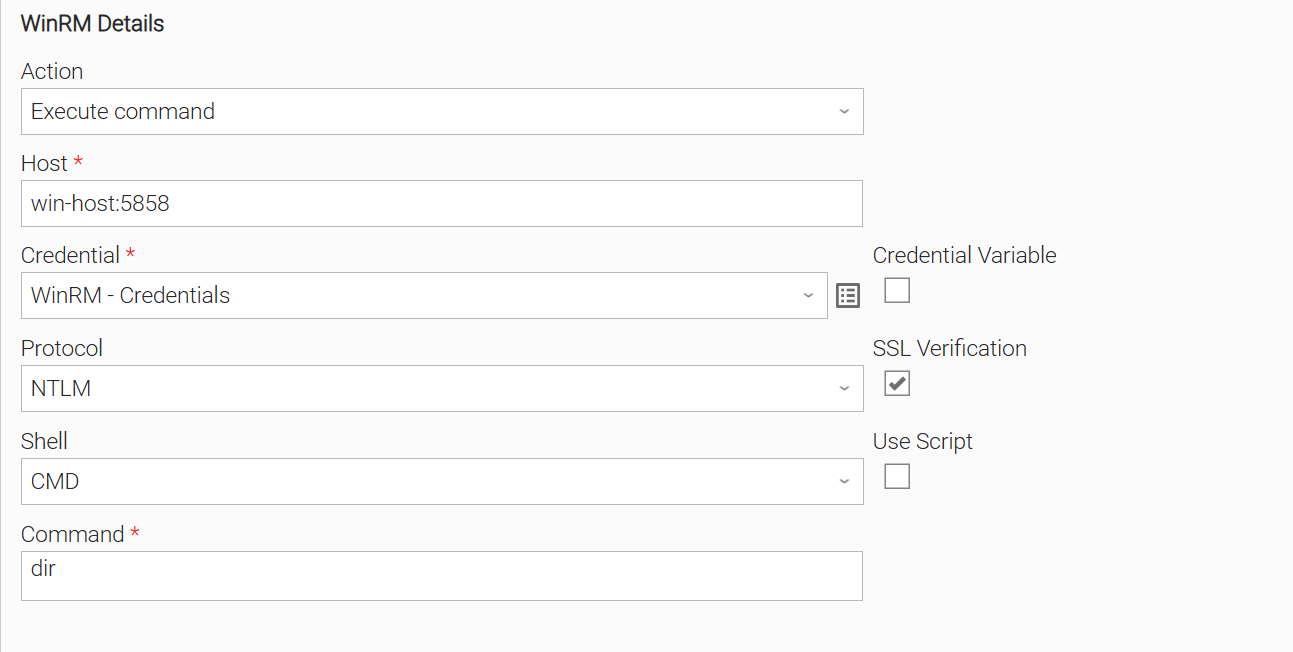
Example: NTLM authentication, CMD shell, single command
Runs a single Command Prompt command on a remote Windows host. The Protocol is set to "NTLM" and a Resolvable Credential provides the domain user and password. Use Script is left unchecked and the command is entered directly in the Command field.
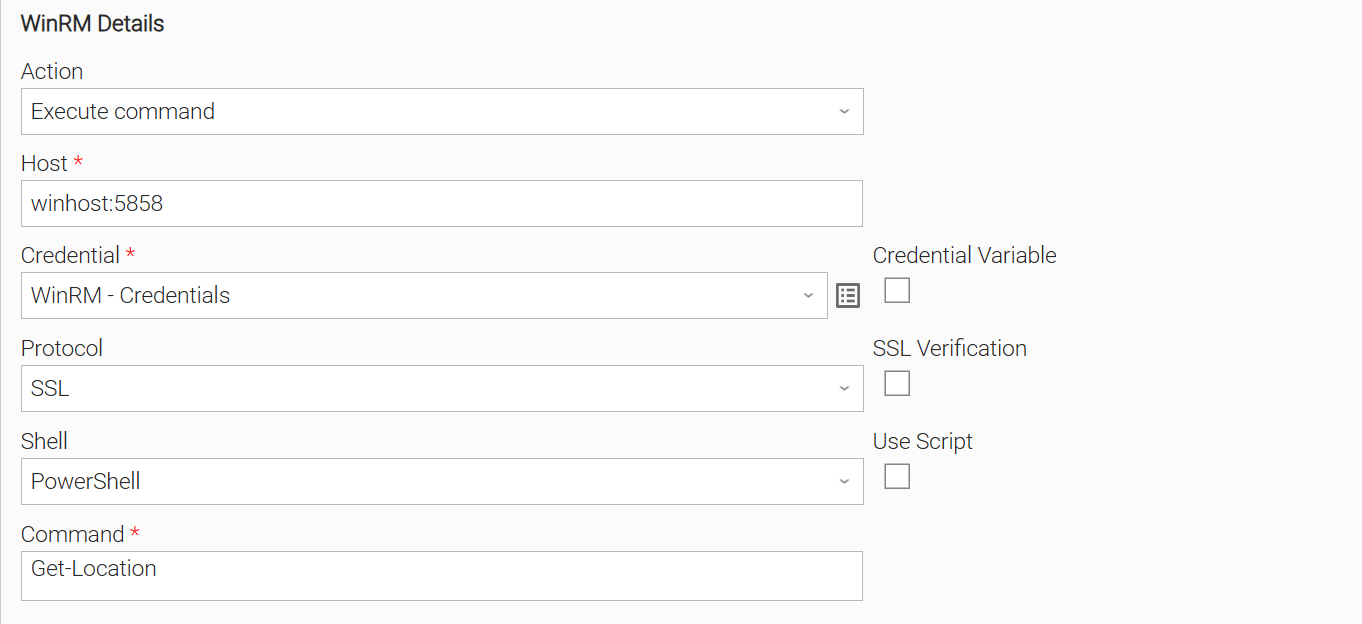
Example: Basic authentication over SSL, PowerShell shell
Runs a PowerShell command over an encrypted HTTPS connection. The Protocol is set to "SSL" and SSL Verification is unchecked because the host presents a self-signed certificate. The Shell is set to "PowerShell" and the command is entered in the Command field.
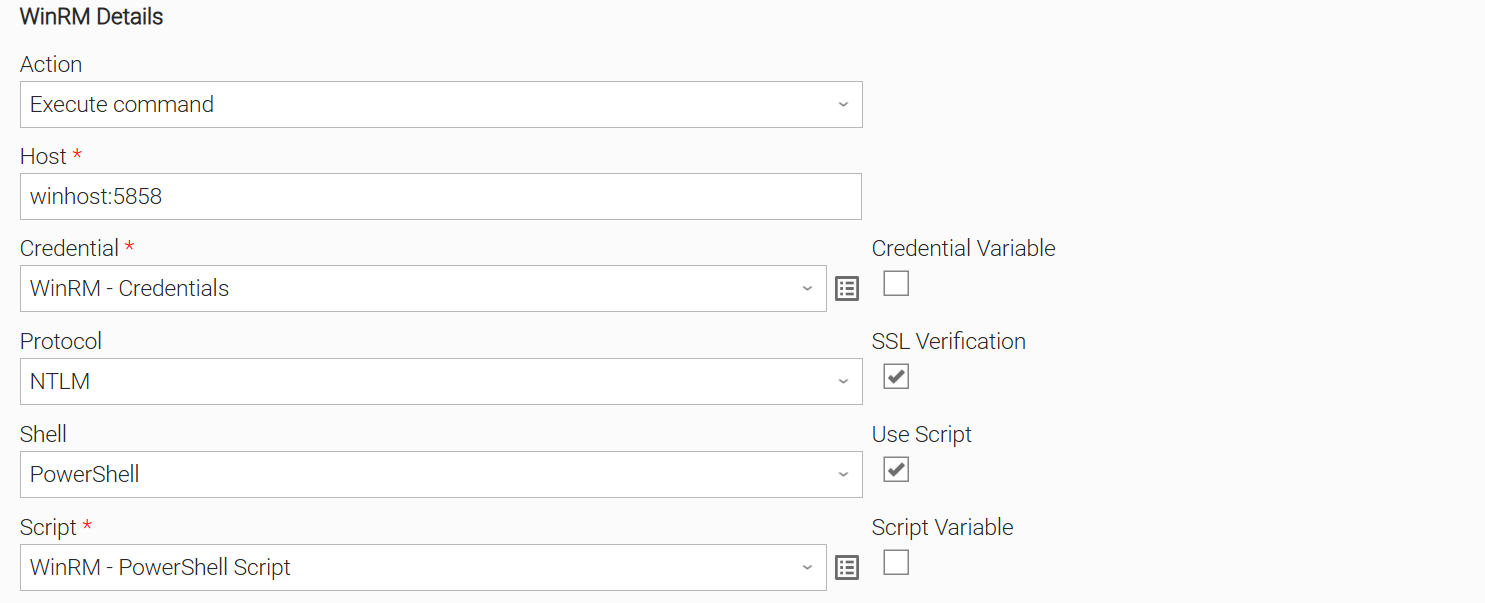
Example: NTLM authentication, PowerShell script execution
Runs a multi-line PowerShell script on a remote Windows host. The Protocol is set to "NTLM", the Shell is set to "PowerShell", Use Script is checked, and the script body is provided in the Script field.
Input Fields
Name | Type | Description | Version Information |
|---|---|---|---|
Action | Choice | The action performed by the extension. Available options:
| Introduced in 1.0.0 |
Host | Text | The hostname or IP address of the remote Windows host, with an optional port (for example | Introduced in 1.0.0 |
Credential | Credential | The Resolvable Credential used to authenticate to the remote host. For the "Certificate" protocol, the user holds the path to the client certificate PEM file and the password holds the path to its private key. | Introduced in 1.0.0 |
Protocol | Choice | The transport and authentication mechanism used to connect to the remote host. Available options:
| Introduced in 1.0.0 |
SSL Verification | Checkbox | Check to validate the remote host's SSL certificate when connecting over HTTPS. Defaults to checked. | Introduced in 1.0.0 |
Shell | Choice | The shell used to run the command or script on the remote host. Available options:
| Introduced in 1.0.0 |
Use Script | Checkbox | Check to run a script defined in the Script field instead of a single command. | Introduced in 1.0.0 |
Command | Text | The command to run on the remote host. This field is visible and required when Use Script is false. | Introduced in 1.0.0 |
Script | Script | The script to run on the remote host. This field is visible and required when Use Script is true. | Introduced in 1.0.0 |
Environment Variables
Environment Variables can be set from the Environment Variables task definition table.
Environment Variable Name | Description | Version Information |
|---|---|---|
UE_HTTP_TIMEOUT | The maximum time, in seconds, to wait for a response from the remote host before the WinRM connection times out. Defaults to | Introduced in 1.0.0 |
UE_OUTPUT_ENCODING | The character encoding used to decode the remote command output. When set, it is attempted before the built-in UTF-8 and cp1252 fallbacks. | Introduced in 1.0.0 |
Importable Configuration Examples
This integration provides importable configuration examples along with their dependencies, grouped as Use Cases to better describe end to end capabilities.
These examples aid in allowing task authors to get more familiar with the configuration of tasks and related Use Cases. Such tasks should be imported in a Test system and should not be used directly in production.
Initial Preparation Steps
- STEP 1: Go to Stonebranch Integration Hub and download the integration along with any additional integrations required by the Use Cases. Extract the downloaded archives in a local directory.
- STEP 2: Locate and import the above integration(s) to the target Universal Controller. For more information refer to the How To section in this document.
- STEP 3: Inside the directory named "configuration_examples" you will find a list of definition zip files. Upload them one by one respecting the order presented below, by using the "Upload" functionality of Universal Controller:
- *_variables.zip
- *_credentials.zip
- *_scripts.zip
- *_tasks.zip
- *_monitors.zip
- *_workflows.zip
- *_triggers.zip
The*represents a number prefix that varies per integration. Upload only the files present, in the order listed above.
- STEP 4: Update the uploaded UAC Credential entity(ies) with the required credentials. Review each credential's description for guidance on what to provide.
- STEP 5: Update the UAC global variables introduced with the
*_variables.zipfile. Their name is prefixed with the extension name using underscores instead of hyphens. Review the descriptions of the variables as they include information on how they should be populated. - STEP 6: If applicable, create an OMS record on the Universal Controller. Ensure the address matches the one assigned to the relevant global variable from the previous step. For more information refer to Creating OMS Server Records.
- STEP 7: If applicable, create an Agent Cluster on the Universal Controller. Ensure the name matches the one assigned to the relevant global variable from the previous step. For more information refer to Creating an Agent Cluster.
- The order indicated above ensures that the dependencies of the imported entities need to be uploaded first.
- All imported entities are prefixed with the Use Case number (e.g. UC1, UC2, UC3) they belong to.
How to "Upload" Definition Files to a Universal Controller
The "Upload" functionality of Universal Controller allows Users to import definitions exported with the "Download" functionality.
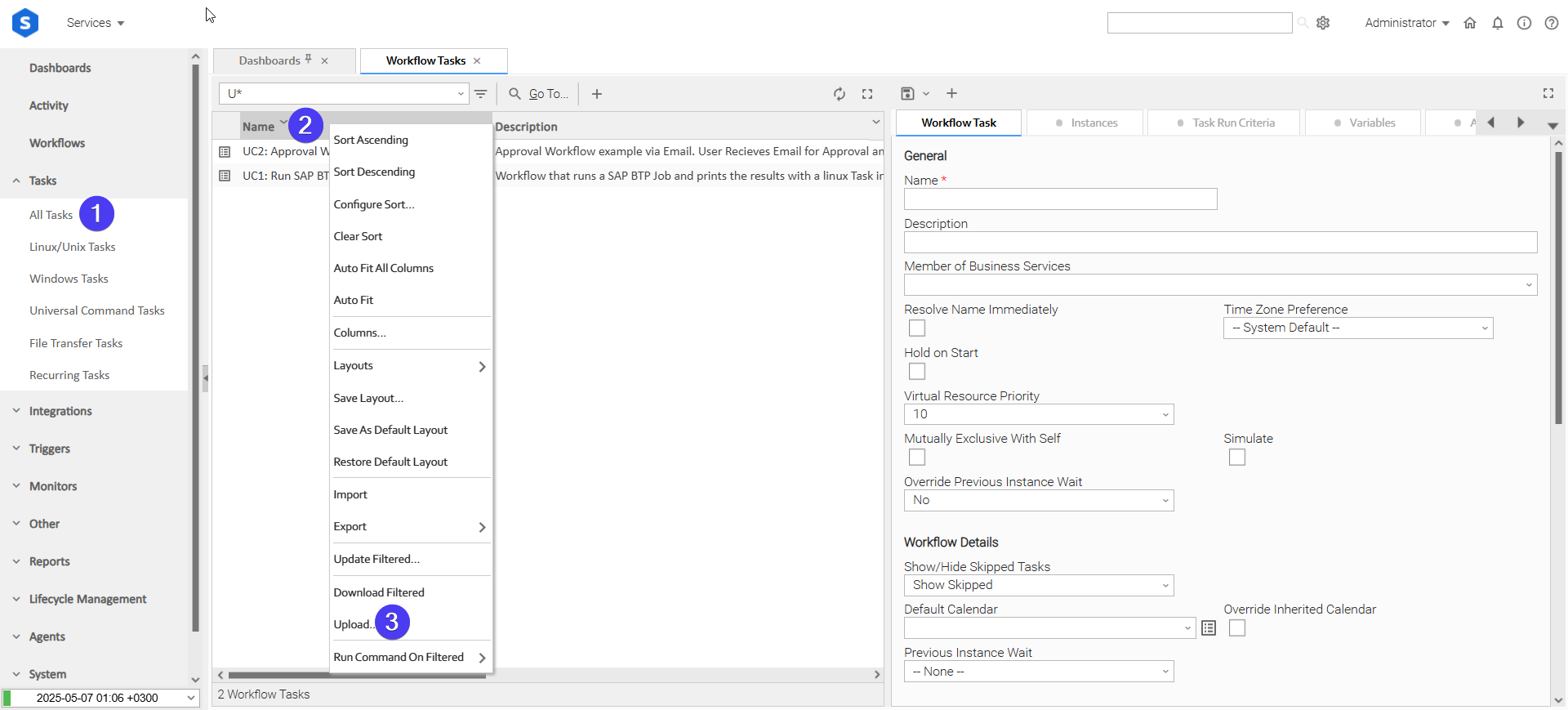
Login to Universal Controller and:
- STEP 1: Click "Tasks" → "All Tasks"
- STEP 2: Right click on the top of the column named "Name"
- STEP 3: Click "Upload..."
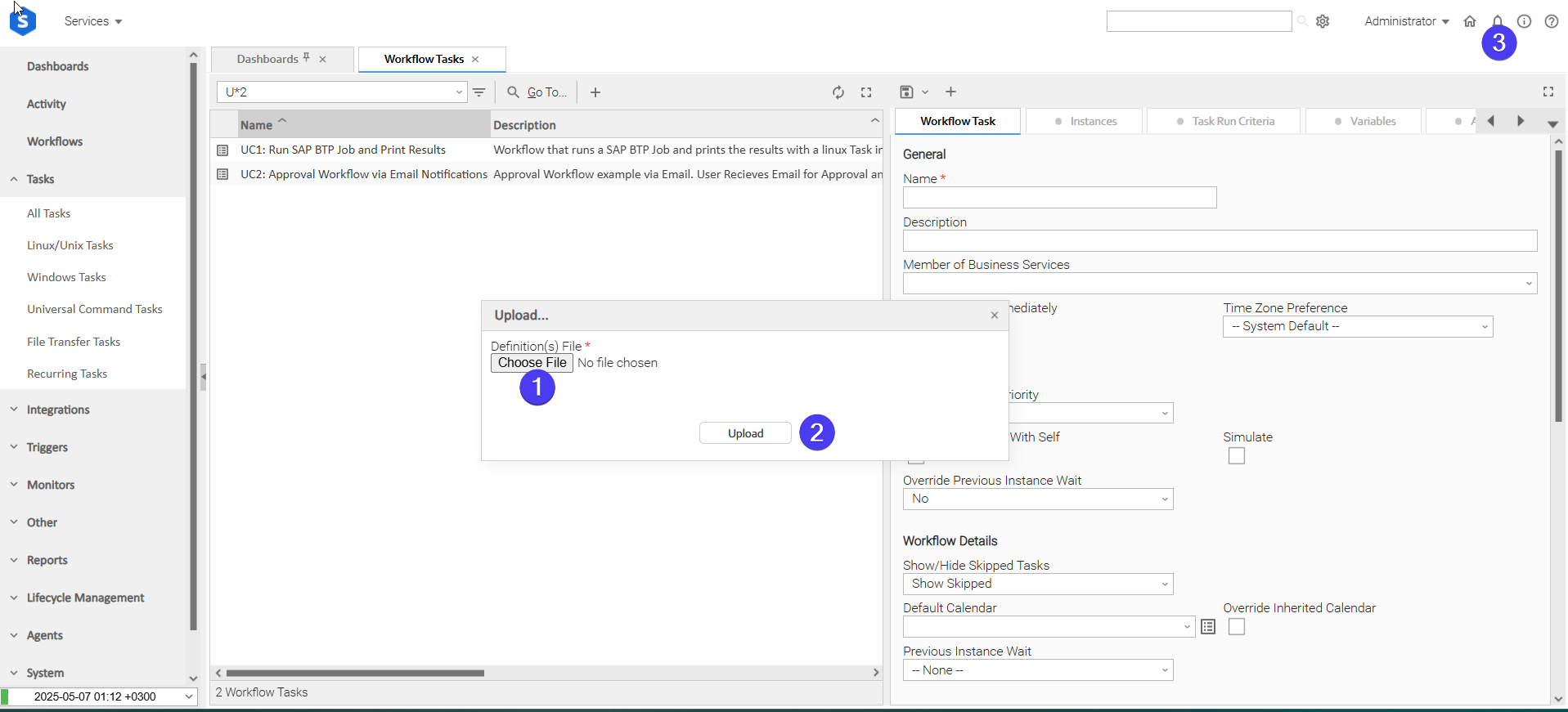
In the pop-up "Upload..." dialogue:
- STEP 1: Click "Choose File".
- STEP 2: Select the appropriate zip definition file and click "Upload".
- STEP 3: Observe the Console for possible errors.
Use Case 1: Run a Windows Housekeeping Script and Notify Operations
Description
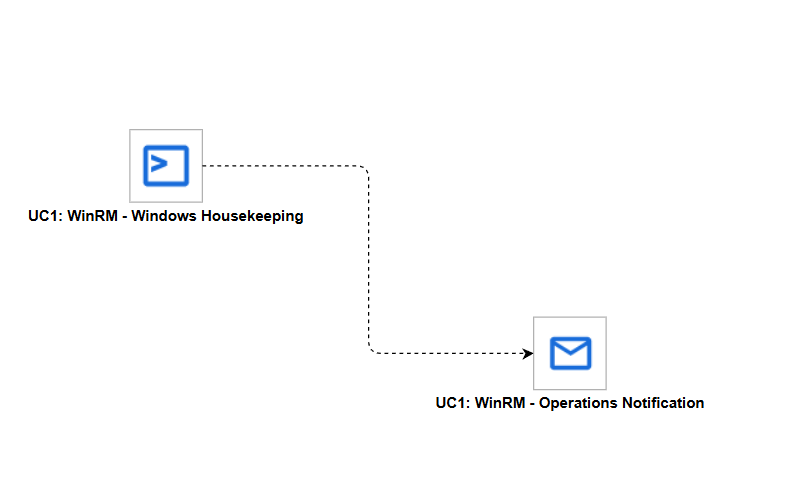
A scheduled workflow that runs a PowerShell housekeeping script on a remote Windows server through WinRM and notifies the operations team of the outcome.
The workflow is composed of the following components:
- UC1: Windows Housekeeping (WinRM) - runs a PowerShell script on the target Windows host to perform housekeeping (for example, clearing temporary files and reporting reclaimed space) and returns the command output.
- UC1: Operations Notification (Email Task) - sends a completion or failure notification to the operations distribution list based on the outcome of the WinRM task.
How to Run
Execution Steps
- Ensure all Initial Preparation Steps have been completed successfully.
- Confirm the target Windows host is reachable over WinRM and the imported credential resolves to a valid account on that host.
- Launch the workflow task and monitor the execution in Universal Controller.
Expected Results
- The WinRM task connects to the Windows host and runs the housekeeping script.
- The script's standard output is returned on the task's STDOUT and the remote exit code becomes the task exit code.
- If the WinRM task fails, the Email Task sends a failure notification to the operations distribution list.
- The workflow completes with a Success state when the housekeeping script exits with code
0.
Exit Codes
Exit Code | Status | Description |
|---|---|---|
0 | Success | Successful Execution. |
1 | Failure | Generic Error. Raised when not falling into the other Error Codes. |
Document References
Document Link | Description |
|---|---|
Microsoft's overview of the Windows Remote Management protocol used by this integration. | |
Installation and Configuration for Windows Remote Management | How to enable and configure the WinRM listener on the target Windows host. |
Reference for the WinRM authentication mechanisms selectable through the Protocol field. | |
The Python WinRM client library that this integration uses to communicate with the remote host. | |
Source repository and usage documentation for the pywinrm library, including transport and authentication details. |
Changelog
ue-winrm-1.0.0 (2026-09-15)
Initial Version