Robi AI Assistant
The Robi AI Assistant is an interactive chat interface built into Universal Controller that allows you to ask questions, retrieve information, and perform actions using natural language. Click the Robi AI Assistant button (the Robi-shaped icon in the upper right corner of the Controller) to open the chat window.

This button is visible if the AI Assistant feature is enabled in AI Settings.
The Robi AI Assistant can dynamically respond to prompts given in natural language, with the flexibility to perform many kinds of actions in the Controller. It can also draw from product knowledge (derived from the documentation embeddings in your Vector Database) to answer questions about UAC.
AI Assistant functionality depends on the enabled Tools. We recommend keeping the default tools enabled.
See Use Cases and Best Practices for typical scenarios the AI Assistant is best equipped to handle, and general guidelines on how to use Robi AI most effectively.
Chat Mechanics
The AI Assistant produces natural language responses and may include interactive elements, such as:
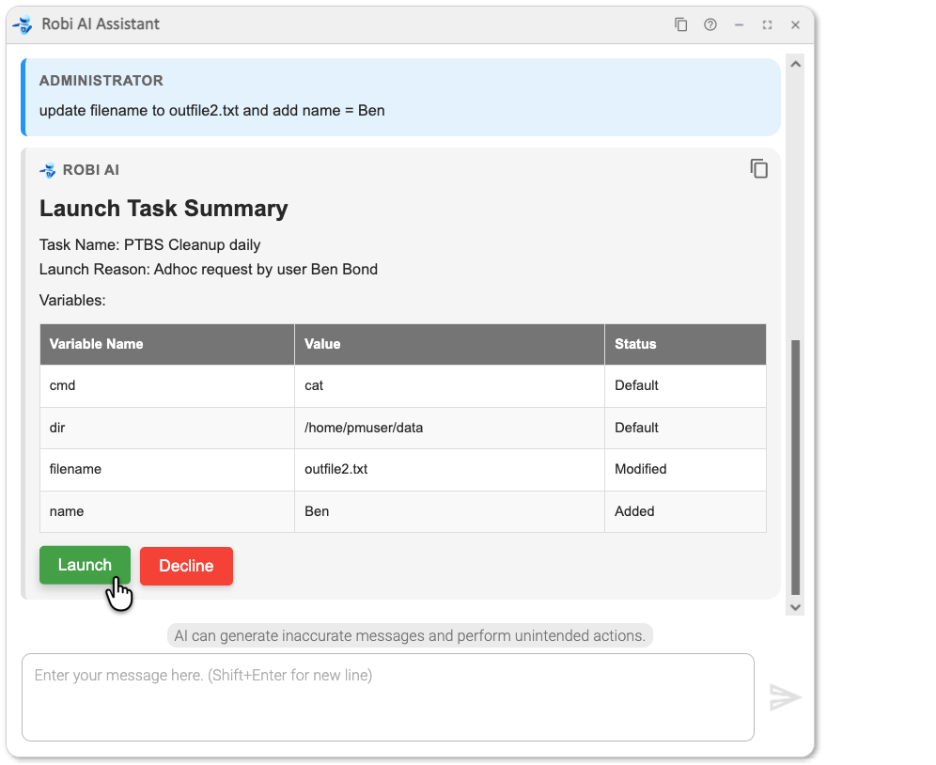
Confirmation Buttons
Before executing write or destructive operations (such as launching a task or updating a record), Robi will prompt you for confirmation.
Confirmation Checklists
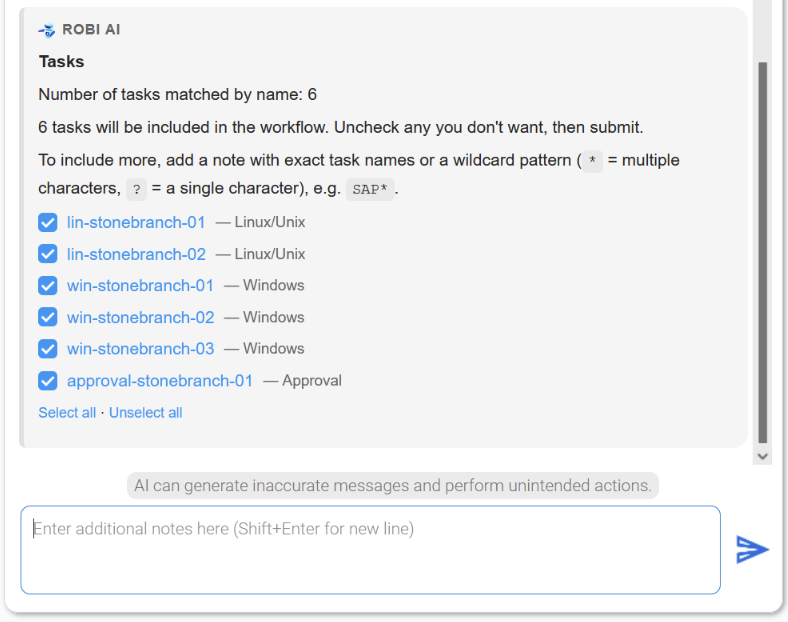
For multi-step operations such as the Workflow Builder, Robi may present a checklist of items (tasks or dependencies) for you to review before proceeding. Items are pre-checked; uncheck any you want to exclude, then press Send to confirm. You can optionally specify any additional notes in the chat box before sending.
Confirmation Radio Options
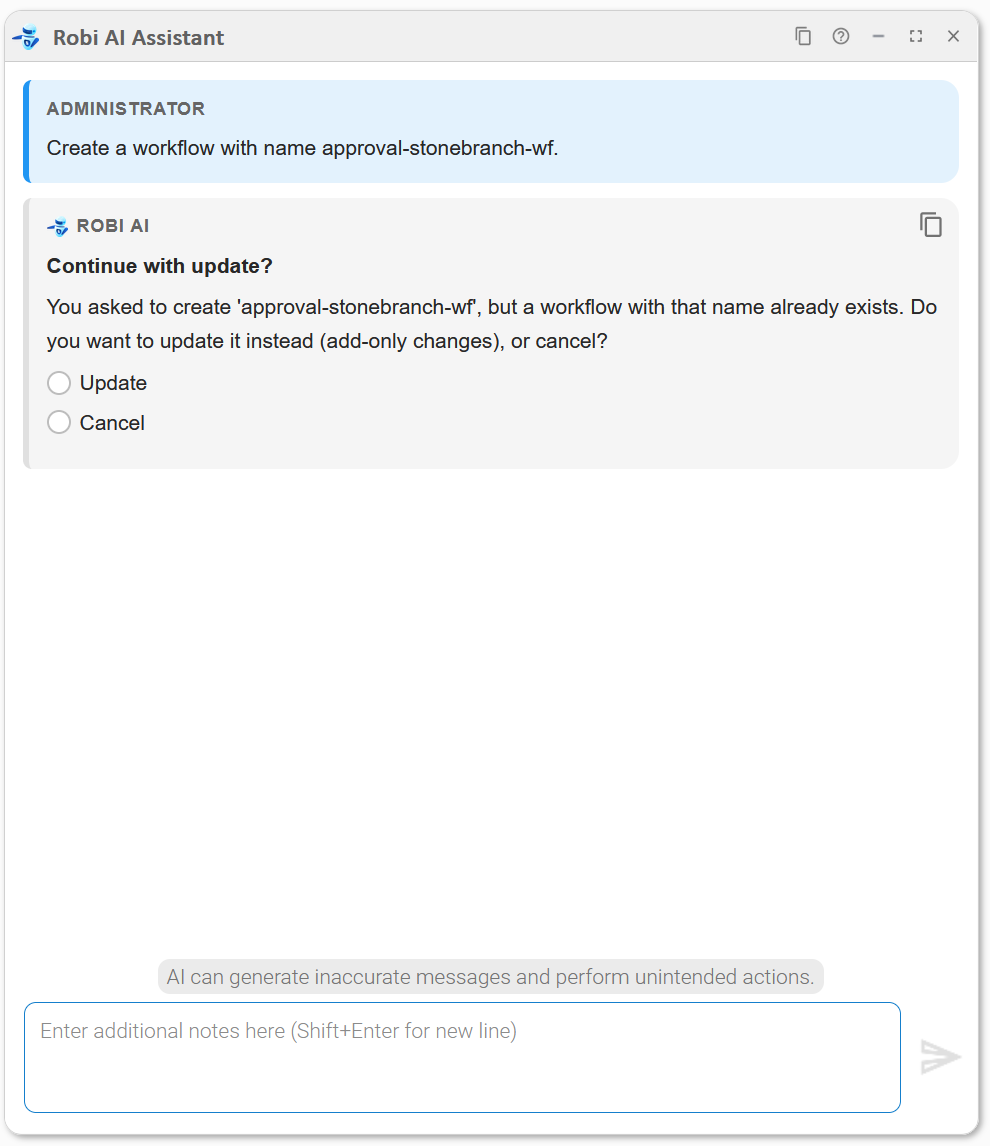
When Robi asks you to choose between mutually exclusive actions, you can select your choice using radio options.
View Buttons
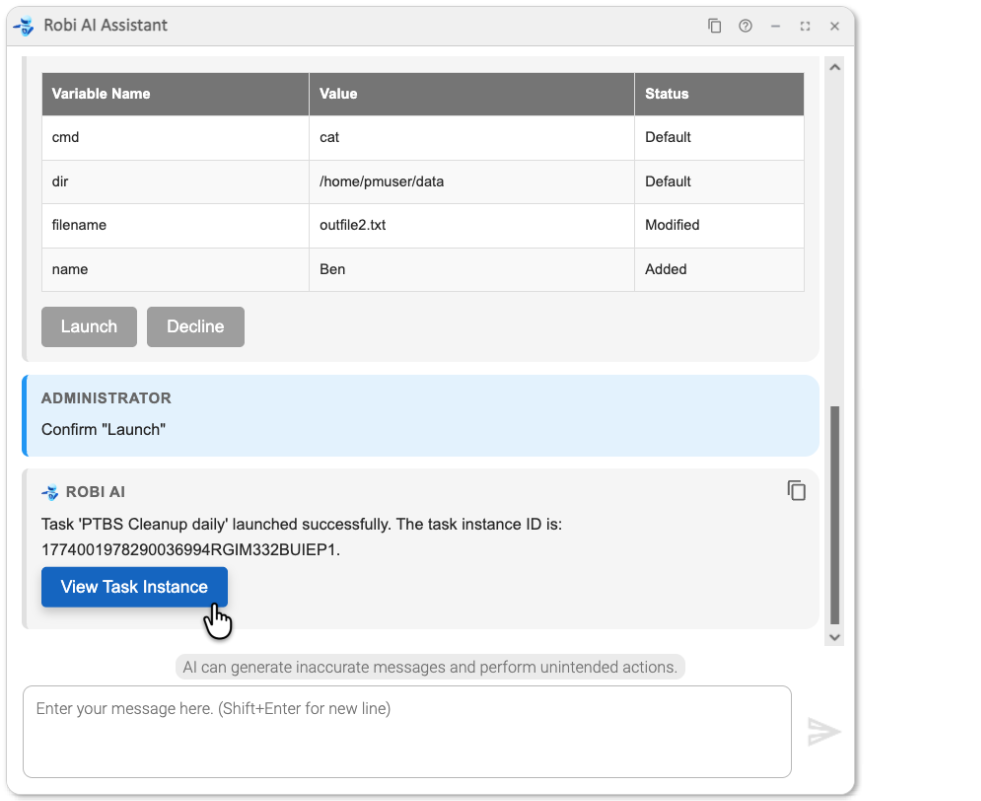
View buttons provide direct links to Universal Controller records, allowing you to navigate to a record form or workflow without manual navigation.
Tables
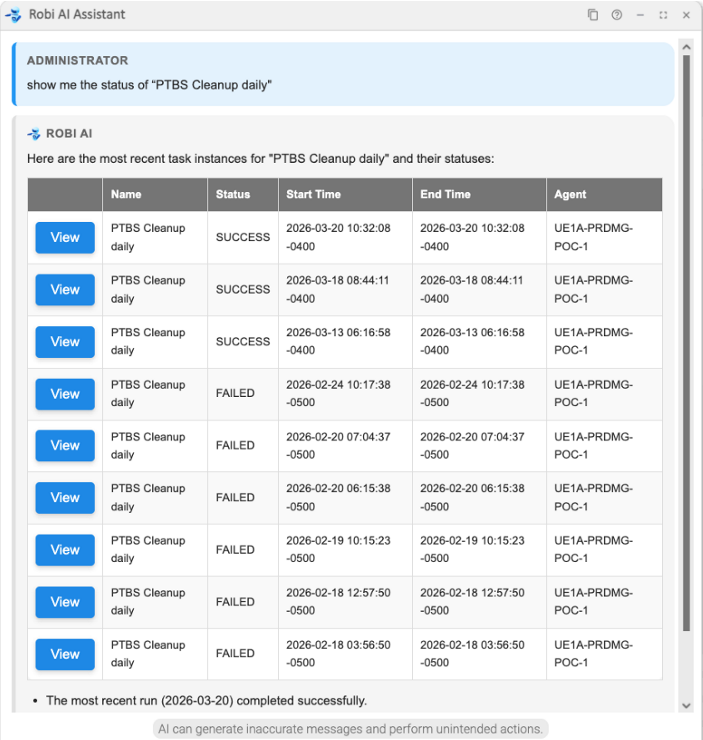
When Robi returns a list of records (for example, task instances matching a query), it presents them in a table. The first column of any record table includes a View button for that record.
Find Tasks
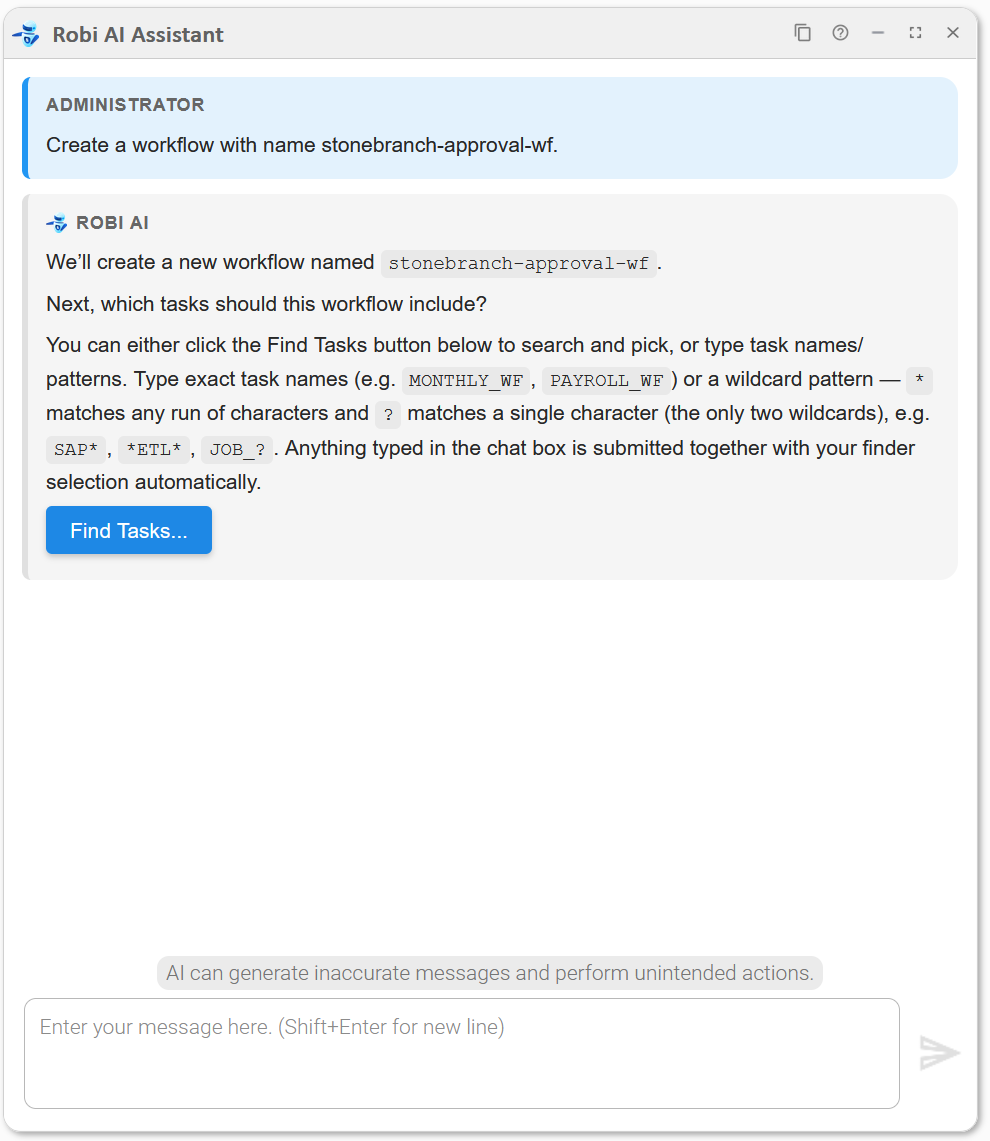
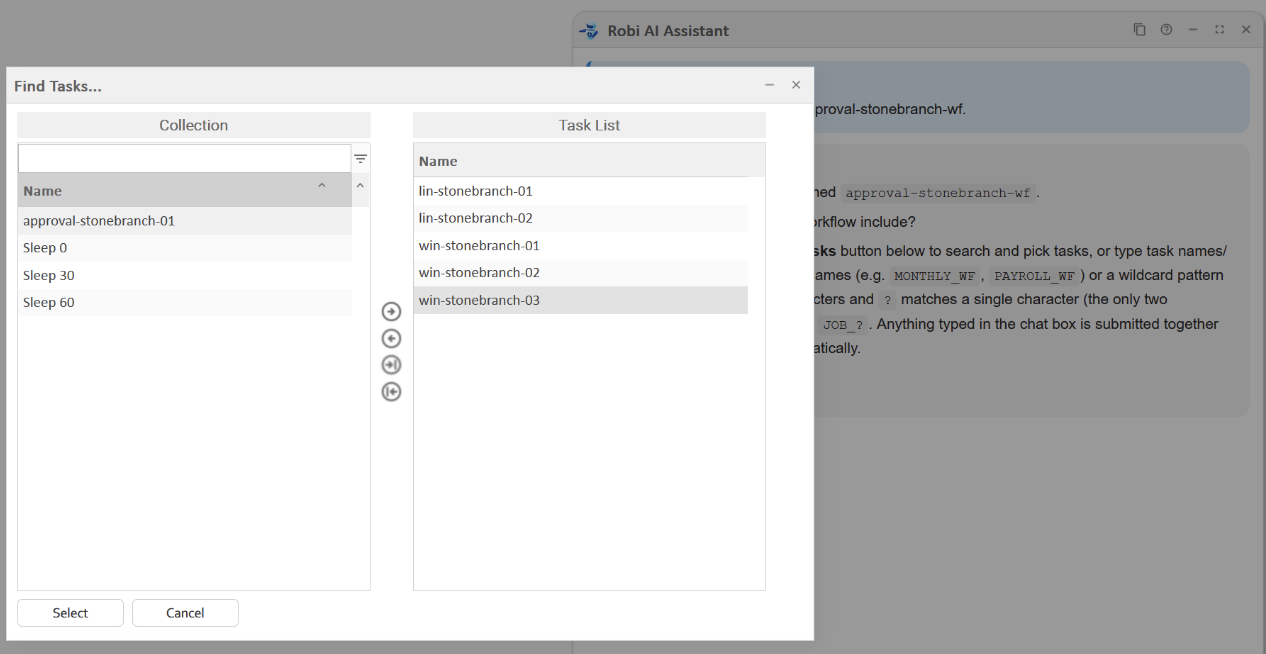
Some operations, such as task selection in the Workflow Builder, include a Find Tasks... button. Clicking it opens a task picker where you can browse and select from existing tasks in the Controller.
Copying Messages
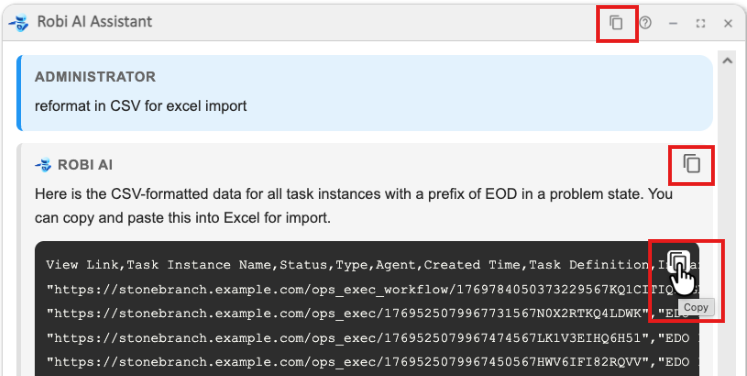
You can copy individual messages, code blocks, or the entire conversation with the Copy buttons in the chat window.
Activity Indicator
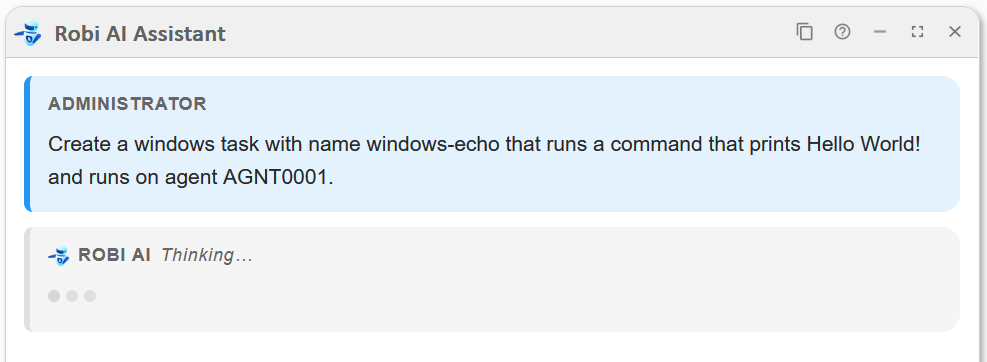
While Robi is processing a response, an activity indicator appears in the chat window showing its current status. It displays Thinking... when first processing the query:
Robi then displays the name of the specific tool or subagent used while it is working:
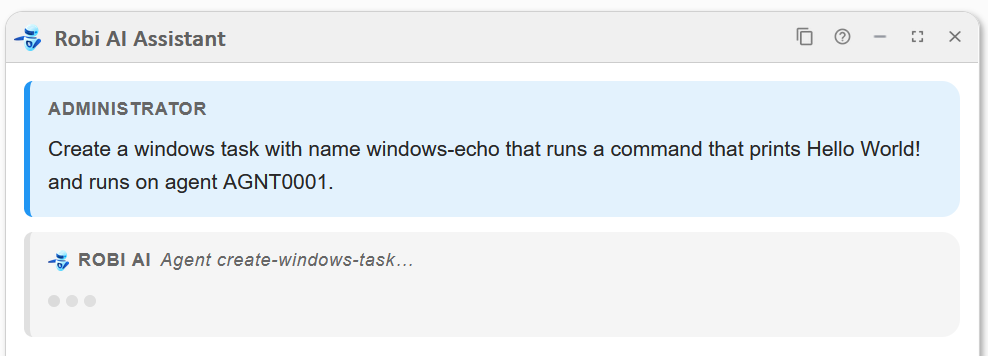
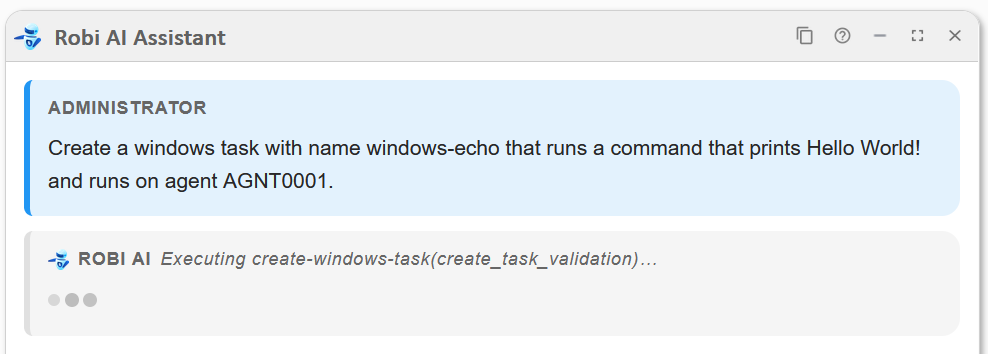
The indicator clears when the response is ready.
Modes
Robi tries to determine the general aim of the user's prompt in order to give an appropriate response. This perceived classification is called the mode. The mode determines which Tools are available to Robi for that request and how it proceeds. For example, if your prompt is deemed a request to launch a task, Robi enters the Launch Task mode, in which it knows to go through specific steps (ask the user for task details, register the launch, etc.) and use the necessary tools to proceed with launching a task, without doing anything else like querying the docs.
You do not choose the mode manually; Robi infers it from your prompt. A clear, specific prompt helps Robi classify the mode correctly and avoid wasting tokens on irrelevant steps.
The Workflow Builder and Launch Task modes, as well as the Create Task Subagents, are unavailable from the AI Analyze chat window.
Recent conversation history is also taken into account. A follow-up like "yes" or "go ahead" is assumed to be in the same mode as the previous prompt, so Robi does not need to reclassify every message independently.
Each of Robi's modes are described in more detail below.
Launch Task
In Launch Task mode, Robi guides you through launching a task or workflow. It collects the task name, the reason for the launch, and any variable overrides through a structured sequence of prompts. It then presents a summary and prompts you to Launch or Decline before registering the launch.
Workflow Builder
The Workflow Builder is a guided conversational mode for creating a new workflow or extending an existing one. Robi can put together a plan for what to put in the workflow, and nothing is written to the Controller until you review and approve the full plan.
If you start with a request to create a workflow, without giving all the details, Robi walks through a structured multi-step interview, collecting each piece of information it needs, following the steps below:
- Workflow name: Robi asks for the workflow name and checks whether it already exists in the Controller. If it does, Robi updates the existing workflow; if not, it creates a new one. You confirm the action before proceeding.
- Task selection: Robi asks which tasks to include. Use the Find Tasks... button to browse and select from tasks already in the Controller, or type task names or a wildcard pattern directly. Robi presents the selected tasks as a confirmation checklist; confirm to proceed.
- Dependencies and conditions: Robi asks how the tasks should be ordered. Describe the dependencies in natural language: for example, "Run A first, then B and C in parallel, then D." You can specify any dependency conditions except for Variable and Step Conditions. Robi presents the resulting dependencies as a confirmation checklist.
- Plan approval: Robi presents the full plan: the workflow name, the action (Create or Update), the tasks to be added, and the dependencies. Click Create (or Update) to approve, or Not yet to stop without writing anything.
- Build: On approval, Robi builds the workflow and provides a View Workflow button to open it directly in the Controller.
For a full walkthrough, see Build a Workflow - Step-by-step interview in Use Cases and Best Practices.
Alternatively, if you describe the workflow in enough detail upfront (including the name, the tasks to add, and how they should be ordered) Robi will attempt to assemble the full plan from your prompt, fast-tracking through the task/dependency confirmation and final approval steps. For an example, see Build a Workflow - Providing all details upfront in Use Cases and Best Practices.
The Workflow Builder is additive: it adds tasks and dependencies but does not remove or modify existing ones (except automatic redundant-dependency cleanup). To remove a task or dependency from an existing workflow, use the Workflow Editor.
Action
Action mode is the general-purpose mode for retrieving data and performing operations in the Controller. It covers a broad range of tasks: querying record details, filtering task instances by status or date, updating fields, managing scripts and variables, and other Controller operations.
When you ask Robi to create a task, Action mode delegates the request to a specialized Create Task Subagent suited to the task type you described (for example, a Windows task or a Timer task). The subagent collects any missing details, assembles the full task definition, and presents it for your review before anything is written to the Controller. Six task types are enabled by default: Timer, Manual, Windows, Linux/Unix, IBM i, and SAP. Additional task types ship with the product but must be enabled by an administrator; see Subagents in Configuration. For an example of creating a task with Robi, see Create a task.
Documentation
In Documentation mode, Robi answers questions about UAC concepts, features, and how-to tasks. It queries the Vector Database (a store of embeddings built from the product documentation) and uses the results to give a specific, context-aware answer. When Robi draws on the docs, it includes References links at the end of the response pointing to the relevant pages.
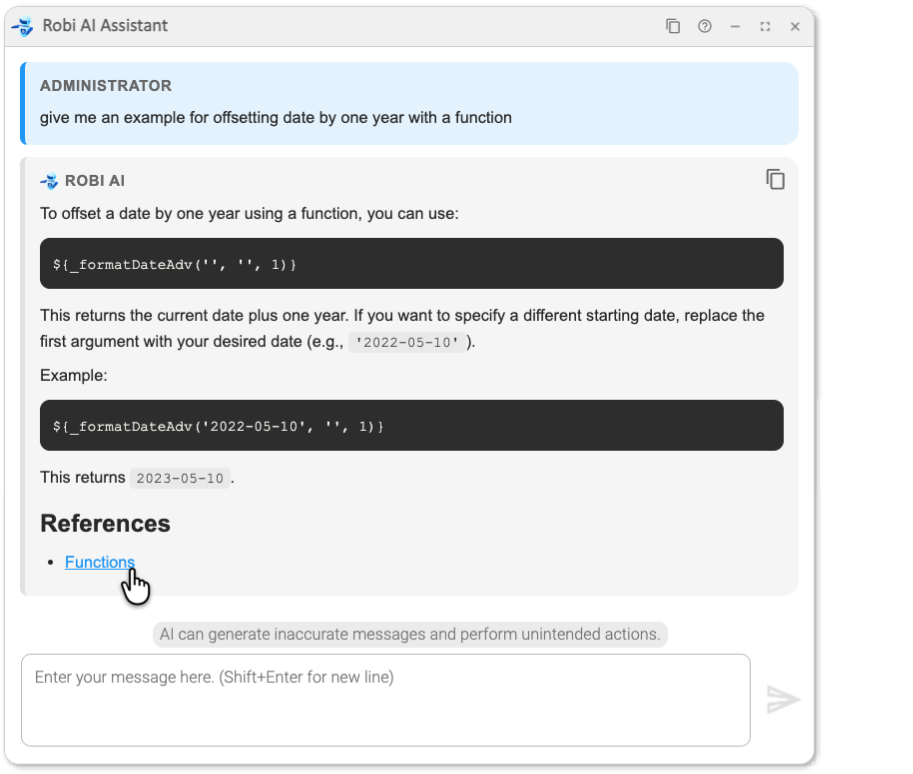
Use Documentation mode for questions such as: "How do I configure a time zone for a trigger?" or "What does the Success/Failure dependency condition mean?"
Guidelines
For more guidance on how to get the most out of the AI Assistant, see Use Cases and Best Practices.