Installing UEC Client Applications via the Graphical Interface
Installing UEC Client Applications via the Windows Installer Graphical Interface
To install UEC Client Applications for Windows using the Windows Installer graphical interface, perform the following steps:
Step 1 | Download the UEC Client Applications for Windows product distribution file, |
|---|---|
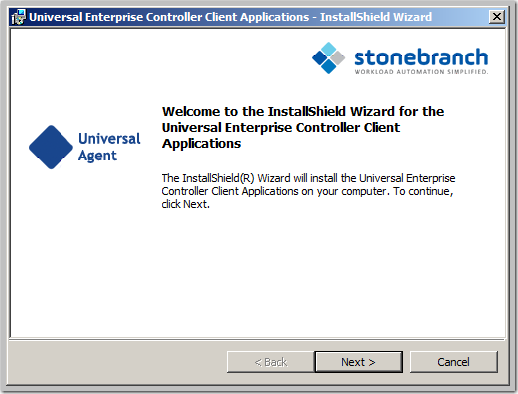
Step 2 | Execute the distribution file to extract the files. info If you already have extracted the files from the distribution file, but cancelled installation in order to separately install Windows Installer (see Windows Installer), you can simply double-click the extracted Client Applications installation file, tip Starting with Windows Server 2003, Remote Desktop provides distinct session environments for each logged-in user. This means extraction may use an environment setting that is not available once the Remote Desktop session ends. For example, the distribution file's default extraction location is based on the TEMP environment variable. The location referenced by this variable can change between Remote Desktop sessions, and any files extracted there may not be accessible after the session is closed. To ensure that extracted files and other required resources are accessible after the initial install, extract the files to a well-known location that is not likely to change between Remote Desktop sessions. Refer to the Microsoft documentation on the Remote Desktop feature for additional information. The installation automatically will begin after the files are extracted. It first will verify that your machine meets the minimum system requirements (see UEC Client Applications - Installation Requirements). If the requirements are met, a Welcome dialog displays.
|
Step 3 | Click the Next button.
|
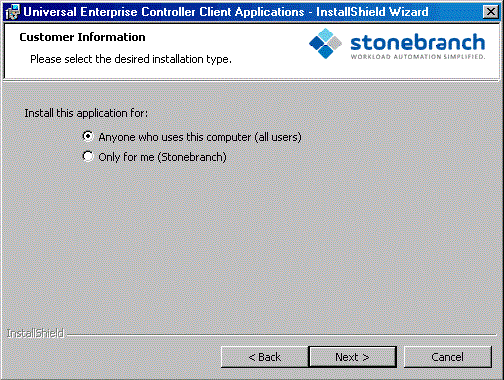
Step 4 | Click the appropriate radio button on this dialog:
info It is possible for a per-machine and a per-user installations to be performed on the same machine, although there is no benefit in doing this. In that situation, when any user that has done a per-user installation is logged on, that installation takes precedence. If the user removes the Client Applications, the per-machine installation will remain in effect. Conversely, if the per-machine installation is removed, users that have performed a per-user installation will still have access to Client Applications. tip For Non-Administrative Users: |
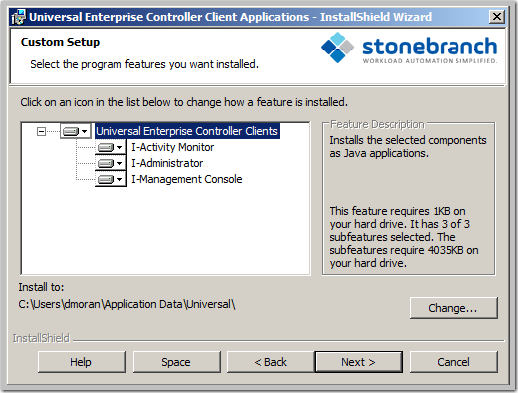
Step 5 | Click the Next> button. A list of UEC Client Applications components included in the installation package then displays. It is from this list that you can select which components to install.
For a new installation, a drive icon displays next to each item in the list, indicating that the component will be installed.
tip The directory identified in the figure above is typical for a new, per-machine installation. Depending on the type of installation being performed, the directory may be different. For a new, per-user installation, the dialog will identify a directory located within the user's profile directory (for example, For installation upgrades, whether per-machine or per-user, the UEC Client Applications' current location is displayed. |
Step 6 | The figure above shows that all UEC Client Applications will be installed in their respective directories under the
|
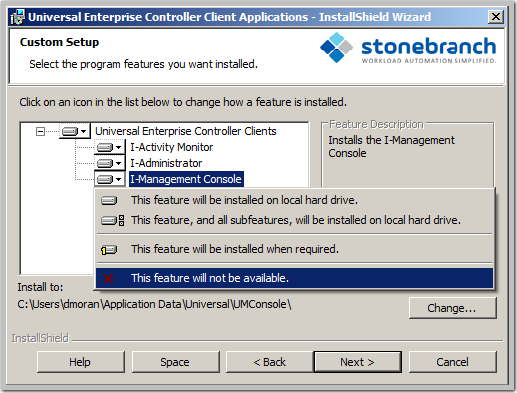
Step 7 | If you do not want to install a component:
For example, the figure below indicates that I-Management Console has been selected to not be installed.
|
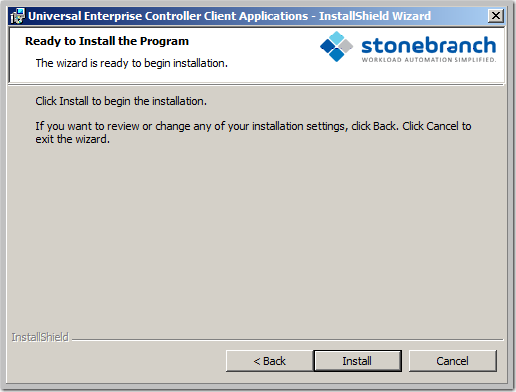
Step 8 | When you have selected the components (and their installation destinations) that you want to install, click the Next button to continue the installation process. When the installation is ready to begin, the Ready to Install dialog displays.
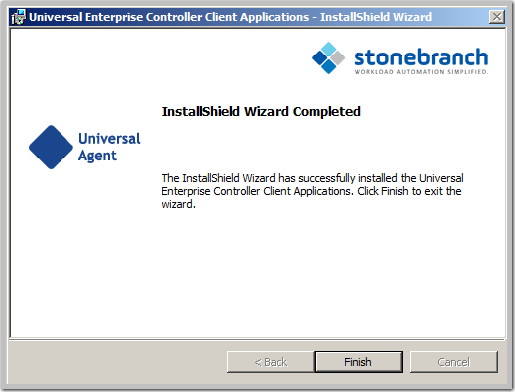
Click the Install button to begin the installation or click the <Back button to return to change information on any of the previous dialogs. When the installation completes successfully, the Installation Complete dialog displays.
info During the install, you may have been notified that no Java Runtime Environment (JRE) was detected on your system. The UEC Client Applications require Java Runtime Environment (JRE) Version 1.5 or greater (see UEC Client Applications - Installation Requirements). |
Step 9 | Click the Finish button to exit Windows Installation. |