Approval Task
Approval Tasks are used to create a pause in a Workflow, during which approval from one or more Users is required to progress to the next step. This is similar to the function of Manual Tasks, but rather than creating a pause for some unspecified activity, Approval Tasks can specify a more complex approval process involving multiple Users or Groups.
Additionally, you can provide a description of what needs to be approved, as well as links to relevant external information for the approvers to view.
The standard process for using an Approval Task is as follows:
Step 1 | Define an Approval Task, specifying the Approval Criteria to determine which User(s) or Group(s) need to approve the task instance. |
|---|---|
Step 2 | When the Approval task instance launches, it goes into the APPROVAL REQUIRED status. If the task instance is used in a Workflow, the Workflow will wait. |
Step 3 | An email notification is automatically sent to all approvers for the task. The email has a Take Action button that takes the approver to the Approval task instance. To build the recipient list, the Controller uses the emails configured for the User(s) or Group(s) in the Approval Criteria. If a Group does not have an email specified, the Controller does the following:
info To send email notifications, you must have an Email Connection configured with the Use for System Notifications option enabled. For the Take Action button (or View if the instance has completed) to successfully take an approver to the Approval Task Instance in the Universal Controller, an administrator should review the configuration of the Action Base URL system property. |
Step 4 | The approvers of the task can then Approve or Reject the instance. The task instance will go into the APPROVED status if the Approval Criteria are met, or the REJECTED status if the Approval Criteria can no longer be satisfied. If the task instance is used in a Workflow, the Workflow can proceed according to the outcome of the approval. tip The Approved and Rejected statuses are equivalent to the Success and Failed statuses for instances of other task types. Therefore, configurations like Hold Resources on Failure that apply to a Failed task instance are applicable for Rejected Approval instances. |
Built-In Variables
The following built-in variables can be used in a Approval task to pass data where appropriate:
Creating an Approval Task
Step 1 | From the Automation Center navigation pane, select Tasks > Approval Tasks. The Approval Tasks list displays a list of all currently defined Approval tasks. Below the list, Approval Task Details for a new Approval task displays.
|
|---|---|
Step 2 | Enter/select Details for a new Approval task, using the field descriptions below as a guide.
To display more of the Details fields on the screen, you can either:
|
Step 3 | Click a |
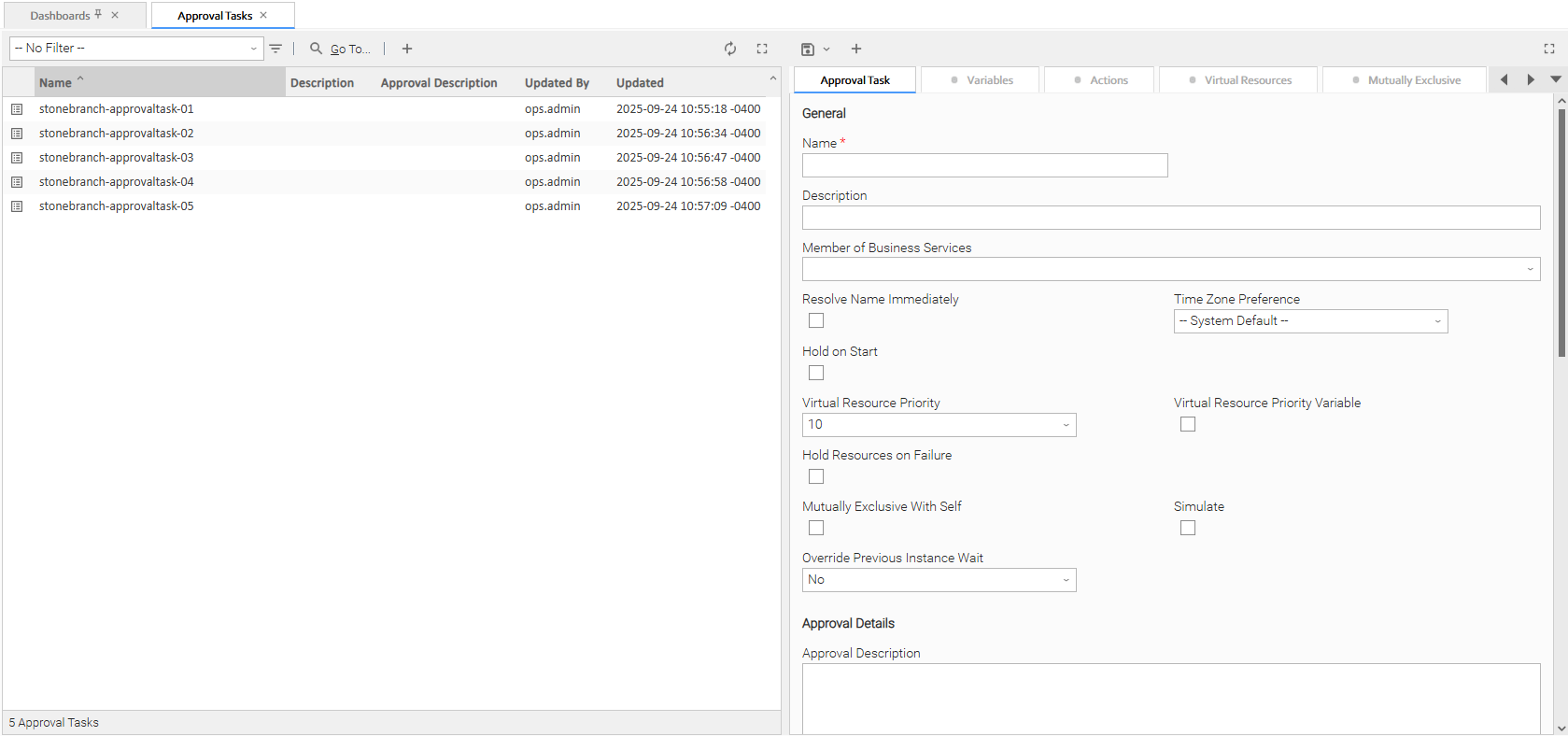
 button above the list to display a pop-up version of the Details.
 button. The task is added to the database, and all buttons and tabs in the Task Details are enabled.
To open an existing record on the list, either:
- Click a record in the list to display its record Details below the list. (To clear record Details below the list, click the New button that displays above and below the Details.)
- Clicking the Details icon next to a record name in the list, or right-click a record in the list and then click Open in the Action menu that displays, to display a pop-up version of the record Details.
- Right-click a record in the a list, or open a record and right-click in the record Details, and then click Open In Tab in the Action menu that displays, to display the record Details under a new tab on the record list page (see Record Details as Tabs).
Approval Task Details
The following Approval Task Details is for an existing Approval task.
Depending on the values that you enter / select for these fields, and whether or not the Approval task has ever been launched, more (or less) fields may display. See the field descriptions, below, for a description of all fields that may display in the Approval Task Details.
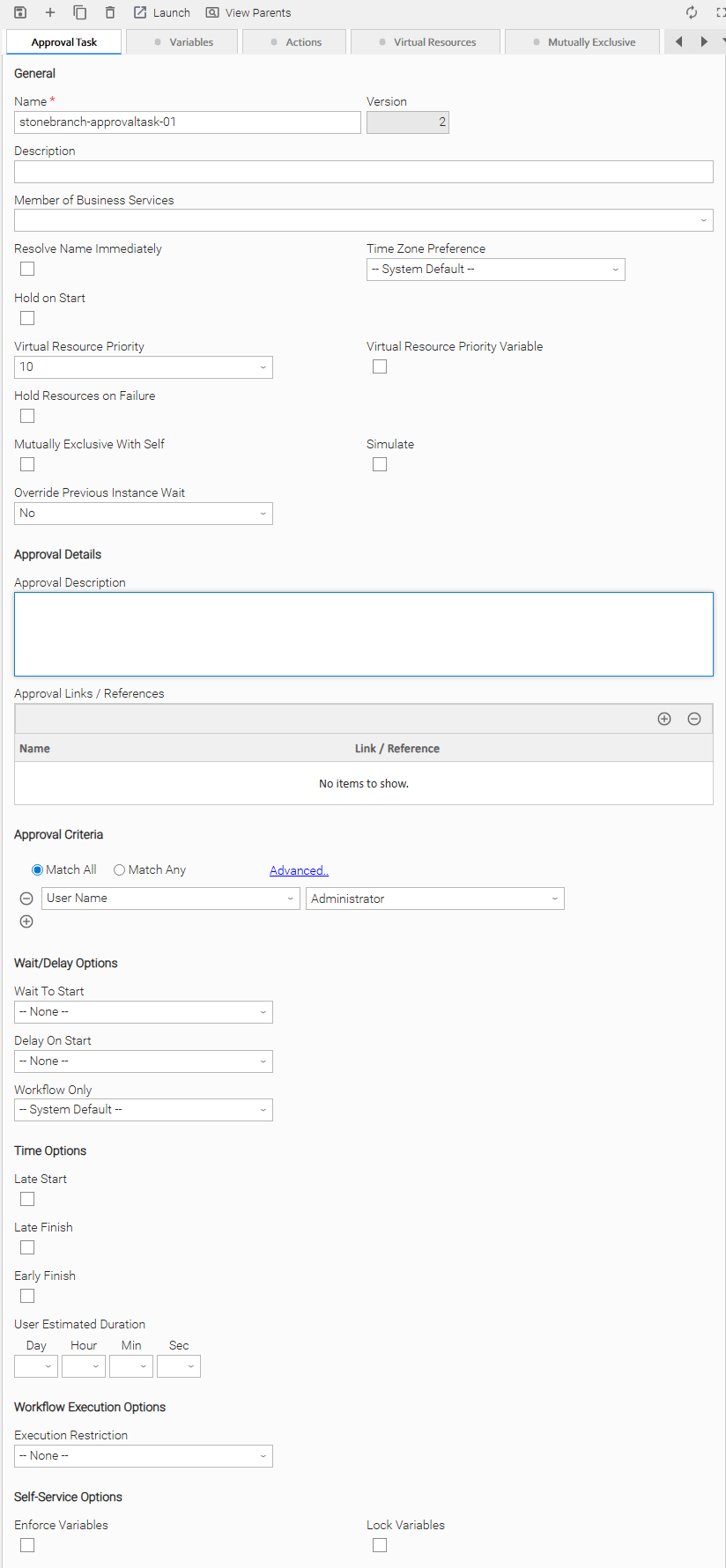
Approval Task Field Descriptions
The following tables describe the fields, buttons, and tabs that display in the Approval Task Details.
General
This section contains general information about the task.
Field Name | Description |
|---|---|
Name | User-defined name of this task (Maximum = 255 alphanumeric characters); variables supported. It is the responsibility of the user to develop a workable naming scheme for tasks. |
Version | System-supplied; version number of the current record, which is incremented by the Controller every time a user updates a record. Click the Versions tab to view previous versions. For details, see Record Versioning. |
Description | Description of this record. Maximum length is 255 characters. |
Member of Business Services | User-defined; Allows you to select one or more Business Services that this record belongs to. (You also can Check All or Uncheck All Business Services for this record.) You can select up to 62 Business Services for any record type, and enter a maximum of 2048 characters for each Business Service. If the Business Service Visibility Restricted Universal Controller system property is set to true, depending on your assigned (or inherited) Permissions or Roles, Business Services available for selection may be restricted. |
Resolve Name Immediately | If enabled, the Instance Name of the task instance will be resolved immediately at trigger/launch time. |
Time Zone Preference | User-defined; Allows you to specify the time zone that will be applied to the task. Options:
|
Hold on Start | If enabled, when the task is launched it appears in the Activity Monitor with a status of Held. The task runs when the user releases it. |
Hold Reason | Information about why the task will be put on hold when it starts. |
Virtual Resource Priority | Priority for acquiring a resource when two or more tasks are waiting for the resource. This priority applies to all resources required by the task. Options: 1 (high) - 100 (low). Default is 10. |
Virtual Resource Priority Variable | Indication of whether the Virtual Resource Priority field is a number select field for choosing the Virtual Resource Priority (unchecked) or a text field for specifying the Virtual Resource Priority as a variable (checked). Use the format: |
Hold Resources on Failure | If enabled, the task instance will continue to hold Renewable resources if the task instance fails. Renewable resources will be returned only if the task instance status is either Complete, Finished, or Skipped. |
Mutually Exclusive With Self | If enabled, the task will not be allowed to run concurrently with itself. Task will not start until the instance that is running finishes. An instance will transition to Exclusive Wait status if it cannot start due to another instance already running. |
Simulate | Specifies if the instance should execute under simulation mode. |
Override Previous Instance Wait | Specifies whether or not to override the parent workflow's Previous Instance Wait configuration. This option only applies for an instance running within a workflow. Options:
|
Approval Details
This section contains information regarding the approval.
Field Name | Description |
|---|---|
Approval Description | Specifies a detailed description of what is being approved. |
Approval Links / References | Specifies links or references to external information. For example, a case number, or a URL to a case. To add an option, click the + icon and enter:
To delete an option, select in the list of variables and click the - icon. You must provide a Name for each Link / Reference specified. If you specify a URL, an icon will appear that can be clicked to open the URL. |
Approval Criteria
This section contains specifications for the user(s) and/or group(s) that can approve the task.
Field Name | Description |
|---|---|
| Specifies one or more approvers required for approval. You can specify both Users and Groups. If you specify a Group, any member of that Group can Approve or Reject the instance on behalf of the Group.
On the task instance, you can view the Approver Status of all Users and Groups specified in the Approval Criteria. |
Wait / Delay Options
This section contains specifications for waiting to start and/or delaying on start the task.
Field Name | Description |
|---|---|
Wait To Start | Amount of time to wait before starting a task from the time that it was launched. Options are:
|
Wait Time | If Wait To Start = Time or Relative Time; Time of day (in 24-hour time) to wait until before starting the task. |
Wait Day Constraint | If Wait To Start = Time or Relative Time; Specification for whether or not to advance the wait time to another day. Valid values:
Default is -- None --. |
Wait Duration | If Wait To Start = Duration; Number of days, hours, minutes, and seconds to wait before starting the task. |
Wait Duration In Seconds | If Wait To Start = Seconds; Number of seconds to wait before starting the task. |
Delay On Start | Amount of time to delay the start of a task, after it has been launched, from the time that it is eligible to start; that is, all dependencies have been met. For example: it is not being held, it is not waiting on any predecessors, or there is no wait time specified. Options are:
|
Delay Duration | If Delay On Start = Duration; Number of days, hours, minutes, and seconds to delay after starting the task. |
Delay Duration In Seconds | If Delay On Start = Seconds; Number of seconds to delay after starting the task. |
Workflow Only | Specification for whether or not to apply the Wait To Start and Delay On Start specifications only if the task is in a Workflow. Options are:
|
Time Options
This section contains time-related specifications for the task.
Field Name | Description |
|---|---|
Late Start | If enabled, and if the task instance starts after the time or period specified, the task instance is flagged as late. You can specify a time or duration to determine a late start (see Late Start Type). To determine whether a task instance started late, open the task instance and locate the Started Late field; the field is checked if the instance started after the specified time. The Started Late field displays in the task instance Details only if the user specified a Late Start in the task Details. |
Late Start Type | Required if Late Start is enabled. Options:
|
Late Start Time | If Late Start Type = Time; Time after which the task start time is considered late. Use HH:MM, 24-hour time. |
Late Start Day Constraint | If Late Start Type = Time; Specification for whether or not to advance the late start time to another day. Valid values:
Default is -- None --. |
Late Start Nth Amount | If Late Start Day Constraint = Nth Day; Number of days to advance. |
Late Start Duration | If Late Start Type = Duration; Duration (amount of relative time) after which the task is considered to have started late. For a task within a workflow, the duration is the period between the time the workflow starts and the time the task itself starts. For example, a task might have a Late Start Duration of 60 minutes. If the workflow starts at 9:00 a.m. but the task itself does not start until 10:30, the task has started late. For a task that is not within a workflow, Late Start Duration has meaning only if the task has been held upon starting. For example, if a task has a Late Start Duration of 60 minutes and the Hold on Start field is enabled, if the task is not released from hold within the amount of time specified in the Late Start Duration field, the task has started late. |
Late Finish | If enabled, and if the task instance finishes after the time or period specified, the task instance is flagged as late. You can specify a time or duration to determine a late finish (see Late Finish Type). To determine whether a task instance finished late, open the task instance and locate the Finished Late field; the field is checked if the instance finished after the specified time or lasted longer than expected. This field only appears on the task instance if the user specified a Late Finish in the task definition. |
Late Finish Type | Required if Late Finish is enabled. Options:
|
Late Finish Offset Type | If Late Finish Type = Average Duration; Options:
|
Late Finish Percentage Offset ( + ) | Required if Late Finish Offset Type = Percentage; Percentage of Average Duration to use as an offset. The late finish time is calculated by adding the offset to the Average Duration. (Minimum = 0 and Maximum = 1000) |
Late Finish Duration Offset ( + ) | Required if Late Finish Offset Type = Duration; Duration to use as an offset. The late finish time is calculated by adding the offset to the Average Duration. |
Late Finish Duration Offset Unit | If Late Finish Offset Type = Duration; Options:
|
Late Finish Time | If Late Finish Type = Time; Time after which the task finish time is considered late. Use HH:MM, 24-hour time. |
Late Finish Day Constraint | If Late Finish Type = Time; Specification for whether or not to advance the late finish time to another day. Valid values:
Default is -- None --. |
Late Finish Nth Amount | If Late Finish Day Constraint = Nth Day; Number of days to advance. |
Late Finish Duration | If Late Finish Type = Duration; Longest amount of time this task instance should take to run. |
Early Finish | If enabled, and if the task instance finishes before the time or period specified, the task instance is flagged as early. You can specify a time or duration to determine an early finish (see Early Finish Type). To determine whether a task instance finished early, open the task instance and locate the Finished Early field; the field is checked if the instance finished before the specified time or did not last as long as expected. This field only appears on the task instance if the user added Early Finish specifications to the task definition. |
Early Finish Type | Required if Early Finish is enabled. Options:
|
Early Finish Offset Type | If Early Finish Type = Average Duration; Options:
|
Early Finish Percentage Offset ( - ) | Required if Early Finish Offset Type = Percentage; Percentage of Average Duration to use as an offset. The early finish time is calculated by subtracting the offset from the Average Duration. (Minimum = 0 and Maximum = 100) |
Early Finish Duration Offset ( - ) | Required if Early Finish Offset Type = Duration; Duration to use as an offset. The early finish time is calculated by subtracting the offset from the Average Duration. |
Early Finish Duration Offset Unit | If Early Finish Offset Type = Duration; Options:
|
Early Finish Time | If Early Finish Type = Time; Time before which the task finish time is considered early. That is, enter a time at which the task should still be running. Use HH:MM, 24-hour time. |
Early Finish Day Constraint | If Early Finish Type = Time; Specification for whether or not to advance the early finish time to another day. Valid values:
Default is -- None --. |
Early Finish Nth Amount | If Early Finish Day Constraint = Nth Day; Number of days to advance. |
Early Finish Duration | If Early Finish Type = Duration; Shortest amount of time this task instance should take to run. |
User Estimated Duration | Required if Early Finish Type or Late Finish Type = Average Duration; Estimated amount of time it should normally take to run this task. The Controller uses this information to calculate the User Estimated End Time on a task instance record. User Estimated Duration is used when the Average Duration is not available; for example, on the first launch of a task. |
Critical Path Options
This section contains Critical Path-related specifications for the task.
Field Name | Description |
|---|---|
CP Duration | Optional; Allows you to override the estimated Critical Path Duration of the task when running in a Workflow; used in conjunction with the CP Duration Unit field. In most cases, this field should be left blank, which implies that the Controller will estimate the Critical Path Duration based on historical executions. Valid values are any integer equal to or greater than 0. Variables and Functions are supported. |
CP Duration (Resolved) | Displays the current resolved value of the CP Duration field, which may contain variables or functions that will be displayed as unresolved until the task instance starts. The CP Duration (Resolved) field can continue to change value until the task instance starts, at which time CP Duration will display as resolved and CP Duration (Resolved) will no longer be visible unless there was an issue resolving the variables and/or functions contained within CP Duration. If the Controller is unable to resolve CP Duration or it resolves to an invalid value, CP Duration will be ignored and the Controller will estimate the Critical Path Duration based on historical executions. |
CP Duration Unit | Type of CP Duration; used in conjunction with the CP Duration field. For example, for a CP Duration of two minutes, specify 2 in the CP Duration field and select Minutes in this field. Options:
Default is Minutes. |
Workflow Execution Options
This section contains Execution Restriction specifications for the task if it is within a Workflow.
Field Name | Description |
|---|---|
Execution Restriction | Specification for whether or not there is a restriction for this task to be run, skipped, or held. Options are:
If Execution Restriction on a task is Run or Skip, then when it is part of a Workflow that is being launched, the Restriction Period is evaluated. The task instance will be skipped if Execution Restriction is Skip and the date is within the Restriction Period or Execution Restriction is Run and the date is not within the Restriction Period. Execution Restriction can be set to Skip with a Restriction Period of -- None --, meaning the restriction is always active and the task will be skipped when it is part of a Workflow. |
Restriction Period | If Execution Restriction = Run, Skip, or Hold; Period of time when the task is restricted. Options are:
|
Before Date | If Restriction Period = Before or Span; Date before which the restriction is valid. |
Before Time | If Restriction Period = Before or Span; Time on the selected date before which the restriction is valid. |
After Date | If Restriction Period = After or Span; Date after which the restriction is valid. |
After Time | If Restriction Period = After or Span; Time on the selected date after which the restriction is valid. |
Date List | If Restriction Period = On; Date(s) on which the restriction is valid. |
Self-Service Options
This section contains Self-Service specifications for the task.
Field Name | Description |
|---|---|
Enforce Variables | Specifies whether or not to enforce Launch with Variables... when launching a task using the User Interface. |
Lock Variables | Specifies whether or not to prevent editing variables when using Launch with Variables... from the User Interface. |
Statistics
This section contains time-related statistics for task instances of the task.
Field Name | Description |
|---|---|
First Execution | System-supplied; End Time of the first instance of this task to complete. |
Last Execution | System-supplied; End Time of the last instance of this task to complete. |
Last Instance Duration | System-supplied; Amount of time the task took to run the last time it ran. |
Lowest Instance Time | System-supplied; Lowest amount of time this task has taken to run. |
Average Instance Time | System-supplied; Average amount of time this task takes to run. |
Highest Instance Time | System-supplied; Highest amount of time this task has taken to run. |
Number of Instances | System-supplied; Number of instances in the database for this task. |
Metadata
This section contains Metadata information about this record.
Field Name | Description |
|---|---|
UUID | Universally Unique Identifier of this record. |
Updated By | Name of the user that last updated this record. |
Updated | Date and time that this record was last updated. |
Created By | Name of the user that created this record. |
Created | Date and time that this record was created. |
Buttons
This section identifies the buttons displayed above and below the Details that let you perform various actions.
Field Name | Description |
|---|---|
Save | Saves a new task record in the Controller database. |
Save & New | Saves a new record in the Controller database and redisplays empty Details so that you can create another new record. |
Save & View | Saves a new record in the Controller database and continues to display that record. |
New | Displays empty (except for default values) Details for creating a new task. |
Update | Saves updates to the record. |
Launch | Manually launches the task. |
View Parents | Displays a list of any parent Workflow tasks for this task. |
Copy | Creates a copy of this task, which you are prompted to rename. |
Delete | Deletes the current record. info You cannot delete a task if it is either:
|
Refresh | Refreshes any dynamic data displayed in the Details. |
Close | For pop-up view only; closes the pop-up view of this task. |
Tabs
This section identifies the tabs across the top of the Details that provide access to additional information about the task.
Field Name | Description | ||||||||||
|---|---|---|---|---|---|---|---|---|---|---|---|
Variables | Lists all user-defined variables associated with this record; that is, variables that have been defined for this specific record. | ||||||||||
Actions | Allows you to specify actions that the Controller will take automatically based on events that occur during the execution of this task. Events are:
Actions are:
| ||||||||||
Virtual Resources | Lists all Virtual Resources to which this task is assigned. If you want to create a Task Virtual Resource for this task, you can select an existing Virtual Resource (or, optionally, first create a new Virtual Resource and then select it as the Task Virtual Resource) or enter a Virtual Resource variable. The variable must be a supported type as described in Variables and Functions. | ||||||||||
Mutually Exclusive | Lists all tasks that have been set to be mutually exclusive of this task. | ||||||||||
Instances | Lists all instances of the task. | ||||||||||
Triggers | List of all triggers that reference this task in the Task(s) field of the trigger Details; that is, a list of all triggers that have been defined to launch this task. Also allows you to add new triggers. If you add a new trigger from this location, the Controller automatically constructs a default trigger name as follows: <current task name>#TRIGGER#. You can change the default name if desired. For instructions on creating triggers, see Triggers. | ||||||||||
Notes | Lists all notes associated with this record. | ||||||||||
Versions | Stores copies of all previous versions of the current record. See Record Versioning. |
Viewing an Approval Task Instance
When an Approval task is launched, the Controller creates a task instance record of that task.
A task instance contains detailed information about a single execution of that task.
You can access a task instance from:
- Instances tab on the Approval Task Details for that task
- Activity Monitor
- Task Instances list
You can also view Approval task instances from the Approvals list, which is similar to the Task Instances list but designed specifically for viewing Approval task instances.
Approval Task Instance Details
The following Approval Task Instance Details contains information on the execution of the task shown in the Approval Task Details.
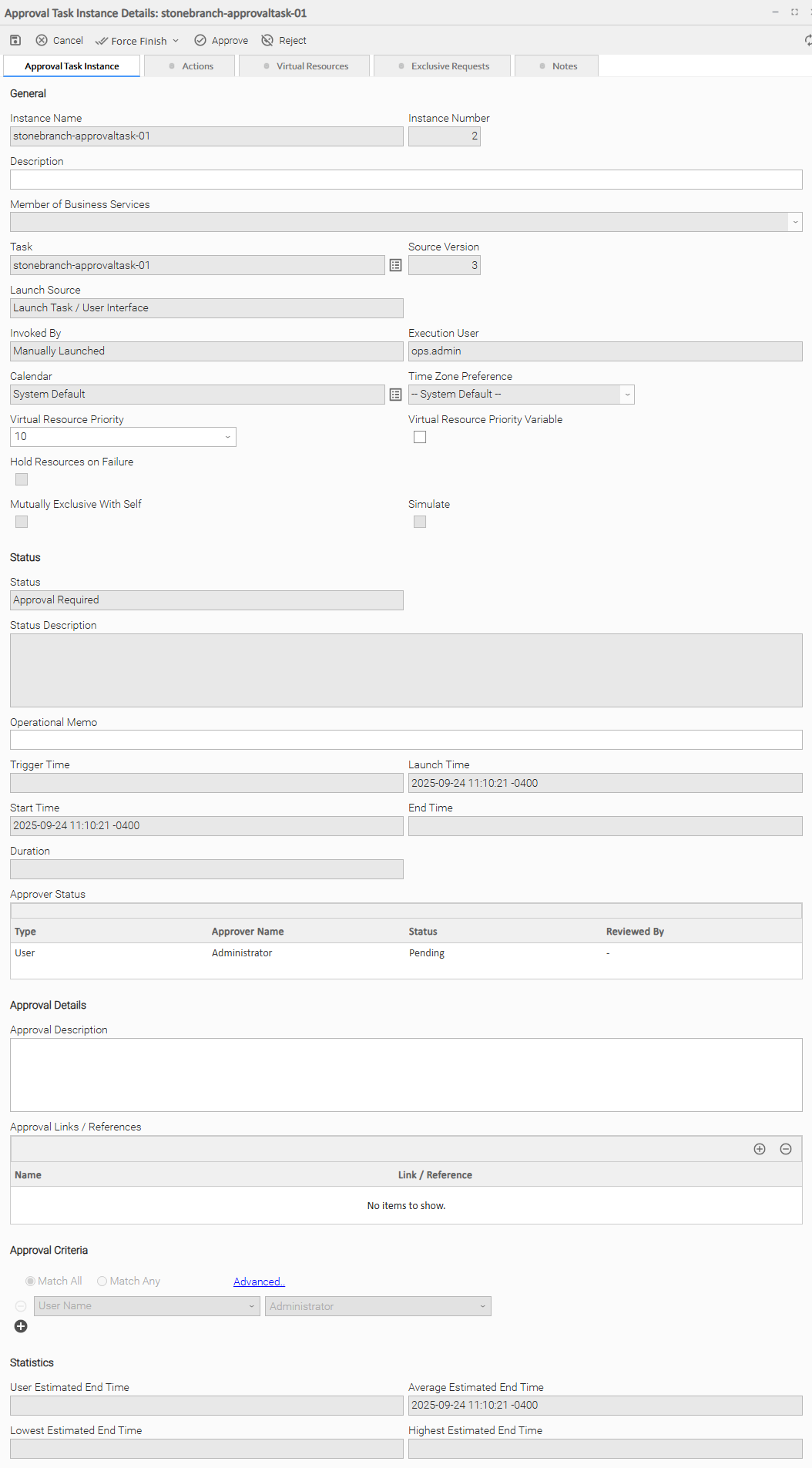
Approval Task Instance Details Field Descriptions
The following tables describe the fields, buttons, and tabs that display in Approval Task Instance Details.
General
This section contains general information about the task instance.
Field Name | Description |
|---|---|
Instance Name | Name of this task instance. |
Instance Number | System-supplied; Sequentially assigned number, maintained per task, representing the creation order of the instance. |
Description | Description of this record. Maximum length is 255 characters. |
Member of Business Services | User-defined; Allows you to select one or more Business Services that this record belongs to. (You also can Check All or Uncheck All Business Services for this record.) You can select up to 62 Business Services for any record type, and enter a maximum of 2048 characters for each Business Service. If the Business Service Visibility Restricted Universal Controller system property is set to true, depending on your assigned (or inherited) Permissions or Roles, Business Services available for selection may be restricted. |
Task | Name of the task that was run to create this task instance. Click the icon to display Task Details for the task. |
Source Version | Version of the task that was run to create this task instance. |
Launch Source | System-supplied; Source from which this task was launched. Options:
|
Source Instance | System-supplied; UUID of the source instance.
|
Invoked by | System-supplied; how the task instance was launched. Options:
|
Execution User | System-supplied; If the task was launched manually; ID of the user who launched it. |
Calendar | Calendar associated with the task instance. |
Time Zone Preference | User-defined; Allows you to specify the time zone that will be applied to the task. Options:
|
Virtual Resource Priority | Priority for acquiring a resource when two or more tasks are waiting for the resource. This priority applies to all resources required by the task. Options: 1 (high) - 100 (low). Default is 10. |
Virtual Resource Priority Variable | Indication of whether the Virtual Resource Priority field is a number select field for choosing the Virtual Resource Priority (unchecked) or a text field for specifying the Virtual Resource Priority as a variable (checked). Use the format: |
Hold Resources on Failure | If enabled, the task instance will continue to hold Renewable resources if the task instance fails. Renewable resources will be returned only if the task instance status is either Complete, Finished, or Skipped. |
Mutually Exclusive With Self | If enabled, the task will not be allowed to run concurrently with itself. Task will not start until the instance that is running finishes. An instance will transition to Exclusive Wait status if it cannot start due to another instance already running. |
Simulate | Specifies if the instance should execute under simulation mode. |
Previous Instance Wait Resolved | System-supplied; If the Override Previous Instance Wait field for the task is set to No, the Previous Instance Wait Resolved field will be set to the value of the Previous Instance Wait field of the parent workflow. Otherwise, it will be set to the value specified by the Override Previous Instance Wait. Options:
|
Previous Instance Wait Lookup Option Resolved | System-supplied; If Previous Instance Wait Resolved is not -- None --; Specification for which field(s) to use to look up qualifying previous task instances. Options:
|
Status
This section contains information about the current status of the task instance.
Field Name | Description |
|---|---|
Status | System-supplied; see Task Instance Statuses. |
Exit Code | System-supplied; the exit code captured by the Agent when executing the task (for example, a command or script). |
Status Description | System-supplied; additional information, if any, about the status of the task instance. |
Operational Memo | User-defined operational memo. |
Evaluation Time | If time zone of user is different than time zone of task instance; Time at which Execution Restrictions and Run Criteria were evaluated based upon the requested time zone. (Time zone of task instance displays in parentheses.) |
Critical | Indicates that this task is in the Critical Path of a workflow. |
Critical Endpoint | Indicates that this task was defined as a Critical Endpoint of a Critical Path in a workflow. |
Wait Until Time | Amount of time calculated to wait before the task was started, based on Wait To Start and Delay On Start times. |
Queued Time | System-supplied; Date and time the task was queued for processing. |
Trigger Time | System-supplied; Date and time the task instance was triggered. |
Launch Time | System-supplied; Date and time the task instance was launched. |
Start Time | System-supplied; Date and time the task instance started. |
End Time | System-supplied; Date and time the task instance completed. |
Duration | System-supplied; amount of time the task instance took to run. |
Approver Status | System-supplied; A list of approvers and their corresponding approval status. The table includes the following columns:
When the Approver Status changes after an Approve or Reject operation, the Approval Criteria will be evaluated. If the Approval Criteria are satisfied, the instance will enter the Approved status. If the Approval Criteria cannot be satisfied (even if the remaining Pending Approvers approve), then there is no longer a path to approval, so the Approval Task Instance will enter the Rejected status. Otherwise, it will remain in the Approval Required status. While the Approval instance remains in the Approval Required status, the Approver Status for any User or Group can be changed to Approved or Rejected. |
Approval Details
This section contains information regarding the approval.
Field Name | Description |
|---|---|
Approval Description | Specifies a detailed description of what is being approved. |
Approval Links / References | Specifies links or references to external information. For example, a case number, or a URL to a case. To add an option, click the + icon and enter:
To delete an option, select in the list of variables and click the - icon. You must provide a Name for each Link / Reference specified. If you specify a URL, an icon will appear that can be clicked to open the URL. |
Approval Criteria
This section contains specifications for the user(s) and/or group(s) that can approve the task.
Field Name | Description |
|---|---|
| Specifies one or more approvers required for approval. You can specify both Users and Groups. If you specify a Group, any member of that Group can Approve or Reject the instance on behalf of the Group.
On the task instance, you can view the Approver Status of all Users and Groups specified in the Approval Criteria. |
Wait / Delay Options
This section contains specifications for waiting to start and/or delaying on start the task.
Field Name | Description |
|---|---|
Wait To Start | Amount of time to wait before starting a task from the time that it was launched. Options are:
|
Wait Time | If Wait To Start = Time or Relative Time; Time of day (in 24-hour time) to wait until before starting the task. |
Wait Day Constraint | If Wait To Start = Time or Relative Time; Specification for whether or not to advance the wait time to another day. Valid values:
Default is -- None --. |
Wait Duration | If Wait To Start = Duration; Number of days, hours, minutes, and seconds to wait before starting the task. |
Wait Duration In Seconds | If Wait To Start = Seconds; Number of seconds to wait before starting the task. |
Delay On Start | Amount of time to delay the start of a task, after it has been launched, from the time that it is eligible to start; that is, all dependencies have been met. For example: it is not being held, it is not waiting on any predecessors, or there is no wait time specified. Options are:
|
Delay Duration | If Delay On Start = Duration; Number of days, hours, minutes, and seconds to delay after starting the task. |
Delay Duration In Seconds | If Delay On Start = Seconds; Number of seconds to delay after starting the task. |
Time Options
This section contains time-related specifications for the task instance.
Field Name | Description |
|---|---|
Late Start | If enabled, and if the task instance starts after the time or period specified, the task instance is flagged as late. You can specify a time or duration to determine a late start (see Late Start Type). To determine whether a task instance started late, open the task instance and locate the Started Late field; the field is checked if the instance started after the specified time. The Started Late field displays in the task instance Details only if the user specified a Late Start in the task Details. |
Started Late | System-supplied; this field is flagged if the task started later than the time specified in the Late Start fields. |
Late Start Type | Required if Late Start is enabled. Options:
|
Late Start Time | If Late Start Type = Time; Time after which the task start time is considered late. Use HH:MM, 24-hour time. |
Late Start Day Constraint | If Late Start Type = Time; Specification for whether or not to advance the late start time to another day. Valid values:
Default is -- None --. |
Late Start Nth Amount | If Late Start Day Constraint = Nth Day; Number of days to advance. |
Late Start Duration | If Late Start Type = Duration; Duration (amount of relative time) after which the task is considered to have started late. For a task within a workflow, the duration is the period between the time the workflow starts and the time the task itself starts. For example, a task might have a Late Start Duration of 60 minutes. If the workflow starts at 9:00 a.m. but the task itself does not start until 10:30, the task has started late. For a task that is not within a workflow, Late Start Duration has meaning only if the task has been held upon starting. For example, if a task has a Late Start Duration of 60 minutes and the Hold on Start field is enabled, if the task is not released from hold within the amount of time specified in the Late Start Duration field, the task has started late. |
Computed Late Start Time | If Late Start is enabled, the computed Date/Time for when the task instance will be Late Started. |
Late Finish | If enabled, and if the task instance finishes after the time or period specified, the task instance is flagged as late. You can specify a time or duration to determine a late finish (see Late Finish Type). To determine whether a task instance finished late, open the task instance and locate the Finished Late field; the field is checked if the instance finished after the specified time or lasted longer than expected. This field only appears on the task instance if the user specified a Late Finish in the task definition. |
Finished Late | System-supplied; this field is flagged if the task finished later than the time or duration specified in the Late Finish fields. |
Late Finish Type | Required if Late Finish is enabled. Options:
|
Late Finish Offset Type | If Late Finish Type = Average Duration; Options:
|
Late Finish Percentage Offset ( + ) | Required if Late Finish Offset Type = Percentage; Percentage of Average Duration to use as an offset. The late finish time is calculated by adding the offset to the Average Duration. (Minimum = 0 and Maximum = 1000) |
Late Finish Duration Offset ( + ) | Required if Late Finish Offset Type = Duration; Duration to use as an offset. The late finish time is calculated by adding the offset to the Average Duration. |
Late Finish Duration Offset Unit | If Late Finish Offset Type = Duration; Options:
|
Late Finish Time | If Late Finish Type = Time; Time after which the task finish time is considered late. Use HH:MM, 24-hour time. |
Late Finish Day Constraint | If Late Finish Type = Time; Specification for whether or not to advance the late finish time to another day. Valid values:
Default is -- None --. |
Late Finish Nth Amount | If Late Finish Day Constraint = Nth Day; Number of days to advance. |
Late Finish Duration | If Late Finish Type = Duration; Longest amount of time this task instance should take to run. |
Computed Late Finish Time | If Late Finish is enabled, the computed Date/Time for when the task instance will be Late Finished. |
Early Finish | If enabled, and if the task instance finishes before the time or period specified, the task instance is flagged as early. You can specify a time or duration to determine an early finish (see Early Finish Type). To determine whether a task instance finished early, open the task instance and locate the Finished Early field; the field is checked if the instance finished before the specified time or did not last as long as expected. This field only appears on the task instance if the user added Early Finish specifications to the task definition. |
Finished Early | System-supplied; this field is flagged if the task finished earlier than the time specified in the Early Finish fields. |
Early Finish Type | Required if Early Finish is enabled. Options:
|
Early Finish Offset Type | If Early Finish Type = Average Duration; Options:
|
Early Finish Percentage Offset ( - ) | Required if Early Finish Offset Type = Percentage; Percentage of Average Duration to use as an offset. The early finish time is calculated by subtracting the offset from the Average Duration. (Minimum = 0 and Maximum = 100) |
Early Finish Duration Offset ( - ) | Required if Early Finish Offset Type = Duration; Duration to use as an offset. The early finish time is calculated by subtracting the offset from the Average Duration. |
Early Finish Duration Offset Unit | If Early Finish Offset Type = Duration; Options:
|
Early Finish Time | If Early Finish Type = Time; Time before which the task finish time is considered early. That is, enter a time at which the task should still be running. Use HH:MM, 24-hour time. |
Early Finish Day Constraint | If Early Finish Type = Time; Specification for whether or not to advance the early finish time to another day. Valid values:
Default is -- None --. |
Early Finish Nth Amount | If Early Finish Day Constraint = Nth Day; Number of days to advance. |
Early Finish Duration | If Early Finish Type = Duration; Shortest amount of time this task instance should take to run. |
Projected Late | System-provided if Late Start Time, Late Start Duration, or Late Finish Time is specified; This field is flagged if the task instance is projected to be late based on critical path projected end times (see Critical Path Projected Late Action Maximum and Critical Path Projected Late Threshold In Minutes Universal Controller system properties). . |
Critical Path Options
This section contains Critical Path-related specifications for the task.
Field Name | Description |
|---|---|
CP Duration | Optional; Allows you to override the estimated Critical Path Duration of the task when running in a Workflow; used in conjunction with the CP Duration Unit field. In most cases, this field should be left blank, which implies that the Controller will estimate the Critical Path Duration based on historical executions. Valid values are any integer equal to or greater than 0. Variables and Functions are supported. |
CP Duration (Resolved) | Displays the current resolved value of the CP Duration field, which may contain variables or functions that will be displayed as unresolved until the task instance starts. The CP Duration (Resolved) field can continue to change value until the task instance starts, at which time CP Duration will display as resolved and CP Duration (Resolved) will no longer be visible unless there was an issue resolving the variables and/or functions contained within CP Duration. If the Controller is unable to resolve CP Duration or it resolves to an invalid value, CP Duration will be ignored and the Controller will estimate the Critical Path Duration based on historical executions. |
CP Duration Unit | Type of CP Duration; used in conjunction with the CP Duration field. For example, for a CP Duration of two minutes, specify 2 in the CP Duration field and select Minutes in this field. Options:
Default is Minutes. |
Workflow Execution Options
This section contains Execution Restriction specifications for the task if it is within a Workflow.
Field Name | Description |
|---|---|
Execution Restriction | Specification for whether or not there is a restriction for this task to be run, skipped, or held. Options are:
If Execution Restriction on a task is Run or Skip, then when it is part of a Workflow that is being launched, the Restriction Period is evaluated. The task instance will be skipped if Execution Restriction is Skip and the date is within the Restriction Period or Execution Restriction is Run and the date is not within the Restriction Period. Execution Restriction can be set to Skip with a Restriction Period of -- None --, meaning the restriction is always active and the task will be skipped when it is part of a Workflow. |
Restriction Period | If Execution Restriction = Run, Skip, or Hold; Period of time when the task is restricted. Options are:
|
Before Date | If Restriction Period = Before or Span; Date before which the restriction is valid. |
Before Time | If Restriction Period = Before or Span; Time on the selected date before which the restriction is valid. |
After Date | If Restriction Period = After or Span; Date after which the restriction is valid. |
After Time | If Restriction Period = After or Span; Time on the selected date after which the restriction is valid. |
Date List | If Restriction Period = On; Date(s) on which the restriction is valid. |
Statistics
This section contains time-related statistics for the task instance.
Field Name | Description |
|---|---|
User Estimated End Time | System-supplied; If the user entered information into the User Estimated Duration field in the task Details, the Controller uses this information to calculate an end time for the task instance, based on the date/time the task instance started. |
Lowest Estimated End Time | System-supplied; Lowest estimated end time of the task instance, calculated by the Controller based on the date/time the task instance started. |
Average Estimated End Time | System-supplied; Average estimated end time of the task instance, calculated by the Controller based on the date/time the task instance started. |
Highest Estimated End Time | System-supplied; Highest estimated end time of the task instance, calculated by the Controller based on the date/time the task instance started. |
Projected Start Time | System-supplied; projected start time of the task instance, calculated by the Controller based on Projected End Time minus Projected Duration. |
Projected End Time | System-supplied; projected end time of the task instance, calculated by the Controller based on the projected end time of its predecessor (or the maximum projected end time of all its predecessors, if more than one path exists to that task instance) plus its estimated critical path duration. |
Metadata
This section contains Metadata information about this record.
Field Name | Description |
|---|---|
UUID | Universally Unique Identifier of this record. |
Replicated | If using a Universal Reporting Server, this field is automatically set to true if this record was replicated from another Controller. |
Updated By | Name of the user that last updated this record. |
Updated | Date and time that this record was last updated. |
Created By | Name of the user that created this record. |
Created | Date and time that this record was created. |
Status History | History of all statuses that the task instance has gone through. |
Operational Memo History | History of all Operational Memos for the task. |
Buttons
This section identifies the buttons displayed above and below the Task Instance Details that let you perform various actions.
Field Name | Description |
|---|---|
Update | Saves updates to the record. |
Force Finish | |
Hold | Places the task instance on Hold (see Putting a Task on Hold). |
Approve | Approves the task instance. You can optionally specify a reason for the approval with an Operational Memo. |
Reject | Rejects the task instance. You can optionally specify a reason for the rejection with an Operational Memo. |
Skip | For tasks loaded into the schedule that have not yet run; allows you to tell the Controller to skip this task. See Skipping a Task. |
Re-run | See Re-running a Task Instance. info If the Re-run (Suppress Intermediate Failures) Permitted Universal Controller system property is set to true, the Re-run button is a drop-down list containing the following options:
The Re-run button does not display if the task instance does not qualify for Re-run. If the task instance qualifies for Re-run, but already has Retry Options enabled, Re-run (Suppress Intermediate Failures) displays as disabled in the drop-down list. |
View Parent | Displays the task instance Details for the parent Workflow of this task instance. |
Delete | Deletes the current record. |
Refresh | Refreshes any dynamic data displayed in the Details. |
Close | For pop-up view only; closes the pop-up view of this task instance. |
Tabs
This section identifies the tabs across the top of the Task Instance Details that provide access to additional information about the task instance.
Field Name | Description | ||||||||||
|---|---|---|---|---|---|---|---|---|---|---|---|
Actions | Actions that the Controller took automatically based on events that occurred during the execution of this task. Events are:
Actions are:
| ||||||||||
Virtual Resources | Lists all Virtual Resources to which this task is assigned. If you want to create a Task Virtual Resource for this task, you can select an existing Virtual Resource (or, optionally, first create a new Virtual Resource and then select it as the Task Virtual Resource) or enter a Virtual Resource variable. The variable must be a supported type as described in Variables and Functions. | ||||||||||
Exclusive Requests | Lists all records in the Exclusive Requests table ( | ||||||||||
Notes | Lists all notes associated with this record. |
Running an Approval Task
You can run an Approval task:
- Manually, by clicking the Launch or Launch with Variables button in the Approval Tasks list or Approval Task Details Action menu.
- As part of a workflow.
- Specify triggers that run the task automatically based on times or events.
Monitoring Task Execution
You can monitor all system activity from the Activity Monitor and can view activity history from the History list.
You can also monitor Approval task instances from the Approvals list.