Account Groups
An Account Group creates an association between one or more Accounts and one or more Pipelines. Account Groups act as the critical link between authenticated Accounts and file transfer pathways defined by Pipelines. When an Account is associated with an Account Group, it inherits access to all the Pipelines assigned to that Account Group, enabling the Account to perform the corresponding file transfers.
Account Groups serve two key functions:
- Associate Accounts with Pipelines, enabling secure file transfers when UDMG is acting in the capacity of a file transfer server.
- Automatically (or manually) associate Accounts with Account Groups by mapping external directory groups (LDAP/SSO) to UDMG Account Groups to streamline Account management.
An Account cannot participate in file transfers when UDMG acts as the server, unless it is associated with an Account Group that has at least one Pipeline assigned.
Before You Begin
Naming and Assignment Considerations
Account Groups can be structured in various ways to meet the needs of your partners (businesses, internal or external users, customers, vendors, or other organizations). For example, you might create separate Account Groups for different partner categories, each with Pipelines tailored to their specific access permissions and file transfer needs.
To ensure a scalable and manageable configuration, we recommend that you:
- Use clear and descriptive names to simplify their assignment to Accounts.
- Group Pipelines together strategically to minimize the number of Account Groups associated with each Account. This streamlines configuration and reduces administrative overhead. Since Pipelines can belong to multiple Account Groups, design each group to include the essential or baseline Pipelines required for common use cases or permission sets.
Only compatible Pipelines can be assigned to an Account Group, more specifically, those where UDMG acts as the server (e.g., the Source Endpoint is a Local Server). Pipelines where UDMG acts as the client (i.e., the Source or Destination Endpoint is a Remote Server) do not require Account Groups or Account associations to initiate file transfers.
Pipelines and Account Groups Association
Each Account Group can be associated with one or more Pipelines. While there is no limit to the number of Pipelines that can be assigned, UDMG enforces validation checks to ensure configuration integrity. These checks occur at three key stages:
- When a Pipeline is created:
Checks for Source Endpoint ID + Destination Endpoint ID + Permissions + Virtual Path uniqueness. - When a Pipeline is associated with an Account Group:
Checks for Source Endpoint ID + Virtual Path uniqueness across all Pipelines within an Account Group. - When an Account is associated with an Account Group:
Checks for Source Endpoint ID + Virtual Path uniqueness across all Pipelines associated with an Account's Account Groups.
If a conflict is identified, then the Configuration Item is blocked from being created or associated, or a detailed error message is displayed.
Each Pipeline Source Endpoint ID and Virtual Path combination must be unique within an Account Group and across all Pipelines associated with an Account.
LDAP/SSO Authentication and Account Groups
Accounts with Login Method set to LDAP, SAML, or OIDC are created with at least one Account Group already associated, since existing group memberships must map to a current Account Group in UDMG to be created.
When using LDAP or SSO, consider that:
- The LDAP/SSO group membership name must match the UDMG Account Group name exactly for the association and Account creation to work.
- If a user in LDAP belongs to multiple recognized Account Groups, the corresponding Account in UDMG is created with all matching Account Groups associated.
For more details, refer to the Authentication page.
Adding an Account Group
To add an Account Group, follow these steps:
- From the Sidebar, select Configuration > Account Groups.
- Click the Add Account Group button.
- Complete the Name and Description details for the new Account, using the Field Descriptions table as a guide.
- Click Add.
Adding an Account Group initially requires only a name. However, its functionality is defined in the next step: Assigning a Pipeline to an Account Group.
Field Descriptions
The following table describes the fields that are configured for the Account Group:
| Name | Description | Specifications | Required |
|---|---|---|---|
| Name | The name of the Account Group. Should be descriptive to support easy identification when assigning to Accounts. |
| Yes |
| Description | The description of the Account Group. | No | |
| Business Service | Assigning a Business Service to this Account Group restricts updating, deleting, and other actions so only Users with the same Business Service can perform them (role permissions still apply). For details, see Business Services. |
| No |
Editing an Account Group
To edit an Account Group, follow these steps:
- From the Sidebar, select Configuration > Account Groups.
- Click the Name of the Account Group you want to edit.
- Click Edit button above the Account Group details.
- Edit the details of the Account Group using the Field Descriptions table as a guide.
- Click Update.
To modify the assigned Pipelines, follow Assigning a Pipeline to an Account Group steps.
Managing an Account Group
Viewing Account Group Details
To view the details of an Account Group, follow these steps:
- From the Sidebar, select Configuration > Account Groups.
- Click the Account Group name you want to view.
- Click the Accounts tab to see a list of all Accounts associated with the Account Group.
- Additionally, click the Pipelines tab to see the Pipelines associated with the Account Group, and also click the Pipeline name in the card to go to that Pipeline's Overview tab.
Each card in the associated Pipelines view conveys critical information, including:
- The source Endpoint name and type.
- The target Endpoint name and type.
- The UDMG file path, specifically, the Relative Path (Virtual Path).
File paths are relative to the UDMG working directory, and may reflect variable names if used in the Endpoint, such as ${ACCOUNT_NAME}.
Account Group Metadata
Account Group details include all parameters given in the Field Descriptions table, plus the following read-only metadata:
| Name | Description |
|---|---|
| UUID | The universally unique identifier of this Account Group. |
| Version | Version number of the latest configuration of the Account Group. |
| Created | Date and time this Account Group was created. |
| Updated | Date and time this Account Group was last updated. |
Viewing Version History
To view the change history of this Account Group and compare any prior version to the current configuration, click Versions in the header. See Version History.
Assigning a Pipeline to an Account Group
To assign a Pipeline to an Account Group, follow these steps:
- From the Sidebar, select Configuration > Account Groups.
- Click the Name of the Account Group you want to assign a Pipeline to.
- Click the Assign Pipelines button above the Account Group details.
- You will see two columns:
- Available Pipelines lists all the Pipelines that are not currently assigned to the Account Group.
- Assigned Pipelines lists Pipelines currently assigned to the Account Group.
- Drag Pipeline cards between columns as needed:
- Move a card from Available Pipelines to Assigned Pipelines to assign that Pipeline to the Account Group.
- Move a card from Assigned Pipelines to Available Pipelines to remove that Pipeline from the Account Group.
- Use the search bar to filter Pipelines by name.
- Click Cancel to discard all changes and return to the previous screen.
- Click Reset to restore the columns to their original state.
- Click Update to save the changes.
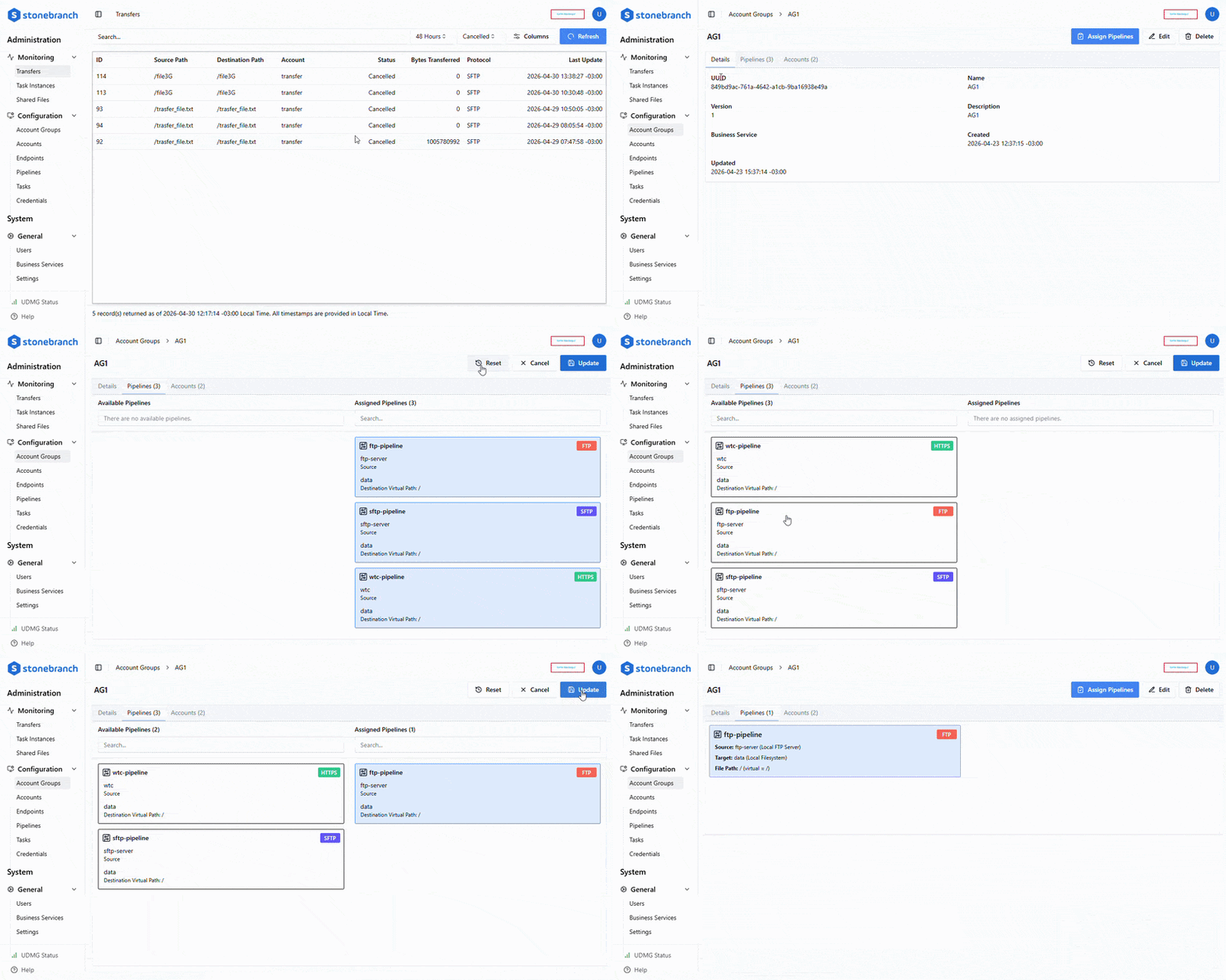
Pipeline cards are disabled when assigning them would violate the uniqueness requirement for Account Group assignments.
All Pipelines assigned to an Account Group must have a unique Source Endpoint and Virtual Path combination. Disabled Pipeline cards are shown in gray, marked with a warning icon, and cannot be assigned until the conflict is resolved.
For more information, see Pipeline Validation.
Deleting an Account Group
To delete an Account Group, follow these steps:
- From the Sidebar, select Configuration > Account Groups.
- Click the Name of the Account Group you want to delete.
- Click the Delete button above the Account Group details.
- You will be asked to confirm the deletion. Click Continue.
UDMG prevents the deletion of a Configuration Item if it is currently referenced by another Configuration Item (i.e., Account). The Configuration Item must be edited or the referenced item removed before you can delete the Account Group. Deletion cannot be undone.