Local Filesystem to Remote SFTP Server
The Local Filesystem to Remote SFTP Server is a Pipeline type used for a standard SFTP transfer scenario where UDMG acts as a client, pushing files from the local UDMG filesystem to an external SFTP server.
This Pipeline consists of:
- A Local Filesystem Endpoint that represents the location of the files to be transferred (used as the Source Endpoint).
- A Remote SFTP Server Endpoint that represents your partner's SFTP server (used as the Destination Endpoint).
- Pipeline-specific configuration options.
- An HTTP request to the Transfers Scheduled API.
Before You Begin
Prerequisites
Before configuring this Pipeline, we recommend you first:
- Obtain your partner's SFTP Server connection details from their administrator, including hostname, port, and authentication credentials.
- Identify your local source directory and ensure that UDMG has the necessary permissions to read files from it.
- Test network connectivity to your partner's SFTP Server and manually verify that authentication succeeds.
- Prepare API integration setup and have a UDMG User with domain-level permissions.
Understanding Paths in This Pipeline
When configuring a Local Filesystem to Remote SFTP Server Pipeline, several path fields determine where files are read from locally and where they are written to on the external SFTP server.
Each path has a specific role and is combined during runtime to build the complete source and destination paths used in transfers.
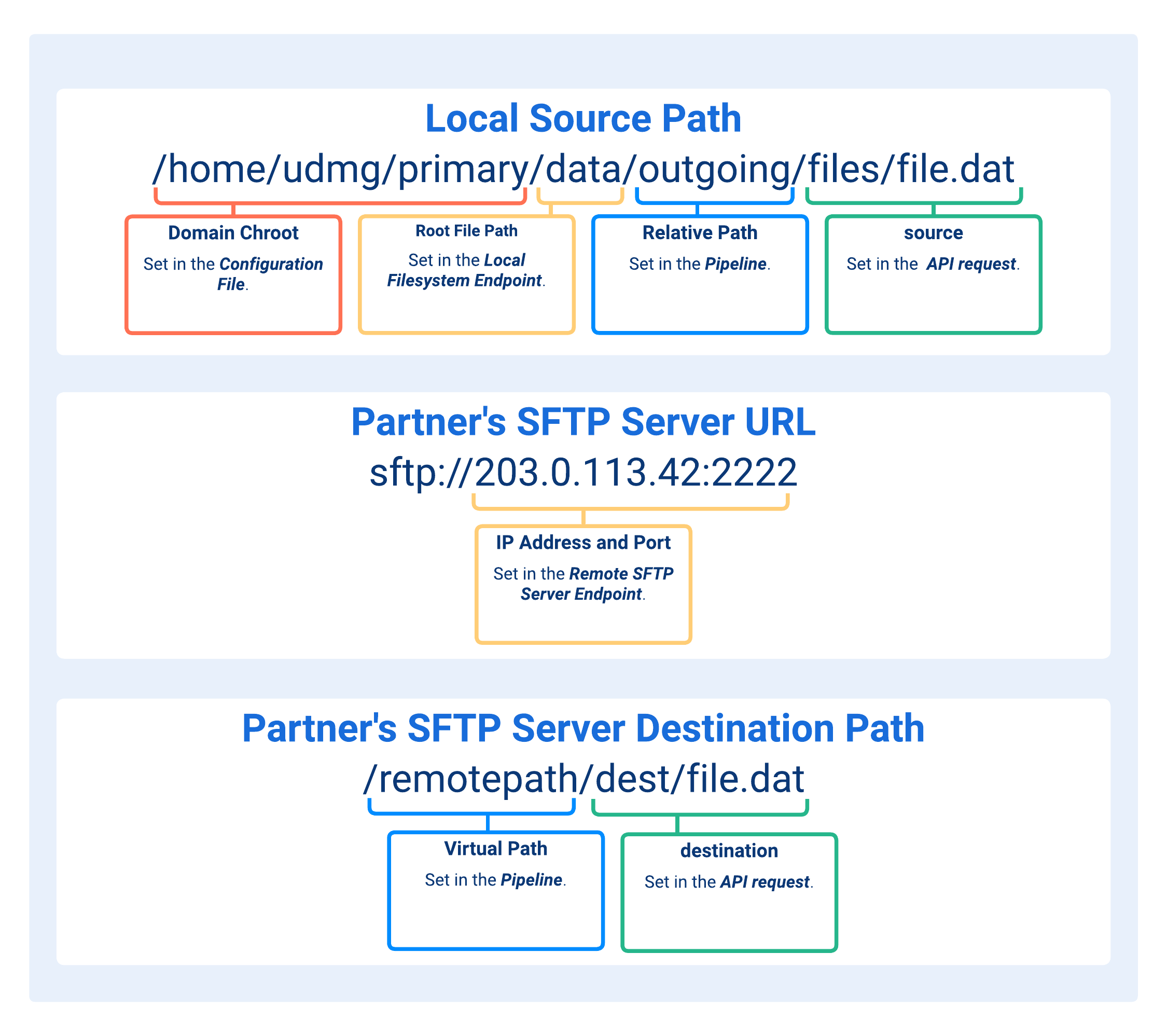
- Domain Chroot
- Root File Path
- Relative Path
- source
- IP Address and Port
- Virtual Path
- destination
This path or location on the UDMG host is determined by the security.domain_chroot argument in the Configuration File.
Valid security.domain_chroot values are:
NONE: No path is prepended.WORKDIR: The file path is resolved relative to thework_directory_pathargument defined in the Configuration File (e.g.,/home/udmg/orC:\UDMG\WorkDir\).WORKDIR+DOMAIN: Same asWORKDIR, but UDMG also prepends the Domain name (e.g.,/home/udmg/primary/orC:\UDMG\WorkDir\primary\).
A path defined in the Local Filesystem Endpoint used as the Source Endpoint for this Pipeline. Directories above this path are not accessible to Pipelines associated with this Endpoint.
The interpretation of the Root File Path depends on the value of security.domain_chroot:
- If
security.domain_chrootis set toNONE, the Root File Path is treated as an absolute path, and should be specified as such. - Otherwise, the Root File Path is treated as relative to the directory defined by
security.domain_chroot(see Domain Chroot). A path beginning with/is not treated as a filesystem root — the leading/is accepted in the format but the path resolves relative to the chroot base. For example, withWORKDIR+DOMAINand work directory/home/udmg/, entering/uploadsresolves to/home/udmg/<domain>/uploads.
Valid formats:
/(empty path)/dir/dir/subdirC:\dir\subdir\\[ServerName]\dir\subdir(Windows UNC path)
A base path used to locate files within this Pipeline.
Valid formats:
/(empty path)/dir/dir/subdir/filename.ext(in this case, the Pipeline always pushes the same file).
If the Relative Path includes the filename and extension, the corresponding
source value should be "/" (see
Request Body).
The filename and extension of the source file.
The source property can be an empty path when the filename and extension are already specified in the Relative Path. Otherwise, it must be provided.
If needed, the value can also include one or more subdirectories relative to the defined Relative Path.
Valid formats:
"/"(only iffilename.extis already specified in the Relative Path)"/filename.ext""/dir/filename.ext""/dir/subdir/filename.ext"
Wildcards are supported. For implementation details, see Wildcards.
The IP Address and Port of the external SFTP server.
They are defined in the Remote SFTP Server Endpoint used as the Destination Endpoint for this Pipeline.
A path in the external SFTP server virtual filesystem where the file is to be pushed. The path does not accept subdirectories (more than 1 level).
Valid formats:
/(empty path)/dirdir
Path segments cannot contain leading or trailing spaces, or consist entirely of spaces. For example, / Reports is not valid.
The path must exist in the virtual filesystem exposed by the external SFTP server, and the Credentials specified in this Pipeline must have permission to write to it.
Optional filename and extension of the destination file.
If included, the file will be renamed to the specified name and extension in the external SFTP server. Otherwise, it will keep its original name and extension.
If needed, the value can also include one or more subdirectories relative to the defined Virtual Path. Those directories will be created in the external SFTP server if they don't already exist.
Valid formats:
"/"(keeps the original source filename)"dir/"or"/dir/"(stores the file in the specified directory while keeping the original source filename; always include the trailing slash to indicate a directory)"/new_filename.ext""/dir/filename.ext""/dir/subdir/filename.ext""/new_dir/new_filename.ext"
For implementation details, see Transfer Scheduling via UDMG REST API.
External SFTP Server Authentication
Pipelines that contain a Remote SFTP Server Endpoint require credentials to authenticate with the external SFTP server.
Unlike Pipelines, where UDMG acts as the server and relies on Accounts to supply credentials, these Pipelines define credentials directly within the Pipeline configuration.
This design enables each Pipeline to manage its own client authentication credentials independently. As a result, each Pipeline can only authenticate with one external system and use one distinct Credential Type at a time.
Supported Authentication Methods
UDMG supports three authentication methods when connecting to external SFTP servers. The external SFTP server configuration determines the required authentication method and must be provided by the server administrator.
Each Pipeline can only have one Credential Type associated with it at one time.
Transfer Scheduling via UDMG REST API
In a Local Filesystem to Remote SFTP Server Pipeline, each transfer must be explicitly scheduled through the UDMG REST API.
For more details, refer to Transfers vs. Scheduled Transfers. Scheduled Transfers can be monitored through the UDMG REST API and the UDMG Admin UI.
API Endpoint
POST /api/v1/domains/{domainName}/transfers/schedules
Request Body
The request body includes the following fields:
| Property | Description | Type | Required | Default |
|---|---|---|---|---|
pipeline | Name of the Pipeline associated with the transfer. Must match the Pipeline's Name field. | string | Yes | n/a |
scheduled | Date and time at which the file transfer is scheduled to be initiated. Must be in RFC 3339 format (e.g. If a past date is provided, the transfer is initiated during the next poll for pending transfers, based on the | string | Yes | n/a |
source | Filename and extension (plus optional path) to the source file. For more information, refer to Understanding Paths. |
| Yes | n/a |
destination | Filename and extension (plus optional path) to the destination file. Can be used for renaming files. For more information, refer to Understanding Paths. |
| No | n/a |
options.move | When true, deletes the local source file after it is successfully uploaded to the remote server. For more information, refer to Move. | boolean | No | false |
options.includeFilter | Wildcard pattern to include specific files in the transfer. When omitted, the transfer targets only the file specified by source. | string | No | n/a |
Request Example
The following curl command schedules a file transfer using the Transfers Schedules Endpoint:
curl "https://<udmg-host>:<port>/api/v1/domains/<domain-name>/transfers/schedules" \
  -X POST \
  -u "<username>:<password>" \
  -d '{
    "pipeline": "Pipeline_Push",
    "scheduled": "2026-07-03T15:43:52.344Z",
    "source": "/Form1000.dat",
    "destination": "/Received/Form1000.dat",
    "options": {
      "move": true
    }
  }'
Response Example
{
  "scheduleId": 33,
  "pipeline": "Pipeline_Push",
  "username": "udmg.sys-admin",
  "source": "/Form1000.dat",
  "destination": "/Received/Form1000.dat",
  "computedSource": "/rootfilepath/relativepath/Form1000.dat",
  "computedDestination": "/virtualpath/Received/Form1000.dat",
  "schedule": "2026-07-03T15:43:52.344Z",
  "status": "Pending",
  "matchFiles": 0,
  "options": {
    "move": true
  }
}
Check Transfer Status
Note that the response from the API only indicates that the transfer has been successfully scheduled, not that it has been completed. The transfer's status will be "Pending" until it is executed, at which point the status will update to "Completed" or "Failed" based on the outcome of the transfer.
After a transfer is scheduled, you can check its status by doing a GET request to the Transfers Schedules Endpoint, which returns a list of all scheduled transfers along with their current status.
GET /api/v1/domains/{domainName}/transfers/schedules
Response Example
{
  "schedules": {
    "items": [
      {
        "scheduleId": 33,
        "transferId": 709,
        "pipeline": "Pipeline_Push",
        "username": "udmg.sys-admin",
        "source": "/Form1000.dat",
        "destination": "/Received/Form1000.dat",
        "computedSource": "/rootfilepath/relativepath/Form1000.dat",
        "computedDestination": "/virtualpath/Received/Form1000.dat",
        "schedule": "2026-07-03T15:43:52.344Z",
        "status": "Completed",
        "executedAt": "2026-07-03T15:45:52.344Z",
        "completedAt": "2026-07-03T15:45:52.344Z",
        "matchFiles": 1,
        "options": {
          "move": true
        }
      }
    ],
    "totalItems": 1,
    "page": 1,
    "pageSize": 20,
    "totalPages": 1
  }
}
The source and destination fields reflect the paths exactly as provided in the request.
In any Pipeline, computedSource is the full source path: the Local Filesystem Endpoint's Root File Path and the Pipeline's Relative Path combined with the source value from the request. This is the path that will appear as Source Path on the Transfers Dashboard once the transfer completes.
In Local Filesystem to Remote SFTP Server Pipelines, computedDestination is the full destination path: the Pipeline's Virtual Path combined with the destination value from the request. This is the path that will appear as Destination Path on the Transfers Dashboard once the transfer completes.
When the security.work_directory_key_display configuration argument is set to true and security.domain_chroot is not set to none, the response also includes a workDirectory field indicating the base working directory for local filesystem paths.
Transfer Resume
This Pipeline type supports transfer resume. If a scheduled transfer is interrupted, the next retry automatically continues from where the transfer left off, rather than restarting from the beginning.
For more information, see Transfer Resume.
Pipeline Workflow
The Pipeline Workflow toggle enables automated Task execution during the transfer lifecycle.
When enabled, UDMG Server executes the Tasks associated with the Pipeline Workflow when specific transfer triggers occur.
Tasks are configured separately and can perform actions such as executing system commands or publishing Universal Events to Universal Controller. Multiple Tasks can be executed as part of a workflow, and they run sequentially in the order defined for the Pipeline.
For more information, see Tasks.
Adding a Pipeline
To add a Local Filesystem to Remote SFTP Server Pipeline, follow these steps:
- From the Sidebar, select Configuration > Pipelines.
- Click Add Pipeline.
- Complete the Name for the new Pipeline.
- Select the Source Endpoint with a Local Filesystem Endpoint type.
- Select the Destination Endpoint with a Remote SFTP Server Endpoint type.
- Fill out the dynamic fields following the Field Descriptions table.
- Click Add.
UDMG does not allow identical Pipelines to be created, even if they have different names. For more information, see Pipeline Validation.
Field Descriptions
| Name | Description | Specifications | Required |
|---|---|---|---|
| Name | Name of the Pipeline. |
| Yes |
| Description | The description of the Pipeline. | No | |
| Business Service | Assigning a Business Service to this Pipeline restricts updating, deleting, and other actions so only Users with the same Business Service can perform them (role permissions still apply). For details, see Business Services. |
| No |
| Source Endpoint | The Source Endpoint is where files are retrieved, originated, or come from. |
| Yes |
| Destination Endpoint | The Destination Endpoint is where files are delivered to or sent. Allowable Destination Endpoints are based on the available Pipeline combinations. |
| Yes |
| Relative Path | The exact path where the file to be transferred exists on UDMG locally. The path is used to create a full path. For more information, see Understanding Paths. |
| Yes |
| Virtual Path | The path or 'Remote Server Path' where the file is to be transferred to on the external SFTP server. The Transfers Scheduled API The path must exist on the external remote SFTP server. For more information, see Understanding Paths. |
| Yes |
| Credentials Name | The client authentication Credentials used to authenticate to the external SFTP server. | Must reference an existing Credential of type Username and Password, Username and Key, or Username, Password, and Key. | Yes |
| Workflow Enabled | If enabled, the Pipeline Workflow is enabled and Tasks assigned on the Workflow tab will be executed. For more information, see Pipeline Workflow. | No |
Editing a Pipeline
To edit a Local Filesystem to Remote SFTP Server Pipeline, follow these steps:
- From the Sidebar, select Configuration > Pipelines.
- Click the Name of the Pipeline you want to edit.
- Click the Edit button above the Pipeline details.
- Edit details for the Pipeline.
- The Source Endpoint and Destination Endpoint cannot be changed after creation.
- Click Update.
Upon Pipeline update, UDMG checks for Endpoint Source + Endpoint Destination + Configuration + Virtual Path uniqueness.
Managing a Pipeline
All Pipelines support the ability to view the complete Pipeline and linked Endpoint details.
Viewing Pipeline Details
To view the details of a Local Filesystem to Remote SFTP Server Pipeline, follow these steps:
- From the Sidebar, select Configuration > Pipelines.
- Click the Name of the Pipeline you want to view.
- Click the Overview Tab or Details Tab to see additional Pipeline and Endpoint details.
Pipeline Metadata
Pipeline details include all parameters given in the Field Descriptions table, plus the following read-only metadata:
| Name | Description |
|---|---|
| UUID | The universally unique identifier of this Pipeline. |
| Version | Version number of the configuration. Every change increases the number. |
| Enabled | Pipeline's Enabled status. If enabled, field is set to True. |
| Created | Date and time this Pipeline was created. |
| Updated | Date and time this Pipeline was last updated. |
Enabling and Disabling Pipelines
Pipelines can be Enabled or Disabled to control their active status and ability to participate in file transfers. The status is defaulted to Enabled and can be changed after creation. The Configuration Item's Disabled status does not impact whether it can be configured. Also, Disabled Endpoints can be added to a Pipeline.
- Enabled (default): The Pipeline is active and allows file transfers.
- Disabled: The Pipeline is inactive and does not allow file transfers.
To enable or disable a Pipeline, follow these steps:
- From the Sidebar, select Configuration > Pipelines.
- Click the Name of the Pipeline you want to enable or disable.
- Click the Enable or Disable button above the Pipeline details.
- If the Pipeline is Disabled, then the button displays Enabled. If the Pipeline is Enabled, then the button displays Disabled.
- Click Update.
Changes to a Pipeline's Enabled/Disabled status take effect the next time the Transfers Scheduled API is triggered. Disabling a Pipeline is a safe alternative to deleting it.
Assigning a Task to a Pipeline
To assign a Task to a Pipeline, follow these steps:
- From the sidebar, select Configuration > Pipelines.
- Click the Name of the Pipeline to which you want to assign a Task.
- Click the Workflow tab.
- The Workflow editor displays five columns:
- Available Tasks
- On Staged Tasks
- On Sent Tasks
- On Received Tasks
- On Error Tasks
- Drag and drop Task cards as needed:
- To assign the Task to the Pipeline Workflow, move a card from Available Tasks to one of the trigger columns.
- To unassign the Task from the Pipeline, click the x icon in the top right corner on the Task card.
- Click Cancel to discard all changes.
- Click Update.
Not all Task trigger columns are available for every Pipeline type. For this Pipeline type, the following columns are not available: On Staged and On Received. For more information, see Task Triggers.
Deleting a Pipeline
To delete a Local Filesystem to Remote SFTP Server Pipeline, follow these steps:
- From the Sidebar, select Configuration > Pipelines.
- Click the Name of the Pipeline you want to delete.
- Click the Delete button above the Pipeline details.
- You will be asked to confirm the deletion. Click Continue.
Monitoring a Pipeline
To monitor and determine the status of a Pipeline, the Transfers page and Endpoints page must be monitored to track incoming Transfers and the Source and Destination Endpoints' individual statuses, respectively.
On the Transfers page, the following fields indicate the type of Remote Transfer.
- Is Schedule: If Yes, then the Transfer was a Remote Transfer.
- Is Send: If Yes, then the Remote Transfer was a push scenario.