Local SFTP Server to Local Filesystem
The Local SFTP Server to Local Filesystem Pipeline type represents a standard SFTP transfer scenario where UDMG acts as a server, accepting inbound connections from external clients and storing the received files in a local directory.
This Pipeline consists of:
- A Local SFTP Server Endpoint that receives incoming SFTP connections (used as the Source Endpoint).
- A Local Filesystem Endpoint that stores the received files (used as the Destination Endpoint).
- Pipeline-specific configuration options.
Unlike Pipelines in which UDMG acts as a client, transfers in this Pipeline type are automatically triggered by the UDMG Server when a partner performs an action. To enable this, the Pipeline must be assigned to at least one Account Group to grant access to the Account associated with that partner.
Before You Begin
Understanding Paths in This Pipeline
When configuring a Local SFTP Server to Local Filesystem Pipeline, several path fields determine where files are received and where they are written to the filesystem.
Each path has a specific role and is combined during runtime to build the complete source and destination paths used in transfers.
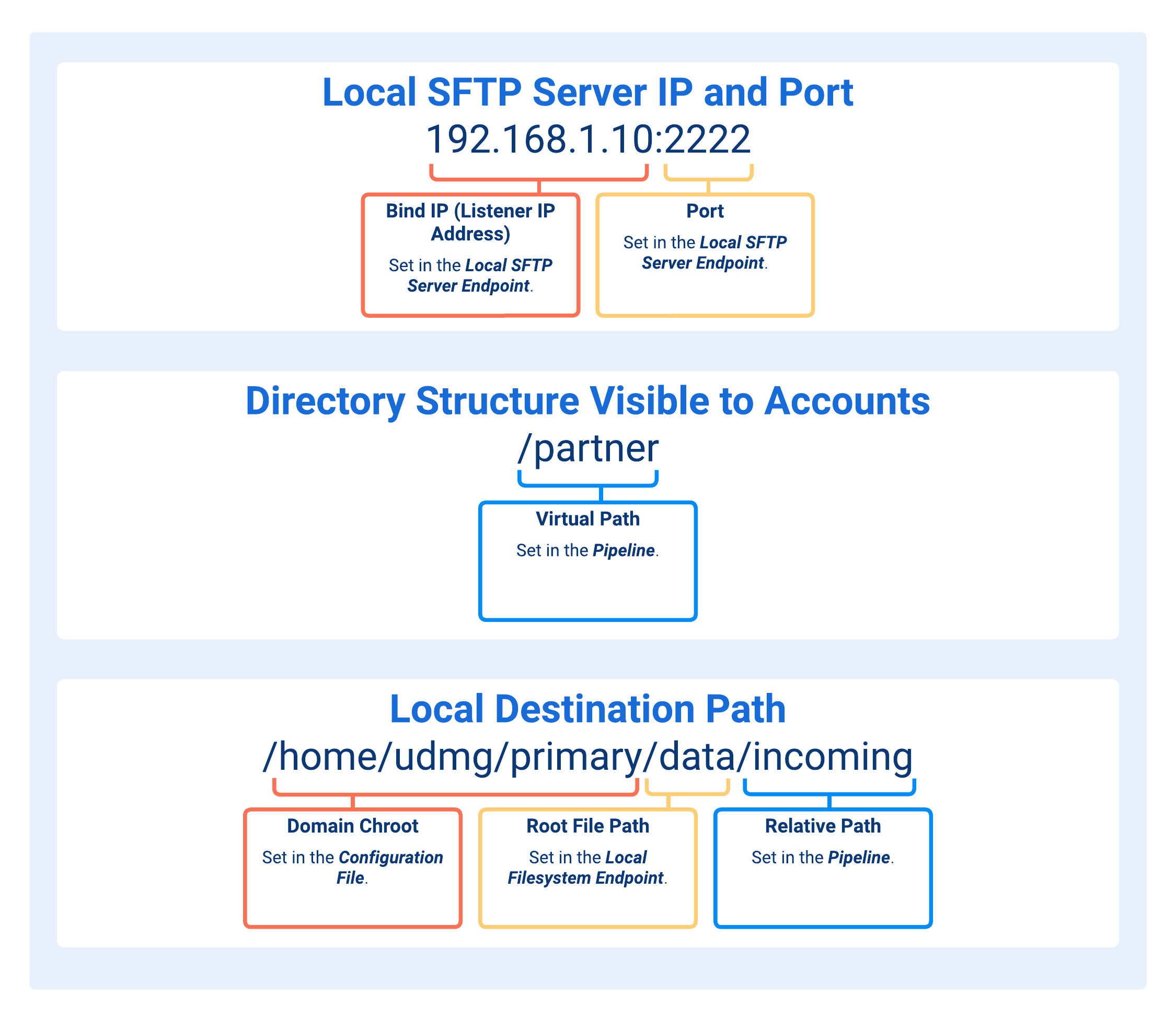
- Bind IP (Listener IP Address) and Port
- Virtual Path
- Domain Chroot
- Root File Path
- Relative Path
The Listener IP Address and Port define the local bind address and port where the UDMG Server listens for incoming SFTP connections for this Pipeline.
These values are configured in the Local SFTP Server Endpoint used as the Source Endpoint.
Depending on your network (load balancer, DNS, firewall/NAT rules, or use of USP), the partner-facing SFTP hostname (or public IP) and port may differ from the bind address configured on the Endpoint. In such cases, ensure that the partner is provided with the correct public-facing hostname (or public IP) and port to reach your UDMG SFTP Server.
The Virtual Path defines the directory path that an Account can see and browse when connecting to the UDMG SFTP Server.
The Virtual Path represents the client-facing or logical directory path presented by UDMG. In UDMG as Server scenarios, it maps to the corresponding Relative Path, which defines the underlying location on the local filesystem used by the Pipeline.
An Account may see more than one Virtual Path, depending on how many Pipelines using the same Local SFTP Server Endpoint as Source Endpoint the Account can access.
Multi-level paths (e.g., /SUREPAY/DWH/ACC) are supported. Intermediate directories (e.g., /SUREPAY and /SUREPAY/DWH) are automatically derived from the path hierarchy and presented to connecting partners as browsable folders — no additional Pipeline configuration is required for them. Uniqueness is enforced on the full Virtual Path string, not on individual path segments.
Valid formats:
//dirdir/dir/subdir/dir/subdir/subsubdir
Path segments cannot contain leading or trailing spaces, or consist entirely of spaces. For example, /Reports /2026 and / Reports/2026 are not valid.
This path or location on the UDMG host is determined by the security.domain_chroot argument in the Configuration File.
Valid security.domain_chroot values are:
NONE: No path is prepended.WORKDIR: The file path is resolved relative to thework_directory_pathargument defined in the Configuration File (e.g.,/home/udmg/orC:\UDMG\WorkDir\).WORKDIR+DOMAIN: Same asWORKDIR, but UDMG also prepends the Domain name (e.g.,/home/udmg/primary/orC:\UDMG\WorkDir\primary\).
A path defined in the Local Filesystem Endpoint used as the Destination Endpoint for this Pipeline. Directories above this path are not accessible to Pipelines associated with this Endpoint.
The interpretation of the Root File Path depends on the value of security.domain_chroot:
- If
security.domain_chrootis set toNONE, the Root File Path is treated as an absolute path, and should be specified as such. - Otherwise, the Root File Path is treated as relative to the directory defined by
security.domain_chroot(see Domain Chroot). A path beginning with/is not treated as a filesystem root — the leading/is accepted in the format but the path resolves relative to the chroot base. For example, withWORKDIR+DOMAINand work directory/home/udmg/, entering/uploadsresolves to/home/udmg/<domain>/uploads.
Valid formats:
/(empty path)/dir/dir/subdirC:\dir\subdir\\[ServerName]\dir\subdir(Windows UNC path)
The Relative Path defines the base directory on the local filesystem used by this Pipeline to locate files.
In this Pipeline, the Relative Path represents the physical directory that is exposed to clients through the configured Virtual Path. In other words, it defines how the virtual directory presented to the client maps to an actual location on the UDMG local filesystem.
Valid formats:
//dir/dir/subdir
The path definition can use Runtime Variables.
Runtime Variables
UDMG allows dynamic Relative Paths using variables, which are expanded at runtime (when the transfer starts or when an SFTP command is executed).
Variables, for instance, allow you to set a common Relative Path for multiple Accounts, where each Account is redirected to its own private directory.
| Variable | Description | Category |
|---|---|---|
${SESSION_UUID} | The UUID of the current session. | Session |
${DOMAIN_UUID} | The UUID of the Domain associated with the session. | Domain |
${DOMAIN_NAME} | The name of the Domain associated with the session. | Domain |
${ENDPOINT_NAME} | The name of the Endpoint associated with the session. | Endpoint |
${ENDPOINT_UUID} | The UUID of the Endpoint associated with the session. | Endpoint |
${ACCOUNT_NAME} | The Account Name of the Account associated with the session. | Account |
${ACCOUNT_USERNAME} | The Username of the Account associated with the session. | Account |
${ACCOUNT_UUID} | The UUID of the Account associated with the session. | Account |
${ACCOUNT_EMAIL} | The Email of the Account associated with the session. Not required to be unique within a Domain. Resolves to an empty string if not set. | Account |
${ACCOUNT_FIRST_NAME} | The First Name of the Account associated with the session. Not required to be unique within a Domain. Resolves to an empty string if not set. | Account |
${ACCOUNT_LAST_NAME} | The Last Name of the Account associated with the session. Not required to be unique within a Domain. Resolves to an empty string if not set. | Account |
${YYYY} | The current year with four digits (e.g., 2024). | Date/Time |
${MM} | The current month with two digits (e.g., 09). | Date/Time |
${DD} | The current day of the month with two digits (e.g., 12). | Date/Time |
The following examples show how variables can be used to build dynamic Relative Paths:
/${ACCOUNT_USERNAME}/Input/${YYYY}/Processing/${DOMAIN_NAME}/${ACCOUNT_USERNAME}/${YYYY}/${MM}/${DD}
Staging
The behavior of inbound transfers depends on the Stage Files in a Temporary Folder setting configured on the destination Local Filesystem Endpoint.
When staging is enabled: UDMG first writes incoming files to a temporary folder (configured on the Local Filesystem Endpoint as the Temporary Path). After the upload completes and any configured processing (such as ICAP scanning) succeeds, UDMG moves the file to its final destination.
When staging is disabled: UDMG writes files directly to the final destination. Under this mode, transfer resume is supported and ICAP scanning is not.
Account Authentication
Remote clients connecting to a Local SFTP Server Endpoint are authenticated using Accounts, each of which defines a unique set of credentials authorized to access one or more Pipelines. These Accounts can be created internally within UDMG or can be provisioned by an LDAP provider (see Authentication).
For authentication to succeed:
- The client must connect using credentials that match a configured Account.
- The Account must belong to an Account Group.
- The Account Group must be assigned to the Pipeline that will handle the transfer.
This layered approach ensures:
- Only clients with valid, known credentials can access the Local SFTP Server.
- Access is restricted to the Pipelines explicitly linked to the client's Account Group.
- Credentials are managed centrally via Account Groups, decoupled from individual Pipelines.
For detailed instructions on this topic, refer to the Accounts and Account Groups.
Permissions
The file and folder level permissions Accounts can perform are associated with the Relative Path.
The available permissions for this Pipeline are:
| Permission | Availability |
|---|---|
| Download/Read File | |
| Upload/Write File | |
| Overwrite File | |
| Delete File | |
| List File | |
| Make Directory | |
| Remove Directory | |
| Rename File | |
| Share File |
Partners using SFTP GUI clients should have List File permission to browse the directory properly. If List File is not included, partners may see empty folders, missing files, or inconsistent UI behavior.
Virtual Path Hierarchy
This Pipeline supports multi-level Virtual Paths, allowing you to present a hierarchical folder structure to connecting partners. Each Virtual Path maps to a separate Pipeline with its own permission configuration.
The following example defines three Pipelines assigned to the same Account Group:
| Pipeline | Virtual Path | Permissions |
|---|---|---|
| Pipeline 1 | /acme/transfers/pull | Download/Read File, List File |
| Pipeline 2 | /acme/transfers/push | Upload/Write File, List File |
| Pipeline 3 | /acme/transfers/testfiles | All permissions |
When a partner connects using an Account that belongs to that Account Group, UDMG automatically derives the intermediate directories /acme/ and /acme/transfers/ from the path hierarchy and presents them as browsable folders. No additional Pipeline configuration is required for those intermediate levels. The partner sees the following structure:
/acme/
└── transfers/
    ├── pull/
    ├── push/
    └── testfiles/
/acme/and/acme/transfers/: intermediate folders derived automatically. Partners can navigate into them but cannot transfer files at these levels./acme/transfers/pull/: download only. Partners can list and download files, but cannot upload, delete, or modify anything./acme/transfers/push/: upload only. Partners can list and upload files, but cannot download or manage existing content./acme/transfers/testfiles/: full access. Partners can upload, download, overwrite, delete, rename, and manage folders.
Uniqueness is enforced on the full Virtual Path string. The paths /acme/transfers/pull and /acme/transfers/push are treated as distinct entries even though they share path segments.
Pipeline Workflow
The Pipeline Workflow toggle enables automated Task execution during the transfer lifecycle.
When enabled, UDMG Server executes the Tasks associated with the Pipeline Workflow when specific transfer triggers occur.
Tasks are configured separately and can perform actions such as executing system commands or publishing Universal Events to Universal Controller. Multiple Tasks can be executed as part of a workflow, and they run sequentially in the order defined for the Pipeline.
For more information, see Tasks.
Adding a Pipeline
To add a Pipeline, follow these steps:
- From the Sidebar, select Configuration > Pipelines.
- Click Add Pipeline.
- Complete the Name and Description for the new Pipeline.
- Select the Source Endpoint with a Local SFTP Server Endpoint type and fill out the dynamic fields.
- Select the Destination Endpoint with a Local Filesystem Endpoint type and fill out the dynamic fields.
- Click Add.
UDMG does not allow identical Pipelines to be created, even if they have different names. For more information, see Pipeline Validation.
Field Descriptions
| Name | Description | Specifications | Required |
|---|---|---|---|
| Name | Name of the Pipeline. info Using a descriptive name makes the association of Pipelines to Account Groups easier. |
| Yes |
| Description | The description of the Pipeline. | No | |
| Business Service | Assigning a Business Service to this Pipeline restricts updating, deleting, and other actions so only Users with the same Business Service can perform them (role permissions still apply). For details, see Business Services. |
| No |
| Source Endpoint | The Source Endpoint is where files are retrieved, originated, or come from. |
| Yes |
| Destination Endpoint | The Destination Endpoint is where files are delivered to or sent. Allowable Destination Endpoints are based on the available Pipeline combinations. |
| Yes |
| Virtual Path | The path that is the directory structure visible to an Account upon login. It does not directly correspond to the physical filesystem structure. For more information, see Understanding Paths. | Format:
Path segments cannot contain leading or trailing spaces, or consist entirely of spaces. For example, Modifying this path after initial setup will impact associated Accounts. | Yes |
| Relative Path | The path appended to the Root File Path (set on the Endpoint page) to form a complete directory path. For more information, see Understanding Paths. |
| Yes |
| Permissions | The file and folder level permissions associated with the Relative Path. For all options available, see the Permissions Section. | Defaulted to Download/Read File, Upload/Write File, Overwrite File, Delete File, List File | Yes |
| Workflow Enabled | If enabled, the Pipeline Workflow is enabled and Tasks assigned on the Workflow tab will be executed. For more information, see Pipeline Workflow. | No |
Editing a Pipeline
To edit a Pipeline, follow these steps:
- From the Sidebar, select Configuration > Pipelines.
- Click the Name of the Pipeline you want to edit.
- Click the Edit button above the Pipeline details.
- Edit details for the Pipeline.
- The Source Endpoint and Destination Endpoint cannot be changed after creation.
- Click Update.
Upon Pipeline update, UDMG checks for Endpoint Source + Endpoint Destination + Configuration + Virtual Path uniqueness, as well as Endpoint Destination + Virtual Path uniqueness across all Pipelines already associated with Account Groups and Accounts.
Pipeline changes are reflected immediately only for new connections. Ongoing client sessions are not affected until they reconnect.
Managing a Pipeline
All Pipelines support the ability to view the complete Pipeline and linked Endpoint details, including Account Group information.
Viewing Pipeline Details
To view the details of a Pipeline, follow these steps:
- From the Sidebar, select Configuration > Pipelines.
- Click the Name of the Pipeline you want to view.
- Click the Overview Tab or Account Groups Tab to see additional Pipeline, Endpoint, and Account Group details.
Pipeline Metadata
Pipeline details include all parameters given in the Field Descriptions table, plus the following read-only metadata:
| Name | Description |
|---|---|
| UUID | The universally unique identifier of this Pipeline. |
| Version | Version number of the configuration. Every change increases the number. |
| Enabled | Pipeline's Enabled status. If enabled, the field is set to True. |
| Created | Date and time this Pipeline was created. |
| Updated | Date and time this Pipeline was last updated. |
Enabling and Disabling Pipelines
Pipelines can be Enabled or Disabled to control their active status and ability to participate in file transfers. The status is defaulted to Enabled and can be changed after creation. The Configuration Item's Disabled status does not impact whether it can be configured. Also, Disabled Endpoints can be added to a Pipeline.
- Enabled (default): The Pipeline is active and allows file transfers.
- Disabled: The Pipeline is inactive and does not allow file transfers.
To enable or disable a Pipeline, follow these steps:
- From the Sidebar, select Configuration > Pipelines.
- Click the Name of the Pipeline you want to enable or disable.
- Click the Enable or Disable button above the Pipeline details.
- If the Pipeline is Disabled, then the button displays Enabled. If the Pipeline is Enabled, then the button displays Disabled.
- Click Update.
Changes to a Pipeline's Enabled/Disabled status take effect immediately for new connections. Existing client sessions continue unaffected until they reconnect.
Assigning a Task to a Pipeline
To assign a Task to a Pipeline, follow these steps:
- From the sidebar, select Configuration > Pipelines.
- Click the Name of the Pipeline to which you want to assign a Task.
- Click the Workflow tab.
- The Workflow editor displays five columns:
- Available Tasks
- On Staged Tasks
- On Sent Tasks
- On Received Tasks
- On Error Tasks
- Drag and drop Task cards as needed:
- To assign the Task to the Pipeline Workflow, move a card from Available Tasks to one of the trigger columns.
- To unassign the Task from the Pipeline, click the x icon in the top right corner on the Task card.
- Click Cancel to discard all changes.
- Click Update.
All Workflow columns are available for this Pipeline type.
Deleting a Pipeline
To delete a Pipeline, follow these steps:
- From the Sidebar, select Configuration > Pipelines.
- Click the Name of the Pipeline you want to delete.
- Click the Delete button above the Pipeline details.
- You will be asked to confirm the deletion. Click Continue.
UDMG prevents the deletion of a Configuration Item if it is currently referenced by another Configuration Item (i.e., Account Group). The Configuration Item must be edited or the reference removed before you can delete the Pipeline. Deletion cannot be undone.
Monitoring a Pipeline
To monitor and determine the status of a Pipeline, the Transfers page and the Endpoints page must be monitored to track incoming Transfers and the Source and Destination Endpoints' individual statuses, respectively. If an Endpoint (Local SFTP Server) goes down (Endpoint Status <> Running), then all of the associated Pipelines, Account Groups, and Accounts are impacted.
On the Transfers page, the following fields indicate the type of Local Transfer.
- Is Schedule: If No, then the Transfer was a Local Transfer.
- Is Send:
- If No, then the Account uploaded a file to UDMG
- If Yes, then the Account downloaded a file from UDMG.