Record Tables
A Record Table is a standardized table of Records of the same type.
When you click a Configuration Item in the Sidebar, you will be taken to a table of all Records of that Configuration Item type.
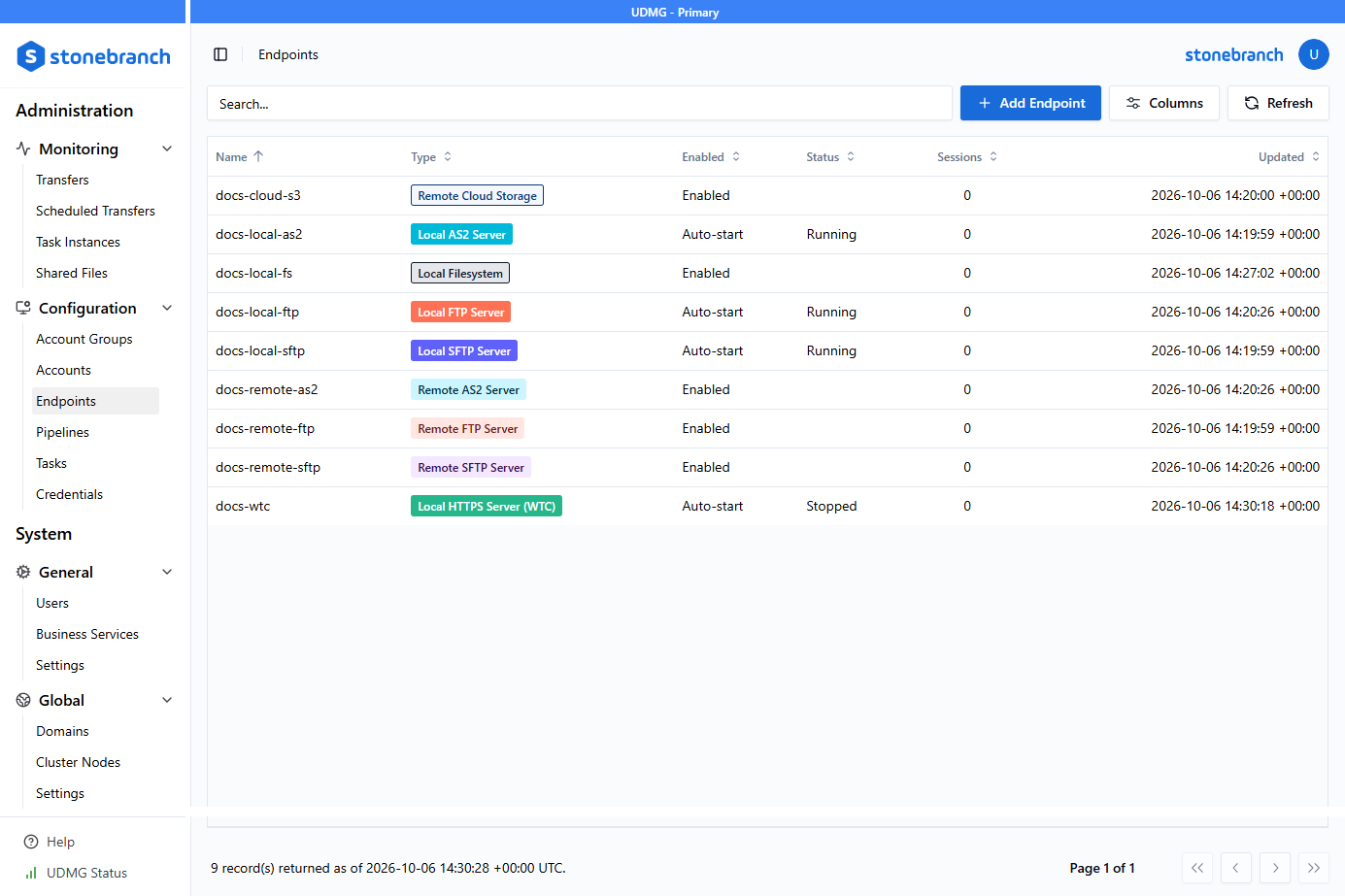
For example, see the Endpoints page:
Viewing Records
This table shows all currently-defined Records of the given Configuration Item type. In the bottom-left corner, you can see a count for the total number of Records returned.
If there are too many Records to fit on one page, use the pagination controls at the bottom right of the table to navigate between pages. You can also scroll your mouse inside the table.
To refresh the Record Table, click the Refresh button above the Record Table. This ensures the Records displayed are up to date.
Various fields for each Record are shown in the columns of the table. To view the full details of a Record, click the first field (usually the Name) of the Record in the table. For more information on viewing and adding Records, see the Records documentation.
To customize the information displayed in the Record Table, see Selecting Columns, Sorting, and Searching (below).
Pagination
The bottom-right corner of a Record Table shows the current page and total number of pages (for example, Page 1 of 5), along with four navigation buttons:
| Button | Action |
|---|---|
<< | Go to the first page |
< | Go to the previous page |
> | Go to the next page |
>> | Go to the last page |
Selecting Columns
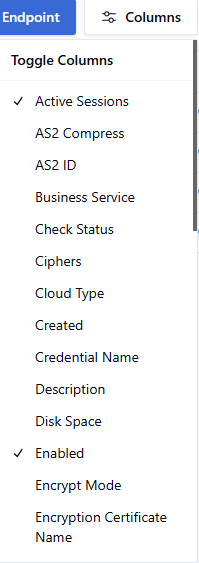
You can customize which columns are displayed on a Record Table.
Available columns are based on the fields that exist for the Record type. Nearly every field you can view in the Record Details, including metadata, is available as a column.
To choose which columns to display in the table, click the Columns button above the Record Table, then select or deselect any available fields.
Sorting
By default, the Record Tables are sorted in ascending order, starting with special characters, then letters, and then numbers.
The sort usually applies to the Name column by default, but this varies by Record type. To sort by a different column, click the column heading. For example:

You can click the heading again to switch between ascending and descending order, indicated by the ↑ and ↓ arrows next to the column name.
Searching
You can filter the Records in a table with the Search bar:

The Search bar is a simple text search that looks for matching strings in some columns of the table. The Search only applies to Records that are currently in the Record Table (across all pages). For example, if 1000 Records have been returned, then the Search bar searches these 1000 Records.
You can also search using a column name and value pair. To search, prefix your search value with [Column Key]::. For example, searching status::completed returns only records whose Status is Completed.

For a list of available Column Keys and their corresponding columns, see the Configuration Item's API field names.
The search behavior for Transfers is slightly different to allow for more advanced searching. See Transfers Dashboard for details.