Sidebar
The Sidebar is the navigation pane on the left side of the UDMG Administrative User Interface (UI). You can access different areas of the UI by clicking the corresponding Sidebar label.
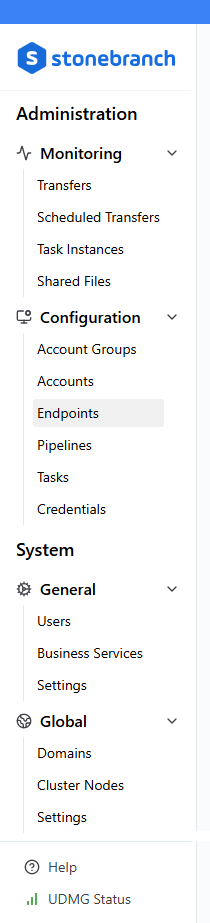
Collapsing the Sidebar
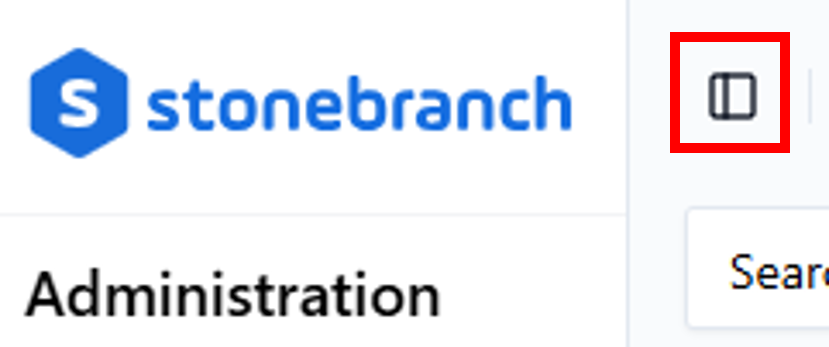
You can collapse and expand the Sidebar by clicking the Sidebar Toggle button in the top-left corner of the page:
In the collapsed state, only the Sidebar icons are visible. You can use these icons to navigate to each page of the UI:

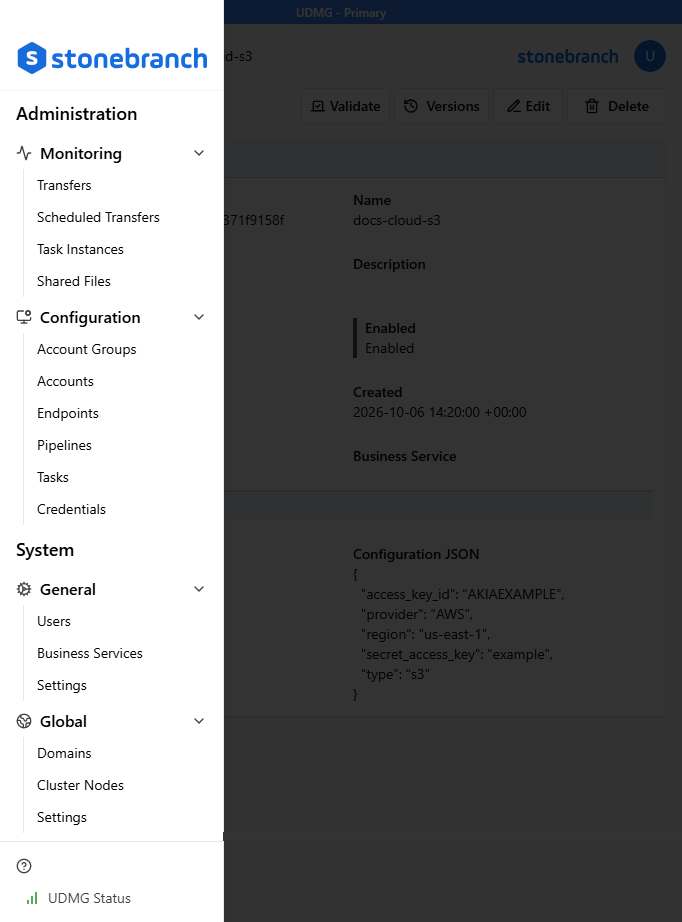
The Sidebar collapses automatically if the window is narrow enough. In this case, the Sidebar is completely hidden (including the icons), but you can click the Toggle button to view the Sidebar as an overlay:
If the window is too short to fit the contents of the Sidebar, a scroll bar appears.
Sidebar Items
The following table provides a quick reference for each item in the Sidebar, ordered by section.
| Section | Menu Option | Description |
|---|---|---|
| Monitoring | Transfers | Go to the Transfers Dashboard. From here, you can monitor file transfers. |
| Task Instances | Go to the Task Instances Dashboard. From here, you can review status, execution details, and output of Task Instances. | |
| Shared Files | Go to the Shared Files Dashboard. From here, you can monitor all shared file links and revoke or copy links. | |
| Configuration | Account Groups | Go to the Account Groups page. From here, you can add, view, and manage Account Groups in your Domain. |
| Accounts | Go to the Accounts page. From here, you can add, view, and manage Accounts in your Domain. | |
| Endpoints | Go to the Endpoints page. From here, you can add, view, and manage Endpoints in your Domain. | |
| Pipelines | Go to the Pipelines page. From here, you can add, view, and manage Pipelines in your Domain. | |
| Tasks | Go to the Tasks page. From here, you can add, view, and manage Tasks in your Domain. | |
| Credentials | Go to the Credentials page. From here, you can add, view, and manage Credentials in your Domain. | |
| General* | Users | Go to the Users page. From here, you can add, view, and manage Users in your Domain. |
| Business Services | Go to the Business Services page. From here, you can organize Configuration Items into groups to restrict which items a User can manage. | |
| Settings | Go to the Domains page. From here, you can manage Domain settings such as header branding, LDAP for Users, LDAP for Accounts, SSO for Users, SSO for Accounts, ICAP Scanner, and IP Filtering - Endpoints. | |
| Global** | Domains | Go to the Primary Domain page. From here, you can view the list of all Domains and add or delete Secondary Domains. |
| Cluster Nodes | Go to the Cluster Nodes page. From here, you can view the status and details of your UDMG Server nodes. | |
| Settings | Go to the IP Filtering - Admin UI page. From here, you can configure IP Filtering rules for accessing the UDMG Admin UI. | |
| Sidebar Footer | UDMG Status | Go to the UDMG Status page. From here, you can view the real-time health status of each UDMG resource. |
| Help | From here, you can easily find helpful links to the Console, UDMG Documentation, API Documentation, and Stonebranch Support. |
*This section is only available to Domain Administrators.
**This section is only available to System Administrators.