Users
Users are individuals who have access to the UDMG Admin UI and the UDMG REST API and are responsible for configuring, managing, and monitoring UDMG Server and its file transfer operations.
Users must not be confused with Accounts. Users manage UDMG administration and system operations. Accounts represent the entities and configurations that allow your partners (such as customers, vendors, organizations, or automated systems) to exchange files with you.
Before You Begin
Domain Scope
Users are created within a single Domain and can access only Configuration Items in that Domain. Users cannot be shared across Domains. To administer multiple Domains, create a separate User in each Domain.
Role
A User's Role defines what they can view and manage in UDMG. Each User must be assigned exactly one predefined Role; custom roles are not available.
For a description of each Role and its permissions, see the Roles page.
Login Methods
UDMG supports three Login Methods (authentication methods), providing flexibility and scalability options to best meet your needs and security requirements. This versatile authentication framework eliminates the need to choose between security and convenience—organizations can leverage existing LDAP infrastructure, implement modern Single Sign-On (SSO) solutions, or maintain standard authentication, all within a single platform.
| Method | Description | Configuration |
|---|---|---|
| Standard Authentication | UDMG uses a manually set username and password stored locally in UDMG. | Create Users following the Adding a User steps. |
| LDAP Authentication | UDMG authenticates Users against an external LDAP directory and automatically creates Users from directory entries. | Configure the LDAP provider following the steps described in the LDAP Configuration section. |
| SSO Authentication | UDMG authenticates Users through an external Identity Provider (IdP) and automatically provisions Users. | Configure the SSO provider/IdP following the steps described in the Single Sign-On Configuration section. |
Concurrent Logins
By default, UDMG restricts each User to a single active session. When a User logs in from a new device or location, any previous session is automatically terminated.
To allow multiple simultaneous sessions per User, see Allow Concurrent User Login.
Disabling concurrent logins strengthens security by ensuring that each User can only maintain one active session. However, it may also interrupt legitimate use cases where Users need to stay logged in on multiple devices at the same time.
Business Services
Business Services allow you to organize Configuration Items into groups within a Domain and restrict which Configuration Items a User can manage.
When a User and a Configuration Item share the same Business Service, the User can manage that Configuration Item (if their Role permissions allow it).
For more details, refer to Business Services.
Two-Factor Authentication
In addition, Admins can require Two-Factor Authentication (2FA) for Users who log in with Standard or LDAP Login Methods.
When enabled, Users must enroll in an external authenticator app and provide a time-based one-time code (TOTP) in addition to their primary credentials at each login.
For management and reset information, see Two-Factor Authentication.
Adding a User
Users can be added in different ways depending on their Login Method:
- Standard Authentication: Admins create the User manually from the Users page.
- LDAP Authentication: Users are created automatically according to the LDAP Sync configuration.
- SSO Authentication: Users are created automatically the first time they authenticate through a configured SSO provider (Just-in-Time provisioning).
To add a User with Standard Authentication, follow these steps:
- From the Sidebar, click General > Users.
- Click the Add User button above the Users table.
- Fill out the fields for the new User using the Field Descriptions table as a guide.
- Click Add.
Field Descriptions
This table describes the fields that display on the new User form.
| Name | Description | Specifications | Required |
|---|---|---|---|
| User ID (Username) | User identifier used when logging in. |
| Yes |
| First Name | User's first name. | Must follow the Standard Naming Pattern. | Yes |
| Last Name | User's last name. | Must follow the Standard Naming Pattern. | Yes |
| Description | The description of the User. | No | |
| User's email address. | Must be a valid email address. | No | |
| Role | The Role for this User. Options:
|
| Yes |
| Assigned Business Services | Multiselect options. Once assigned, this User will only be able to manage Configuration Items with a matching Business Service (or none), based on their Role permissions. | Must reference existing Business Services. To select them, your User must have those Business Service already assigned. | No |
| Password | User's password used when logging in. | Must follow the Password Policy. | Yes |
| Confirm Password | Re-enter the Password. | Re-entered password must match the Password field. | Yes |
| Require Two-Factor Authentication (TOTP) | A toggle switch to enable 2FA. When enabled, the User must enroll in an authenticator app and enter a one-time code at each sign-in. | User's Login Method must be Standard or LDAP. | No |
The Login Method is automatically set based on how the User was created. See User Metadata below for additional details.
Editing a User
Admins can edit Users in their Domain. To edit a User, follow these steps:
- From the Sidebar, click General > Users.
- Click the Username of the User you want to edit.
- Click the Edit button above the User details.
- Edit details for the User, using the Field Descriptions table as a guide.
- Click Update.
Certain fields for LDAP-provisioned and SSO-provisioned Users cannot be edited in UDMG and must be managed in the LDAP or SSO system. For more information, see:
Managing Users
Viewing User Details
To view the details of a User, follow these steps:
- From the Sidebar, click General > Users.
- Click the Username of the User you want to view.
User details include all parameters given in the Field Descriptions table above, plus the following read-only metadata:
User Metadata
| Name | Description |
|---|---|
| UUID | The universally unique identifier of this User. |
| Login Method | The method the User uses to log in and authenticate with the UDMG Admin UI. Possible values:
|
| Source | The external system from which the User was provisioned. This read-only field is only populated for LDAP-provisioned and SSO-provisioned Users.
|
| TOTP Enrollment Status | Indicates whether the User has completed Two-Factor Authentication (TOTP) enrollment. Possible values:
|
| Version | Version number of the latest configuration of the User. |
| Created | Date and time this User was created. |
| Updated | Date and time this User was last updated. |
Changing a User's Password
If a User's Login Method is Standard, there are two ways to change their password, depending on the Role of the User performing the change.
- System Administrators and Domain Administrators can change the password of any User, including themselves, by editing the User.
- All Users can change their own password via the Change Password button in the User Profile.
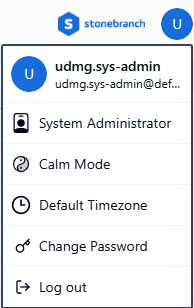
If a User forgets their password, an Admin must reset their password. As a best practice, the User should change their password afterward to something only they know with the Change Password function.
Enabling and Disabling Users
Admins can Enable or Disable Users to control their access to UDMG.
- Enabled (default): The User can log in to the UDMG Admin UI and access the UDMG REST API.
- Disabled: The User cannot log in to the UDMG Admin UI or access the UDMG REST API.
To enable or disable a User, follow these steps:
- From the Sidebar, click General > Users.
- Click the Username of the User you want to enable or disable.
- Click the Enable or Disable button above the User details, depending on the current status.
Deleting a User
Admins can delete Users in their Domain. Any User can be deleted except the default System Admin, udmg.sys-admin. To delete a User, follow these steps:
- From the Sidebar, click General > Users.
- Click the Username of the User you want to delete.
- Click the Delete button above the User details.
- You will be asked to confirm the deletion. Click Continue.
Deletion cannot be undone. Deleting an LDAP or SSO User should be done with caution. To avoid inconsistencies, refer to the appropriate authentication page for more information.