Authorize Universal Portal
Next, we will authorize the Universal Portal Entra Application to access the Universal Controller.
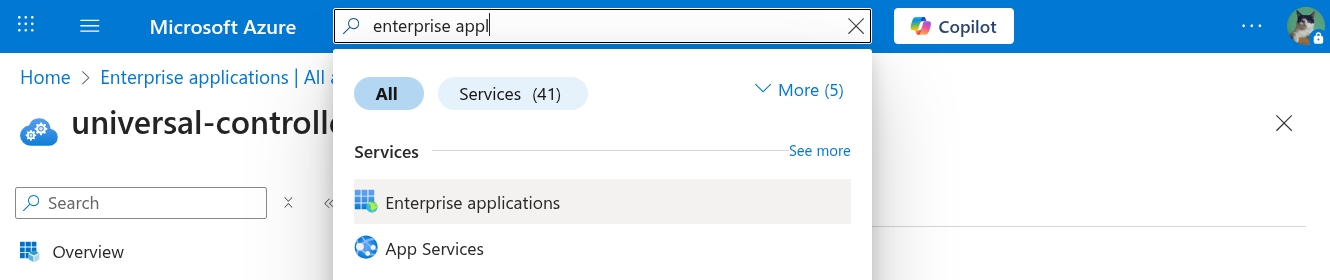
Step 1 | Go to Enterprise Applications
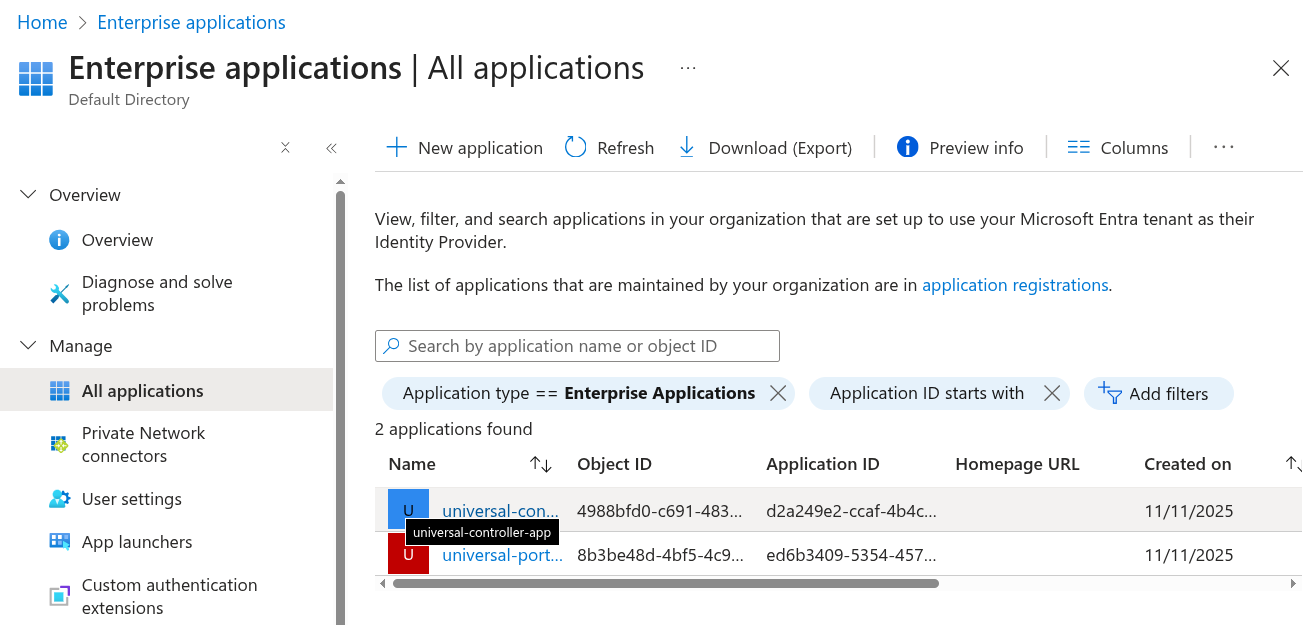
Go to All Applications and select universal-controller-app.
|
|---|---|
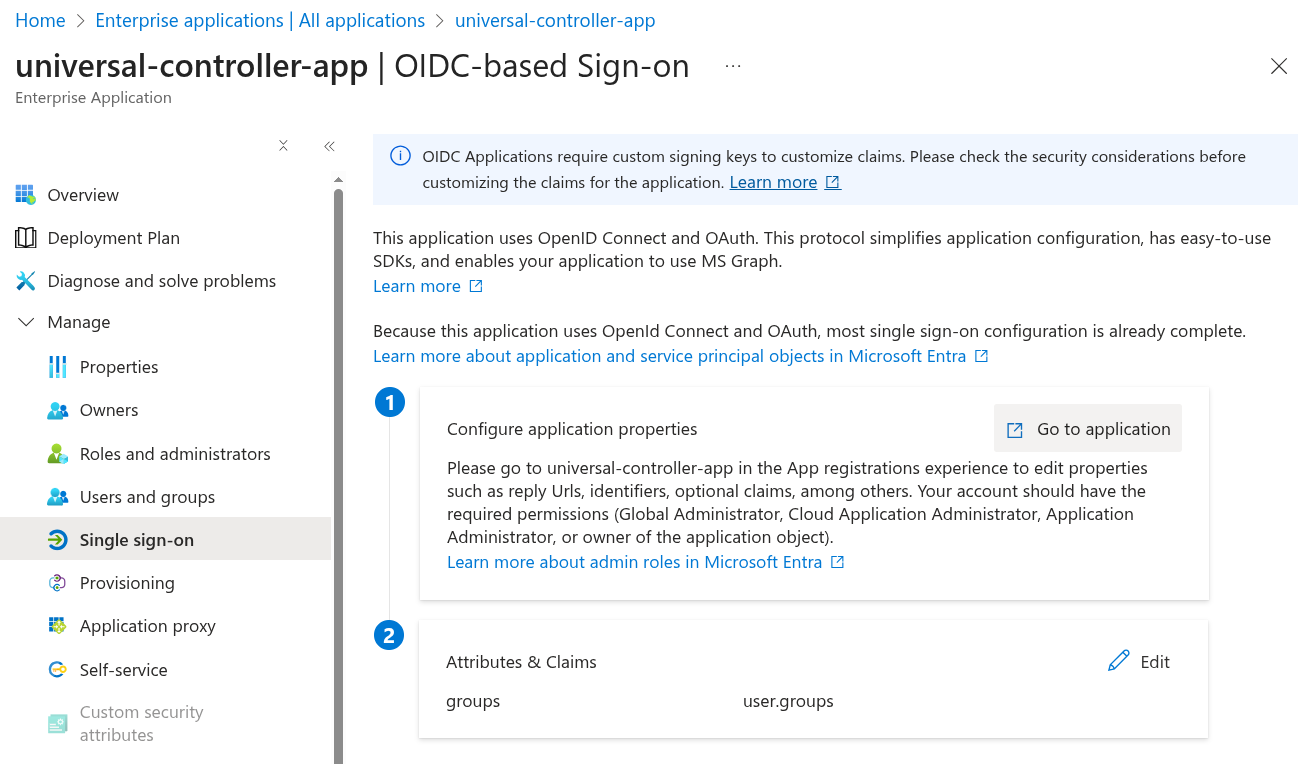
Step 2 | Go to Single sign-on. Click Go to Application.
|
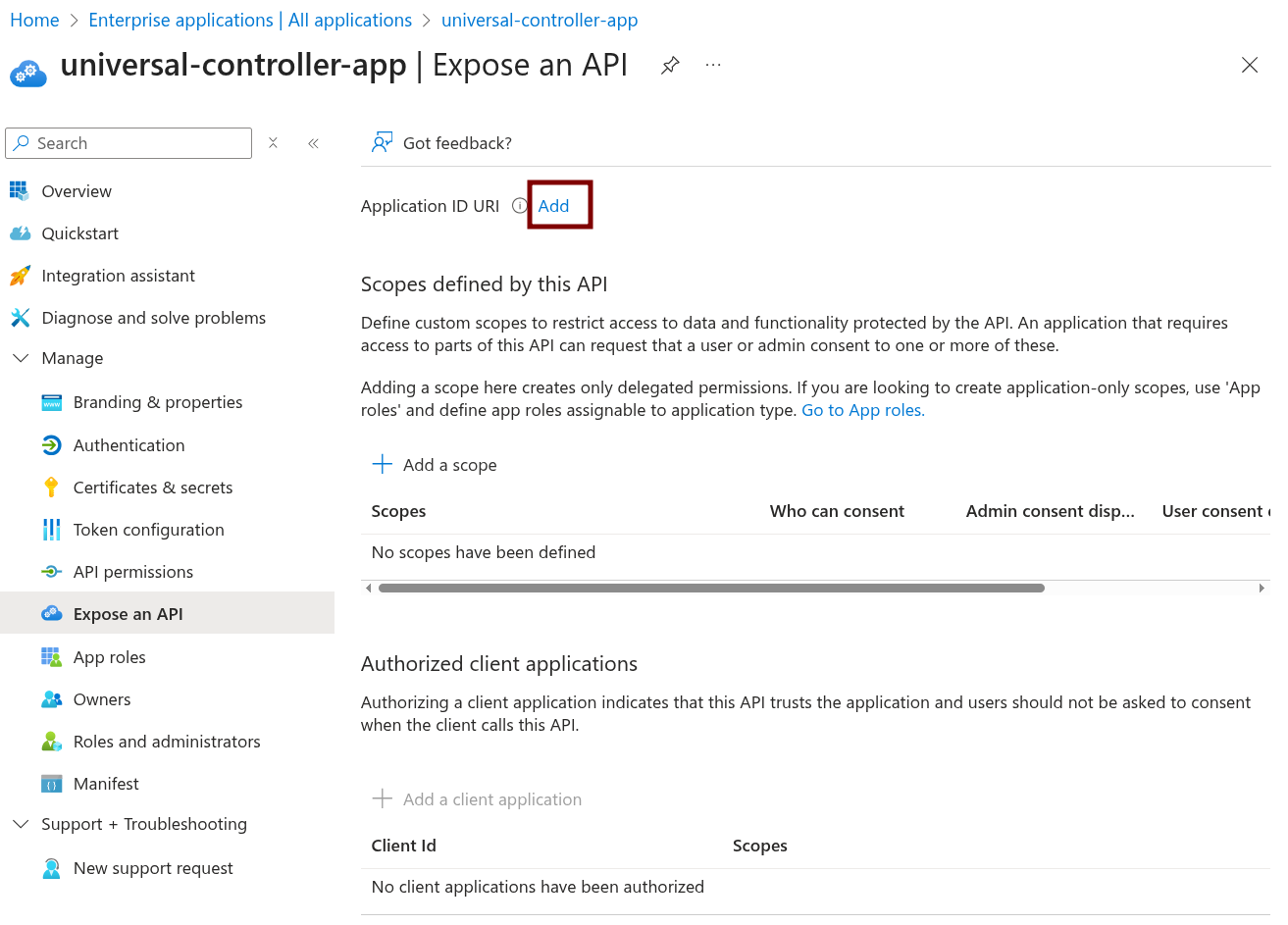
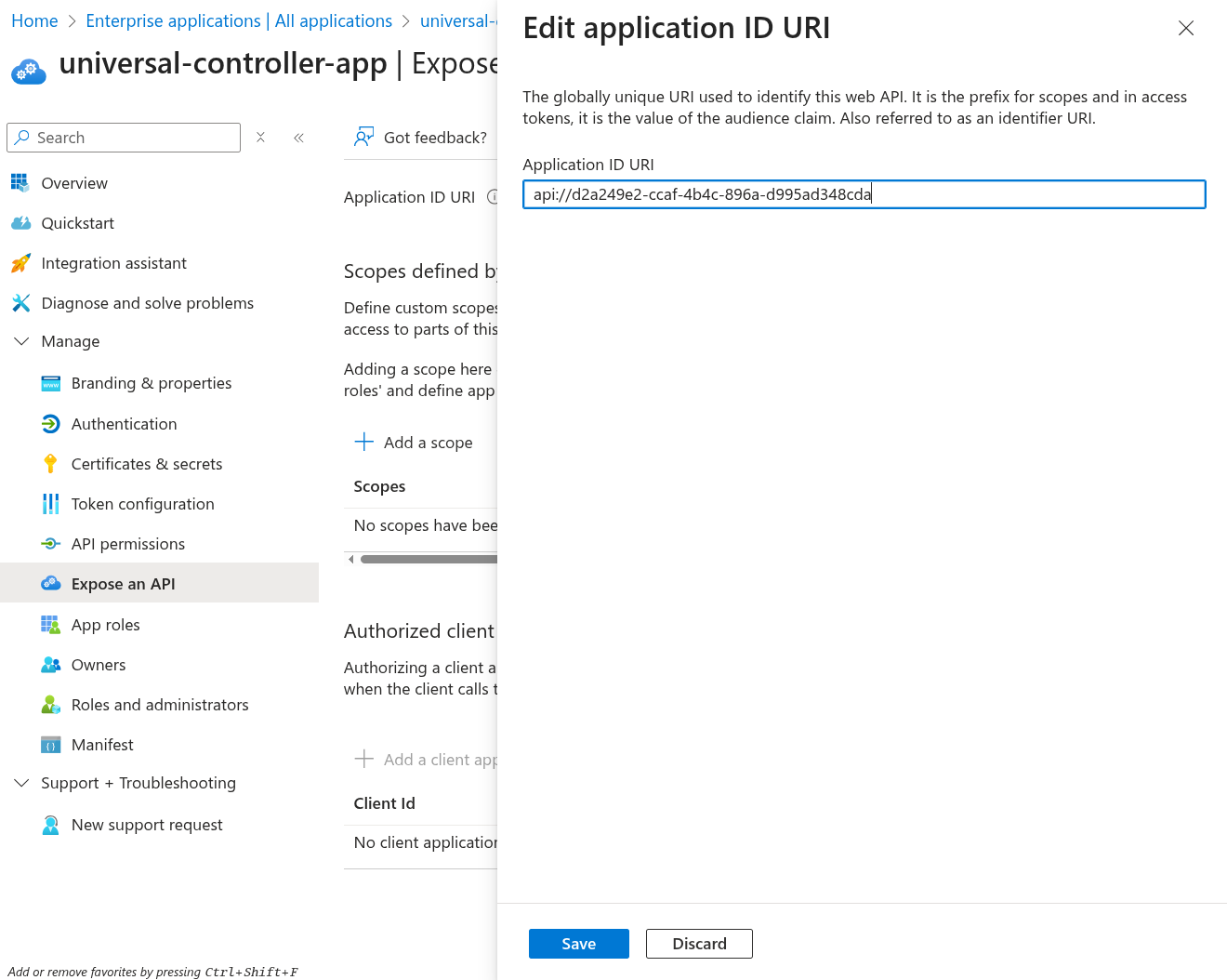
Step 3 | Go to Expose an API and set the Application ID URI.
Accept the value populated by Entra, and click Save.
|
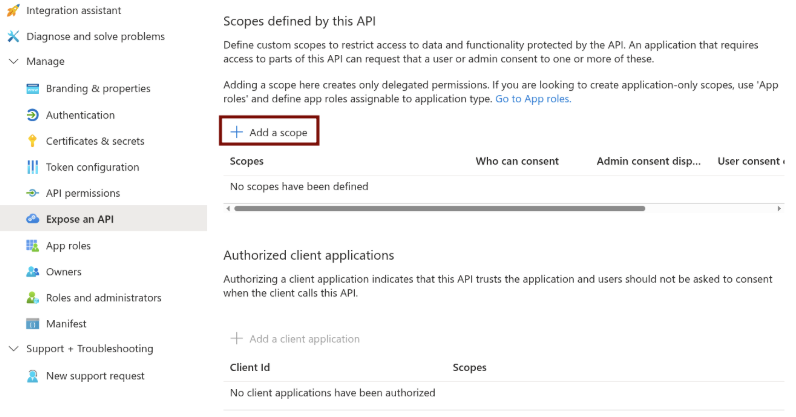
Step 4 | Click Add Scope.
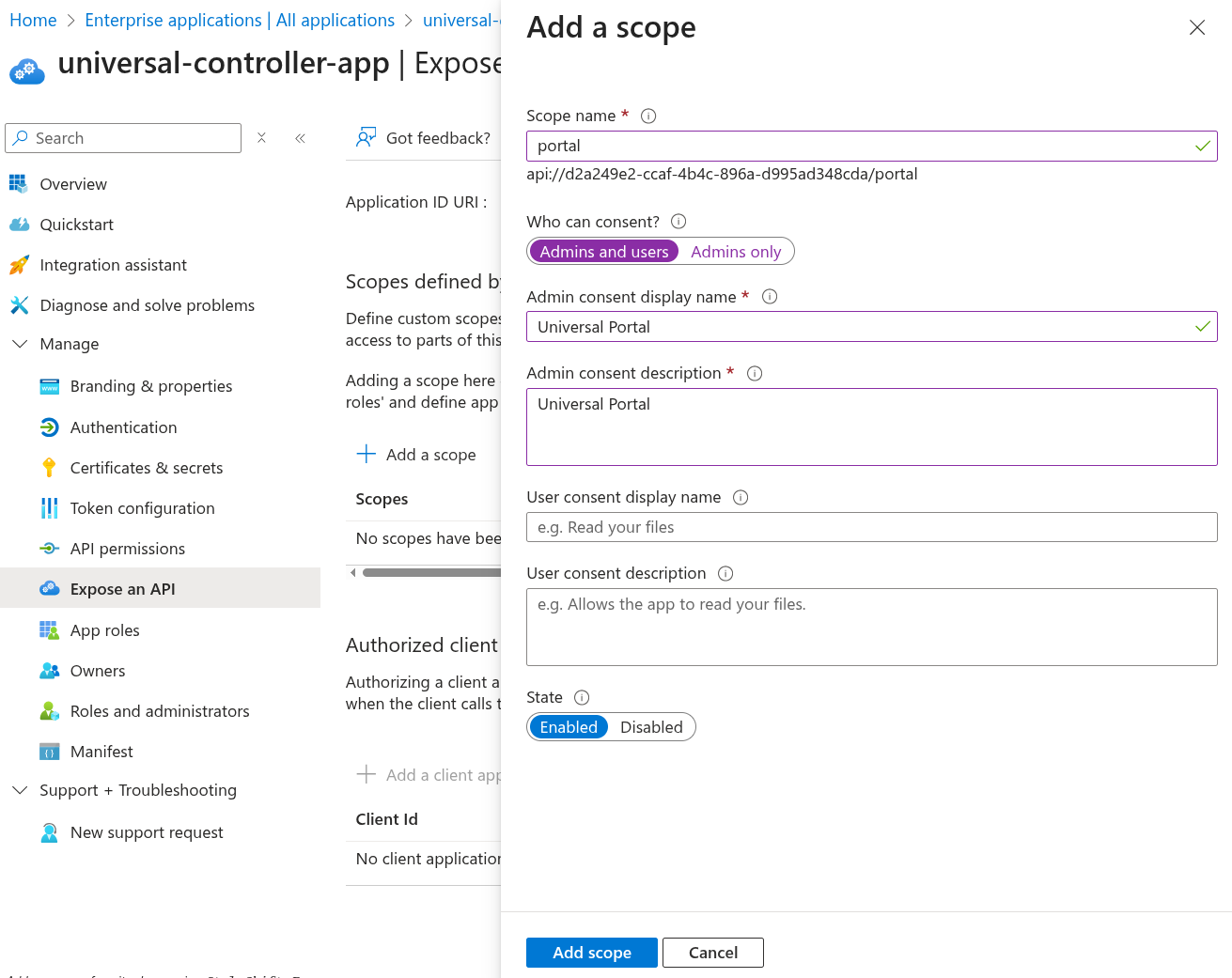
Set Scope name to "portal". Set Who can consent to Admin and users. Set Admin consent display name to "Universal Portal". Set Admin consent description to "Universal Portal". Click Add scope.
|
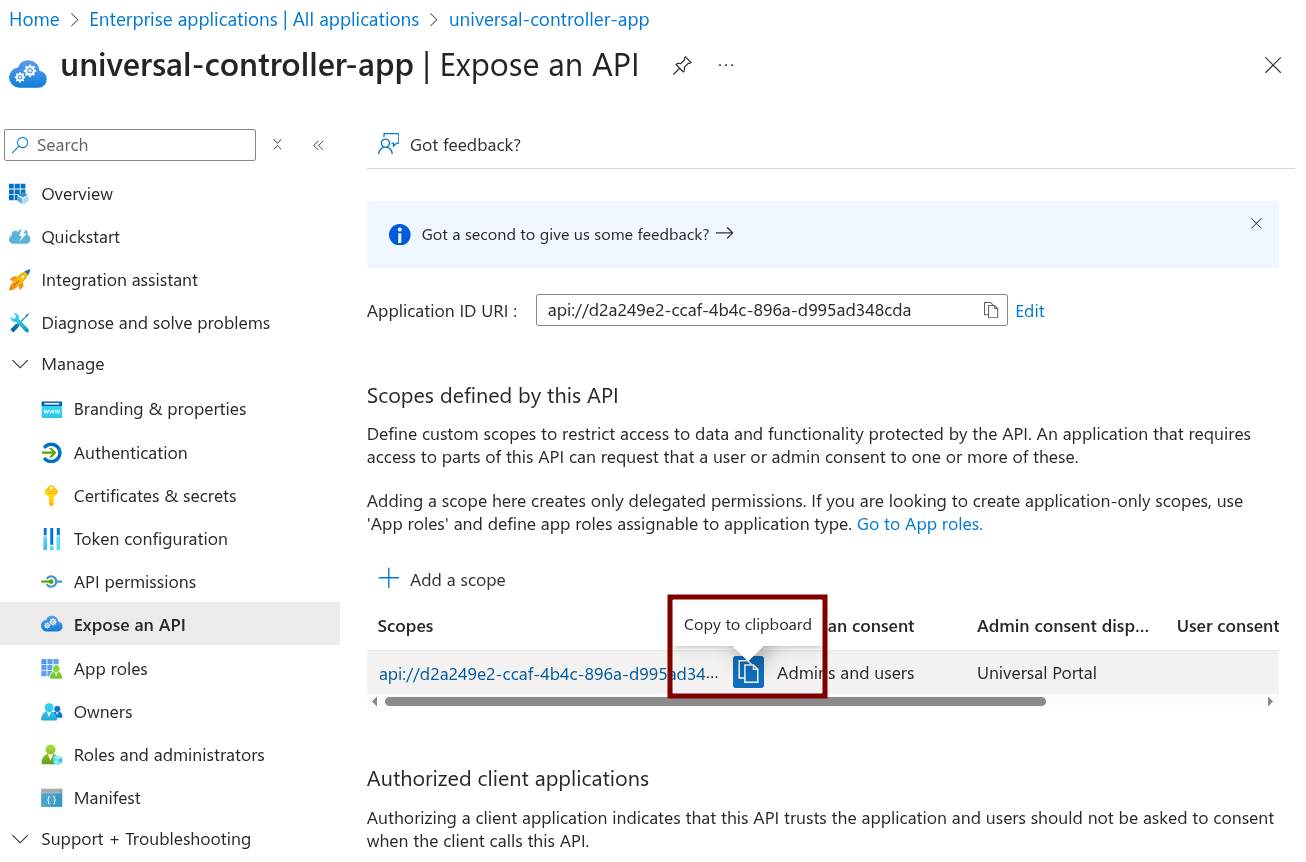
Step 5 | Find the created scope and copy to clipboard. Take note of this value, as we will use it later.
|
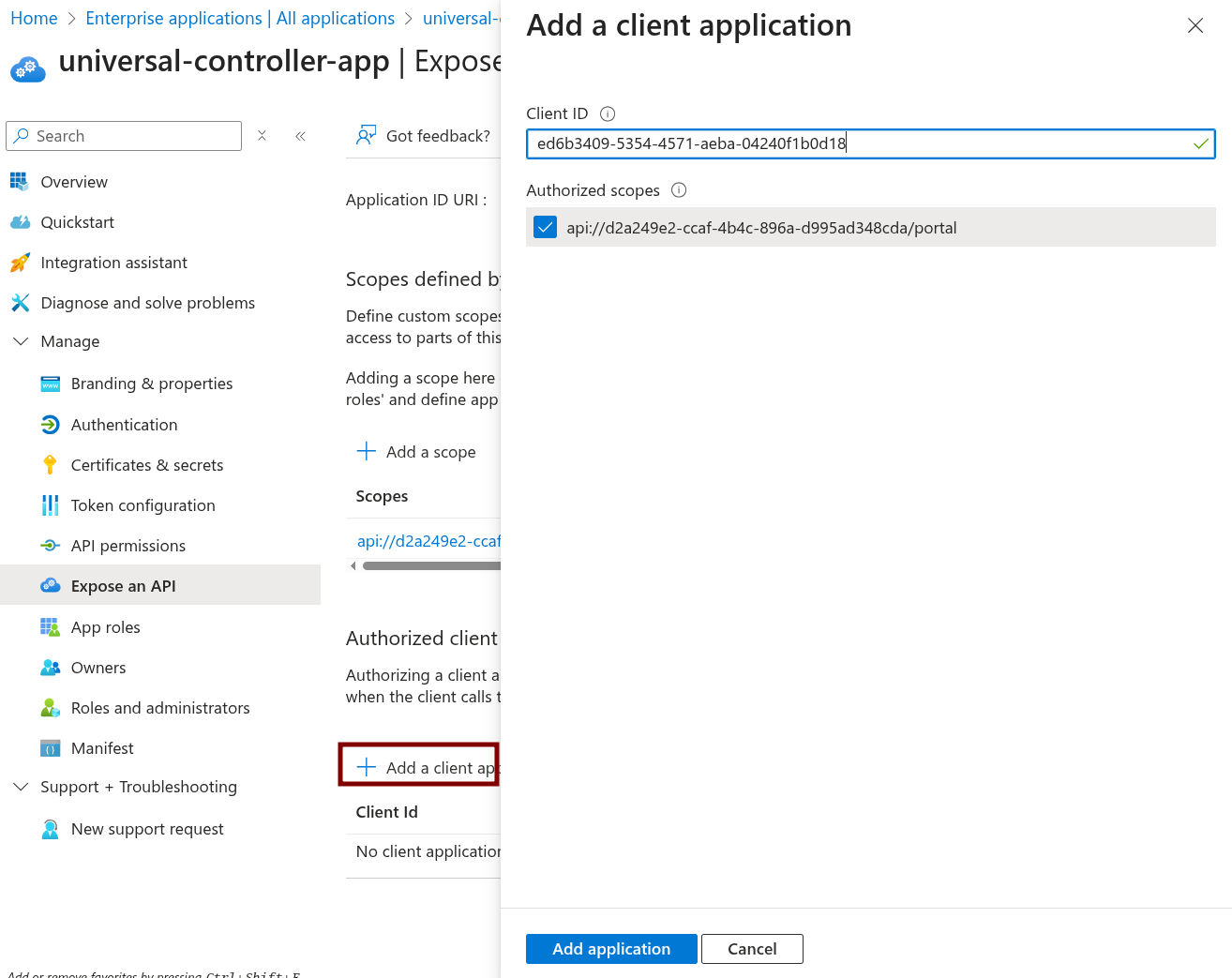
Step 6 | Click Add a client application. Enter the Universal Portal's Client ID you noted earlier. Check Authorized scopes. Click Add application.
|