Create Keycloak Client for Universal Controller
We will begin by making a Keycloak client for the Universal Controller.
Step 1 | Login to Keycloak using your admin credentials. |
|---|---|
Step 2 | Go to Clients. Click Create client. 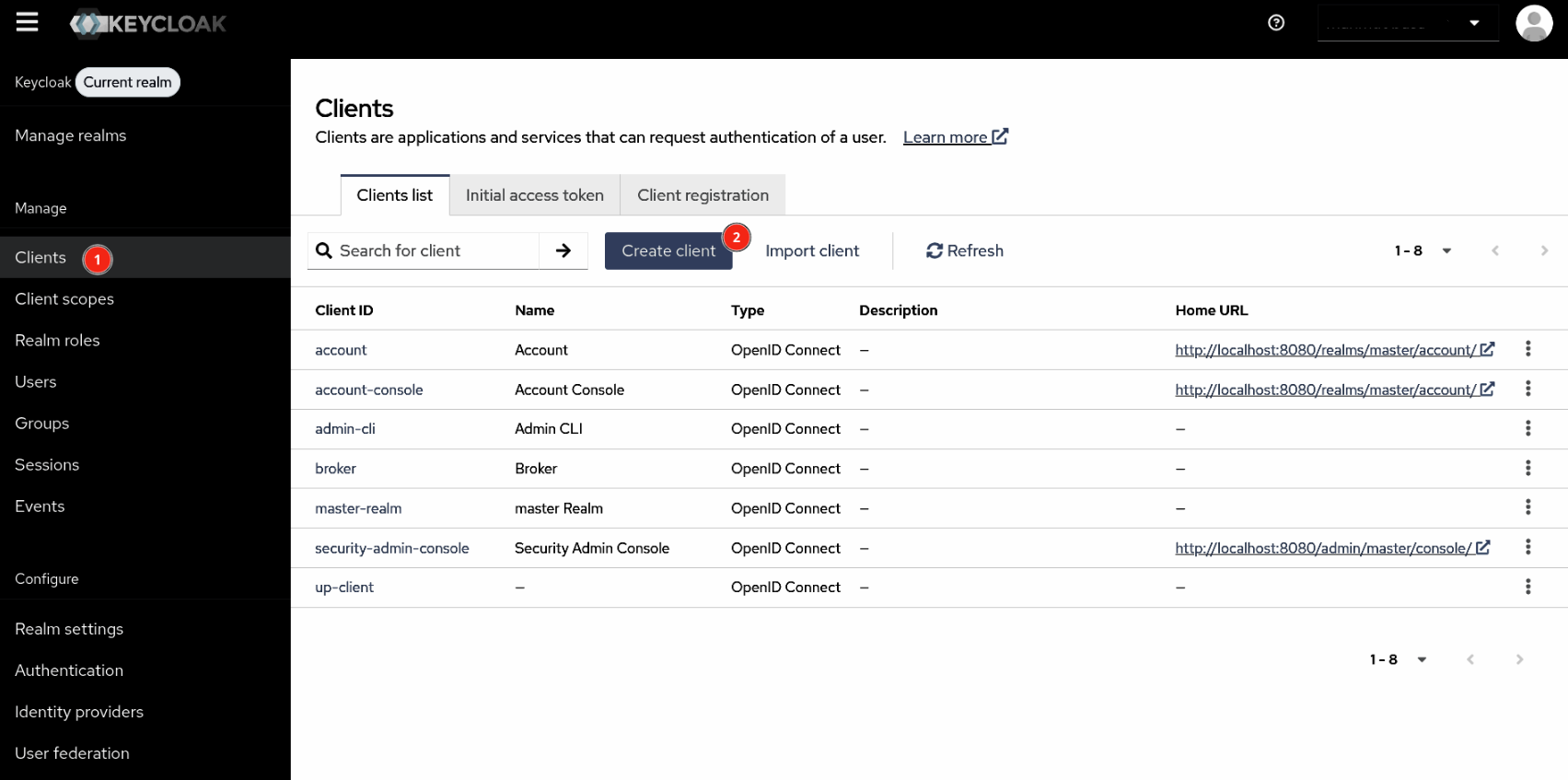 |
Step 3 | In General Settings, set the following fields:
Click Next. 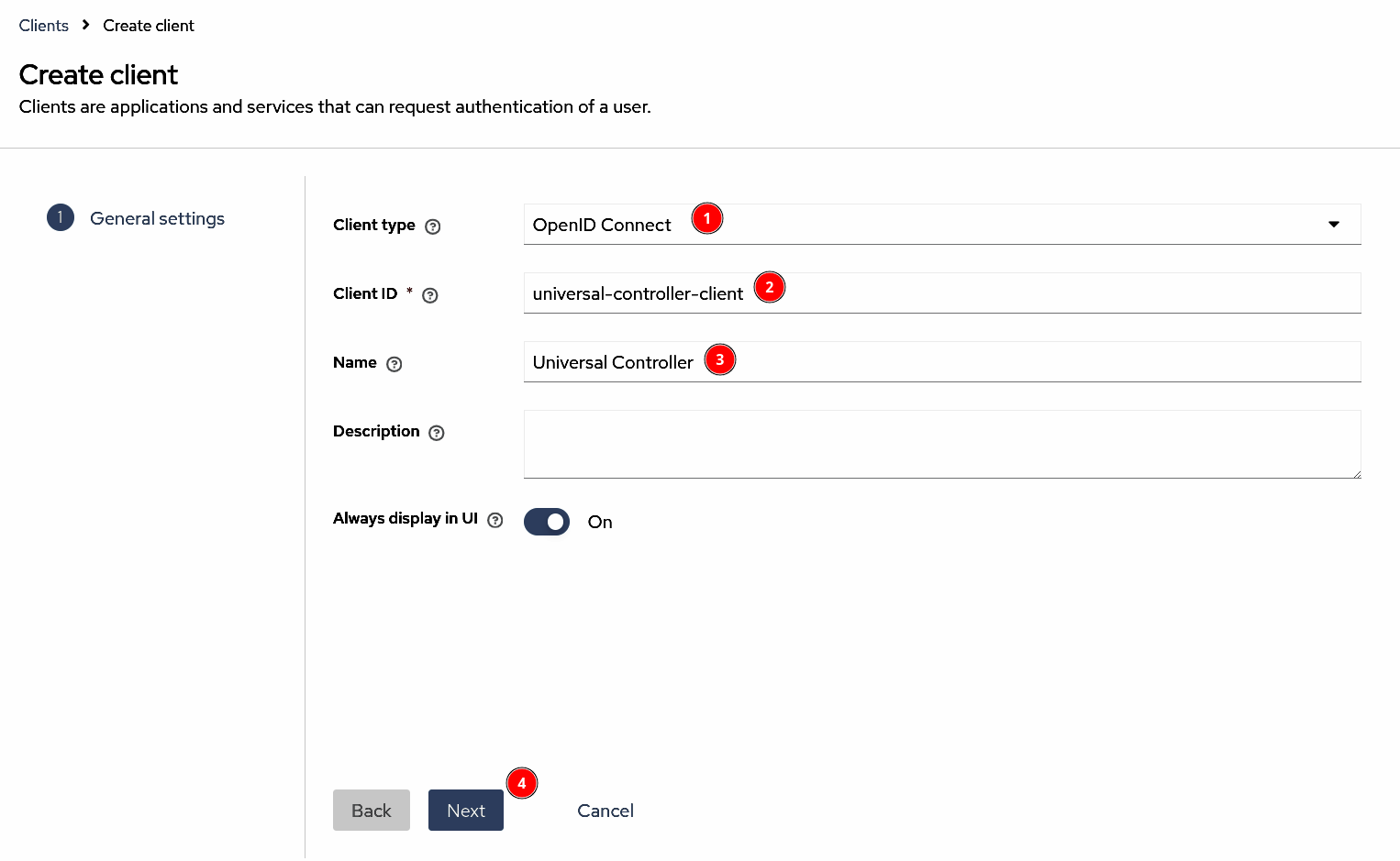 |
Step 4 | In Capability config, enable Client authentication. Use the default values for the rest of the fields. Click Next. 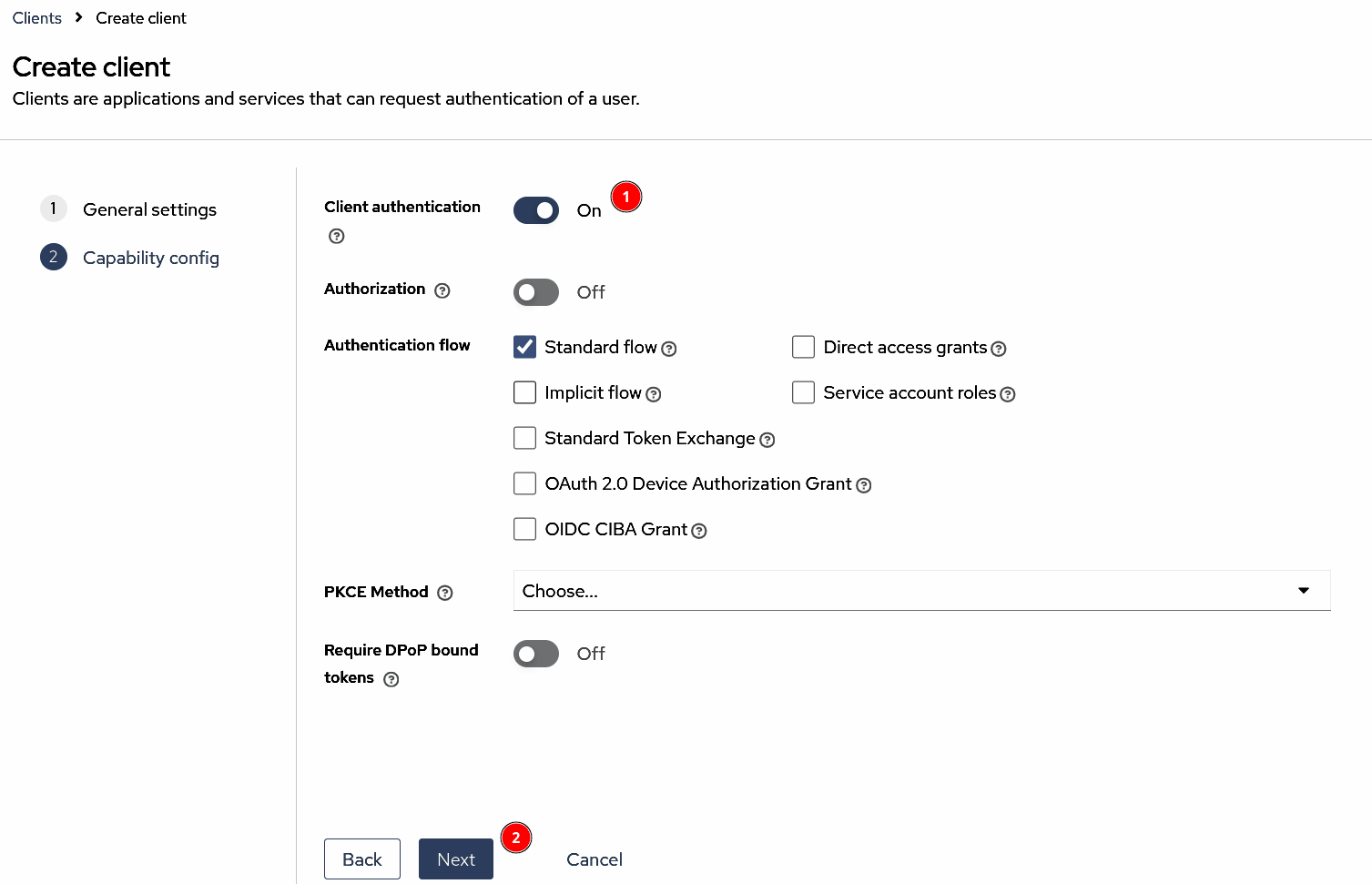 |
Step 5 | In Login settings, set the following fields:
Click Save. 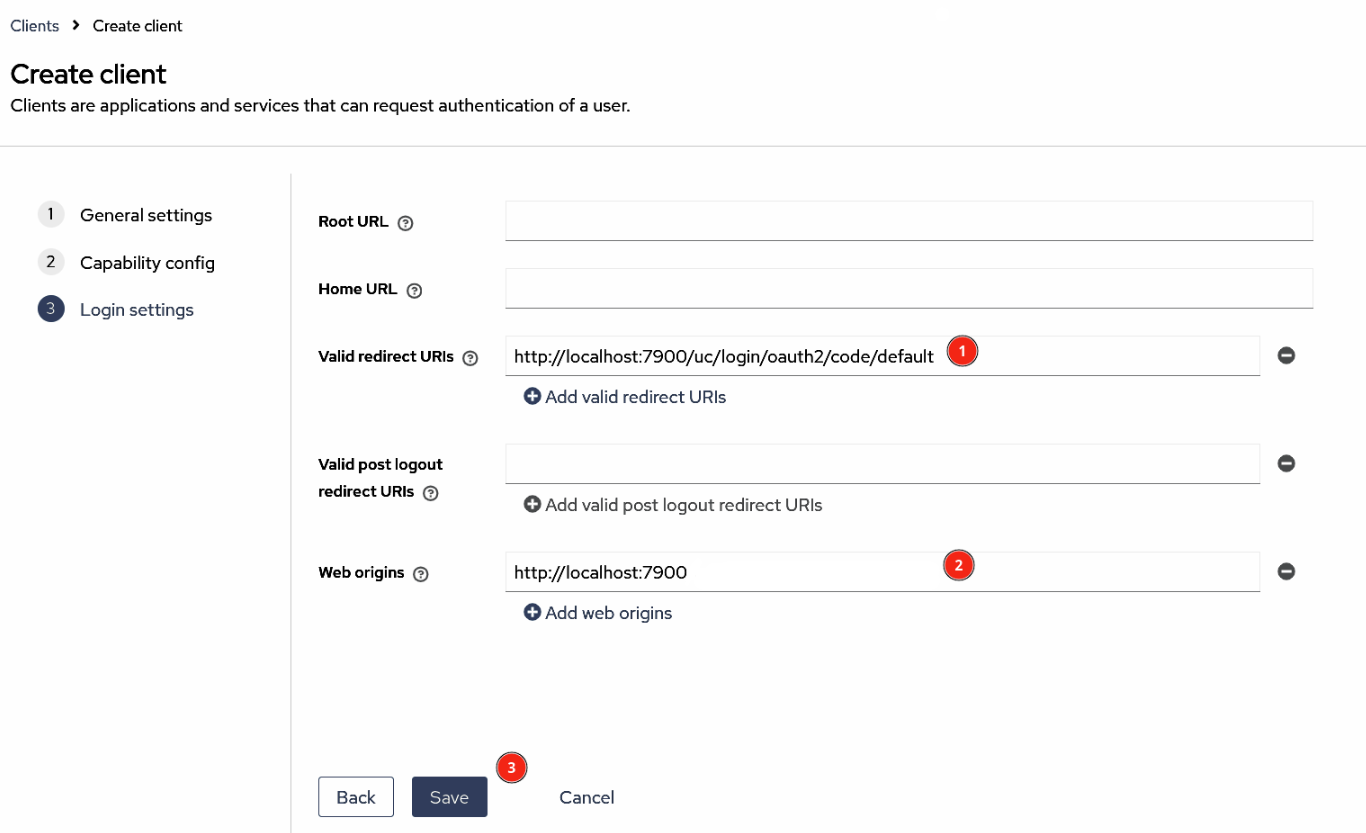 |
Step 6 | Go back to Clients. Click the newly created universal-controller-client. 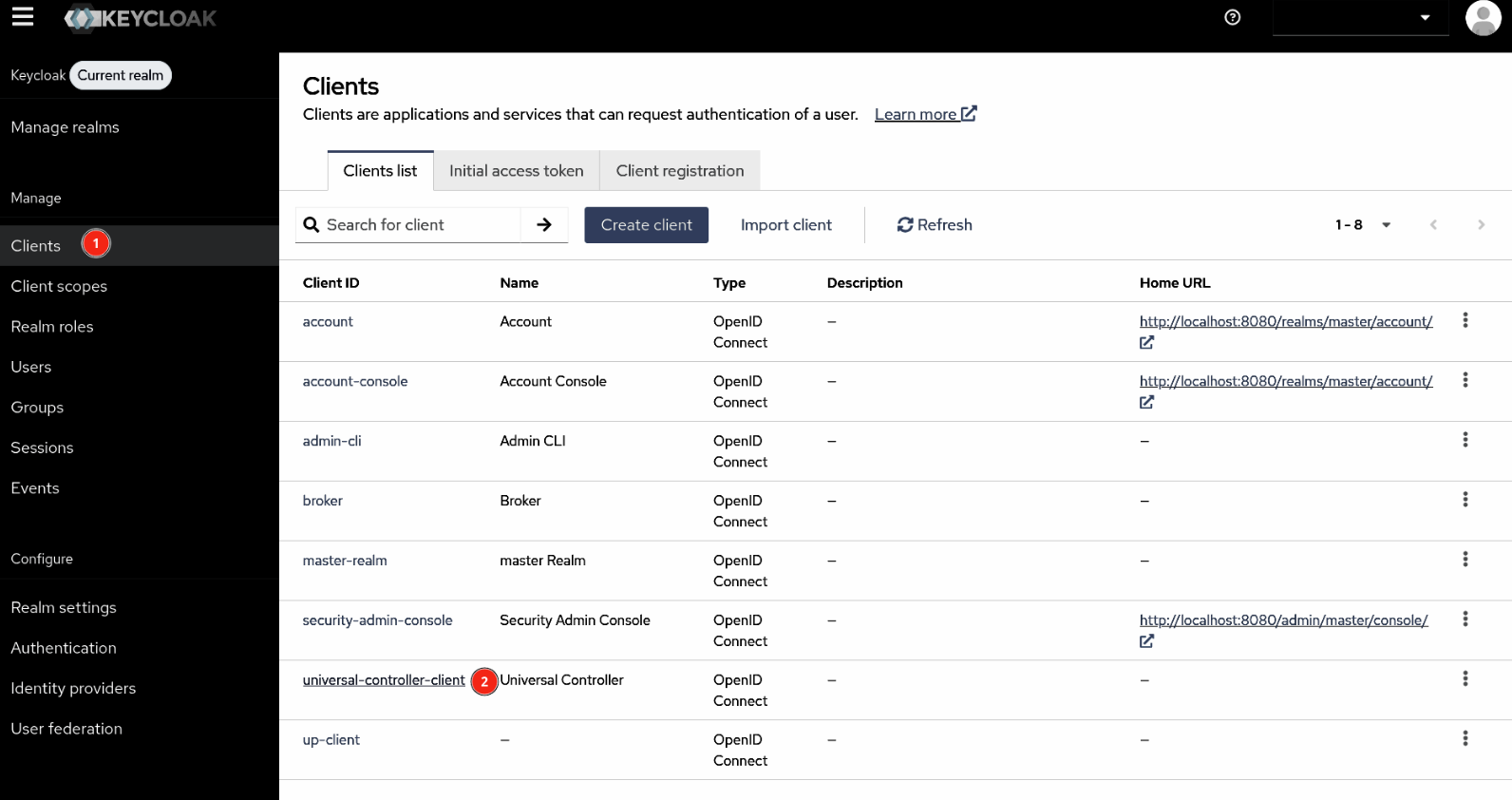 |
Step 7 | In the universal-controller-client details, click Credentials. Click the eye icon and note the Client Secret, as we will need this value later. 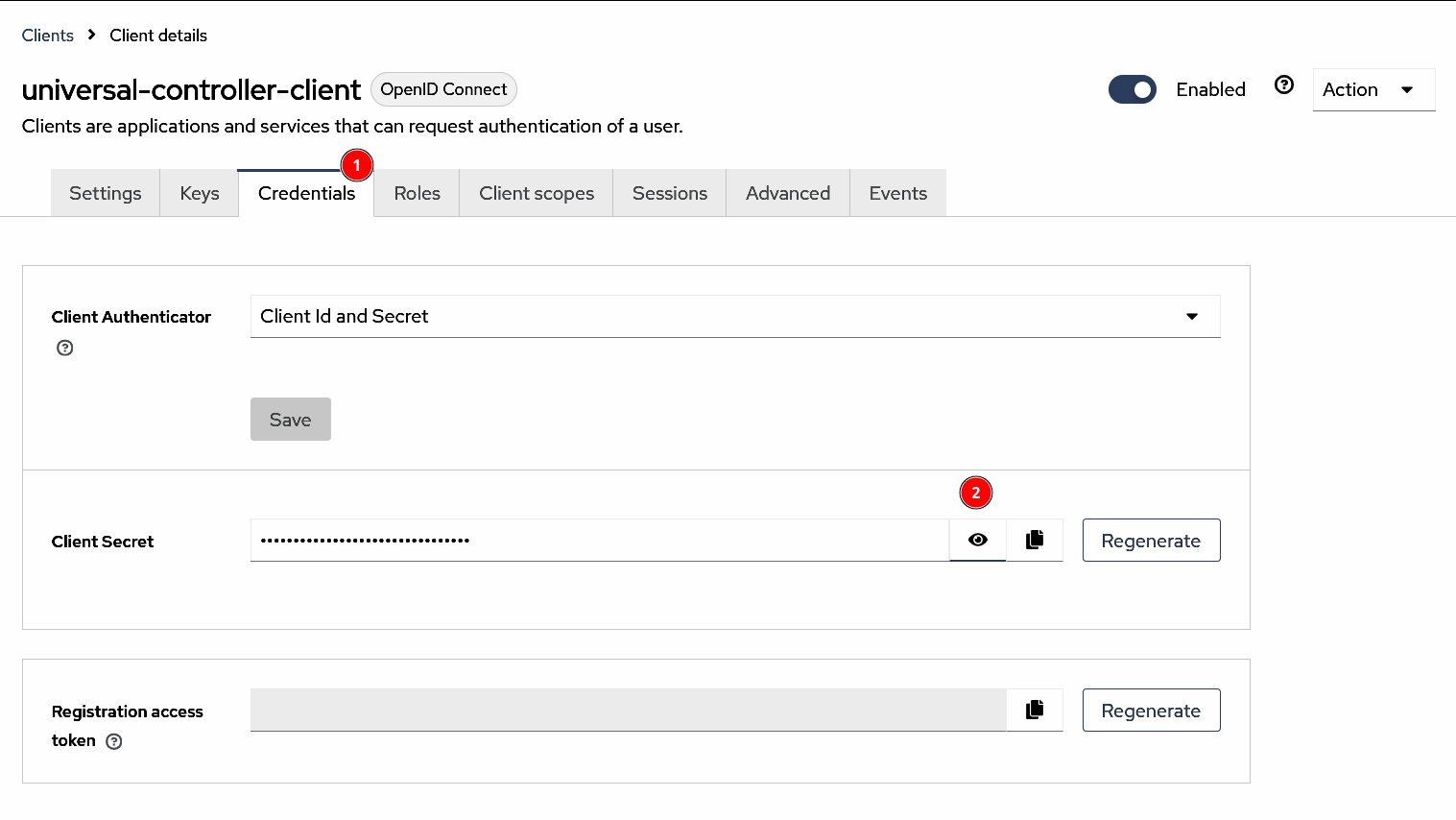 |