My Triggers
My Triggers is a list of every Trigger that the user has access to. Besides viewing Triggers, you can also enable/disable and invoke Triggers from this page.
To view My Triggers, click the Clock icon in the Sidebar.
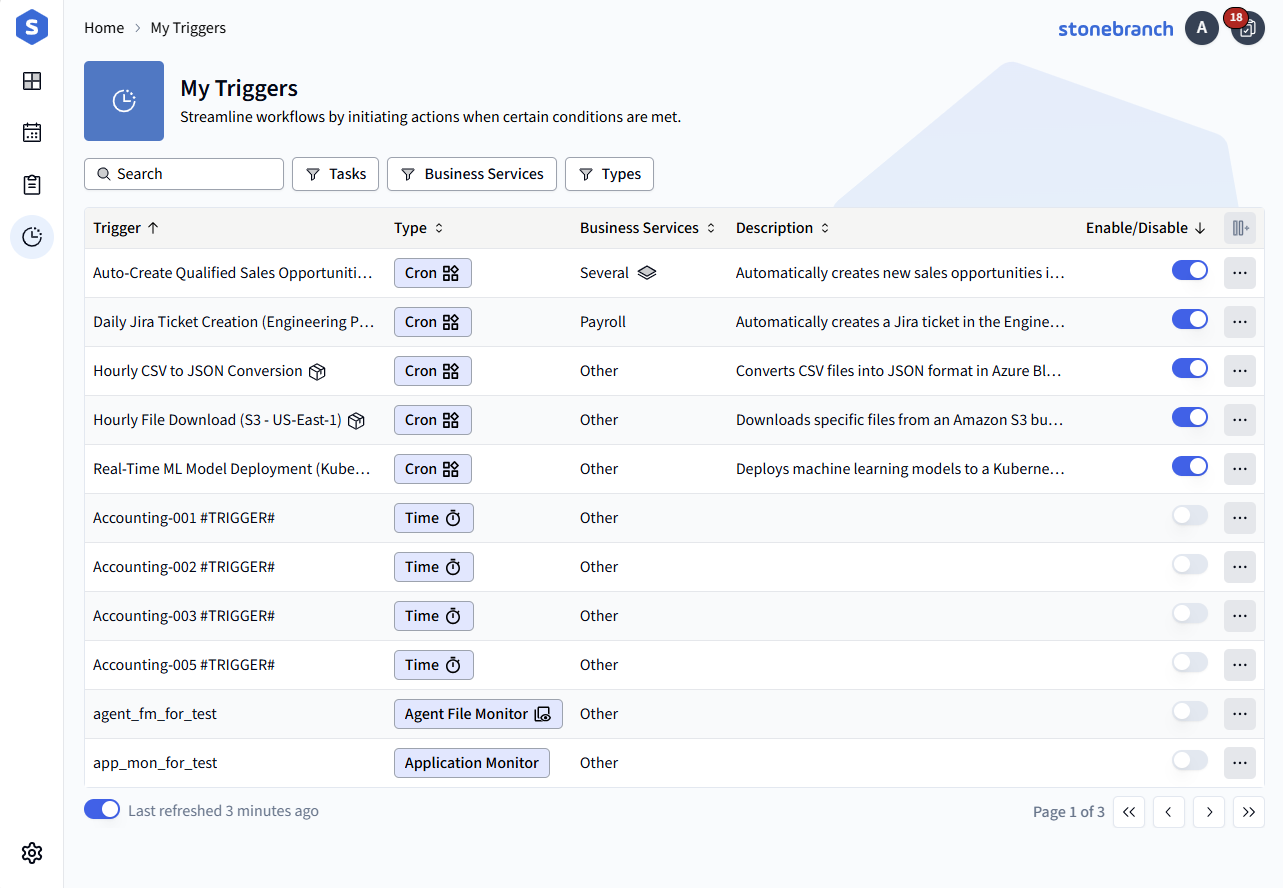
The My Triggers table shows all Triggers included by the selected Filters.
Below the table, on the right, you can select the page to display. The table will also respond to your scroll wheel or touchpad, allowing you to scroll through the list of records page by page.
On the left, you can see the last time the table was refreshed. The toggle switch indicates whether the table will automatically refresh. Auto-refresh is enabled when viewing the first page of records, but disabled if you navigate to other pages to prevent the refresh from resetting your position in the table.
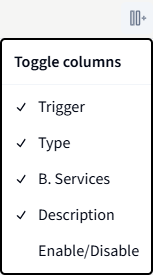
Like the Taskboard, the My Triggers table is sortable by column. The default sort order is first by Enable/Disable and second by Trigger name. You can customize which columns to display by clicking the rightmost icon in the top row of the table:
Column Descriptions
The following table describes the columns displayed in My Triggers.
Column Name | Description |
|---|---|
Trigger | The name of the Trigger. Clicking on a Trigger will display a popover of the Task(s) to be launched by the Trigger. You can click a Task to view Task Details. |
Type | The Trigger Type. |
Business Services | The Business Service(s) the Trigger is a member of. This does not include the Business Services of the Task(s) associated with the Trigger. If the Trigger is a member of multiple Business Services, the entry in this column will be: |
Description | Description of the Trigger. |
Enable/Disable | A switch to enable/disable the Trigger. You will be asked to confirm before enabling/disabling. This action does not require a refresh to take effect. |

Filters
There are four filters you can use on My Triggers: Search by Trigger, Tasks, Business Services, and Types.

Search by Trigger is a simple text search bar that will find matching Trigger names in the Trigger column.
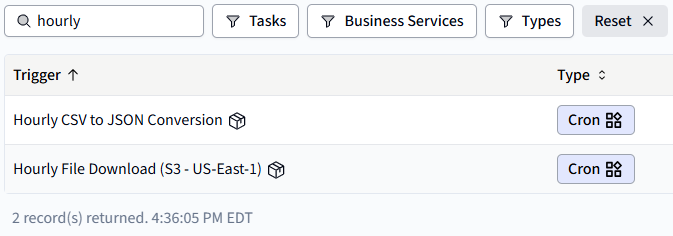
The Search bar will only check Trigger names for matching strings. It will not search for Task names, Types, or any other column.
The Tasks filter allows you to display all Triggers set to launch a given Task. The Business Services and Types filters work similarly, allowing you to display all Triggers belonging to a given Business Service, or all Triggers of a given Type, respectively. You can select a specific entry or search via freeform type.

Trigger Commands
Although you cannot create, modify, or delete Triggers in Universal Portal, there are some actions you can perform from My Triggers. To access the Command Menu for a Trigger, click the three-dot icon at the end of the row: 
You can then perform any of the following actions from this context menu:

The actions available from the Command Menu are the same for all Triggers, regardless of Trigger Type. The available actions may depend on your permissions. Universal Portal inherits authorization info from the Controller. Actions will be hidden if the user is not authorized at the Controller level.
Action | Description |
|---|---|
Trigger Now | Invoke the Trigger. This will launch the Task(s) associated with the Trigger. info You can view the Tasks that will be launched by clicking the Trigger name in the Trigger column. |
Show in Taskboard | View all Instances in the Taskboard of the Task(s) launched by the Trigger. |