Navigation
This document explains how to navigate Universal Portal via the Sidebar. It also explains general UI elements present on every page of Universal Portal, such as:
Sidebar
The Sidebar is a set of buttons on the left-hand side of the screen, primarily used for navigating to the main pages of Universal Portal. See the table below for a full list of actions available from the Sidebar:
Section | Description |
|---|---|
| Stonebranch logo. This icon also serves as a refresh button. Universal Portal regularly refreshes automatically, but you can manually refresh the page to view the most up-to-date information. |
| The four buttons below the Stonebranch logo allow you to navigate to each major component of Universal Portal:
info These buttons are identified with icons rather than text, but hovering the mouse over each icon will show a text popover naming the highlighted menu item. |
| At the bottom of the menu:
|


Company Logo and User Options
In the top right corner of the screen, you will find the Company Logo and User Icon, where you can access User Options. If your Controller has pending Approval Tasks, you will also see the Approvals Counter.
Section | Description |
|---|---|
| Company Logo. By default, this will be the Stonebranch logo, but you can customize this image by editing the Configuration File. |
| User Icon. A circular icon with the first letter of your username. Clicking this icon will reveal a dropdown menu of User Options (see below). |
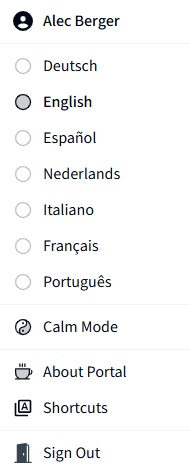
| User Options. A dropdown menu of options accessed by clicking the User Icon. Options include:
|
| Approvals Counter. This icon indicates the number of pending Approval Tasks (status = Approval Required). If there are no pending approvals, this icon will be hidden. Clicking this icon filters the Taskboard to show only pending Approval Tasks. See Approvals Filter for more details. info Approval Tasks are a feature introduced in Universal Controller 7.9. If you are running a Portal on a Controller of an older version, the Approvals feature does not apply. |